
Step 1: Boot into Secure Image flash-drive
If you don't have the Secure Image flash-drive ready, please follow Creating Secure Image Deployment flash drive
Plug USB into Kiosk Hardware.
Restart/Power on the device.
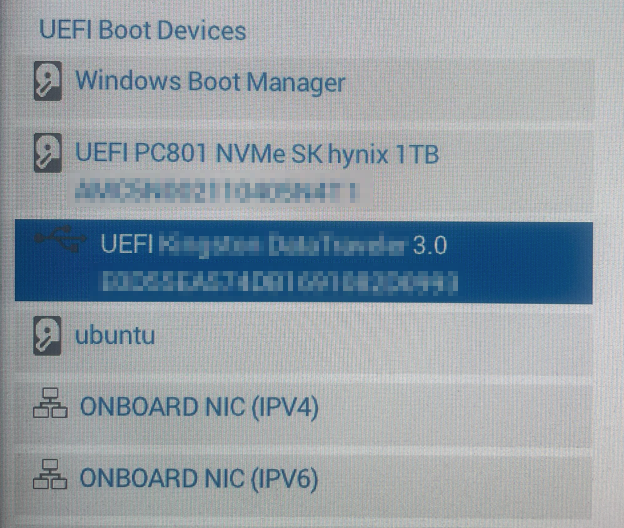
Keep pressing F12 during booting up to open Boot Menu
Select the created USB as boot up media (base on device name)
Press Enter.
Step 2: Deploy Secure Image
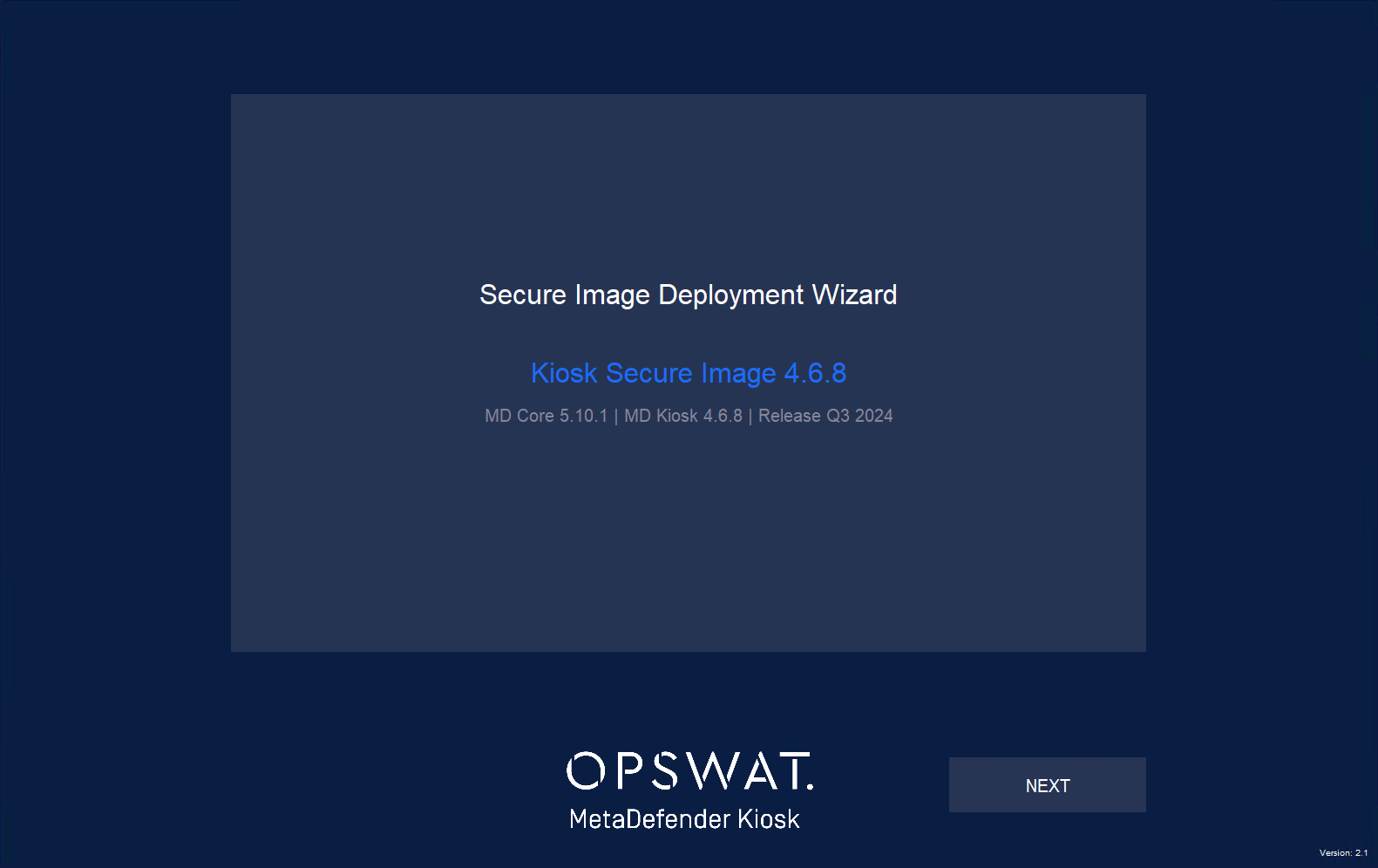
Following the boot into the WinPE environment, the Deployment Wizrd will appear.
You can see the Image information and click Next button to continue to the next step.
Choose the disk to apply the image on the next screen.
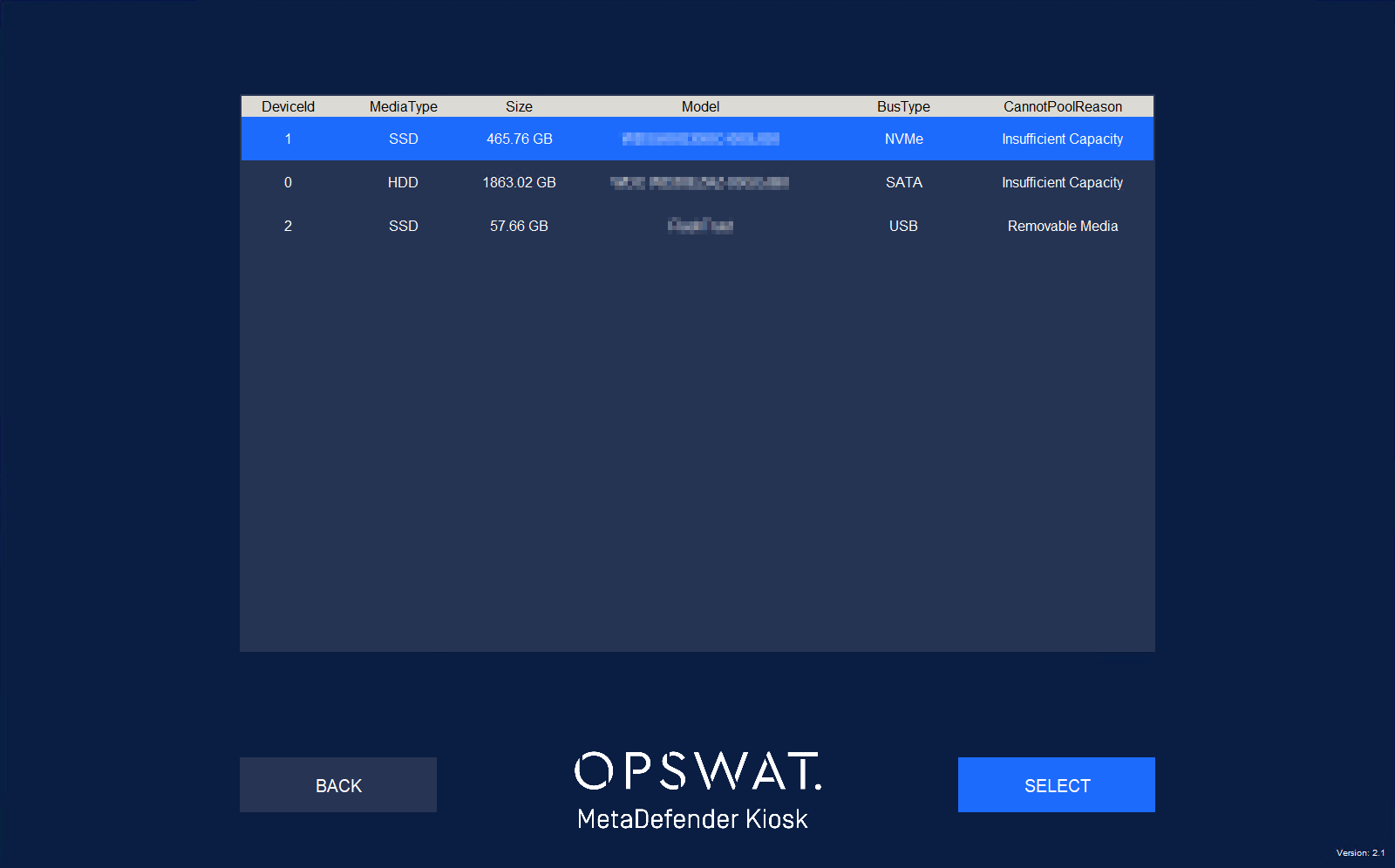
Make sure that you choose the right disk in this step. The selected disk will be erased for installation
Choose the desired options, then click the SUBMIT button to start the installation.
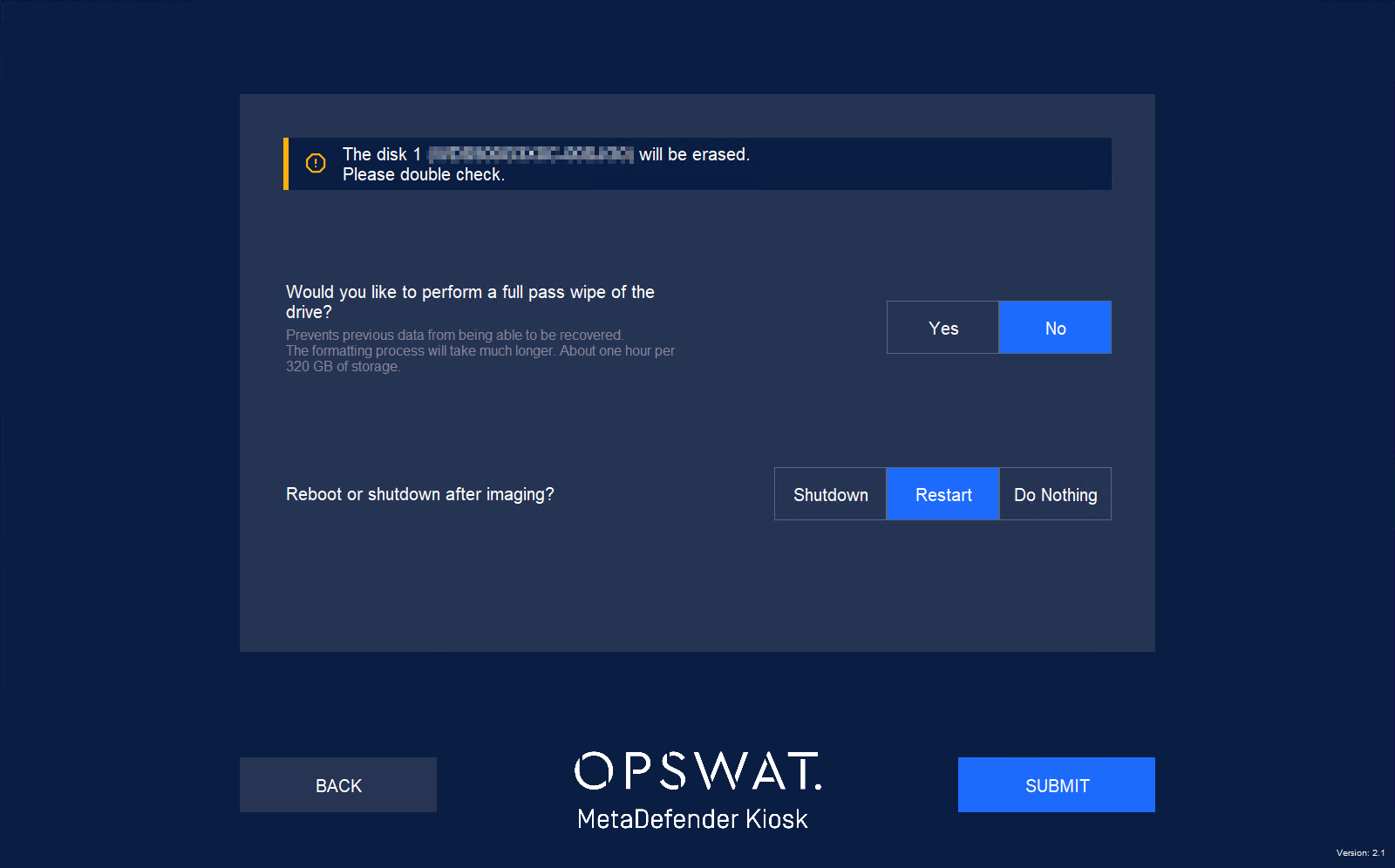
The process will be processed automatically.
Step 3: Post Deployment Actions
Change default log-in information for the local windows account:
Username: KioskUser
Password: Contact the Customer Support to get the default password.
To activate MetaDefender Core, you will need to run the Setup Wizard on MetaDefender Core, as follows:
Go to http://localhost:8008 and follow the Wizard in order to create an account and activate MetaDefender Core.
To activate MetaDefenderKiosk, you will need to run the Setup Wizard on MetaDefender Kiosk, as follows:
Go to http://localhost:8009/ and follow the Wizard in order to create an account and activate MetaDefender Kiosk.
Connect Kiosk to MetaDefender Core by following the instructions Here.
Change MD Core Database credential:
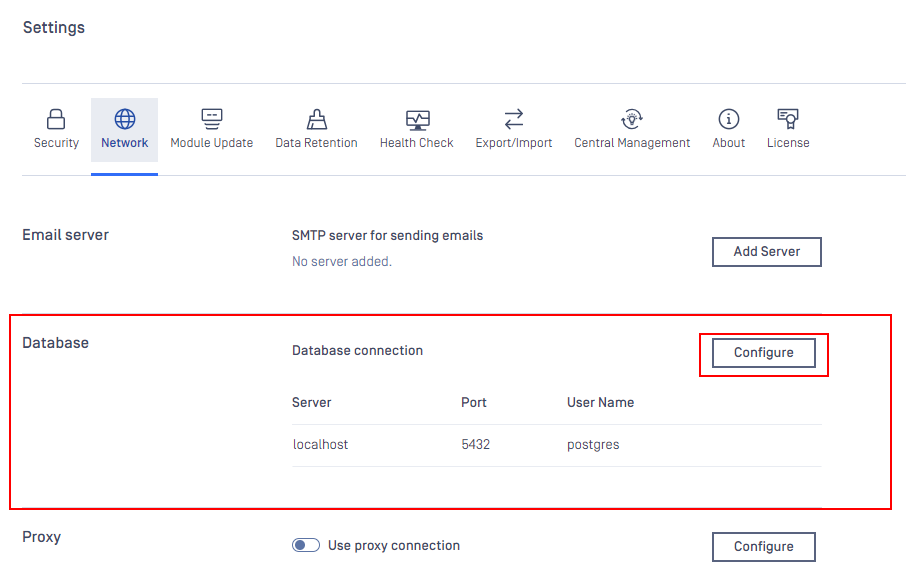
From MD Core console, navigate to Settings > Network > Database > Configure
Enter a new password, check the option “Also change password on Postgres Server”
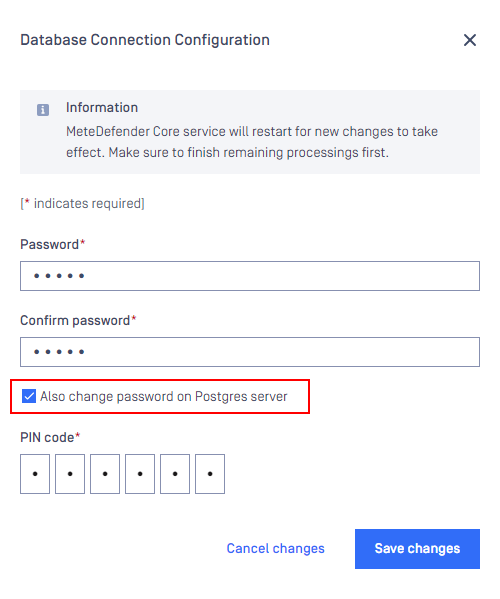
A PIN code is required for this step. If you haven't setup the PIN code, please set up a PIN code.
If you have followed the instructions above but are Unable To Install And Run MetaDefender Kiosk Using A Bootable Kiosk Flash Drive, please log a Support Ticket with the OPSWAT team.