
Purpose
This article document shows how to enable “Anti-Tamper Hardening Option” for MetaDefender Kiosk during system configuration.
Solution
To set up “Anti-tamper hardening option” in MD Kiosk, please read through the following guidance for step-by-step instructions.
Setup Progress | Description |
|---|---|
Step 1 | Access to Kiosk Web Management Console |
Step 2 | Choose "Configuration" tab. |
Step 3 | Click Advanced Configuration on the webpage. |
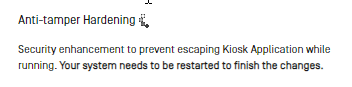
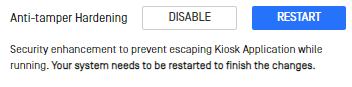
Step 4 | Click "Enable" button to activate "Anti-tamper Hardening" option in "System Hardening" category. A spinner appears when KIOSK is doing the secure enhancements on the system.
|
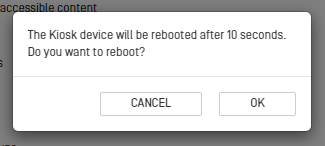
Step 5 | Then click RESTART button for the changes to take effect.
And click OK to confirm, your KIOSK will restart.
|
Step 6 | Click "Apply" |
Detail benefits when enabling “Anti-tamper hardening option” in MD Kiosk
When enabling the feature, default Windows input compounds will be blocked and cannot be exploited to escape KIOSK mode. The following default Windows hotkeys/shortcuts will be disabled (besides the ones being mentioned in https://docs.opswat.com/mdkiosk/operating/disabling-windows-hot-keys)
Filter keys
Sticky keys
Toggle keys
Mouse keys
High Contrast shortcut
Ctrl - Shift - Esc
Other Winkey compounds
Edge Swipe, Cortana, On-screen keyboard, Magnifier
To exit KIOSK application, hit Alt-S (instead of Alt-F4 as before), and this is the only method to terminate KIOSK application.
Support
If you encounter any problems with this guide or if the steps provided do not work, please contact [OPSWAT Support] (https://www.opswat.com/support).