
Remote PostgreSQL
Linux
Step 1: Install PostgreSQL and OpenSSL
For Ubuntu/Debian:
For CentOS/RHEL:
Step 2: Create SSL Certificates
To enable TLS, you need a certificate and key for the server, and you can also create a certificate authority (CA) to sign the server certificate.
2.1 Create the CA Key and Certificate
ca.key: Private key for the Certificate Authority.ca.crt: Public certificate for the Certificate Authority.
2.2 Create the Server Key and Certificate Signing Request (CSR)
server.key: Private key for the PostgreSQL server.server.csr: Certificate Signing Request (CSR) for the PostgreSQL server.
2.3 Sign the Server Certificate with the CA
server.crt: Signed server certificate.
2.4 Remove the Passphrase from the Server Key
Now you should have the following files:
ca.crtserver.crtserver.key
Step 3: Configure PostgreSQL to Use SSL
You need to place the certificates and keys in the appropriate directory and update the PostgreSQL configuration to enable SSL.
3.1 Copy Certificates to PostgreSQL Data Directory
Copy the server.crt, server.key, and ca.crt files to PostgreSQL's data directory, usually located at the output of the below CLI
The output is: /var/lib/postgresql/16/main
Ensure the correct permissions and ownership:
3.2 Update postgresql.conf
Edit the postgresql.conf file to enable SSL. The configuration file is usually located in the PostgreSQL data directory.
Set the following parameters:
Replace <version> with your PostgreSQL version number.
3.3 Update pg_hba.conf
Edit the pg_hba.conf file to enforce SSL connections. The configuration file is usually located in the PostgreSQL data directory.
Add or modify the following lines to require SSL connections:
Step 4: Restart PostgreSQL
Restart the PostgreSQL service to apply the changes.
Step 5: Verify the SSL Setup
To verify that SSL is enabled and working, you can connect to your PostgreSQL server using psql or any other client with SSL support.

Additionally, you can check if SSL is active by querying the server:
It should return on if SSL is enabled.
Windows
Step 1: Download and install the Postgresql Server for Windows OS
Step 2: Create SSL Certificates:
Download OpenSSL for the Windows: https://slproweb.com/download/Win64OpenSSL-3_3_2.msi
Download dependency for OpenSSL: https://aka.ms/vs/17/release/vc_redist.x64.exe and install it now
After installed the OpenSSL on your system, please help add the OpenSSL to SYSTEM PATH via cli:
Open a new Powershell windows
To enable TLS, you need a certificate and key for the server, and you can also create a certificate authority (CA) to sign the server certificate.
2.1 Create the CA Key and Certificate
Create a directory to store the certificate:
ca.key: Private key for the Certificate Authority.ca.crt: Public certificate for the Certificate Authority.
2.2 Create the Server Key and Certificate Signing Request (CSR)
server.key: Private key for the PostgreSQL server.server.csr: Certificate Signing Request (CSR) for the PostgreSQL server.
2.3 Sign the Server Certificate with the CA
server.crt: Signed server certificate.
2.4 Remove the Passphrase from the Server Key
Now you should have the following files:
ca.crtserver.crtserver.key
Step 3: Configure PostgreSQL to Use SSL
3.1 Copy Certificates to PostgreSQL Data Directory
Copy these files above to the C:\Program Files\PostgreSQL\15\data

3.2: Update postgresql.conf
Edit C:\Program Files\PostgreSQL\15\datapostgresql.conf file to enable SSL. The configuration file is usually located in the PostgreSQL data directory.
3.3: Update pg_hba.conf
Edit the C:\Program Files\OPSWAT\Metadefender ICAP Server\data\pg_data\pg_hba.conf file to enforce SSL connections. The configuration file is usually located in the PostgreSQL data directory.
Step 4: Restart the Postgresql service
Open the tab Service on the Task Manager to find the Postgresql service
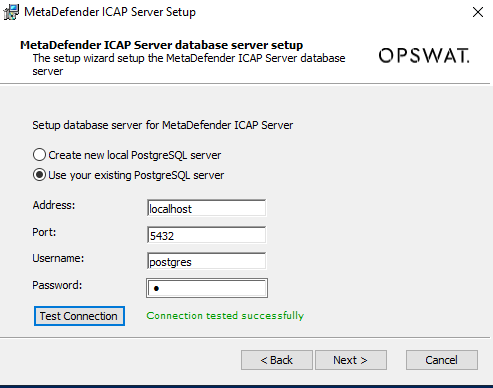
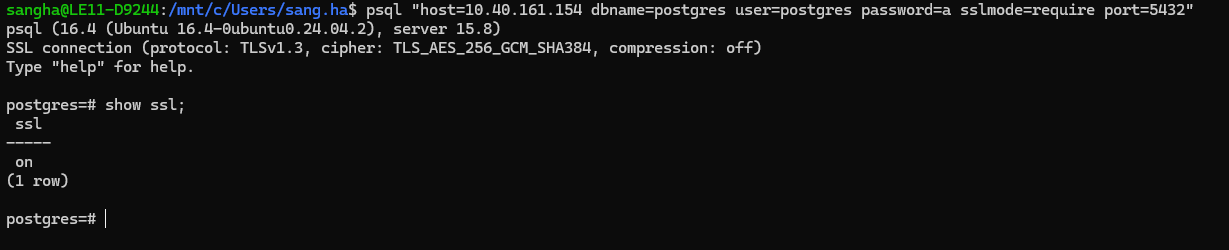
Step 5: Verify the SSL Setup
Local PostgreSQL
Linux
Step 1: Installed MD ICAP Server with local mode
Refer: https://docs.opswat.com/mdicap/installation/installation-icap-v520#21without-ignition-file
Step 2: Create SSL Certificates:
Same as step 2: Create SSL Certificate at Linux
Step 3: Configure PostgreSQL to Use SSL
3.1 Copy Certificates to PostgreSQL Data Directory
3.2: Update postgresql.conf
Edit the /usr/lib/mdicapsrv/postgres/postgresql.conf file to enable SSL. The configuration file is usually located in the PostgreSQL data directory.
Set the following parameters:
3.3: Update pg_hba.conf
Edit the /var/lib/mdicapsrv/pg_data/pg_hba.conf file to enforce SSL connections. The configuration file is usually located in the PostgreSQL data directory.
Add or modify the following lines to require SSL connections:
Step 4: Restart the mdicapsrv service
Step 5: Verify the SSL Setup

Windows
Step 1: Installed MD ICAP Server with local mode
Step 2: Create SSL Certificates
Download OpenSSL for the Windows: https://slproweb.com/download/Win64OpenSSL-3_3_2.msi
Download dependency for OpenSSL: https://aka.ms/vs/17/release/vc_redist.x64.exe and install it now
After installed the OpenSSL on your system, please help add the OpenSSL to SYSTEM PATH via cli:
Open a new Powershell windows
To enable TLS, you need a certificate and key for the server, and you can also create a certificate authority (CA) to sign the server certificate.
2.1 Create the CA Key and Certificate
Create a directory to store the certificate:
ca.key: Private key for the Certificate Authority.ca.crt: Public certificate for the Certificate Authority.
2.2 Create the Server Key and Certificate Signing Request (CSR)
server.key: Private key for the PostgreSQL server.server.csr: Certificate Signing Request (CSR) for the PostgreSQL server.
2.3 Sign the Server Certificate with the CA
server.crt: Signed server certificate.
2.4 Remove the Passphrase from the Server Key
Now you should have the following files:
ca.crtserver.crtserver.key
Step 3: Configure PostgreSQL to Use SSL
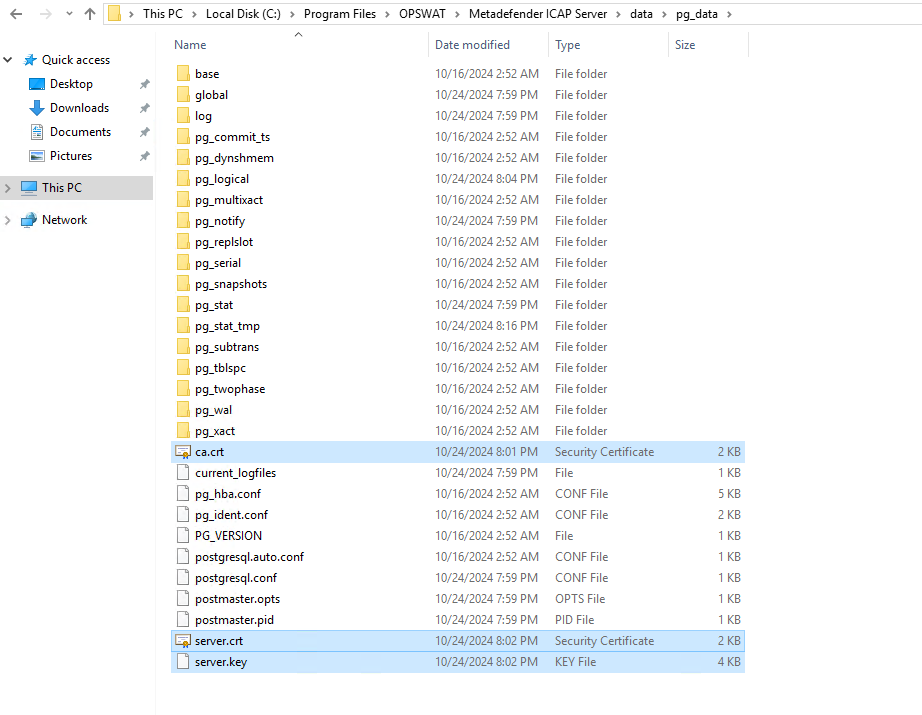
3.1 Copy Certificates to PostgreSQL Data Directory
Copy these files above to the C:\Program Files\OPSWAT\Metadefender ICAP Server\data\pg_data
3.2: Update postgresql.conf
Create C:\Program Files\OPSWAT\Metadefender ICAP Server\postgres\postgresql.conf file to enable SSL. The configuration file is usually located in the PostgreSQL data directory.
3.3: Update pg_hba.conf
Edit the C:\Program Files\OPSWAT\Metadefender ICAP Server\data\pg_data\pg_hba.conf file to enforce SSL connections. The configuration file is usually located in the PostgreSQL data directory.
Step 4: Restart the mdicapsrv service
Open the tab Service on the Task Manager to find the mdicapsrv service
Step 5: Verify the SSL Setup
