
Leveraging OPSWAT MetaScan MultiScanning technology, MetaDefender Endpoint allows users to scan memory, system drive, local drives and files with up to 30 anti-malware engines with detection rates more than 99%.
How to use this feature?
With three different scan options, users can tailor the scan depth based on their security needs, providing an added layer of flexibility.
Scanning options
Scan options | Details |
|---|---|
Memory Scan | Scan memory, including the processes and libraries currently loaded in memory. |
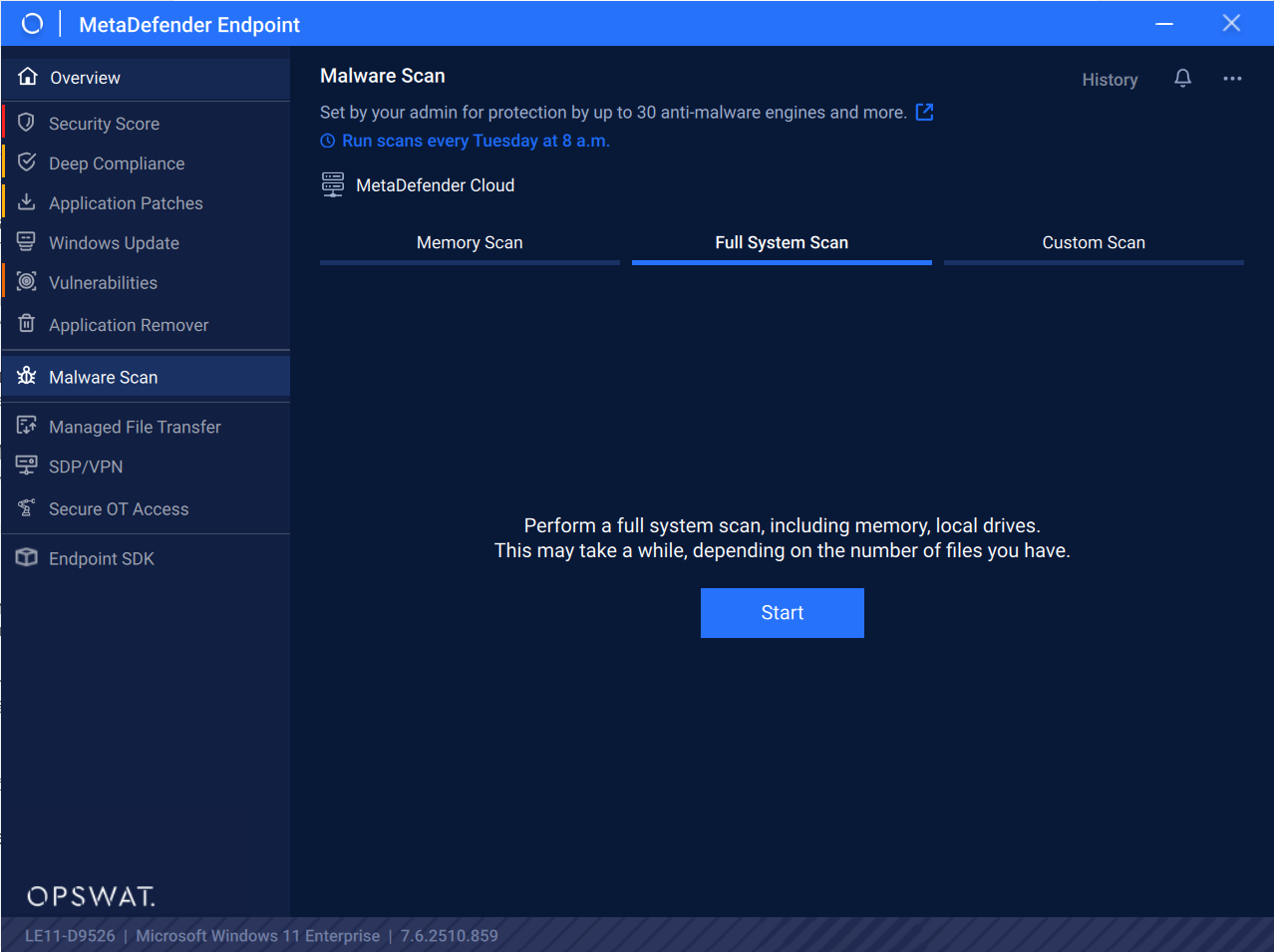
Full System Scan | This option performs a full system scan, including memory and local drives. |
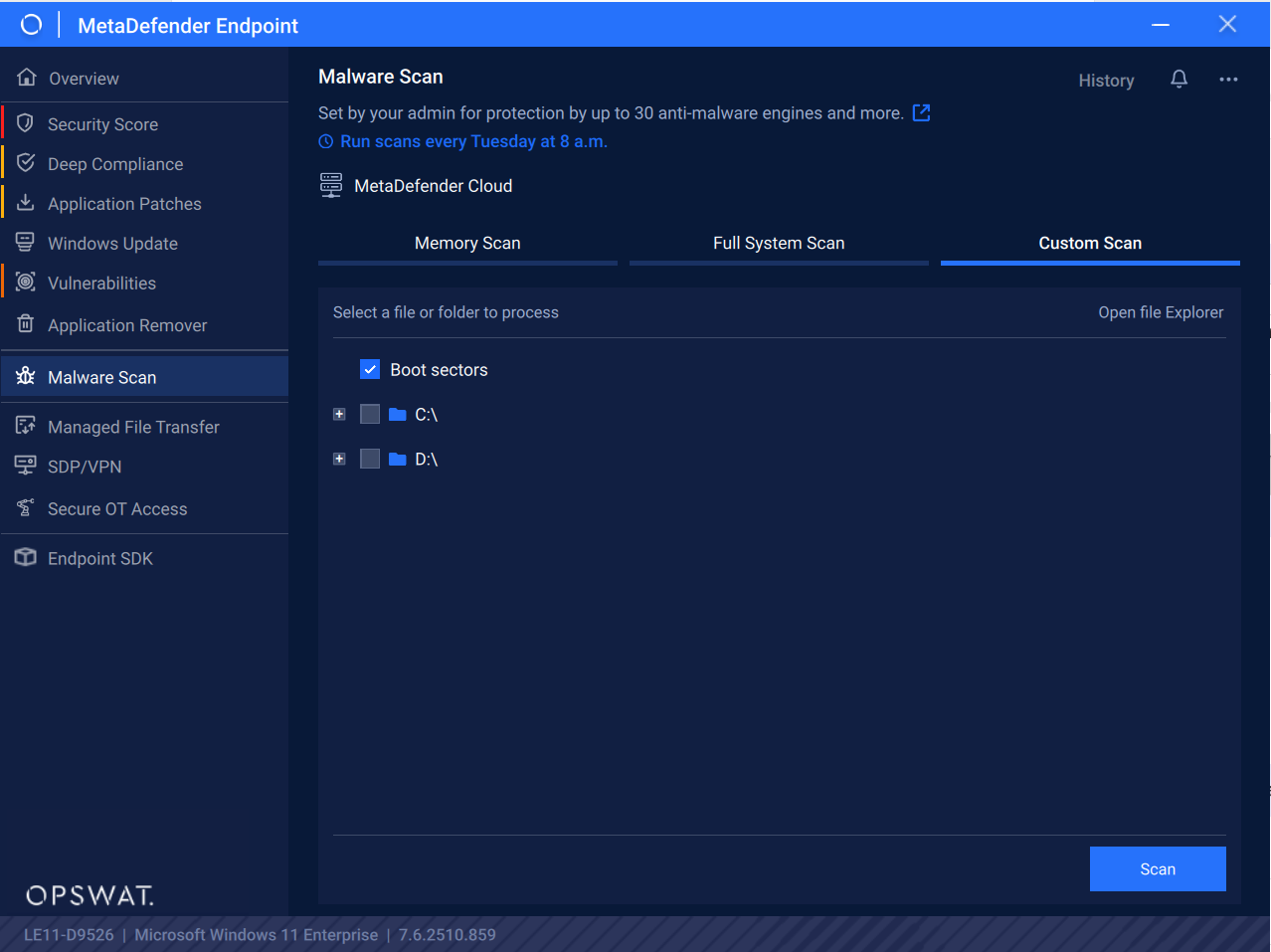
Custom Scan | This option allows users to scan any of the local files/folders, boot sectors, attached, removable drives or network drives based on their needs. |
Comparison table
Attributes | Memory Scan | Full System Scan | Custom Scan |
|---|---|---|---|
Memory (including processes and libraries currently loaded in memory) | Yes | Yes | No |
Boot Sector | No | Yes | Yes |
System Volume | No | Yes | Yes |
Network Drive | No | No | Yes |
Local Drive | No | Yes | Yes |
Removable Drive | No | No | Yes |
Step-by-Step User Guide
Initially: Select the “Malware Scan” tab on the left menu.
Then you can select the type of scan which fit your need
The available type of scan: Memory Scan, Full System Scan and Custom Scan
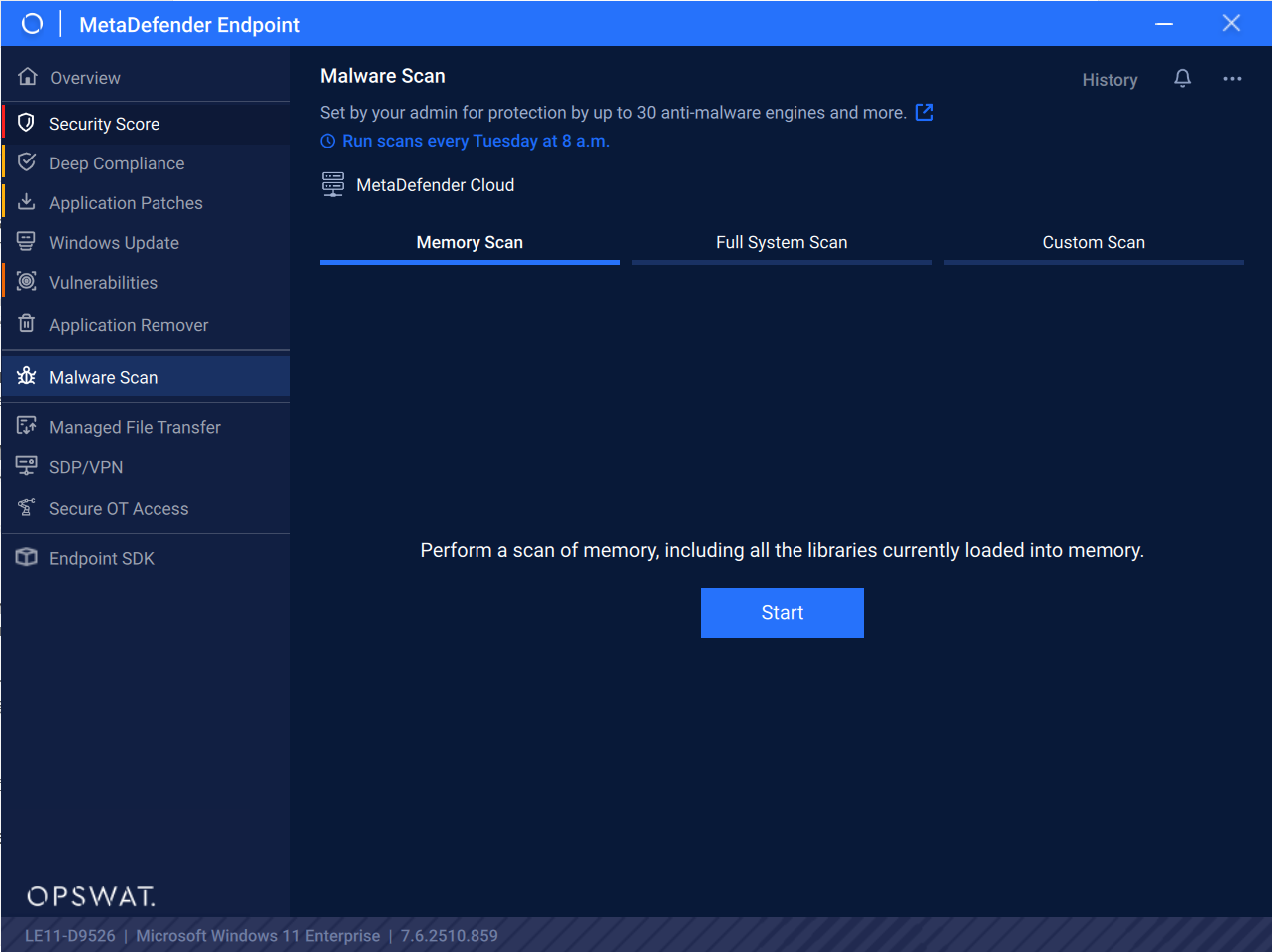
Memory Scan
Select the “Memory Scan” tab and then click on the “Start” button.
Full System Scan
Select the “Full System Scan” tab and then click on the “Start” button.
Custom Scan
Select the “Custom Scan” tab, choose the file type that you want to scan and then click "Start" to scan these custom files.
Scanning process
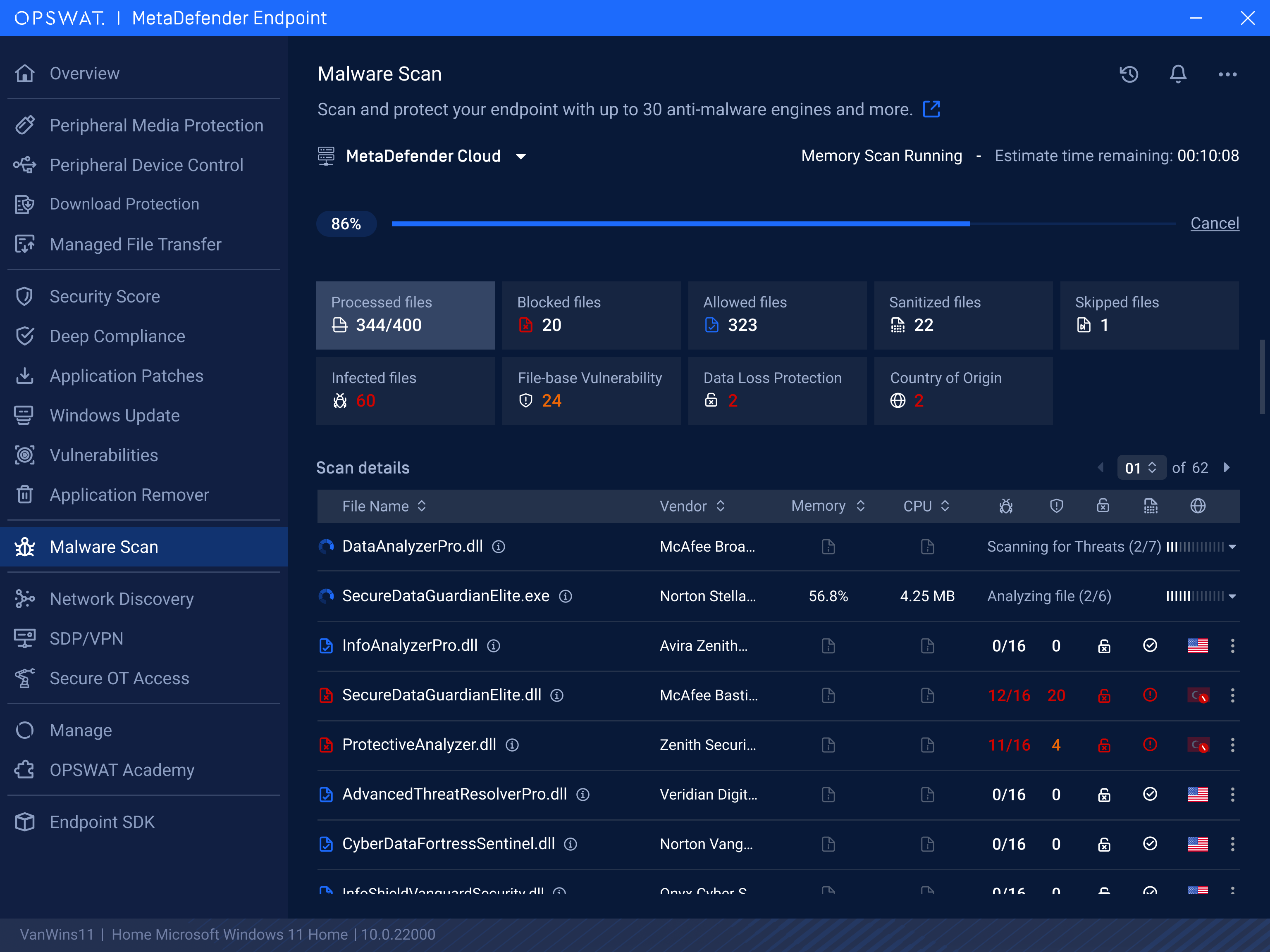
You can monitor the scanning process (see picture below). When it is completed, check the scanning's result
Scanning in Progress: Users can view real-time scanning status and progress with progress bar on the top and loading and checked icons.
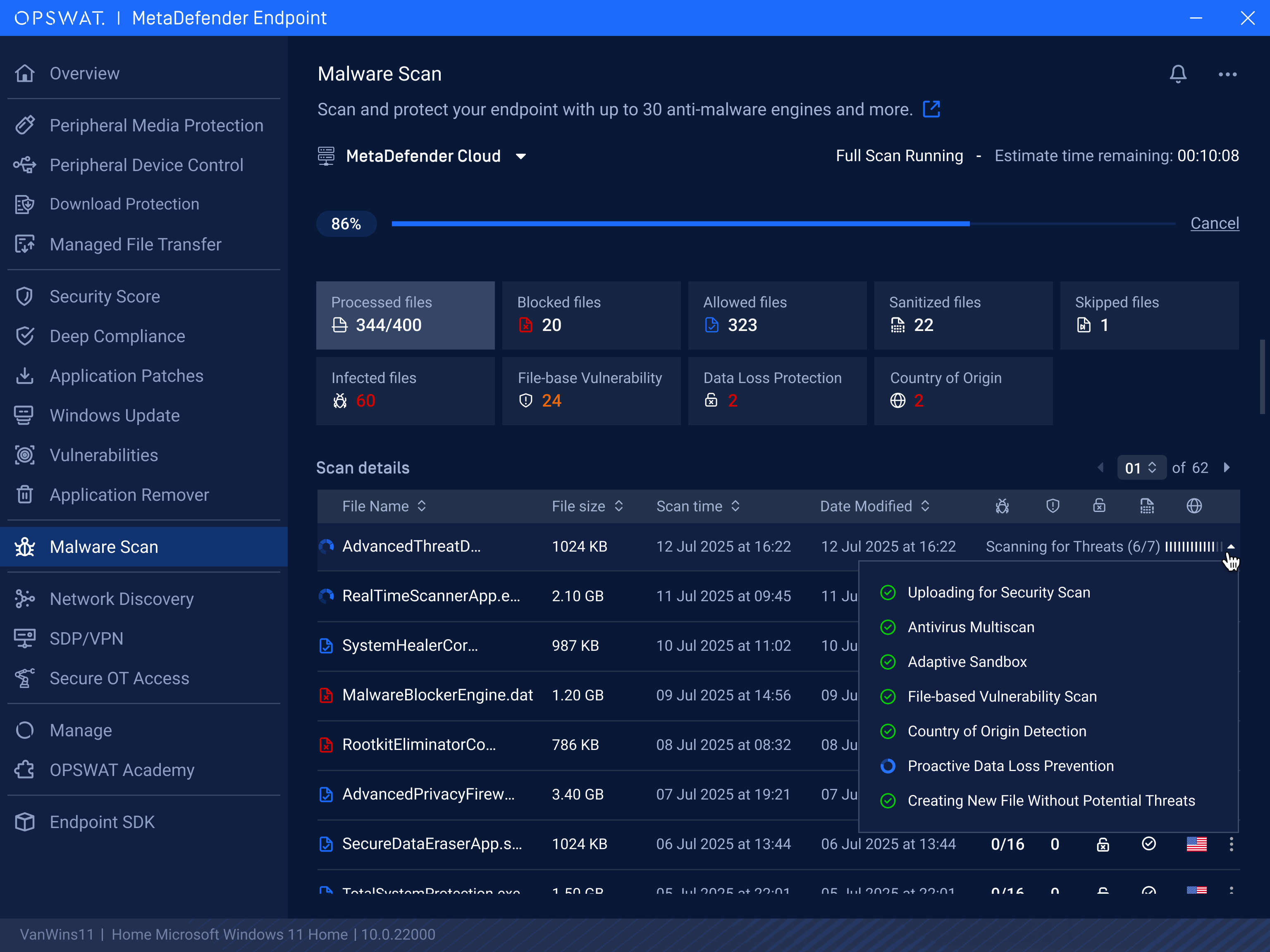
For Memory Scan, we also display resource consumption details such as CPU and memory usage during memory scans for better visibility.
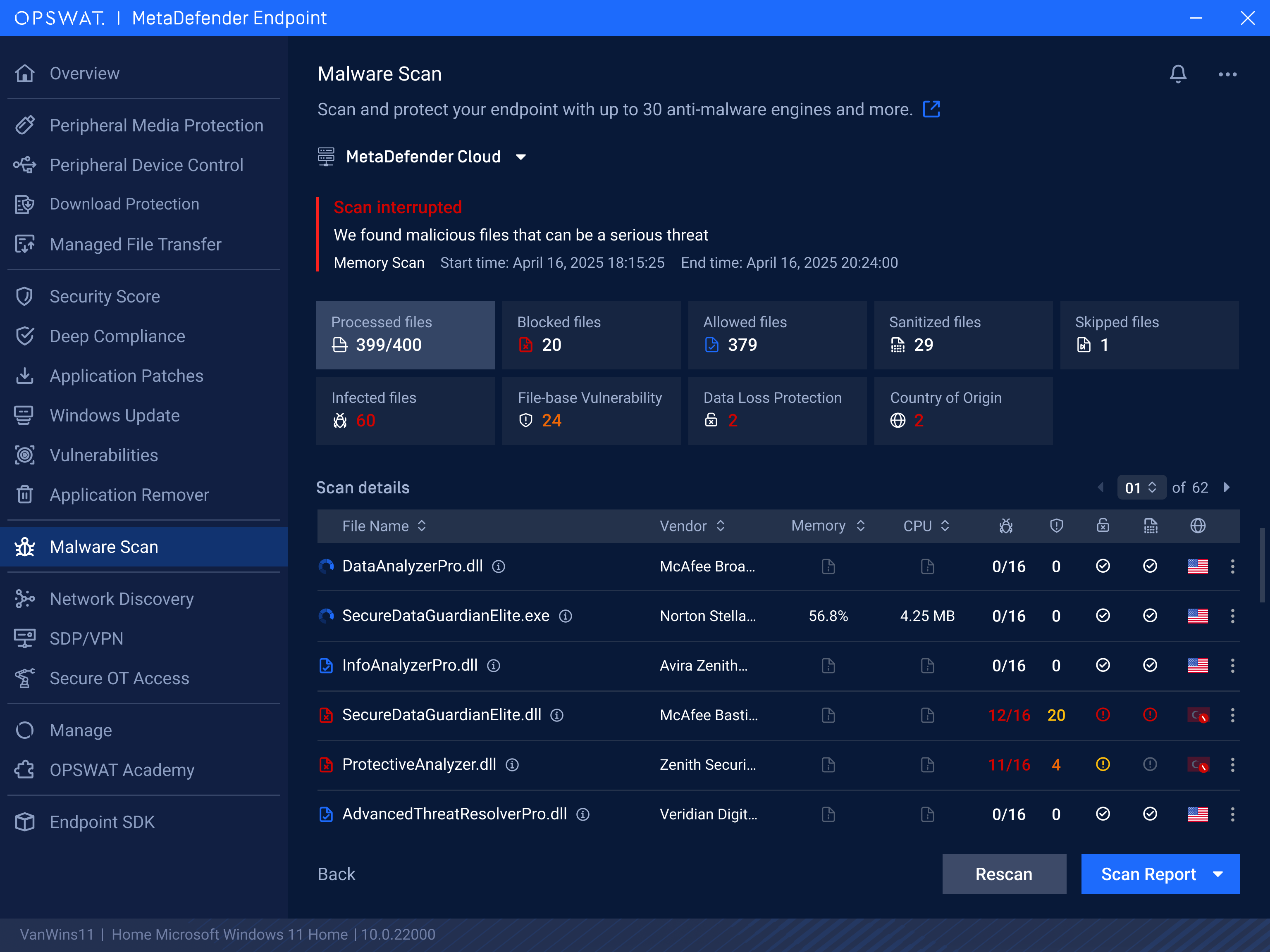
Scan results:
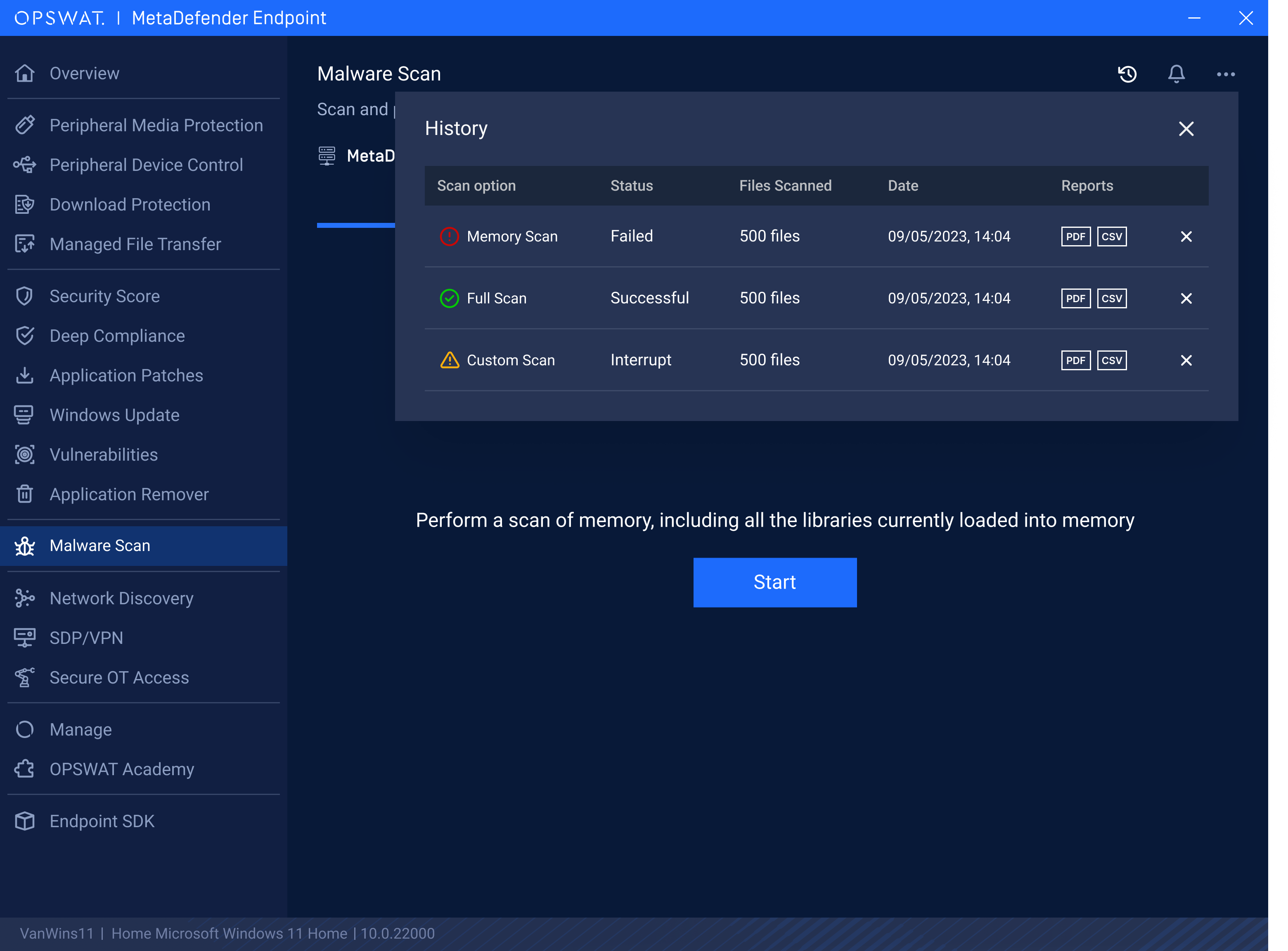
Scan History:
Users can review the previous scans by clicking on "History" button on the top right corner. To view the results reports, click on the specific scan to review. This provides an audit trail and visibility into past malware scans to track security posture.
Scanning report
Step 1: With the scanning list, click on “PDF“ (generate a file report with .pdf extension format) or “CSV” (generate a file report with .csv extension format) button to generate the report.
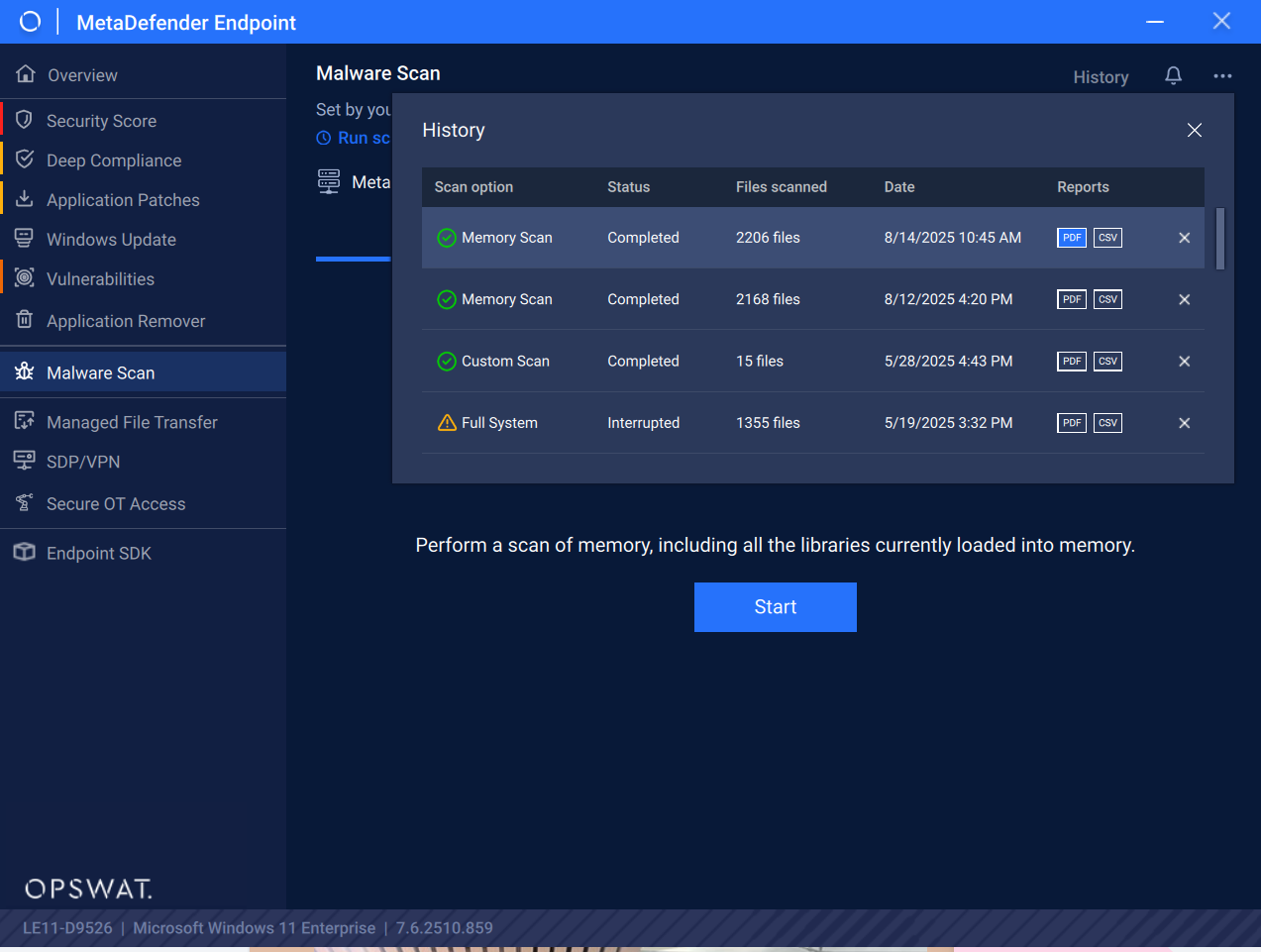
Step 2: Select the file type and then click “Export”.
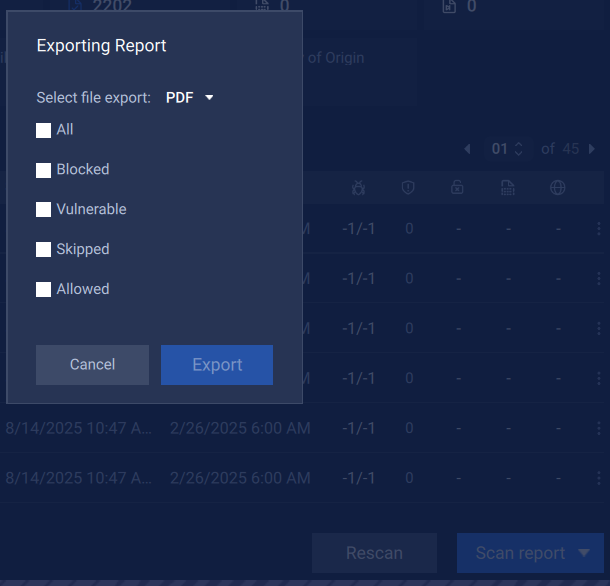
Step 3: As the “Explorer” popup shows up, please choose the destination path save this file report, and click “Save” to proceed
For more details, please read MetaDefender Endpoint Malware Scanning