
From version 6.4.3, MetaDefender® Email Gateway Security has a new address rewrite feature. It replaces SMTP (Simple Mail Transfer Protocol) rewrite: the SMTP sender or recipient rewriting option of security rules, which is described in the Advanced section of the Policy page. This page explains how to move your existing SMTP rewrite settings to address rewrite entries.
SMTP rewrite is deprecated, and it is planned to remove it in an upcoming release. When it is removed, security rules that still use it will no longer rewrite any address. This can stop email delivery, for example when your internal mail servers accept only the rewritten addresses. Move your settings before you upgrade to that release.
Who needs to migrate
You need to migrate if at least one security rule has SMTP sender or recipient rewriting turned on. To find these rules:
Go to Policy and open each security rule.
Select the Advanced tab.
Check the SMTP sender or recipient rewriting section. If Enable SMTP rewriting is on, the rule uses SMTP rewrite. From version 6.4.3, this section shows a deprecation warning.
If no rule uses SMTP rewrite, you do not need to do anything.
How the two methods differ
The most important difference: SMTP rewrite changes every address on the sender side or on the recipient side of an email. Address rewrite changes only the addresses that match one of its rules, wherever they are in the email.
Topic | SMTP rewrite (deprecated) | Address rewrite |
|---|---|---|
Where you configure it | On each security rule | In entries on Settings > Address Rewrite. You select an entry in a security rule, in an outbound server profile (server profile type Outbound server, integration type SMTP connection or Microsoft 365 integration), or as the default entry |
What is rewritten | Every address on the side you configure (sender or recipients), whatever its domain | Only addresses that match a rule. All other addresses stay unchanged |
Example: | Rewritten if the recipient side is configured | Not rewritten |
Example: an internal address in the Cc of an outbound email | Not rewritten if only the sender side is configured | Rewritten if it matches a rule |
New value | One domain per side | A replacement for each rule. It can reuse parts of the original address |
Email headers | Only when Rewrite email headers is on | Always: the envelope and the address headers (From, Sender, Reply-To, Return-Path, To, Cc, Bcc, the Resent headers, Disposition-Notification-To and Errors-To) |
Direction | The sender and recipient settings apply on any rule | Inbound security rules use the internal mapping rules of the entry, outbound security rules use the external mapping rules |
Emails without a security rule (quarantine forward, forward of a blocked email, external quarantine copy) | Not rewritten | Rewritten according to the Classification of the outbound server profile |
Microsoft 365 delivery | Envelope only | Sender, Reply-To, To, Cc and Bcc |
When an address rewrite entry applies to an email, the SMTP rewrite settings of the rule are ignored for that email.
Before you start
Upgrade to version 6.4.3 or later
Export your configuration as a backup. See Configuration import or export
For each rule that uses SMTP rewrite, write down:
The direction of the rule (inbound or outbound)
The sender filter and the recipient filter
The Sender (MAIL FROM) and Recipients (RCPT TO) values
Whether Rewrite email headers is on
List the original domains: the domains that must be replaced. They are usually in the sender filter of an outbound rule and in the recipient filter of an inbound rule. Address rewrite changes only the domains that you list, so do not forget any domain
Plan the change for a time with low email traffic. Address rewrite changes where email is delivered
Step 1: Translate the settings into rules
Translate each SMTP rewrite setting into one or more address rewrite rules:
SMTP rewrite setting | Rule direction | Address rewrite rule |
|---|---|---|
Sender (MAIL FROM) = | Outbound | One external mapping rule for each original sender domain. Matcher |
Recipients (RCPT TO) = | Inbound | One internal mapping rule for each original recipient domain. Matcher |
Sender (MAIL FROM) on an inbound rule, or Recipients (RCPT TO) on an outbound rule | — |
How to write a rule:
The matcher is a .NET regular expression. It must match the whole address, not only a part of it. Upper and lower case do not matter
Write a dot as
\., because a plain dot matches any character(.+)stands for the part before@. In the replacement,$1puts this part backRules are checked from top to bottom, and the first matching rule wins. Put specific rules (for example, one for a single address) above general rules
For several original domains, add one rule for each domain, or combine them in one matcher:
(.+)@(sales|support)\.old\.example→$1@new.example
Step 2: Create the address rewrite entry
Go to Settings > Address Rewrite and click Create.
Enter a name, for example the name of your organization.
Add the rules from step 1 under Internal mapping rules and External mapping rules. Click Add rule for each rule.
Click Save. Email Gateway Security checks every regular expression when you save. If a matcher is not valid, the entry is not saved.
Usually one entry is enough for a pair of domains. The same entry holds the internal and the external mapping rules, and both security rules use it.
Step 3: Select the entry in the security rules
Open a security rule that used SMTP rewrite and select the Advanced tab.
In the Address rewrite section, select your entry.
Save the rule. Do the same for the other rules that used SMTP rewrite.
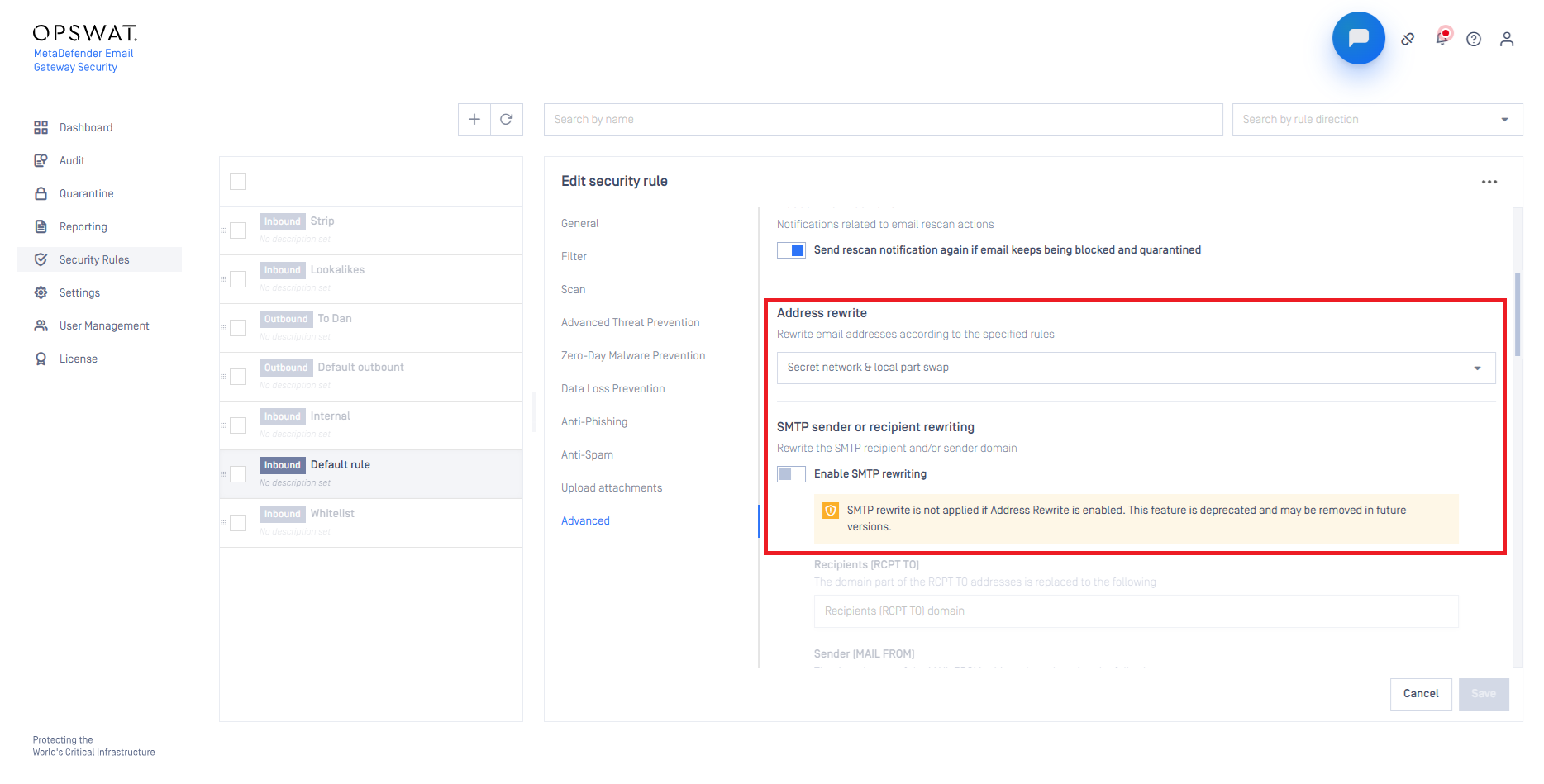
We recommend selecting the entry in the security rules first, so the change affects the same emails as before. If you set the entry as the default instead, it applies to every security rule and outbound server profile that is set to Inherited. After the upgrade to 6.4.3, all of them are set to Inherited. On these rules, the SMTP rewrite settings are then ignored too.
Step 4: Set the classification of outbound server profiles
This step is needed only if emails that do not go through a security rule must be rewritten too: quarantine forwards, forwards of blocked emails and external quarantine copies.
Open the outbound server profile that delivers these emails.
Set Address rewrite to your entry (or to Inherited, if your entry is the default).
Set Classification:
Internal if the profile delivers to your internal mail servers. The internal mapping rules of the entry are used
External if the profile delivers to the internet. The external mapping rules are used
None if the profile delivers in both directions. These emails are then not rewritten
The classification is used only for emails without a security rule. For emails that match a security rule, the direction of the rule decides which mapping rules are used, also when the entry comes from the server profile or the default entry. So set the classification to match where the profile delivers. Then emails with and without a security rule get the same rules.
Quarantine forwards use the outbound server profile that is selected under Settings > Alerts & Reports. Server profiles of the Outbound multi-delivery type have no address rewrite settings: each copy uses the settings of the outbound server profile that sends it.
Step 5: Test
Send test emails in both directions. Use emails that have internal and external addresses together in To and Cc.
Open the source of each received email and check the From, To, Cc and Reply-To headers and the Return-Path. Only the addresses that match a rule are changed.
In Audit > Email History, open the email and check the processing history. The envelope rewrite is shown as an SMTP rewrite event with the original and the new addresses.
Reply to all from an external mailbox. Check that the reply reaches every recipient.
Release a test email from the quarantine and check it the same way.
Step 6: Turn off SMTP rewrite
When the tests pass and email flows normally for some days, turn off Enable SMTP rewriting in the SMTP sender or recipient rewriting section of the migrated rules. Write down the old values first.
Until you turn it off, SMTP rewrite is your fallback (see below).
If something goes wrong
Some addresses are rewritten wrongly: correct the rule in the entry. Emails that wait for a new delivery attempt use the corrected rule
Many deliveries fail: in the affected security rule, set Address rewrite to No rewrite. The old SMTP rewrite settings of the rule then apply again, as long as SMTP rewrite is still turned on. Correct the entry, test it, and select it again
Settings that need care
Envelope only: if Rewrite email headers is off today, note that address rewrite always changes the headers too. There is no envelope-only option. Contact OPSWAT support if you need envelope-only rewriting
Sender on an inbound rule, or recipients on an outbound rule: for example, an outbound rule that sends all email to one fixed domain. An address rewrite rule changes every address that it matches, including the sender. Contact OPSWAT support before you migrate such a rule
Every domain: SMTP rewrite changed addresses whatever their domain. Address rewrite needs the domains to be listed. Do not use a matcher that matches any address, such as
(.+)@(.+), because it also changes the addresses of external senders and recipientsDomains that you did not list are not rewritten, and they are delivered unchanged
Checks before delivery: recipient verification and Active Directory checks use the original address, not the rewritten one
Not rewritten: emails that Email Gateway Security creates itself (alerts, notifications, reports, delivery reports), emails in the Microsoft Exchange integration mode, and emails in the Inline monitoring and Out-of-band monitoring deployment modes
Example
An organization uses mail.corp.example internally and example.com to the outside.
Before (SMTP rewrite):
Security rule | Filter | SMTP rewrite |
|---|---|---|
Inbound | Recipient filter | Recipients (RCPT TO) = |
Outbound | Sender filter | Sender (MAIL FROM) = |
After (address rewrite):
Entry Corp:
Mapping rules | Matcher | Replacement |
|---|---|---|
Internal mapping rules |
|
|
External mapping rules |
|
|
Both security rules: Address rewrite = Corp. After the tests, Enable SMTP rewriting is turned off on both rules.
Result for an outbound email from john@mail.corp.example to partner@gmail.com, with kate@mail.corp.example in Cc:
Address | SMTP rewrite (before) | Address rewrite (after) |
|---|---|---|
From |
|
|
To |
|
|
Cc |
|
|