
Web Management Console
Overview
Email Gateway Security supports translating its Web Management Console.
Currently the product is shipped with translations for British English (en-GB), US English (en-US) and Japanese (ja-JP).
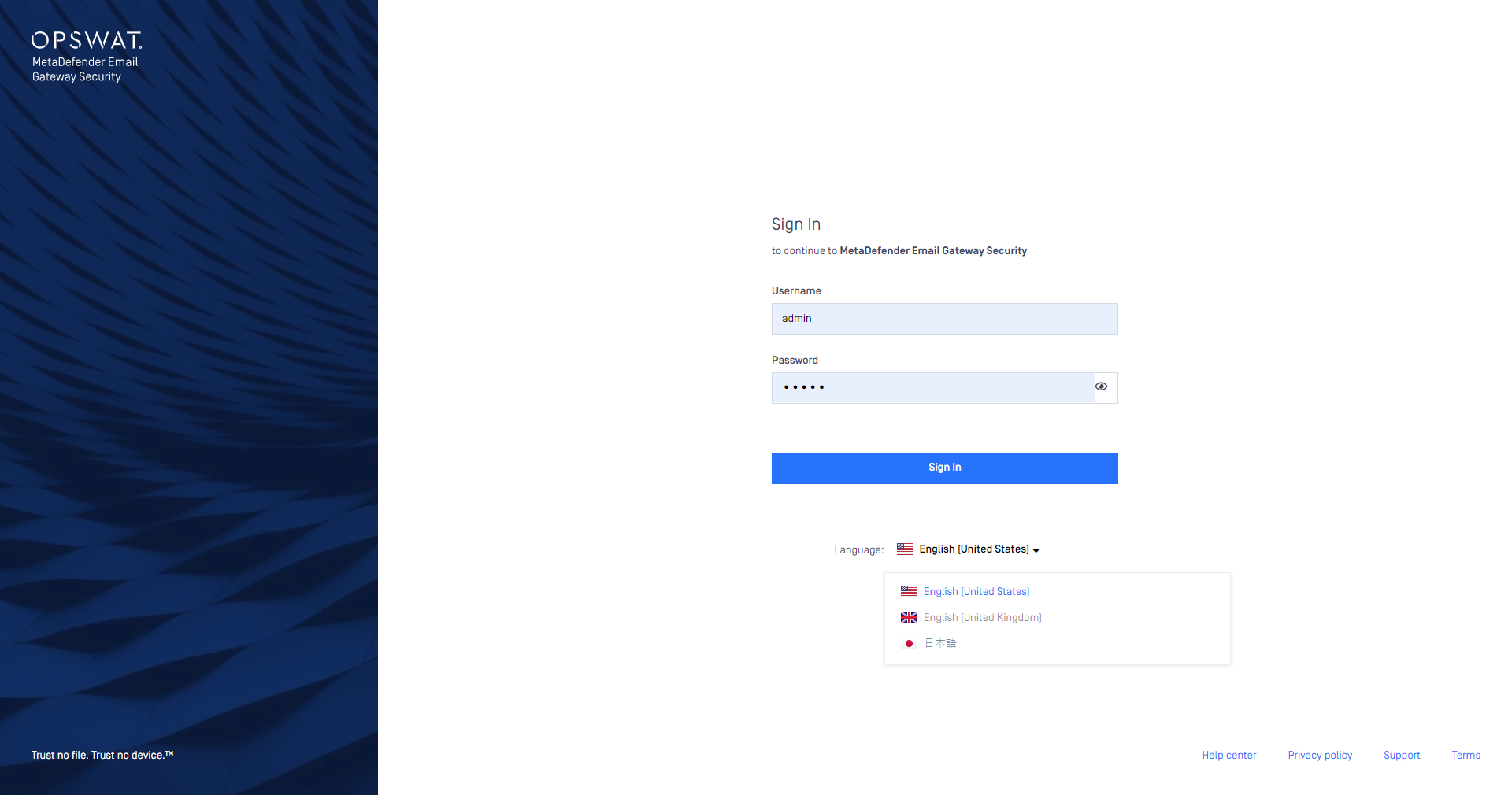
To translate the product to a new language does not require upgrading the product at all. It does not even require restartgin the product services.
After configuring and translating the new locale only the browser needs to be reloaded.
Configuration
Email Gateway Security uses JSON format files to store the translation configurations and the actual translations for each supported language.
The configuration and translation files can be found in :
Default:
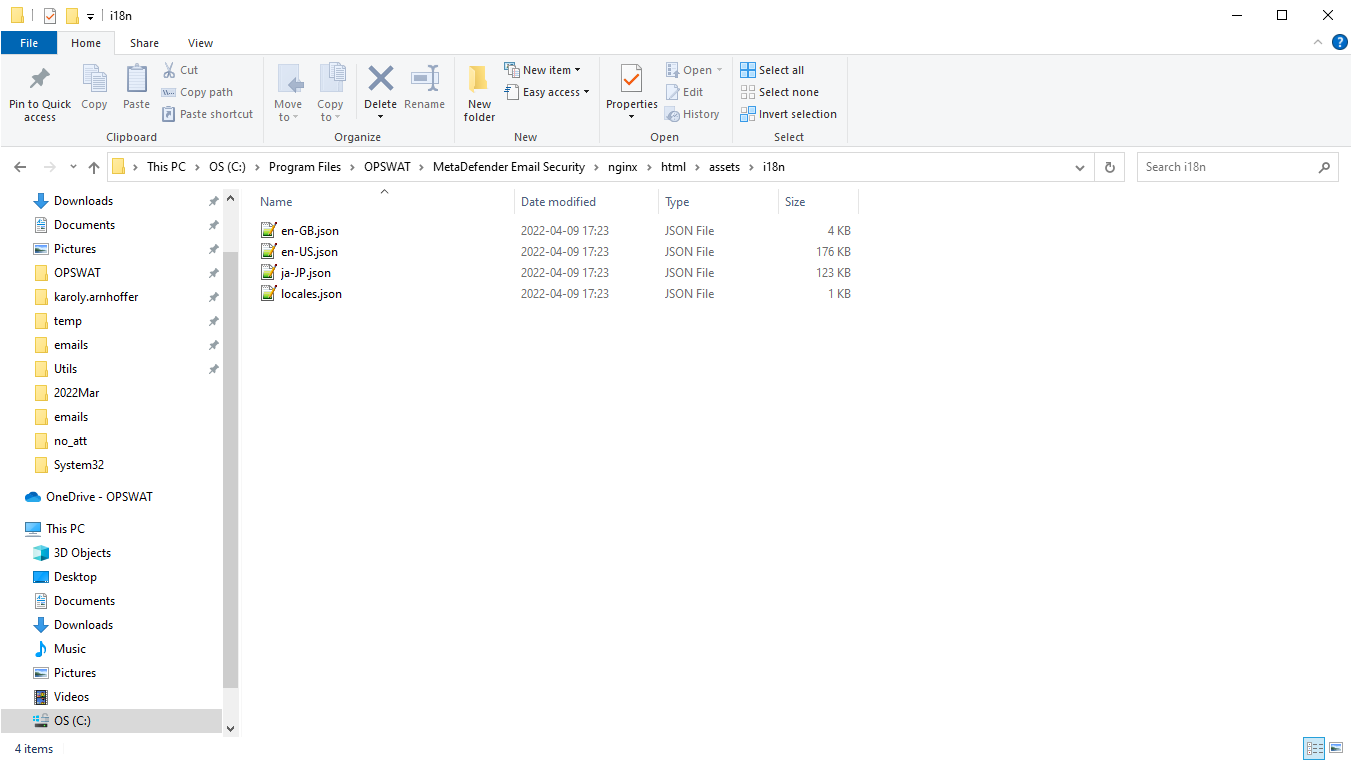
The configuration is done in the locales.json file.
Entry | Description |
|---|---|
| Contains the list of available locales (translations) as key and value pairs. The keys are the codes of each locale (e.g. |
| An array containing the codes of languages that read right-to-left. These languages will be displayed accordingly in the Web Management Console. Every language that is not on this list will be treated as left-to-right. |
Translation
New locales
Translation for a new locale may be created by duplicating and appropriately renaming an existing (e.g. en-US.json) translation file.
The new locale must be added to the locales.json file.
As an example the translation for the Hungarian language in Hungary (hu-HU) may be created by:
Clone the
en-US.jsontranslation fileRename the cloned file to
hu-HU.json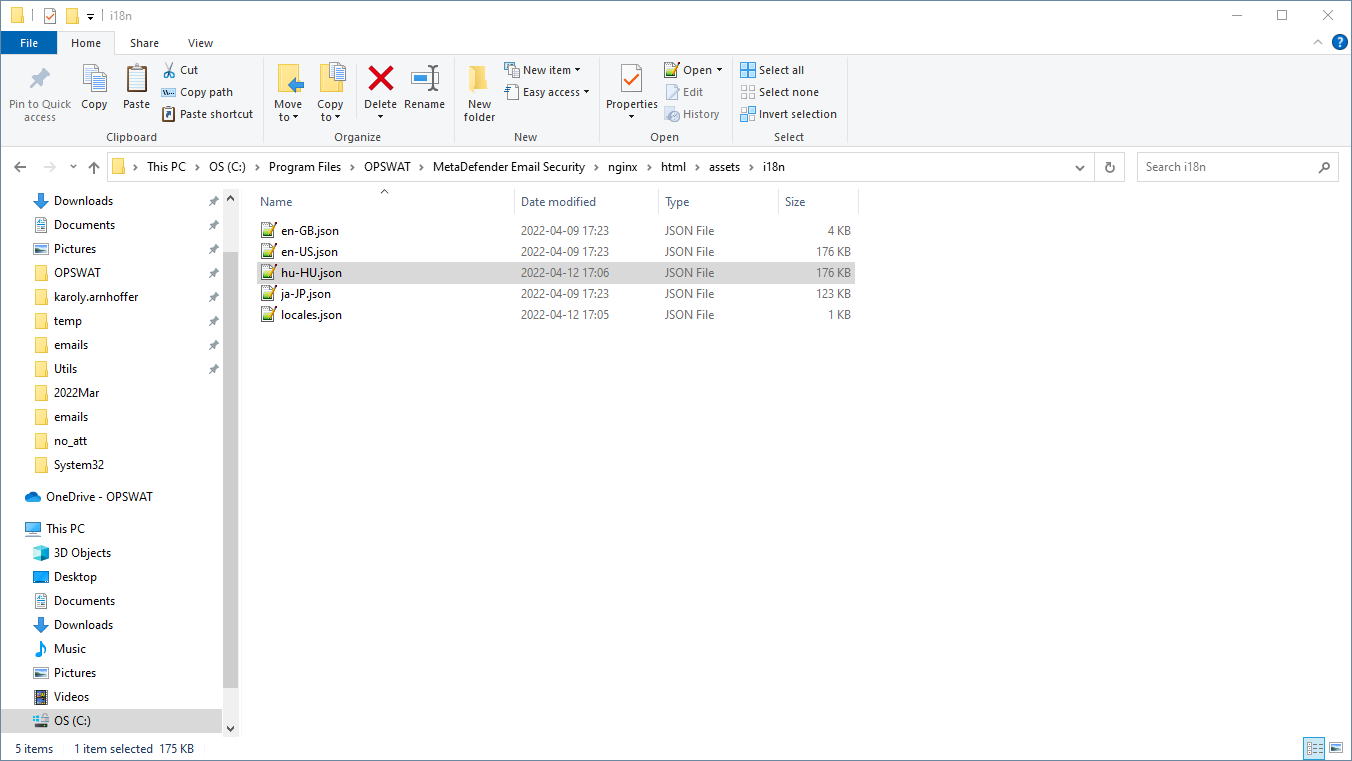
Add an entry to the
locales.jsonfor the Hungarian languageTo the
availableLocalesentry:"hu-HU": "Magyar"(Hungarian is left-to-righ, no need to add it to the
rtlentry)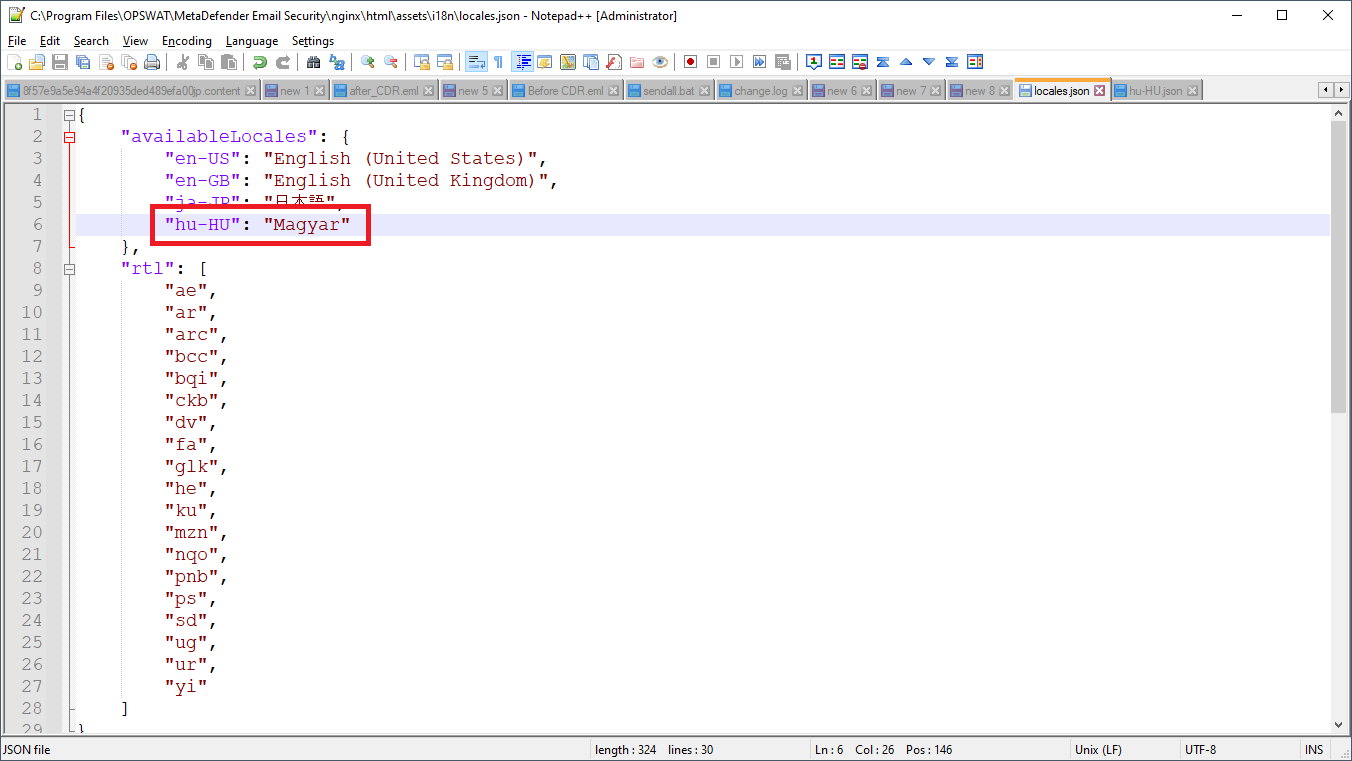
Do the actual translation in the
hu-HU.jsonfile.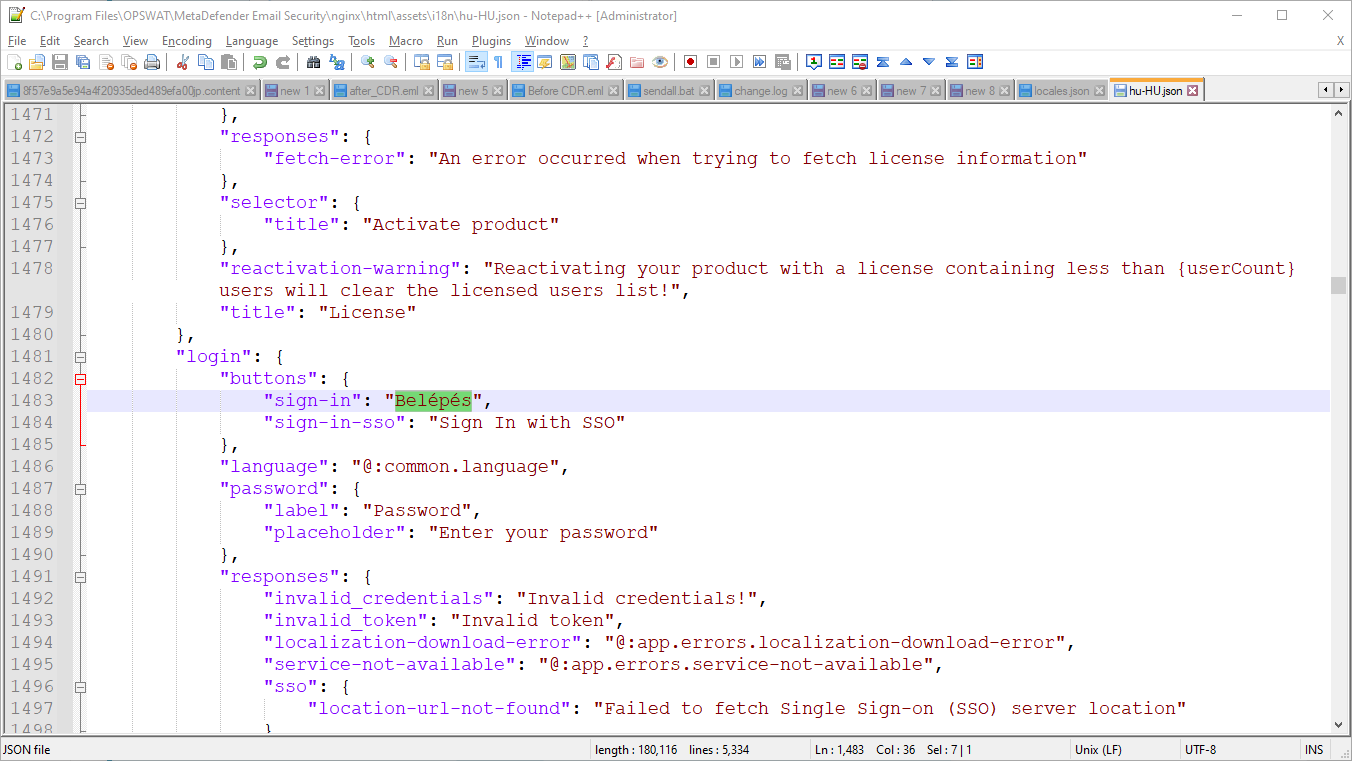
Open the Web Management Console and observe the new locale appearing.
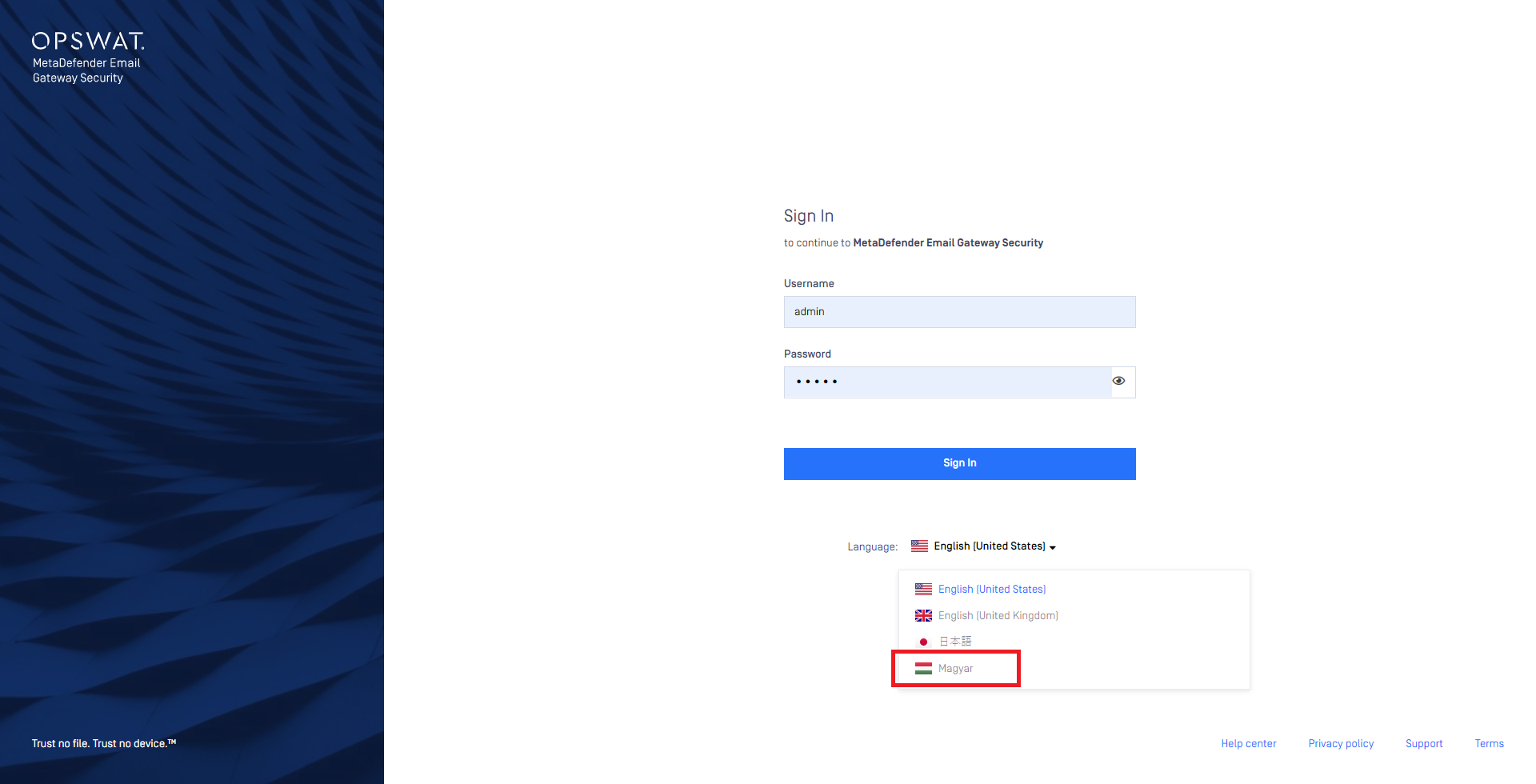
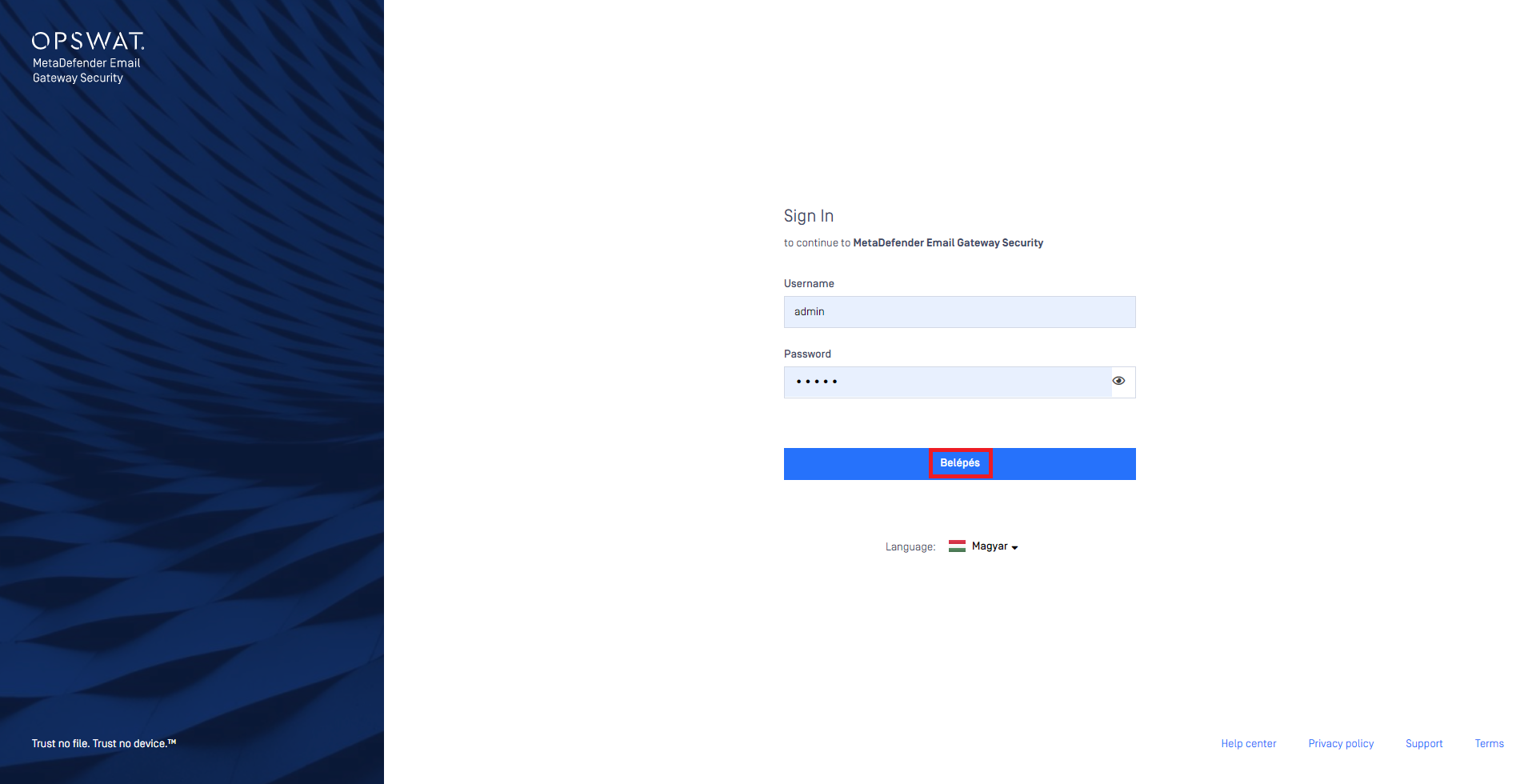
Changing existing translations
Translations for existing locales may be changed simply editing the appropriate translation file.
Editing translation files
The json format files are plain text files. Texts in these files may be edited using any plain text editor.
The json syntax of the configuration and translation files must be maintained.
In case of syntax errors the Web Management Console may not render.
As an alternative translation file editor applications may be used, like:
BabelEdit (proprietary): https://www.codeandweb.com/babeledit
i18n Manager (freeware): https://www.electronjs.org/blog/i18n-updates
Product upgrades
During a product upgrade, changes to translations that are shipped with the product and changes to the locales.json may be lost. Back up these file before the upgrade, and restore after.
Translation files added on top of the ones that are shipped with the product are kept by an upgrade.
Flags
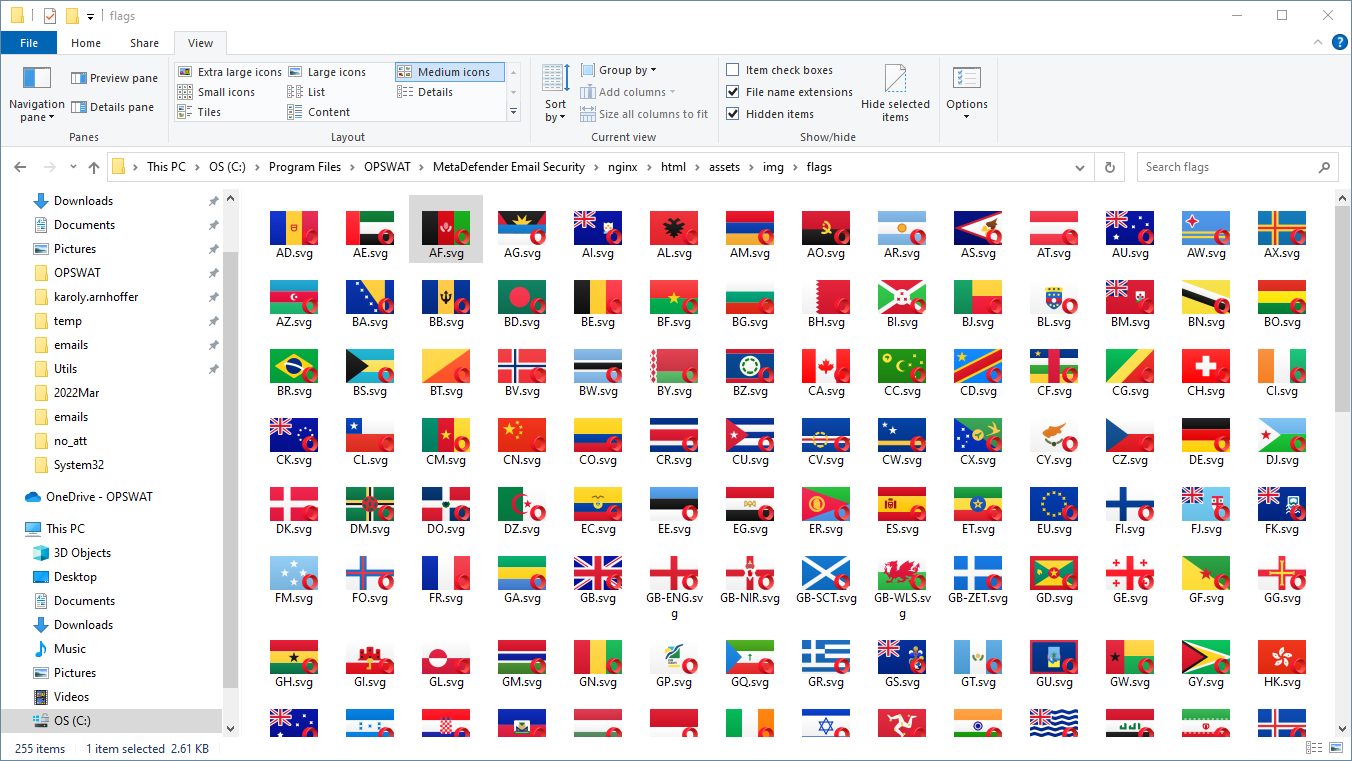
Email Gateway Security has pre-installed the flags for most of the territories.
Flags that are missing from the collection may be added to <installation directory>\nginx\html\assets\img\flags (default C:\Program Files\OPSWAT\MetaDefender Email Security\nginx\html\assets\img\flags) in SVG format.
Not to translate or change
Changing variables, references and pipes give unexpected results. Care must be taken to keep these tokens unchanged.
Token | Details | Example |
|---|---|---|
Variable | Syntax: |
In this example |
Reference | Syntax: The fully qualified name of an other value after an at ( |
In this example |
Pipe | Syntax: |
In this example the singular and plural versions of the label are separated by the pipe. |
Notification, alert and report emails
Overview
Templates of the notification, alert and report emails can be found in:
Default:
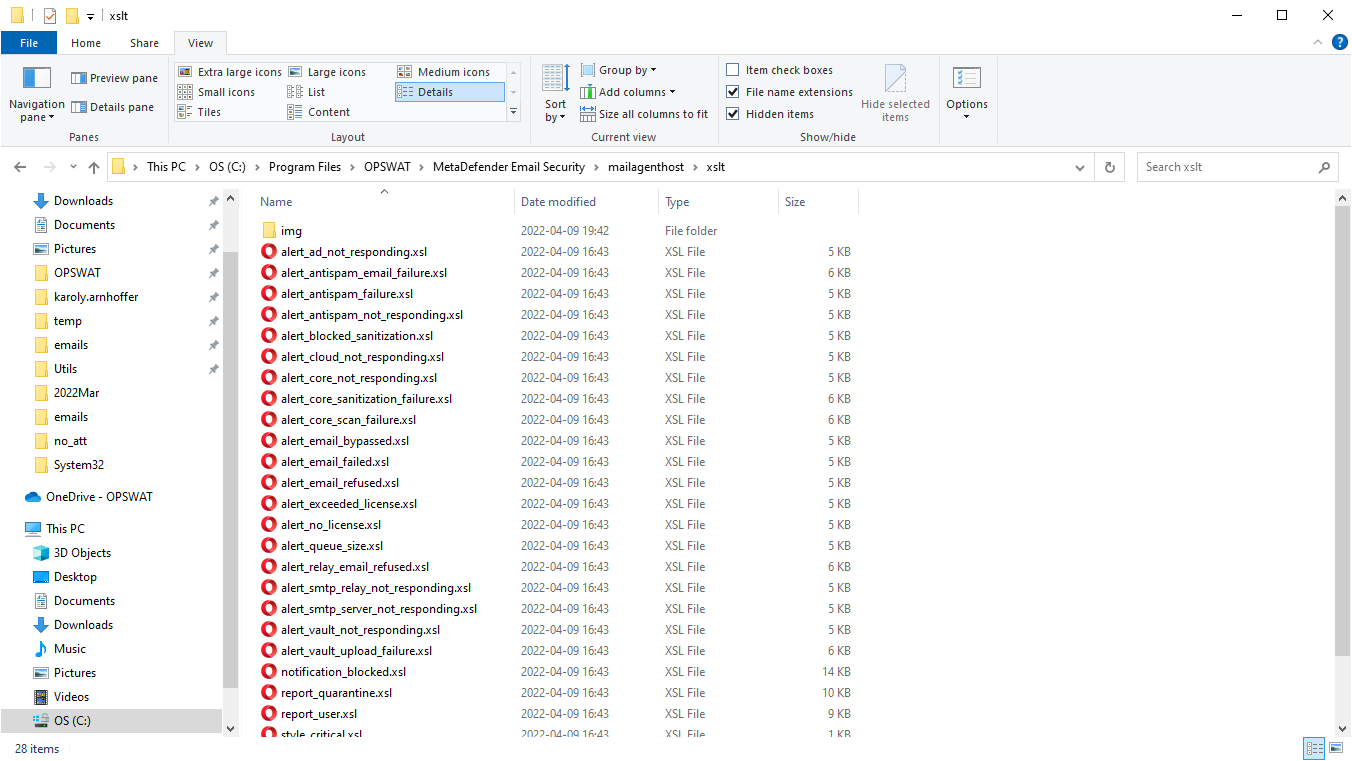
These files are plain text xslt (Extensible Stylesheet Language Transformations) files, that can be edited using plain text editors or xslt editors.
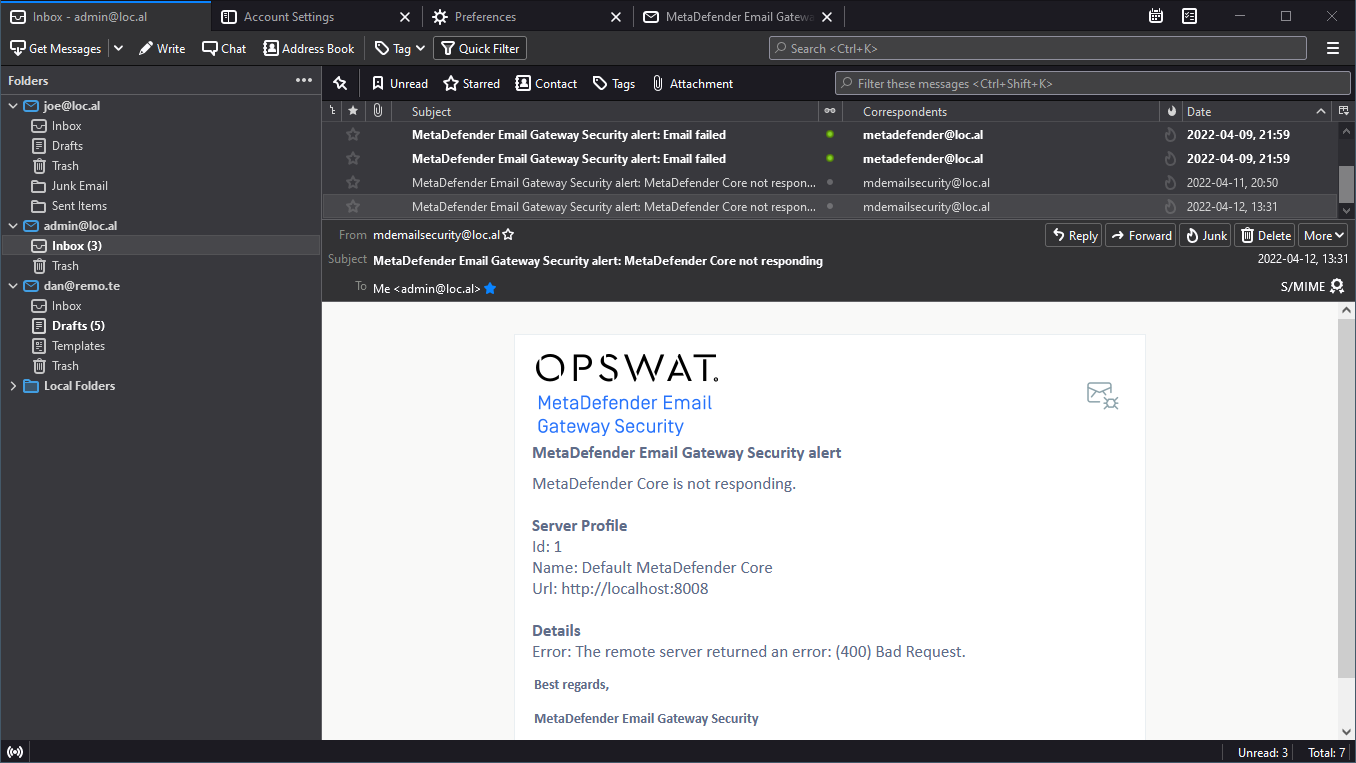
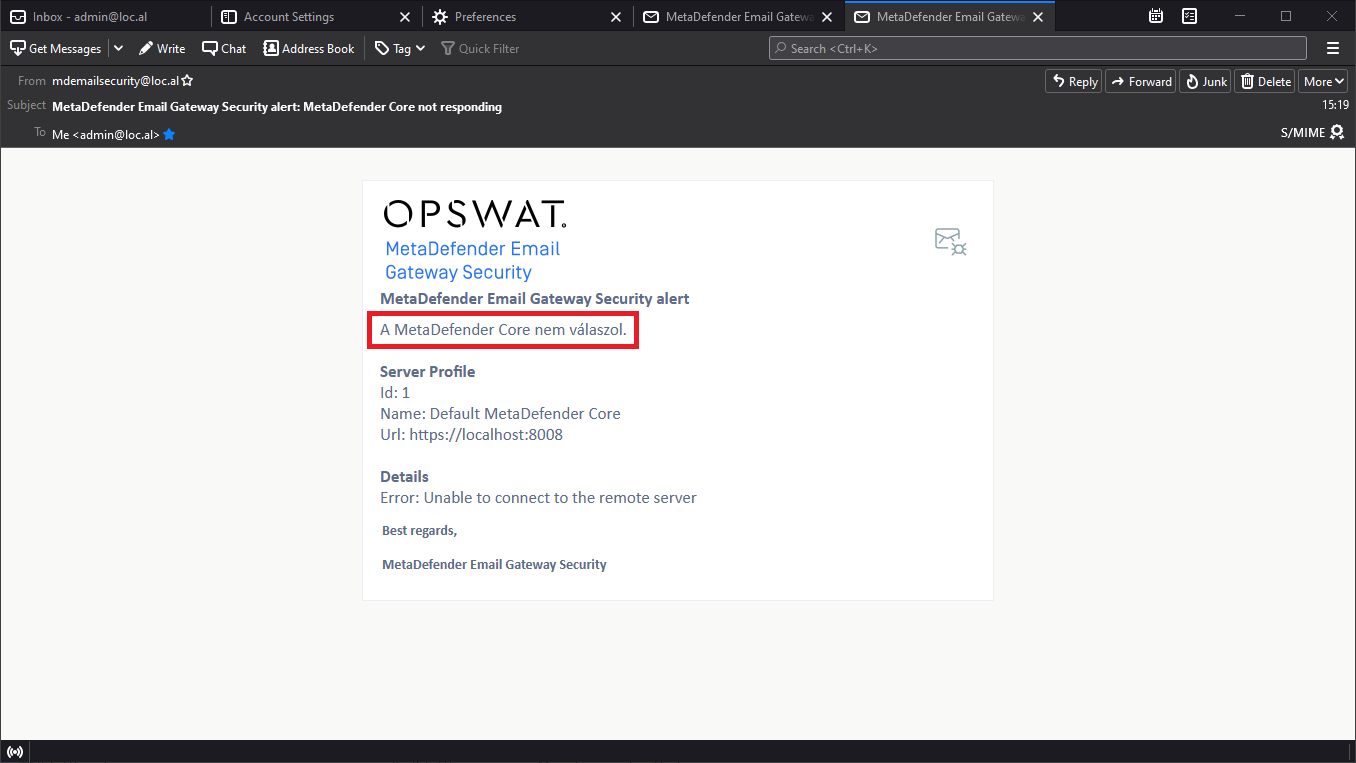
The alert email for the event MetaDefender Core not responding looks like this:
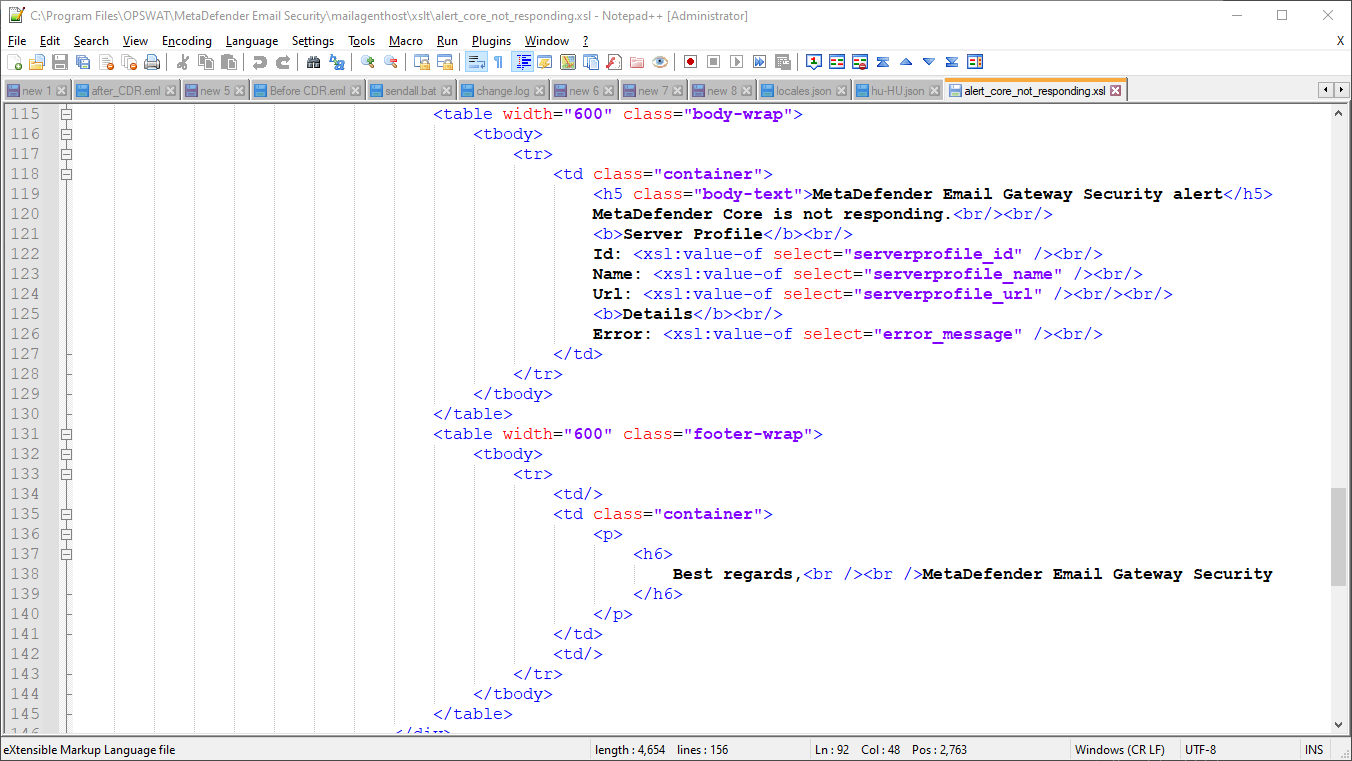
The source code of this alert's template is in the file alert_core_not_responding.xsl:
Translation
The xslt template that belongs to the appropriate alert, notification or report email needs to be edited and the appropriate strings translated.
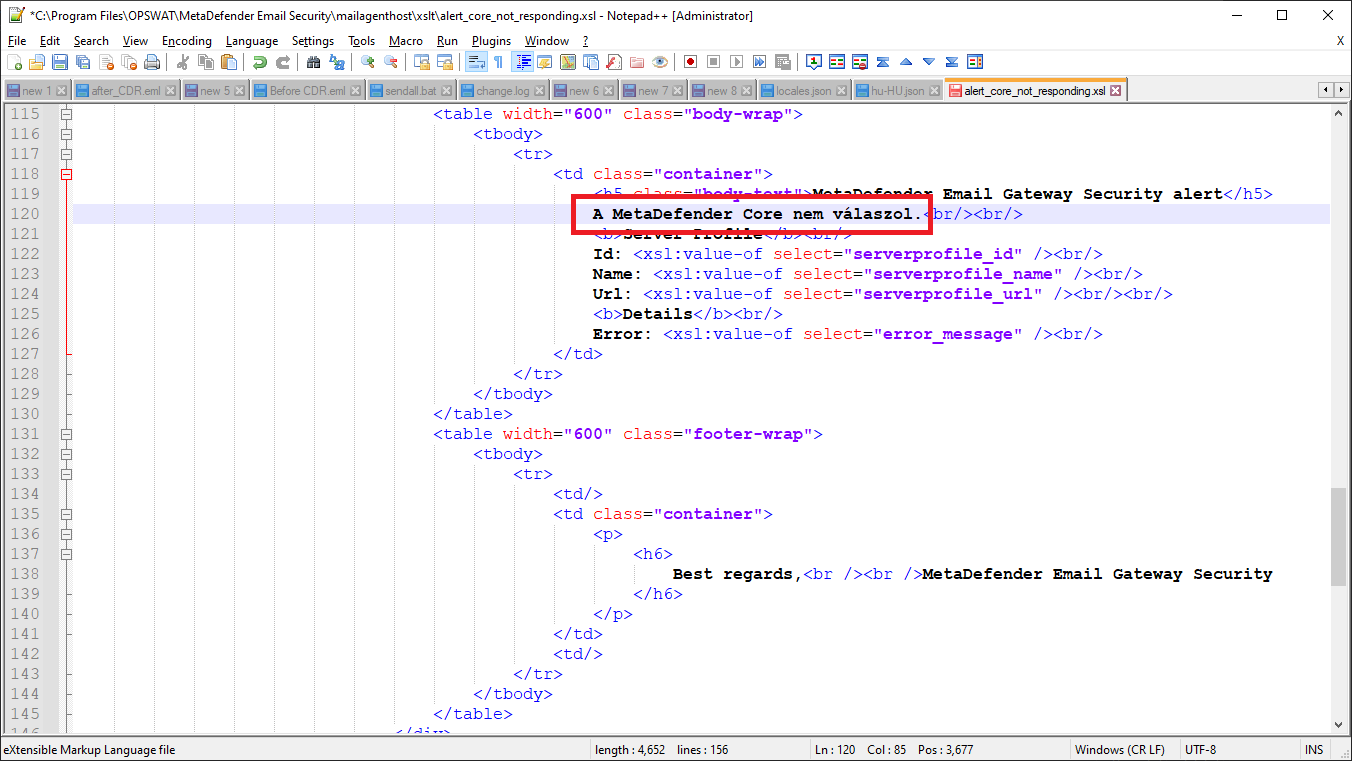
This is how translating a part of the _MetaDefender Core not responding _notification to Hungarian looks like in the alert_core_not_responding.xsl file:
And this is the actual alert email when this change is applied:
Subject translation
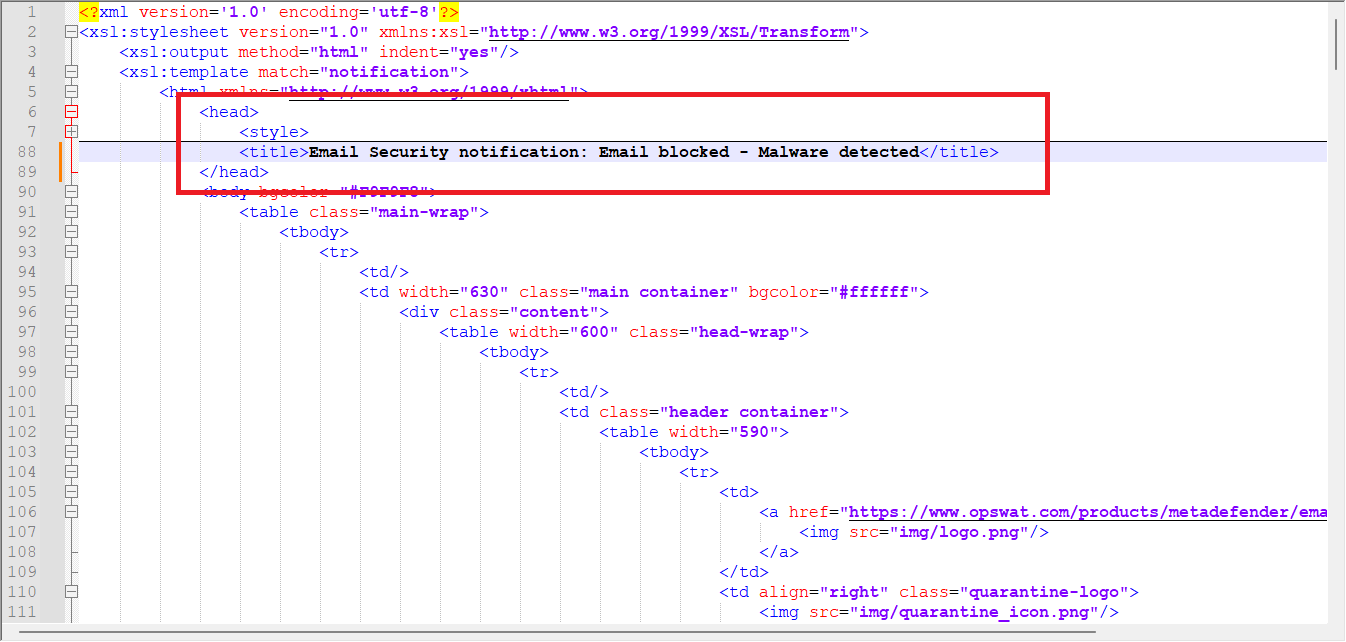
The Subject email header of notification, alert and report emails (also known as the subject of these emails) can be modified or translated by customizing the <title> attributes inside the <head> section in the appropriate xslt templates.
This is how a notification email subject can be customized by altering the <title> tag inside the <head> section:
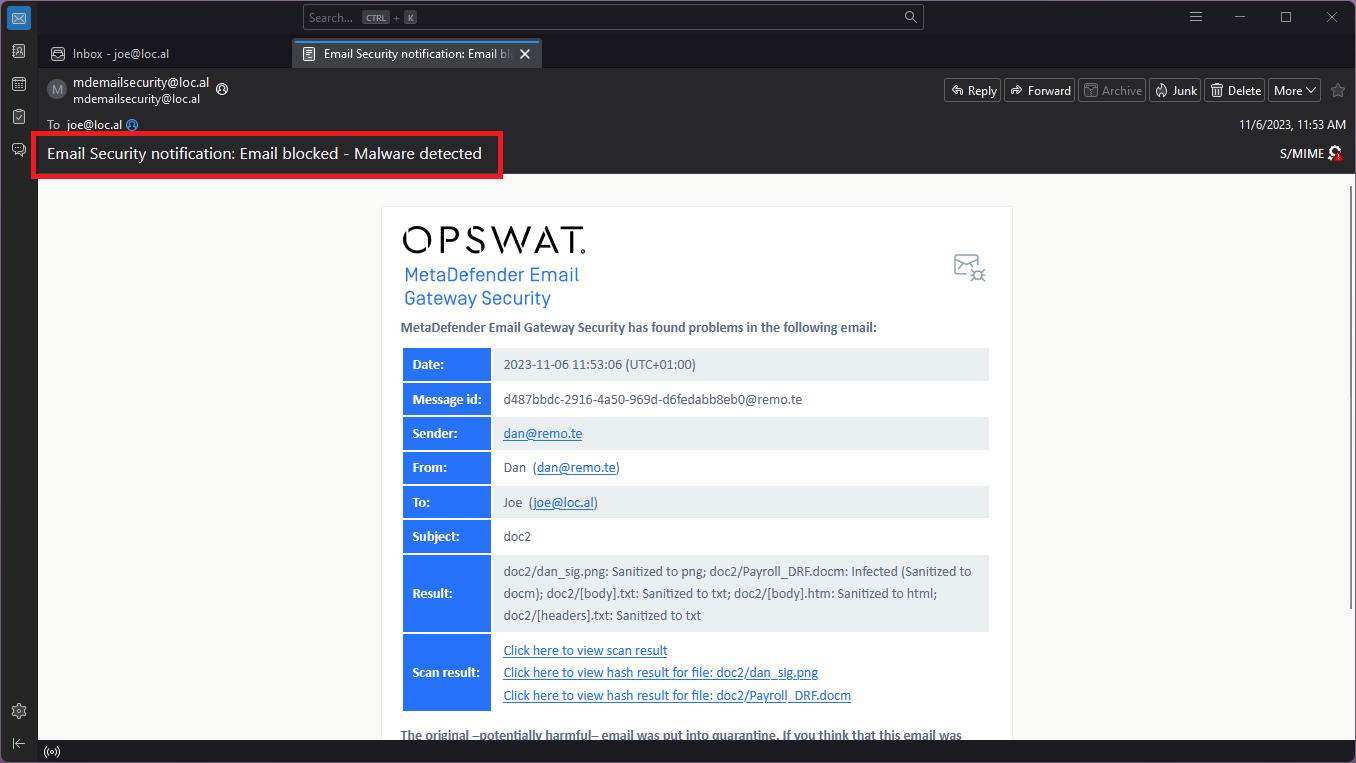
The resulting notification email has the customized subject:
Conditional options
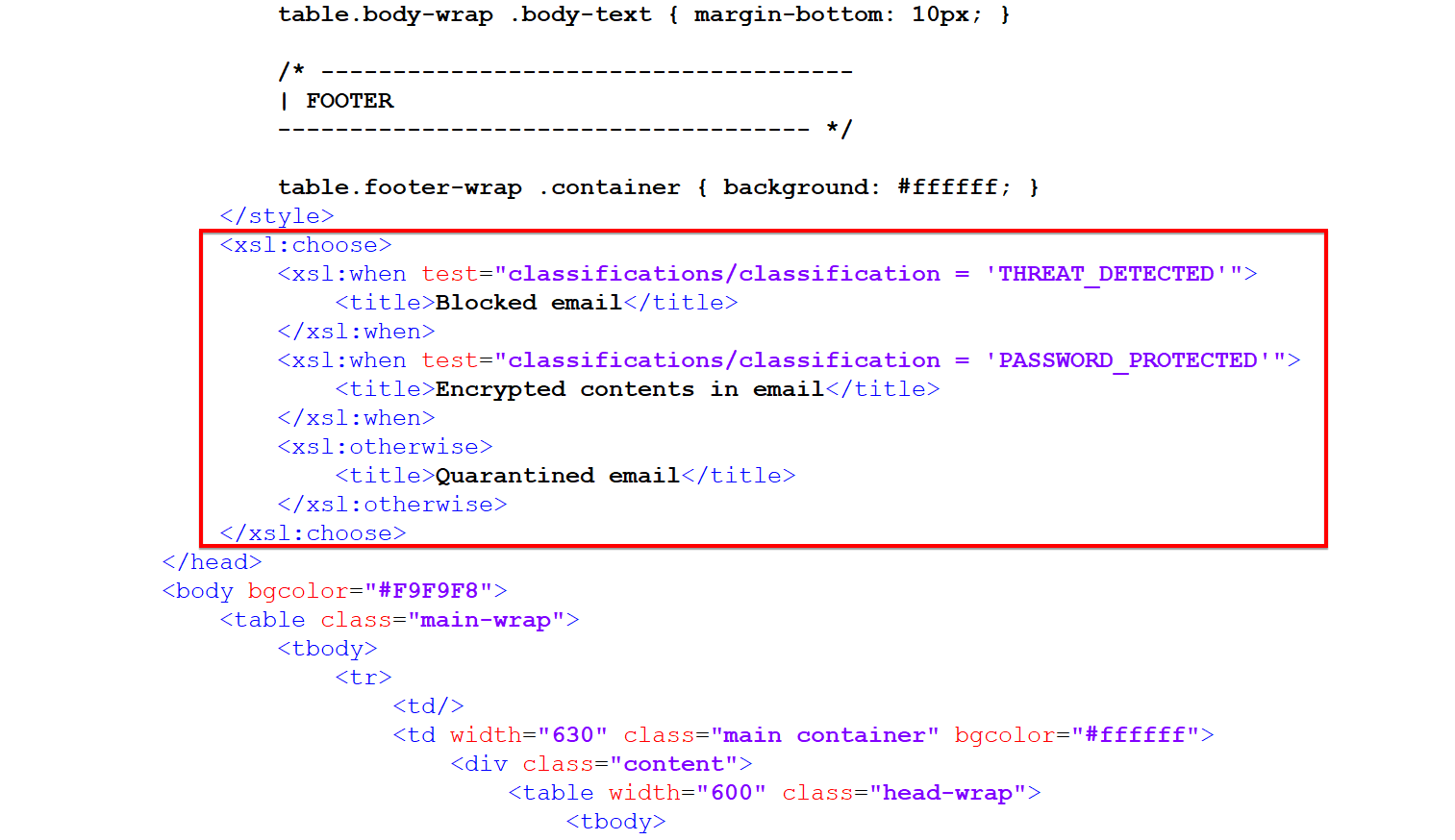
Content and/or subjects can also be translated/altered based on email classifications.
In the next example, the subject of a blocked notification can be different, depending on the classifications applied to the email.
The following classification constants are available when creating conditions in the XSLT |
|---|
EMAIL_CLASSIFICATION_NONE EMAIL_CLASSIFICATION_SCAN_FAILURE EMAIL_CLASSIFICATION_THREAT_DETECTED EMAIL_CLASSIFICATION_POSSIBLE_THREAT_DETECTED EMAIL_CLASSIFICATION_PHISHING EMAIL_CLASSIFICATION_POSSIBLE_PHISHING EMAIL_CLASSIFICATION_DLP_VIOLATION EMAIL_CLASSIFICATION_POSSIBLE_DLP_VIOLATION EMAIL_CLASSIFICATION_PASSWORD_PROTECTED EMAIL_CLASSIFICATION_SANITIZE_FAILURE EMAIL_CLASSIFICATION_BLOCKED_OTHER EMAIL_CLASSIFICATION_SPAM EMAIL_CLASSIFICATION_POSSIBLE_SPAM EMAIL_CLASSIFICATION_MARKETING EMAIL_CLASSIFICATION_POSSIBLE_MARKETING EMAIL_CLASSIFICATION_ANTISPAM_FAILURE EMAIL_CLASSIFICATION_SEND_FAILURE EMAIL_CLASSIFICATION_SANITIZED EMAIL_CLASSIFICATION_NO_THREAT_DETECTED EMAIL_CLASSIFICATION_NOT_SCANNED EMAIL_CLASSIFICATION_DLP_REDACTED EMAIL_CLASSIFICATION_BYPASSED EMAIL_CLASSIFICATION_PARTIAL_SANITIZATION EMAIL_CLASSIFICATION_RESCANNED EMAIL_CLASSIFICATION_REMOVED_ATTACHMENTS EMAIL_CLASSIFICATION_QUARANTINE_RELEASED EMAIL_CLASSIFICATION_QUARANTINE_FORWARDED EMAIL_CLASSIFICATION_URL_REWRITE EMAIL_CLASSIFICATION_UPLOADED_ATTACHMENTS EMAIL_CLASSIFICATION_EXTERNAL_QUARANTINE EMAIL_CLASSIFICATION_FILESCAN_NORMAL EMAIL_CLASSIFICATION_FILESCAN_SUSPICIOUS EMAIL_CLASSIFICATION_FILESCAN_MALICIOUS EMAIL_CLASSIFICATION_BLOCKLISTED EMAIL_CLASSIFICATION_YARA_MATCH EMAIL_CLASSIFICATION_DLP_ORIGINAL EMAIL_CLASSIFICATION_SPF_NO_RECORD EMAIL_CLASSIFICATION_SPF_NEUTRAL EMAIL_CLASSIFICATION_SPF_PASS EMAIL_CLASSIFICATION_SPF_SOFT_FAIL EMAIL_CLASSIFICATION_SPF_FAIL EMAIL_CLASSIFICATION_SPF_ERROR EMAIL_CLASSIFICATION_DKIM_NO_SIGNATURE EMAIL_CLASSIFICATION_DKIM_INVALID EMAIL_CLASSIFICATION_DKIM_VALID EMAIL_CLASSIFICATION_DKIM_ERROR |
Pre-translated content
Any additional pre-translated XSLT files can be found in sub-folders to the main xslt folder (<installation directory>\mailagenthost\xslt). To use these translations, copy the file(s) from the sub folder (for example, ja-JP) to the parent xslt folder.
Not to translate or change
Given by the nature of XML transformations, any part of the xslt files can be changed for example to restructure the alert emails.
If no restructuring in the scope, then only the text literals (that are readable in the email) should be changed.
Rendering
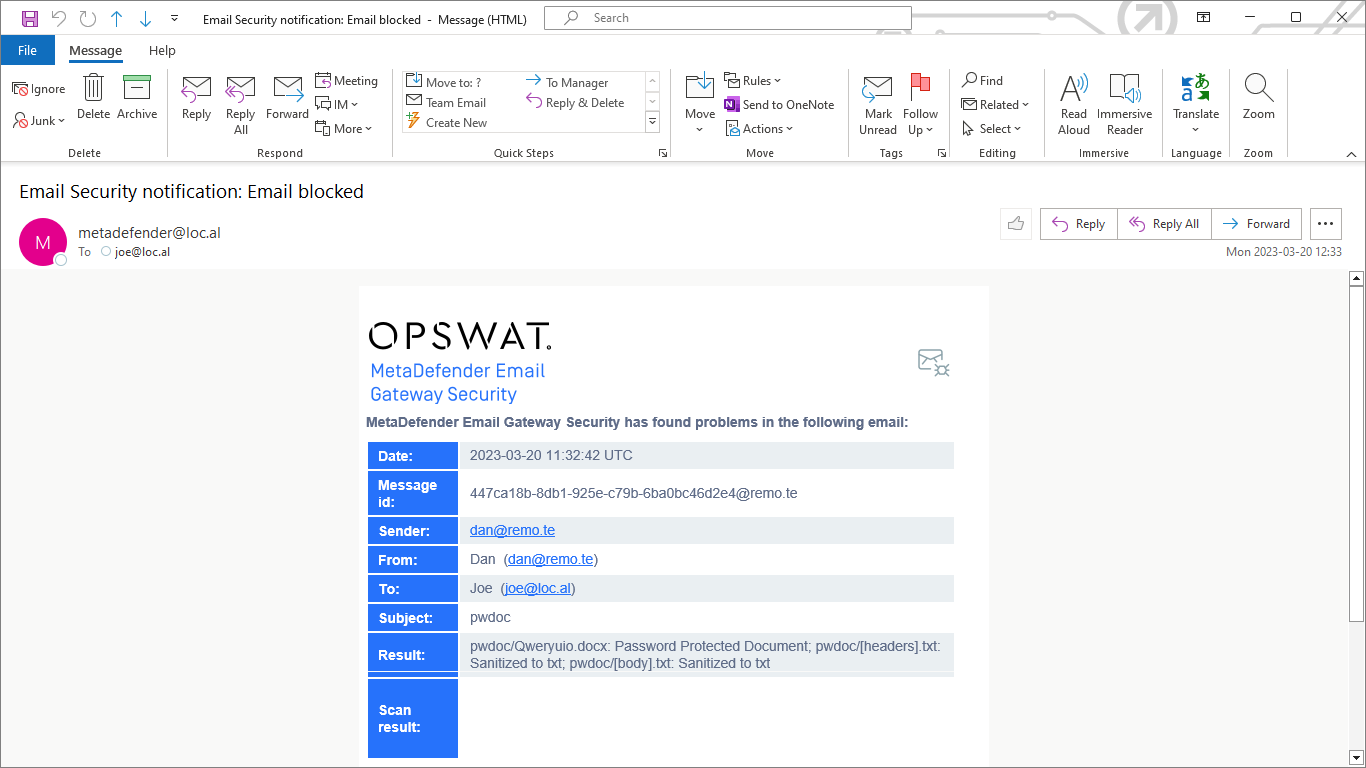
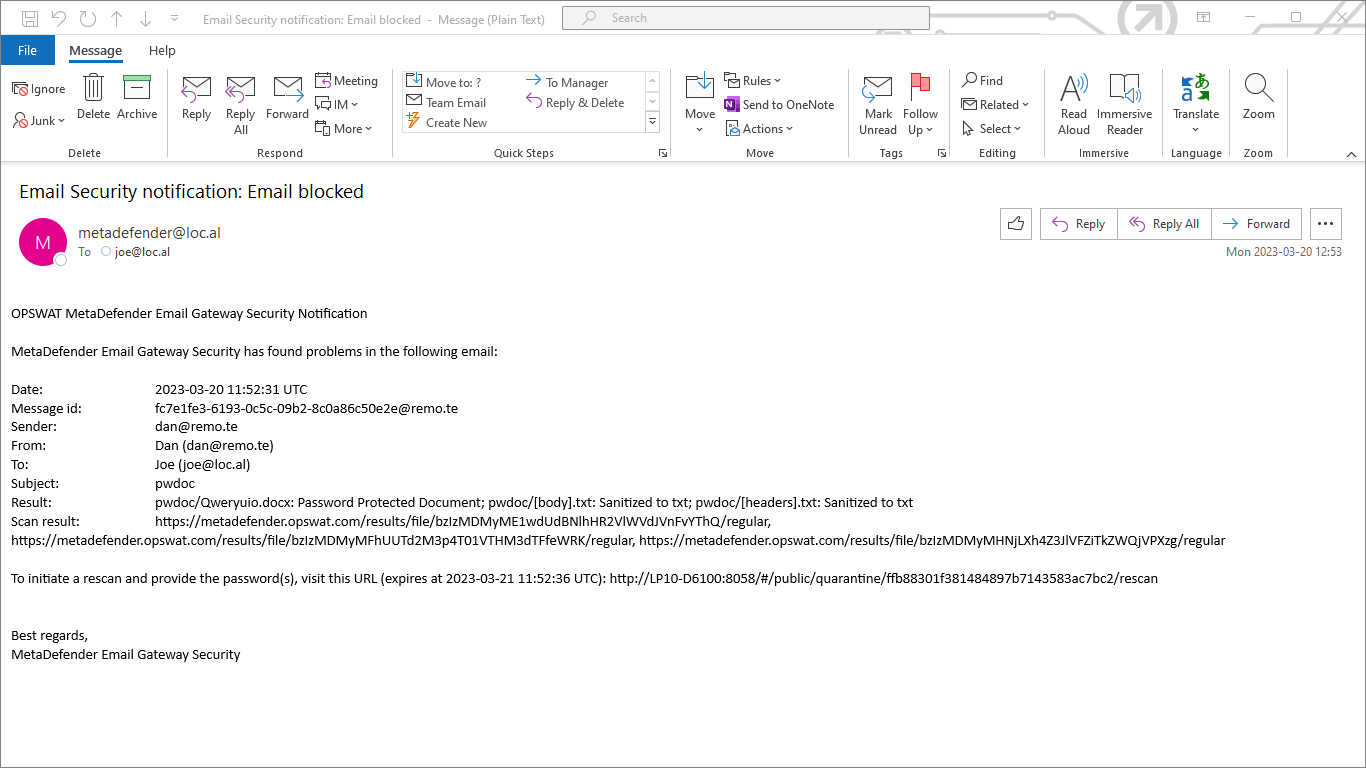
By altering the output format in the xslt template, the notification, alert or report email body format can be changed. This way the email client can be instructed whether it should render the email as HTML or plain text.
Supported xslt output values are html or text for HTML or plain text email bodies respectively.
For details about xslt templates see the Overview subsection of Notification, alert and report emails section above.
HTML email body
Set the following entry in the xslt template to get the notification, alert or report email body to be rendered as HTML:
<xsl:output method="html" indent="yes" />
Renders the notification email like:
Plain text email body
Set the following entry in the xslt template to get the notification, alert or report email body to be rendered as plain text:
<xsl:output method="text" />
Renders the notification email like:
For plain text notification, alert or report emails specific xsl templates need to be created (e.g. templates that do not contain HTML markup).
By default, Email Gateway Security installs with xsl templates for HTML notification, alert and report emails.
Some email clients interpret URLs even in plain text emails and insert clickable hyperlinks for these URLs.
For details see the Why are hyperlinks still active in MS Outlook after files have been sanitized by Deep CDR? Knowledge Base page.