
Overview
Email Gateway Security is surrounded by different services that together can provide the email processing capabilities.
Such services are:
SMTP services to where Email Gateway Security can forward emails when processing is completed;
Active Directory servers that can be used for licensing and policy rule enforcement;
MetaDefender Core servers or MetaDefender Cloud service that can be used for additional security processing capabilities, for details see https://onlinehelp.opswat.com/corev4 or https://onlinehelp.opswat.com/mdcloud respectively;
MetaDefender Managed File Transfer instances to where Email Gateway Security can upload attachments, for details see Integrations/Integration with MetaDefender Managed File Transfer.
Email Gateway Security uses the concept of server profiles to integrate to these services.
The server profile is an abstract representation of one or more physical server bundled into a single unit.
Using this abstraction the same server may be reused at several points of the application, potentially with different actual settings. The abstraction can also provide failover or load balancing capabilities in certain cases.
Example
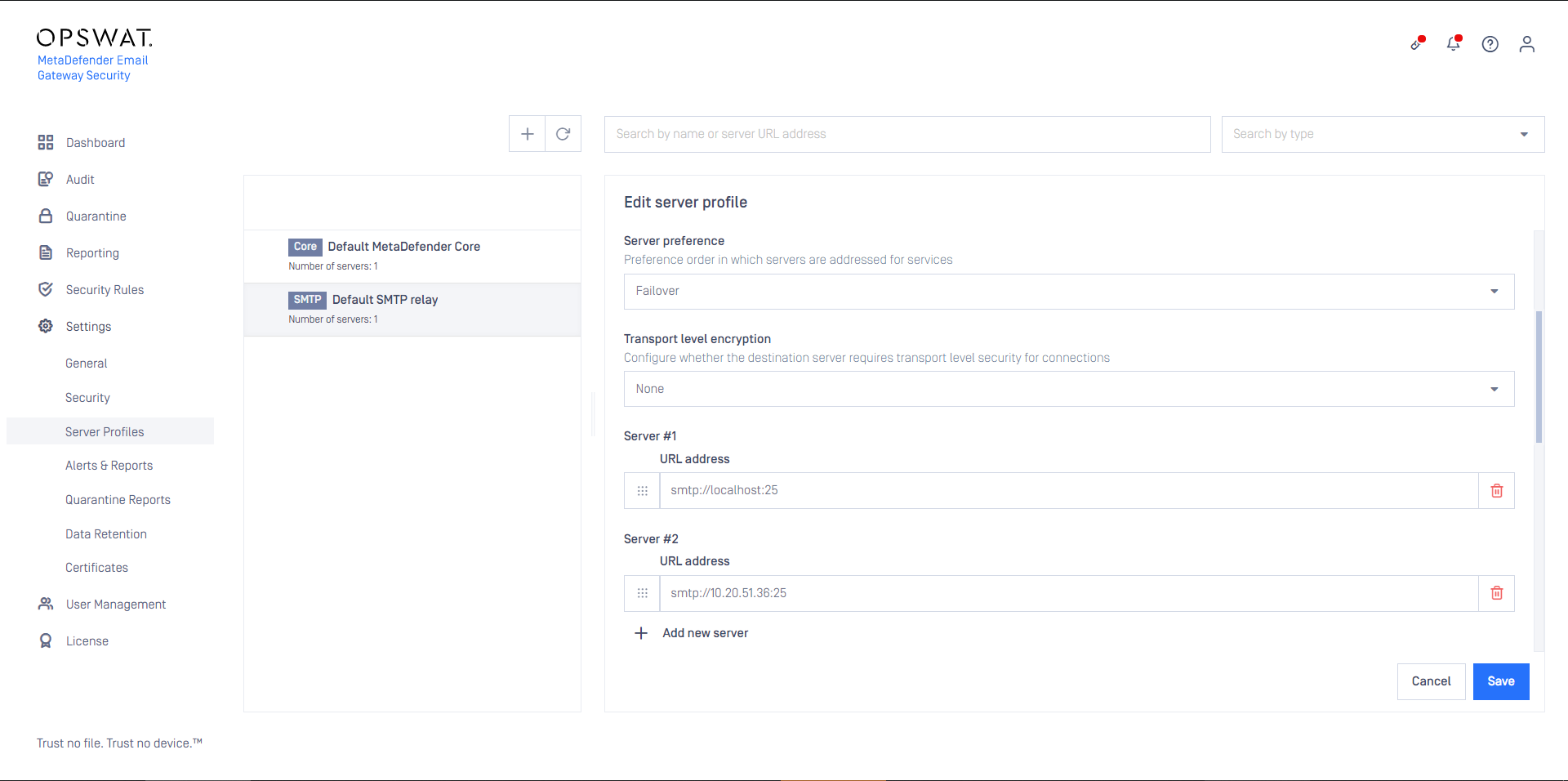
In the image below we show an SMTP type server profile. This profile contains two actual SMTP servers that are utilized in a Failover fashion (the first is the preferred one, but if that fails, then the second is attempted).
This server profile can be used in any of the security rules as the SMTP relay server profile (see Configuration/Policy).
MetaDefender Cloud
To use MetaDefender Cloud, a live subscription is required.
Since version 5.4.0 Email Gateway Security supports scanning on MetaDefender Cloud instead of –or in addition to– on-premises MetaDefender Core servers.
To configure MetaDefender Cloud for scanning, follow these steps:
Create or modify a MetaDefender Core type server profile
Create a new server specification (click ADD NEW SERVER) or modify an existing one

Select the option MetaDefender Cloud and specify the MetaDefender Cloud API Key
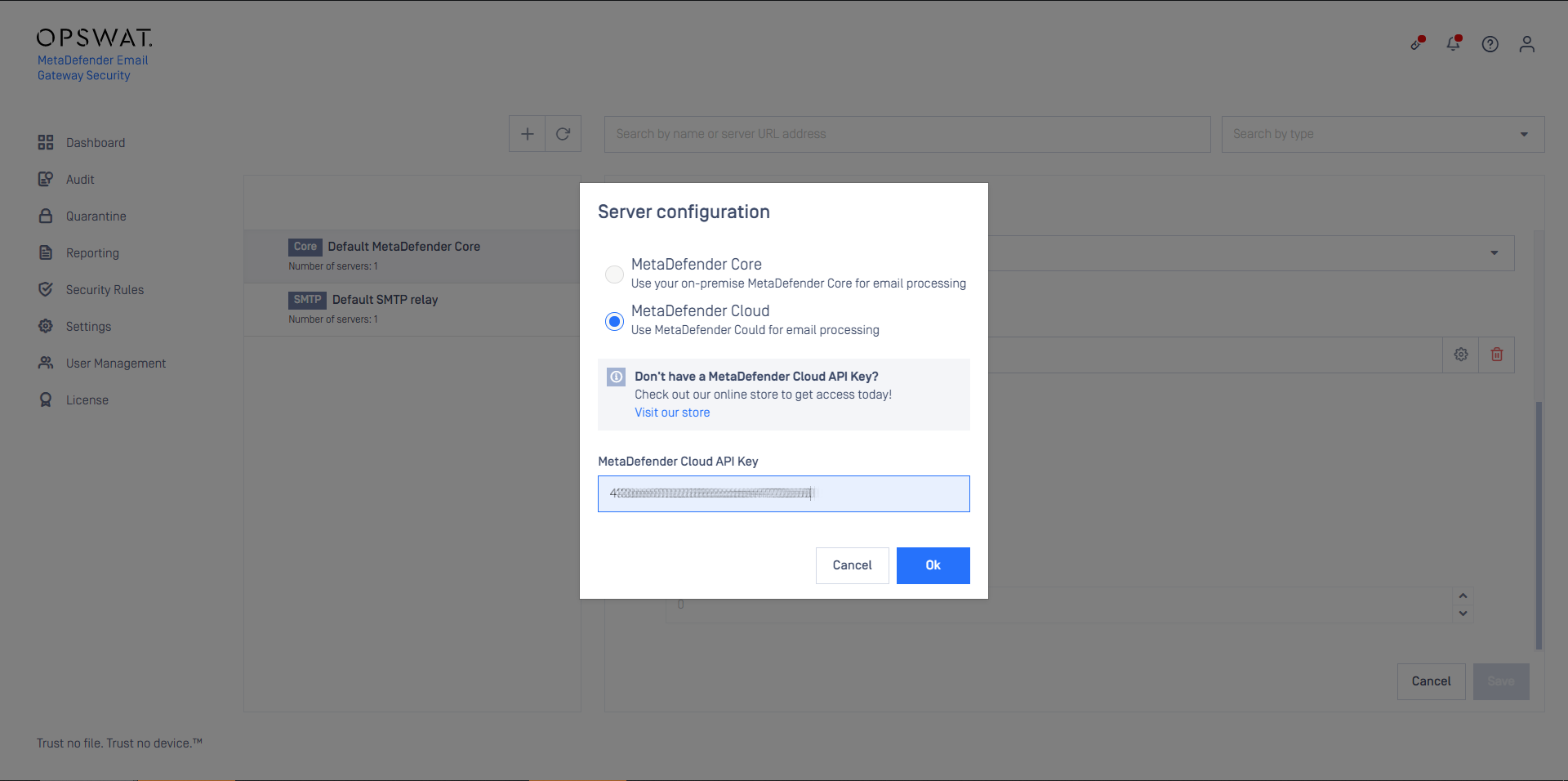
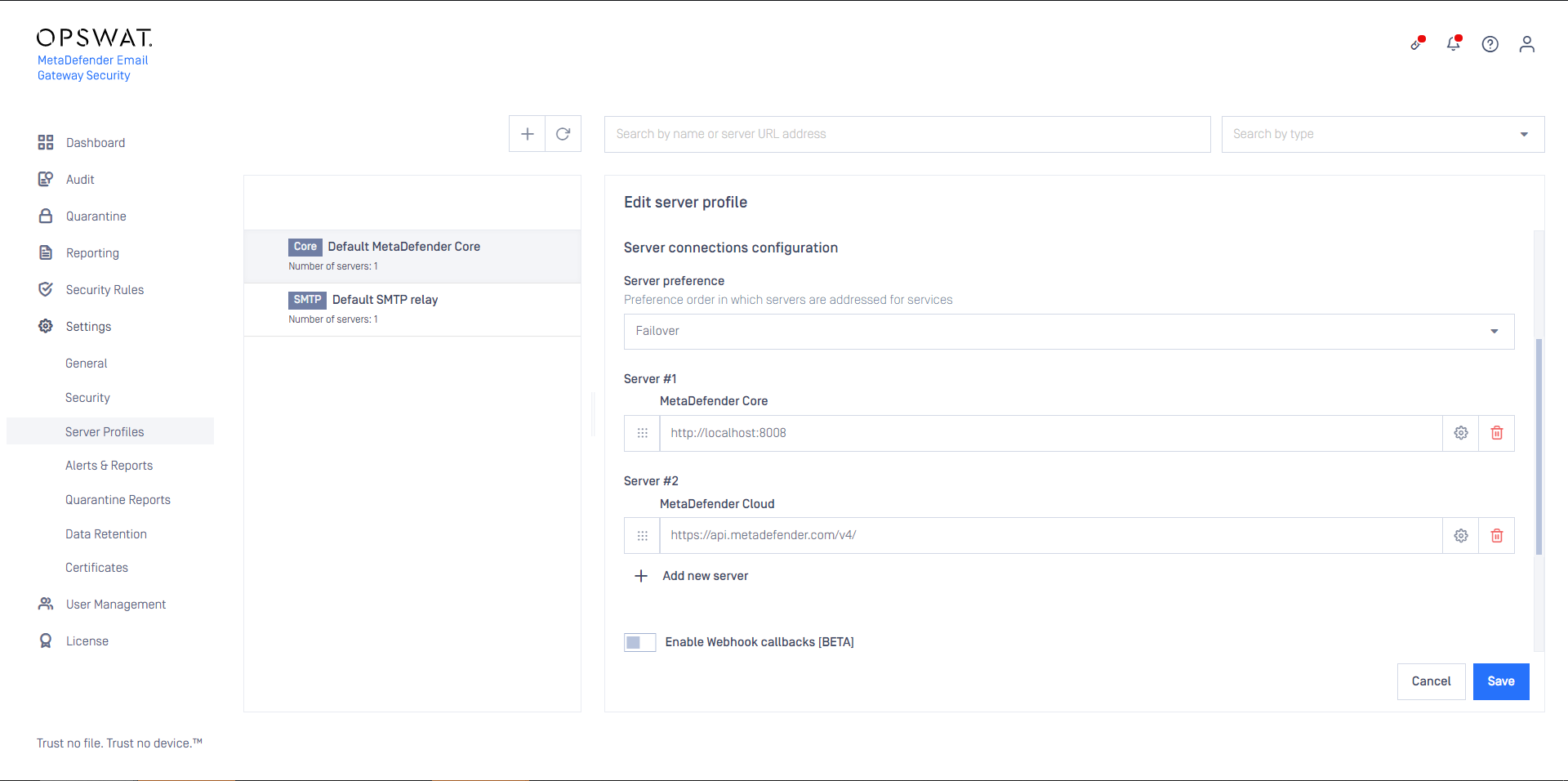
From this point MetaDefender Cloud is treated as yet another server in the server preference, so either the processing fails over to it, or it is used as an additional server in the round-robin setup.
Sensitive data
Certain server profiles require sensitive information to be configured for the server profile to work correctly.
Server profile type | Sensitive data |
|---|---|
MetaDefender Core | MetaDefender Cloud API Key |
SMTP server | Password |
Active Directory | Bind password |
MetaDefender Managed File Transfer | MetaDefender Managed File Transfer API key |
As long as TLS is not configured for the web management console, sensitive information above is sent clear-text over the network.
For details see Configuration/Transport Layer Security.
As long as TLS is not configured between Email Gateway Security and the server providing the service of the server profile, sensitive information above is sent clear-text over the network.
For details about configuring TLS between Email Gateway Security and server profile servers see section Transport layer security schemes.
Server specifications
Servers must be specified using URI syntax. Multiple server specification may be added to an SMTP or MetaDefender Core type server profile. At least one server specification must exist in a server profile.
Only the following URI components are used:
URI component | Supporting server profile type | Example | Defaults | |
|---|---|---|---|---|
scheme | All | smtp:// 10.0.0.10:25 | SMTP | smtp, smtps |
scheme | All | http:// 10.0.0.10:8008 | MetaDefender Core | http, https |
scheme | All | ldap:// 10.0.0.10:389 | Active Directory | ldap |
host | All | http:// 10.0.0.10 | N/A | |
port | All | http:// 10.0.0.10:25 | SMTP | 25 |
port | All | http:// 10.0.0.10:8008 | MetaDefender Core | 8008 |
port | All | http:// 10.0.0.10:8010/vault_rest | MetaDefender Managed File Transfer | 8010 |
port | All | http:// 10.0.0.10:389 | Active Directory | 389 |
path | Metadefender Managed File Transfer | http:// 10.0.0.10:25/vault_rest | MetaDefender Managed File Transfer | /vault_rest |
Server profile examples
The following list contains examples for each server profile type with reasonable defaults (all use 127.0.0.1 as host).
Server profile type | URI |
|---|---|
SMTP | smtp://127.0.0.1:25 |
MetaDefender Core | |
MetaDefender Managed File Transfer | |
Active Directory | ldap://127.0.0.1:389 |
Transport layer security schemes
To configure TLS between Email Gateway Security and the server providing the service of the server profile, the following schemes must be used:
Server profile type | TLS scheme |
|---|---|
SMTP server | smtps |
MetaDefender Core | https |
MetaDefender Managed File Transfer | https |
Email Gateway Security will use TLS if the Active Directory service is listening on a TLS enabled port.
To configure TLS between Email Gateway Security and Active Directory, the Active Directory’s secure port must be used in the Active Directory type server profile's URI specification (and no need to specify ldaps as the scheme).
By default the secure Active Directory port is 636.
For TLS to work properly, it must be configured on the server profile server.
SMTP server: seek for guidance at the vendor of your SMTP server
Active Directory: https://support.microsoft.com/en-us/help/321051/how-to-enable-ldap-over-ssl-with-a-third-party-certification-authority
MetaDefender Core: https://onlinehelp.opswat.com/corev4/3.8.1_Enabling_HTTPS.html
MetaDefender Managed File Transfer: https://onlinehelp.opswat.com/mft/Enable_HTTPS.html
Server preference
Actual server in MetaDefender Core and SMTP type server profiles can be set to a preference order in which servers are addressed for services.
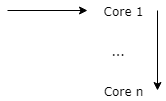
Failover
High availability order; first successfully addressed server in the list will do the service.
Always start with the first server URL in list defined in the server profile.
Fail over to the next server in the list, if the actual server fails.
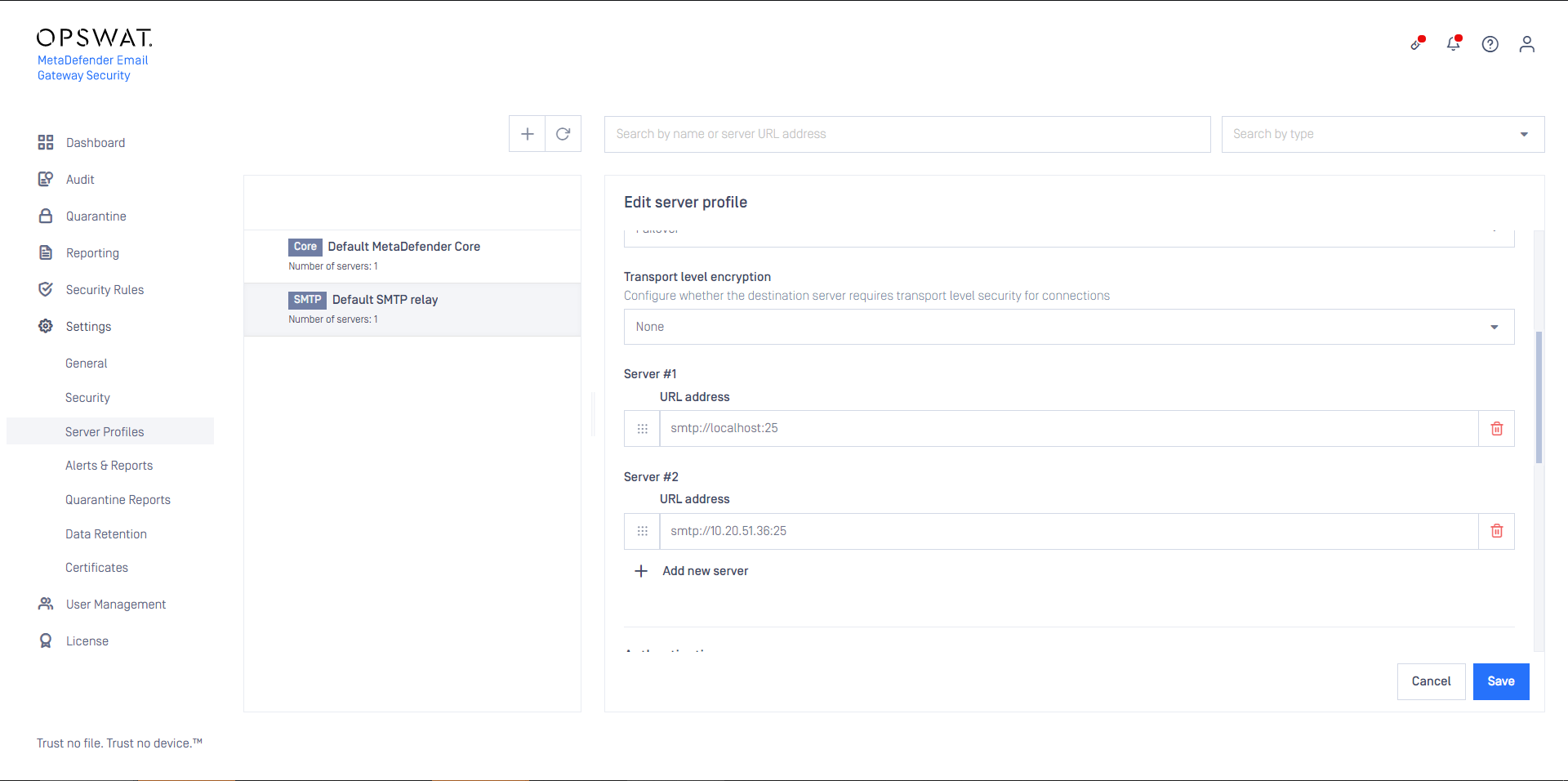
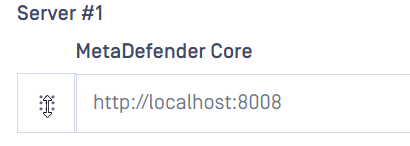
The order of the servers can be set by drag and drop using the ⋮⋮⋮ icon in front of the server specification (when the drag and drop is active, the mouse pointer changes to , see the image below).
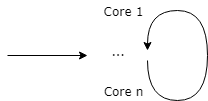
Round robin
Load balancing order; next successfully addressed server in the list will do the service.
Do a Round Robin selection of the Core URLs defined in the Core inventory:
For the first scan request use Core 1
If previous scan request used Core 1 then use Core 2 now,
...,
If previous scan request used Core k then use Core k+1 now,
...,
If previous scan request used Core n then use Core 1 now
Instead of a real Round Robin selection, the initial server is selected in a random fashion currently:
Do a random selection of the Core URLs defined in the Core inventory.
Fail over to the next Core in the list, if the actual Core fails. Start over the selection at the end of the list and continue until the starting entry is reached.
MX Record lookup
From version 5.7.1 it is possible to configure an SMTP server profile to perform MX record lookup, instead of providing fixed SMTP endpoints for relaying emails. In the Recipient domain MX record lookup drop down option list, select Route emails using MX records. This will enable MetaDefender Email Gateway Security to use the DNS MX records configured for the recipient when relaying emails.
In case MetaDefender Email Gateway Security is unable to locate MX records for a specific recipient domain the email can end up in Fail state (after any Retry scheme configured in the product). This will not result in an NDR being sent to the original sender and the administrator must take appropriate action when handling these failed emails.
SMTP Certificate based client authentication
For SMTP server connections it is possible to configure a client certificate used to authenticate with the remote SMTP server. This requires you to first import the certificate (see Configuration / Transport Layer Security) and enable the option Certificate based client authentication in the SMTP server profile. Finally, select the imported certificate from the drop down list Select certificate.
SMTP server connection pooling
To improve performance, Email Gateway Security can cache and reuse connections towards SMTP relays.
At the end of the processing of an email, Email Gateway Security forwards the processed email to the next hop –that is usually the mail server for inbound emails– via SMTP. This next hop is configured in the rule matching the email, under Security Rules / rule / GENERAL / SMTP relay server profile (see Configuration/Policy). The value must be an SMTP type server profile configured under Settings > Server Profiles.
When an email is forwarded to the relay, an SMTP handshake must happen while a TCP connection must be established. This is a time-consuming, resource-intensive task that can slow the email processing down, especially under a heavy load.
To contain the time loss caused by establishing SMTP connections, Email Gateway Security can reuse already established connections, these are kept in the connection pool.
If the pool is empty, and a new SMTP connection is needed, then the connection gets established.
If the pool is not full yet, and the communication completes over an SMTP connection, then this connection is placed into the pool for later reuse.
If an SMTP connection is needed, and there is an idle connection in the pool, then it is taken from the pool and reused for this connection.
If the pool is full, and the communication completes over an SMTP connection, then this connection is disconnected.
If a connection in the pool has not been reused for the configured time, then it gets disconnected.
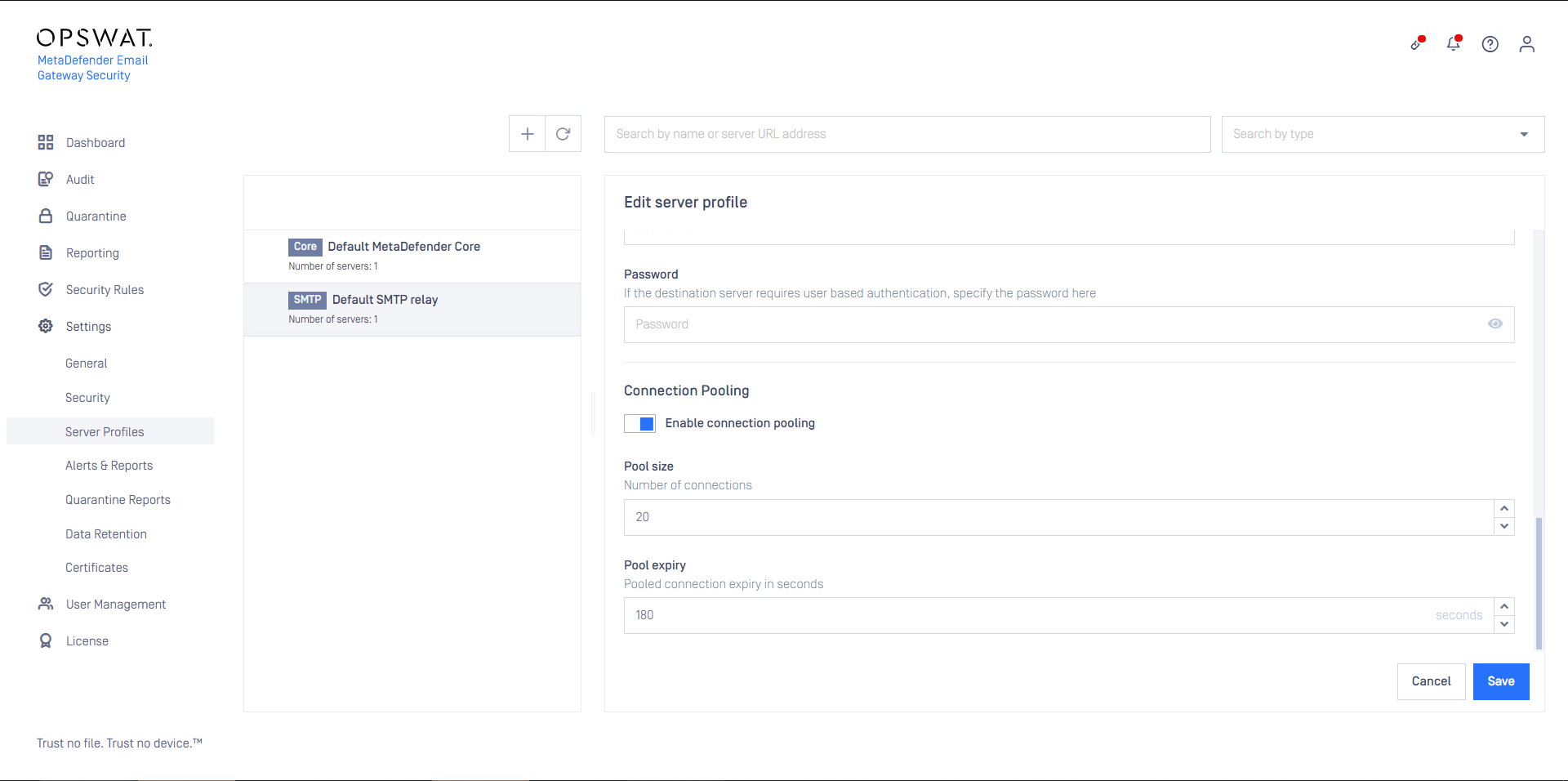
The following options are available:
Option | Default | Min | Max | Description |
|---|---|---|---|---|
Enable connection pooling | Off | N/A | N/A | Enable or disable SMTP connection pooling. |
Pool size | 20 | 1 | 999 | Maximum number of SMTP connections kept in the pool for reuse purposes. |
Pool expiry | 180 | 1 | 60 000 | If the pooled SMTP connection has not been used for the time window configured here, then it gets disconnected. |
Please note, that most SMTP servers limit the number of parallel inbound SMTP connections. This must be taken into consideration when configuring connection pooling in Email Gateway Security.
For details about limitations on number of connections in case of the Microsoft Exchange Server, see https://docs.microsoft.com/en-us/exchange/mail-flow/message-rate-limits.
MetaDefender Core server webhook callbacks
Webhook callbacks are not applicable for MetaDefender Cloud connections.
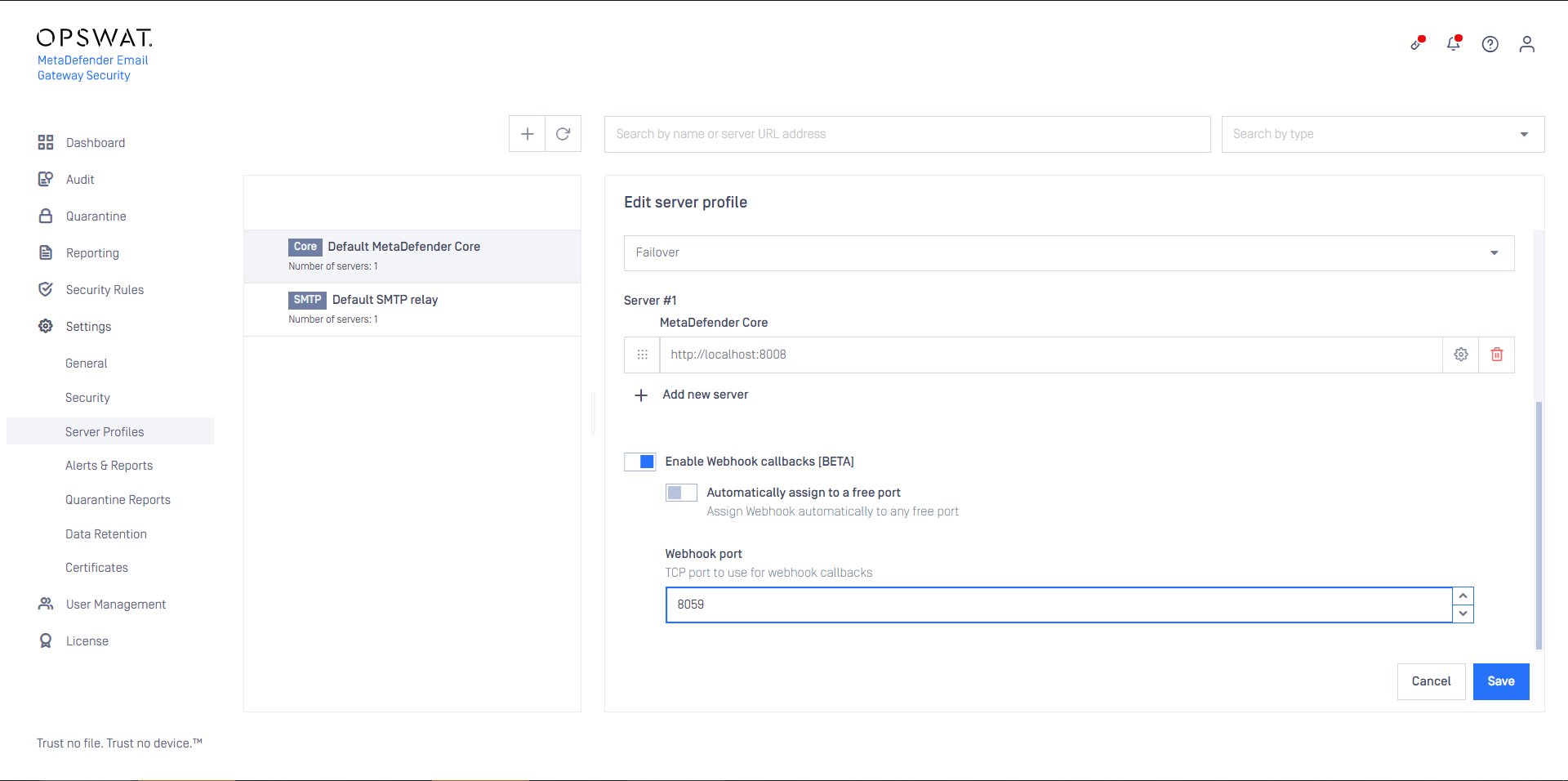
Traditionally Email Gateway Security polls MetaDefender Core regularly for processing results.
Enabling webhooks, MetaDefender Core can actively notify Email Gateway Security when processing results are ready.
Property validation
Some of the server profile properties have cross-dependencies and as so must match.
Server profile type | Server specifications (URI) allowed schemes |
|---|---|
SMTP | smtp |
SMTP | smtps |
MetaDefender Core | http |
MetaDefender Core | https |
MetaDefender Managed File Transfer | http |
MetaDefender Managed File Transfer | https |
Active Directory | ldap |
Active Directory | ldaps |
Server specifications (URI) scheme | Transport level encryption allowed values |
|---|---|
smtp | None |
smtp | StartTLS optional |
smtp | StartTLS required |
smtps | Irrelevant If smtps scheme is specified then the SMTP connection is established over TLS irrelevant of the setting of Transport level encryption. |
http ldap | N/A |
https ldaps | N/A If https or ldaps scheme is specified then the HTTP or LDAP connection is established over TLS. |
Testing the configuration
Clicking the SAVE button the connection will be tested first. The test consists of two steps:
Syntactical validation of the values
Connection test
If the test fails, then the server profile can not be added.
Syntactical validation
The correctness of the provided values is validated:
Server profile name must be unique
The URI address values must conform with the URI syntax with the restriction listed at section Server specifications
Cross dependencies must match (see the Property validation section)
Connection test
If the syntactical validation pass, then each server specification is tested for a successful connection.
Limitations
Currently the connection is tested without using TLS (when configured at all).