
Clean files can be transferred and stored securely to a connected MetaDefender Managed File Transfer (formerly Vaults) instance after being scanned by MetaDefender Drive.
If you don't have a MetaDefender Managed File Transfer instance connected to your MetaDefender Drive, please go to Settings → MetaDefender MFT and follow the instructions.
Transferring Clean Files to MetaDefender Managed File Transfer
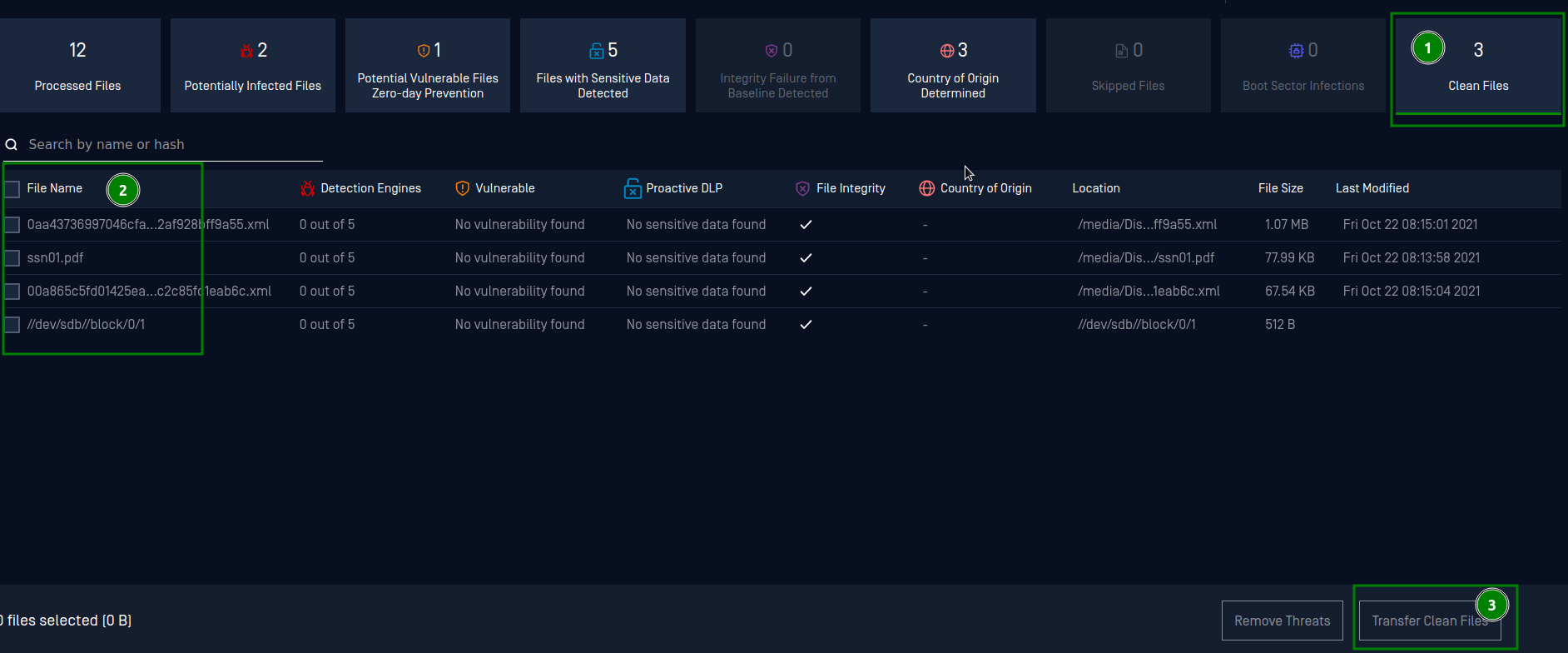
On the scan results page, open the Clean Files tab. Then, click the Transfer Clean Files button:
The Transfer Files dialog will open in a new window. Select the connected Managed File Transfer instance and the destination folder. Then, click Confirm to start the data transfer:

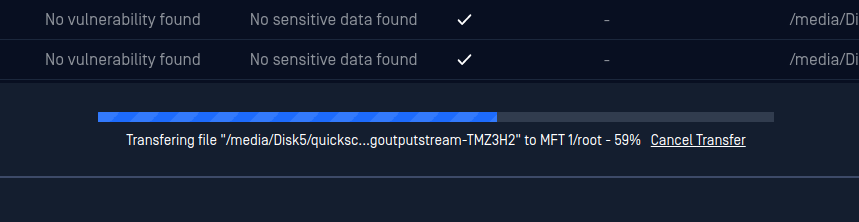
Track the file transfer progress from the status bar at the bottom of the screen:
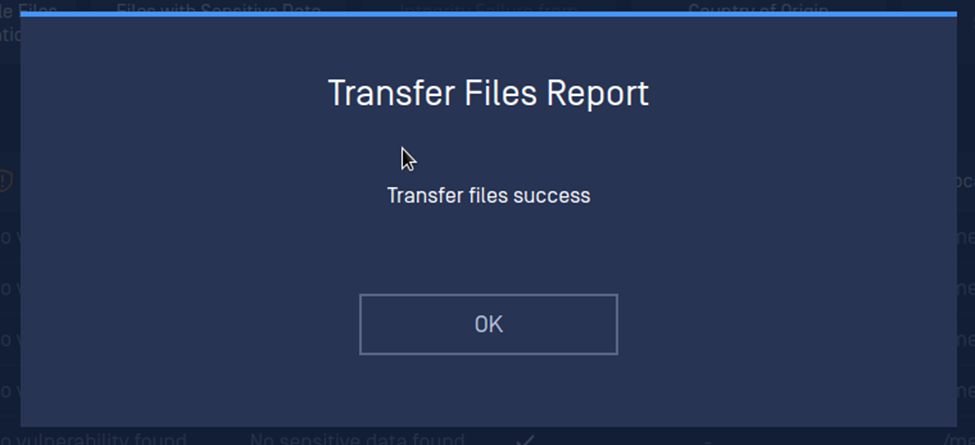
Once the file transfer is completed, you will receive the following notification. Click OK to confirm:
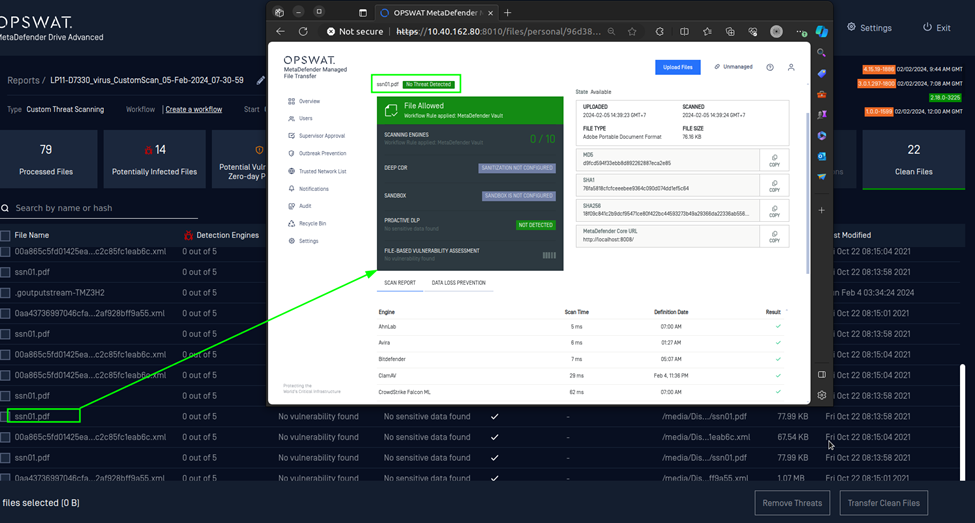
Go to your MetaDefender Managed File Transfer account to view your transferred files:
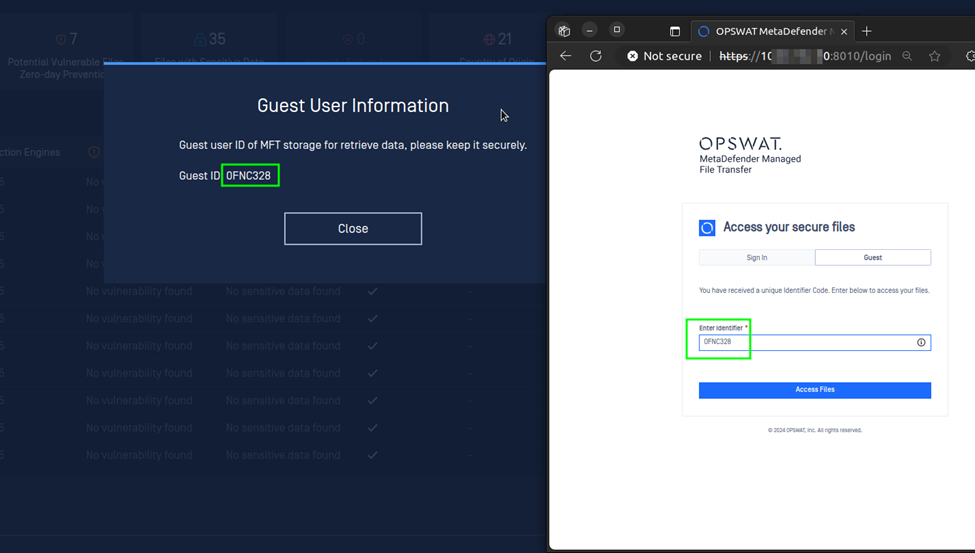
If you transfer data to MetaDefender Managed File Transfer as a guest user, your data will be securely stored for a limited period of time and will be automatically deleted afterward.
.