
Overview
Forensic Collection is a processing option in MetaDefender Drive that copies digital evidence from a target Windows machine for offline investigation and analysis. Instead of scanning files for threats, it gathers a predefined set of Windows forensic artifacts — such as the NTFS Master File Table, event logs, registry hives, prefetch files, browser history, and more — and writes them to a USB storage device that you choose.
Because MetaDefender Drive boots the target machine from its own trusted environment and accesses the internal disks read-only, the source evidence is preserved during collection.
Prerequisites
MetaDefender Drive v4.4.6 or later.
A USB storage device with enough free space for the collection. A full collection can be several gigabytes or more, depending on the target machine.
The target machine booted into MetaDefender Drive, with its internal Windows disk(s) detected.
Artifacts Collected
The following artifacts are gathered automatically. Each category is reported separately during collection so you can see exactly what was captured.
Artifact category | What it contains | Typical source location |
|---|---|---|
NTFS filesystem | NTFS metadata files, including the Master File Table and transaction log ( | Volume root (per NTFS volume) |
Event logs | Windows Event Viewer logs (System, Security, Application, and others) |
|
Registry Files | System and per-user registry hives (SAM, SECURITY, SOFTWARE, SYSTEM, |
|
Prefetch Files | Application prefetch data used to establish program execution history |
|
Jump Lists and Links | Recent-item link ( |
|
Recycle Bin | Deleted-item records per user |
|
Browser History | History databases for Microsoft Edge, Google Chrome, and Mozilla Firefox |
|
Target Directories | Additional directories included in the collection. This is usually the largest category by file count and size. | Detected on the target volume |
How to Run a Forensic Collection
1. Open Forensic Collection
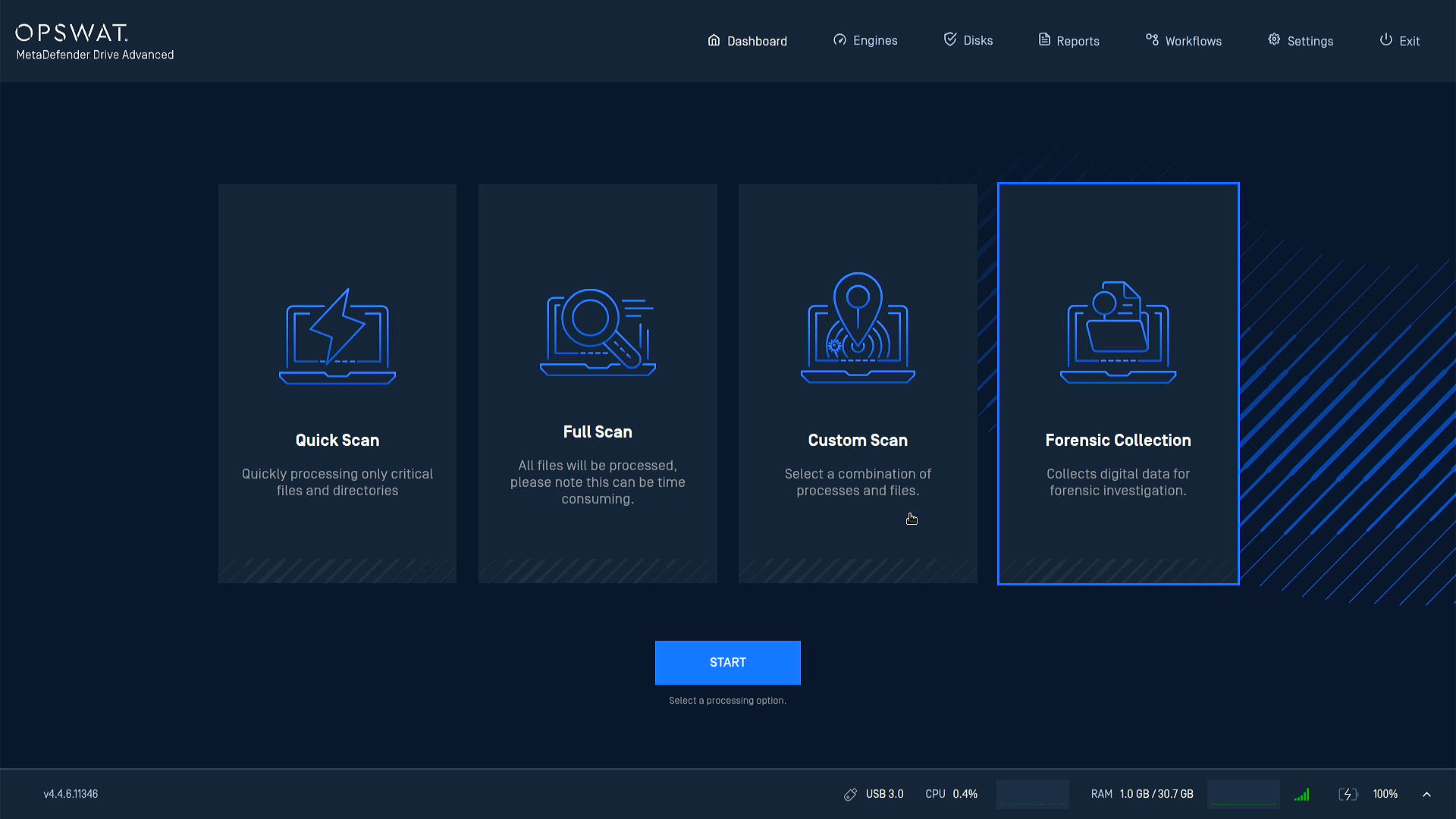
Boot the target machine into MetaDefender Drive. On the Dashboard, the processing options are shown as cards. Select Forensic Collection — "Collects digital data for forensic investigation" — and click START.
2. Connect and select a USB storage device
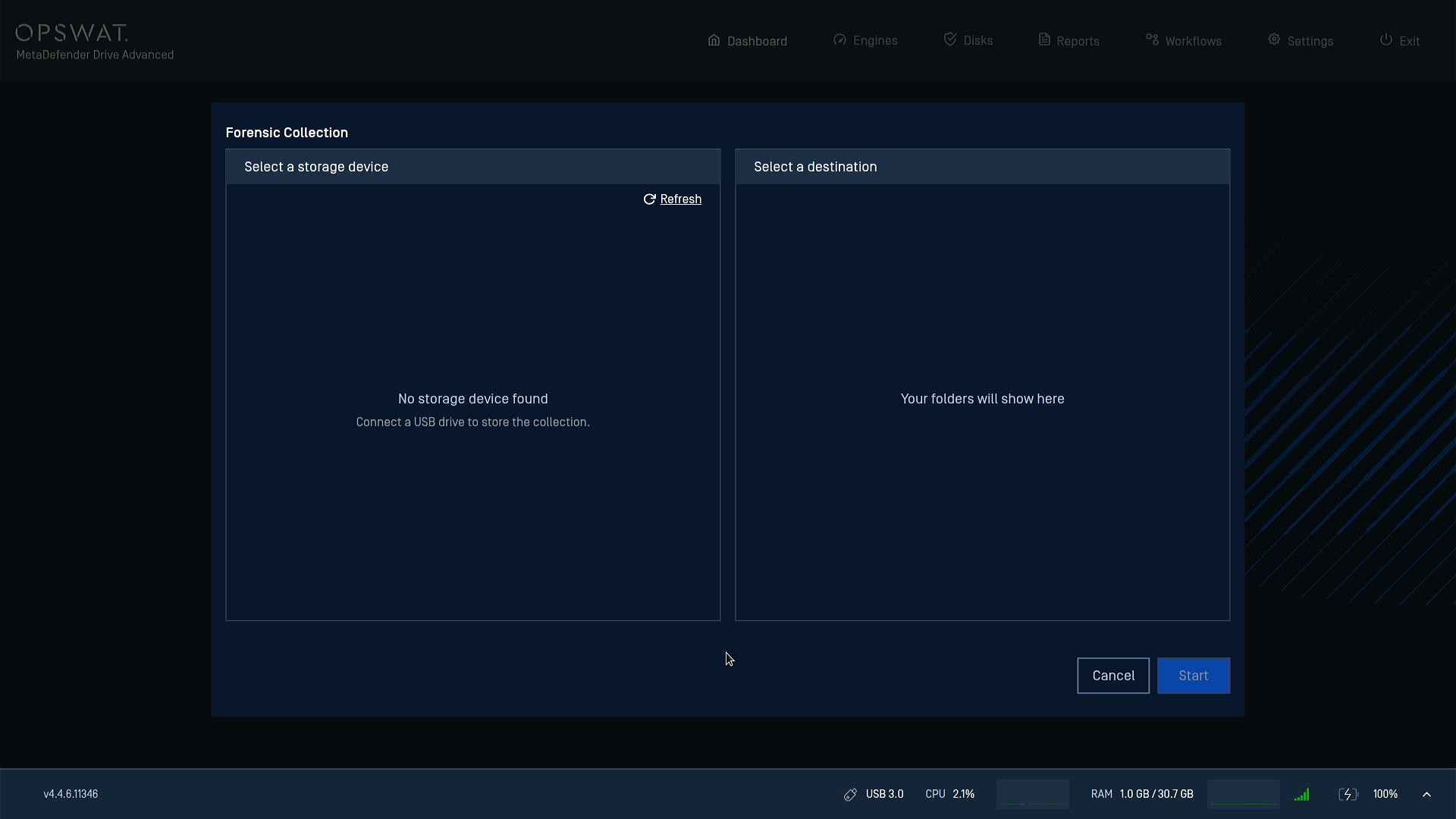
The collection must be saved to an external USB device. If no device is connected yet, the left panel shows "No storage device found — Connect a USB drive to store the collection."
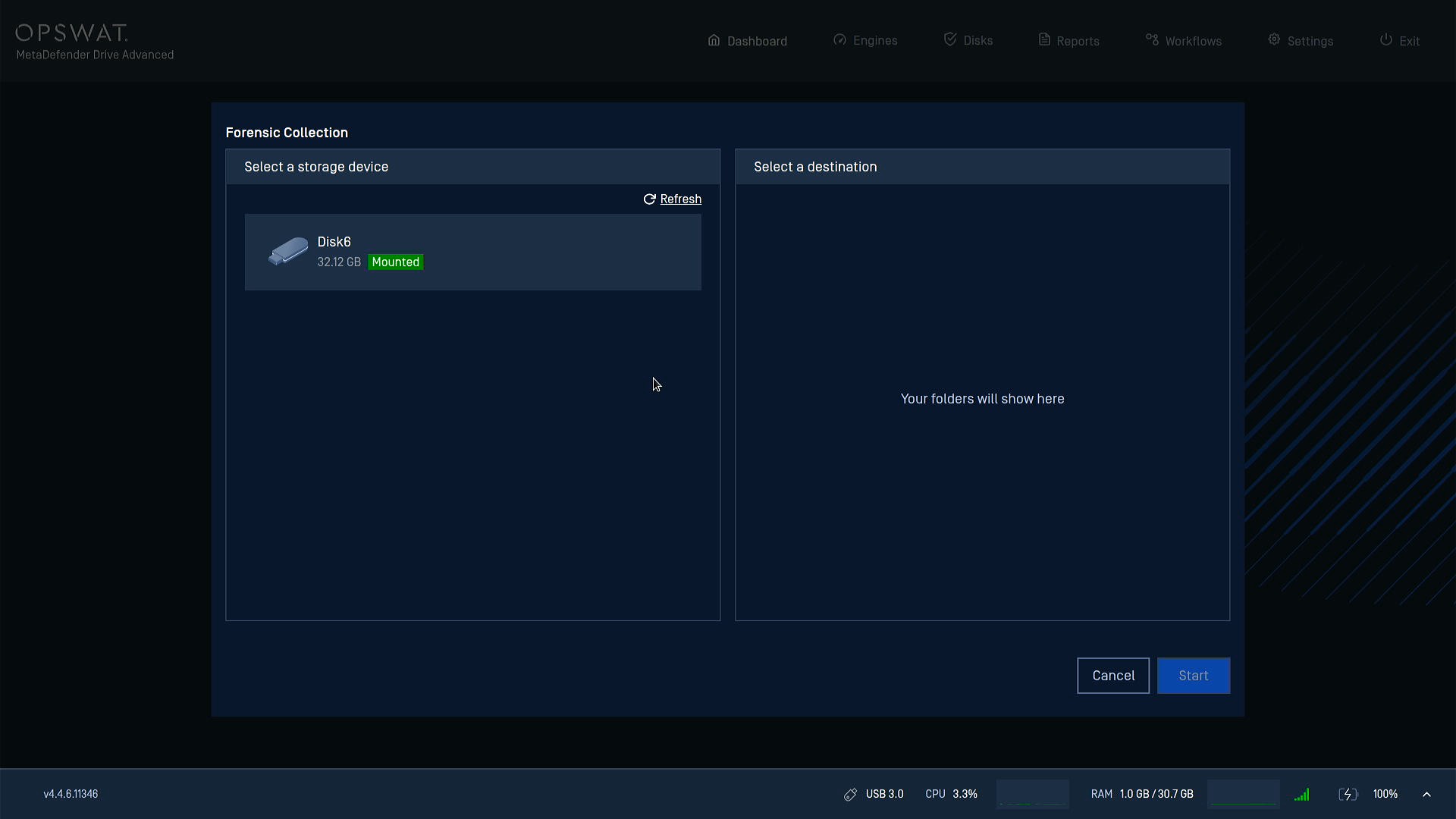
Connect a USB drive, then click Refresh. The device appears in the list with its capacity and a Mounted status.
3. Choose a destination folder
Click the storage device to select it (a checkmark confirms the selection). The Select a destination panel on the right then shows the folder tree of that device. Expand the device and choose the folder where the collection will be saved.
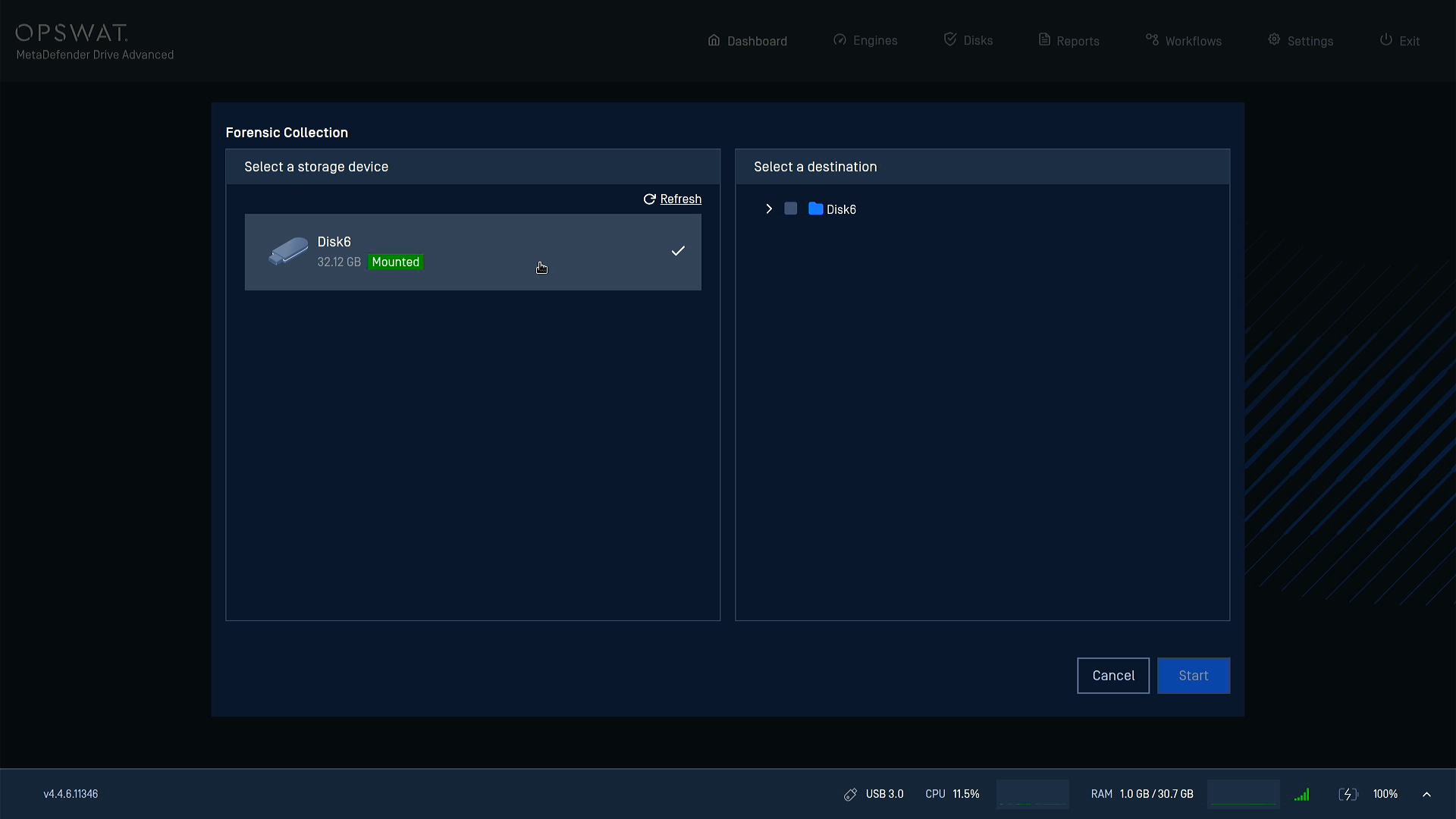
When both a storage device and a destination folder are selected, click Start.
4. Monitor progress
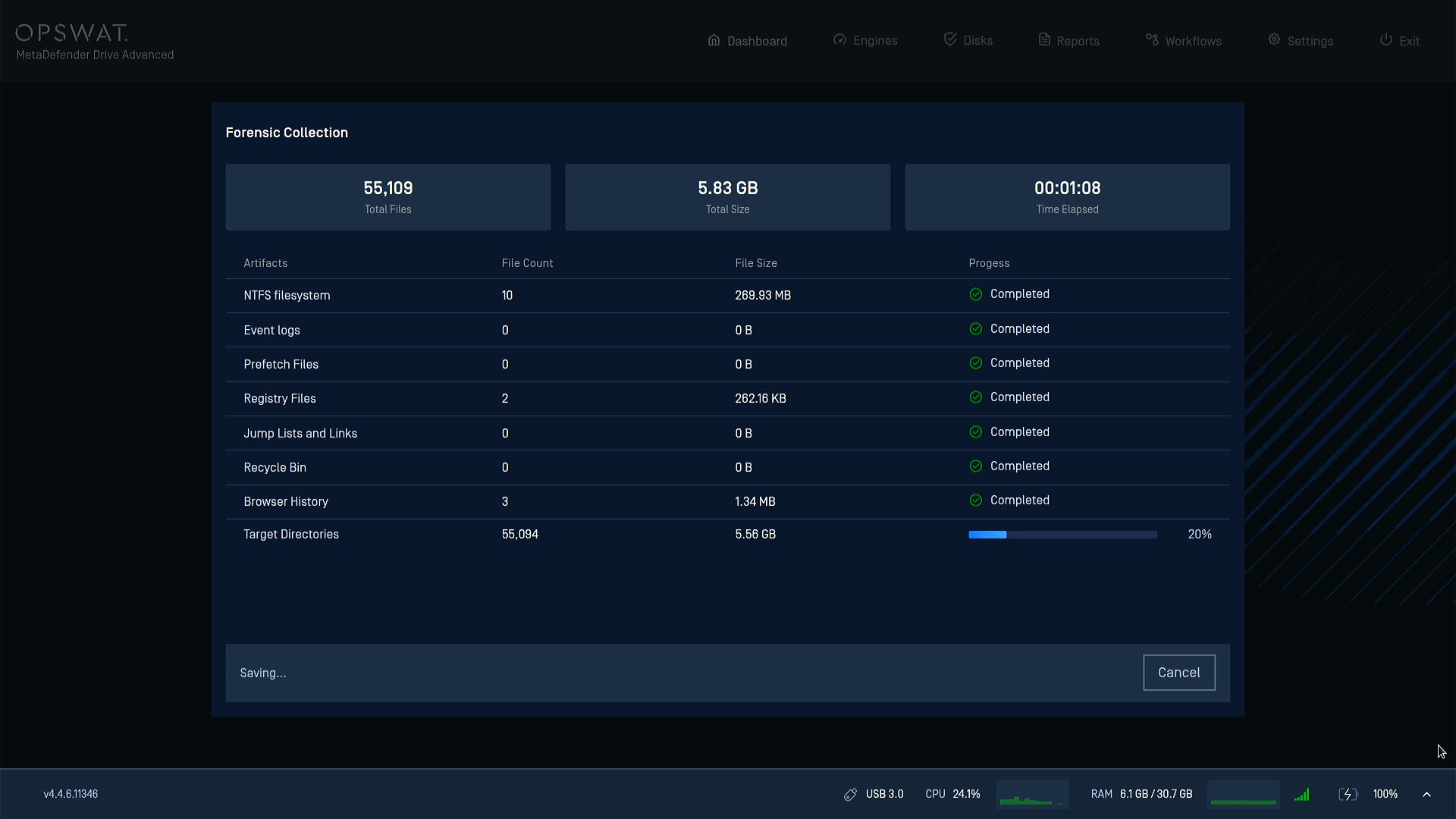
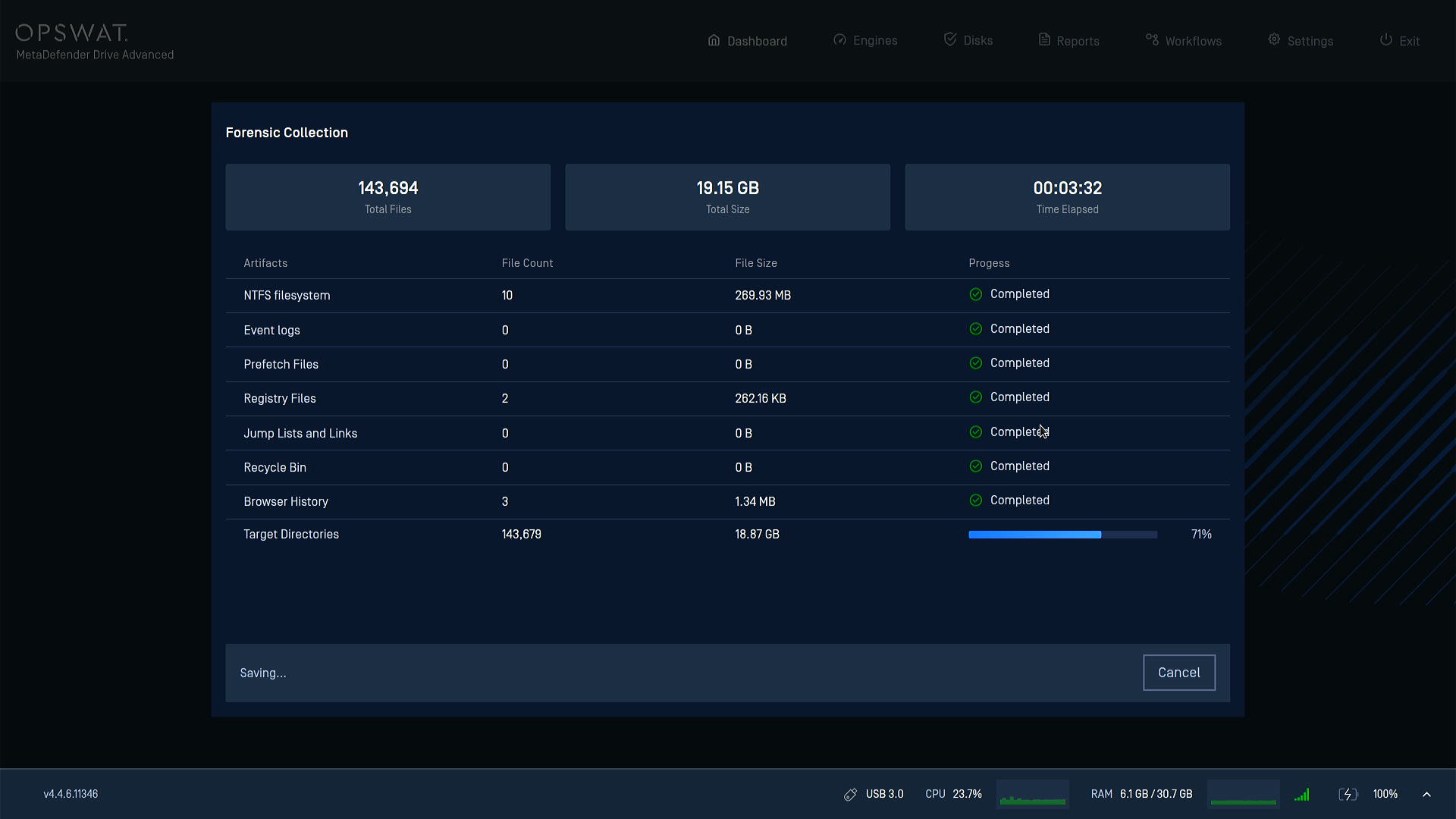
The collection screen shows running totals at the top — Total Files, Total Size, and Time Elapsed — and a per-artifact breakdown below. Each artifact category reports its File Count, File Size, and Progress. The categories complete quickly, while Target Directories typically accounts for most of the data and shows a percentage as it runs.
5. Wait while data is written to USB
When collection finishes, MetaDefender Drive writes the data to the USB device. The status bar shows "Saving to USB… Do not unplug."
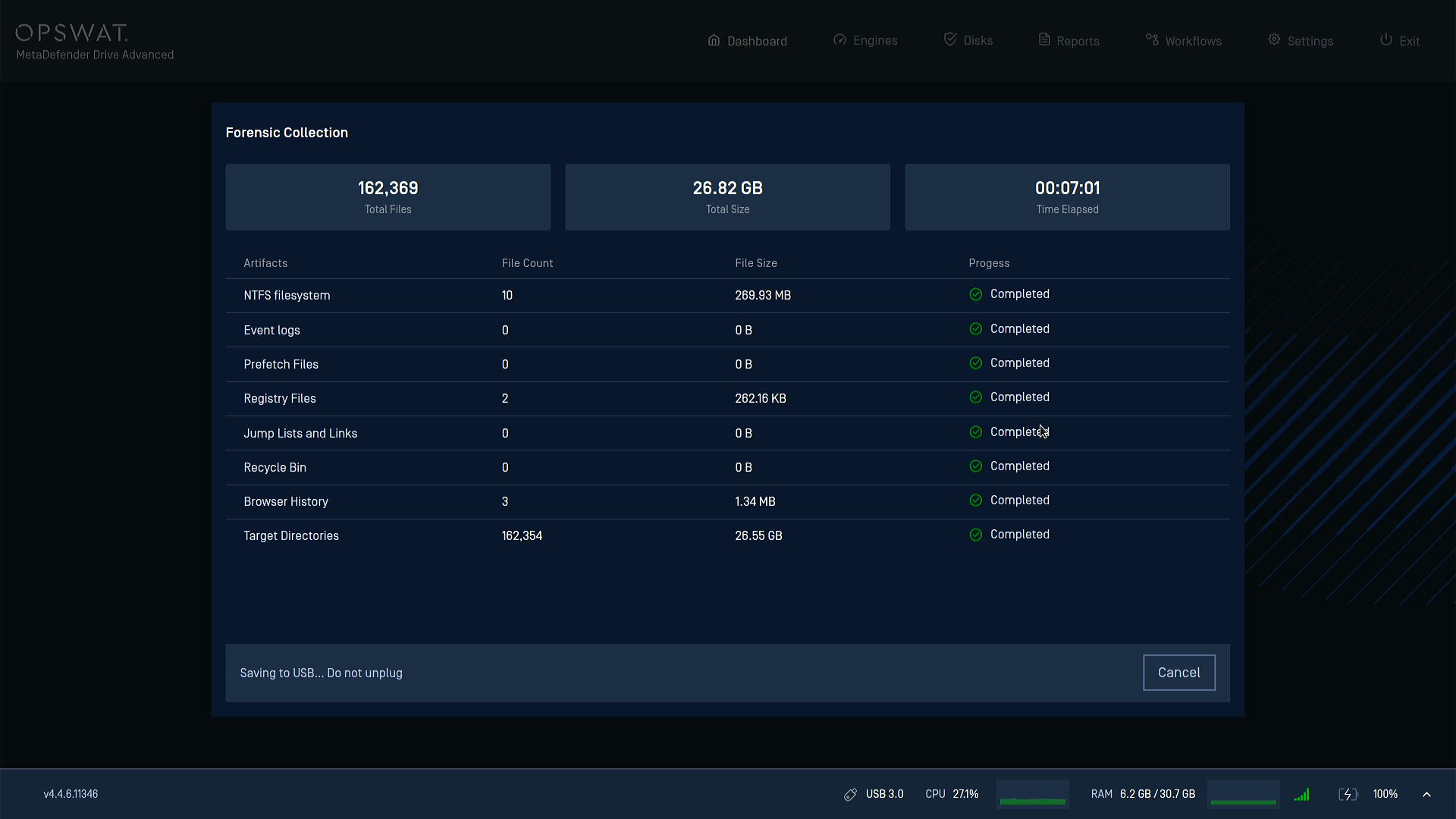
Do not remove the USB device while saving is in progress. Removing it early can corrupt the collection.
6. Finish
When saving completes, the status bar shows "Data saved at" followed by the destination path (for example, /media/Disk7). Click Done to finish.
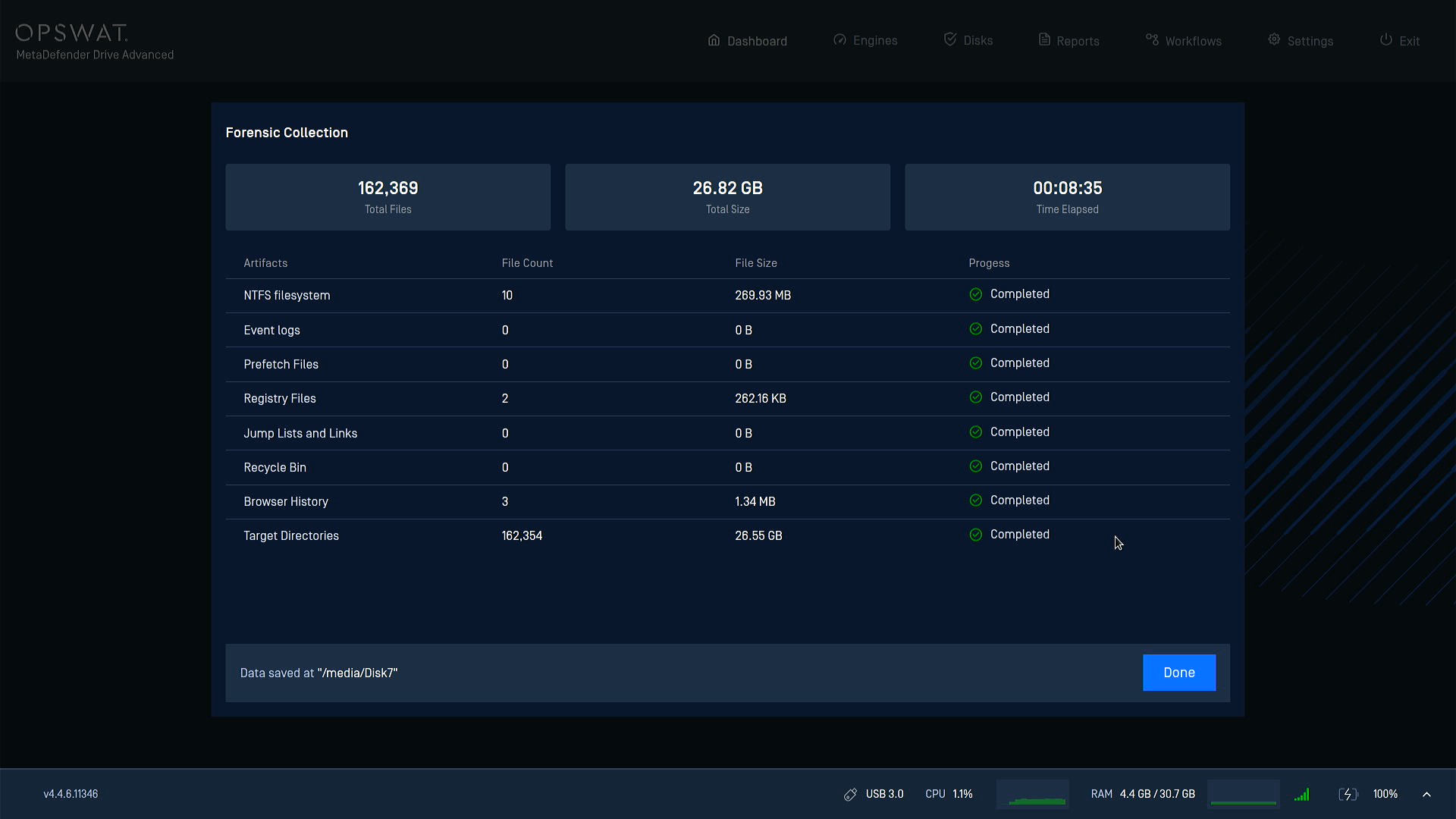
You can now safely remove the USB device and transfer the collected artifacts to your analysis environment.
Notes
Source disks are accessed in read-only mode: MetaDefender Drive does not modify the target machine's internal disks during collection, preserving evidence integrity.
A USB destination is required: The data is saved to an external USB device you select. Ensure to use a device with sufficient free space.
Do not unplug during the "Saving to USB" stage: Wait for the "Data saved at …" confirmation before removing the device.
Artifact counts may display zero file count: Some categories (such as Event logs and Prefetch) may report
0files if the corresponding data is not present on the target machine. This is expected and does not indicate an error.