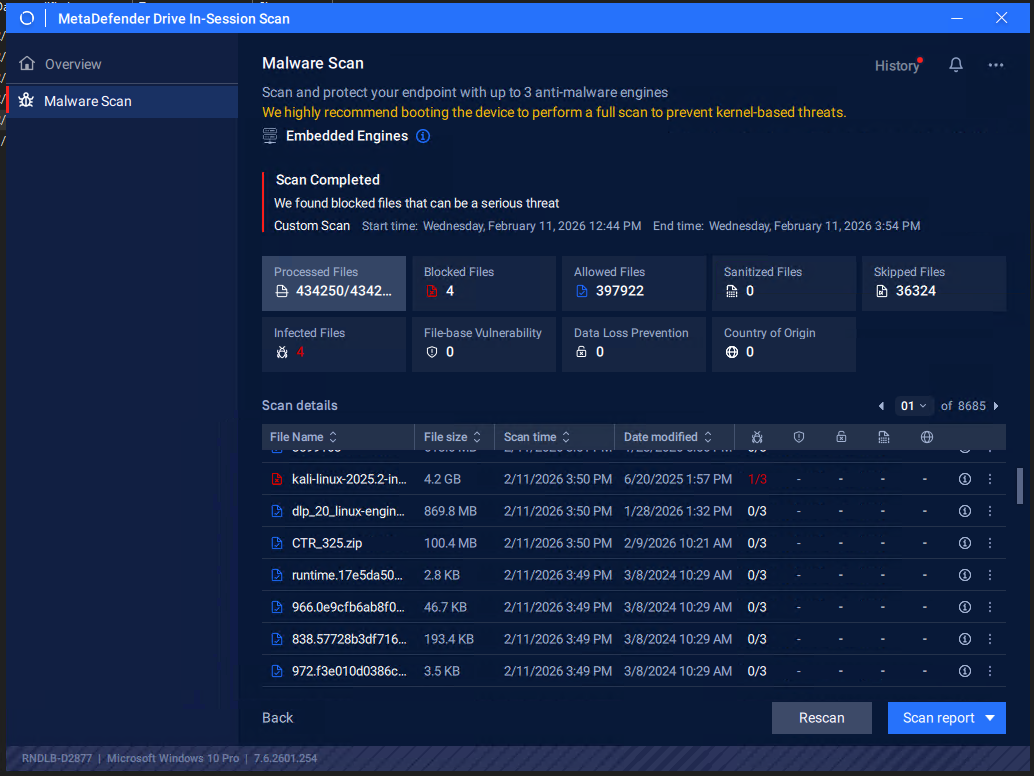
Run MetaDefender Drive In-Session
While your device OS is running, insert your OPSWAT MetaDefender Drive into the device's USB Type-A port.
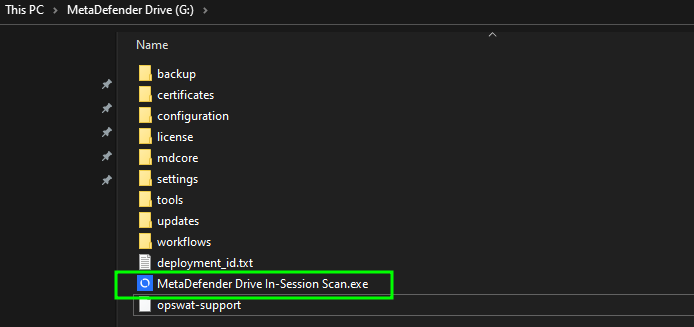
Navigate to the root folder inside the MetaDefender Drive partition and locate the MetaDefender Drive In-Sesion Scan.exe file
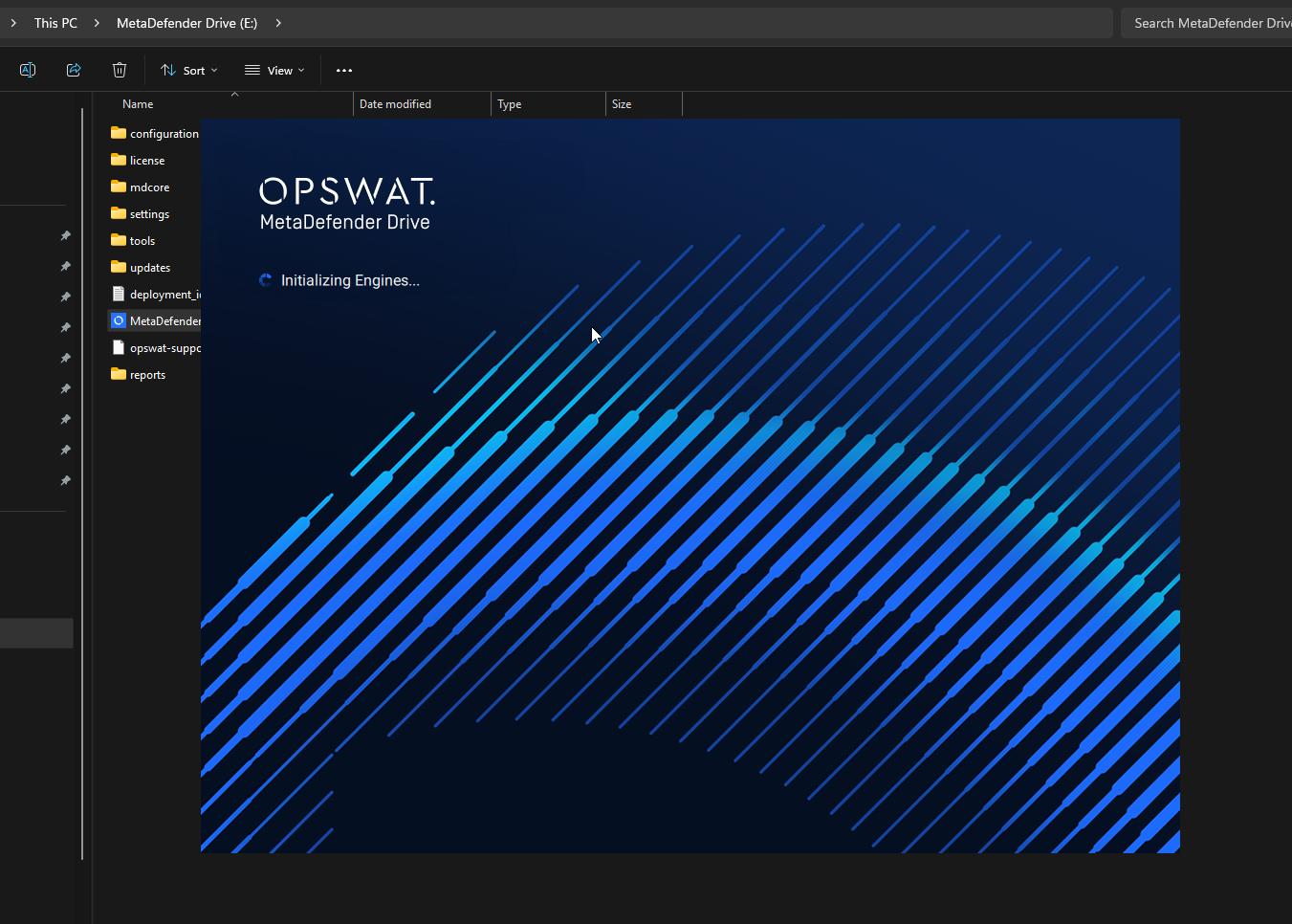
In-Session will init with a splashing screen
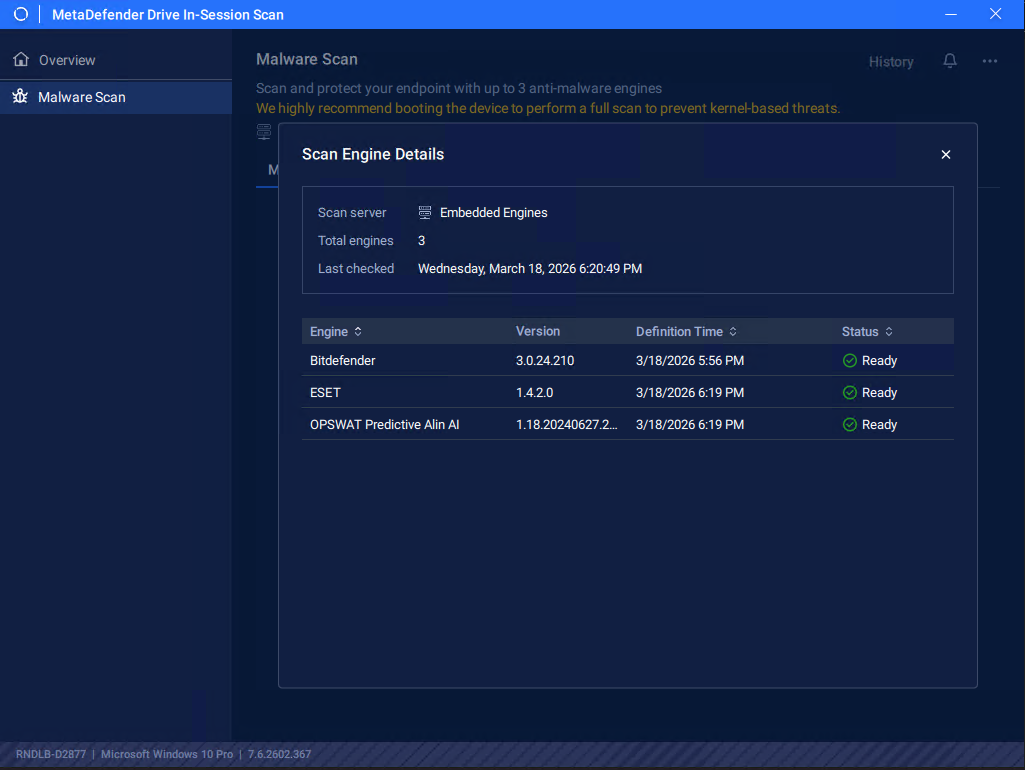
Wait until all of the embedded engines display the Ready status. Click the (i) icon to see the embedded engines provided with the version. Those engines are only available after Drive has been updated either by Drive Toolkit or by Update from Drive's UI.
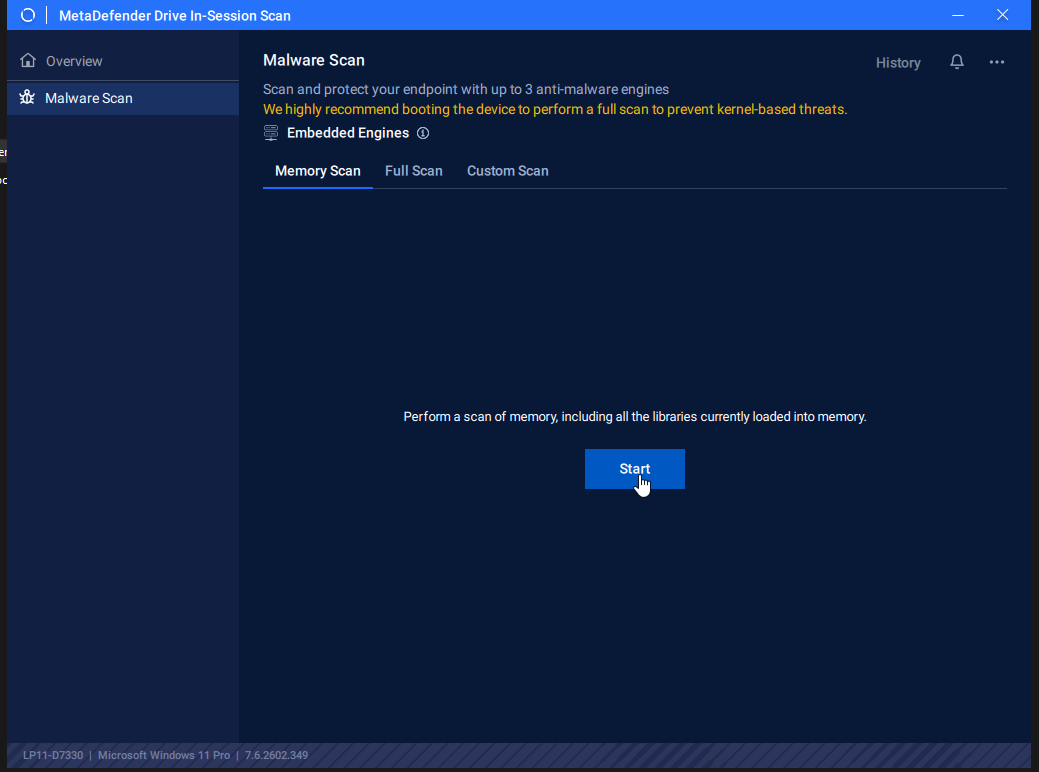
Memory Scan
To scan all the libraries loaded into the memory:
Click the Memory Scan tab, then click Start
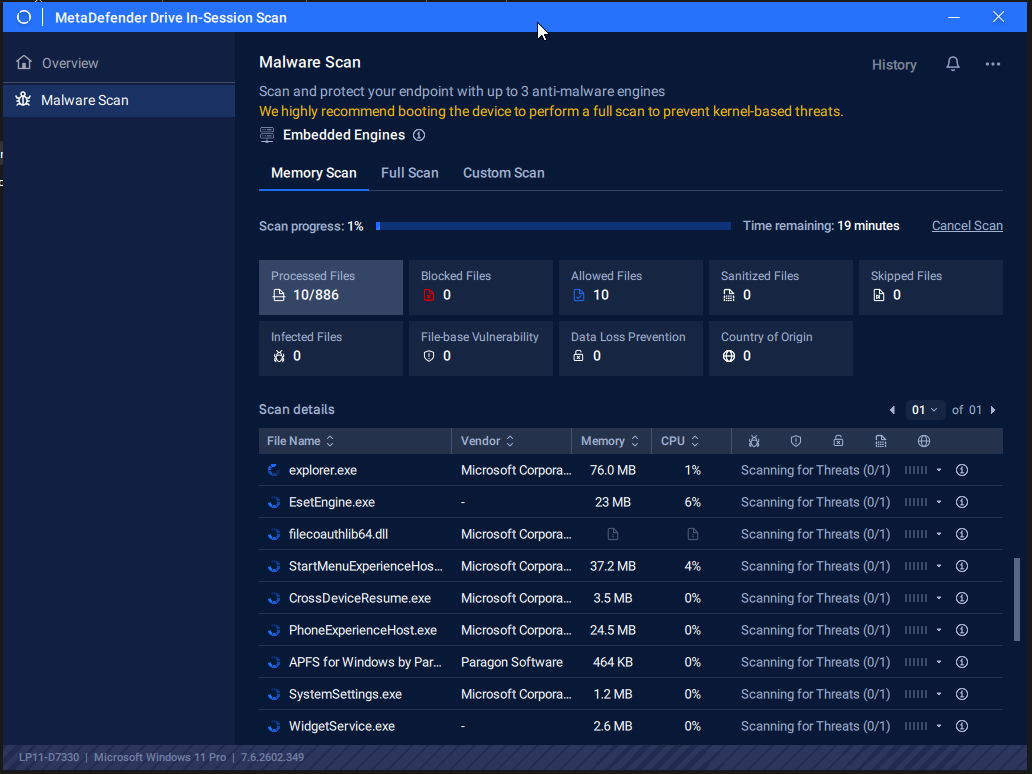
Once the scan is completed, the results of scanning all the libraries loaded into the memory will be displayed.
Full Scan
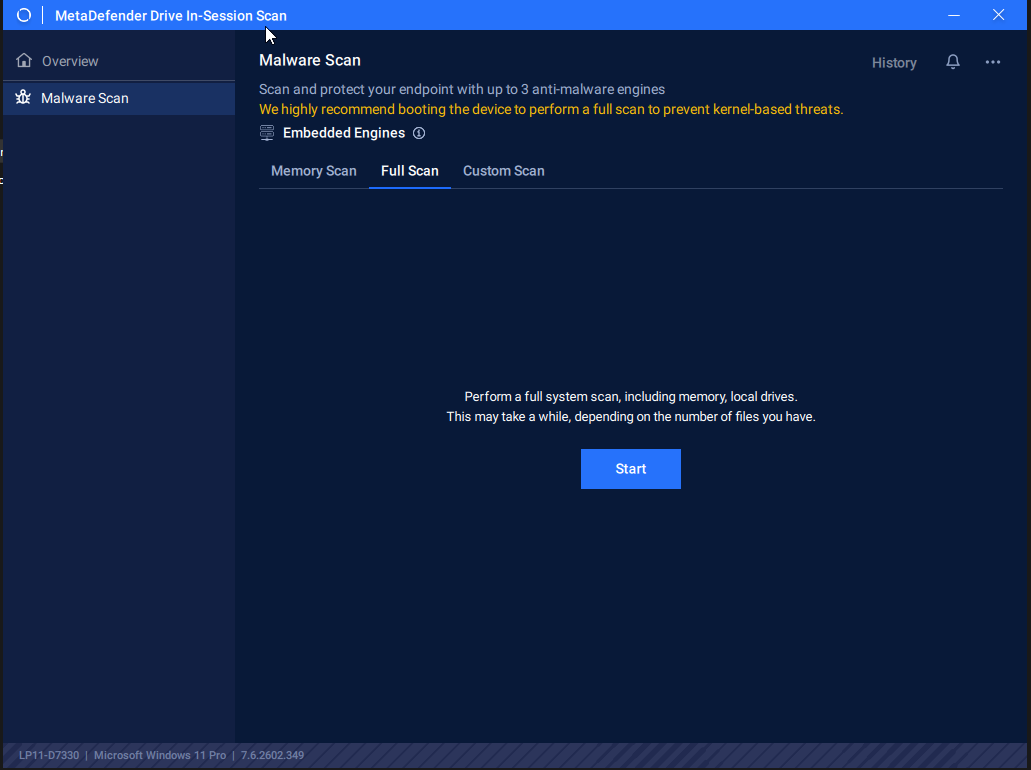
To run a full system scan:
Click the Full Scan tab, then click Start
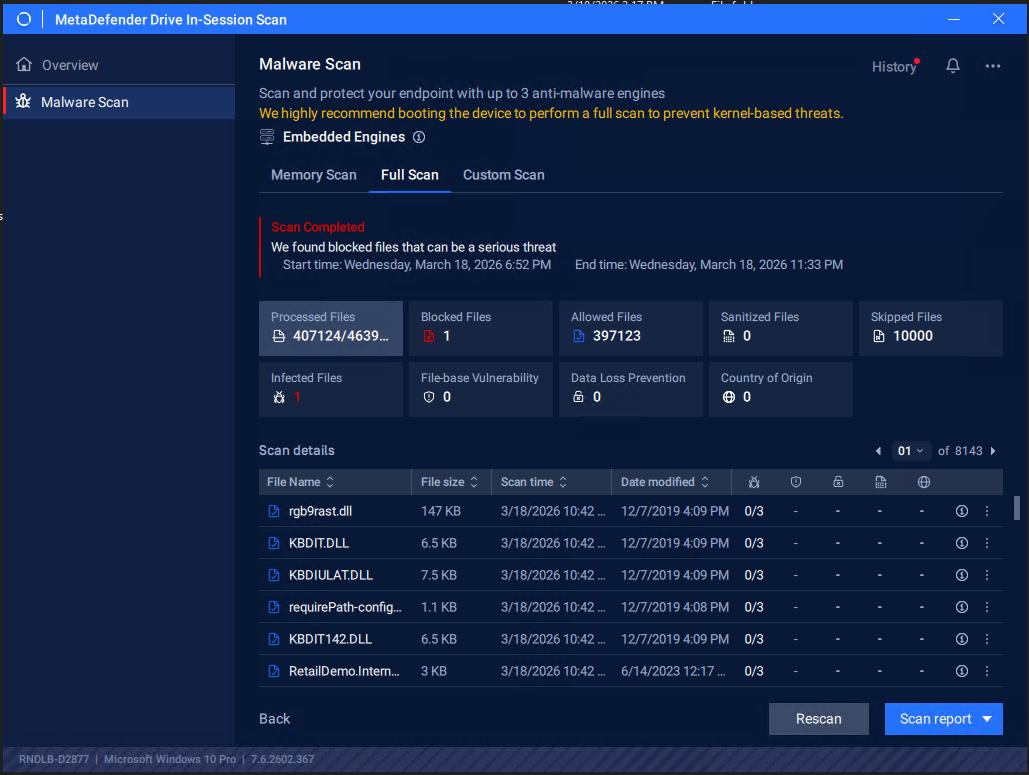
After scan completes, the full scan report will show:
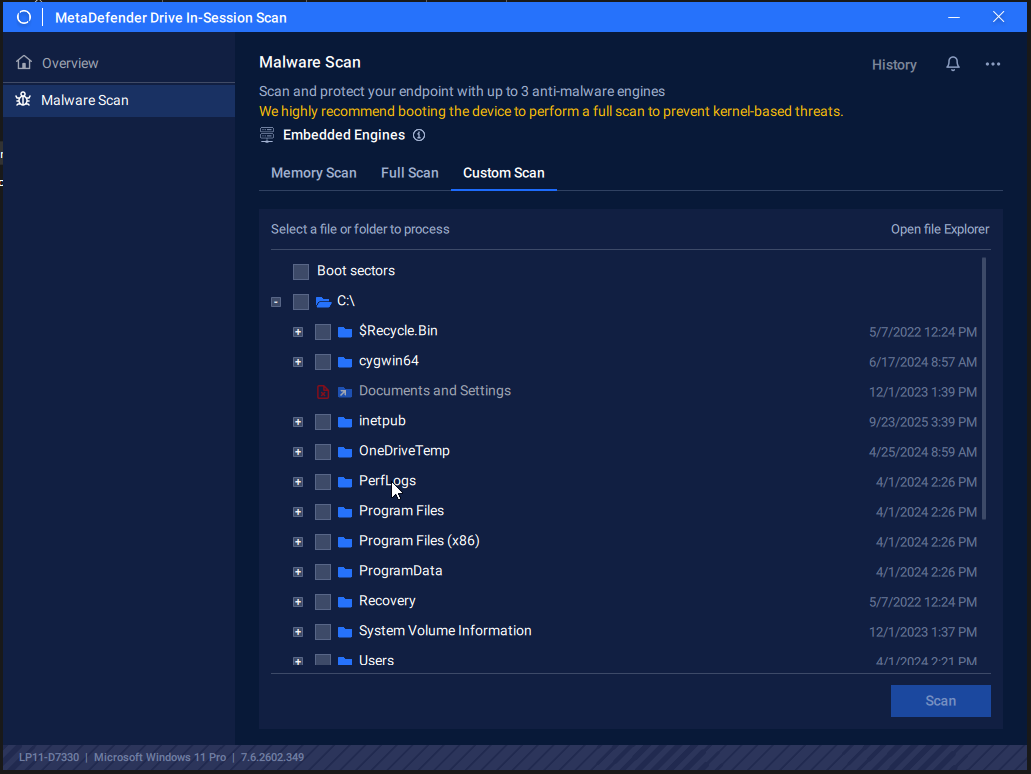
Custom Scan
To select specific partitions, folders, or files to scan:
Click the Custom Scan tab, select the paths you want to include in the custom scan, then click Start.
Once the scan is completed, the detailed results of the selected paths will be displayed, as in the following screenshot displaying scan results of C: and D: partitions on Windows 10