
From MetaDefender Drive v4.4.5, My OPSWAT Central Management can automatically email IT and security teams when key events occur on enrolled MetaDefender Drives. These events include enrollment, removal, and unsafe device detection, for faster incident response and seamless integration with downstream ticketing (e.g. ServiceNow).
Events that Trigger Email Notifications
Event-driven email alerts: triggered the moment a device is enrolled, removed, or detected as unsafe.
Group-based routing: define notification groups and route different events to different recipients.
HTML or JSON payload: pick the format that fits your inbox or downstream automation.
Inline scan report link: every unsafe-device email includes a one-click signed Download Report link (valid for 7 days).
Central Management Setup
Configure these in the My OPSWAT Central Management console.
Create a Notification Group
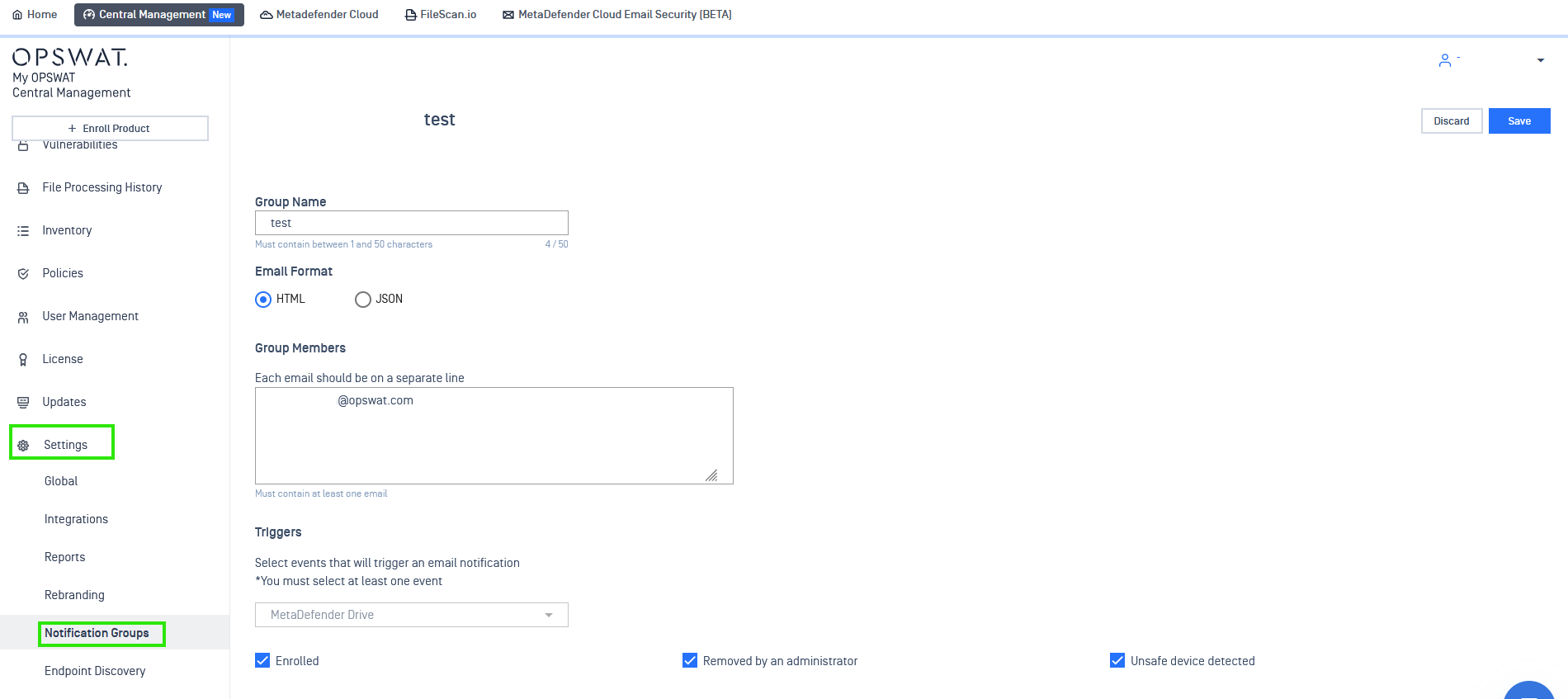
Go to Settings → Notification Groups and click Add Notification Group or open a pre-saved group, and fill in the form:
Group Name: 1–50 characters.
Email Format: in HTML (human-readable) or JSON (machine-readable for automation).
Group Members: one email per line (at least one email is required).
Triggers: select MetaDefender Drive from the dropdown, then tick the events you want: Enrolled, Removed by an administrator, Unsafe device detected.
Click Save.
Email Notification Examples
Once configured, group members receive emails when an event occurs. Each email is sent from My OPSWAT Central Management with a structured event table.
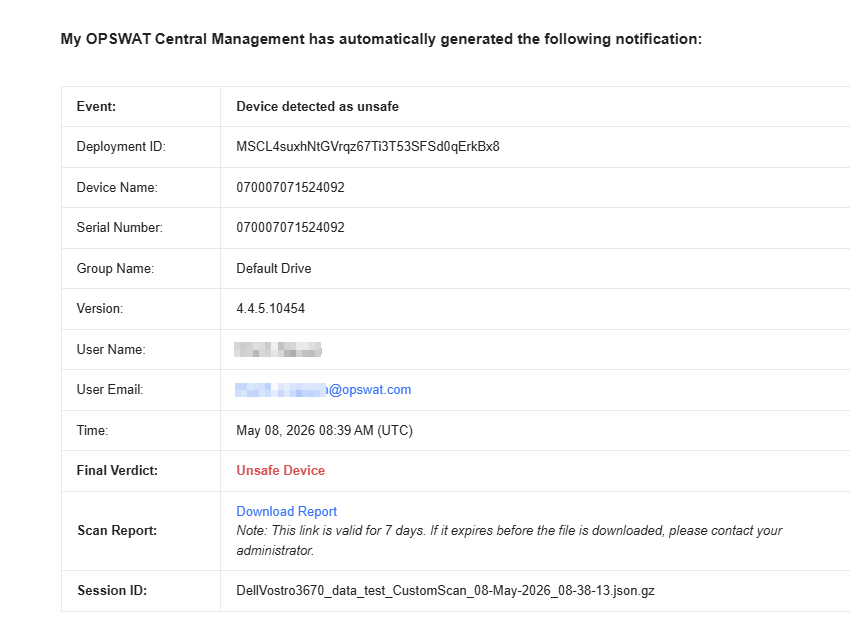
Email 1: When an Unsafe Device is Detected
When an enrolled MetaDefender Drive returns an unsafe scan result, an email shows Final Verdict: Unsafe Device and a Download Report link (valid for 7 days) to fetch the signed session log.
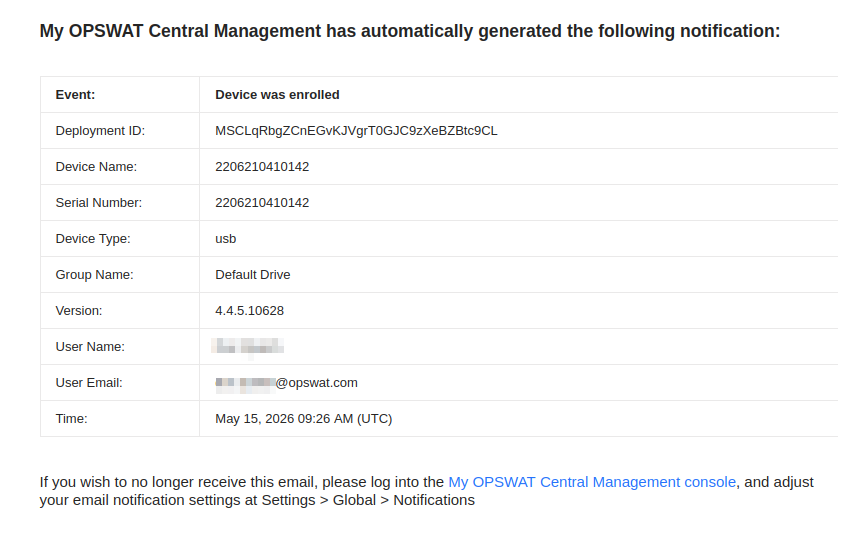
Email 2: When a New Drive is Enrolled
When a new MetaDefender Drive is enrolled in My OPSWAT Central Management, an email confirms the device identity (Serial Number, Device Type, Group, Version) and the user who enrolled it. This information can be used later for asset tracking and onboarding audit trails.
Troubleshooting and Common Errors
No emails received: Confirm whether the recipient is listed under Group Members and that the relevant trigger is ticked. If the issues persist, check the recipient's spam folder.
Wrong email format received: Adjust the Email Format between HTML and JSON from the notification settings.
The Download Report link has expired: Links are valid for 7 days. If it wasn't downloaded sooner, re-export the report from My OPSWAT Central Management.
To stop receiving alerts: Sign in to My OPSWAT Central Management and disable the alert settings from Settings → Global → Notifications.