
Pre-boot and in-session scan reports automatically sync to MetaDefender Kiosk once a MetaDefender Drive is inserted. This feature is available from MetaDefender Drive v4.4.5 and MetaDefender Drive Toolkit v3.8.5.
MetaDefender Kiosk emails the user a signed PDF with a tamper-evident Media Passport (QR-coded) reflecting MetaDefender Drive's latest scan result.
The actions that are automatically performed once a MetaDefender Drive is inserted into a MetaDefender Kiosk are:
Automated scan report sync
Engine and firmware updates
Signed PDF and Media Passport emailed to the user with QR code
Unified report formats for pre-boot and in-session scans
MetaDefender Kiosk Configuration
The following settings need to be configured on the MetaDefender Kiosk management console before going for the integration to work properly.
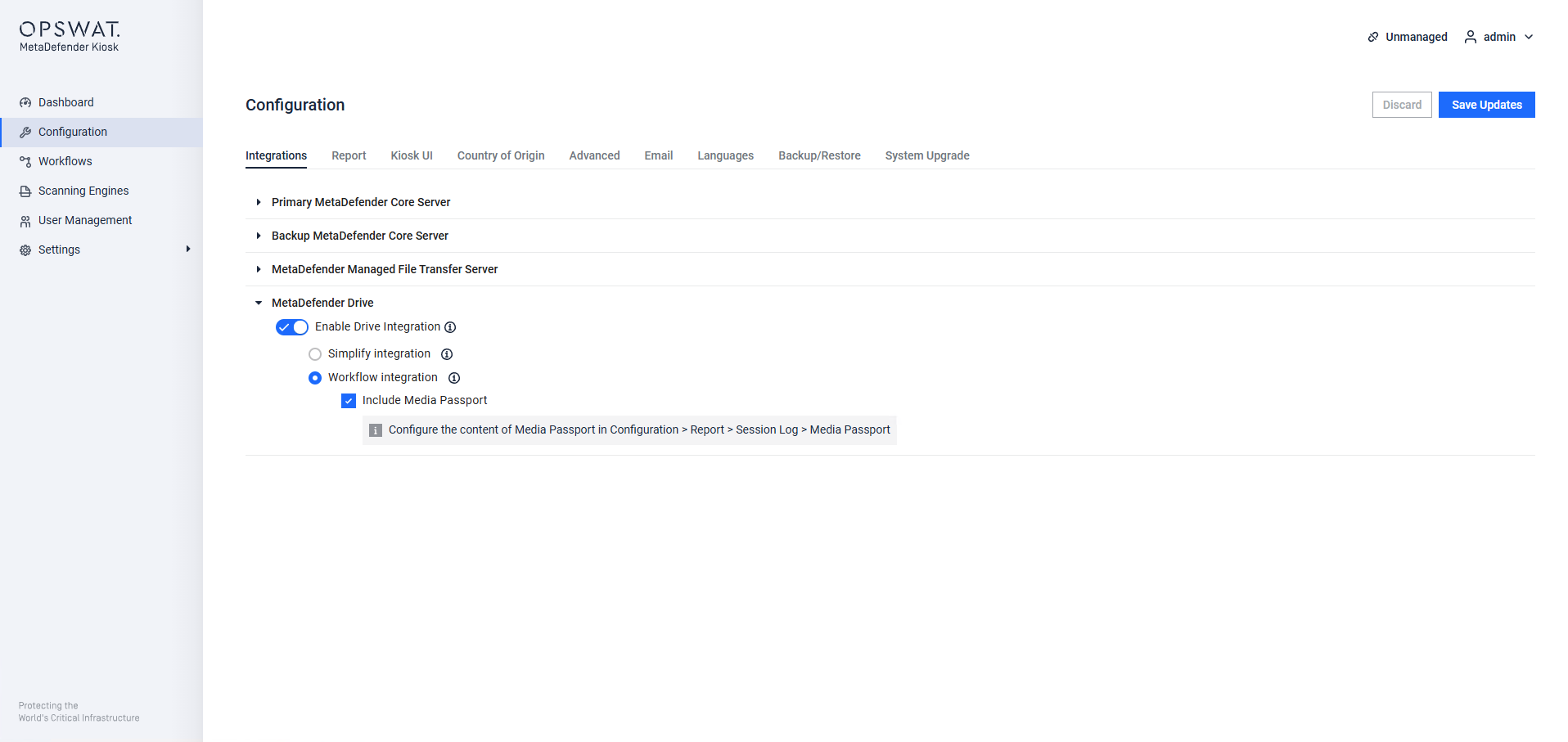
Enable the MetaDefender Drive integration
Navigate to the Configuration interface, then the Integrations tab. Under MetaDefender Drive:
Turn on Enable Drive Integration
Select Workflow integration
Tick Include Media Passport
Click Save Updates
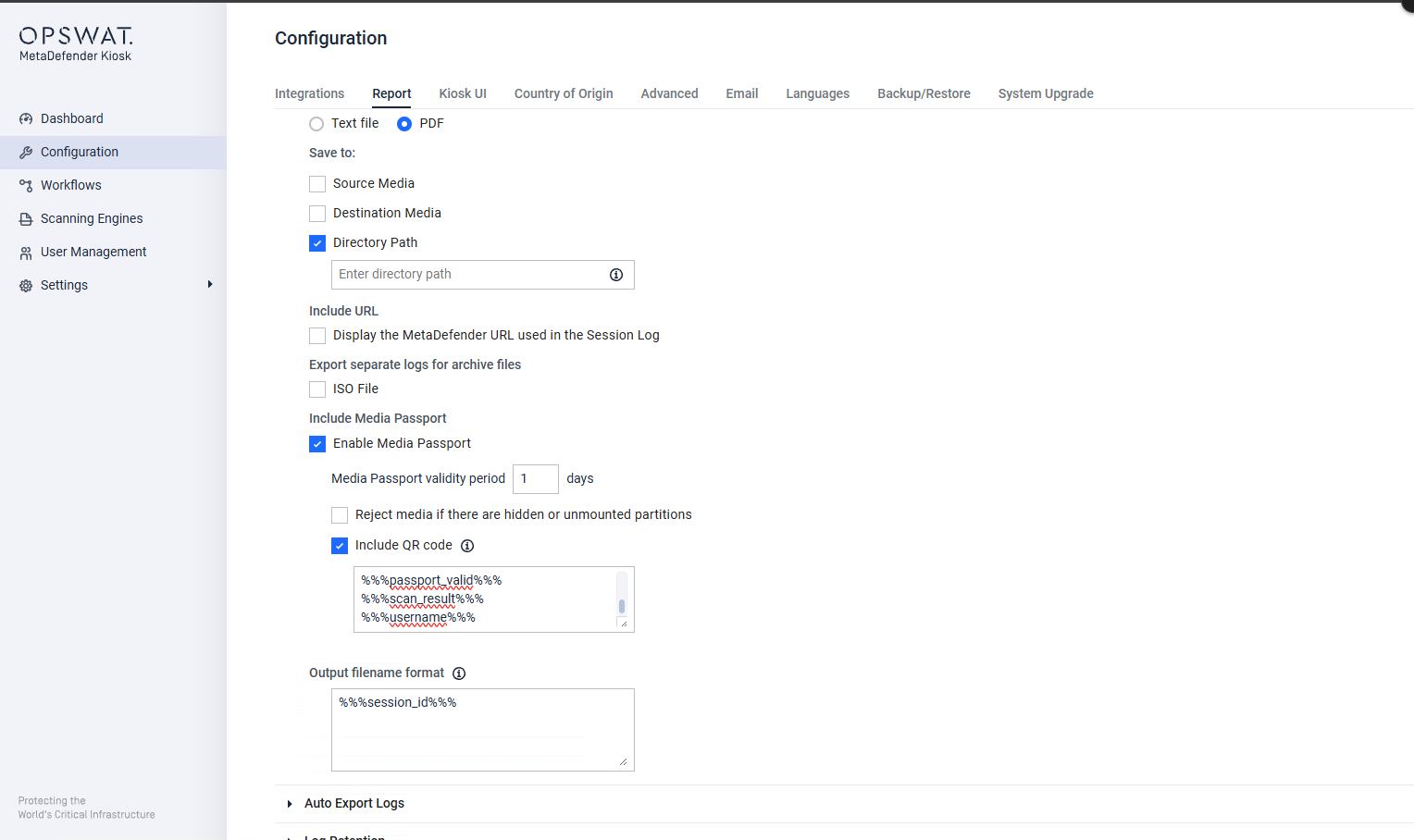
Configure the Session Log report and Media Passport
Navigate to the Configuration interface, then the Report tab. Then:
Select PDF
Set Directory path to the preferred location
Under Include Media Passport:
Tick Enable Media Passport
Set the Media passport validity period
Tick Include QR code with the placeholders to include
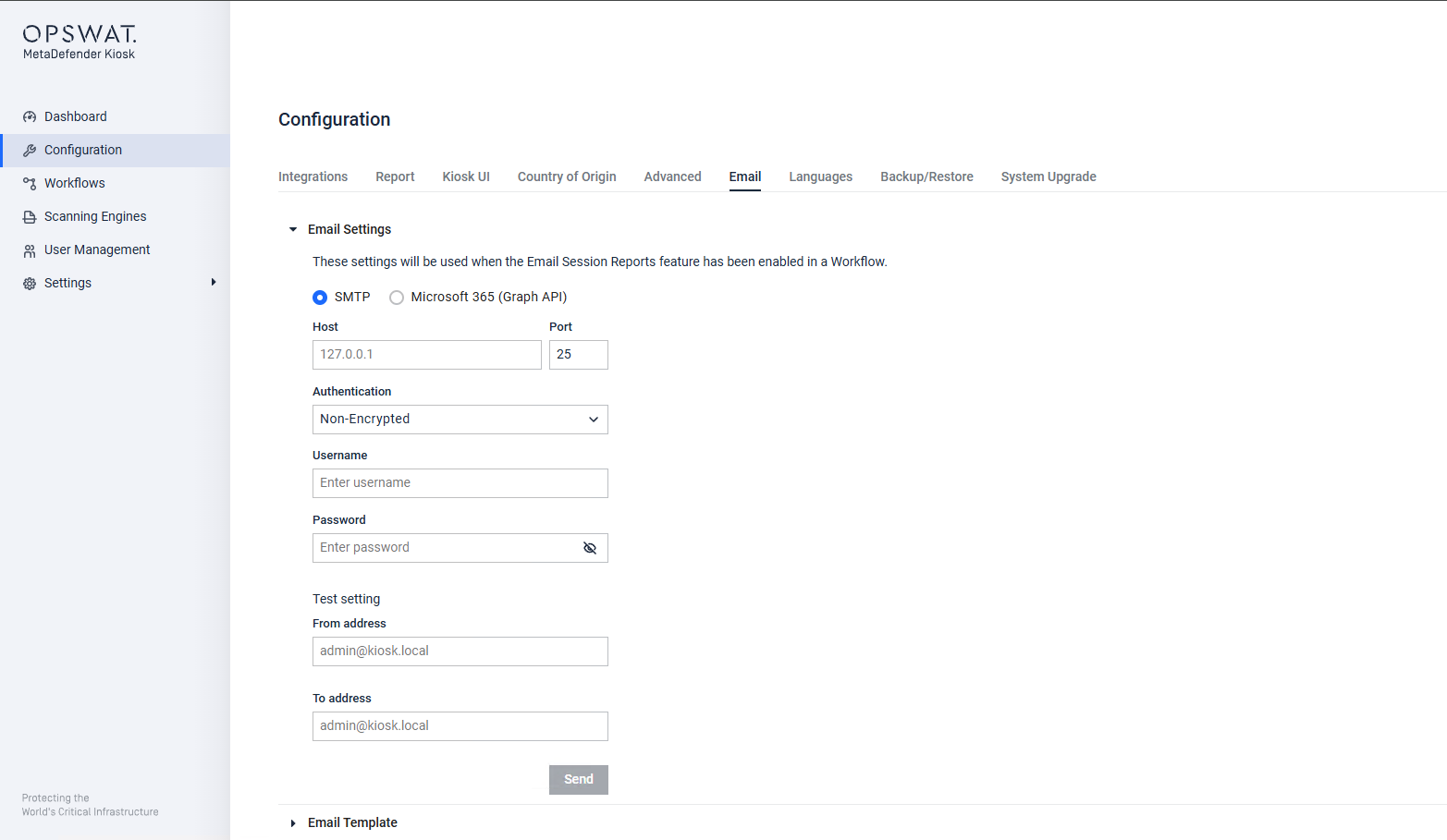
Configure SMTP or Microsoft 365 to Send Emails
Navigate to the Configuration interface, then the Email tab. Under Email Settings:
Select SMTP or Microsoft 365 (Graph API)
Fill in Host, Port, and Authentication values, in addition to the required settings, according to your email configuration.
Test Email Configurations
It is recommended to test the email configurations before going live.
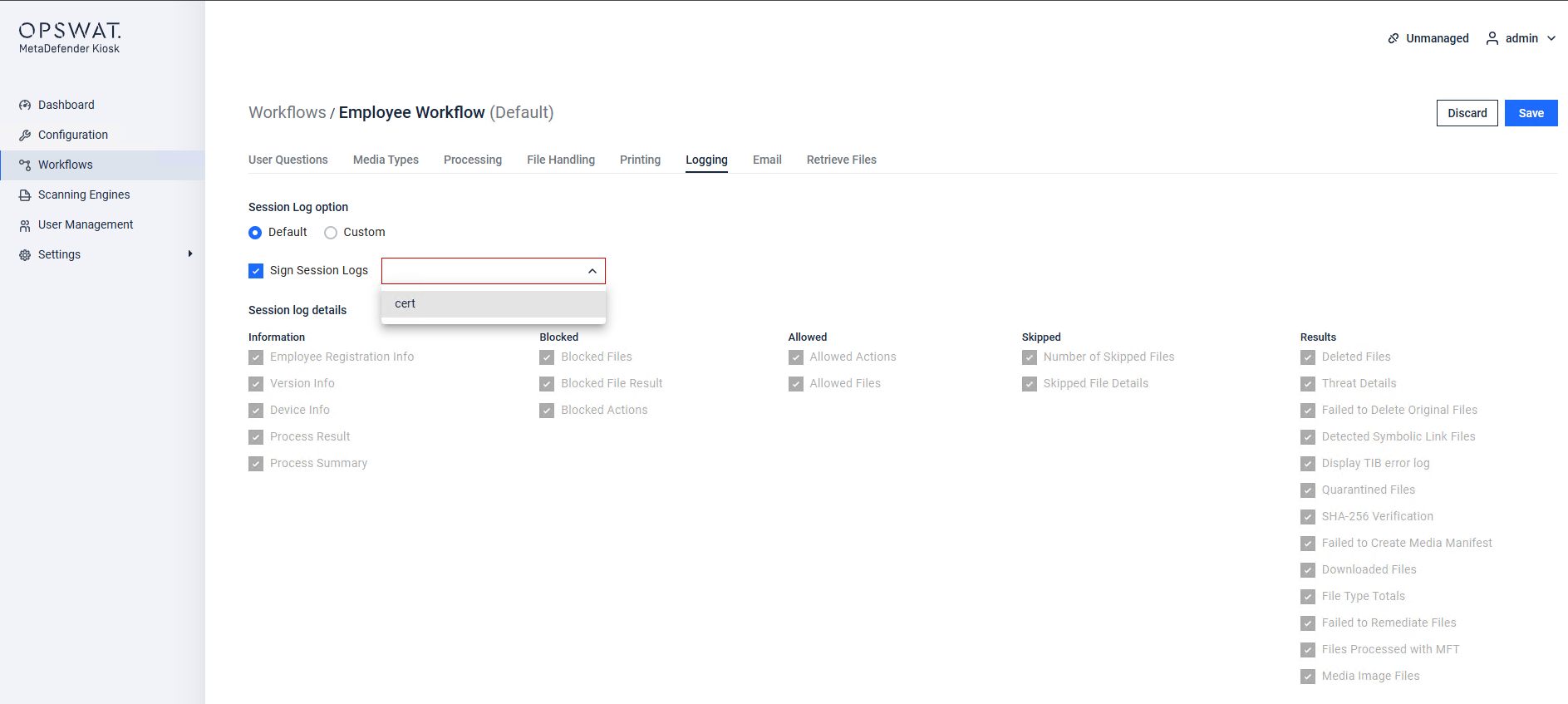
(Optional) Sign Session Logs and Media Passport with a Certificate
Navigate to the Workflows (Employee Workflow) interface, then the Logging tab. Then:
Tick Sign Session Logs
Select a certificate for the generated PDF and Media Passport to be digitally signed
Configure the Email Content Sent to the Selected Users
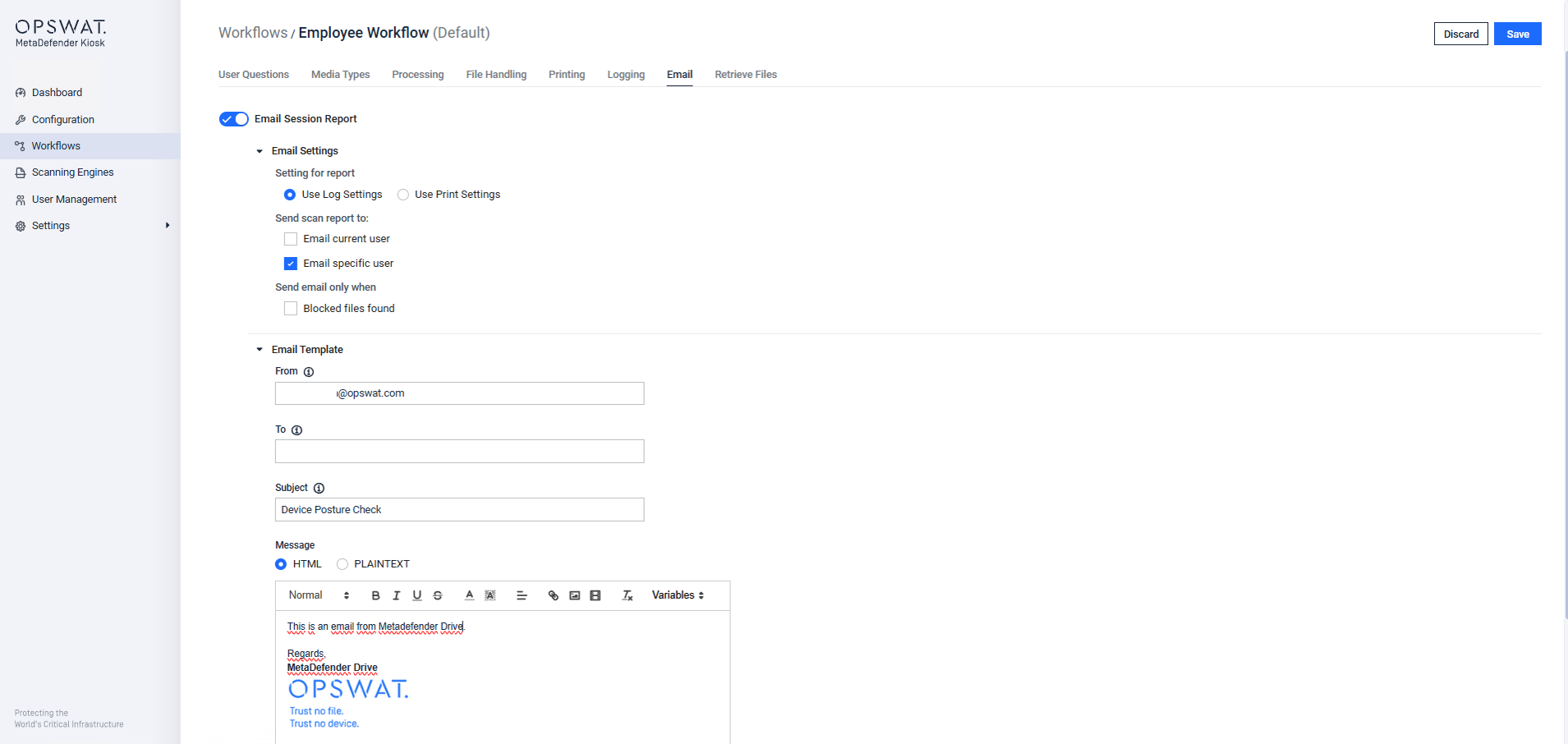
Navigate to the Workflows (Employee Workflow) interface, then the Email tab. Then:
Enable Email Session Report
Select the recipient by selecting Email current user or Email specific user
Customize the From, Subject, and Message templates
The Workflow at MetaDefender Kiosk
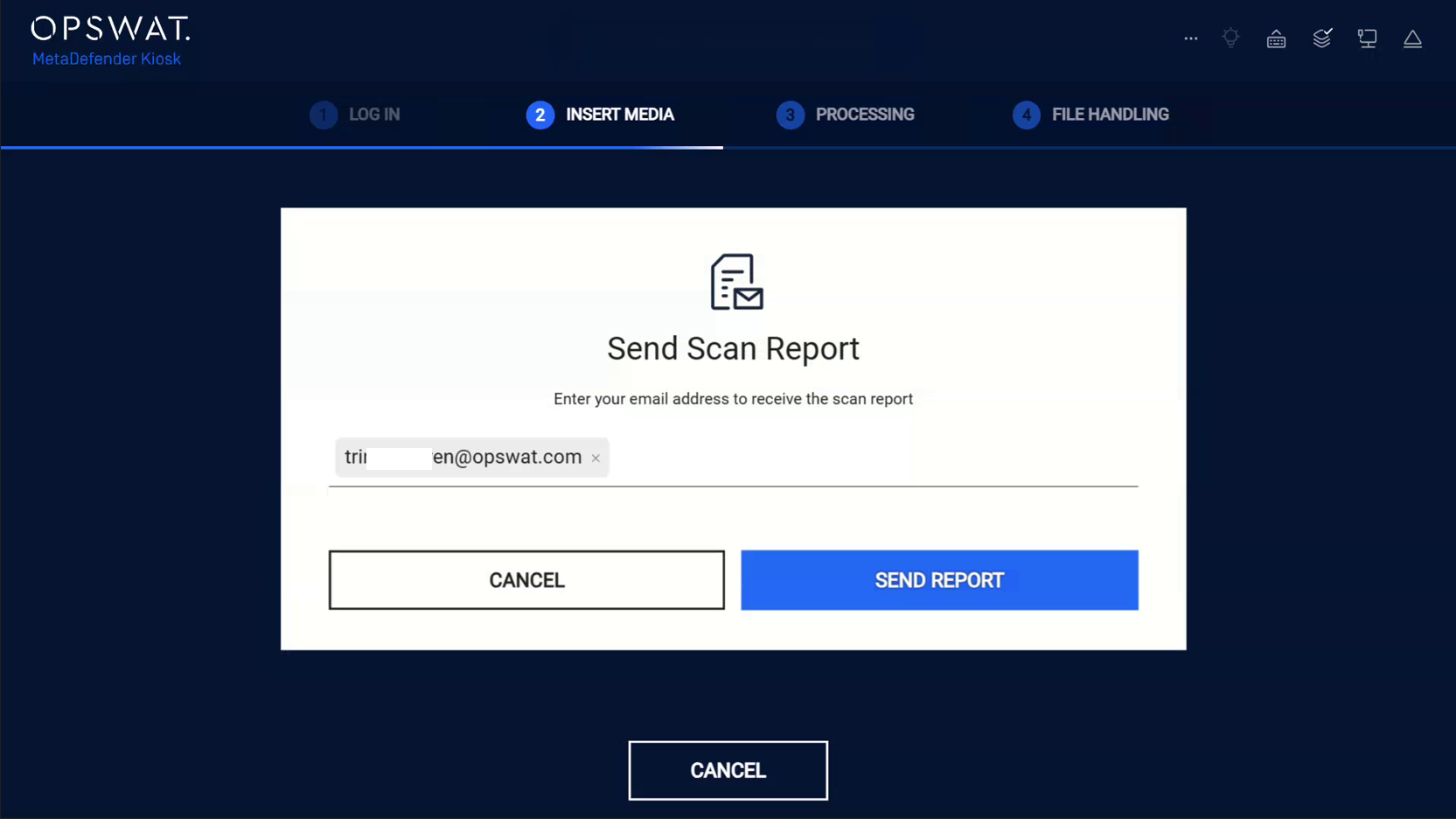
The following is the workflow that is initiated after a MetaDefender Drive is inserted into a MetaDefender Kiosk:
When MetaDefender Kiosk prompts Send Scan Report, enter an email address to receive the report.
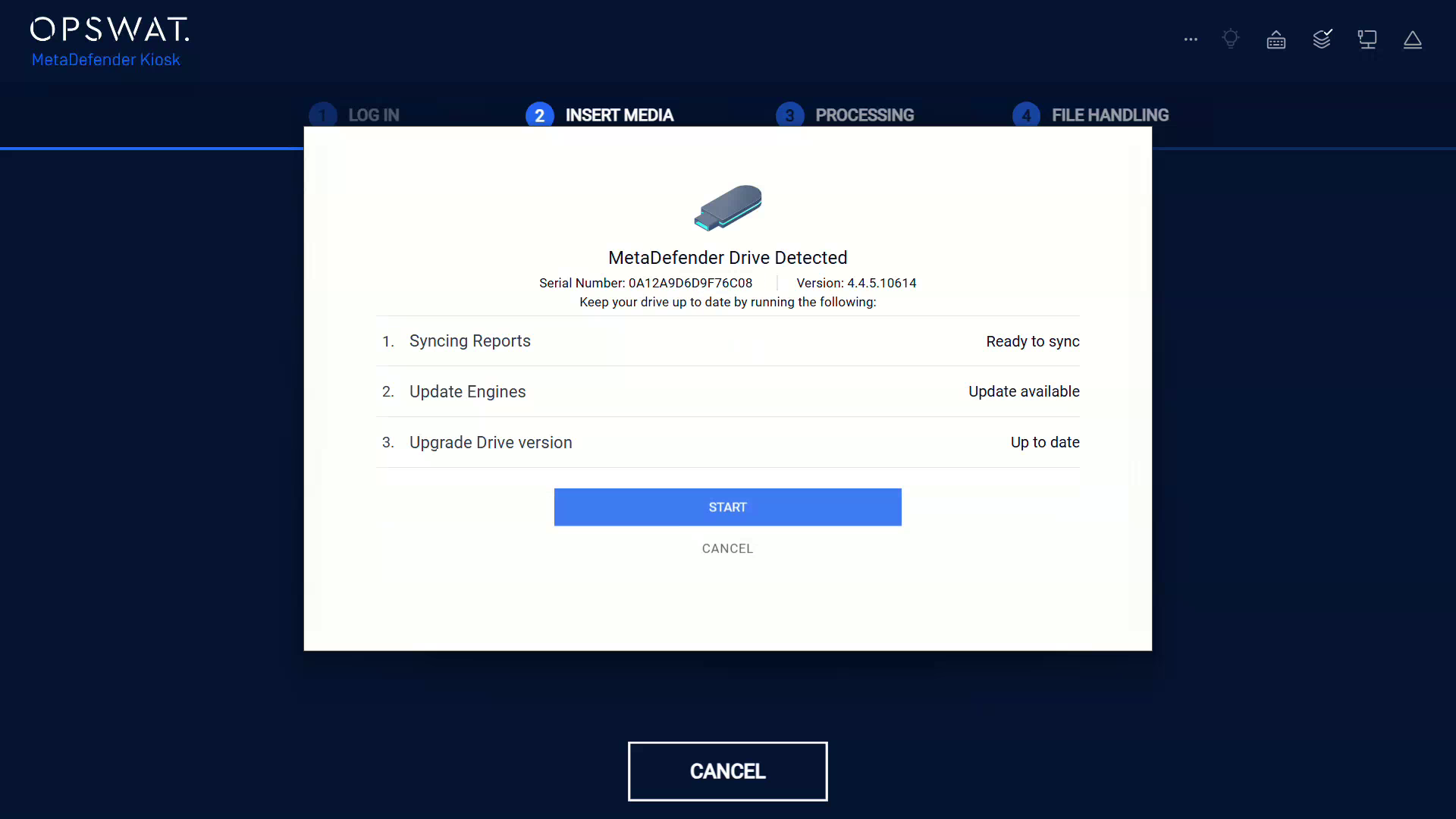
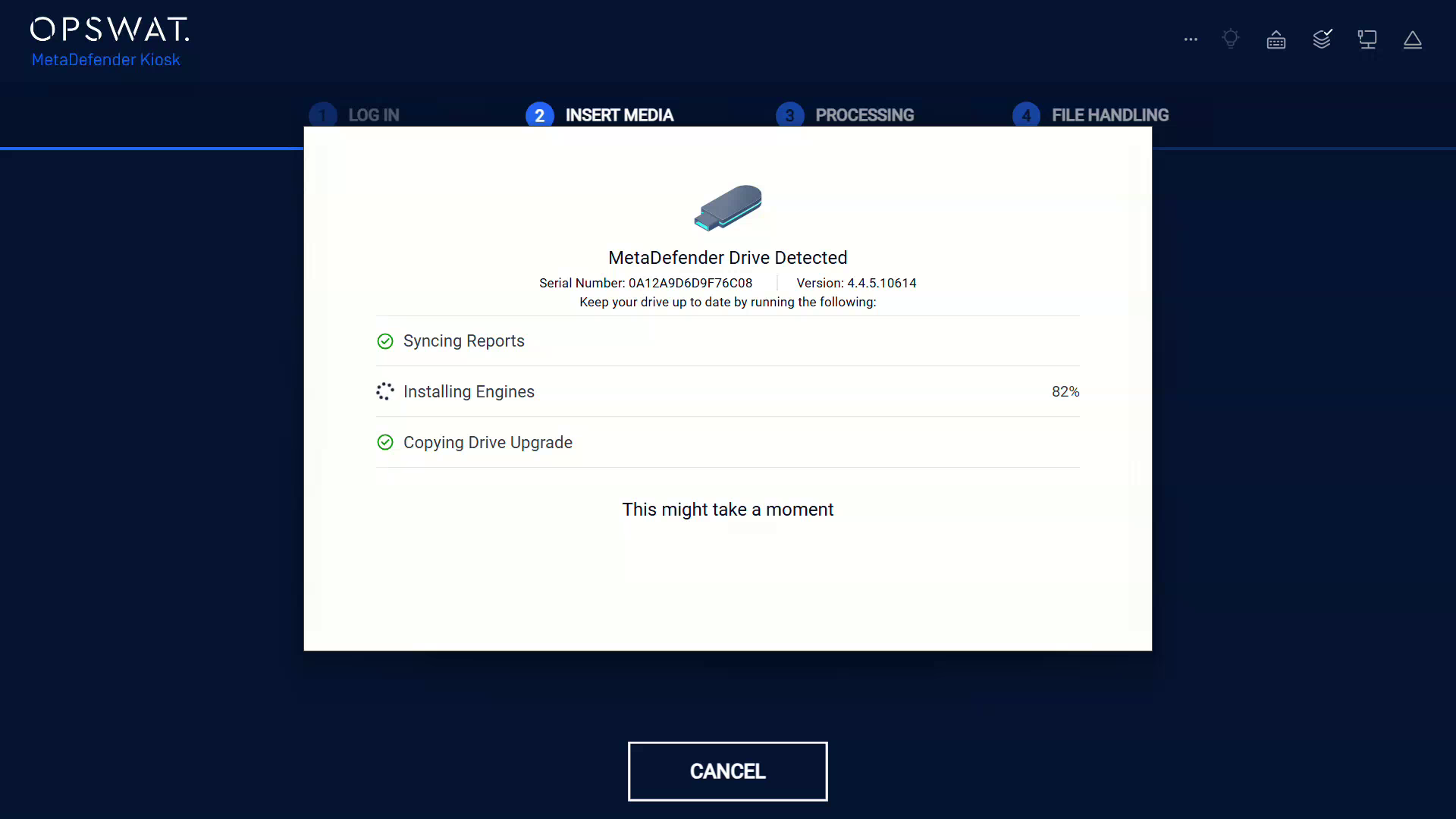
MetaDefender Kiosk displays the detected MetaDefender Drive with the Serial Number and the Software Version, along with the Syncing Reports, Update Engines, Upgrade Drive version actions.
Select an action, and click START
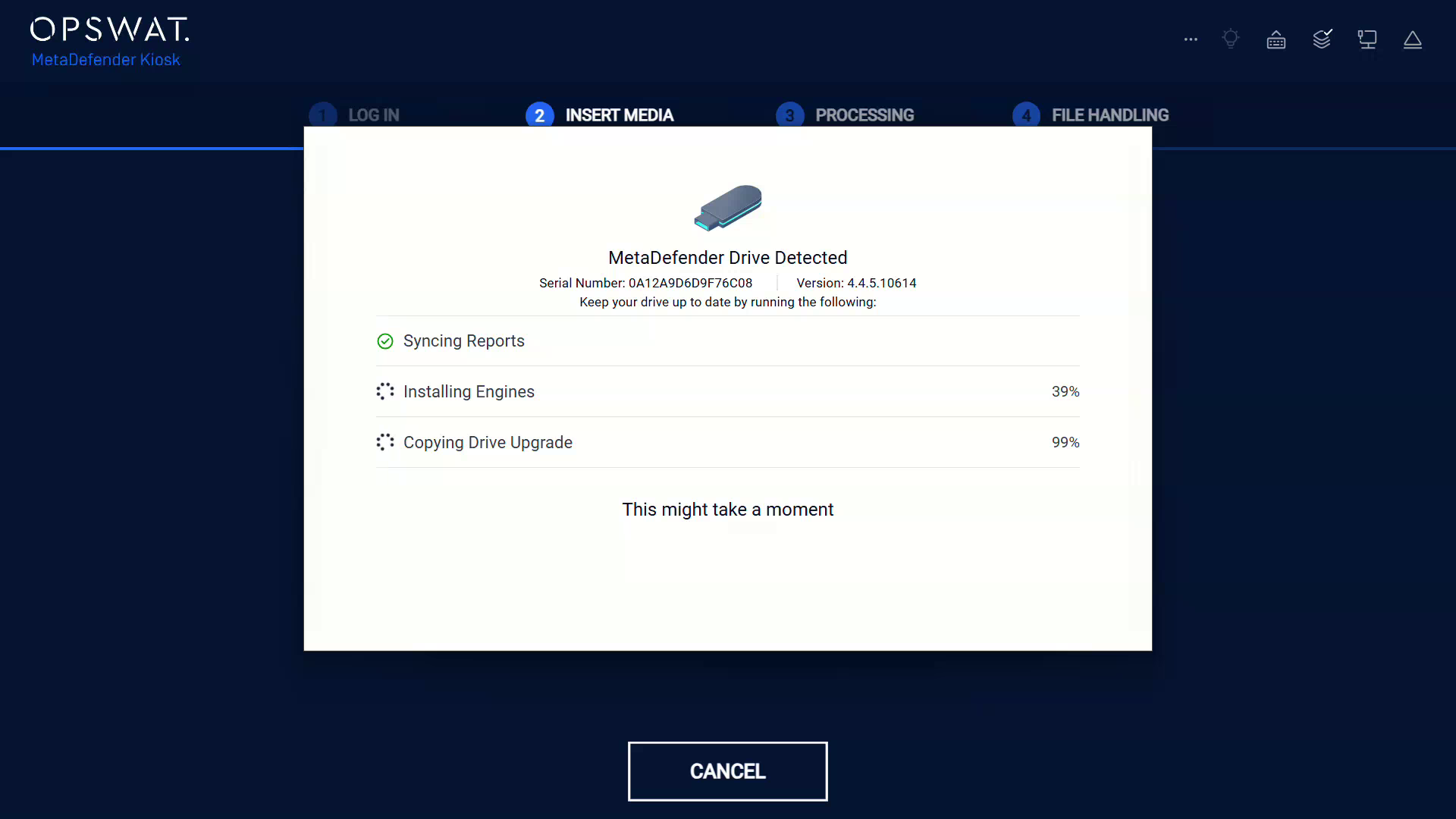
Monitor the progress of MetaDefender Kiosk performing the initiated action.
The user receives an email with a PDF containing: Media Passport with SAFE/UNSAFE badge, validity, QR code, scan totals, user, and device info; and Full session log with report ID, totals, MDD version + hardware, BIOS, archive settings, disks, engine versions, and scan paths.
Email Outcomes Examples
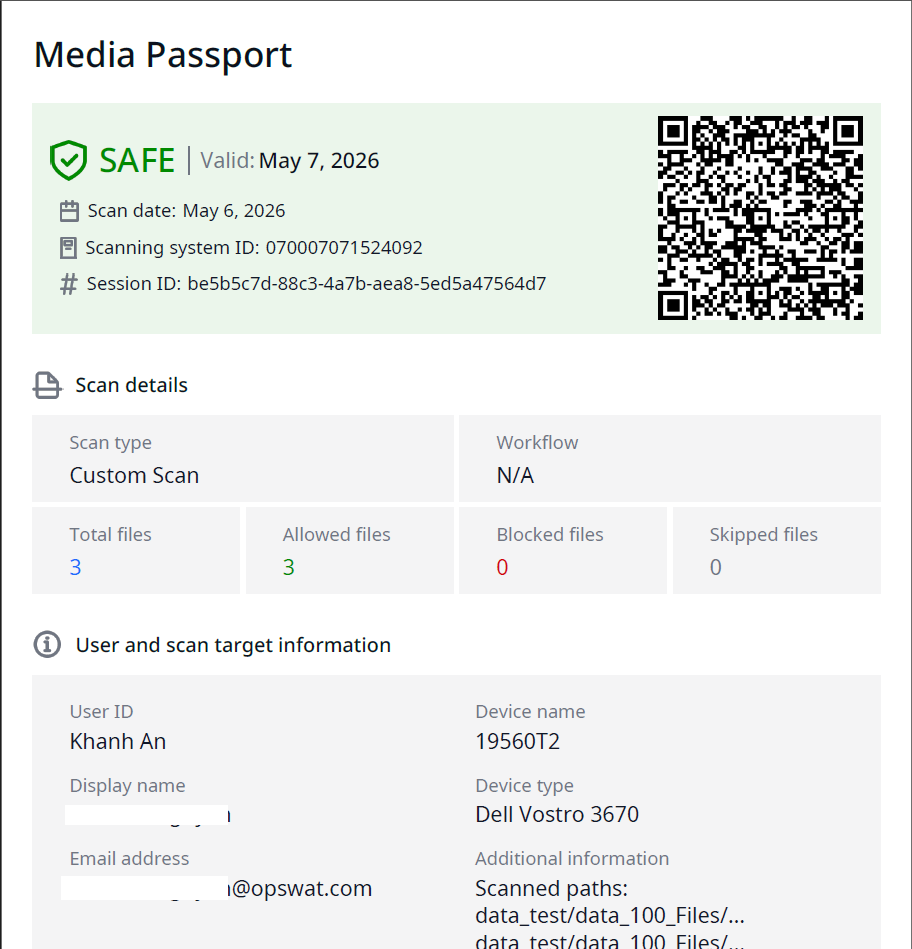
Result 1: SAFE
No threats found. Green SAFE badge. All files under Allowed files.
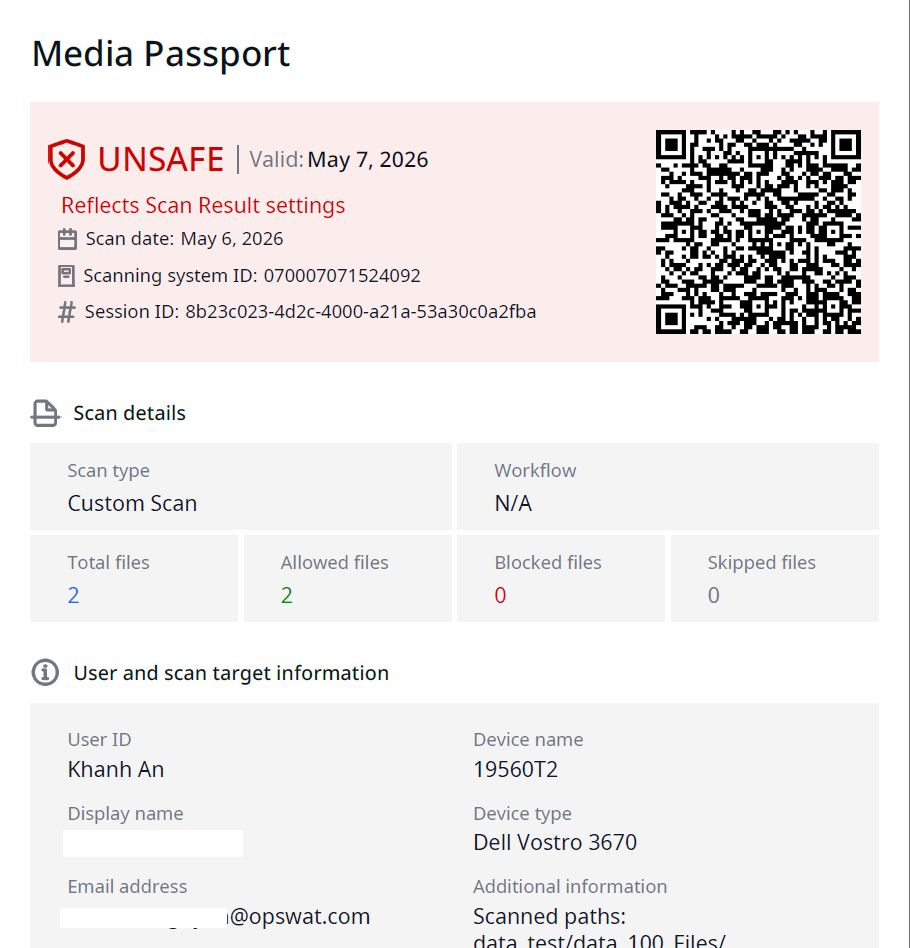
Result 2: UNSAFE (Due to Cancellation)
The Media Passport displays the UNSAFE status when scans are canceled, even when no threats are detected.
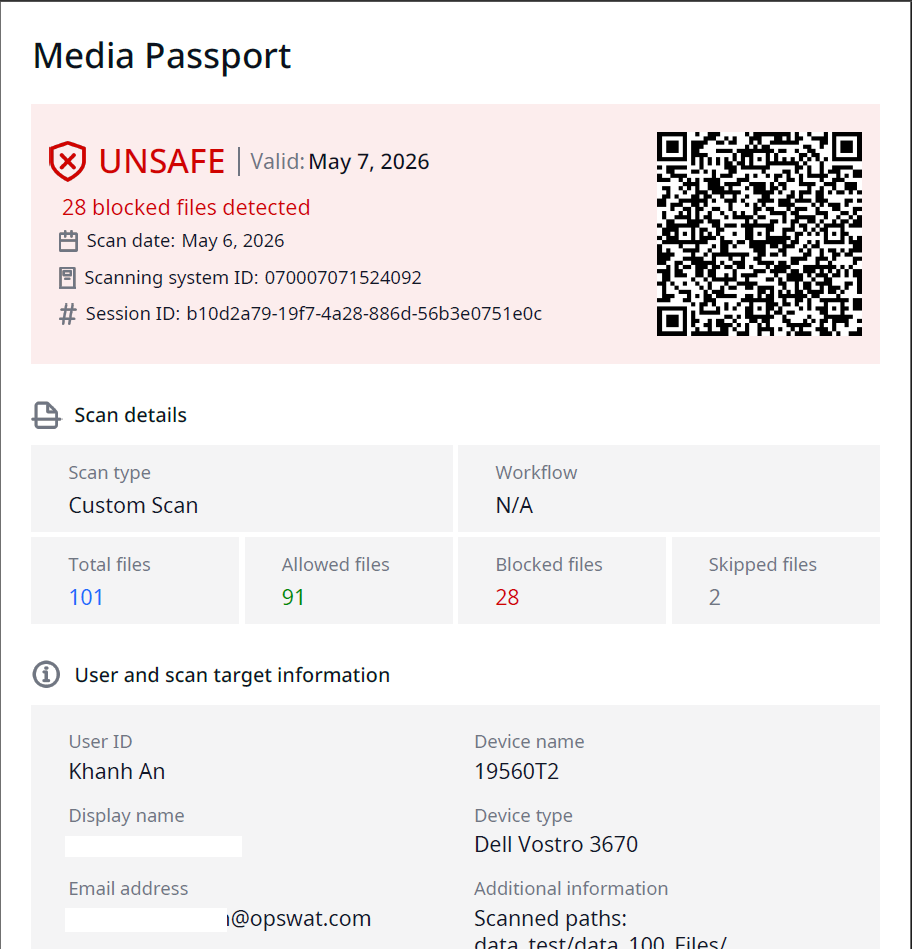
Result 3: UNSAFE
When infected files are detected and blocked, the Media Passport displays the UNSAFE status with the number of blocked files. For instance, 28 blocked files detected.
Email Troubleshooting
No email received: Check the From address is allowed by your SMTP relay, and rerun the test in Email Settings.
QR code missing: Confirm that Include QR code is enabled and that the placeholders are valid.
Drive not detected: confirm that Enable Drive Integration is enabled and that the USB port supports USB 3.x.
Signature invalid in PDF: Verify that the certificate selected under Logging is valid and trusted by the recipient.