
To unlock the BitLocker protected disks using OPSWAT's tool, users must boot Windows and then insert the OPSWAT MetaDefender Drive.
If you have any encrypted removable or fixed data disks on your target device, right-click on the encrypted disk icons with the locked yellow padlock, click Unlock Drive, and enter the password.
To unlock BitLocket protected disks using OPSWAT tool:
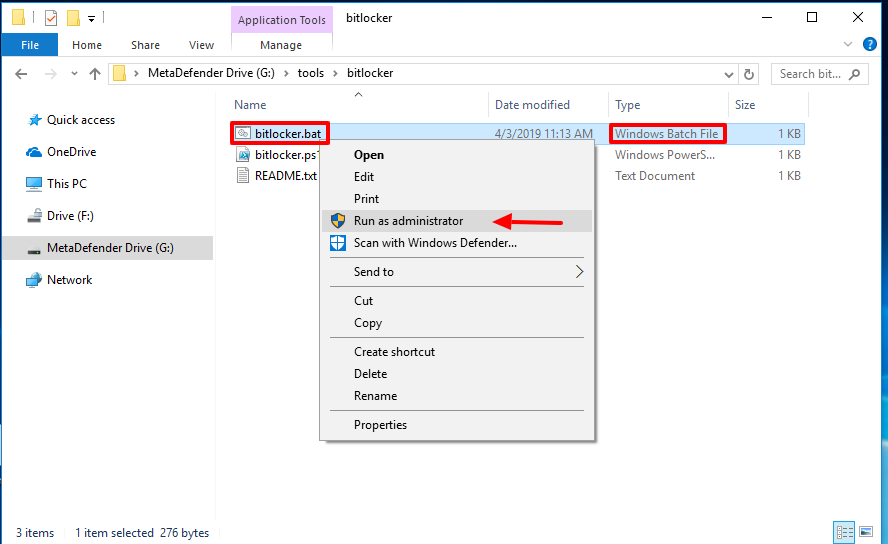
Make sure all of the encrypted disks have been unlocked, then go to the MetaDefender Drive partition and open the tools folder.
The tools folder includes three files: unlock_bitlocker.bat (used to unlock your BitLocker drives), unlock bitlocker.ps1_ (a Windows PowerShell script utilized by bitlocker.bat), and README.txt (instructions on how to unlock BitLocker encryption for a diagnostic scan).
Right-click on unlock_bitlocker.bat and select Run as administrator, then click Yes when prompted to confirm running the script as administrator.
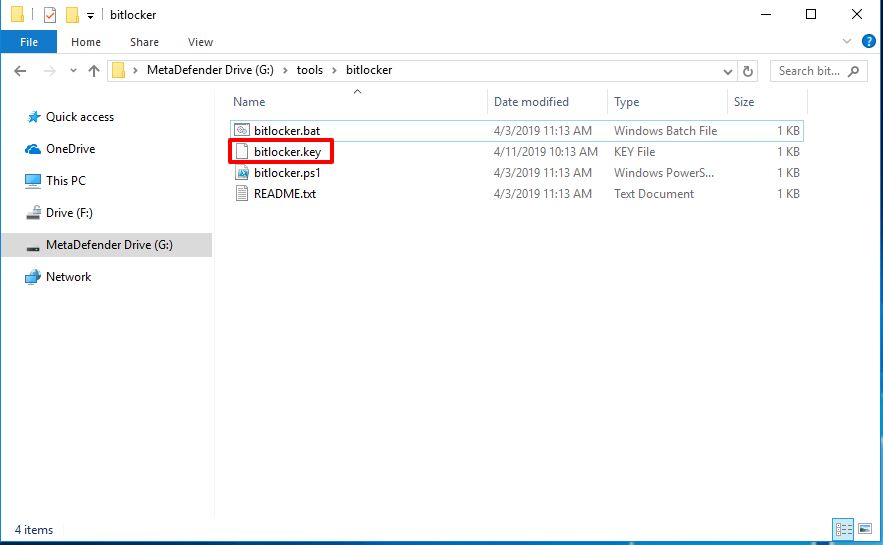
While the script is running, a file named bitlocker.key will appear in the tools folder, indicating that the protected disk is ready to be scanned.
Reboot your system from MetaDefender Drive.