
The following is a demonstration of booting your device using a VMWare Workstation. Walkthrough videos are also available for VMWare Workstations 16 and VMWare Workstations 17.
Some of the screenshots in the following example might look different, depending on the version you use.
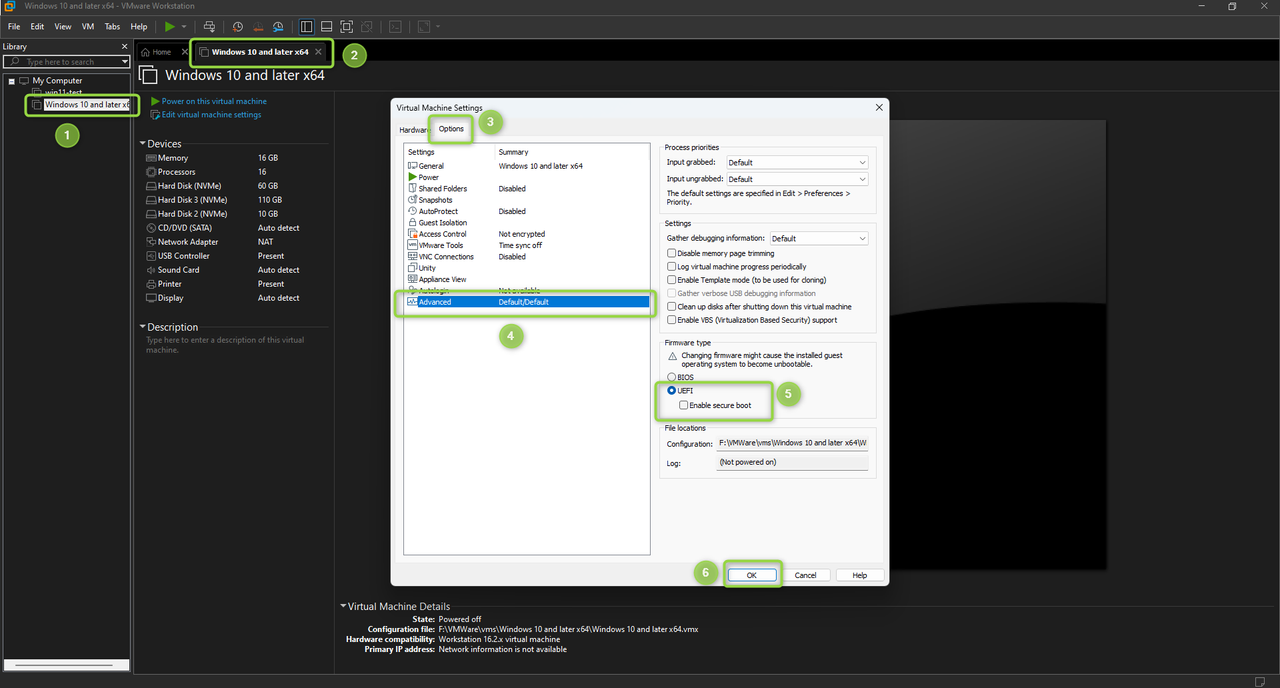
To ensure your VMWare Workstation is ready to boot MetaDefender Drive, open the Settings of the virtual machine, and set the Firmware type to UEFI
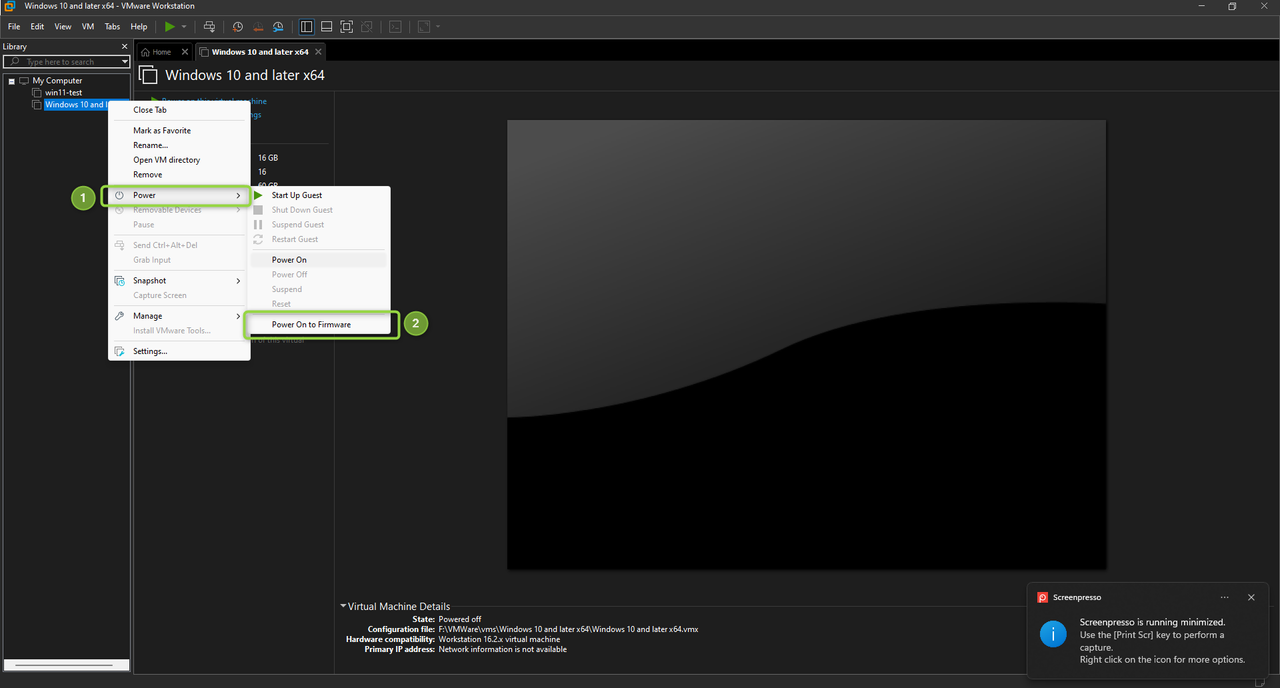
Power On your VM by right-clicking and selecting Power → Power On to Firmware.
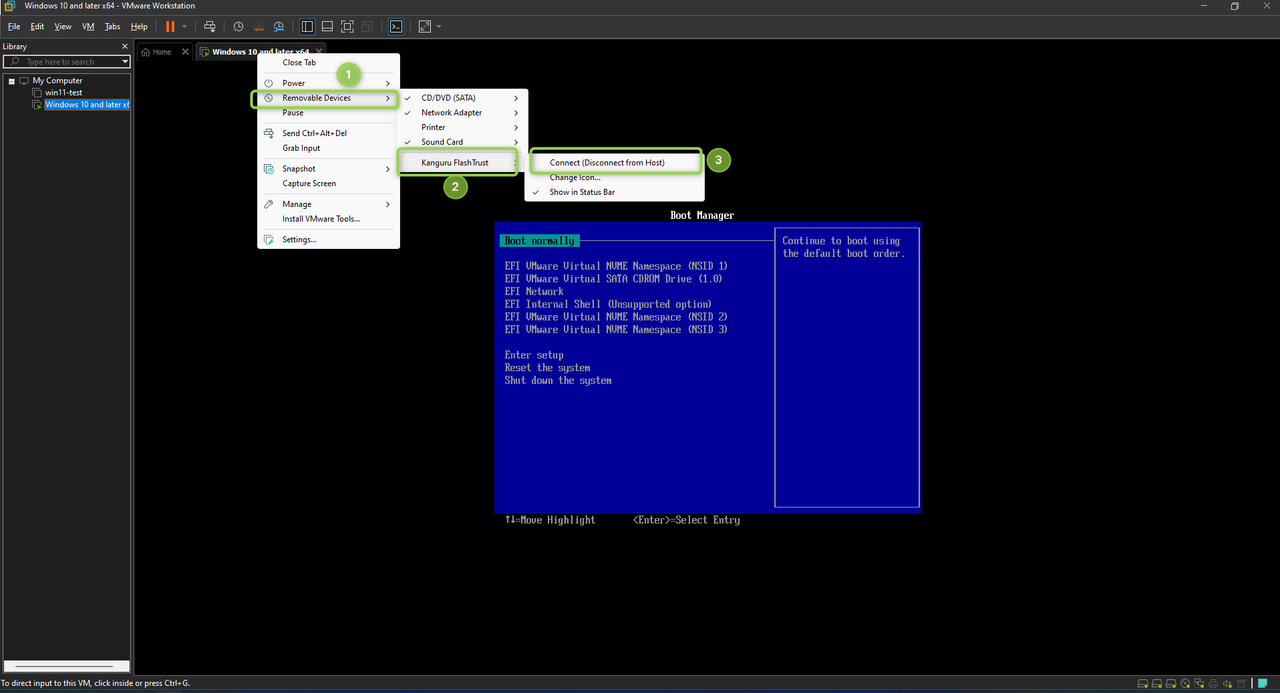
Connect the MetaDefender Drive to the virtual machine by right-clicking and selecting Removable Devices → <the inserted MetaDefender Drive> → Connect (Disconnect from Host)
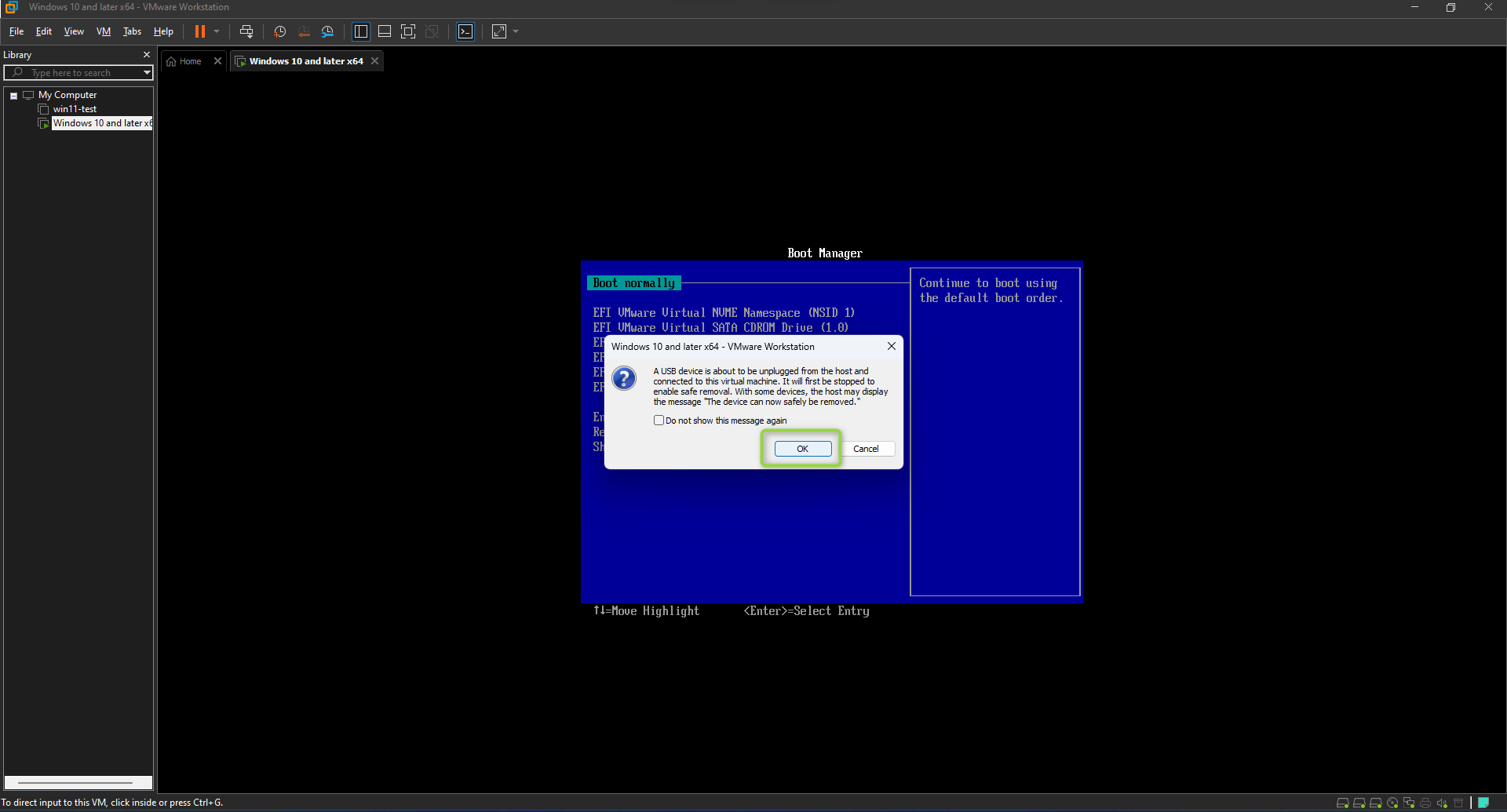
Click OK when prompted to confirm inserting the MetaDefender Drive into the host virtual machine.
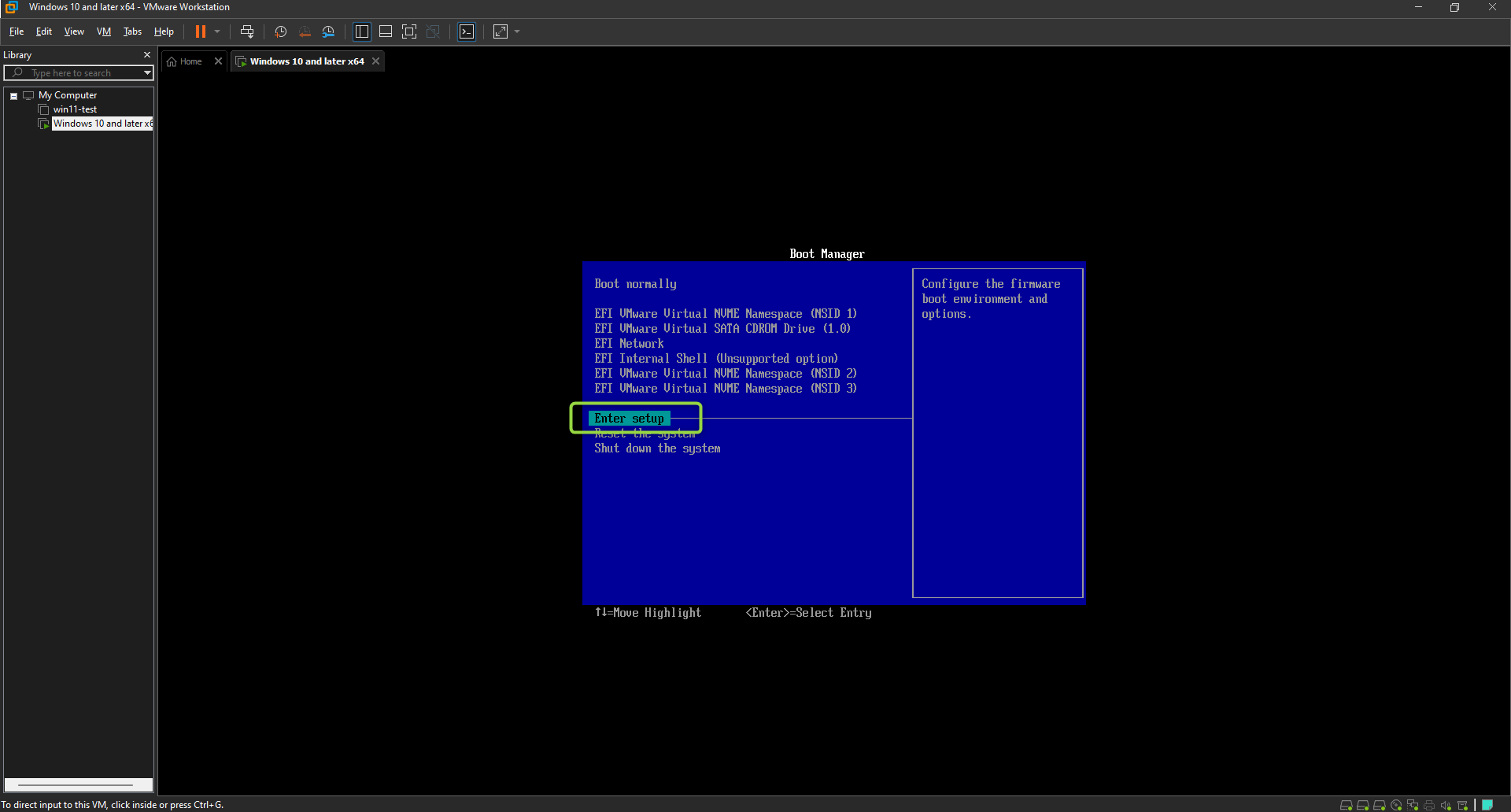
Select Enter Setup from Boot Manager
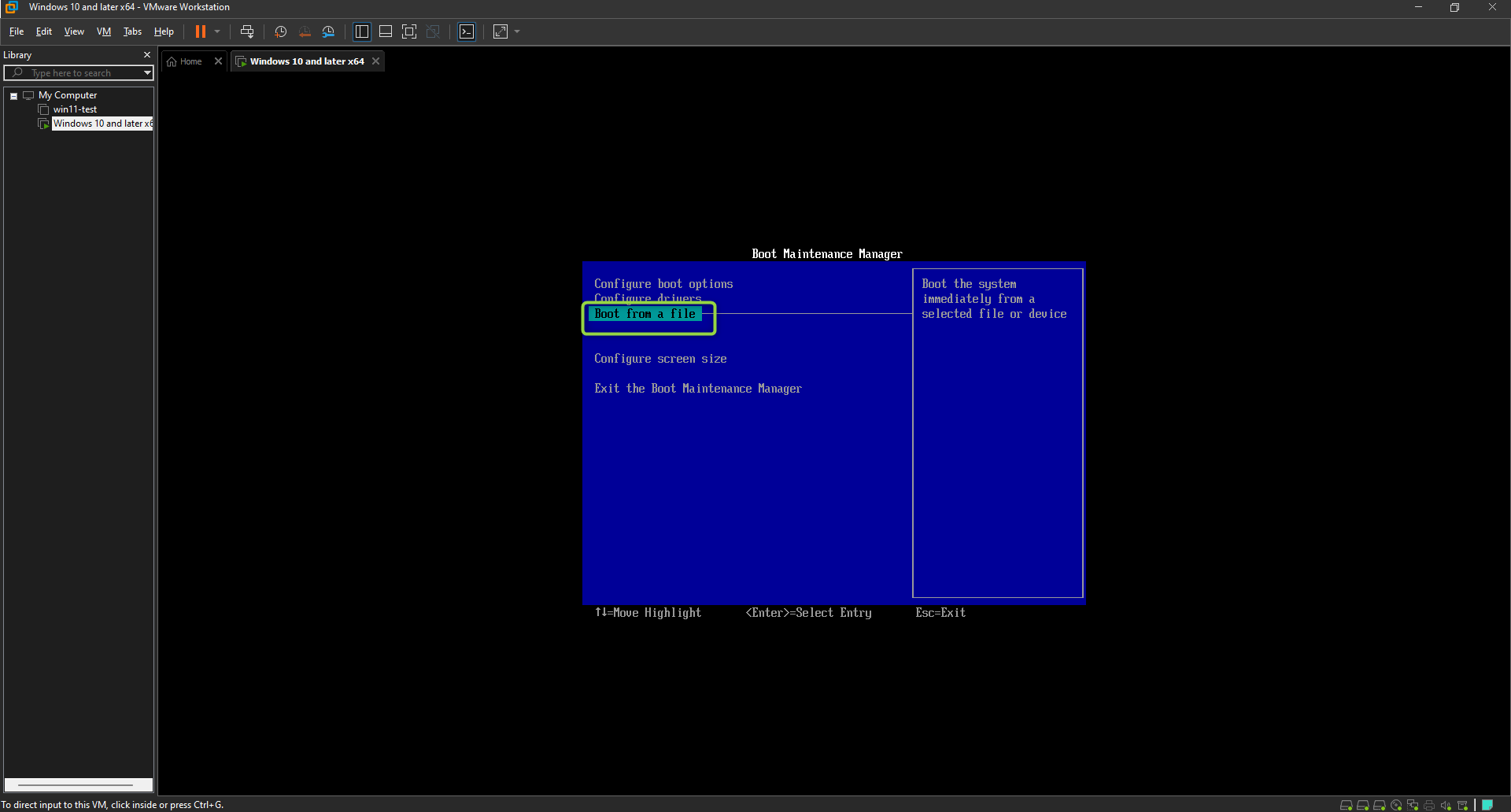
Select Boot from a file
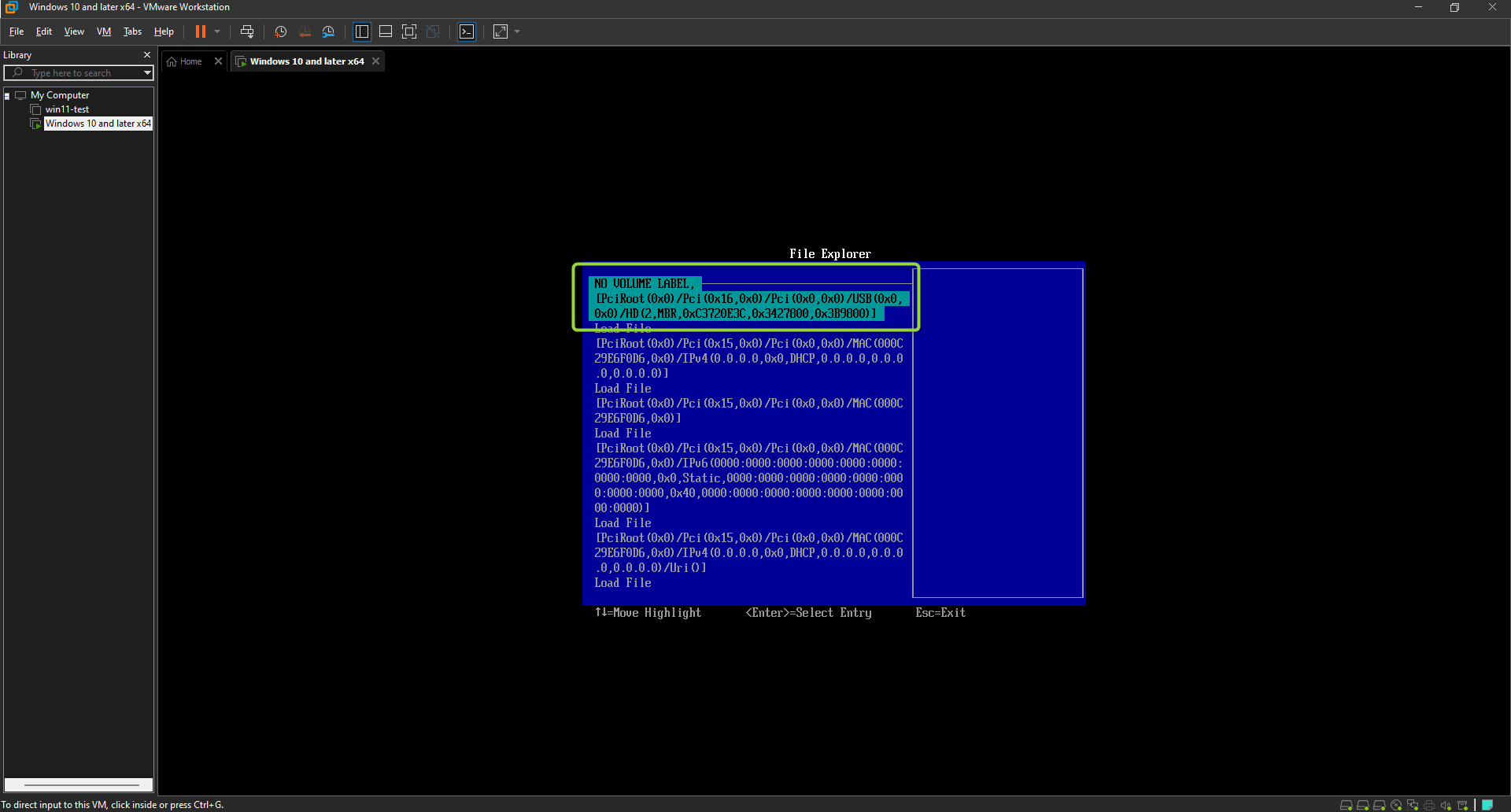
Locate the MetaDefender Drive and select it
Select <EFI>
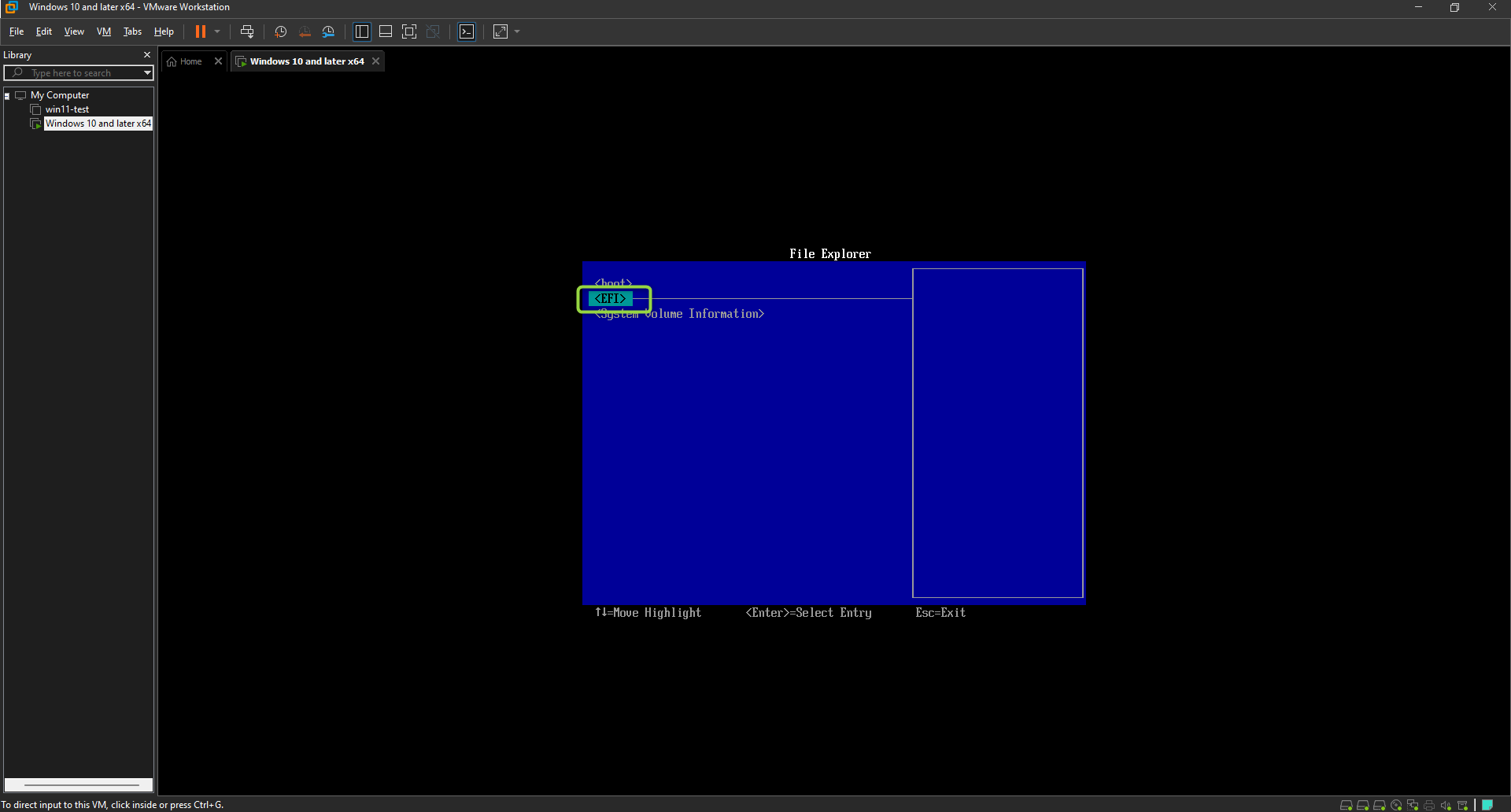
Select <BOOT>
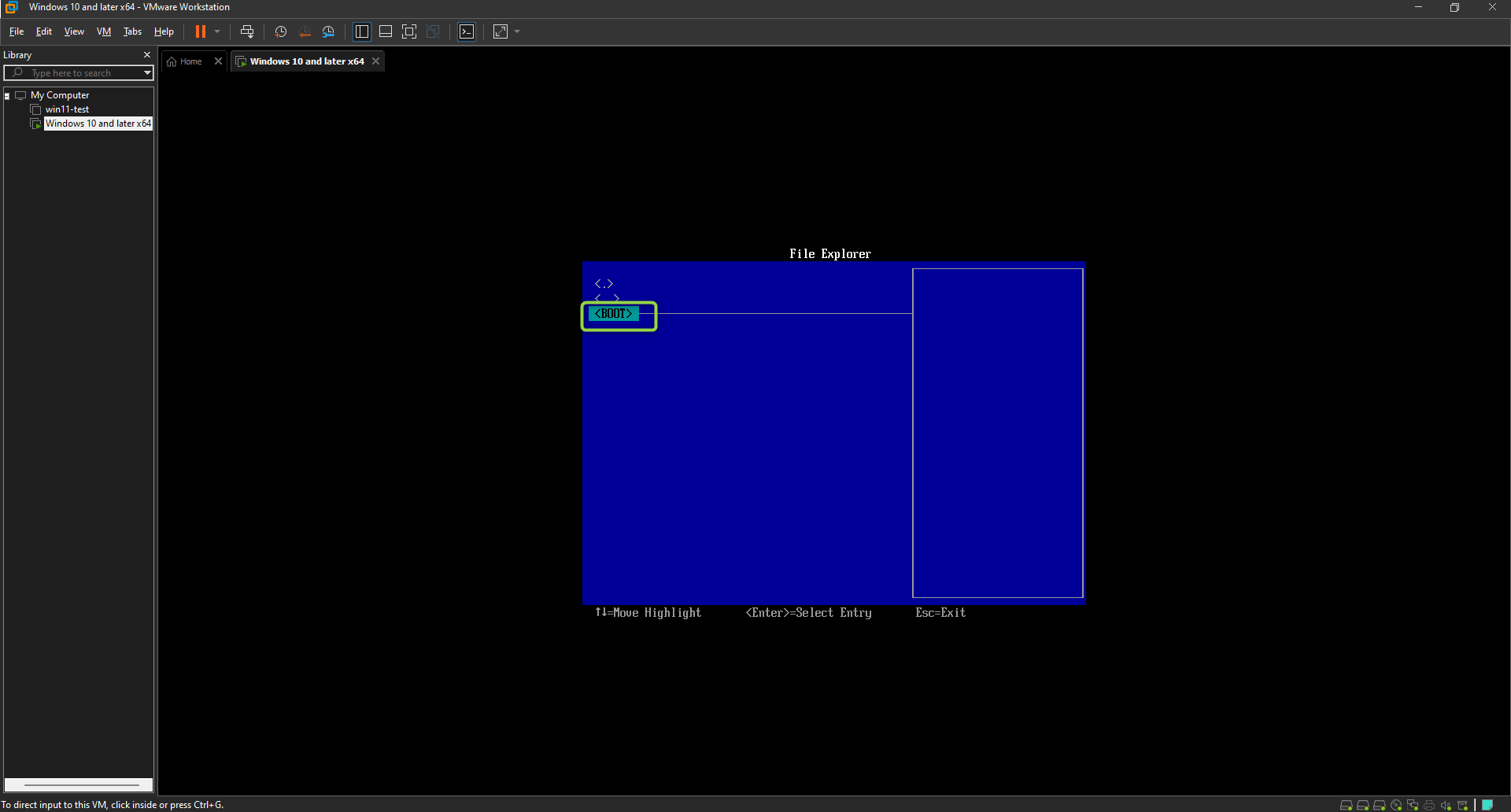
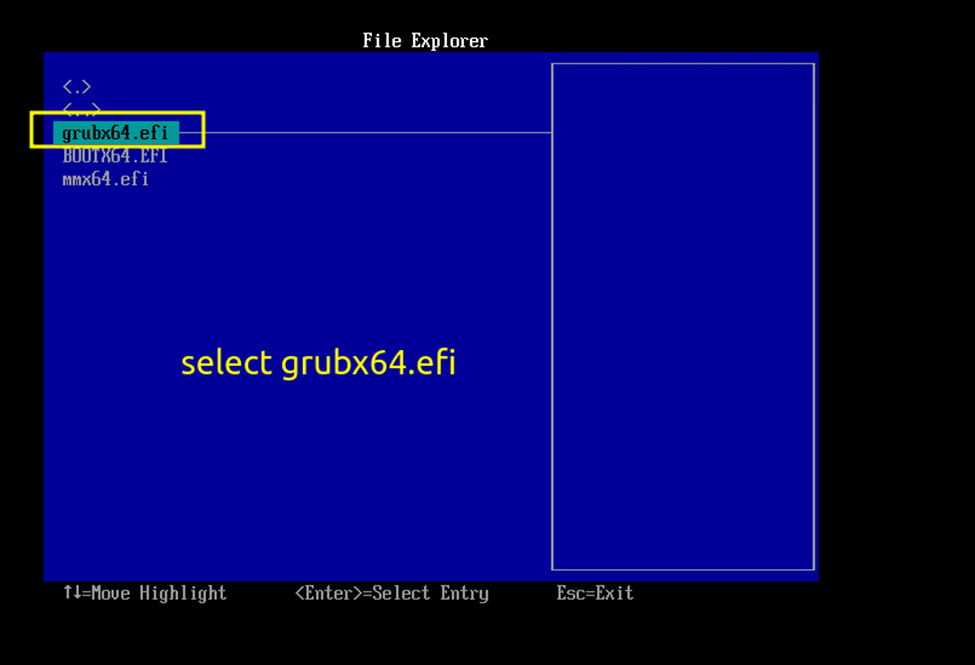
Select grubx64.efi, then wait for your virtual machine to boot
.