Scan Types and Configurations
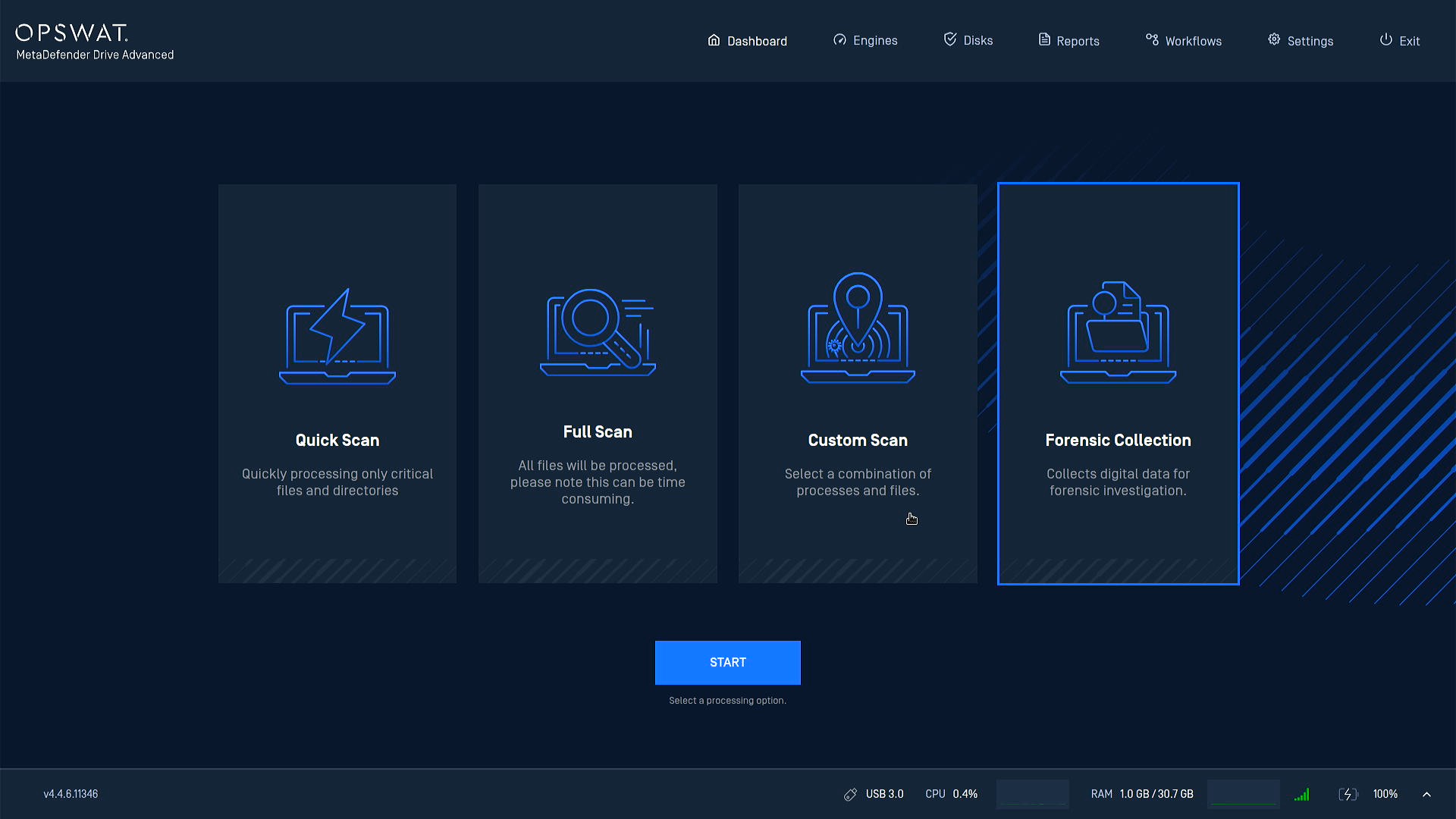
MetaDefender Drive offers three scan types: Smart Scan, Full Scan, and Custom Scan. They add flexible configuration options and the ability to select a scanning engine to optimize performance and results for each dataset. The fourth option, Forensic Collection, gathers digital evidence instead of scanning for threats.
Smart Scan
A configurable, one-click scan of critical system areas using a selected set of anti-malware engines, technologies, and directories. Configure the engines, technologies, target directories, and the button's name and description from Settings → Smart Scan.
Smart Scan/ Quick Scan
Smart Scan is the renamed, configurable successor to the former Quick Scan. The Dashboard button keeps the default name Quick Scan until you rename it. The directory (file path) selection is only available on Windows. Support for other operating systems will be added in subsequent releases.
Full Scan
Scans all the mounted and unlocked disk partitions using all the enabled engines.
Engines and Technologies
The total number of engines and technologies included for a full device scan depends on the engines and technologies enabled under Settings → Preferences.
Custom Scan
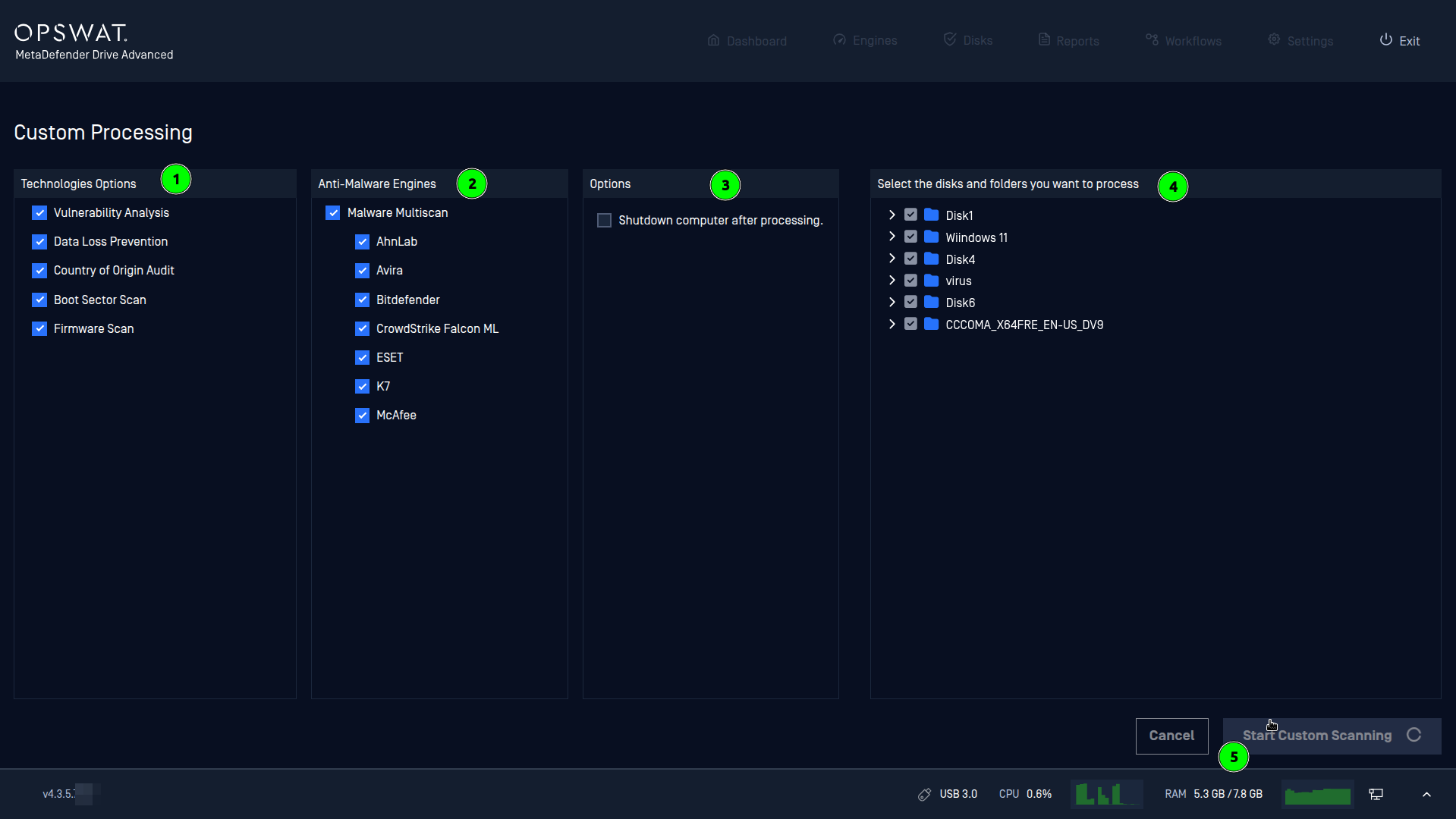
Runs based on a user-defined selection of technologies, anti-malware engines, options, and filesystem paths.
Engines Availability
Engines that aren't ready to be used, due to an ongoing update or initialization, appear grayed out and can't be included in a custom scan.
Perform a Scan
During a MetaDefender Drive scan, each file is run through the embedded MetaDefender system, which scans and analyzes it with multiple antivirus, vulnerability, and utility engines. Users can track scan progress with an estimated completion percentage displayed on the progress bar. The displayed Time Remaining value is estimated based on historical processing rates and file sizes and may be updated while the scan is running.
Once the scan is complete, the user can click the View Report button to see the scan report.
Scan Duration Estimates
There is no fixed time for each scan. It can take a few minutes to up to several hours, depending on the hardware specs of the target device and the size of the data being scanned. Please take a look at the performance metrics for reference.
If the target machine has 8GB of memory or less, it is recommended to select Recommendation. If the recommendation is not accepted and the user continues in the regular standard mode, engine failures and slow processing can be expected.
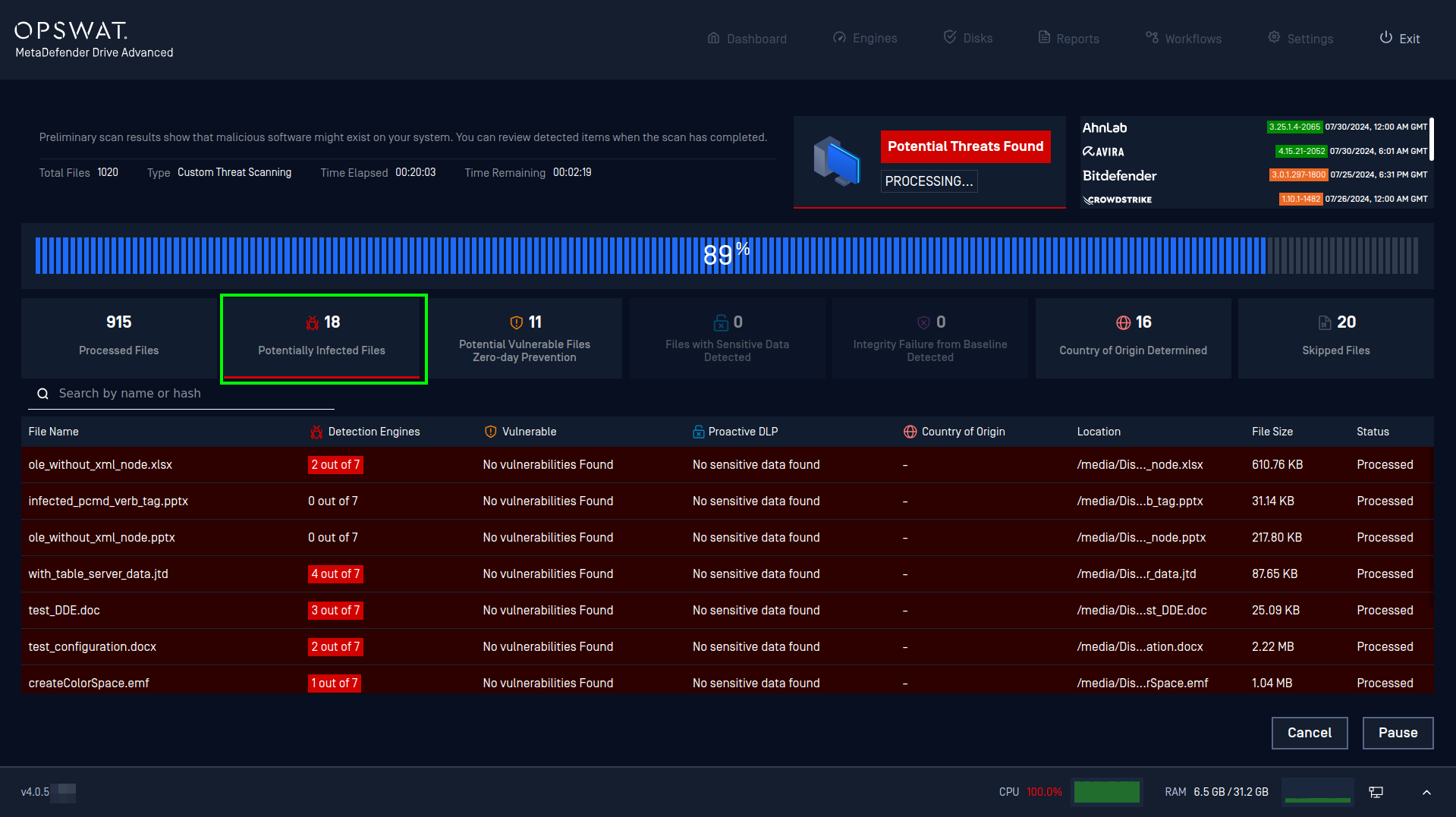
A scan in progress with 18 Potentially Infected Files detected
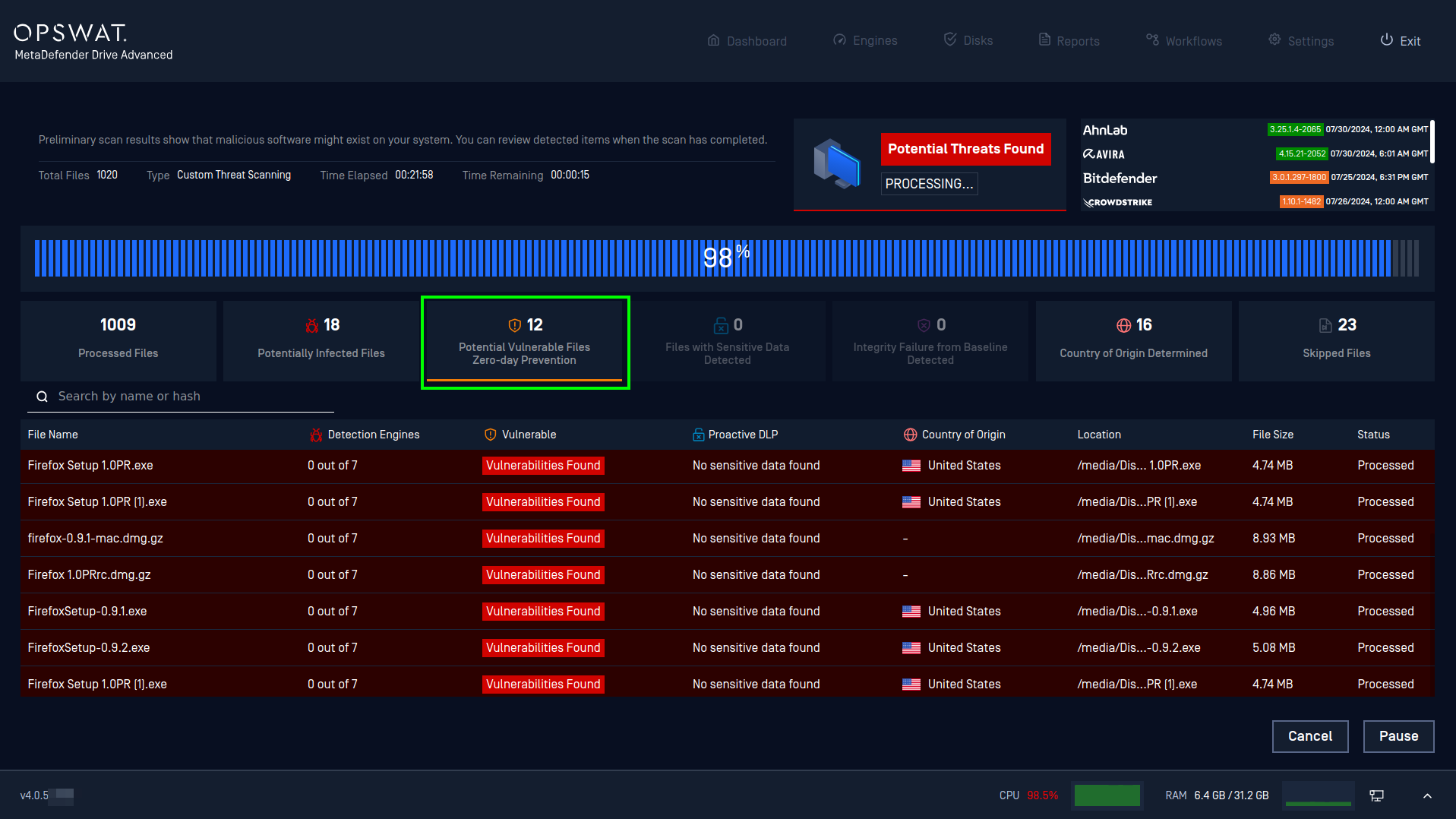
A scan in progress with 12 Potentially Vulnerable Files detected that might be a reason for a Zero Day Exploit
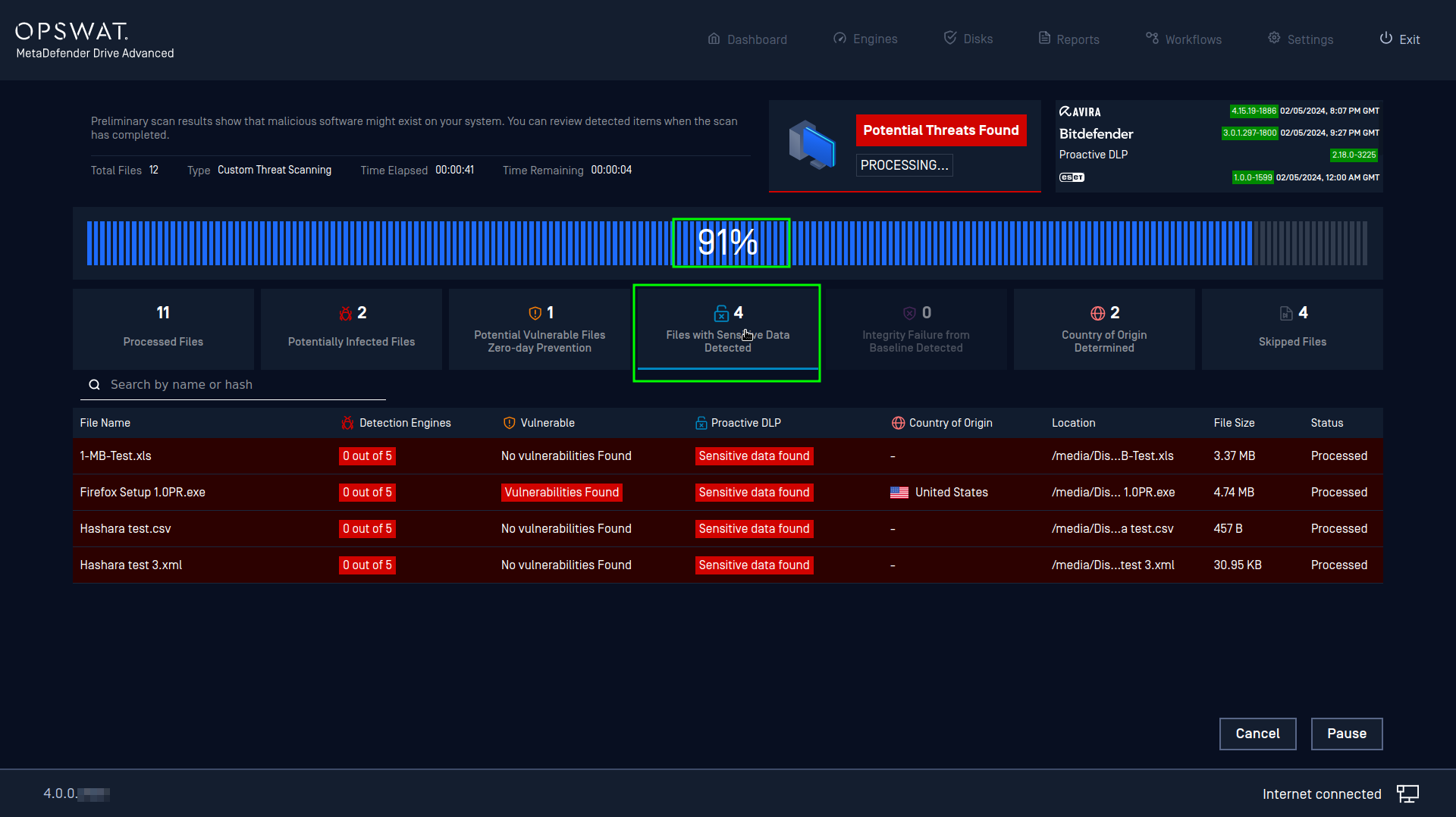
A scan in progress with 4 Files with Sensitive Data detected
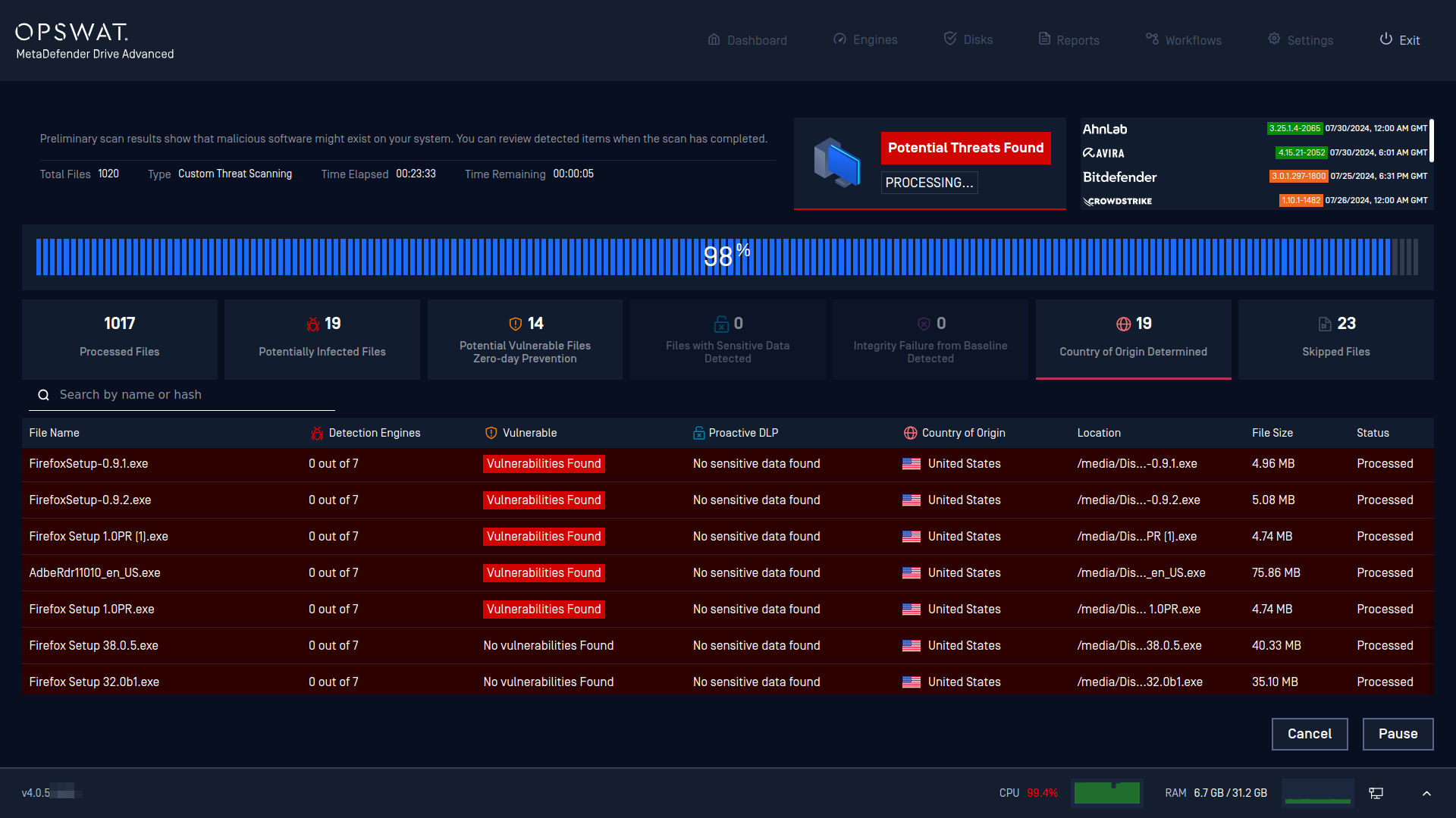
A scan in progress with 19 Country of Origin suspected files detected
Manually skip files during scan
If Operator Skip Files is enabled in Preferences → Scan Settings, during a scan session, the operator can select a file still in Processing, click to skip it, and pick a predefined skip reason. The file is reported as skipped for this scan only; files that finish processing are reported normally with their actual verdict.
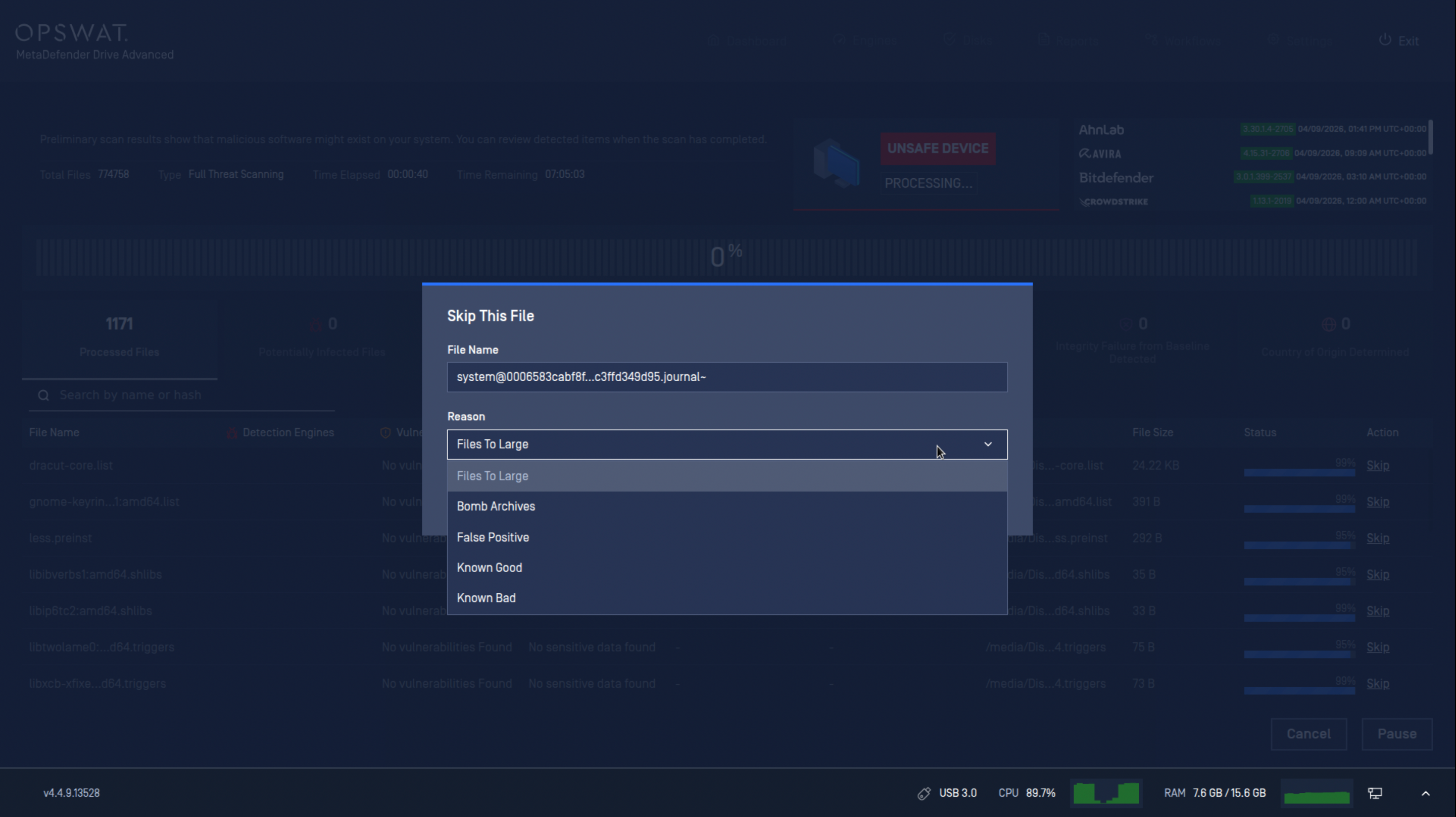
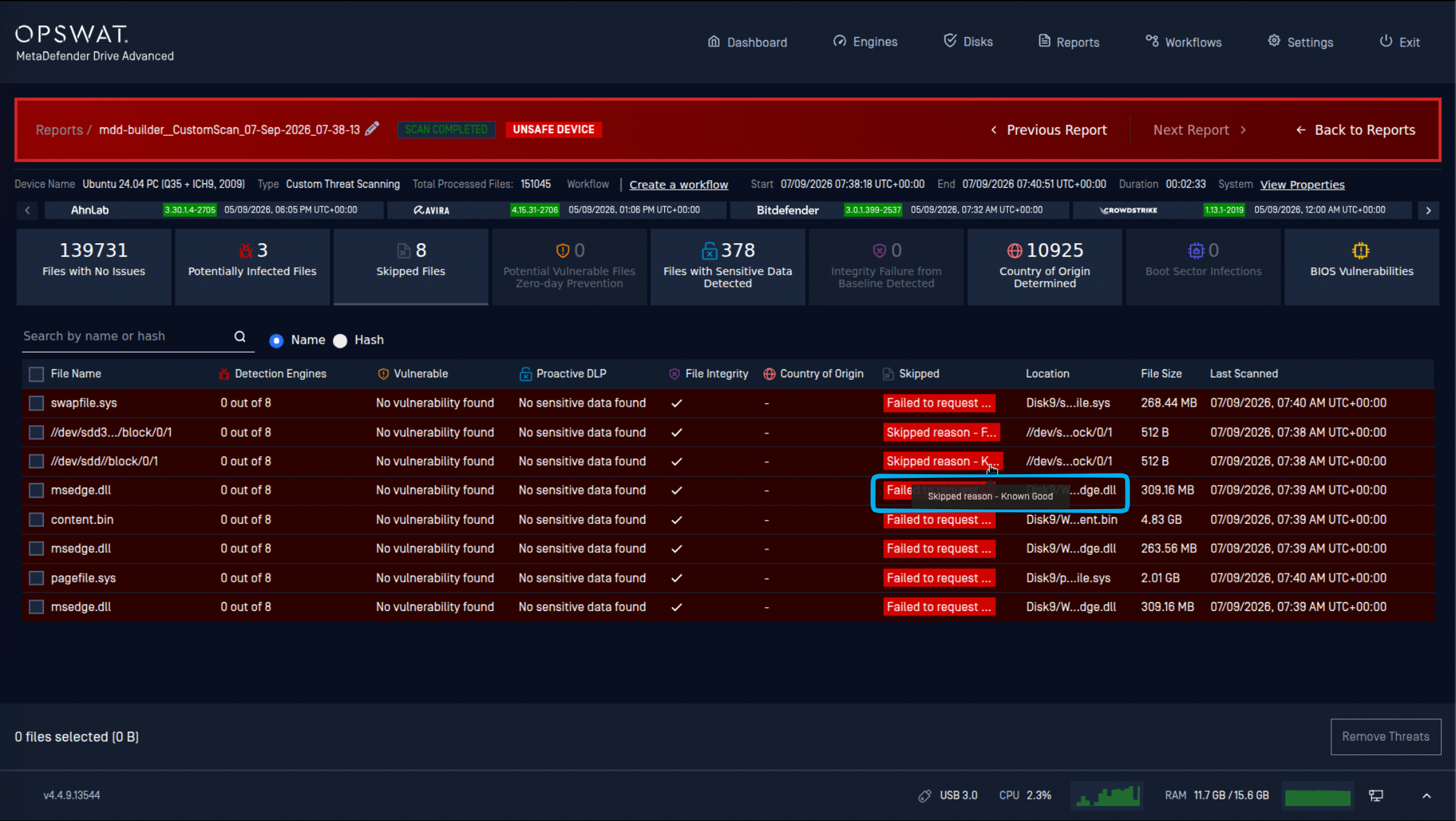
After scan finishes, the manually skipped files will be listed under Skipped Files tab with reason