Perform an In-Session Scan
While your device OS is running, insert your OPSWAT MetaDefender Drive into the device's USB Type-A port.
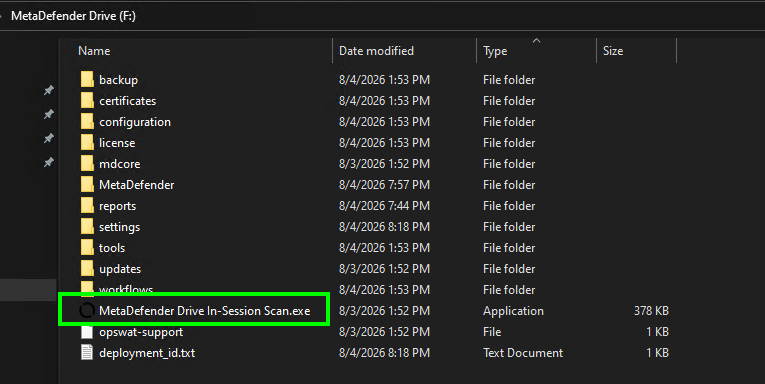
Navigate to the root folder inside the MetaDefender Drive partition and locate the MetaDefender Drive In-Sesion Scan.exe file
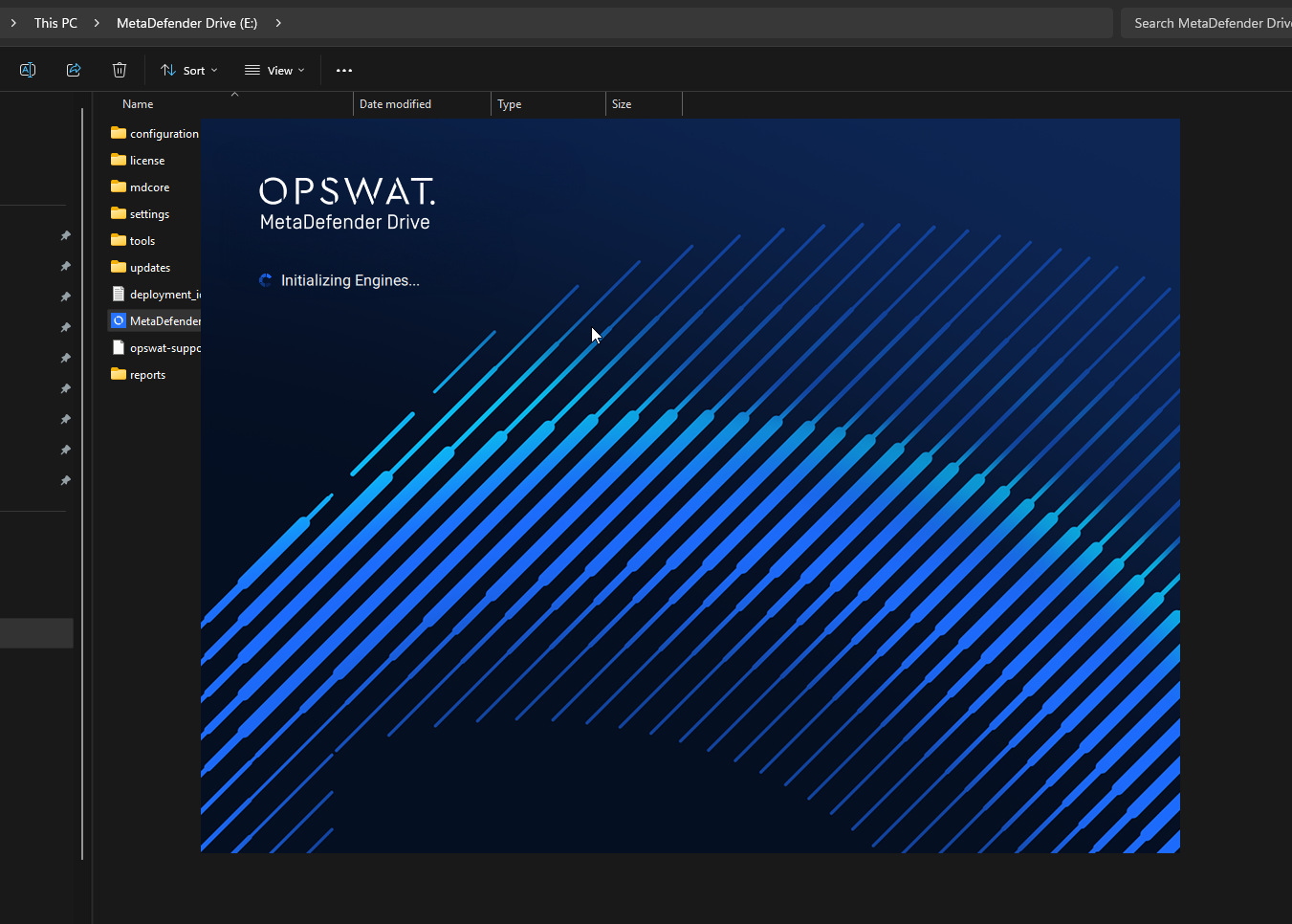
When click it, In-Session will initialize with a splashing screen
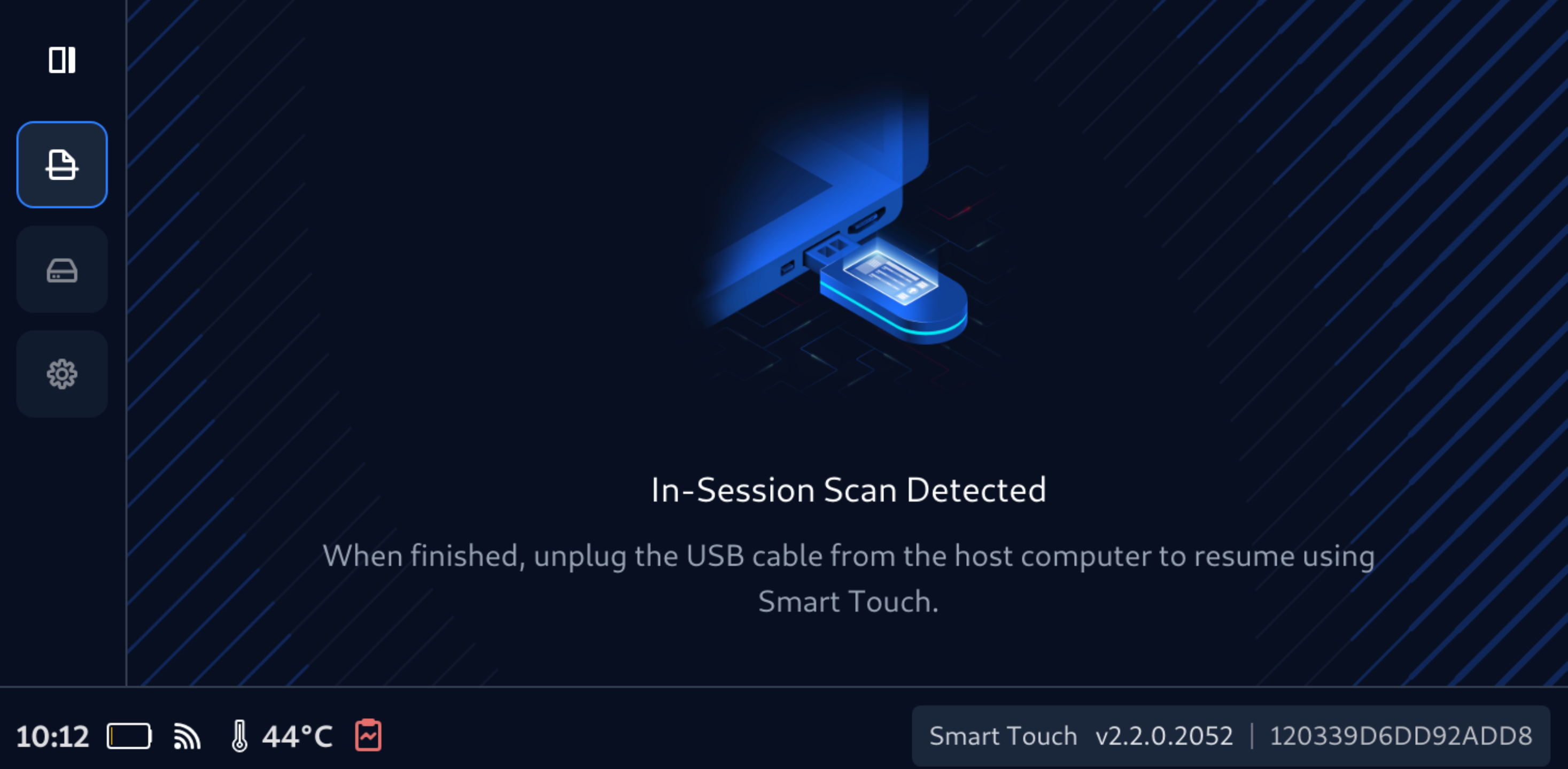
If you are running In-Session from Drive with Smart Touch, on Smart Touch screen you will see it status changes to In-Session Scan Detected
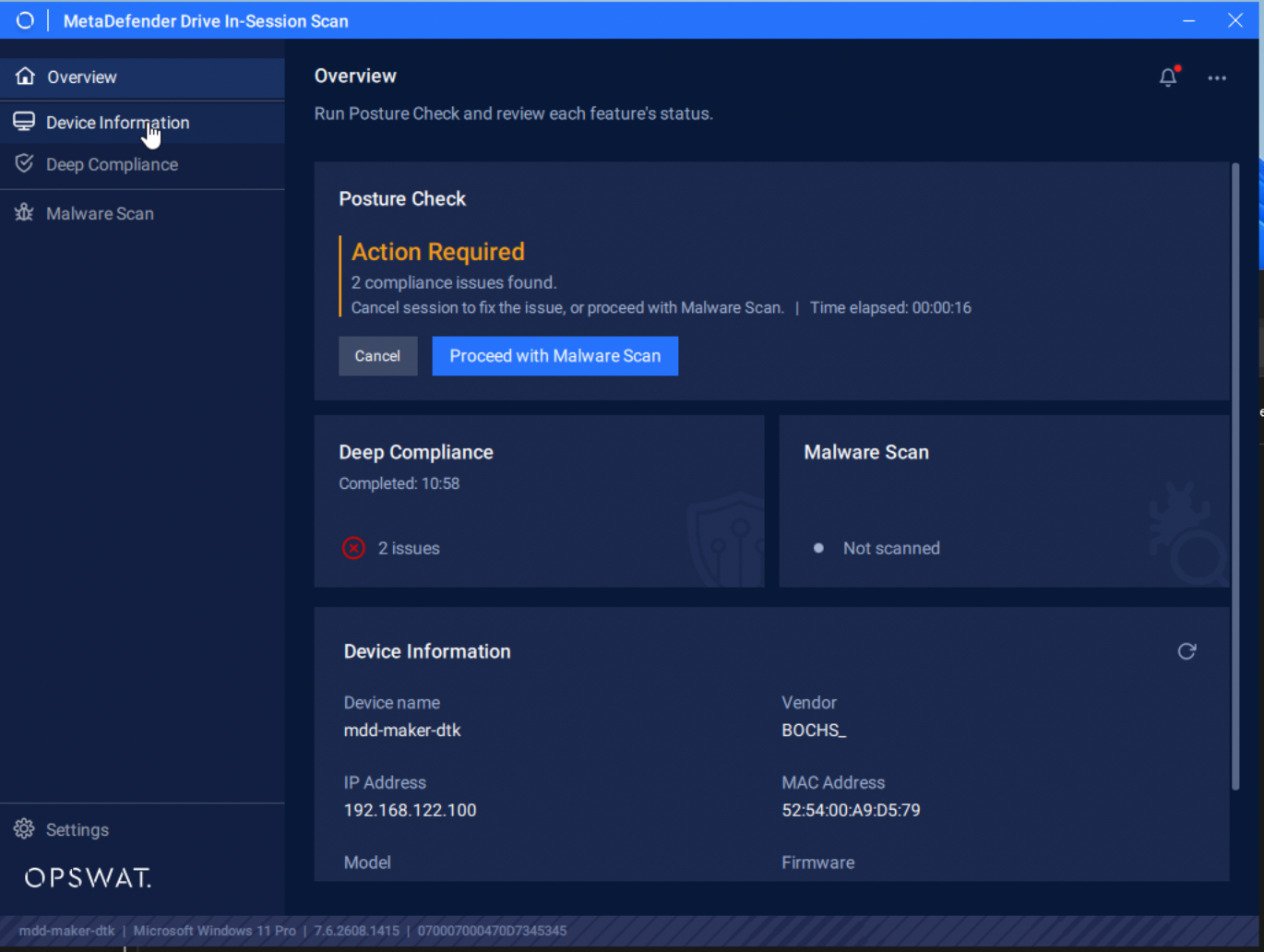
Then the application starts into Overview with option to run Posture Check which is a combination check where Deep Compliance will be triggered first and then Malware scan after
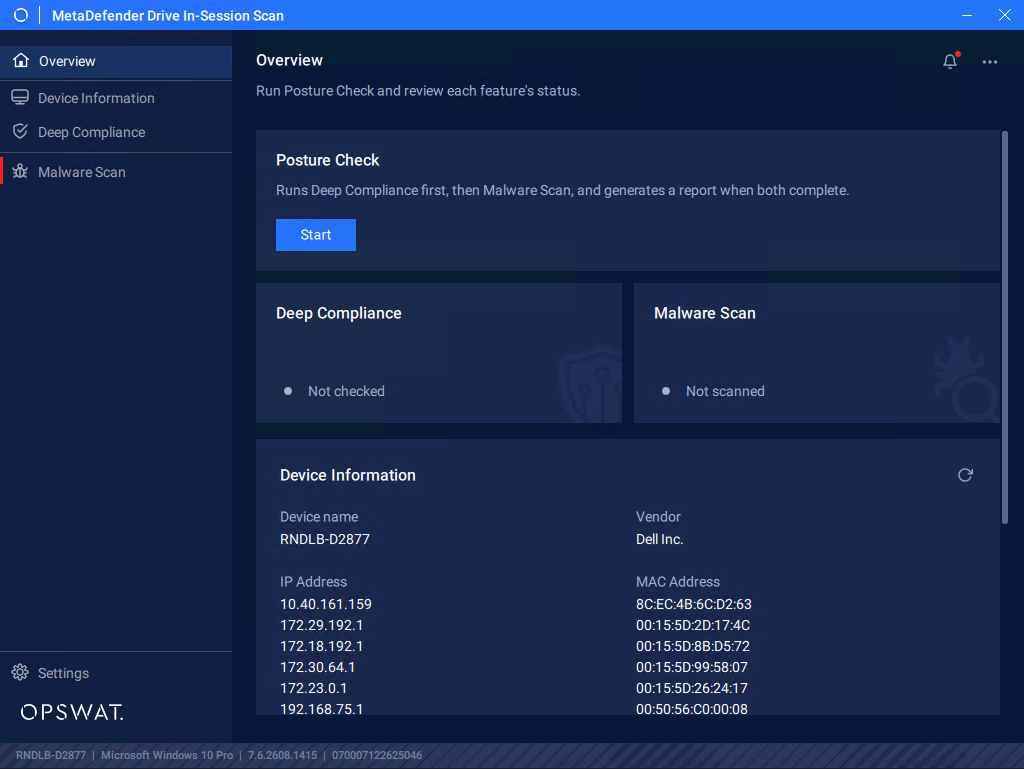
Deep Compliance checks if Operating System Update in Anti-Malware, Encryption
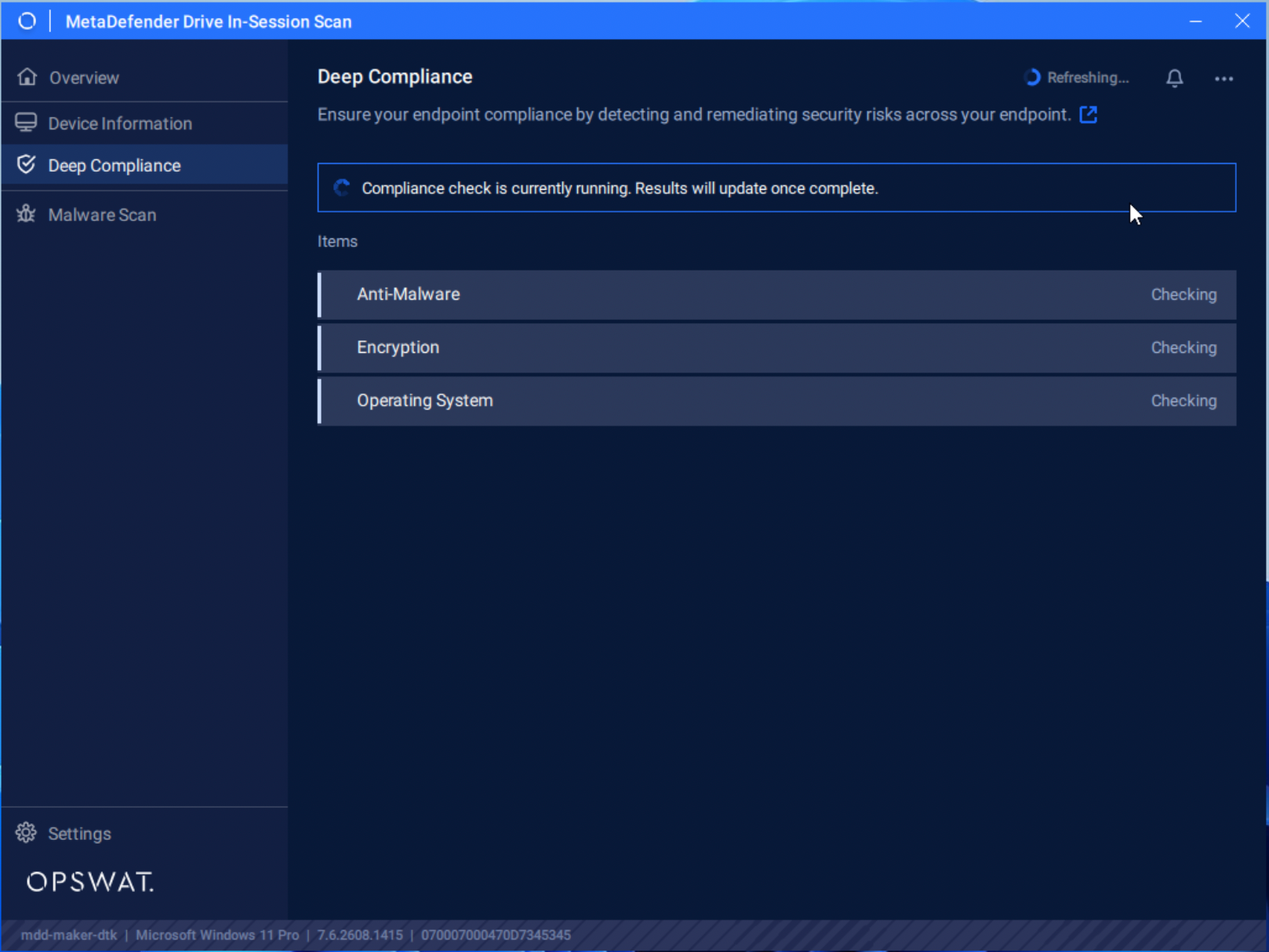
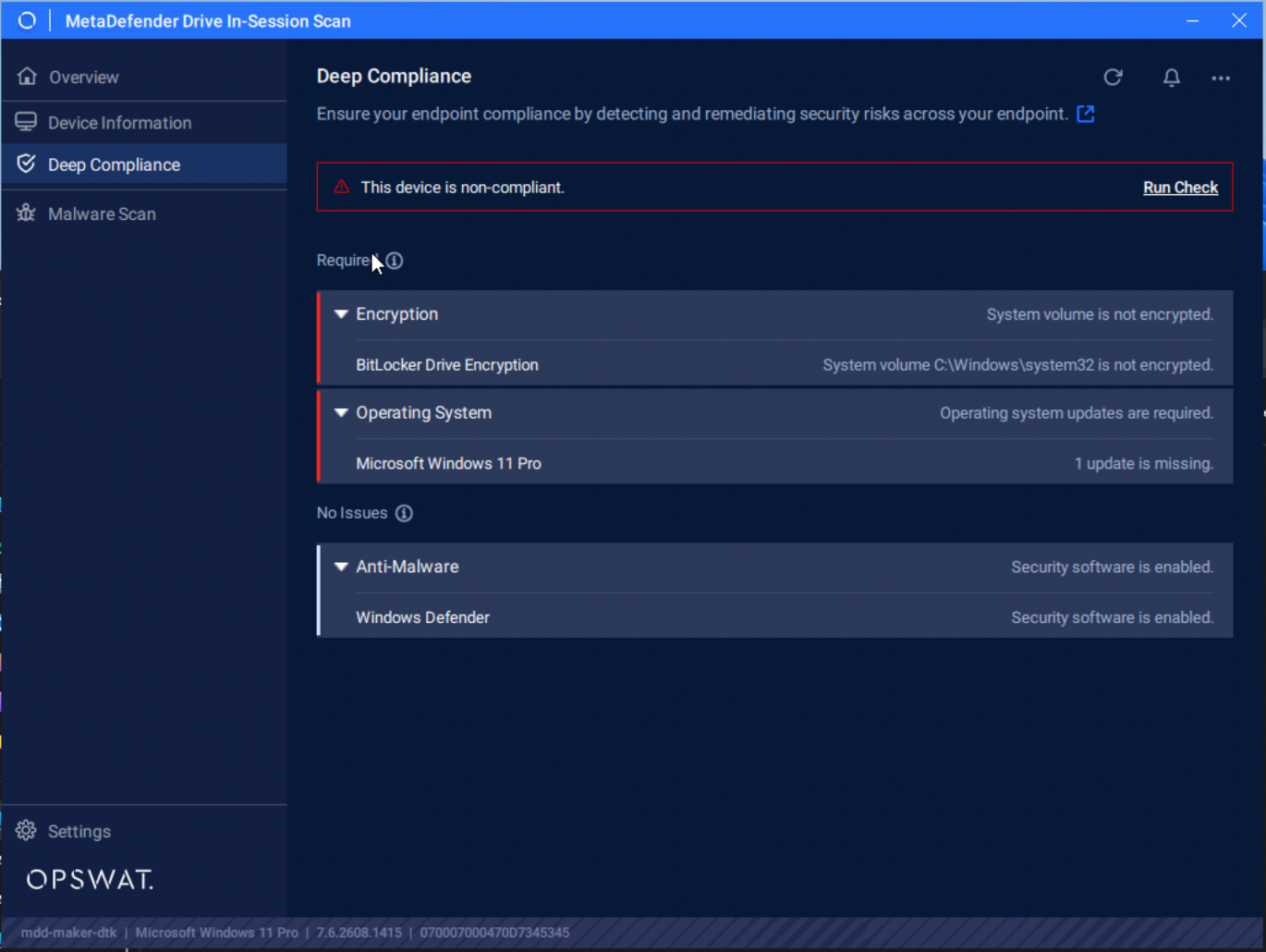
Any compliant issues will be reported in Deep Compliance tab, and can be expanded to provide more details
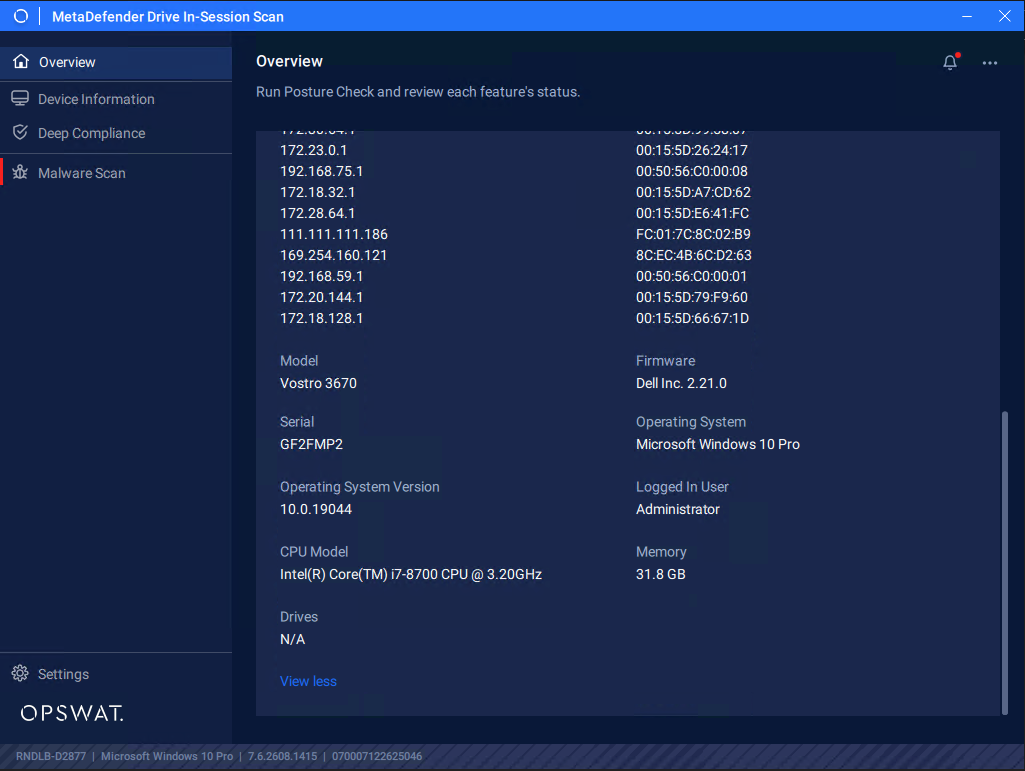
The issue will also be reflected in Device Information tab as well, along with other details about the device being checked
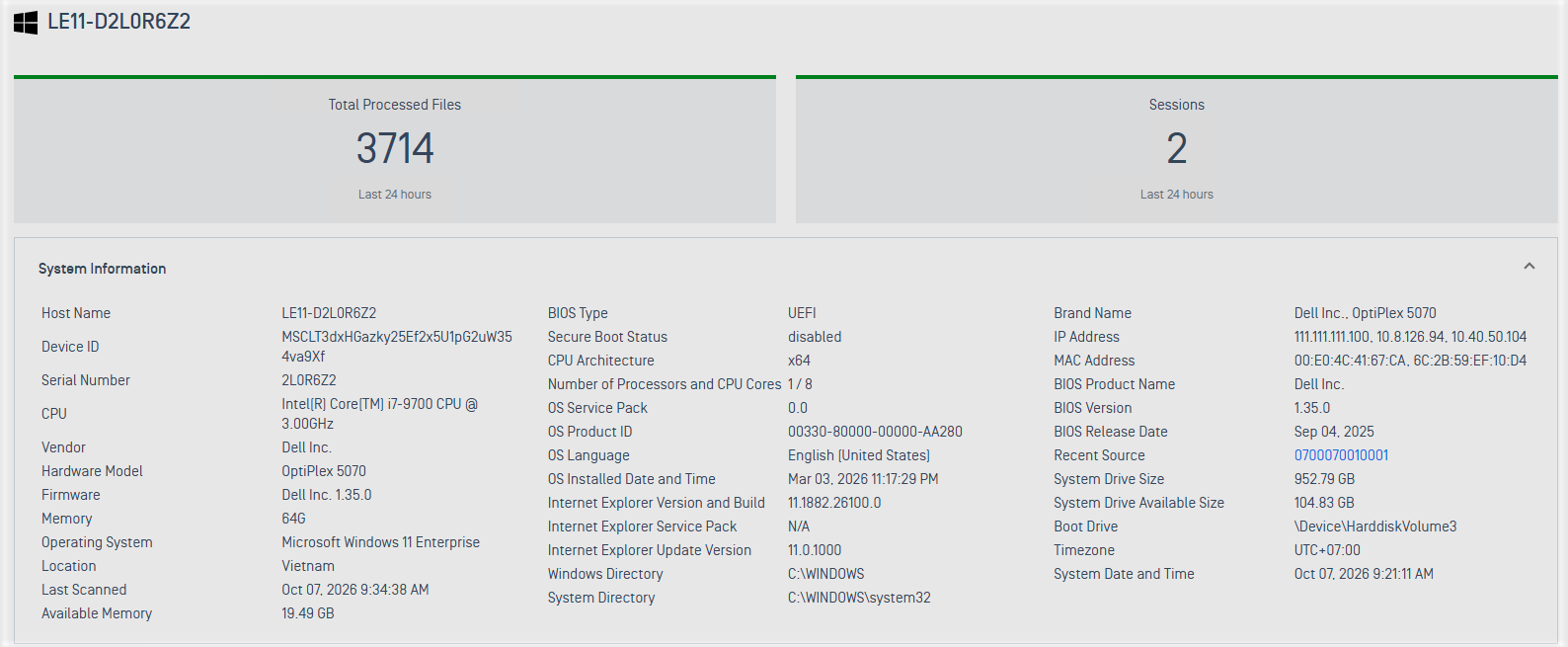
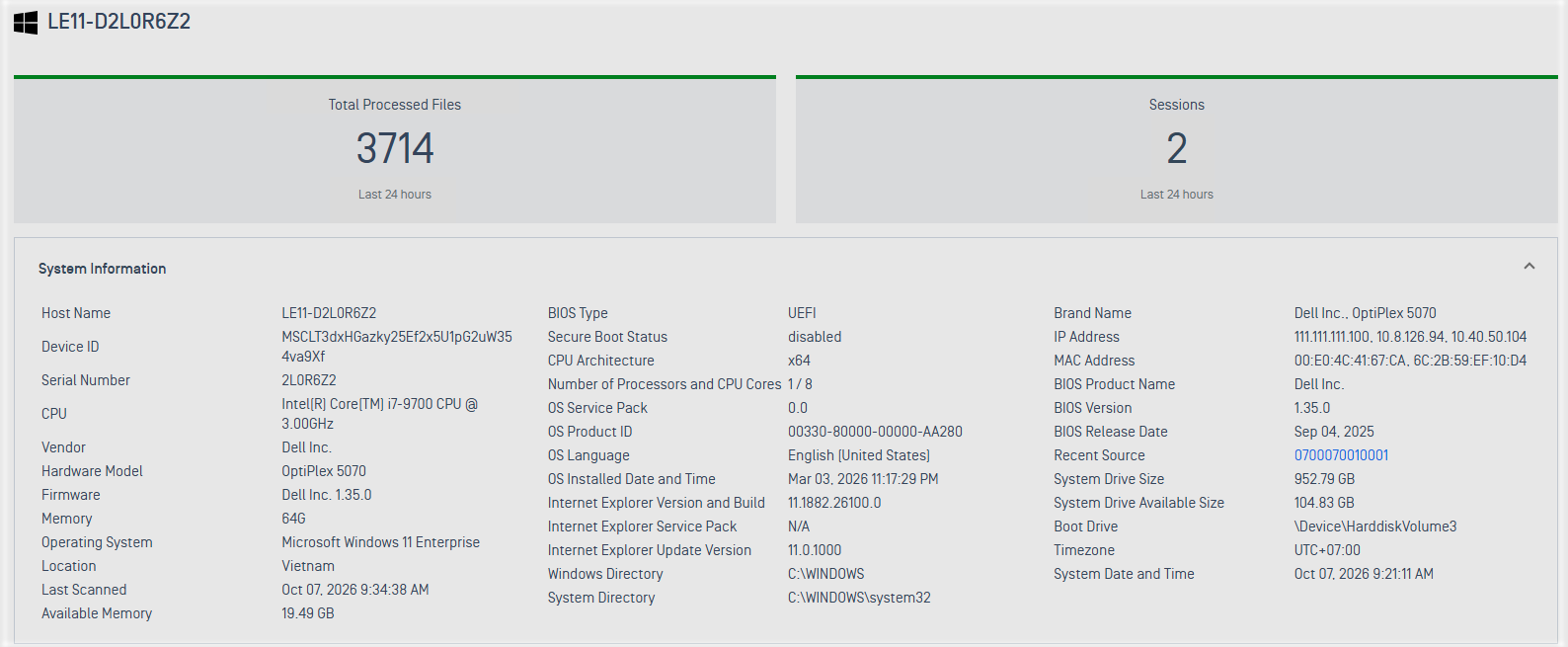
View collected information of the scanned devices from Central Management
If MetaDefender Drive is enrolled and managed by Central Management, after reports are synced, from Central Management, navigate to Solution → Portable Malware Scanning → Dashboard → Scanned Host. Click a scanned host, the collected information will be shown under System Information.
After Compliance Check is done, you can also chose to Proceed with Malware Scan
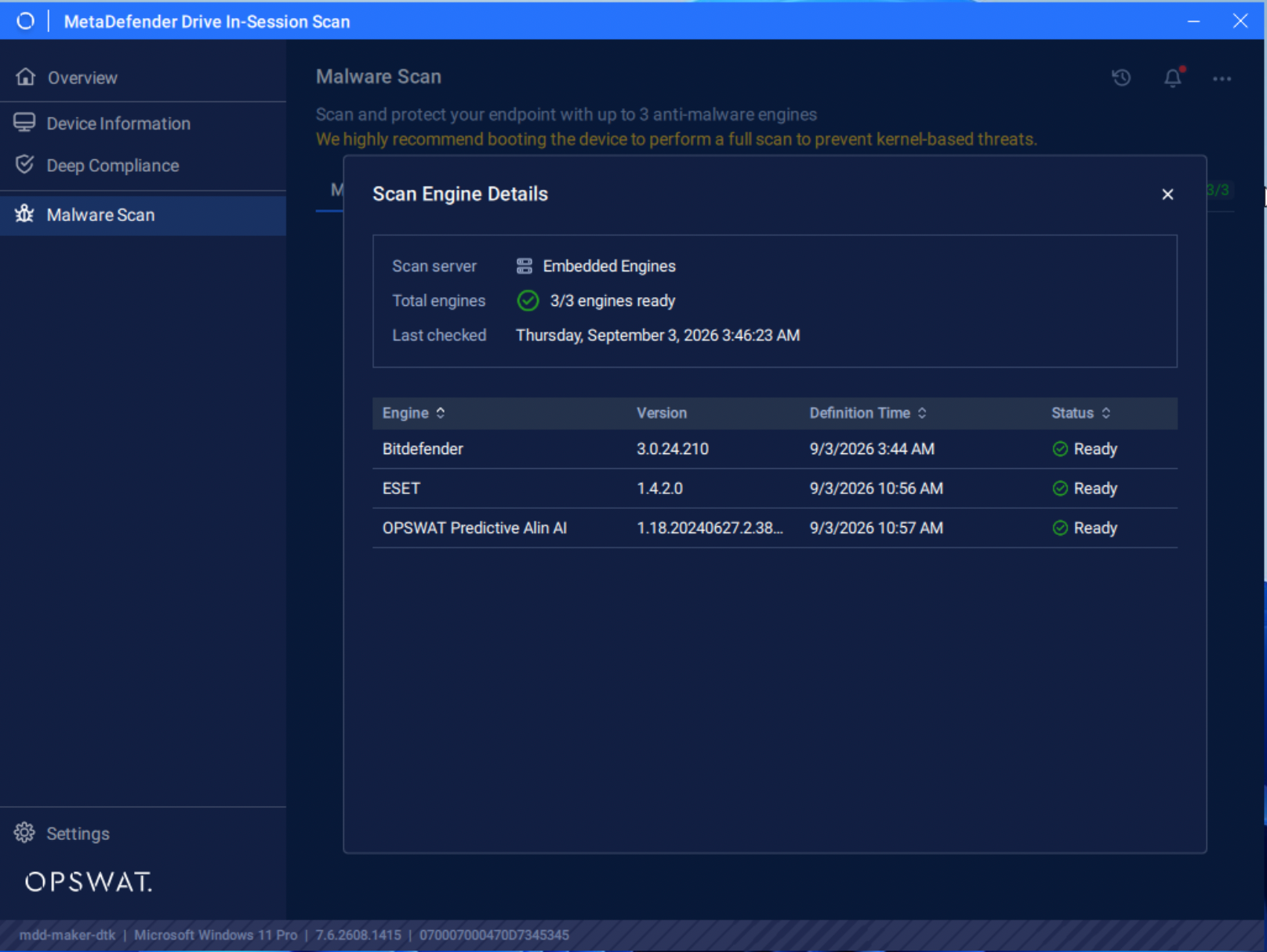
Click Malware Scan tab, you will see all of scan modes available for MetaDefender Drive In-Session
Wait until all of the embedded engines display the Ready status. Click the (i) icon to see the embedded engines provided with the version. Those engines are only available after Drive has been updated either by Drive Toolkit or by Update from Drive's UI.
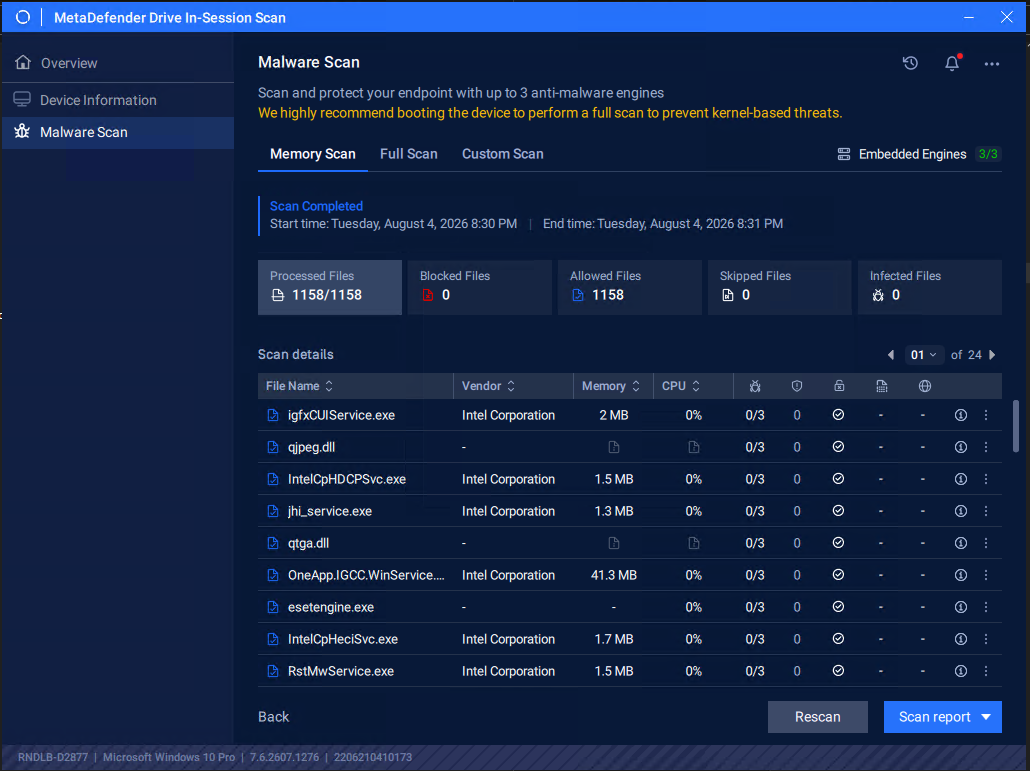
Memory Scan
To scan all the libraries loaded into the memory:
Click the Memory Scan tab, then click Start
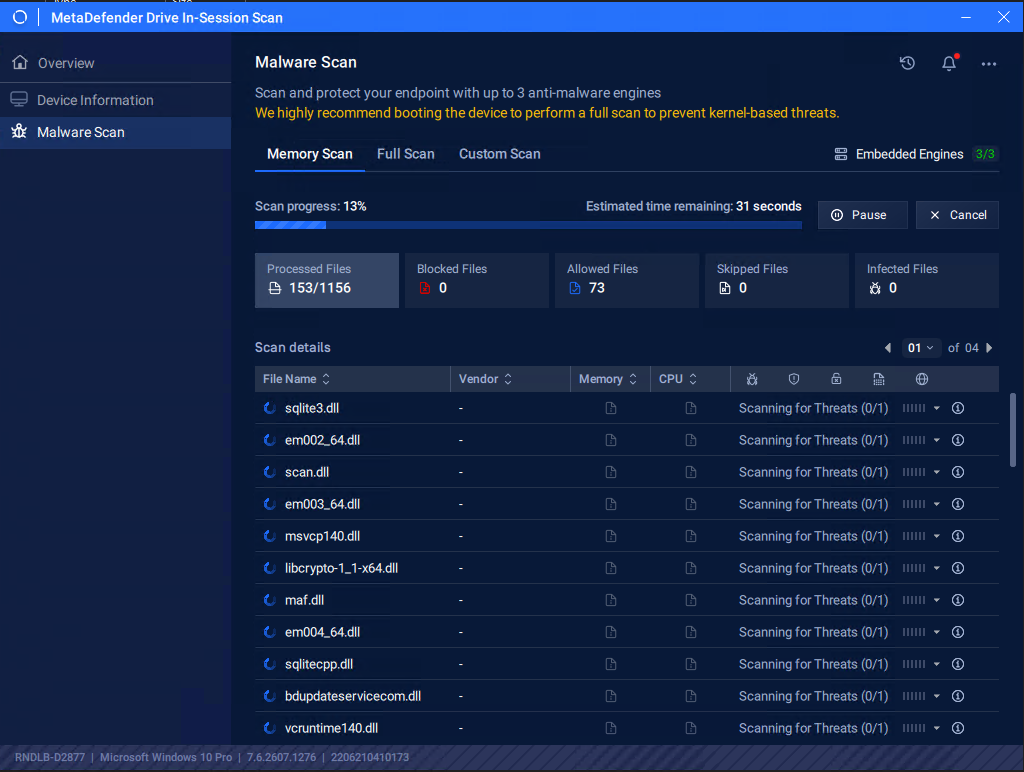
Once the scan is completed, the results of scanning all the libraries loaded into the memory will be displayed.
Full Scan
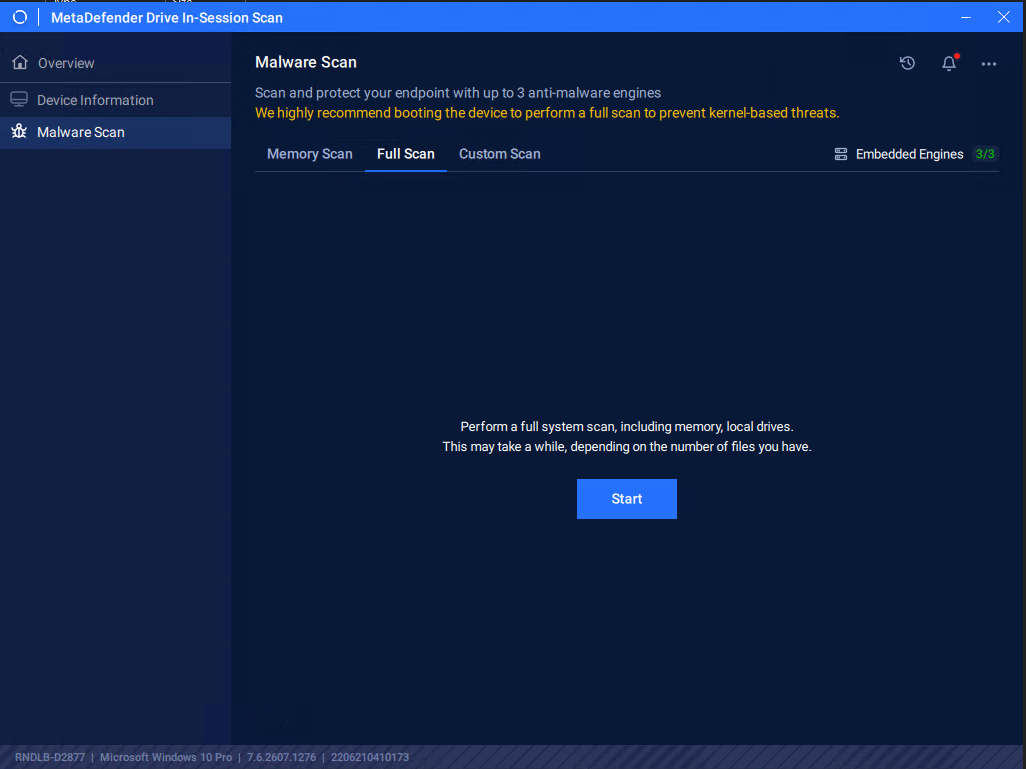
To run a full system scan:
Click the Full Scan tab, then click Start
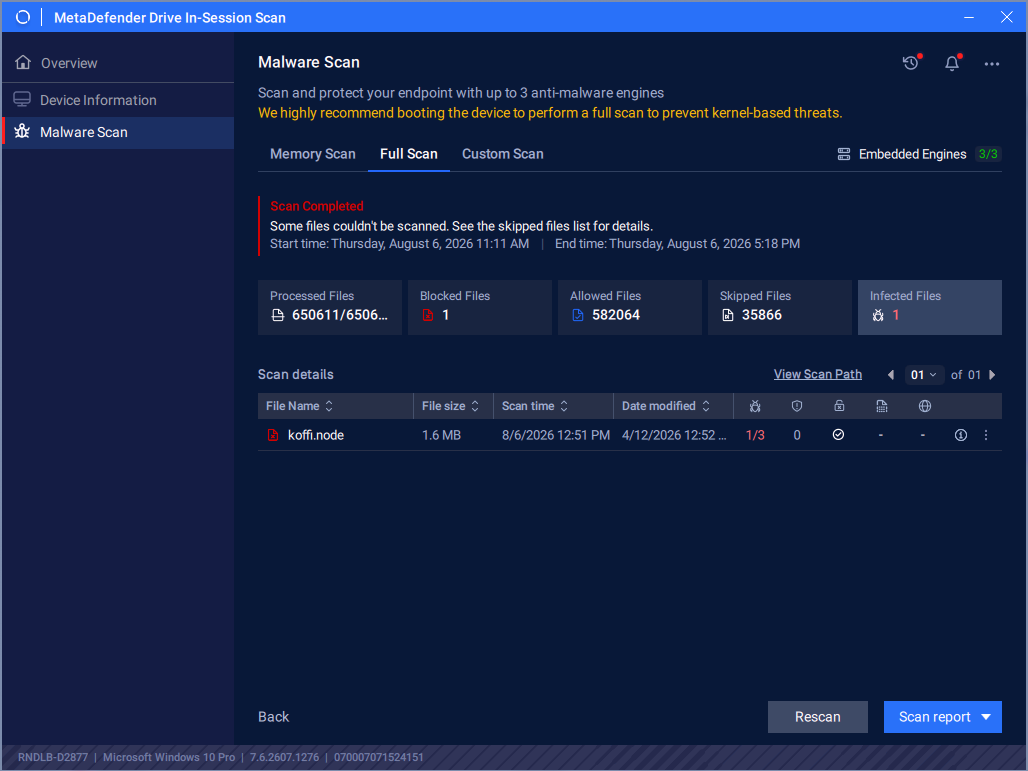
After scan completes, the full scan report will show:
Custom Scan
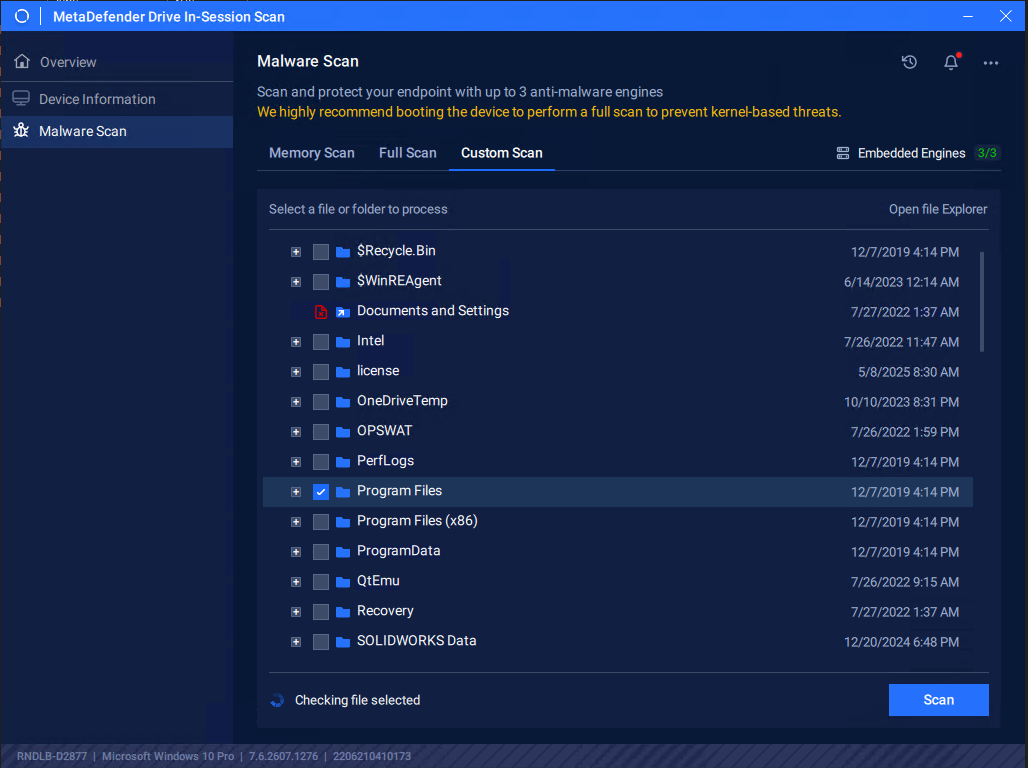
To select specific partitions, folders, or files to scan:
Click the Custom Scan tab, select the paths you want to include in the custom scan, then click Start.
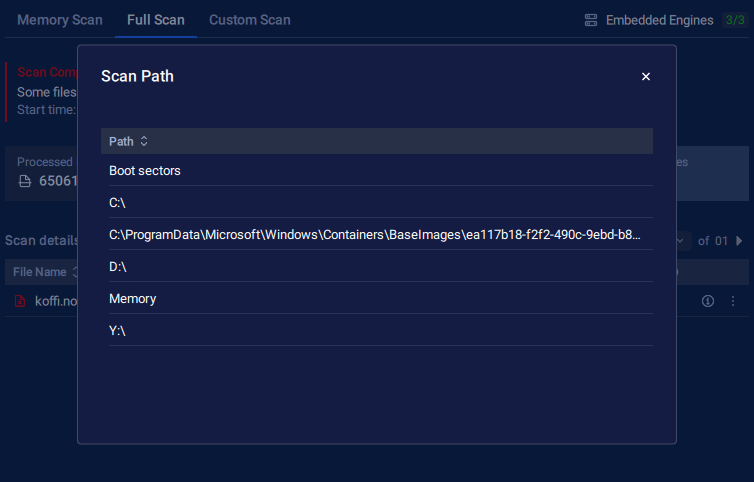
When a Scan is in progress, you can click View Scan Path.
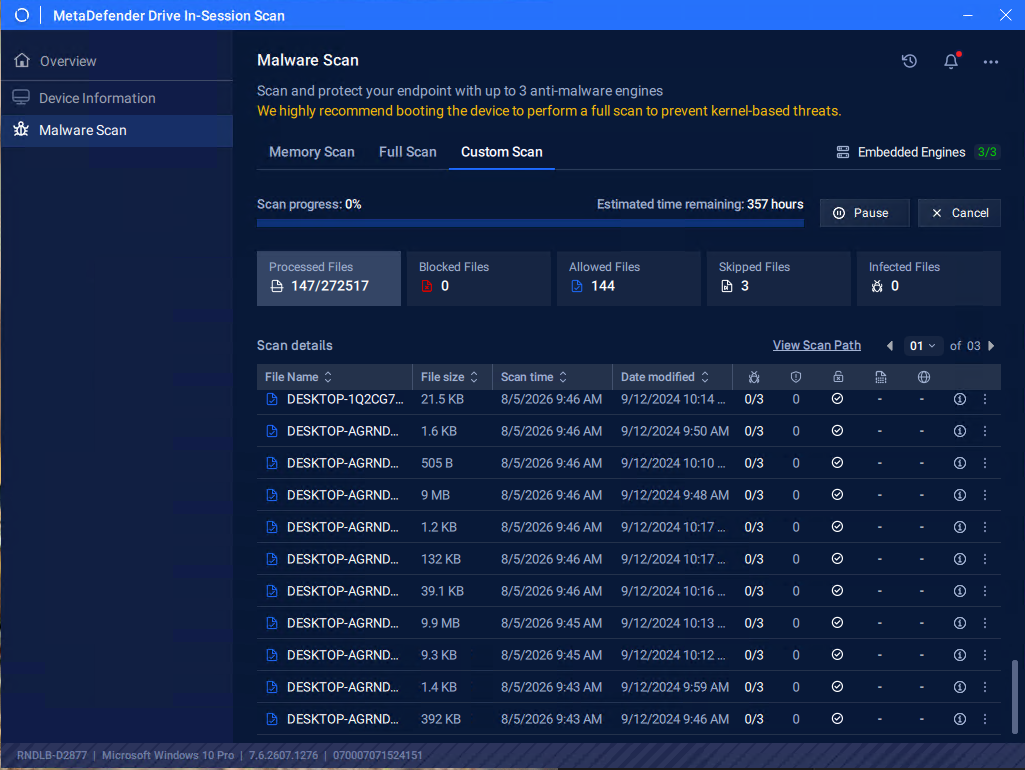
It will open a popup to view what directories are under scan session
Once the scan is completed, the detailed results of the selected paths will be displayed, as in the following screenshot displaying scan results of C: and D: partitions on Windows 10

Device Final Verdict
The device will be marked Unsafe when Deep Compliance or Malware check report any issue.
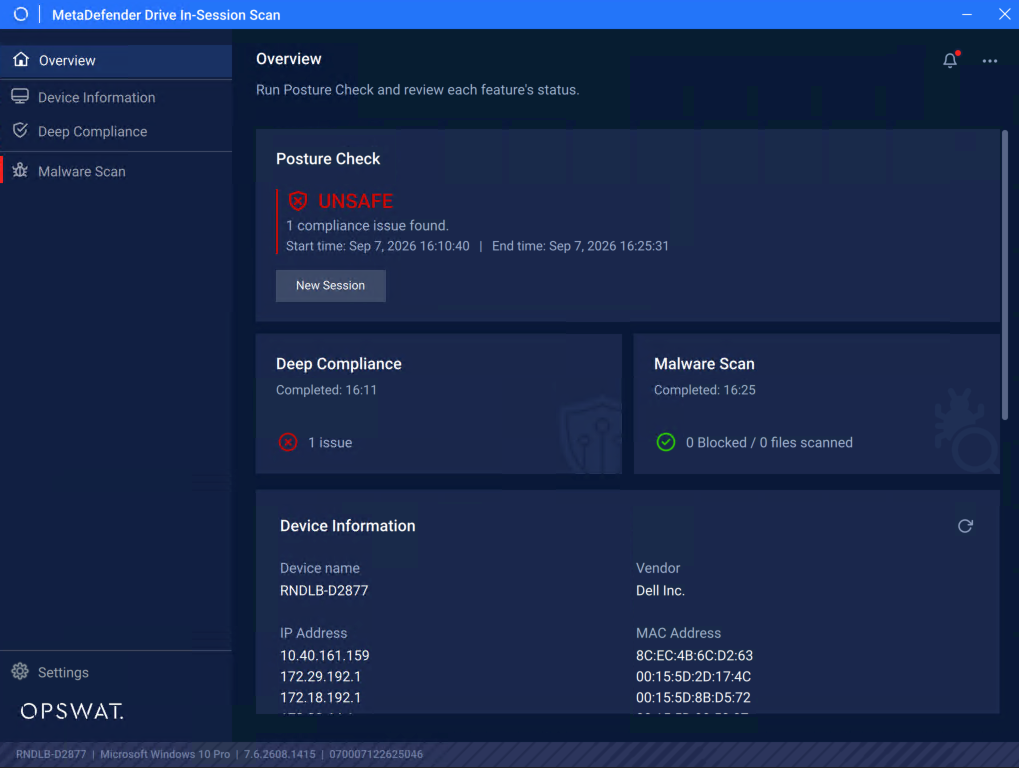
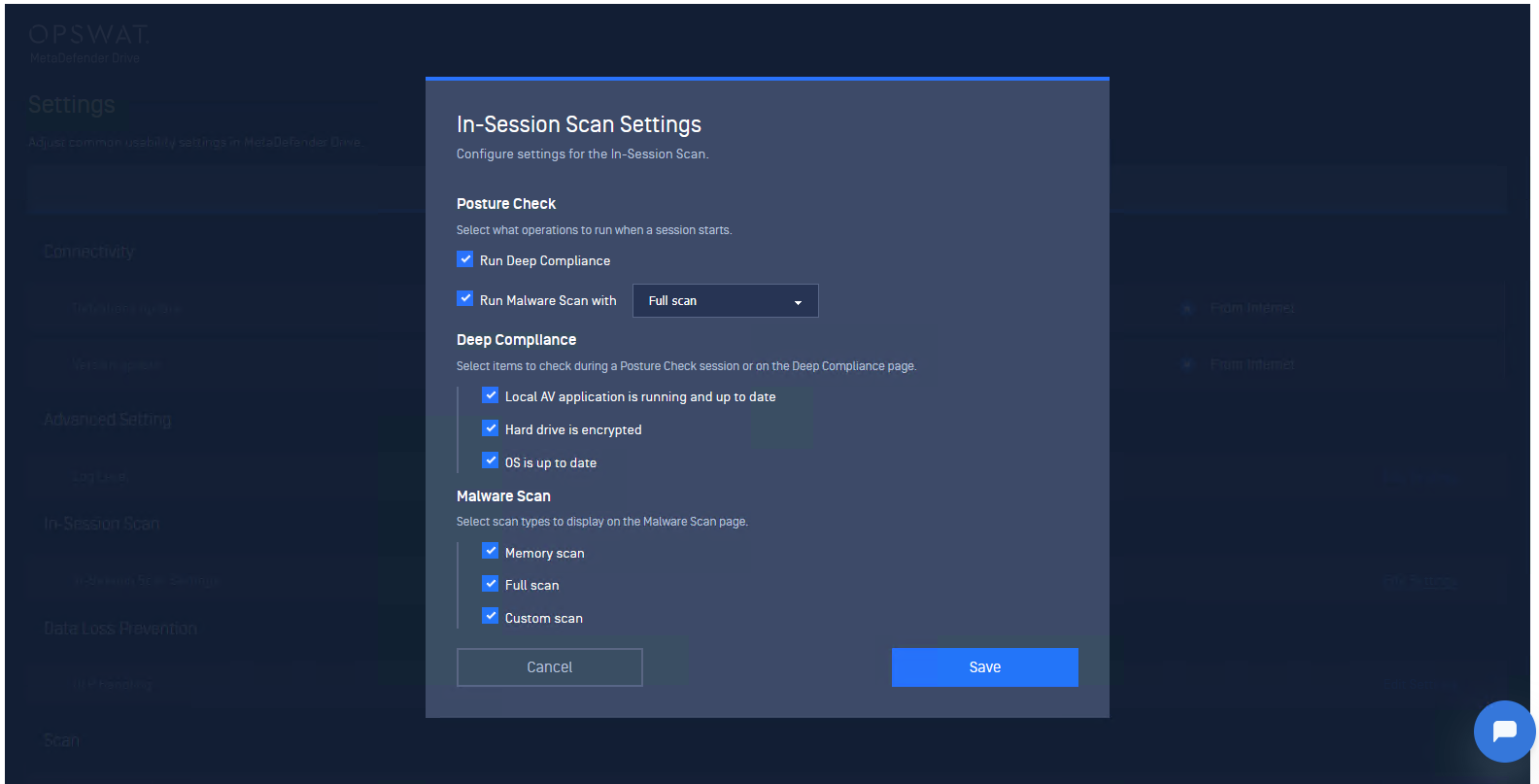
Settings for MetaDefender Drive In-Session
The Settings provides configuration for In-Session. The settings will be applied on the next run after saving.
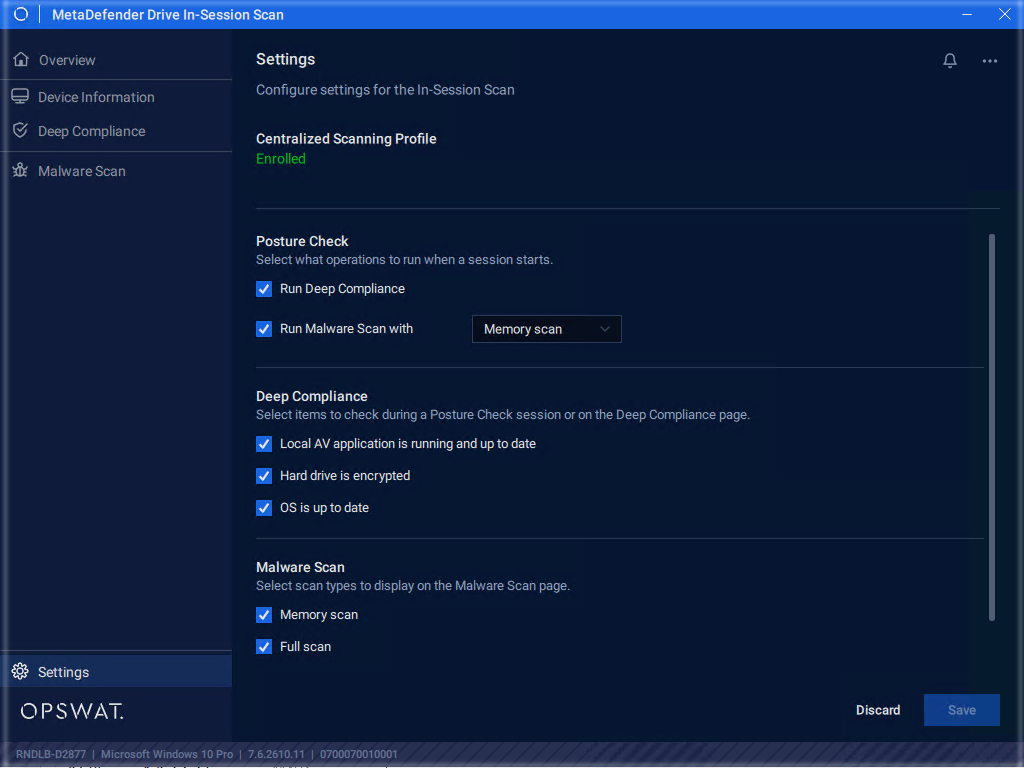
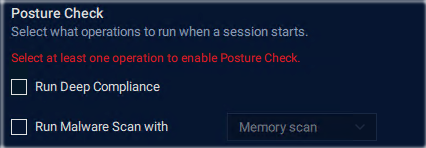
Posture Check Operations Options
Enable/Disable Deep Compliance
The Malware Scan that follows up after Compliance Check
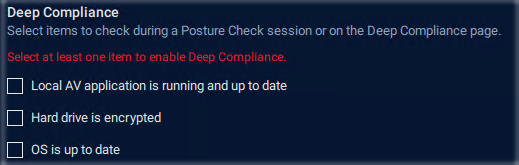
Options for Deep Compliance
AntiMalware local existence and compliance
Disk encryption is enabled or not
Operating System is up-to-date or outdated
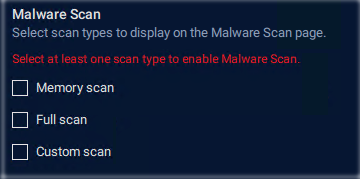
Options to display Malware Scan type
Show/Hide Memory Scan
Show/Hide Full Scan
Show/Hide Custom Scan
Manage In-Session settings with Central Management
If MetaDefender Drive has been enrolled to OPSWAT Central Management, In-Session can be remotely configured from there. This requires Central Management v.10.7.26091 at minimum.
View collected information of the scanned devices from Central Management
After reports are synced, from Central Management, navigate to Solution → Portable Malware Scanning → Dashboard → Scanned Host. Click a scanned host, the collected information will be shown under System Information.