
To unlock BitLocker protected disks for MetaDefender Drive using Microsoft's built-in Recover Keys, users must boot Windows and then insert the OPSWAT MetaDefender Drive.
Add BitLocker Recovery Keys to MetaDefender Drive
If you already have BitLocker's Recovery Key files saved on your device, copy them to the MetaDefender Drive partition under the folder Tools/BitLocker and reboot your device from the MetaDefender Drive.
Generate BitLocker Recovery Keys and Add them to MetaDefender Drive
If you don't have the BitLocker Recovery Keys for your encrypted disk, follow these steps:
Plug your MetaDefender Drive into a running Windows device.
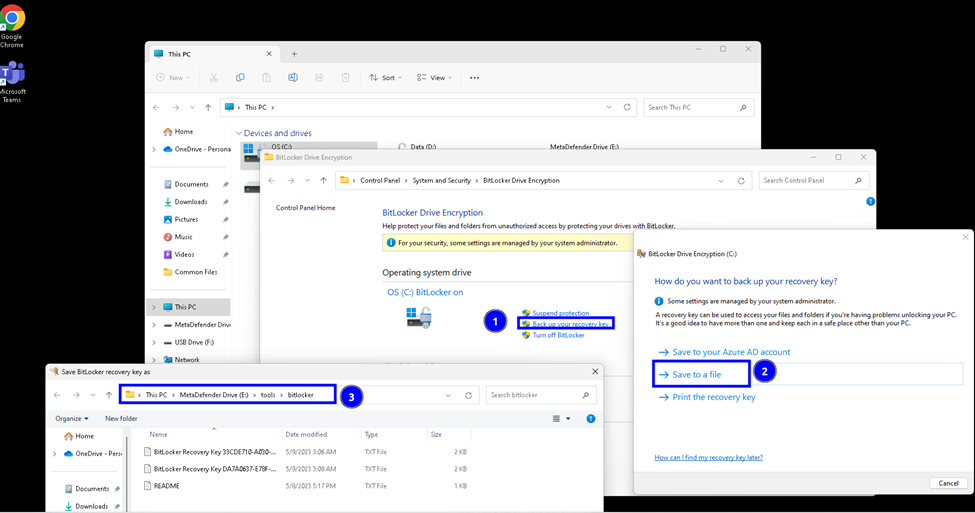
Right-click on the locked disk you intend to unlock, and select Manage BitLocker.

Select Save to a file and save the Recovery Key to a secure folder on your device. Repeat this step for every encrypted disks on the computer.
Copy the Recovery Key file/s to the MetaDefender Drive partition under the tools/bitlocker folder.
Reboot your system from MetaDefender Drive.