
An Ignition file could be utilized for either / both of following use-cases:
Pre-define PostgreSQL server information for MetaDefender Core to connect and setup database: only required on Linux installation, or Windows with command line installation. Learn more details at:
Standalone Mode > Command Line Installation ( applicable on version 4.19.0 or newer).
Shared Database Mode > Command Line Installation (only applicable on version 4.20.0 or newer).
Automating to accept EULA, create a default local admin user and import MetaDefender Core configurations upon installed: Those steps could be automated using ignition file described in this page.
Ignition file location to create:
Windows:
C:\OPSWAT\ometascan.confLinux:
/etc/opswat/ometascan.conf
The product supports fully automated deployment. It means that it can be installed and configured with no human interaction.
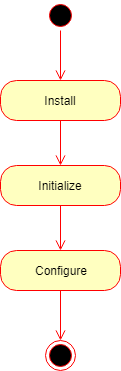
The automated deployment can be split to three steps on a high level:
Installation
Initialization
Configuration
Installation
To automate the installation, install the product from the command line and provide the installation-time options as parameters to the installer. For further details see Command Line Installation
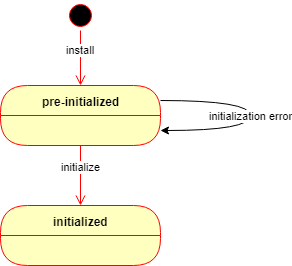
After the installation is complete, the product starts up and waits in a pre-initialized status. The product may be initialized in two ways:
Manually using the Wizard Setup or
Automatically using an ignition file (see below).
If the automated initialization fails for some reason (e.g. the ignition file is not in place) then the automated initialization may be retried after fixing the problem (e.g. placing the ignition file in its lookup location) and restarting the OPSWAT MetaDefender Core service.
Until the product is in pre-initialized status, it will try the automated initialization every time after a service (re)start.
Initialization
Initialization is the process of bringing the product to an operable status.
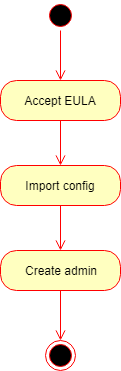
Basically the initialization consists of the following steps:
Accept the End User License Agreement (EULA),
Import product configuration and
Create the first administrator user account.
Ignition file
The initialization process can be configured in a file called the ignition file.
In Linux, the ignition file and the folder /etc/opswat should have the permission 755 and must be in conf format.
Ignition file location
Windows:
C:\OPSWAT\ometascan.confLinux:
/etc/opswat/ometascan.conf
Example:
Ignition file fields
The ignition file accepts the following fields:
Section | Key | Required | Accepted Values | Description |
|---|---|---|---|---|
eula | Optional (mandatory when having [user] section) | true false (default) | Whether to accept the End User License Agreement. This key must be set at the top of ignition file. This key must be set to "true" to accept the EULA. Any other value will cause the initialization to fail. When having [user] section defined, then this key must be set. | |
[global] | Optional | Global configuration | ||
dbmode | Optional | Define database mode:
| ||
instance_name | Optional | Define instance name. If no define, instance name will be automatically generated. Unicode and number At least 3 characters. No whitespace | ||
storage_path | Optional | Path to storages (DLP, quarantined, sanitized files) It could be a local path on the same machine, or a shared folder located in a remote connected machine. Make sure that folder is open access (read and write) to MetaDefender Core. For example:
| ||
[user] | Optional | Initial administrator user account properties. The Administrator role is granted to the account. | ||
name | Optional | string | User name for the initial administrator user account. | |
password | Optional | string | Password for the initial administrator user account. WARNING! Clear text password The password in this configuration file must be stored in its clear-text format and as so it may be visible for unauthorized parties. | |
Optional | string | E-mail address for the initial administrator user account. | ||
apikey | Optional | string | API key for the initial administrator user account. | |
[config] | Optional | |||
import | Optional | string | Path to a file in json/zip format that contains a previously exported configuration to be imported. Zip-format file contains a full configuration including user management settings, so it will overwrite [user] section. | |
import_password | Optional | string | Password to decrypt .zip configuration package. | |
[security] | Optional | |||
session_cookie_samesite | Optional | Strict Lax (default) None | Declare if session cookie should be restricted to a first-party or same-site context. | |
[internal] | Optional | |||
skip_startup_pages | Optional | true false (default) | Skip all welcome and other startup pages (e.g. upgrade result) when installing / upgrading MetaDefender, and going straight to the product index default page. | |
skip_upgrade_scan_data | Optional | true false (default) | Skip upgrading processing result data (Processing History), files sanitized by Deep CDR, files processed by Proactive DLP, quarantined files. | |
[dbserver] | Optional | |||
type | Mandatory when having [dbserver] section | local remote | Where the PostgreSQL database server should physically locate. "remote" means PostgreSQL server and MetaDefender Core are not in the same machine. | |
host | Mandatory when having [dbserver] section | string | IP address / domain name of the server where PostgreSQL server locates. "localhost" can be used when applicable. | |
port | Mandatory when having [dbserver] section | number | Port of PostgreSQL server is listening for connections from clients (i.e. MetaDefender Core). | |
user | Mandatory when having [dbserver] section | string | PostgreSQL server's user. SUPERUSER privilege is required for MetaDefender Core to setup its database and extensions for the first time. Only non-Unicode characters supported. | |
password | Mandatory when having [dbserver] section | string | PostgreSQL server's user credentials. Only non-Unicode characters supported. | |
private_username | Optional | string | PostgreSQL server's internal user created for MetaDefender Core own operational purpose. If not specified, then MetaDefender Core will auto generate this user. See details at Customize Internal PostgreSQL User | |
private_password | Optional | string | PostgreSQL server's internal user created for MetaDefender Core own operational purpose. If not specified, then MetaDefender Core will auto generate this user. See details at Customize Internal PostgreSQL User | |
[ocm] | Optional | |||
ocm_url | Optional | string | URL to My OPSWAT server. | |
reg_code | Optional | string | A registration code to enroll to My OPSWAT server. | |
[max_body_size] | Optional | |||
body_size | Optional | number | Defines the maximum body size that the server accepts for client uploads, independent of any specific workflow rule. The body_size can be set to 0 for unlimited size (default value) or must be at least 1,048,576 bytes (1 MB). | |
[https] | Optional | |||
cert_name | Optional | string | Name of the cert defined by users. Does not accept a "None" value or any special characters "[]:|;=+*?<>@/" | |
cert_path | Optional | string | Absolute path of cert file | |
key_path | Optional | string | Absolute path of key file | |
passphrase | Optional | string | Passphrase of the cert file (if any) - if cert does not have passphrase, this field can be omitted | |
tls_version | Optional | TLS version, it could be 1.2 or 1.3 or both of them "1.2,1.3" |
Detailed initialization process
After the product has been started, it looks for the ignition file in the designated location.
Windows:
C:\OPSWAT\ometascan.confLinux:
/etc/opswat/ometascan.conf
If an ignition file is found, then
2.1) It gets validated, and if it is valid, then based on the information found in the ignition file:
The EULA is accepted,
The configuration is imported,
The administrator account is created.
If any of the above steps fails, then the error is logged, and the initialization gets terminated.
In this case the product starts normally: if for example the basic configuration wizard has not been completed yet, then it must be completed first.
2.2) If it is not valid, then the error is logged, and the initialization gets terminated.
In this case the product starts normally: if for example the basic configuration wizard has not been completed yet, then it must be completed first.
If there is no ignition file, then no initialization is performed.
In this case the product starts normally: if for example the basic configuration wizard has not been completed yet, then it must be completed first.
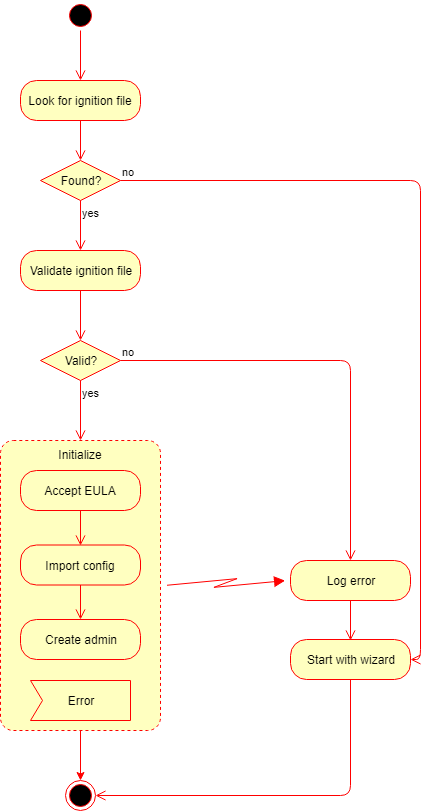
If the automated initialization fails for some reason (e.g. the ignition file is not in place) then the automated initialization may be retried fixing the problem (e.g. placing the ignition file to its lookup location) and restarting the OPSWAT MetaDefender Core service.
Until the product is in pre-initialized status, it will try the automated initialization every time after a service (re)start.
Configuration
After initialization is complete, the product is ready with both the default and imported configurations.
This configuration can be later changed by calling the configuration API functions. For further details about the API, see Configuration related APIs