
User directories
User directories organize users into separate authentication domains and allow you to manage login behavior for each directory independently.
The User directories page lets you:
Create Local, Active Directory, or LDAP user directories
Configure login policies for Local user directories
Enable or disable user directories
Edit or remove existing user directories
Default user directories
After installation, MetaDefender Cluster (MD Cluster) Control Center creates the following local user directories by default.
User directory type | Name | Failed login attempts before lockout | Lockout duration (minutes) |
|---|---|---|---|
Local | LOCAL | 3 | 5 |
Local | SYSTEM | 0 | 0 |
MD Cluster Control Center supports the following user directory types:
Local
Active Directory
LDAP
Local user directories
A Local user directory stores user accounts directly in MD Cluster Control Center and MD Cluster API Gateway.
Create a Local user directory
From the navigation pane, select User Management.
On the Directories tab, click Add Directory.
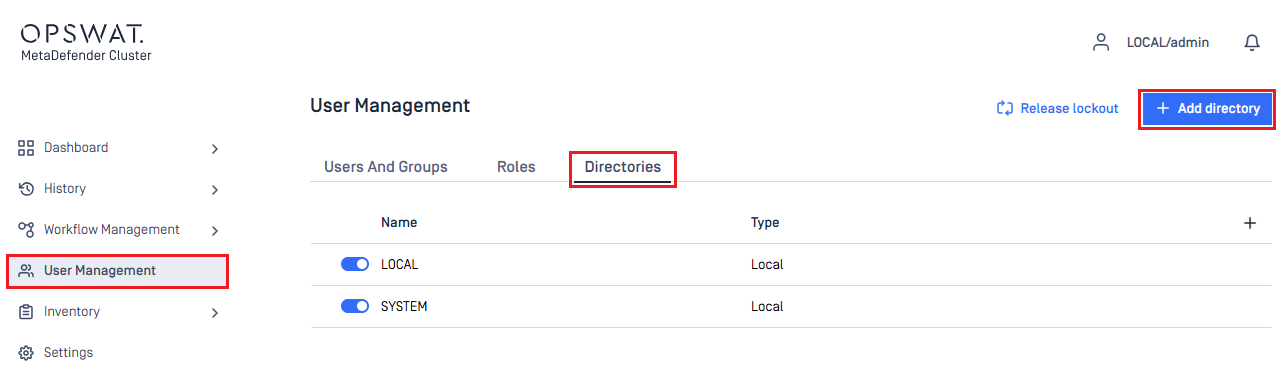
Select Local as the User Directory Type.
Enter a name for the new user directory.
Configure the security settings as needed.
Click Add to create the user directory.
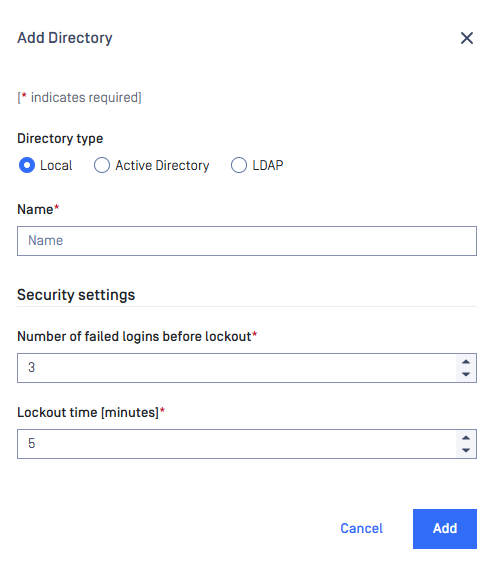
Security settings
Failed login attempts before lockout – The number of consecutive failed login attempts allowed before an account is locked.
Lockout duration (minutes) – How long the account remains locked.
The account is automatically unlocked when the lockout period expires.
Administrators with the appropriate permissions can manually unlock an account before the timeout expires by clicking RELEASE LOCKOUT.
Enable enhanced password policy – Enables the enhanced password policy for users in the directory. For more information, see Password Policy.
Active Directory user directories
An Active Directory user directory allows users from Microsoft Active Directory to authenticate to MD Cluster Control Center.
Authentication policies such as account lockout and password requirements are managed by Active Directory rather than MD Cluster.
Configure an Active Directory user directory
From the navigation pane, select User Management.
On the Directories tab, click Add Directory.
Select Active Directory as the User Directory Type.
Enter a name for the new user directory.
Configure the required Active Directory connection settings.
Click Test to verify the connection.
If the connection test succeeds, click Add to create the user directory.
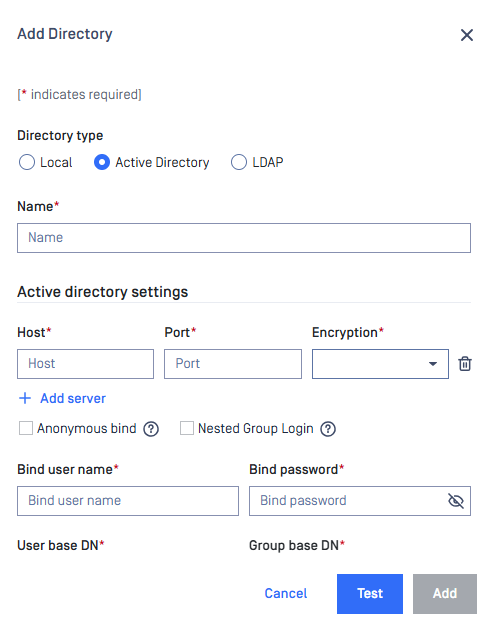
Active directory settings
Configure one or more Active Directory servers by providing the following information:
Host – Hostname or IP address of the Active Directory server.
Port – Port used to connect to the Active Directory server.
Encryption – Connection security protocol. Select one of the available options:
None – Connect without encryption.
StartTLS – Upgrade an LDAP connection to use TLS.
SSL – Establish an encrypted connection using LDAPS.
Anonymous Bind – Allows MD Cluster Control Center to connect without providing bind credentials. Enable this only if your Active Directory server permits anonymous directory searches.
Nested Group Login – Enables authentication for users who belong to nested Active Directory groups.
Bind User Name – Distinguished Name (DN) of the account used to search the Active Directory.
Bind Password – Password for the bind account.
User Base DN – Distinguished Name (DN) that defines where MD Cluster Control Center begins searching for user accounts.
Group Base DN – Distinguished Name (DN) that defines where MD Cluster Control Center begins searching for groups.
For guidance on selecting the appropriate Base DN values, see Active Directory/LDAP attributes.
Use the most specific User Base DN and Group Base DN possible. Limiting the search scope improves authentication performance and reduces the load on the Active Directory server.
Whenever possible, select StartTLS or SSL for Encryption instead of None. Also ensure that the certificate authority (CA) used to issue the Active Directory server certificate is trusted by the MD Cluster Control Center server.
LDAP user directories
An LDAP user directory allows users stored in an LDAP directory service to authenticate to MD Cluster Control Center.
Authentication policies are managed by the LDAP server rather than MD Cluster Control Center.
Configure an Active Directory user directory
From the navigation pane, select User Management.
On the Directories tab, click Add Directory. 3. Select LDAP as the User Directory Type. 4. Enter a name for the new user directory. 5. Configure the required Active Directory connection settings. 6. Click Test to verify the connection. 7. If the connection test succeeds, click Add to create the user directory.
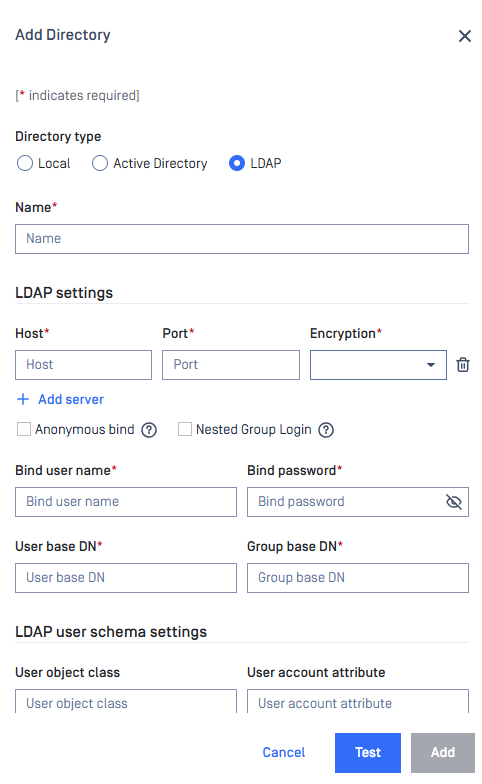
LDAP directory settings
Configure one or more LDAP servers by providing the following information:
Host – Hostname or IP address of the Active Directory server.
Port – Port used to connect to the Active Directory server.
Encryption – Connection security protocol. Select one of the available options:
None – Connect without encryption.
StartTLS – Upgrade an LDAP connection to use TLS.
SSL – Establish an encrypted connection using LDAPS.
Anonymous Bind – Allows MD Cluster Control Center to connect without providing bind credentials. Enable this only if your Active Directory server permits anonymous directory searches.
Nested Group Login – Enables authentication for users who belong to nested Active Directory groups.
Bind User Name – Distinguished Name (DN) of the account used to search the Active Directory.
Bind Password – Password for the bind account.
User Base DN – Distinguished Name (DN) that defines where MD Cluster Control Center begins searching for user accounts.
Group Base DN – Distinguished Name (DN) that defines where MD Cluster Control Center begins searching for groups.
Use the most specific User Base DN and Group Base DN possible. Limiting the search scope improves authentication performance and reduces the load on the Active Directory server.
Whenever possible, select StartTLS or SSL for Encryption instead of None. Also ensure that the certificate authority (CA) used to issue the Active Directory server certificate is trusted by the MD Cluster Control Center server.
Limitations
For security reasons, MetaDefender Cluster prevents administrators from performing the following actions:
Disable the user directory that contains their own account.
Delete their own user account.
Delete the user directory that contains their own account.
For example, the built-in admin user cannot disable or delete the LOCAL user directory because the account belongs to that directory.