Before You Start:
You must insert a registered dongle in the OTfuse before making configuration changes.
Neuralyzer will discover and get IP of OTfuse automatically, user have to input IPv4 (in your network) and Netmask information.
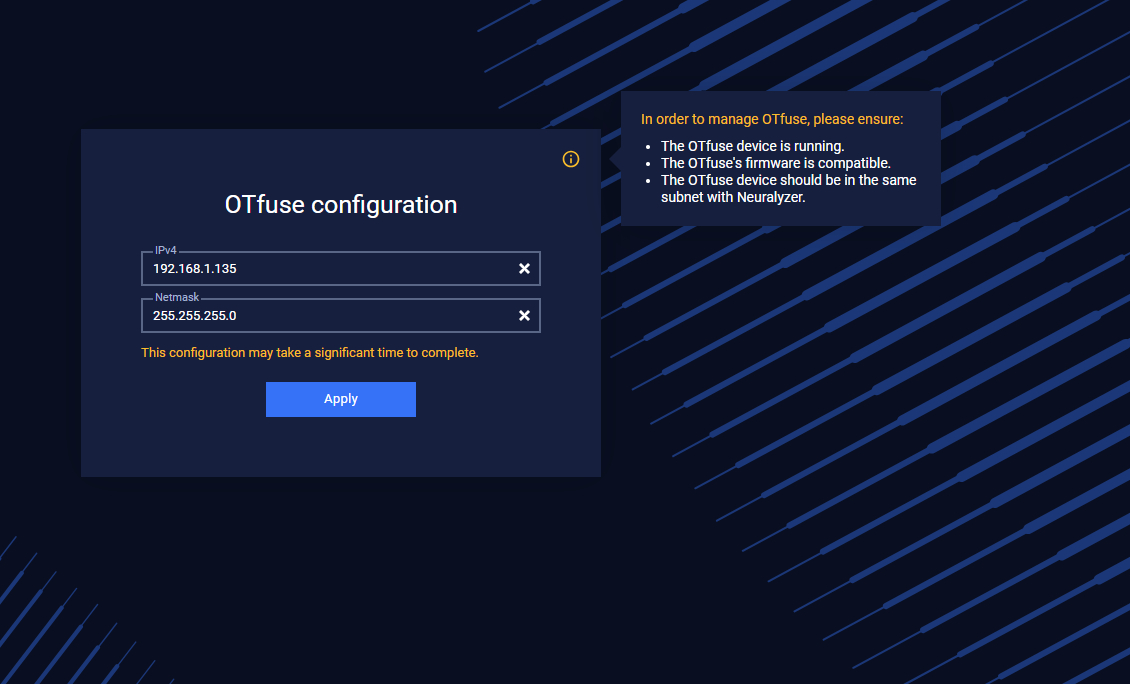
In case, Neuralyzer cannot update OTFuse’s IP address, please check:
The IP address config is corrected or not.
Make sure the OTfuse device is running.
Make sure the OTfuse is in the same subnet with Neuralyzer.
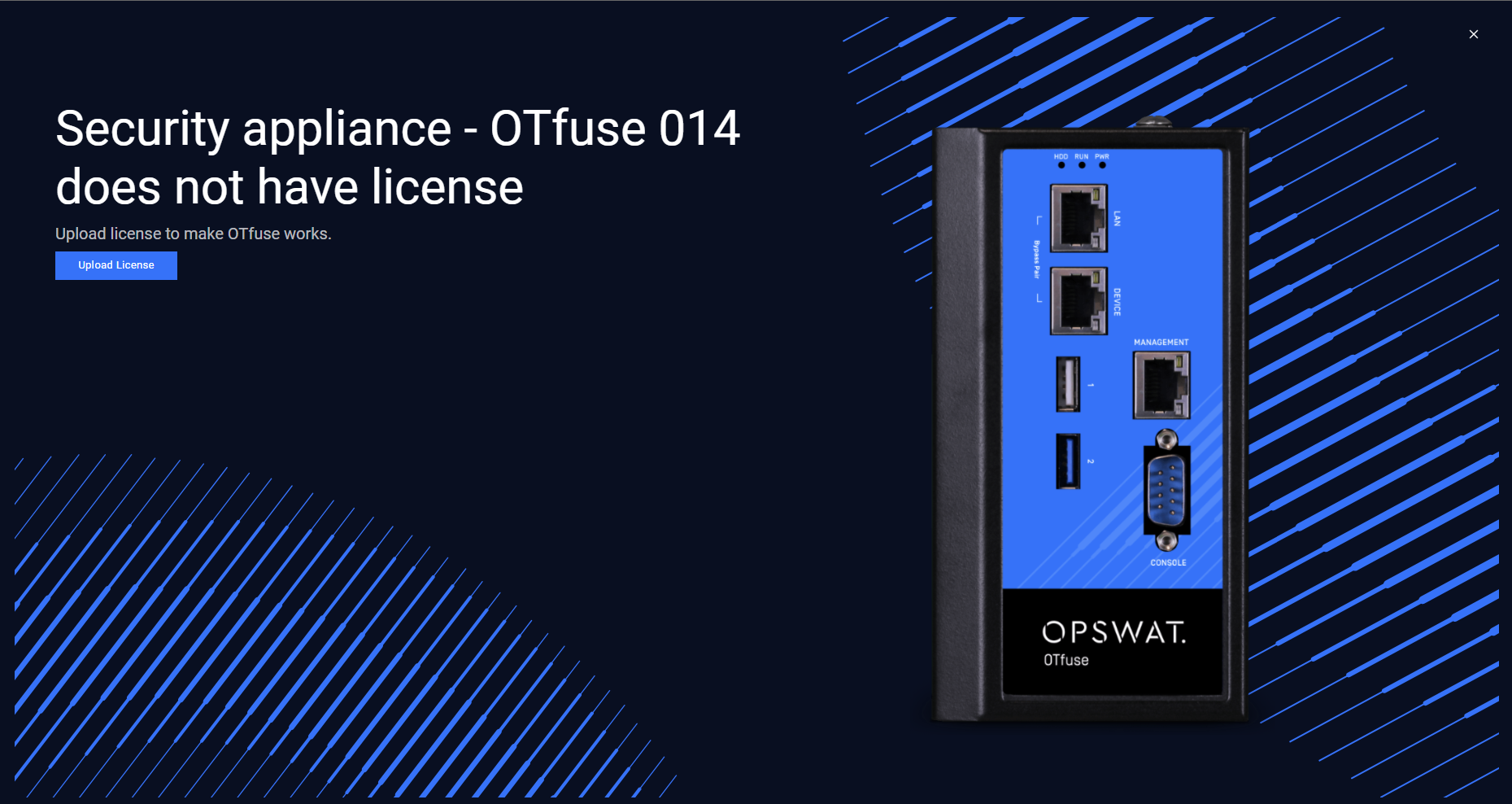
After configuring IP and Netmask for OTfuse, user have to import license to access the OTfuse
OTfuse Mode
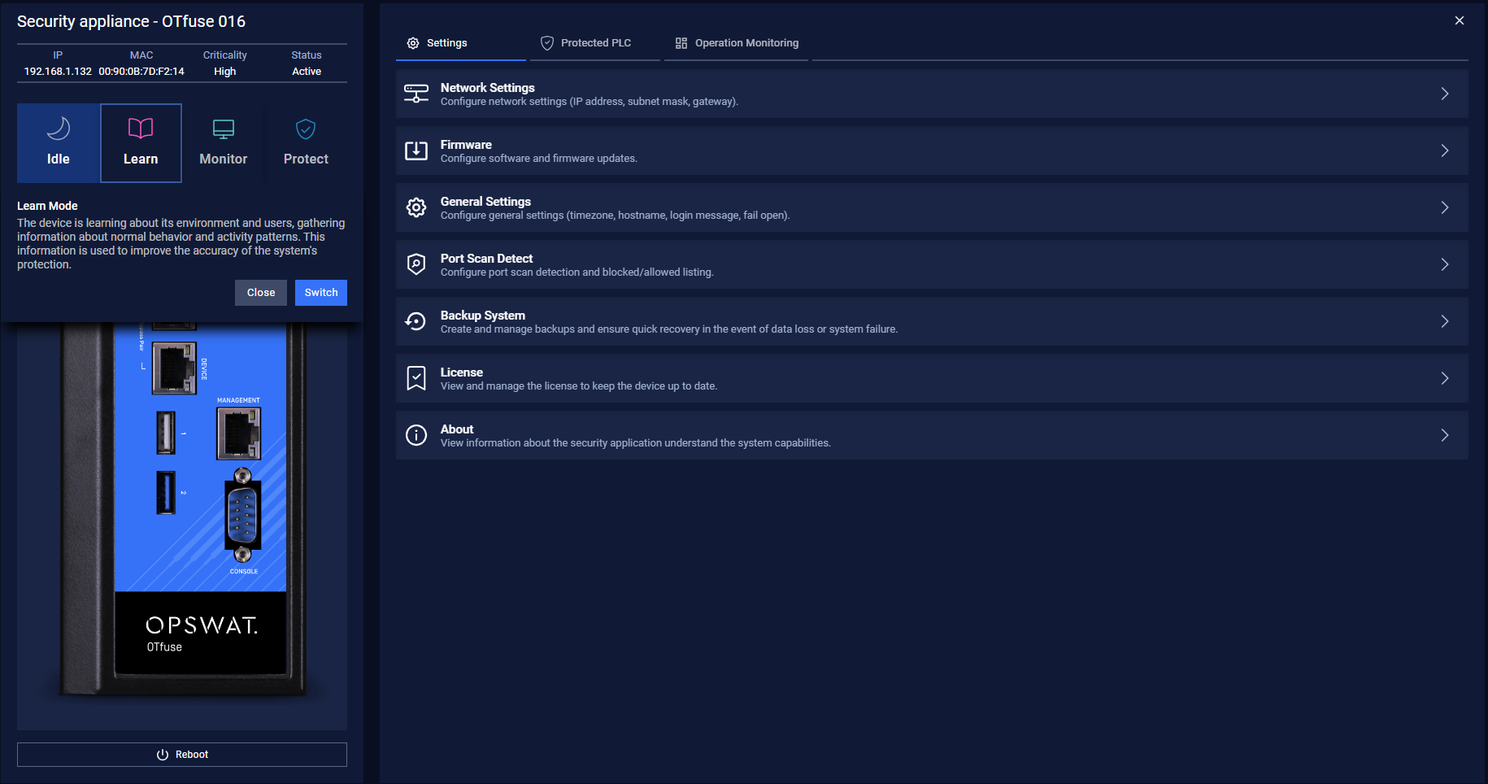
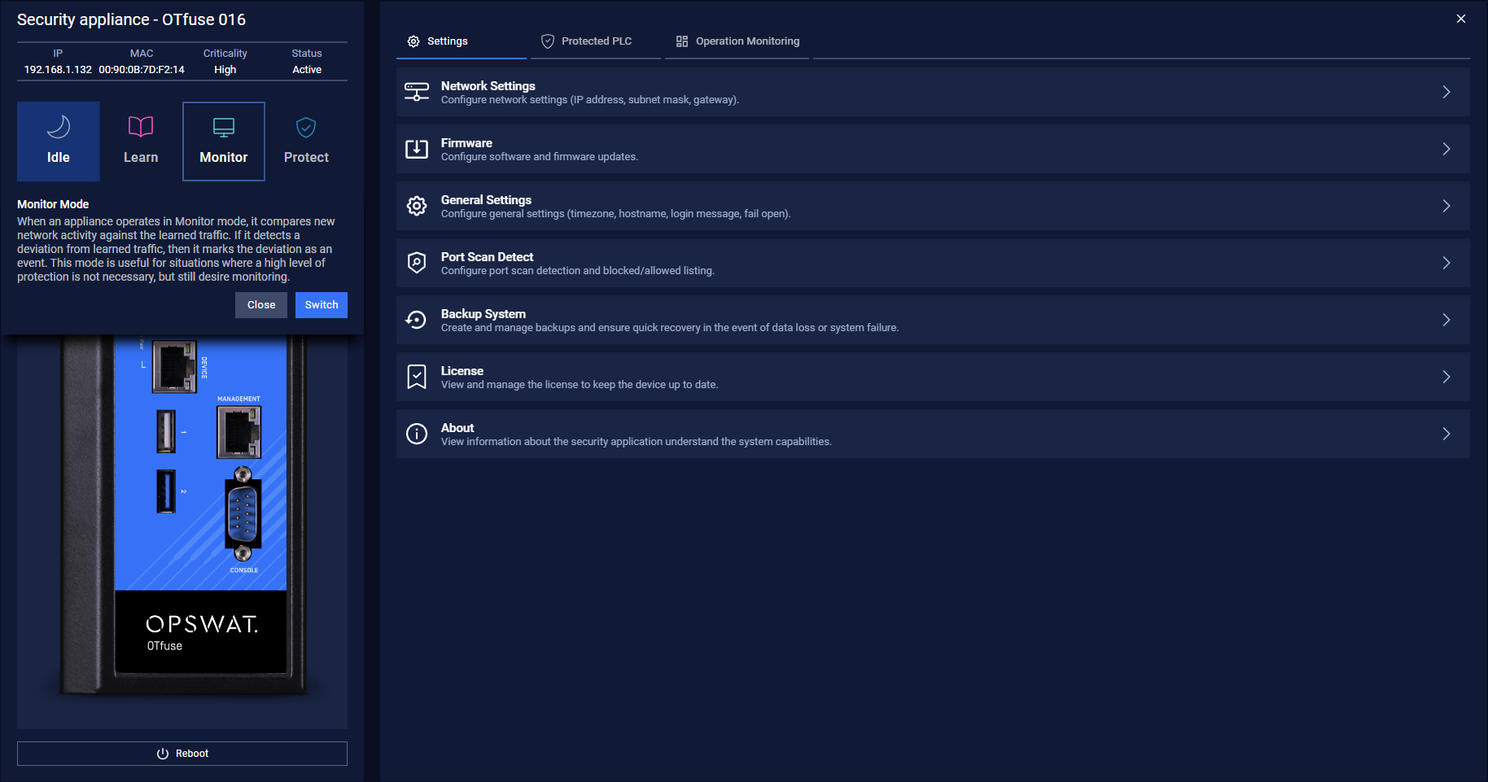
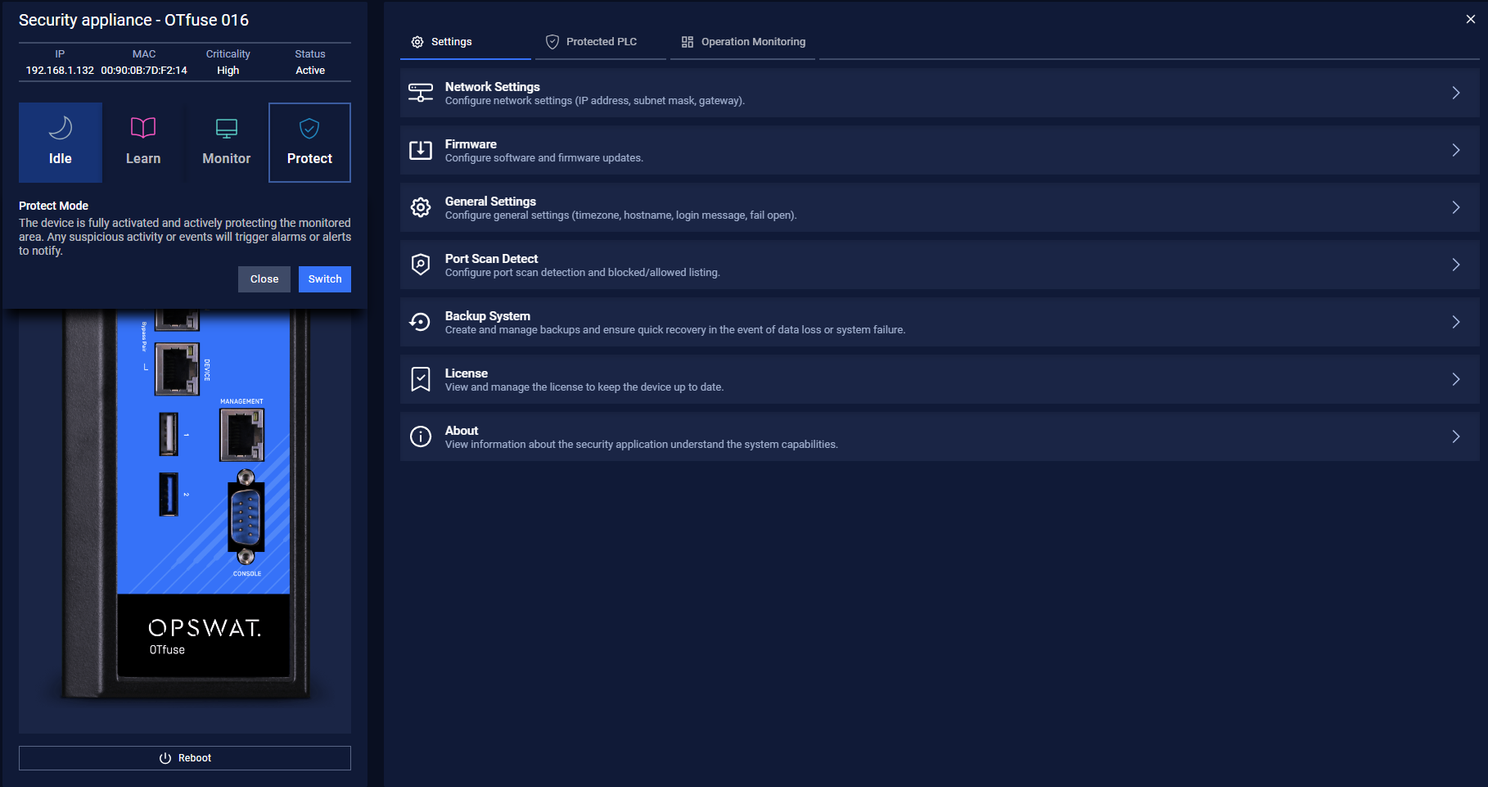
OTfuse have 4 modes: User can click on each mode then click on Switch button to change mode of OTfuse.
Idle Mode: The device is in its most basic state, with minimal monitoring and minimal activity. This mode is useful for times when the system is not needed and can conserve power.
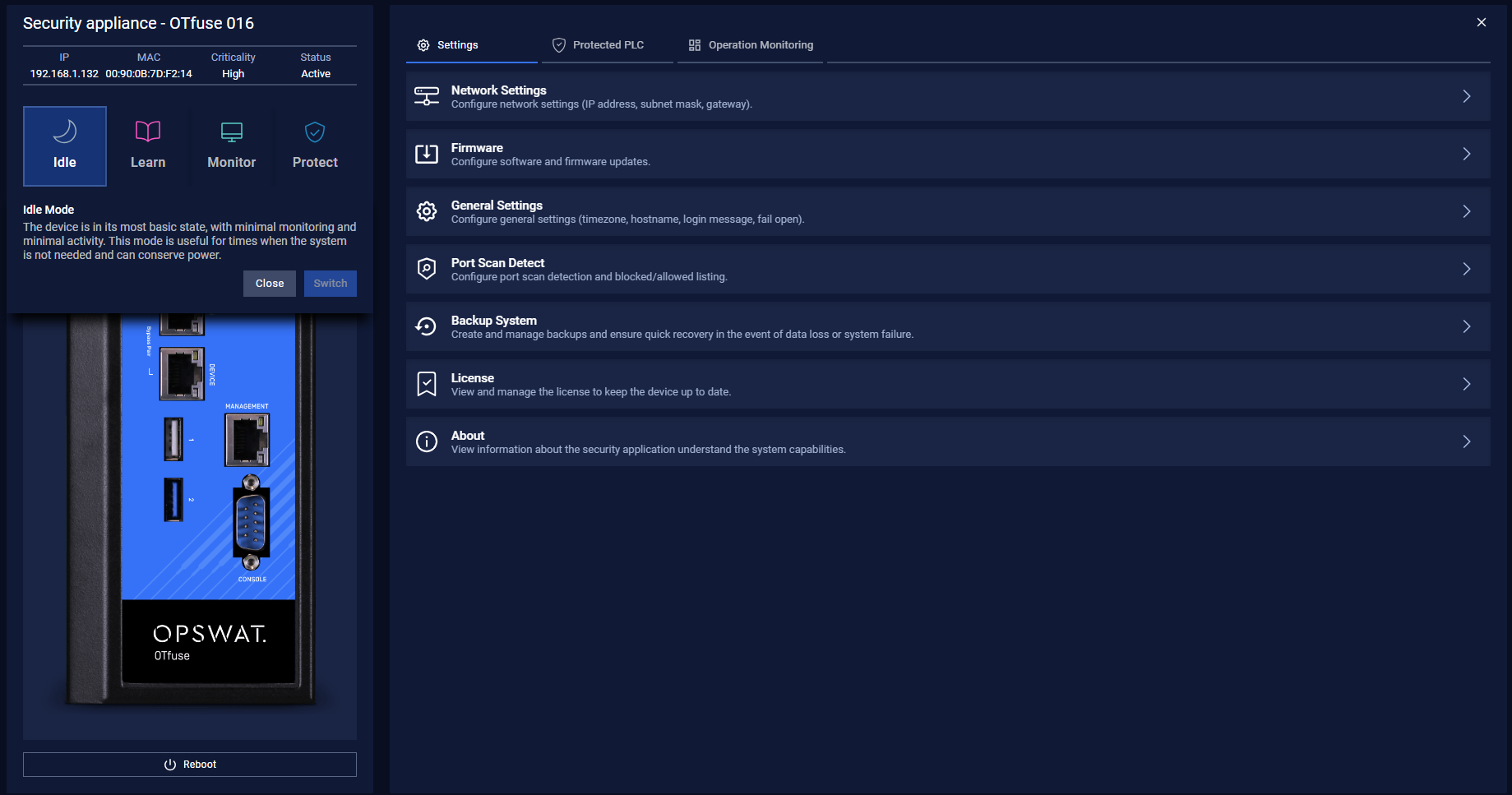
Learn mode: The device is learning about its environment and users, gathering information about normal behavior and activity patterns. This information is used to improve the accuracy of the system's protection.
Monitor mode: When an appliance operates in Monitor mode, it compares new network activity against the learned traffic. If it detects a deviation from learned traffic, then it marks the deviation as an event. This mode is useful for situations where a high level of protection is not necessary, but still desire monitoring.
Protect mode: The device is fully activated and actively protecting the monitored area. Any suspicious activity or events will trigger alarms or alerts to notify.
Reboot the OTfuse
You may need to reboot the OTfuse device to apply a new configuration. And it will take 5 mins to reboot.
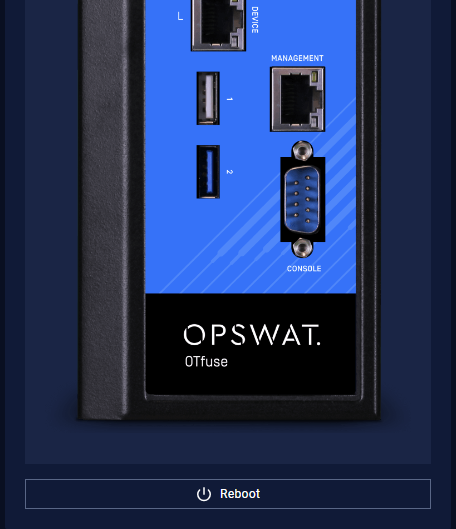
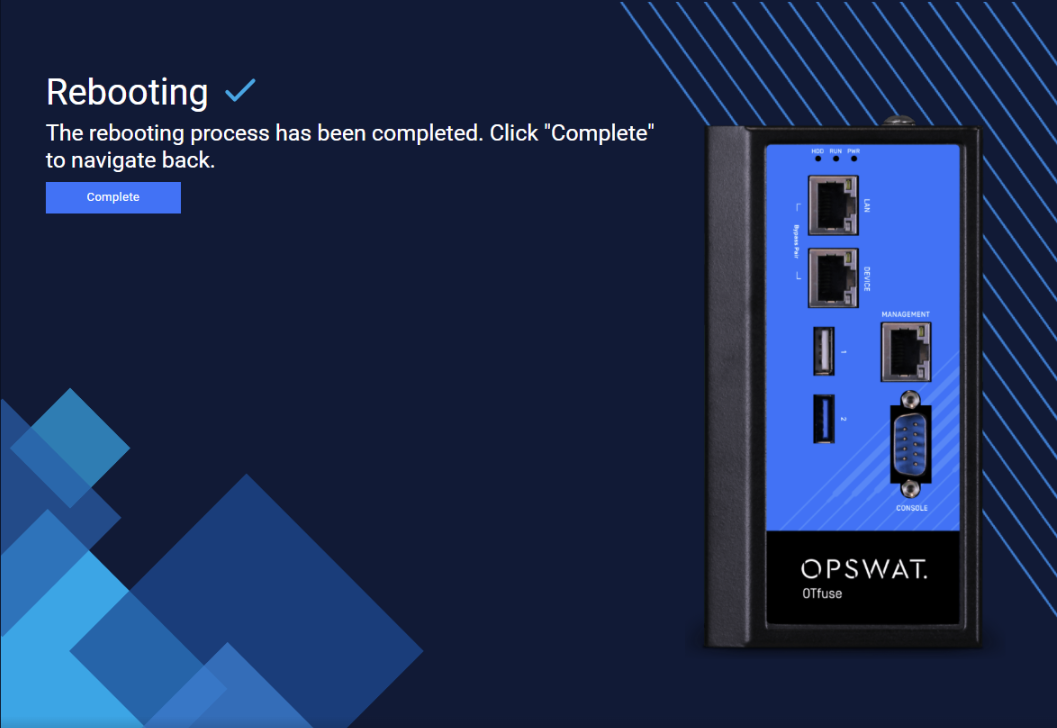
When rebooting completed, click Complete button to back to the settings page.