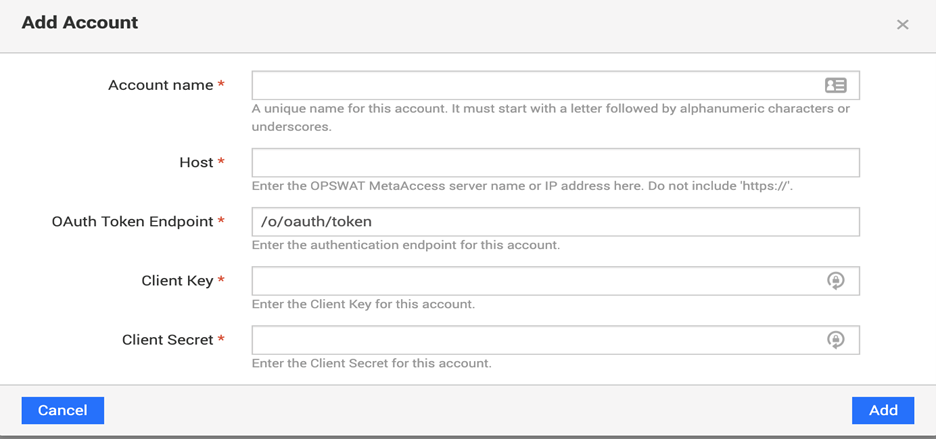
OPSWAT Add-on for Splunk supports multiple accounts and the user needs to select an appropriate account when creating a new input.
Follow the steps below to configure an account:
Login to Splunk Web UI.
Go to the Configuration page of OPSWAT Add-on for Splunk.
Click on the Account tab and start adding account details
Fill in required information.
Input Name | Required | Description |
|---|---|---|
Account Name | Yes | Any identifiable, unique name for the OPSWAT Account. This box will not accept the space in name |
Host | Yes | OPSWAT Server DNS name or IP Address. Make sure it’s reachable from your Splunk Heavy Forwarder |
OAuth Token Endpoint | Yes | OAuth token endpoint with default value “/o/oauth/token”. User can change it if the endpoint gets changed/updated anytime in the future. |
Client Key | Yes | Client Key from an OAuth application you registered on My OPSWAT Central Management oAuth Portal* |
Client Secret | Yes | Client Secret from an OAuth application you registered on My OPSWAT Central Management oAuth Portal* |