My OPSWAT Central Management offers an SIEM (Security Information Event Management) integration that can be found under Settings > Integrations > Google Cloud Logging.
When enabled, My OPSWAT Central Management utilizes the established GCP buckets through Google Cloud (set up by the administrator) for log storage to collect analytical data about the associated account and to alert the administrators about any triggered events selected in the integration. By using the integration, administrators can track and monitor any patterns of activity that can become a potential threat to their infrastructure.
Before you begin, make sure that:
You have an active Google Account with access to Google Cloud services.
Your My OPSWAT Central Management account has the Google Cloud Logging feature enabled.
Create a Google Cloud Project
Go to Google Cloud Console.
Click Select a project → New Project.
Enter your project name and other details.
Click Create to finish.
Create a Service Account Key
In the same project, go to IAM & Admin → Service Accounts.
Click Create Service Account.
Enter the service account name and description → Create and continue.
Assign a role:
Owner or Editor for write permissions.
Viewer or Browser for read-only access → Click Continue.
(Optional) Add users under Grant access to this service account.
Click Done.
Create the Private Key
In the Service Accounts list, select your new account.
Click Actions → Manage Keys → Add Key → Create New Key.
Choose JSON → Create.
A
.jsonkey file will be downloaded automatically — keep it safe, as you’ll need it later.
Integrate with My OPSWAT Central Management
Log in to My OPSWAT Central Management.
Go to Settings → Integrations → Google Cloud Logging.
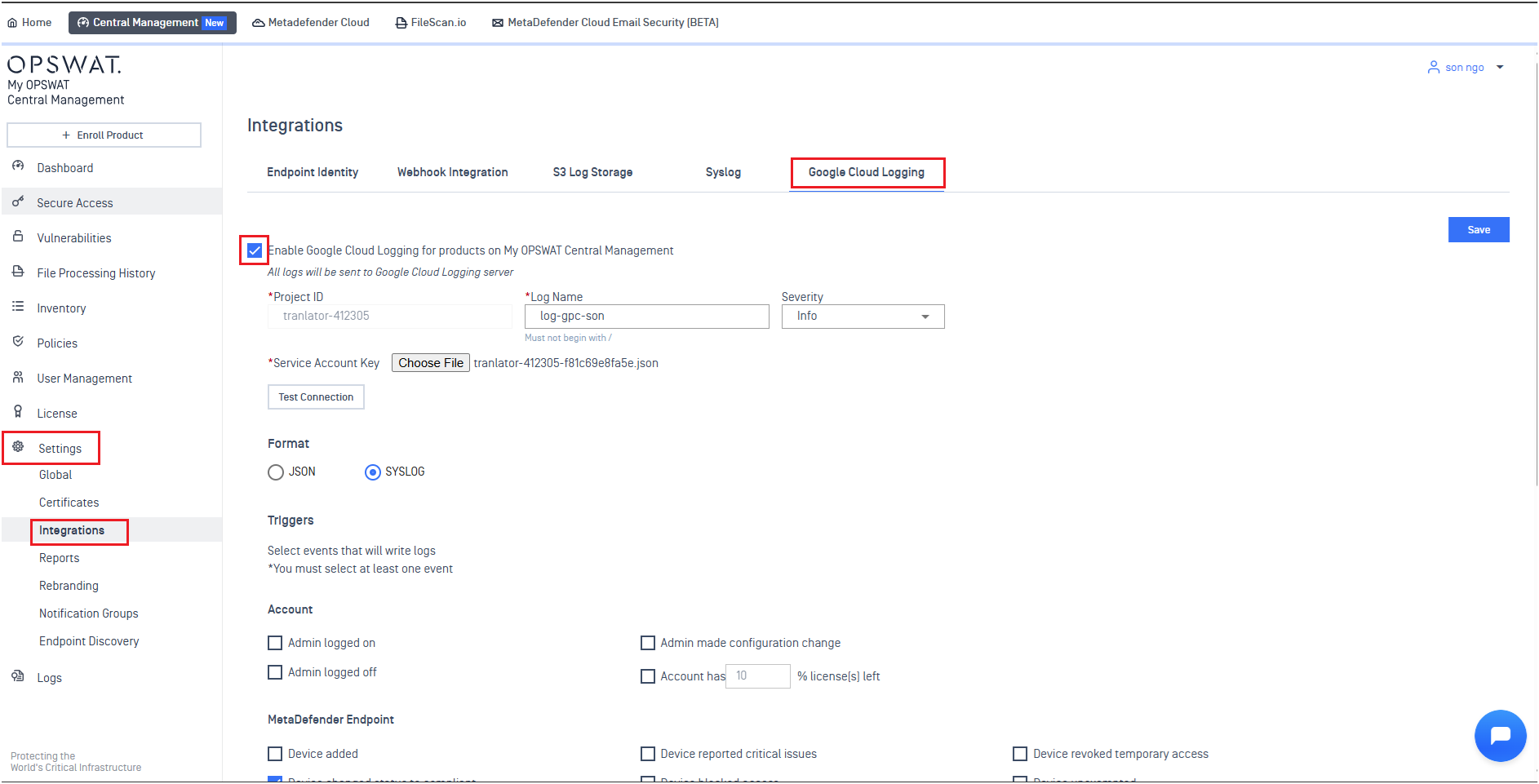
Enable the integration.
Fill in the configuration fields:
Field | Description |
|---|---|
Project ID | Your Google Cloud Project ID was created earlier |
Log Name | Unique name for the log (defines where and what type of log it is) |
Severity | Classifies the importance of each event |
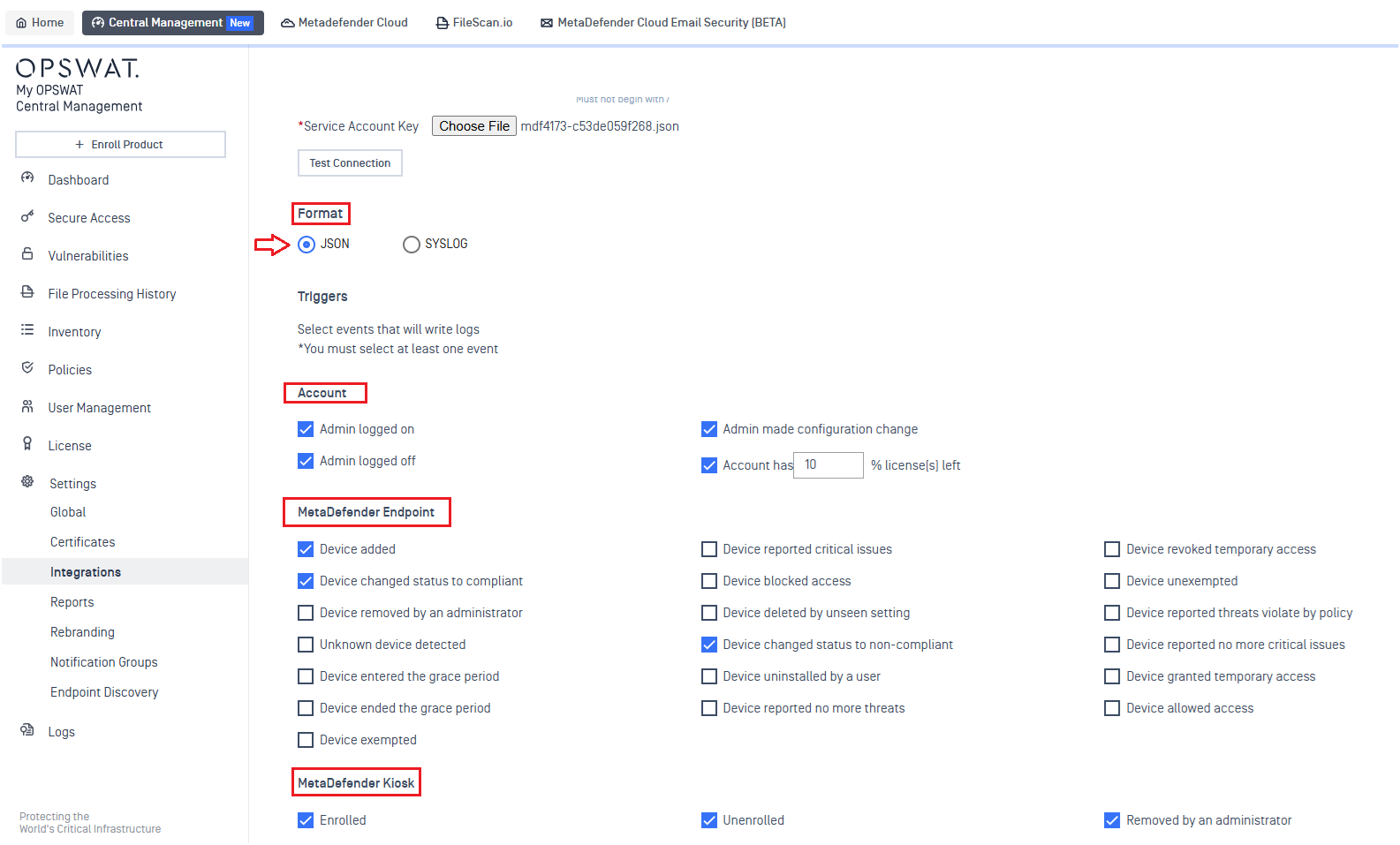
Service Account Key | Upload the JSON file you downloaded earlier |
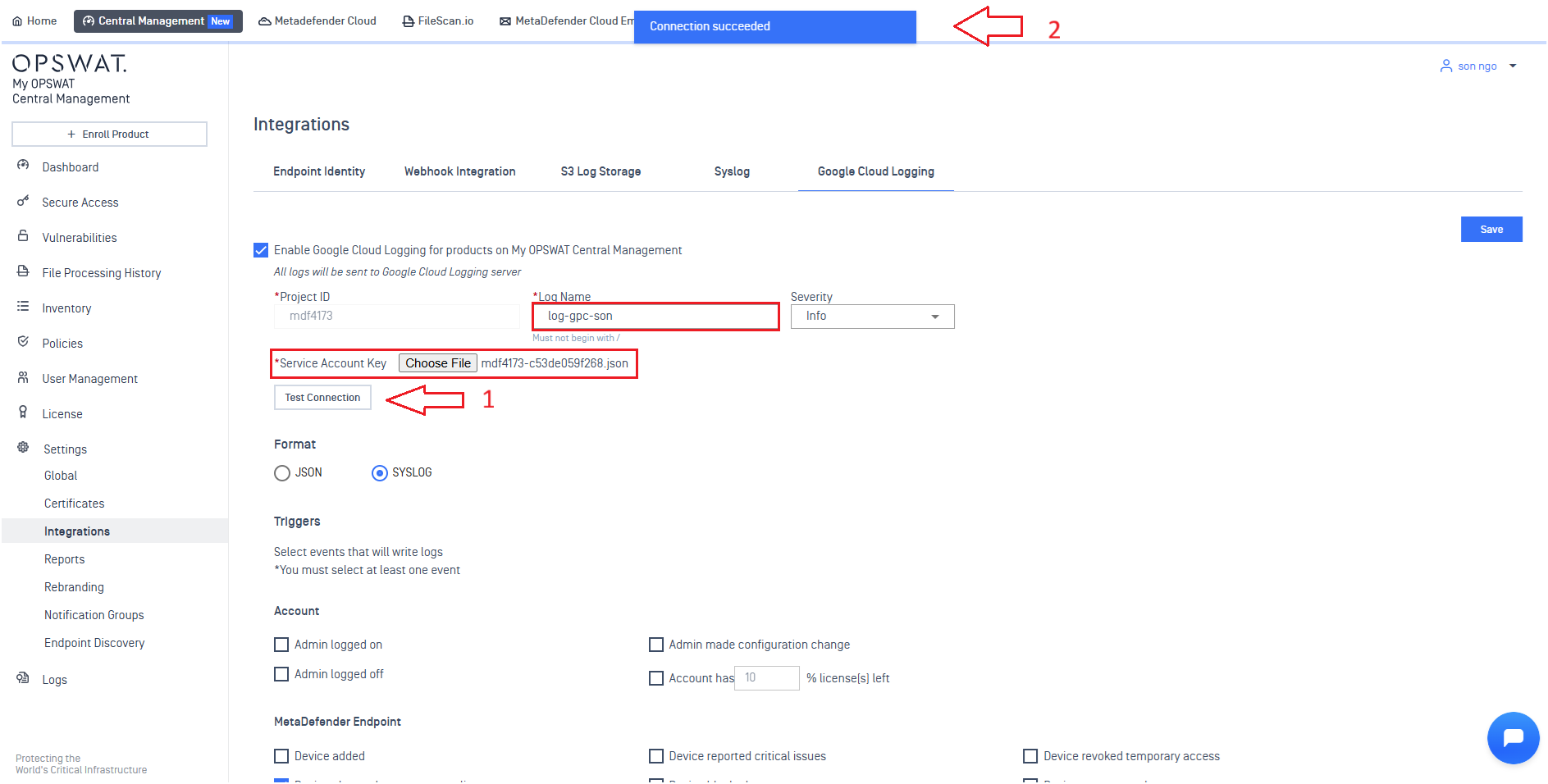
Click Test Connection.
If the test is successful → your integration setup is complete!
Configure Trigger Events
Choose the log format: JSON or SYSLOG.
Select which events will trigger logging.
Click Save.
Once configured, logs will automatically be sent to Google Cloud Logging.
Receiving Logs
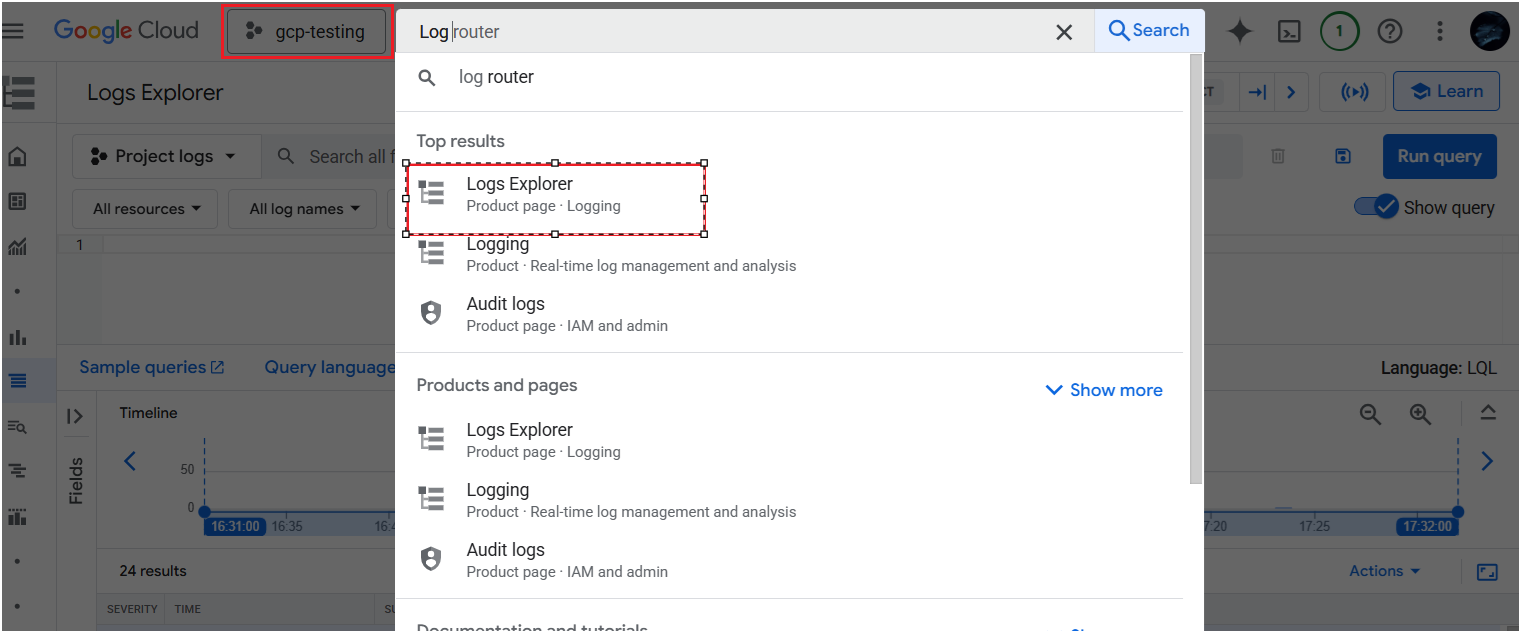
Go to [Google Cloud Console → Log Explorer](Google Cloud Console → Log Explorer).
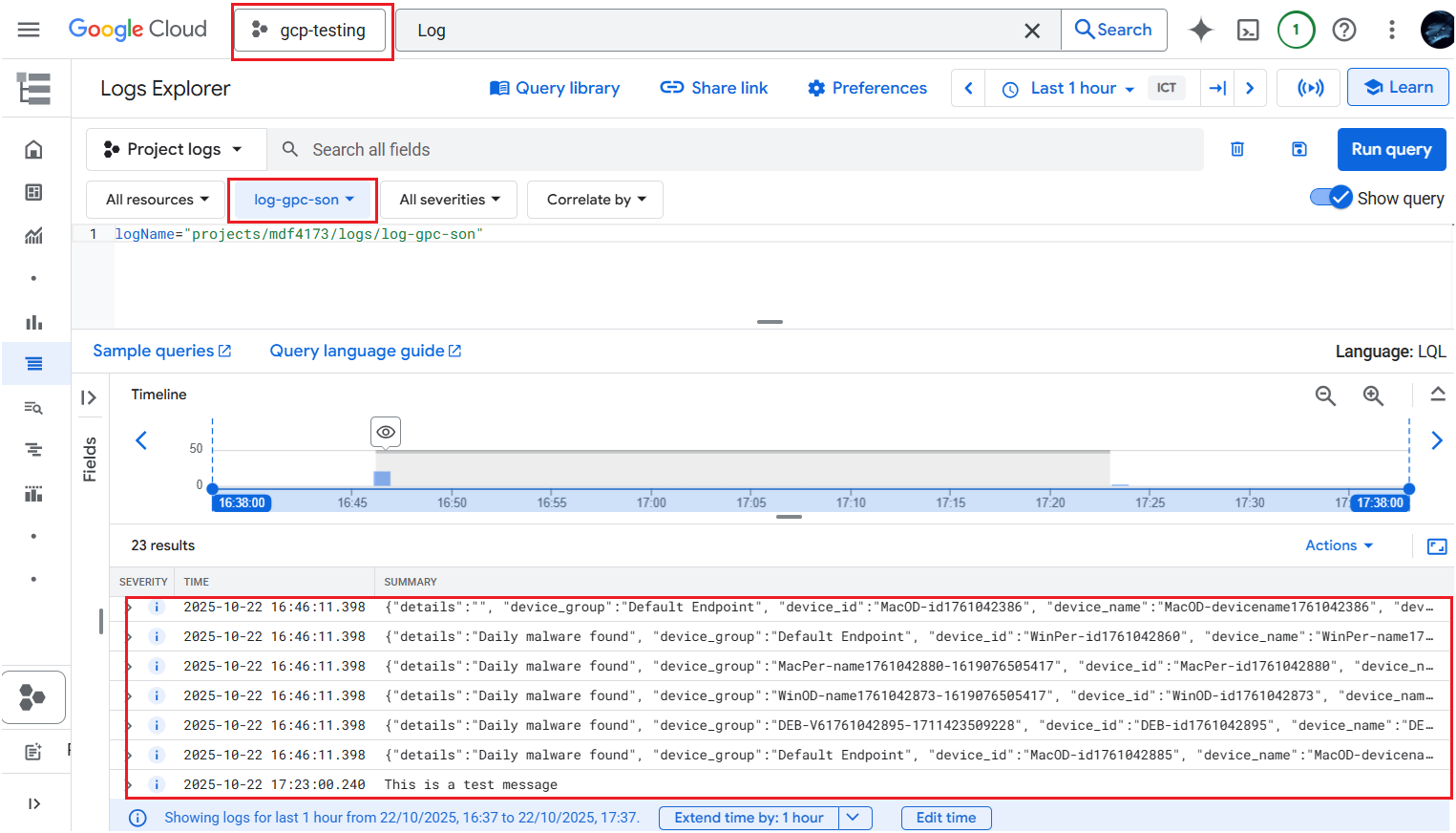
Select your project.
Choose the Log Name configured in OCM.
View and analyze log entries.
JSON
Syslog
Check Result on Google Cloud
Once the events are triggered, Central Management will forward the logs to GCP. As an administrator, you can review the results in GCP as shown below.