
My OPSWAT Central Management can forward the logs your product instances produce to your own SIEM or syslog server, so you do not have to give each instance its own network path and its own syslog configuration.
Note This feature supports MetaDefender Industrial Firewall version 3.5.1 or later.
Setup takes two steps.
Create a syslog profile. A profile is a named destination that includes the message format, any required credential, and an optional filter that limits which events are sent.
Assign the profile to product instance. Multiple instances can share one profile, but each instance can forward to only one profile.
Note If an instance has no profile assigned, it doesn't forward any logs. This is expected and isn't an error.
Prerequisites
Requirements | Details |
|---|---|
User role permission |
A role that manages forwarding from start to finish needs both roles. |
A reachable destination | My OPSWAT Central Management must be able to reach your SIEM over one of the supported transports (see URL in the Configuration reference). Use Test Connection to confirm the connection before you rely on it. |
A certificate, if your SIEM is privately signed | If your SIEM's certificate is issued by your own certificate authority instead of a public one, first add that certificate authority under Settings → Certificates. You can import a certificate authority without its private key. See Certificates Management for instruction. |
A certificate with its private key, if your SIEM requires mutual TLS | A client-certificate handshake works only with a certificate that's stored with an exportable private key. |
Create a Syslog Profile
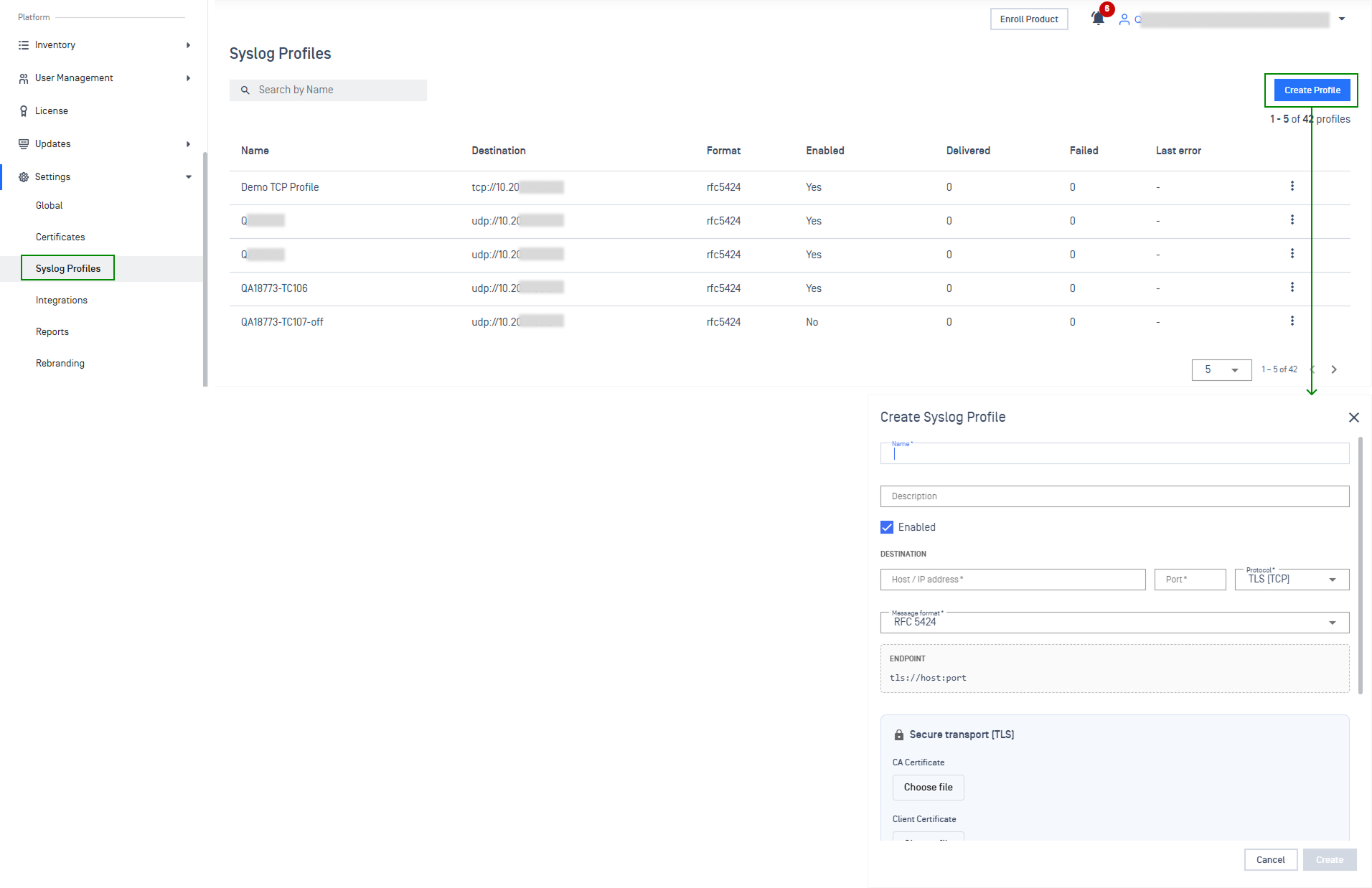
In the left navigation, go to Settings → Syslog Profiles.
Select Create Profile.
Complete the configuration form. At minimum you need a Name, a destination URL, and a Message format. See Configuration Reference for more details.
Select Create. If your account has the PIN policy enabled you are asked for your PIN. You will then see a Profile created confirmation and the profile appears in the list.
Test Connection
Test the destination before you assign the profile to any instance.
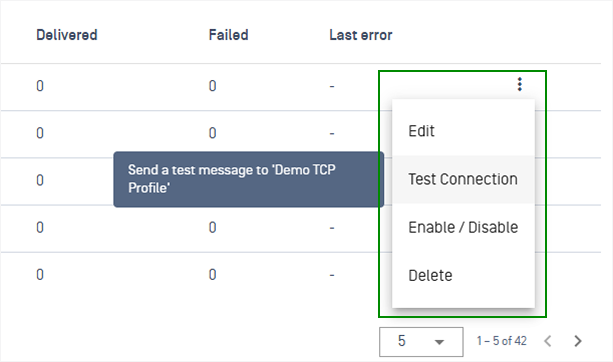
On the Syslog Profiles table, locate your newly created profile
Click Test Connection
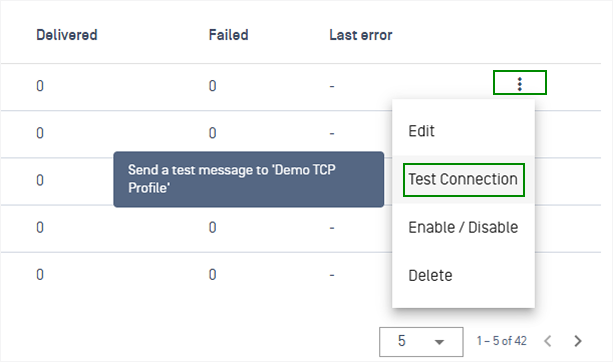
Review the result:
Success: the destination accepted the test message. For
http://andhttps://destinations, the HTTP status code is also shownFailure: The test failed, and the reason is shown: the host name couldn't be resolved, the connection was refused, the connection timed out, the certificate wasn't trusted, or the address isn't allowed. See Troubleshooting
Assign the Profile to an Instance
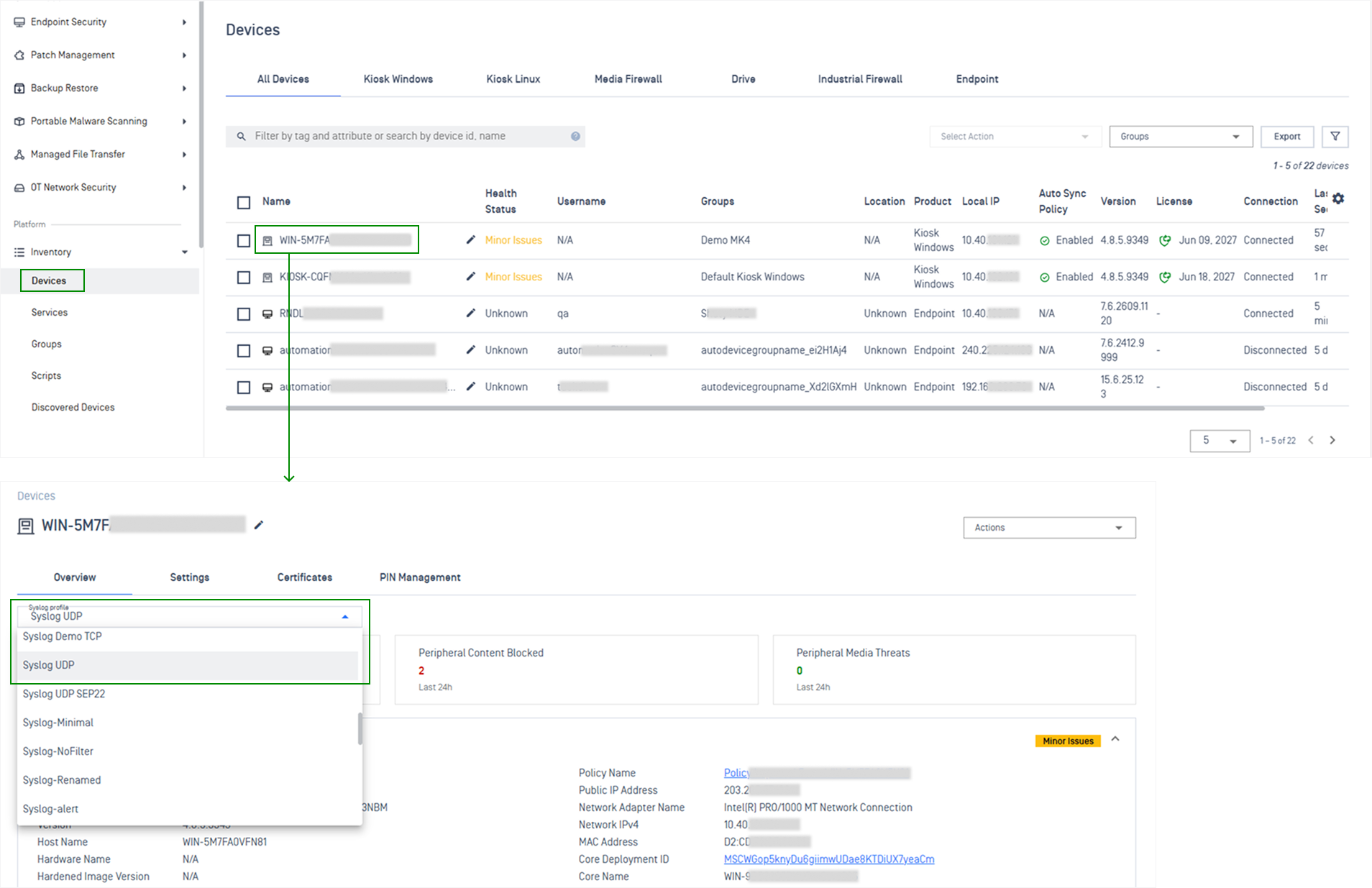
Navigate to Inventory > Devices/Services > Open the instance you want to forward logs
Locate the Syslog profile dropdown at the top of the page
Choose the profile you want from the list. Only Enabled profiles are listed
Your choice takes effect right away. There's no Save button. A Syslog profile updated message appears. If the update fails, an error appears and the instance goes back to its previous profile.
Verify that Logs are Arriving
After you assign a profile, check delivery in two places:
In My OPSWAT Central Management: On the Syslog Profiles page, watch the profile's Delivered, Failed, and Last error columns. The Delivered count should rise as the instance generates events.
In your SIEM: Search for recent events from the instance. See What Your SIEM Receives for how to identify them.
Manage Syslog Profiles
Stop an instance from forwarding logs
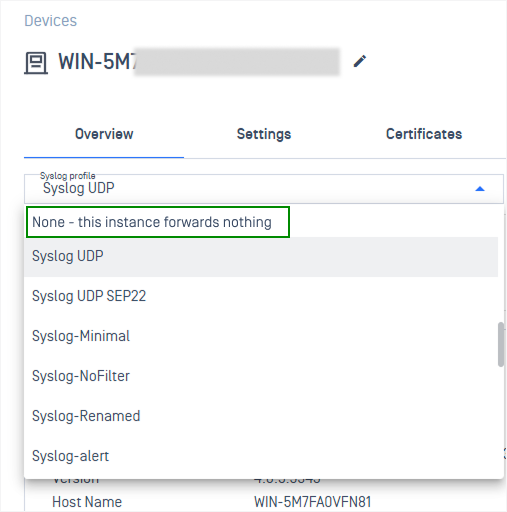
Open the instance and go to its Overview or Summary tab
In the Syslog profile dropdown, select None — this instance forwards nothing
Edit, Disable, or Delete a profile
Edit: Select Edit on the profile. The same form opens as when you created it.
Disable a profile to pause forwarding without changing any instance. For example, you might do this during SIEM maintenance.
Delete a profile
Move every instance that uses the profile to a different profile, or set it to None. You can't delete a profile that's still assigned to an instance.
Select Delete on the profile, then confirm.
Configuration Reference
Setting | What it does | Values | Default | Notes |
|---|---|---|---|---|
Name | Identifies the profile when you select it on an instance | Up to 40 characters | — | Required. Must be unique in your account |
Description | Your own note about what this destination is | Free text, up to 255 characters | Empty | Optional |
Enabled | Whether the profile forwards | Checkbox | Checked | Unchecking stops forwarding without deleting anything |
URL | Your SIEM's address. The scheme is the transport |
| — | Required. Do not put a username or password in the URL. A |
Message format | The syslog format your SIEM expects |
|
| Choose |
Certificate to trust | Which authority to trust for an encrypted destination | Use the public certificate authorities, or any certificate in your account | Public authorities | Shown only for |
Client certificate | The certificate presented when your SIEM asks for one (mutual TLS) | Do not use mutual TLS, or any certificate stored with a private key | Do not use mutual TLS | Shown only for |
Server name | The name checked against your SIEM's certificate | Host name | The host in the URL | Shown only for |
Header name | Which header carries your credential | Header name |
| Shown only for |
Token | The credential sent to your SIEM | Text | None | Required if you set a header name. Never shown back to you; stored encrypted |
Minimum severity | Forwards only events at this severity or worse | Forward every severity, or one of: emergency, alert, critical, error, warning, notice, informational, debug | Forward every severity | A floor — choosing error also forwards critical, alert and emergency |
Event types | Forwards only these event types | Comma-separated list, up to 64 | Empty — every type | Combined with the severity floor: an event must match both |
Durable buffering | Keeps a failed batch for later instead of losing it |
| Off | API only ( |
What Your SIEM Receives
My OPSWAT Central Management adds four details to each forwarded event:
the instance it came from
that instance's product type
its host,
your tenant.
Three of them (instance, product type, and tenant) come from the instance's authenticated identity, not from the message content, so you can rely on them. Host is the exception. The product instance supplies it with each event, so treat it as unverified information from the sender.
With rfc5424, these details arrive in a structured-data block tagged with OPSWAT's registered enterprise number (origin@61422). rfc3164 has no structured-data field, so the same block is added to the message text with identical spelling. This lets one SIEM filter match both formats.
Using a UDP destination
udp:// destinations are supported for SIEMs that already run a UDP syslog collector, and you can select UDP in the profile form. However, UDP is the least reliable transport. Understand these limitations before you choose it:
Delivered counts messages sent, not messages received. UDP doesn't confirm receipt. A profile that points to a server decommissioned last year can still show a rising Delivered count, with no failures and no last error.
A reported failure is real, but no failure proves nothing. Many networks return an error for a closed port, so act on any failure you see. Just don't treat the absence of errors as proof of delivery.
Test Connection can't confirm a UDP destination. It reports success as soon as the message is sent, which doesn't prove the destination received it.
Durable buffering isn't available. Buffering saves only deliveries that fail, and a UDP send never reports a failure. For this reason, the setting is rejected instead of being saved.
Each message is sent as a single packet, with a size limit. Messages larger than 2048 bytes (or 1024 bytes with
rfc3164, which has its own packet limit) aren't sent. The rest of the batch is still sent. The limit applies to the complete message, which includes the syslog header and origin details in addition to your event text.
If you need to confirm that your logs arrived, use tcp:// or tls:// instead. Neither is as reliable as HTTPS, but both are much more reliable than UDP.
Troubleshooting
Problem | What to do |
|---|---|
I selected a profile but my SIEM is not receiving anything | Check that the profile is Enabled, run Test Connection, and check the profile's Last error column. Then check the filter: a minimum severity or an event-type list can exclude everything the instance sends. |
Delivered stays at zero and there is no error | The instance itself may not be sending yet. Confirm the product version in use supports log forwarding. |
My UDP destination shows Delivered rising and my SIEM has nothing | That combination is possible on UDP and means only that the datagrams left Central Management. Check the port and any firewall between the two, and confirm your collector's UDP input is listening. If the events matter, move the profile to |
I cannot delete a profile | An instance is still using it. Move every instance off it first. |
Delivered stays at zero, and there's no error | This can happen with UDP. It only means the messages left Central Management. Check the port and any firewalls in between, and confirm that your collector's UDP input is listening. If these events matter, switch the profile to |
I can't delete a profile | An instance is still using it. Move every instance off the profile first. |
An instance is still using it. Move every instance off the profile first. | Events might be dropped under heavy load. Or, on a UDP destination, individual messages might be too large for a single packet. The console doesn't show either of these yet, but the dropped count in the API response does. If the problem continues, contact OPSWAT Support. |