
This article applies to all MetaDefender Endpoint releases deployed on Windows, Linux, macOS, iOS or Android systems.
MetaDefender Endpoint can be removed/uninstalled from a device either remotely via the My OPSWAT Central Management Console, or locally via the device OS.
For instructions on remote Client uninstall via the My OPSWAT Central Management Console, please see How can I delete a device from My OPSWAT Central Management?
Users who uninstall MetaDefender Endpoint using one of the manual processes listed below should be aware that some log files and registry items will be kept on the system for possible future use.
To remove MetaDefender Endpoint along with all logs and registries, the automated uninstallation method is recommended.
While remote removal is fully automated for the persistent MetaDefender Endpoint, users should be aware that:
If an on-demand client is removed remotely via the My OPSWAT Central Management Console, it may also need to be removed locally via the device OS.
If an on-demand client is stopped or removed locally via the device OS, it should also be removed via the My OPSWAT Central Management Access console.
The above option should be used in the event that you have not configured a policy to automatically delete ‘lost’ devices after a specified duration. If you have, My OPSWAT Central Management would automatically and remotely remove the Client after a period, as configured, and no action would be needed on the endpoint side.
To ensure that all components of the MetaDefender Endpoint have been removed from your system, please see How can I make sure MetaDefender Endpoint is completely removed from my endpoint?
Removing an installed MetaDefender Endpoint either remotely via the My OPSWAT Central Management Console, or locally via the device OS, will result in the following:
The MetaDefender Endpoint will no longer be on the device.
My OPSWAT Central Management will no longer track or display the device on the Console.
The My OPSWAT Central Management account license previously assigned to that device is free to be applied to another device.
Windows Client: automated uninstallation (works on Windows-installed Client only)
For Windows On-Demand Client
Download our MetaDefender IT Uninstaller tool Here.
With administrator privileges, run the installer.
Your local anti-malware may require you to add an exception in order to run the uninstaller, please do so if needed.
For Windows Persistent Client
Open the Control Panel and use either Programs and Features, Add/Remove Programs, or Program Uninstall, depending on your version of Windows.
Select MetaDefender Endpoint, then right-click and choose Uninstall, or double click (depending on Windows version) to uninstall it.
Windows On-Demand MetaDefender Endpoint: manual uninstallation
If the MetaDefender Endpoint is running, right-click the MetaDefender Endpoint Icon on the tray.
From the drop-down menu, select the Exit option to stop the MetaDefender Endpoint.
Follow the instructions for remote device removal via My OPSWAT Central Management Console, please see How can I delete a device from My OPSWAT Central Management?
macOS Persistent Client: manual uninstallation
Open Finder and go to Applications/OPSWAT GEARS Client.
Expand the folder, then select the Uninstall option, as highlighted in the screenshot below.
Enter your Administrator Password when prompted, then wait for the uninstall to complete.
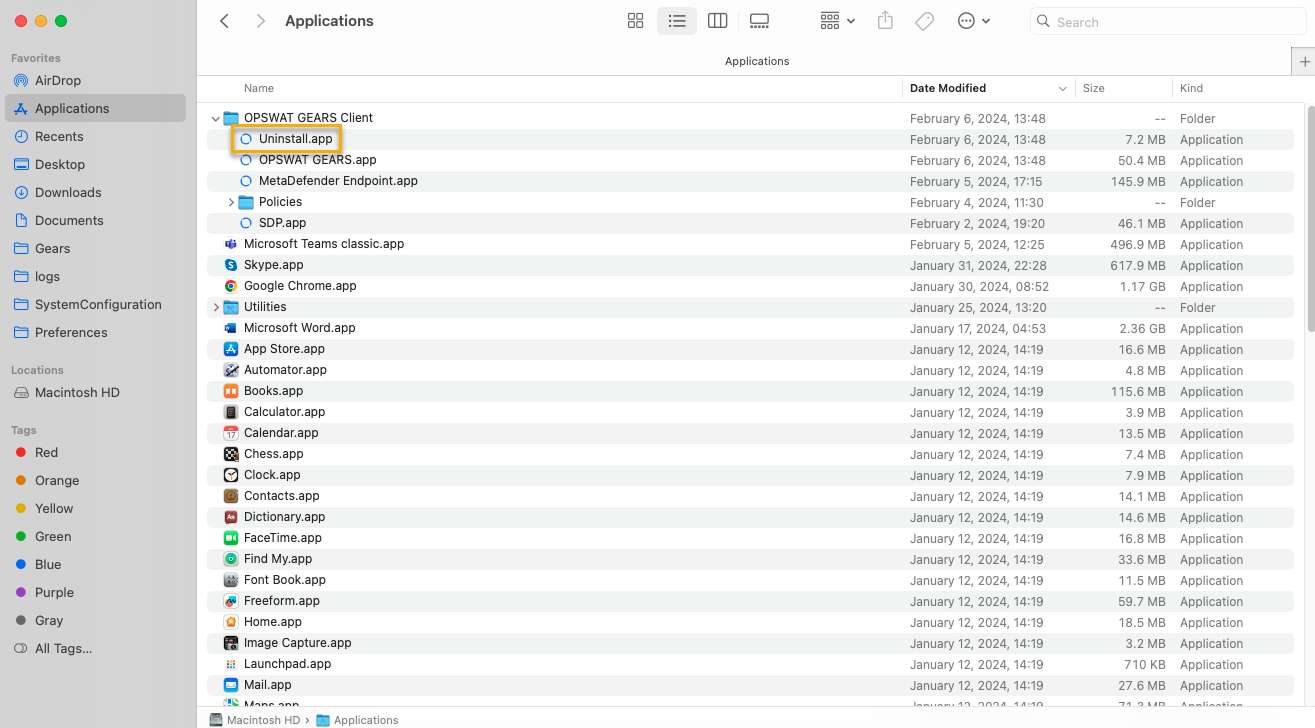
Follow the instructions for remote device removal via My OPSWAT Central Management Console, please see How can I delete a device from My OPSWAT Central Management?
macOS On-Demand Client: manual uninstallation
If the MetaDefender Endpoint is running, CTRL click the Client Icon on the dock.
From the drop-down menu, select the Exit option to stop the MetaDefender Endpoint.
Follow the instructions for remote device removal via My OPSWAT Central Management Console, please see How can I delete a device from My OPSWAT Central Management?
macOS On-Demand Client: slient uninstallation
Without PIN Code enabled

With PIN Code enabled

Linux Debian-based Client: manual uninstallation
Open a Terminal and run the command: sudo /usr/bin/dpkg -r opswatclient
Follow the instructions for remote device removal via My OPSWAT Central Management Console, please see How can I delete a device from My OPSWAT Central Management?
Linux Redhat-based Client: manual uninstallation
Open a Terminal and run the command: sudo rpm -e opswatclient
Follow the instructions for remote device removal via My OPSWAT Central Management Console, please see How can I delete a device from My OPSWAT Central Management?
OPSWAT Mobile App: manual uninstallation
Uninstall/delete the OPSWAT App from the device, following the device-appropriate method for application removal.
Follow the instructions for remote device removal via My OPSWAT Central Management Console, please see How can I delete a device from My OPSWAT Central Management?
Windows Command Prompt: manual uninstallation
Open a Command prompt, then run the relevant command below:
In cases where a PIN is required to uninstall:
- In cases where no PIN is required to uninstall:
If the uninstallation is unsuccessful, one of the following error codes will apply:
Error Code | Description |
|---|---|
0 | Success |
1 | Failed |
2 | Invalid parameters |
3 | Uninstall action is blocked |
4 | Incorrect password |
5 | User cancelled (only for Uninstall by dialog) |
6 | Update in progress |
Following successful uninstallation, follow the instructions for remote device removal via My OPSWAT Central Management Console, please see How can I delete a device from My OPSWAT Central Management?
Linux Command Prompt: silent uninstallation (works on persistent Client only)
Access the OPSWAT GEARS Client application folder and expand it.
Click on the Uninstall.app option inside the folder.
Follow the instructions for remote device removal via My OPSWAT Central Management Console, please see How can I delete a device from My OPSWAT Central Management?
Otherwise, to run a silent uninstall via Root command line, do the following:
Open a Terminal as Root user, then navigate to the OPSWAT GEARS Client folder.
Then enter the command/s below:
The second command below only applies when you have enabled the Require PIN when a user uninstalls agents on a device option via the My OPSWAT Central Management Console>Settings>Global>Device Agent>Agent.
/u, /uninstall
/pin <PIN code> when prompted following the above command.
Follow the instructions for remote device removal via My OPSWAT Central Management Console, please see How can I delete a device from My OPSWAT Central Management?
If you have followed the relevant instructions above but are Unable To Remove Or Uninstall The MetaDefender Endpoint From A Device, please open a Support Case with the OPSWAT team via phone, online chat or form.