
The following guideline describes how to activate or deactivate the license of a MetaDefender Kiosk instance remotely.
Go to the MetaDefender Kiosk management page under Inventory in the sidebar.
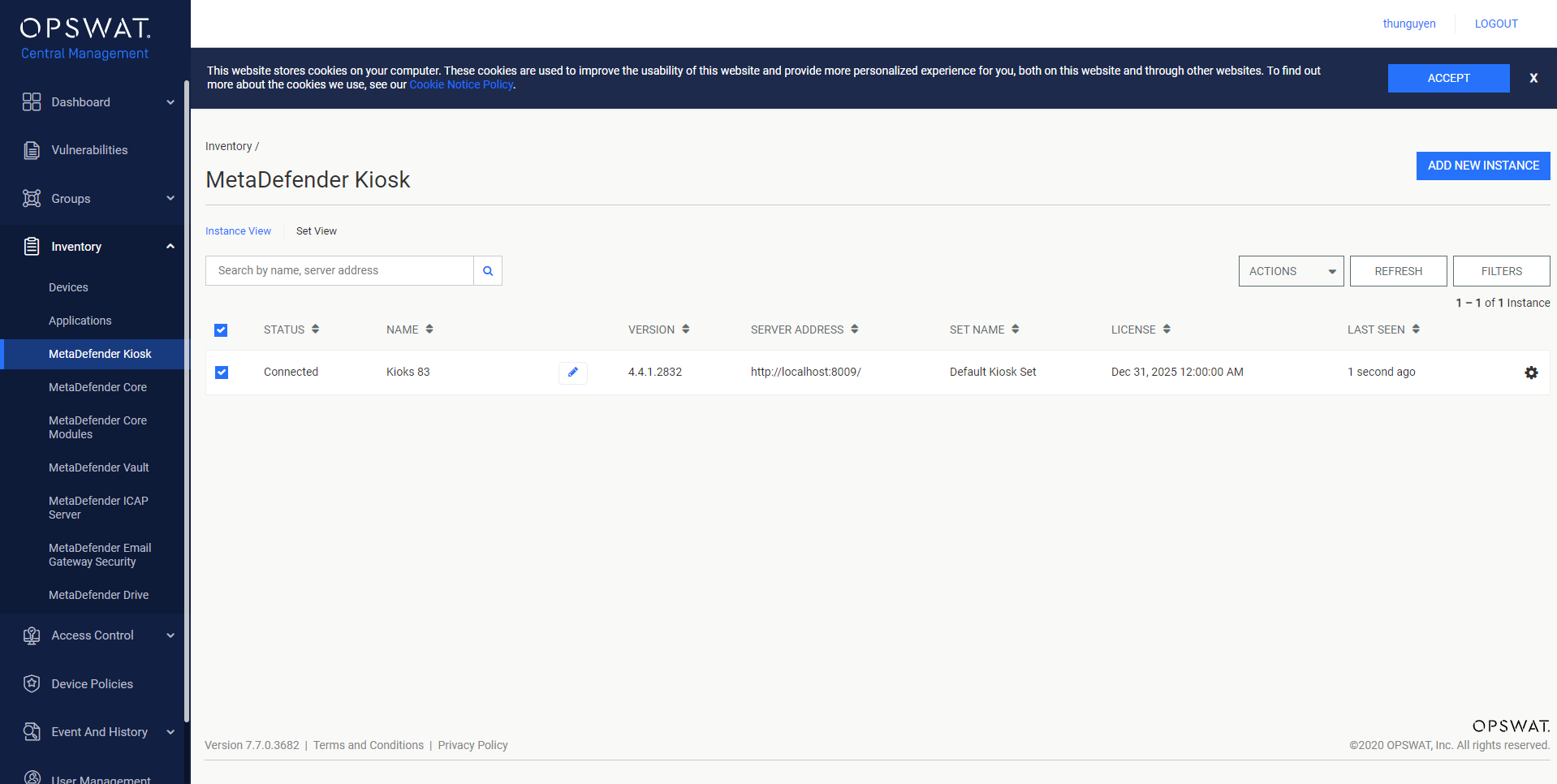
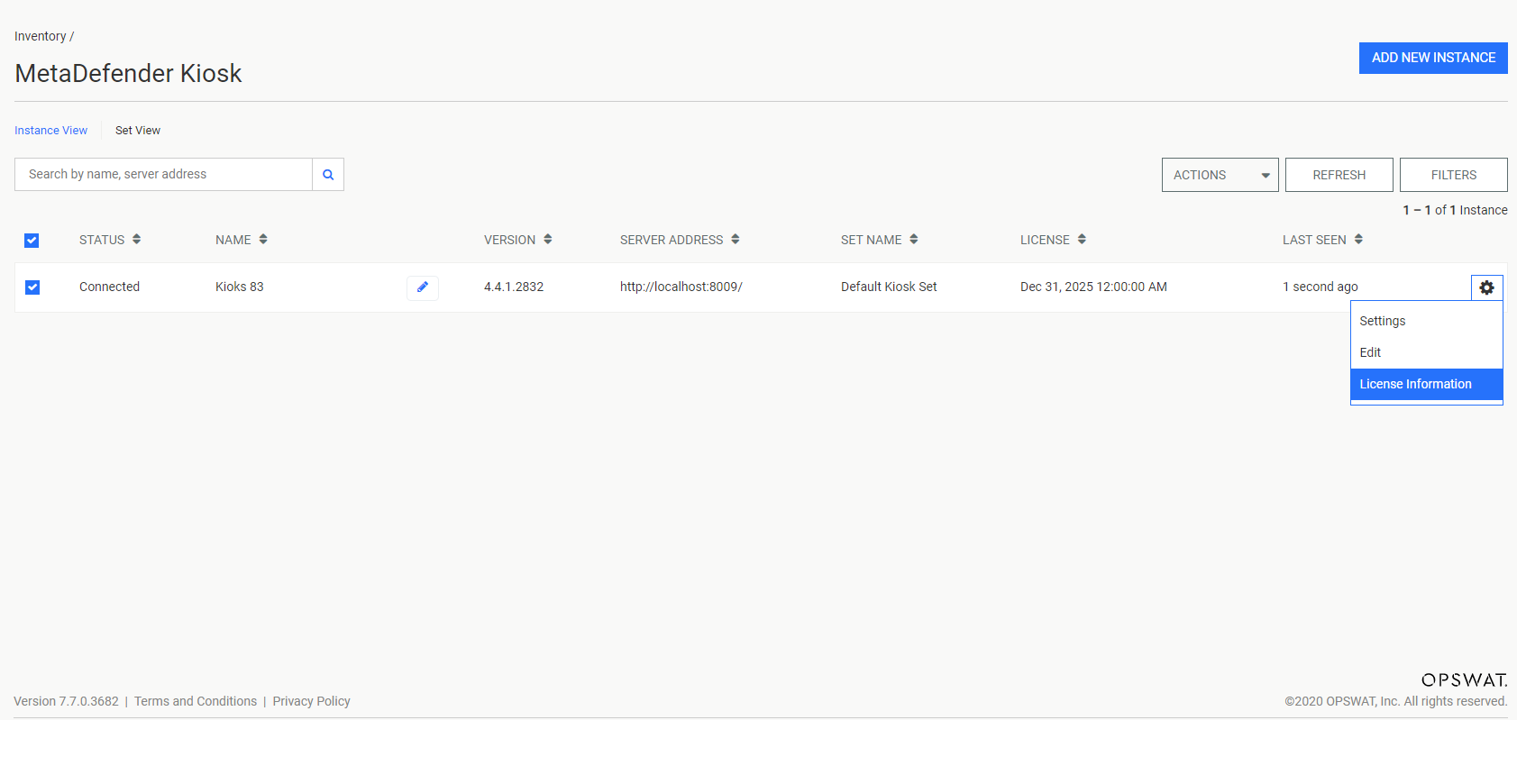
Select License Information for the MetaDefender Kiosk instance you wish to configure .
You can choose to remove or update the current license via the corresponding button. If Remove License is chosen, you are returned to the MetaDefender Kiosk management, which should update accordingly.
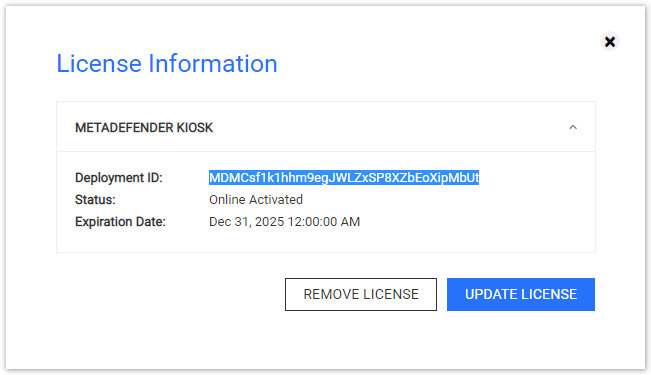
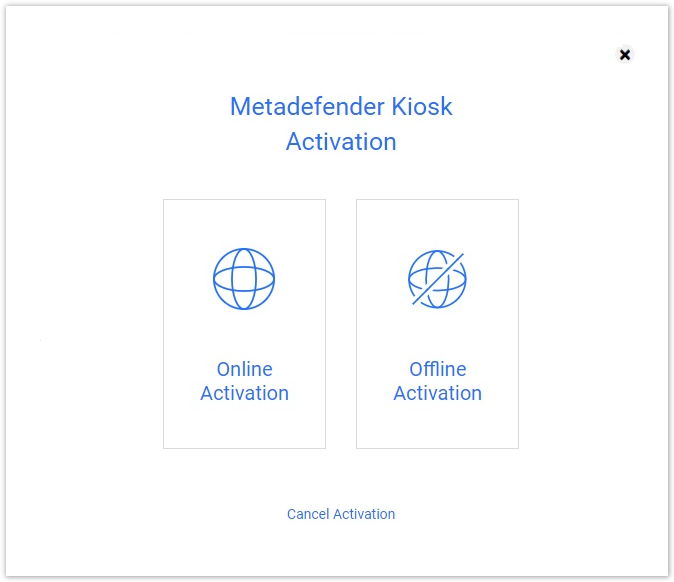
If Update License is chosen, the dialog Metadefender Kiosk Activation will be opened. Please refer to the corresponding section for additional details.
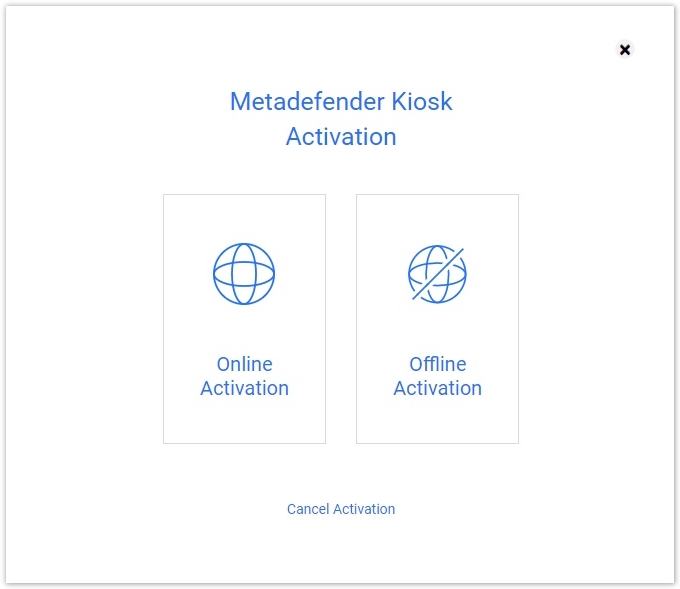
Online product activation
The following guideline describes how to activate the MetaDefender Kiosk license online.
Select the Online Activation option.
Enter the key.
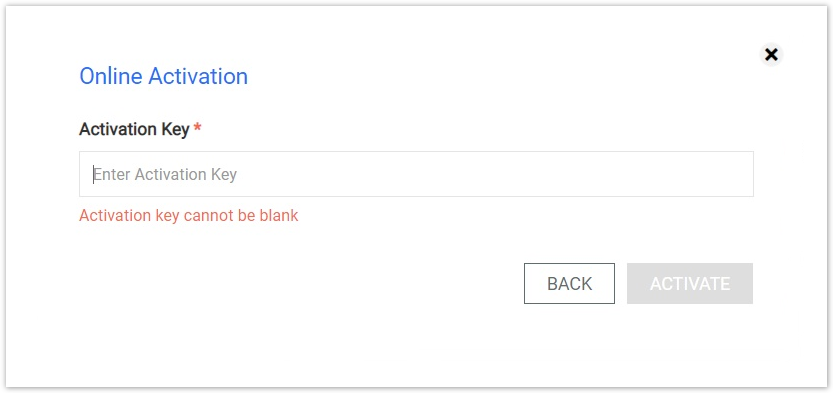
The dialog will be closed and the MetaDefender Kiosk page will be reloaded automatically if the result is successful.

Offline product activation
The following guideline describes how to activate the MetaDefender Kiosk license offline.
Select the Offline Activation option.
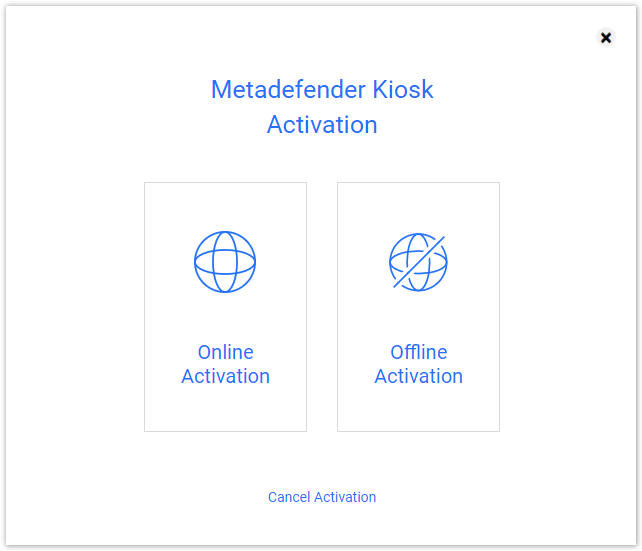
The Offline Activation menu will be opened.
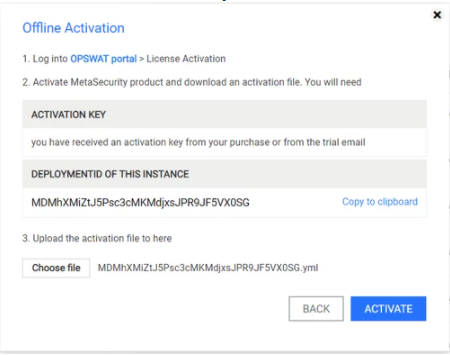
Offline Activation details
Log into https://my.opswat.com
Select Activate New License on the sidebar
Select MetaDefender Kiosk V4.X as MetaDefender Package.
Fill in the requested information about your deployment.
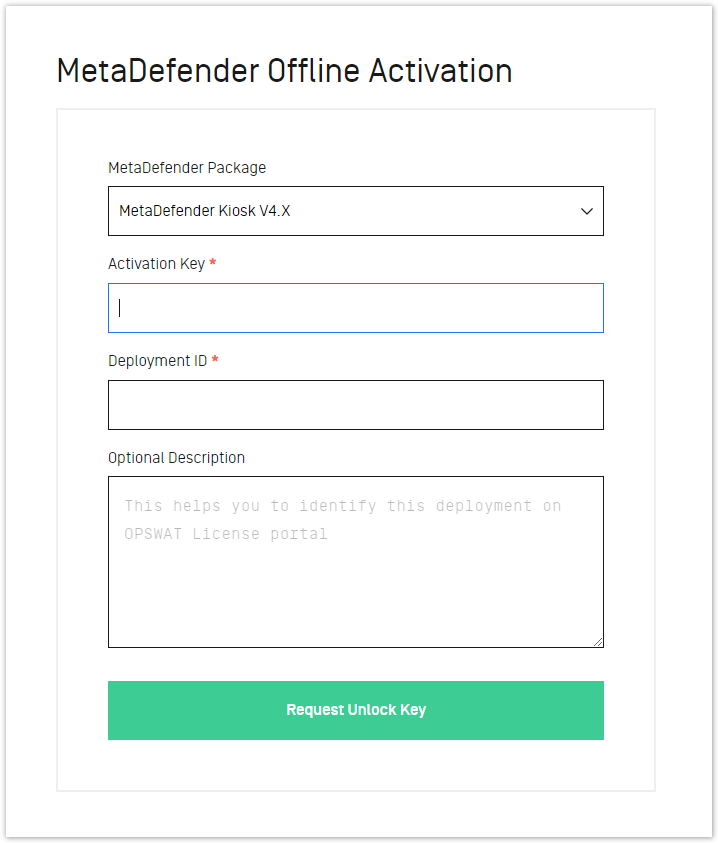
- Activation Key: The activation key of MetaDefender Kiosk that you have received.
- Deployment ID: The deployment ID shown in the previous section.
- Optional description: The description for this deployment.
Click the Request Unlock Key button. The Download Unlock Key link appears.
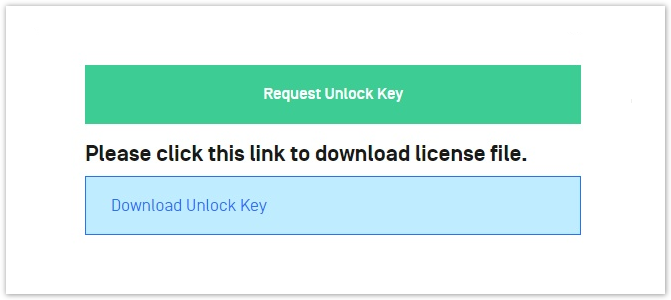
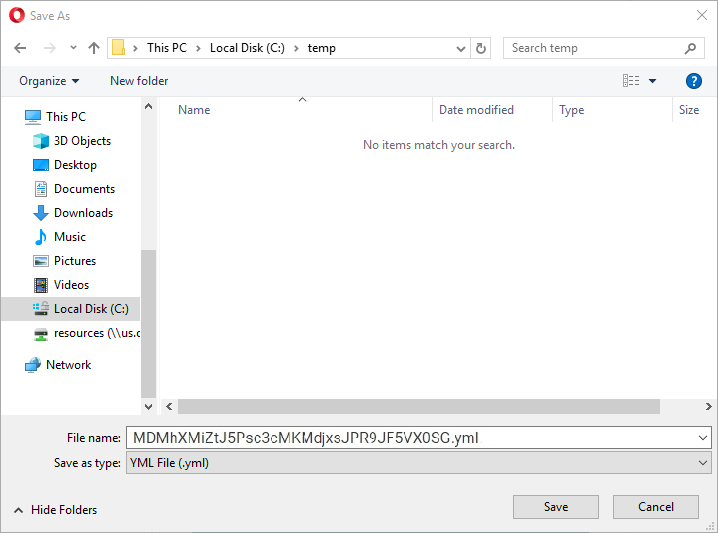
Click the Download Unlock Key link and save the activation file.
Go back to OPSWAT Central Management's Web Management Console. Browse for the activation file and click the ACTIVATE button.
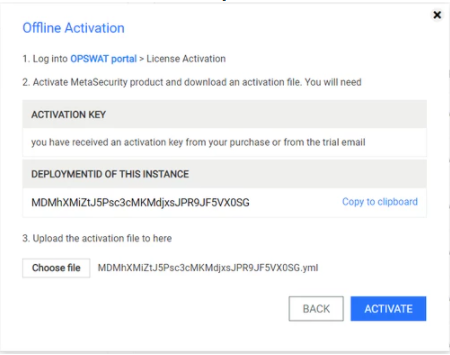
The dialog will be closed and the MetaDefender Kiosk page will be reloaded automatically if the result is successful.
