Prerequisites
You need a security dongle inserted in the server which configuration you want to change, RED or BLUE.
Before you configure any transfer parameters:
Ensure MetaDefender Security Gateway BLUE and MetaDefender Security Gateway RED network addresses are configured.
Ensure the current license and personality are uploaded.
This should be configured in both sides BLUE and RED. Each of the sides have their own management UI.
BLUE side configuration
Go to the management UI and insert user and password to login.
Click the Streams link and then click on the Action button to deploy the Action menu, then select Add Stream.
Complete the following:
Channel: You have to choose one channel number.
This channel number needs to be the same in the RED side.
Type: Type of stream being tracked, Unilateral or Bilateral.
Name: Name of the stream.
Protocol: select TCP or UDP depending on the stream you want to create.
Source port: Port number of the source IP.
Source addresses: IP address(es) in the BLUE zone where the stream will originate. If you are entering more than one address, separate the addresses with a semicolon.
Enabled: checkbox to enable/disable the stream.
Max Sessions: Maximum number of sessions for the stream.
Description: user-friendly description.
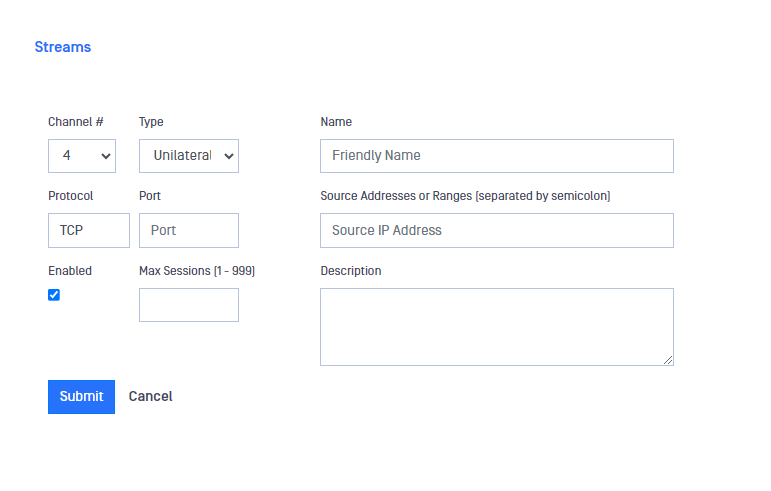
After filling in the fields, click on the Submit button to save configuration.
RED side configuration
Go to the management UI and insert user and password to login.
Click the Streams link and then click on the Action button to deploy the Action menu, then select Add Stream.
Complete the following:
Channel: You have to choose one channel number.
This channel number needs to be the same in the BLUE side.
Type: Type of stream being tracked Unilateral or Bilateral.
Name: Name of the stream.
Protocol: Select TCP or UDP depending on the stream you want to create. It needs to match with the protocol configured in BLUE side.
Destination port: Port number of the destination IP.
Destination address: IP address in the RED zone where the stream will terminate. You can enter only one address.
Max Sessions: Maximum number of sessions for the stream.
Enabled: checkbox to enable/disable the stream.
Description: user-friendly description.
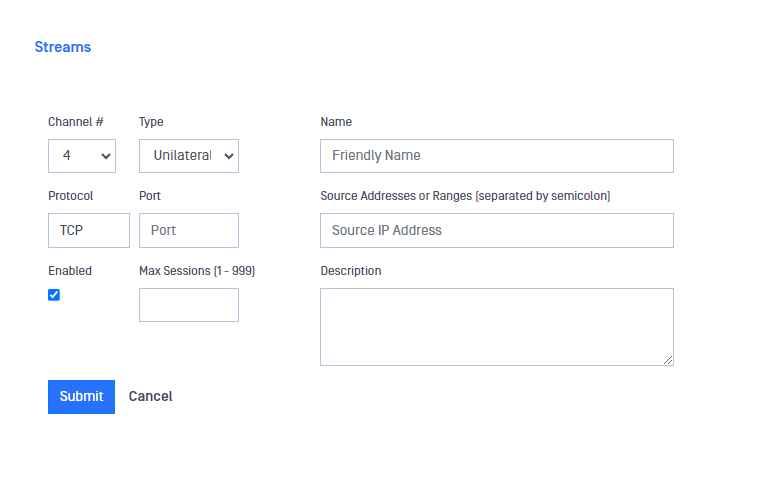
After filling in the fields, click on the Submit button to save configuration.
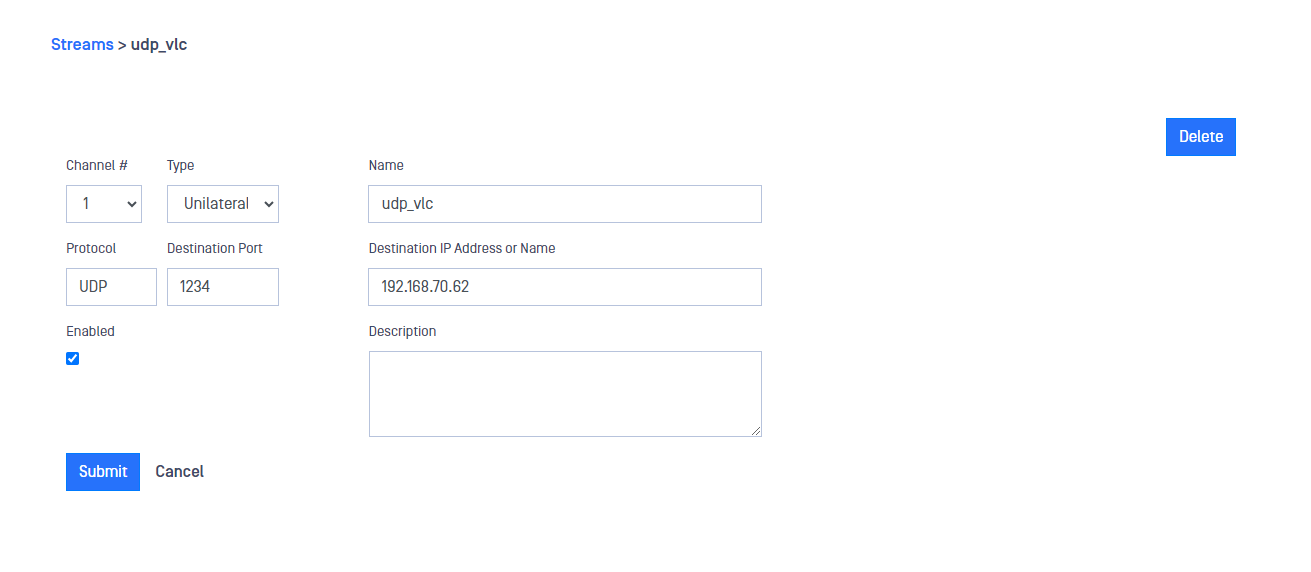
Modify a stream
In the Streams section, click on the stream you want to modify and the Edit Stream menu will be displayed. Modify the Stream and Submit changes.