
The Overview page provides a centralized view of key updates and insights—including system notifications, license status, learning progress, product updates, and the latest OPSWAT news.
To access: Click Overview in the left-hand menu.
In this article:
1. Status Dashboard
The Status Dashboard provides a centralized view of key operational insights, directly from the My OPSWAT Portal homepage. It helps users quickly assess license health, stay on top of account- and system-level updates, and monitor learning progress—all in one place.
The visibility and level of detail in each section may vary based on your organization type and your account permissions.
a. System & Account Notifications
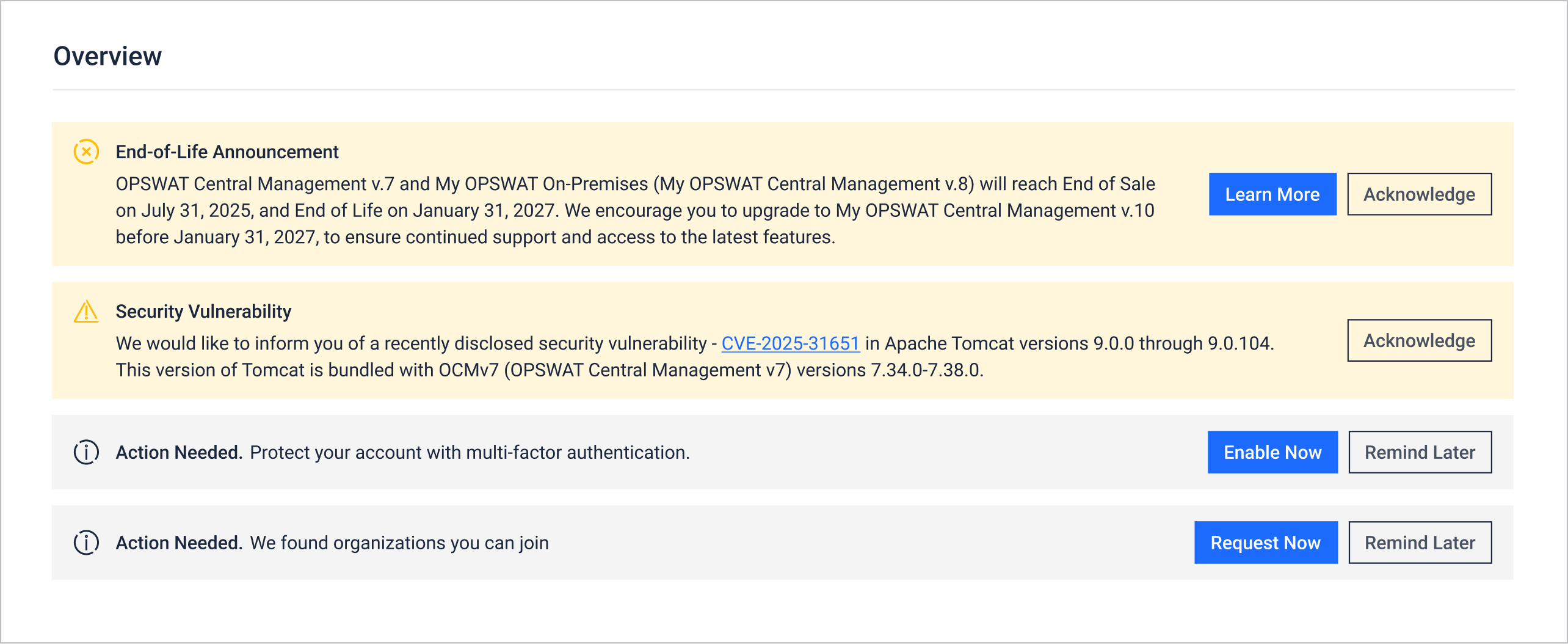
The Notifications section highlights important updates that may require your attention. These include:
Product lifecycle notices (e.g., end-of-life or upgrade availability)
Password expiration reminders
Prompts to enable multi-factor authentication (MFA) for your organization
Organization access suggestions (e.g., if relevant organizations are available for you to join)
Notifications appear at the top of your homepage and what you see may differ depending on your assigned permissions.
b. License Health
The License Health section provides a snapshot of `license usage and health. Depending on your role and assigned permissions, this dashboard displays relevant license insights across your organization, sub-organizations, or customer organizations
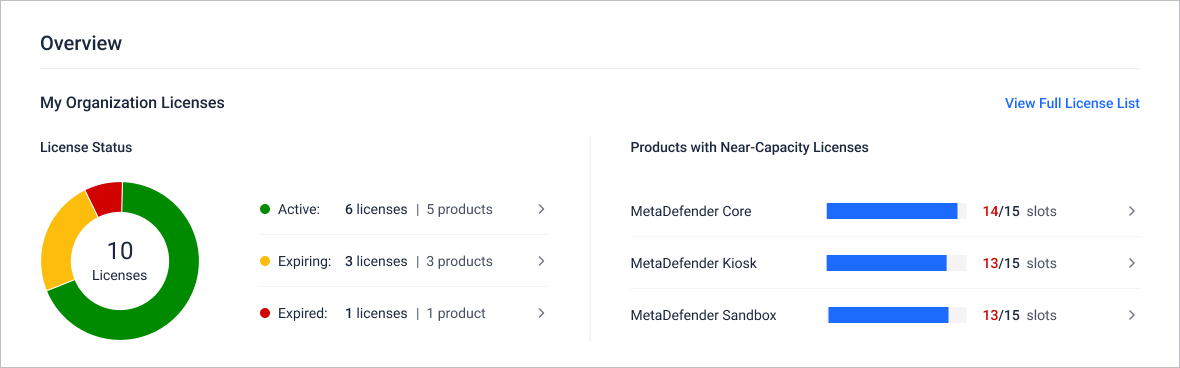
When you belong to an organization that holds licenses and have either View Only or Full Access permission on License Management (See Roles for details), the dashboard will display:
License Status: A pie chart showing total cloud and on-premise product licenses associated with your organization, categorized into Active, Expiring and Expired.
Products with Near-Capacity Licenses: Top three on-premise products with active licenses using more than 80% of their available slots.
A product is considered near capacity if it has only 1 slot left (for ≤5 total slots) or if usage exceeds 80% (for > 5 slots).
Tip Click the to view the full list of licenses in that category. You’ll be redirected to the License Management > My Organization page with the corresponding filter automatically applied.
If the following conditions are met, the License Status Dashboard will reflect license data across your organization and all sub-organizations:
Your organization have sub-organizations
AND You have View Only or Full Access on the License Management
AND You have View Only or Full Access permission on the License Management - Sub Organizations
If the following conditions are met, you will see extended data on your License Status Dashboard.
You belong to a Partner organization with assigned customers
you have View Only or Full Access permission on the License Management - Customer Organizations
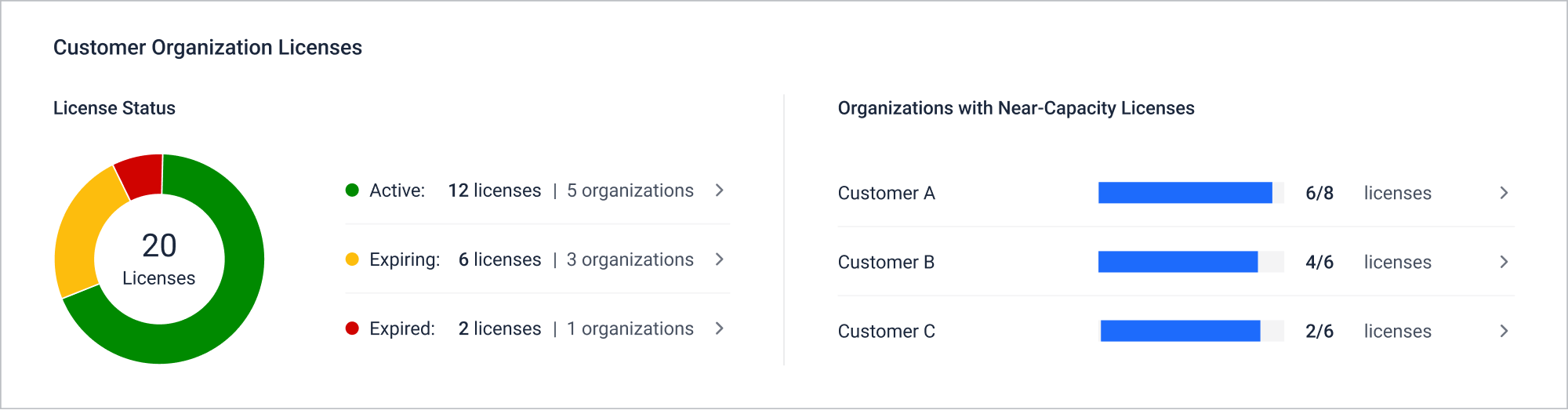
In addition to your own organization license data, your dashboard includes Customer Organization Licenses
License status: A pie chart summarizing license status (Active, Expiring Soon, Expired) across all managed customer organizations.
Organizations with Near-Capacity Licenses: Top 3 customer organizations near full license usage.
Tip Click the to view the full list of licenses in that category. You’ll be redirected to the License Management > Customer Organizations page with the corresponding filter automatically applied.
A license is considered near capacity if it has only 1 slot left (for ≤5 total slots) or if usage exceeds 80% (for > 5 slots).
The License Status Dashboard will not appear on the homepage if
You’re not in any organization
OR Your organization has no license
OR Your organization has valid licenses but you do not have permission on License Management
c. Learning Progress

The Learning Progress section provides a snapshot of your OPSWAT Academy activity. You’ll see:
Current Tier and Level
Course Enrollment: Number of courses you're currently enrolled in
Course Completion: Number of completed courses
2. Product Updates

Stay up-to-date with the latest OPSWAT blog posts covering new releases, additional features, and third-party integrations.
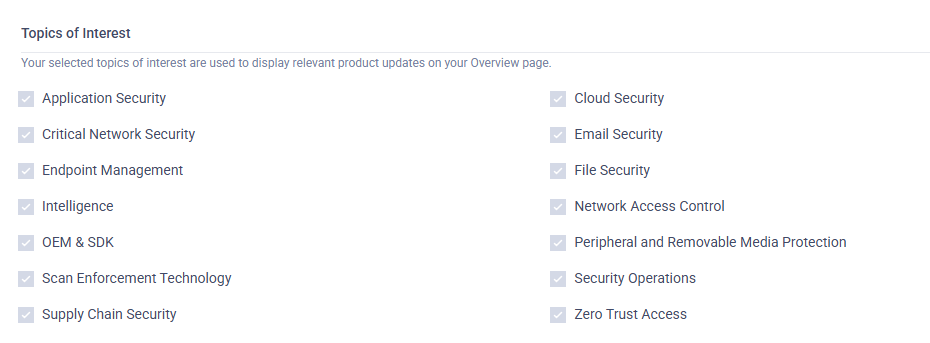
This section only displays blog posts that match the Topics of Interest you selected under My Information > Preferences > Topics of Interest.
3. Latest News from OPSWAT

Keep informed with current updates and announcements about OPSWAT in this section, which features the most recent blog posts about what’s happening at OPSWAT.
On Home page, we have some specific products as below:
Restricted Products/Info: Require explicit permission (such as being an OEM partner, or specific access rights) to view.
OPSWAT Customer Products: Accessible to customers who are part of organizations that have a license for a related product.
OPSWAT Customer Products:
MetaDefender Kiosk Hardened Image: This product is for customers who has MetaDefender Kiosk K-Series license only
4. Webinars
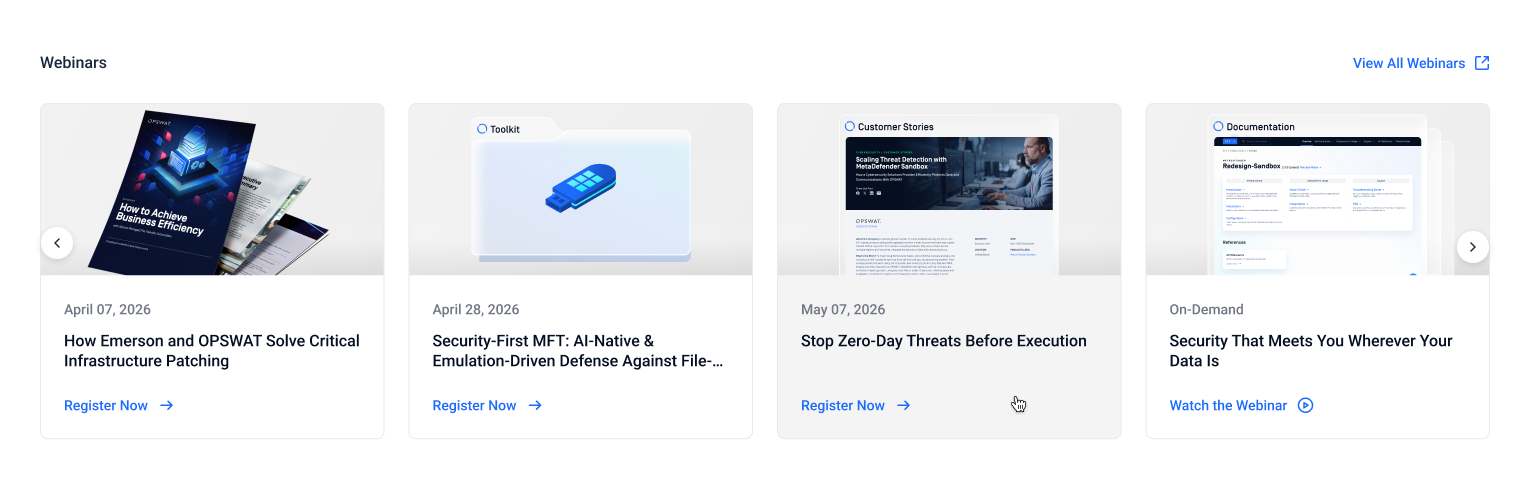
Stay informed on OPSWAT upcoming webinars.
5. AI Content Recommendation
Beta This feature is in Beta. How recommendations are chosen is still being tuned.
The AI content recommendations suggests OPSWAT content based on the products your organization is licensed for and the content you have already engaged with, so you do not have to go looking for it.
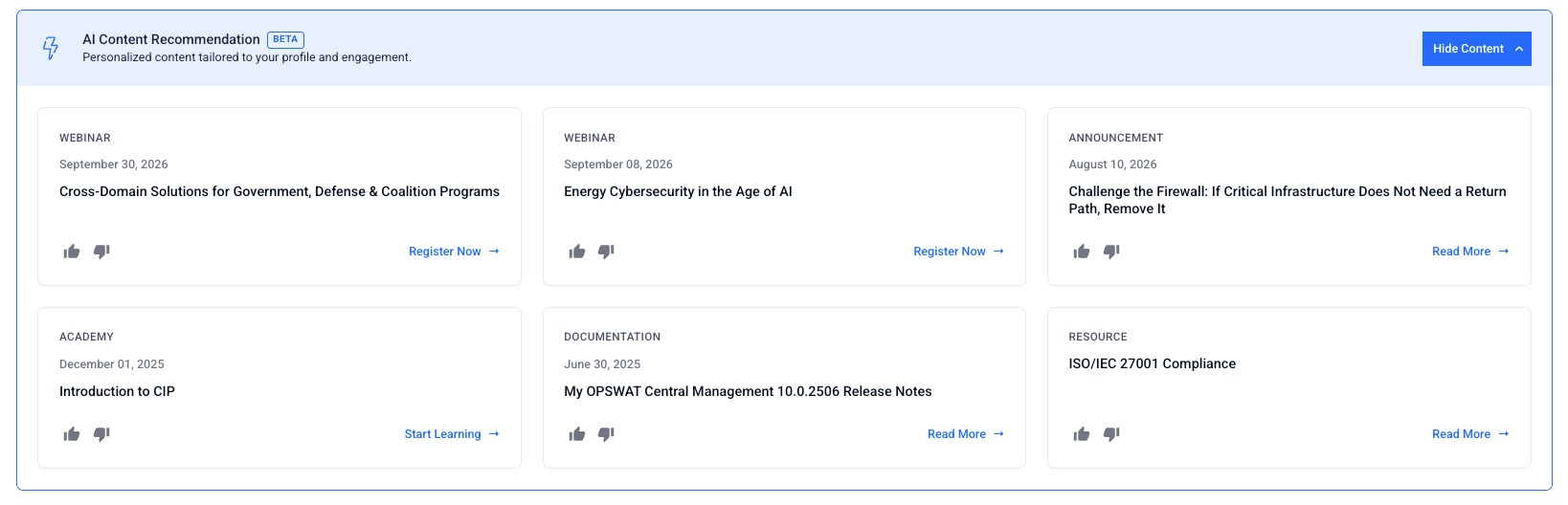
The banner is collapsed by default and shows the header AI content recommendations with the subtext Personalized content based on your licenses and preferences. Click View Content to expand it, and Hide Content to collapse it again.
When expanded, the banner shows a row of content cards covering a mix of content types. Each card shows the content type, the title, the date, and a button that opens the content. A New badge marks content published in the last 5 days that you have not opened yet.
Recommended content can include webinars, articles and knowledge base pages, product release notes, OPSWAT Academy courses, announcements, and resources from opswat.com.
Recommendations follow the organization you are currently working in, so switching organization changes what you see. They refresh when you reload the Overview page or return to it from another page, and a card you have opened is replaced by a different recommendation.
Each card has a thumbs up and a thumbs down control. Use them to tell OPSWAT whether the recommendation was useful to you. Your response is recorded.
This banner follows your organization's AI Assistance setting, the same setting that controls the AI Assistant chatbot. If your organization has AI Assistance turned off, the banner is hidden and no recommendations are generated. See AI Assistance. A change to the setting applies from your next sign-in, or when you restart your session.