Accounts in MetaDefender Storage Security provide a way to manage credentials and configuration settings for accessing storage services. They allow users to reuse the same authentication information across multiple storage units, simplifying credential management and enabling features like Autodiscovery.
Each account will hold the credentials required to add a new storage integration. It allows to simplify the process of adding multiple storages that are using the same credentials, by just selecting the existing account and only providing the specific data for the storage unit, and:
Store and manage access credentials for storage services in one place
Associate multiple storage units with a single account
Enable automatic discovery of new storage units for supported services
Accounts are organized within groups for better management
Creating and Managing Accounts
Creating a New Account
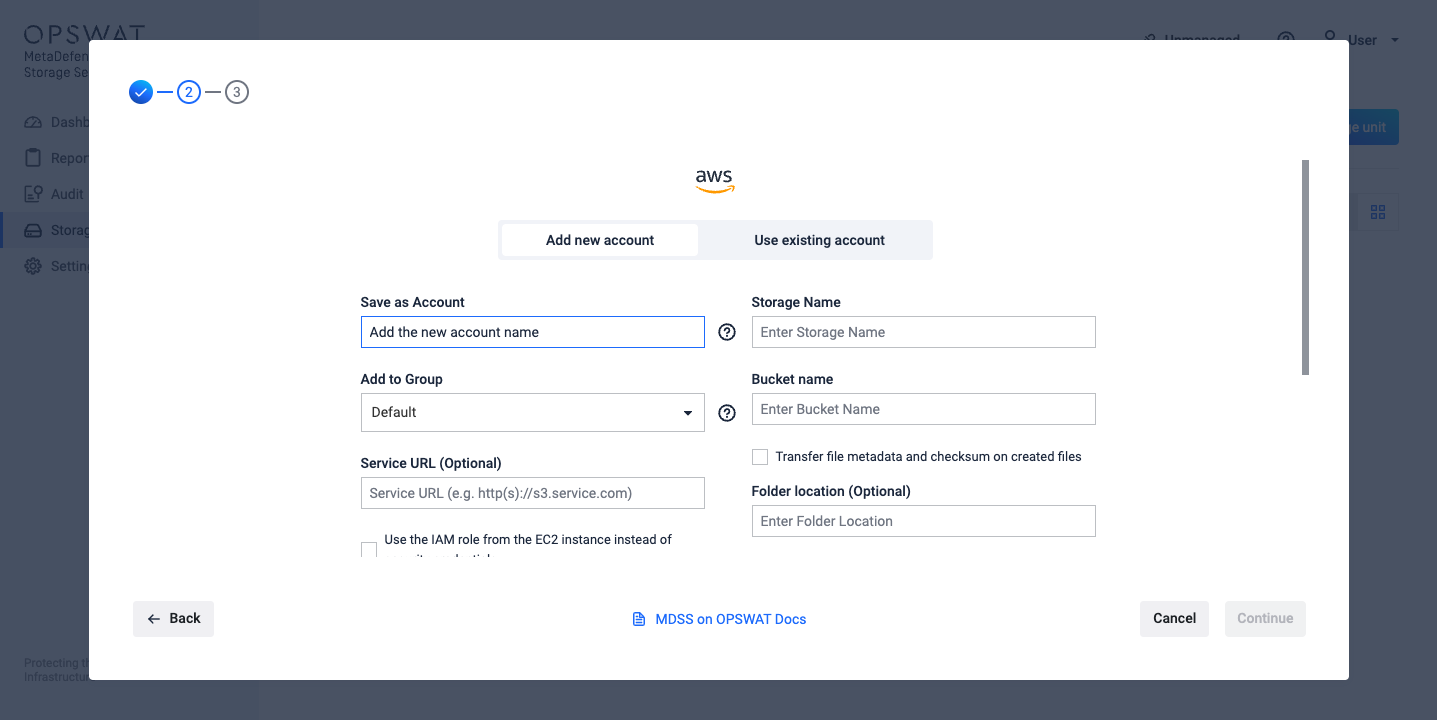
Accounts can be created during Storage Unit addition:
Navigate to the Storage Units page and click on "Add storage unit" button
Select the service you want to integrate
From the top toggle, select "Add new account"
Fill out the required account's credentials and the storage's specific fields and click on "Continue"
Managing Existing Accounts
Currently, accounts can be managed from the storages that are part of that specific account. From the Storage Units page, identify a storage which's account you would like to manage.
Navigate to the Storage Units page and identify the storage which's account you would like to manage
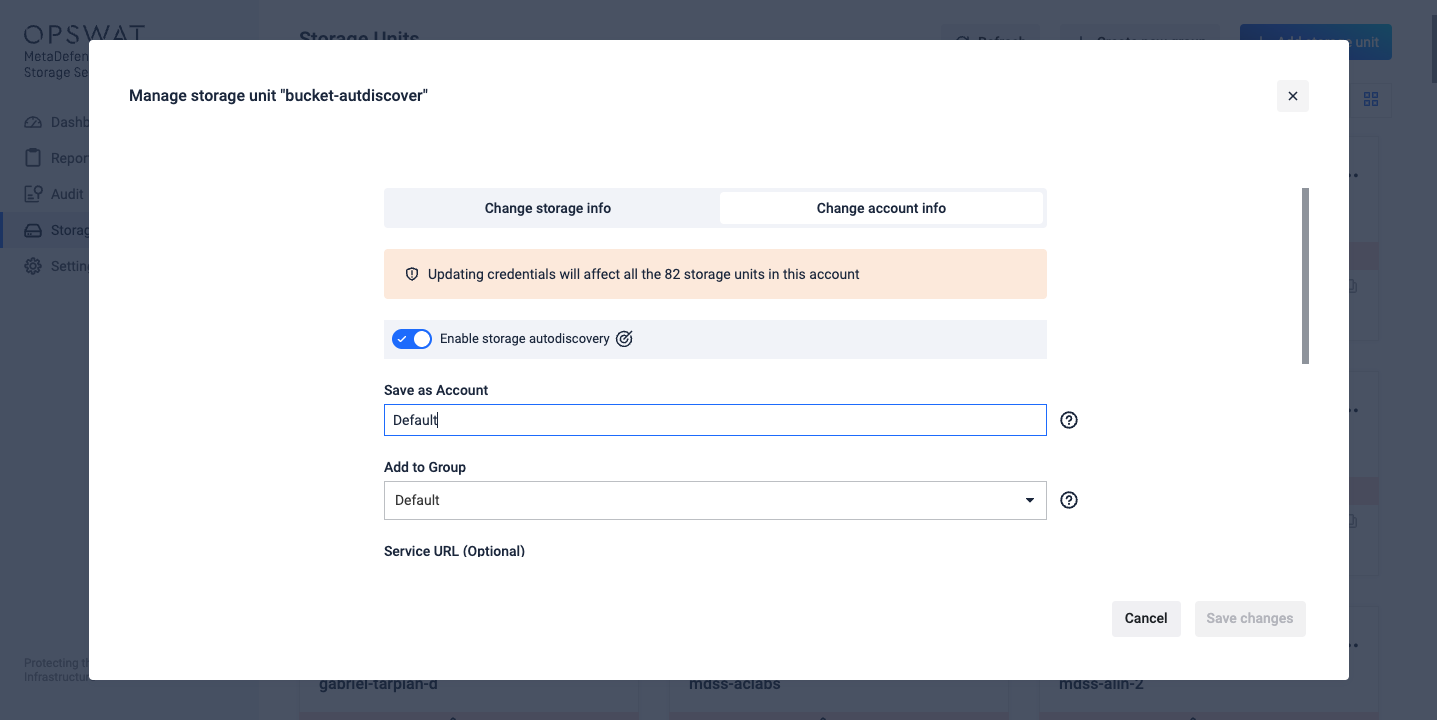
Click on the 3-dots menu of the Storage card and select "Manage storage unit"
From the top toggle, select "Change account info"
You'll be required to input the secret or the credentials file to validate the new credentials
Click on "Save changes"
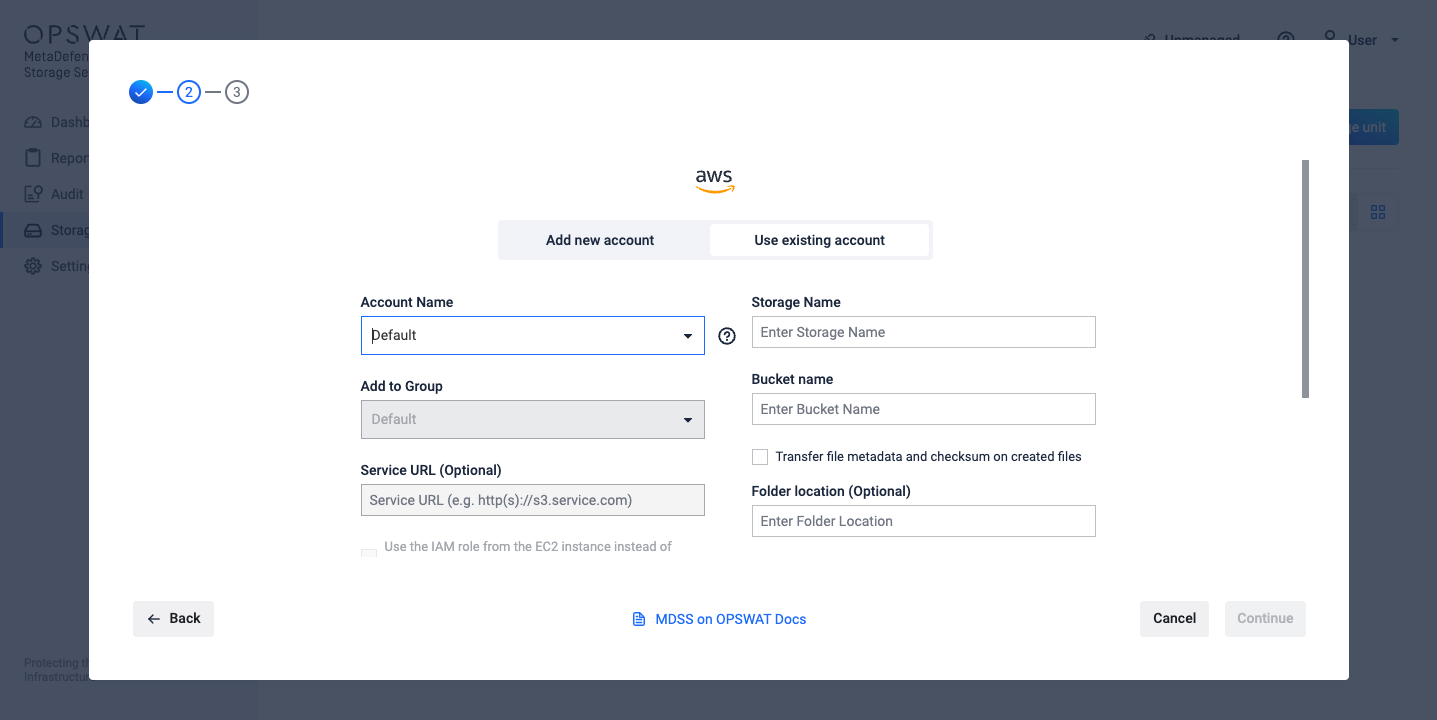
Use an Existing Account
To facilitate the ease of adding a new integration, when adding a new Storage Unit, you can choose to use an existing account.
Navigate to the Storage Units page and click on "Add storage unit"
From the top toggle, select "Use existing account"
From the dropdown, select the account name that should be used for the storage integration
Fill out the storage specific credentials
Click on "Continue"
Groups
Groups in MetaDefender Storage Security provide an organizational structure for managing storage units and accounts. They enable logical grouping of related storage resources, simplifying administration and enhancing visibility across the system.
Key Features include ways to:
Organize storage units and accounts in logical collections
Perform actions on multiple storage units at once
Clear visual separation of resources in the user interface
Default Group
The system includes a default group that cannot be deleted. This ensures that all storage units and accounts always have a group assignment, even if a custom group is deleted.
Storage units or accounts can be moved to the default group if their assigned group is deleted
The default group has a predefined ID and name but can have its description modified
Creating and Managing Groups
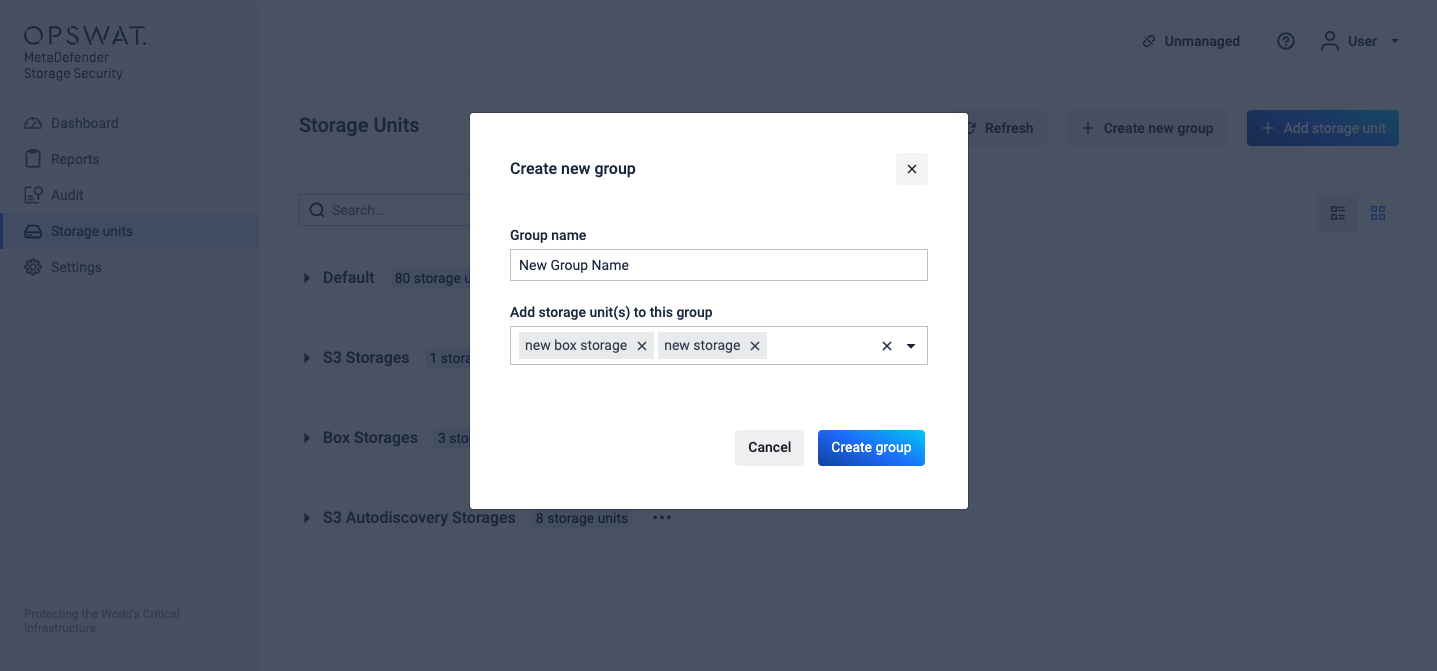
Creating a New Group
Groups can be created from the Storage Units and Dashboard View
Click the "Create New Group" button
Enter a name for the group and optionally, select the storages you want to include in that group
Submit the form to create the group
Managing Existing Groups
From the Storage Units view, you can:
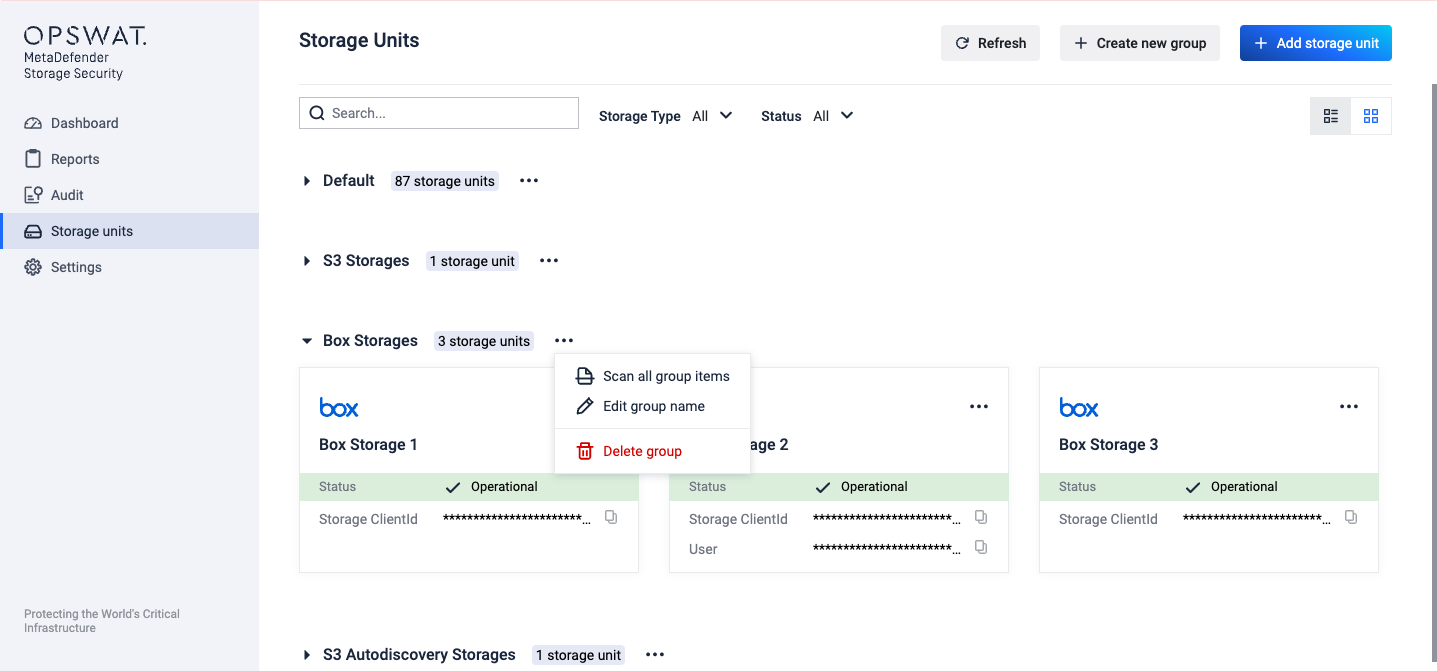
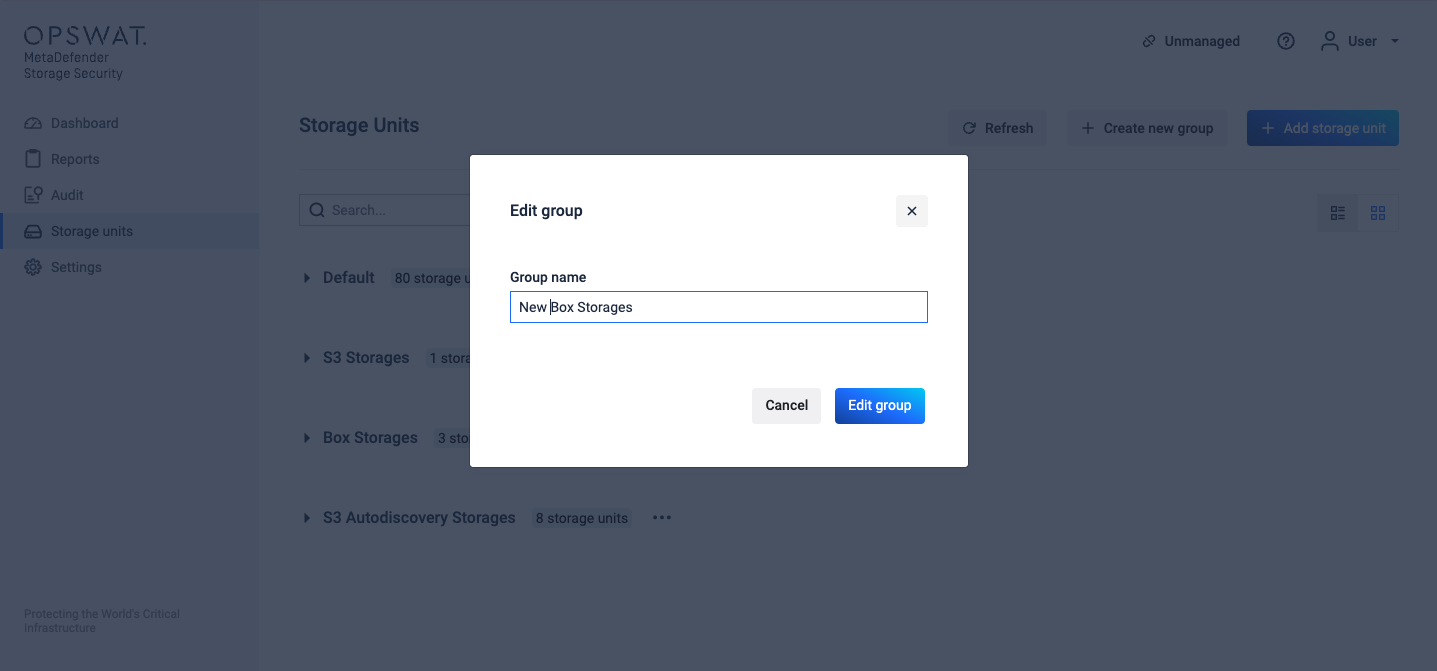
Update the name of a group by clicking on the 3-dots button next to the Group's name
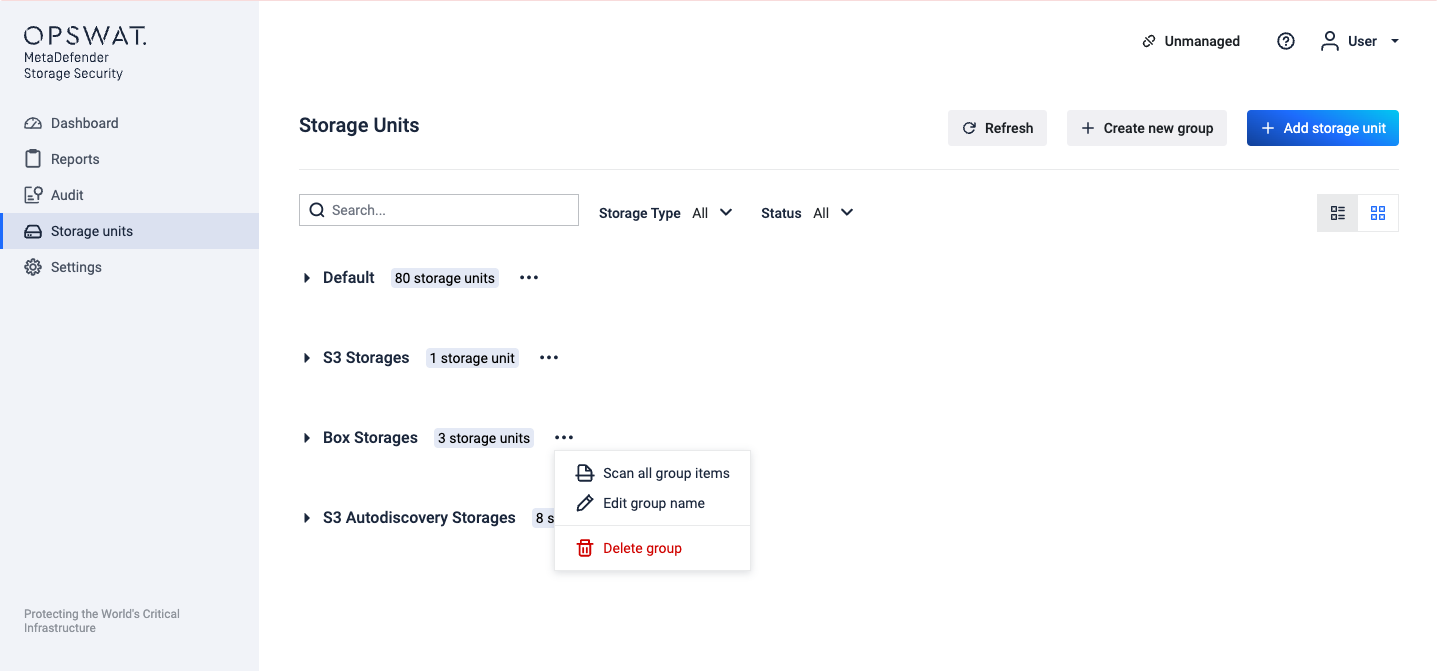
Remove a group (the group must be empty before being deleted)
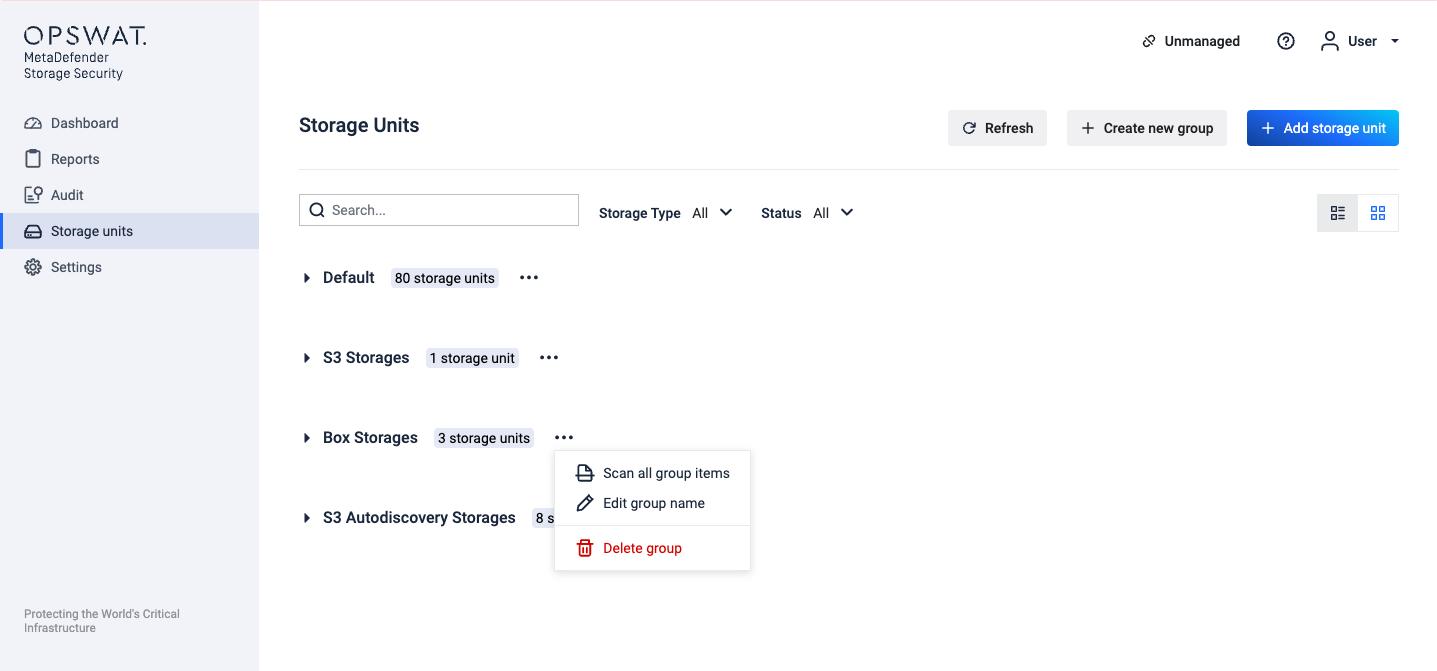
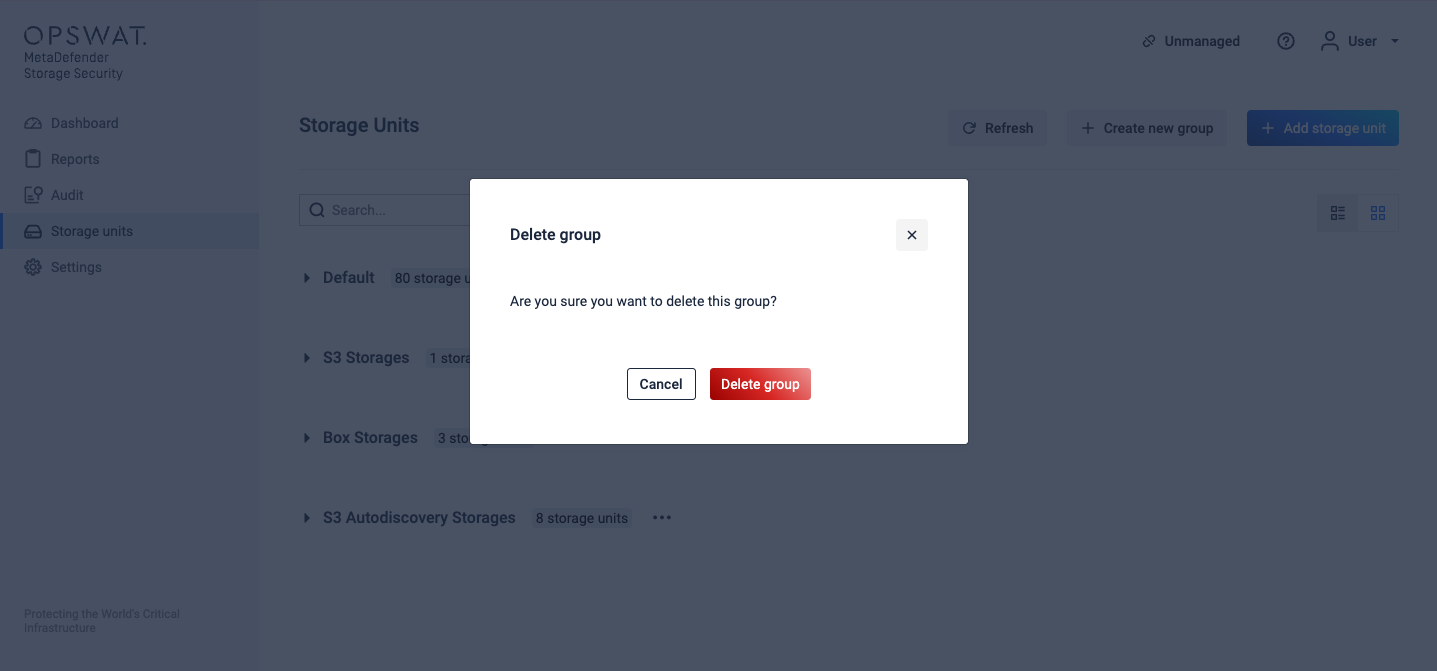
Toggle the visibility of storage units within a group
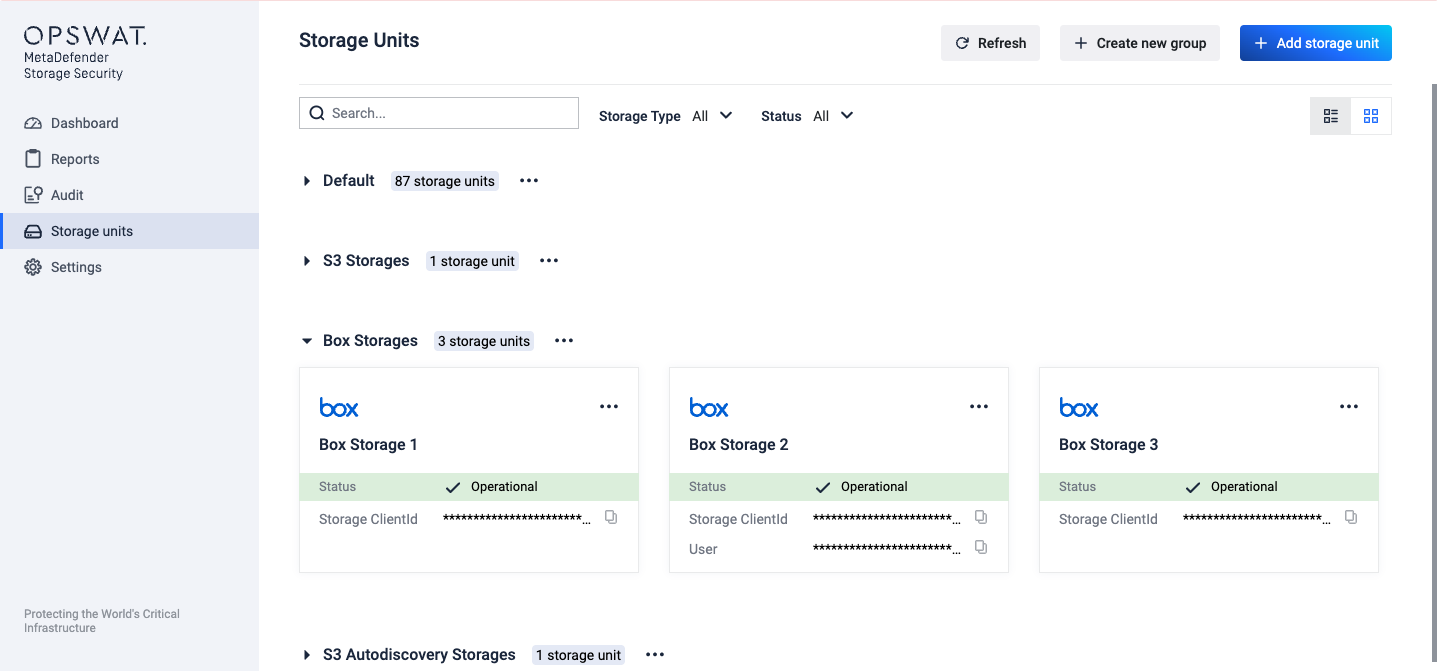
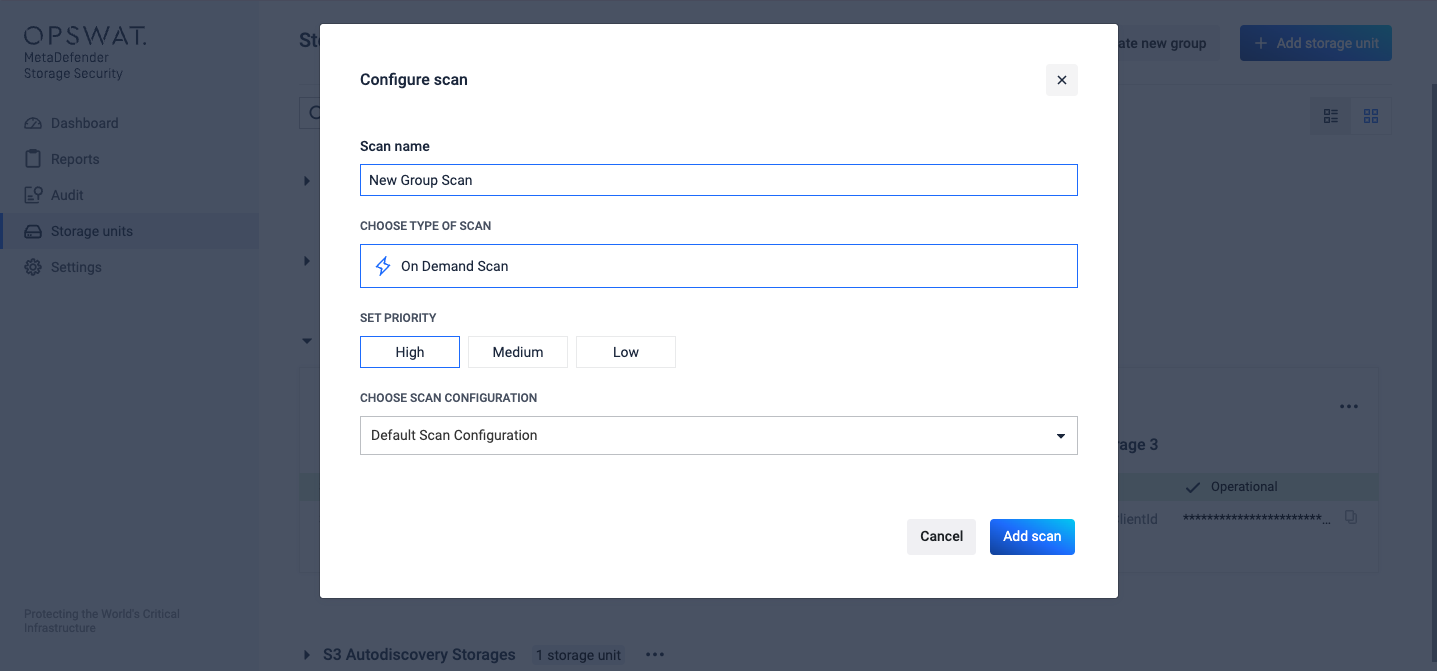
Click on the 3-dots button next to the Group's name to start a group scan