This document outlines the features and steps for sharing files and folders with users, guest users, and groups. The sharing functionality supports single-item sharing as well as bulk operations for multiple files or folders.
Key Features
Single File/Folder Sharing
Share a single file or folder with a specific user, guest user, or group.
Bulk Sharing
Share multiple files or folders simultaneously to streamline workflows.
Share Targets
Users**:** Internal users with registered accounts in your organization.
Guest Users**:** External users with limited access permissions.
Groups**:** Collections of users to simplify sharing with multiple recipients.
Sharing Methods
Single File/Folder Sharing
Steps:
Locate the file or folder in "My Files."
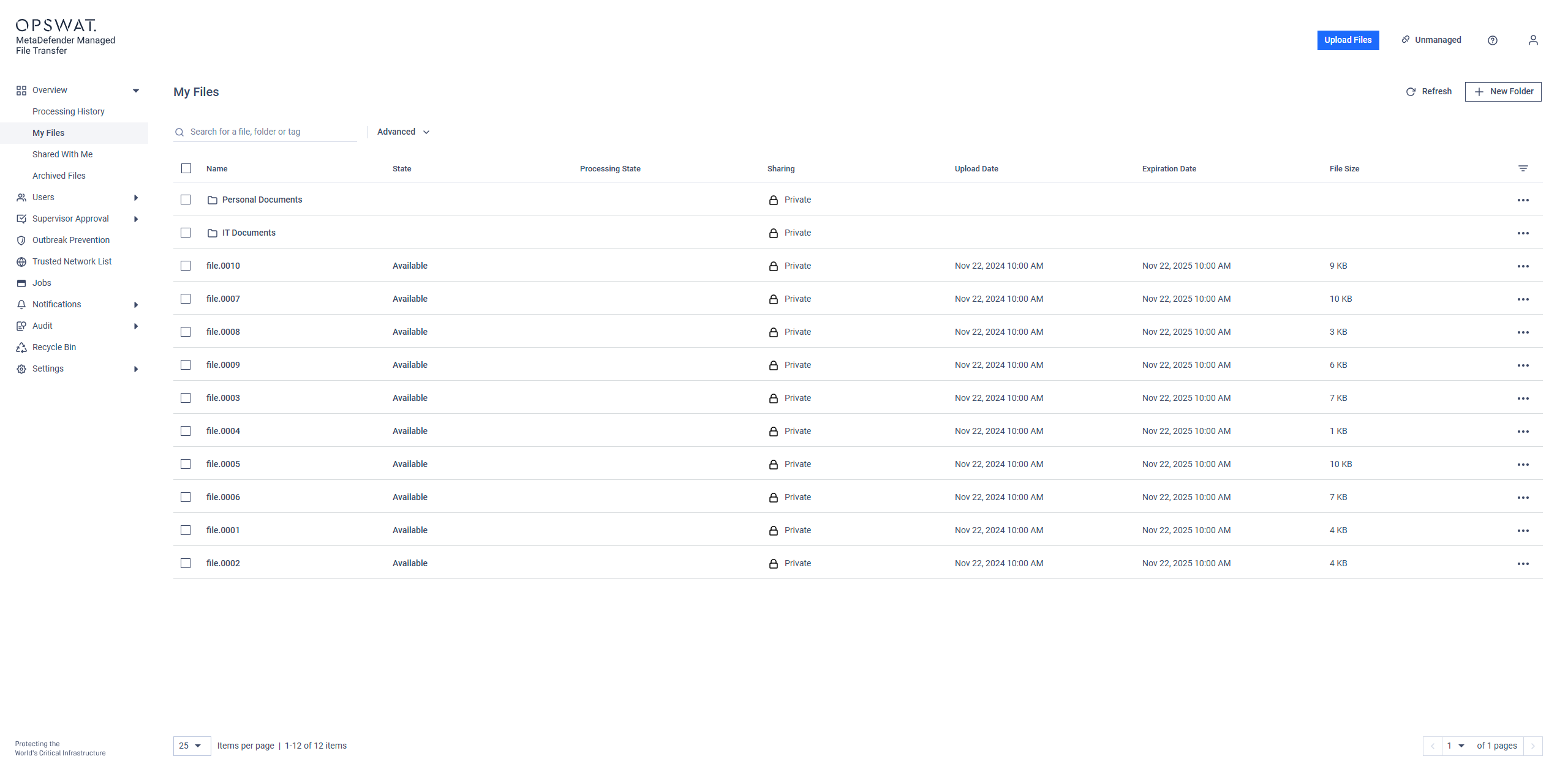
Right-click the item and select "Share" from the context menu or "More Actions(...)."
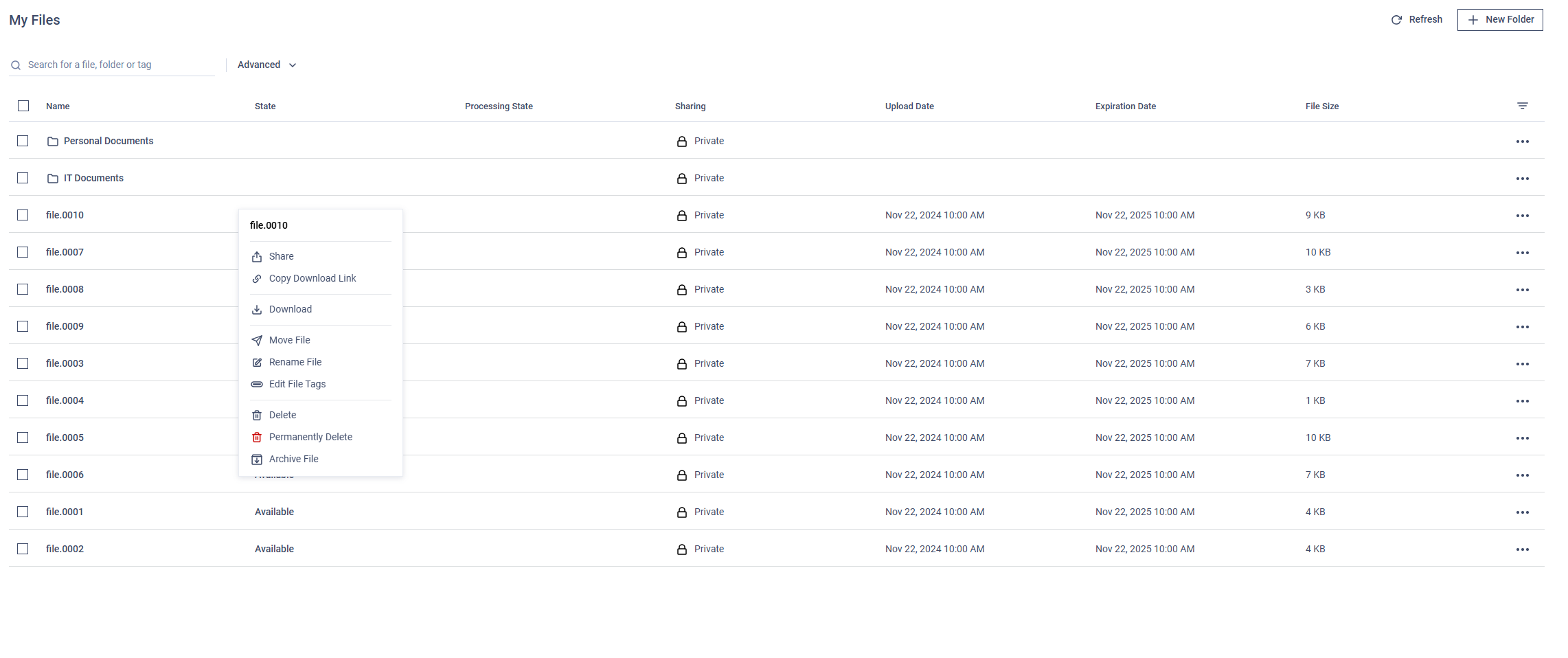
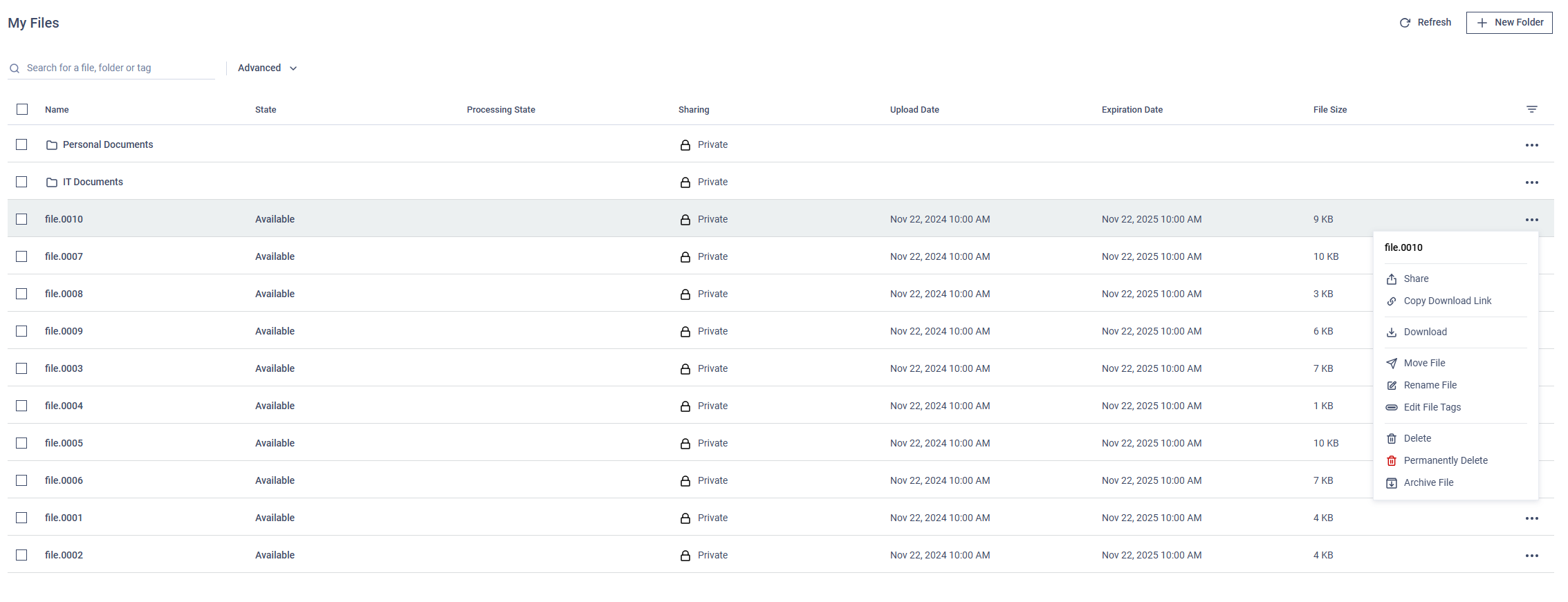
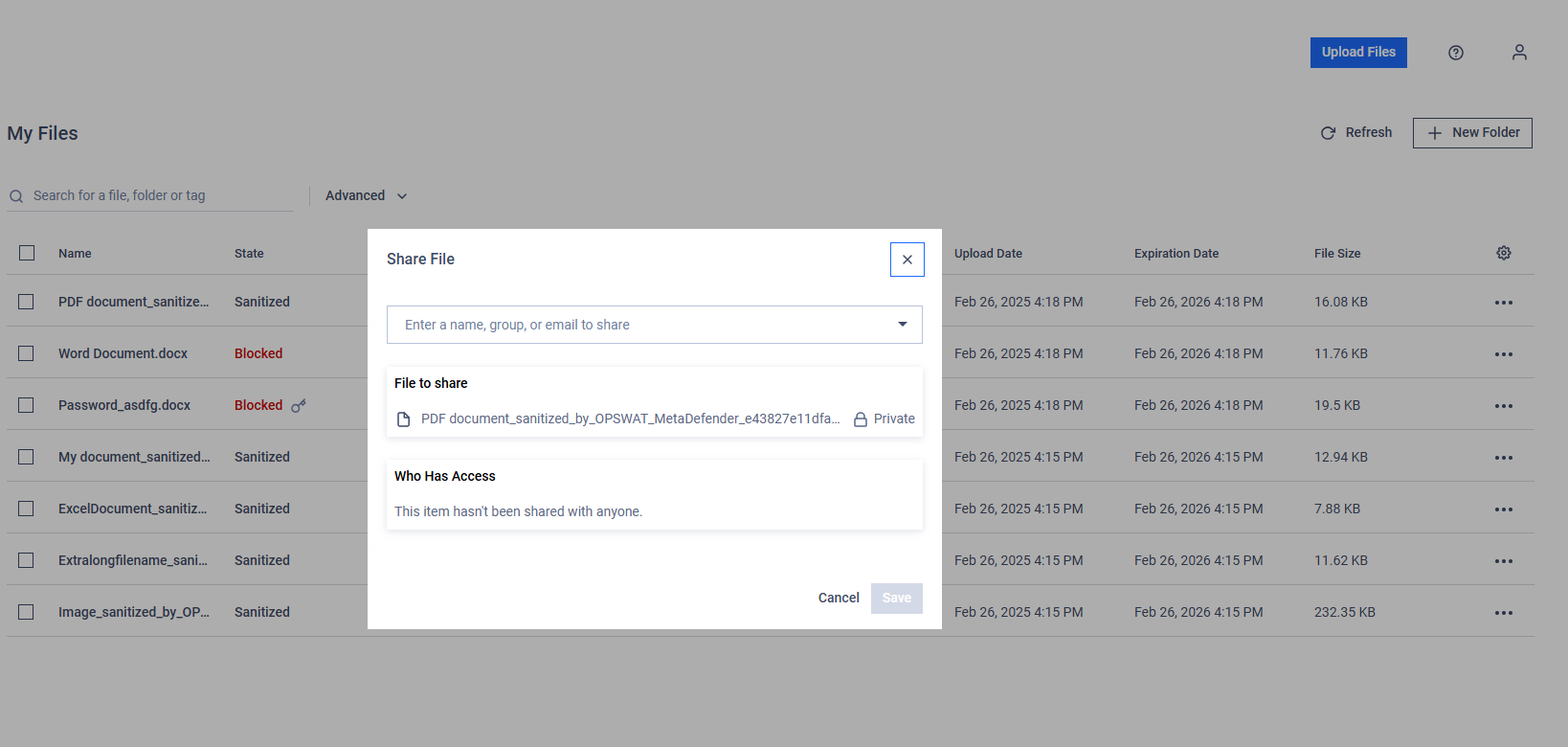
In the sharing dialog, enter the recipient(s):
Type the name or group name in the appropriate field.
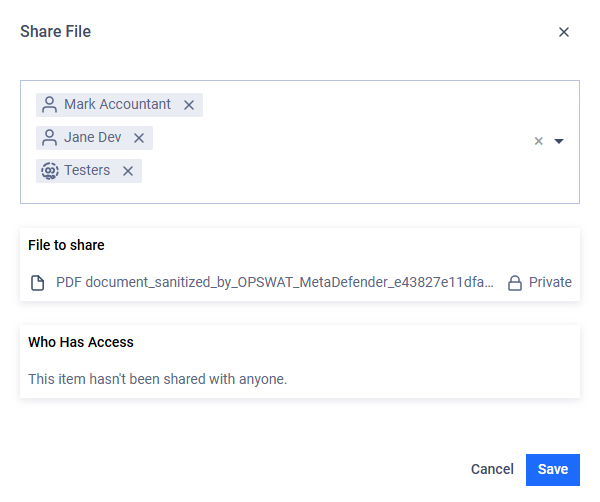
Select from the dropdown suggestions or manually input the recipient details.
Click "Save" to complete the process. The outcome will be communicated with a toast notification.
Bulk Sharing
Steps:
Select multiple files or folders by clicking the checkbox next to each item.
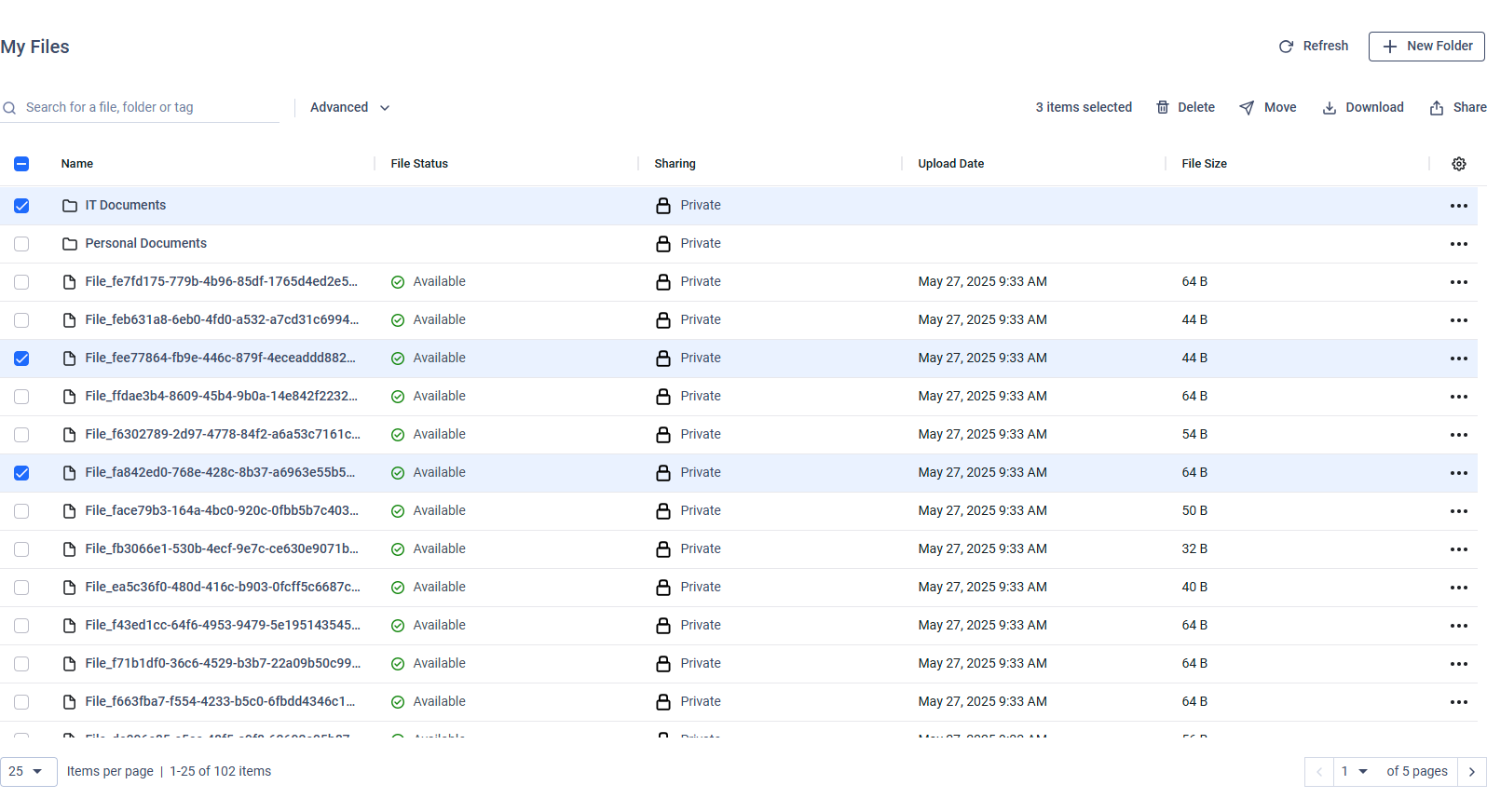
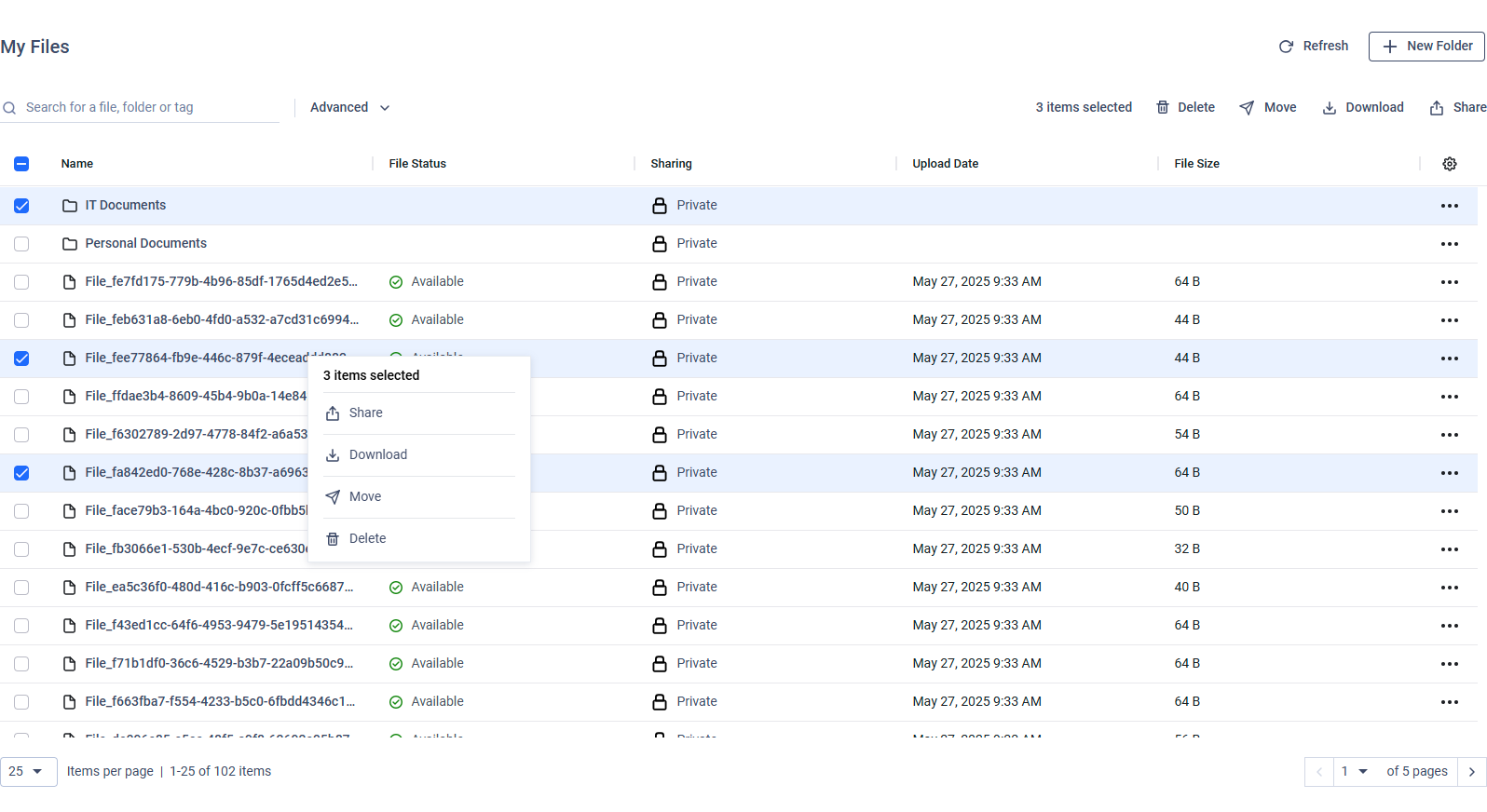
Right-click on the selection and choose "Share" or use the share option in the toolbar.
In the sharing dialog, enter the recipient(s), add optional message and select 'Share Role' as described above.
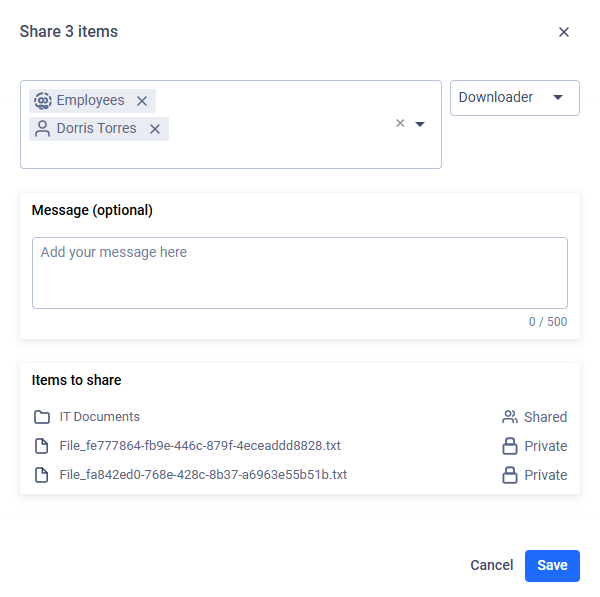
Confirm and click "Save" to complete the operation.
Managing Shared Files/Folders
After sharing, you can manage access at any time:
View Shared Items**:**
Check the "Sharing" column in "My Files" to see if an item is marked as "Private" or "Shared."
Sharing a folder automatically marks all its contents as shared.
Stop Sharing**:**
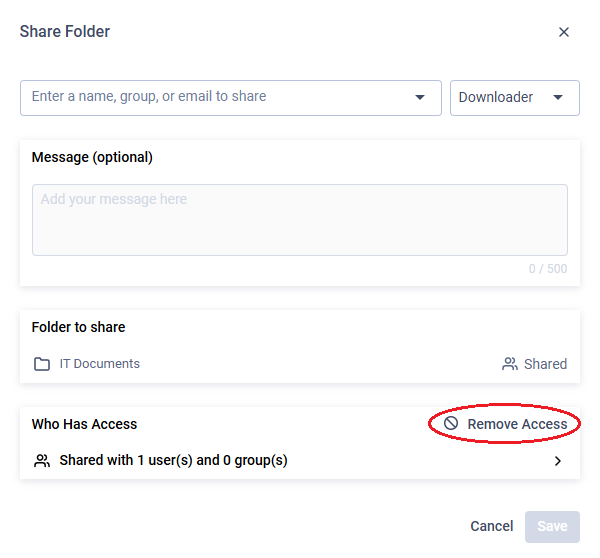
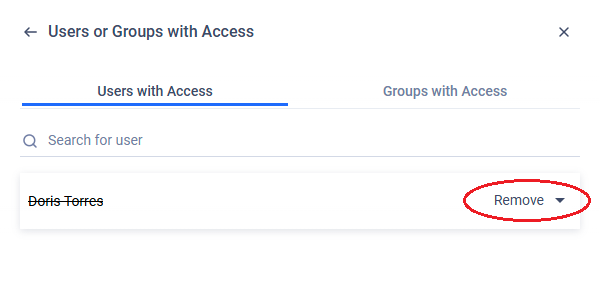
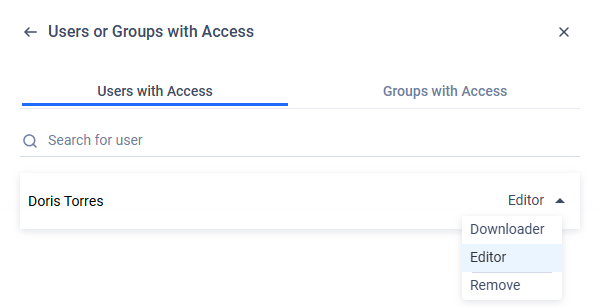
Open "Share" on the proper file or folder, and click on 'Remove Access' to revoke access from all users/groups or click on the right chevron icon to open the detailed access control modal.
After managing users' or groups' access click on the back arrow.
Finally click on 'Save' to complete the operation.