
This section outlines common issues encountered during the operation of MetaDefender MFT High Availability Controller™ and provides guidance for resolution.
How to troubleshoot
When troubleshooting an issue, it is recommended to set the log level to Debug mode, as this will provide more detailed error messages in the log file. After completing the troubleshooting, it is advisable to revert the log level back to Information.
Changing the log level in MetaDefender MFT HA Controller™:
Set minimum log level
Logs:MinimumLevel:DefaulttoDebugin appsettings.jsonReview ha_controller_product_name_short logs located at:
<installation directory>\Logs\ha-controller.log
Errors While Serving HTTP Requests
In certain scenarios, users may encounter error pages while using the application. See the example error page:
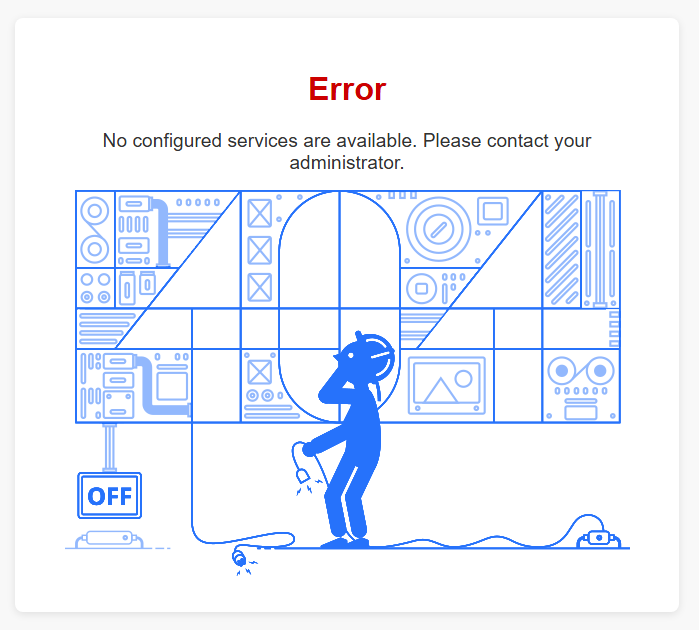
Below are typical error messages and their corresponding explanations and solutions:
Message on error page | Explanation/ Solution |
|---|---|
No configured services are available. Please contact your administrator | This indicates that nodes are not properly configured in the |
Service unavailable due to incompatible node versions. Please contact your administrator | Ensure that the versions of the MetaDefender MFT HA Controller™ and all MetaDefender® MFT nodes are identical. Update installations as necessary. |
Service unavailable. Please contact your administrator | No active node is currently available to process the request. Verify that the Node Manager Service and |
Failed to fulfill the request | The request could not be forwarded to the currently active node. Review the MetaDefender MFT HA Controller™ log files for further details. |
An error occurred while processing your request | Unexpected error has occurred. Review the log files for diagnostic information. |
Service MetaDefender MFT HA Controller™ is unable to start
Confirm that port
8100(as defined inappsettings.json) is not occupied by another service. If necessary, reconfigure conflicting services to use alternative ports. (See: Configuration)
To check port 8100 is used by another process via command line:
If no processes returned for the CMD command, the port is free.
Node cannot be activated or deactivated during a failover
Check firewall rules, network settings:
Ensure whether both nodes are accessible through the wire.
Check whether the necessary ports are allowed by the firewall
Check whether Rate Limit is enabled in MetaDefender® MFT :
If Rate Limiting is enabled, please ensure that the rate limit values are set to their minimums so that the HA Controller can access the Node Manager. Suggested minimums:
Shared Memory Size (MB): 10
Rate: 10
Burst Size: 20
Certificate issue between HA Controller and MFT
RemoteCertificateNameMismatch or RemoteCertificateChainErrors (in Debug log level).
Example
The remote certificate is invalid according to the validation procedure: RemoteCertificateNameMismatch, RemoteCertificateChainErrors
This error typically means the certificate on the server doesn’t match the hostname (RemoteCertificateNameMismatch) or its trust chain is invalid (RemoteCertificateChainErrors). Verify that the server certificate’s subject/SANs match the host, and that the CA / intermediate certs are trusted by the client.
Contacting Support – Support Package
If the above steps do not resolve the issue, please reach out to our support team for assistance.
When contacting support, please generate a support package with the support package tool installed with the product, and send it to our customer service team to help ensure efficient troubleshooting.
Generating a support package
In PowerShell or command line, please navigate to the installation folder of the product.
Run the following commands:
This will generate a support package under your user's directory by default:
AppData\Local\OPSWAT\MFT HA Controller\support-package-<date-time>.zip
In case you want to generate it to a different target path, you can specify --output-file or -o option:
Available options can be listed with --help option: