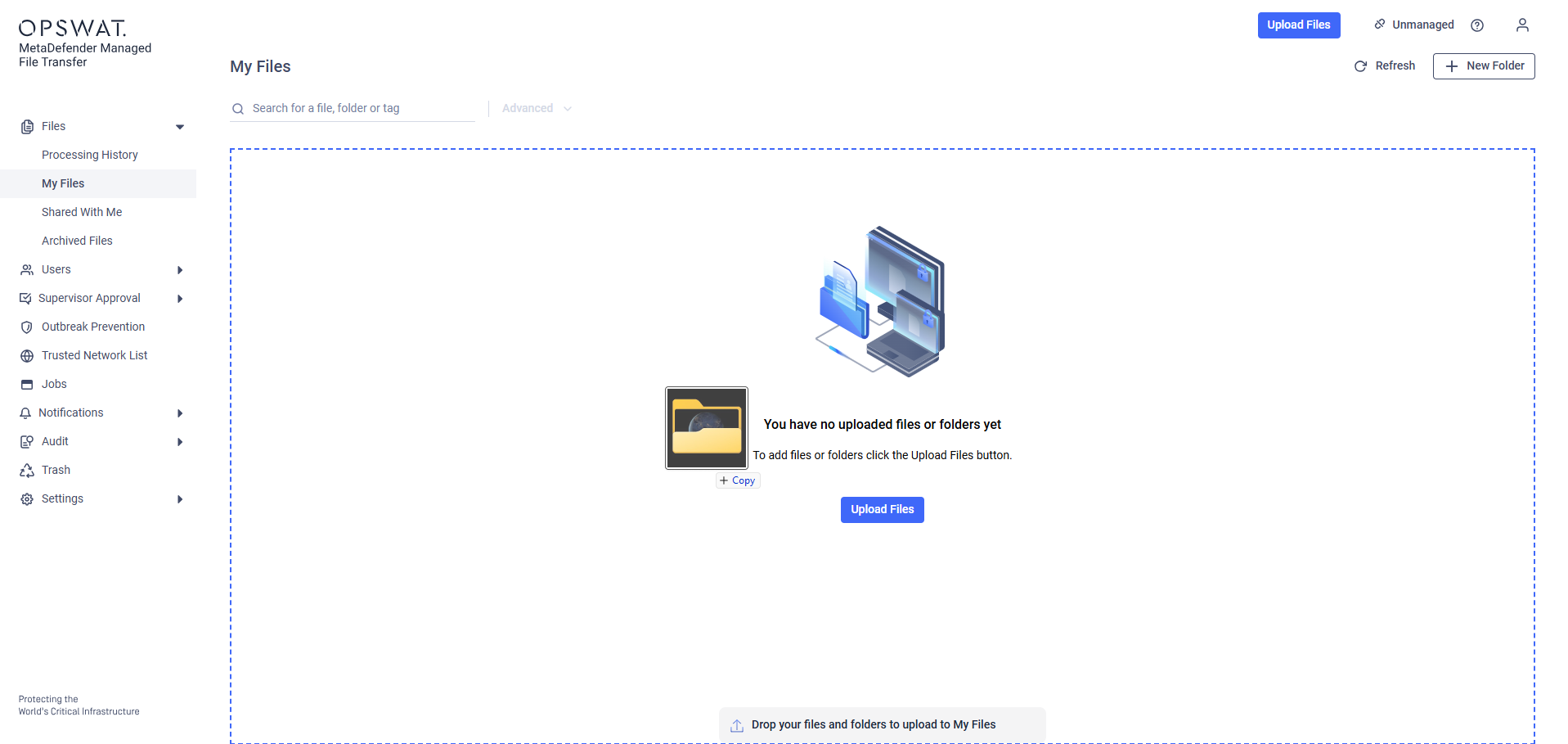
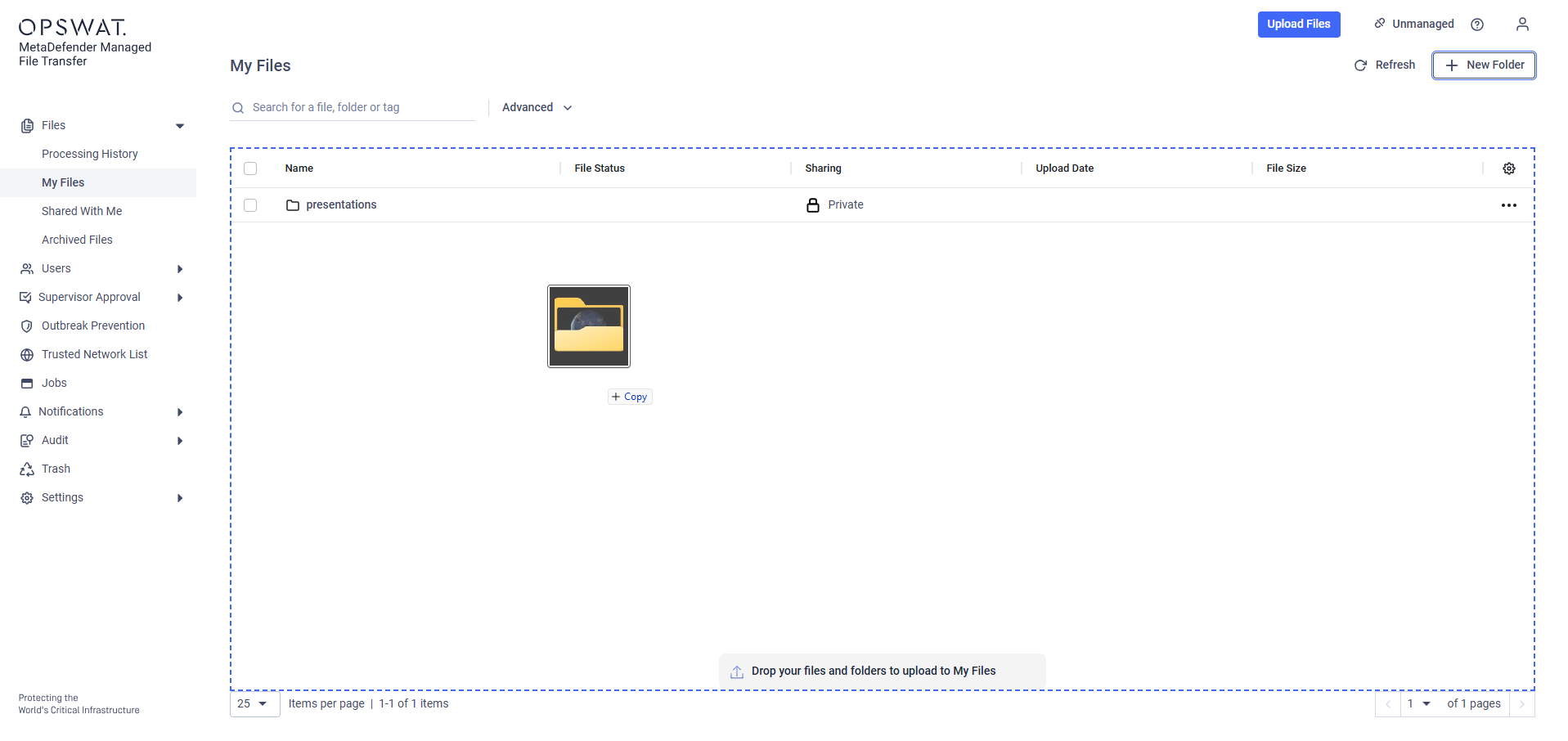
To upload files or folders:
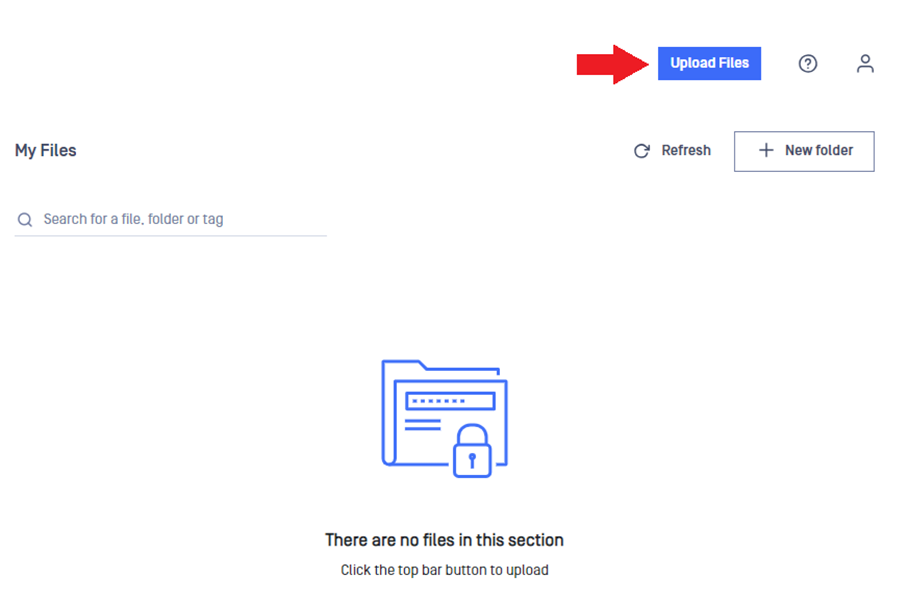
Click the "Upload Files" button.
In the upload window, add files by clicking "+Add files" or drag and drop them.
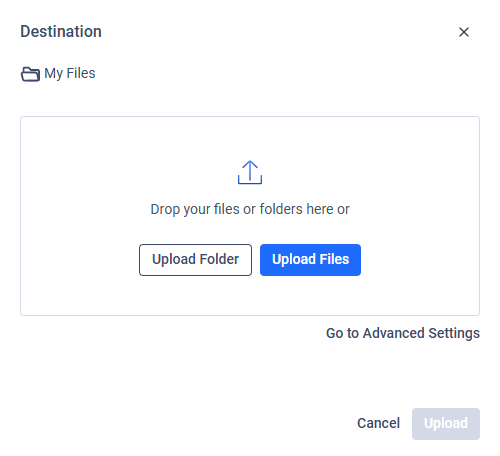
Review the upload list and remove any items by clicking the "×**"** icon next to them.
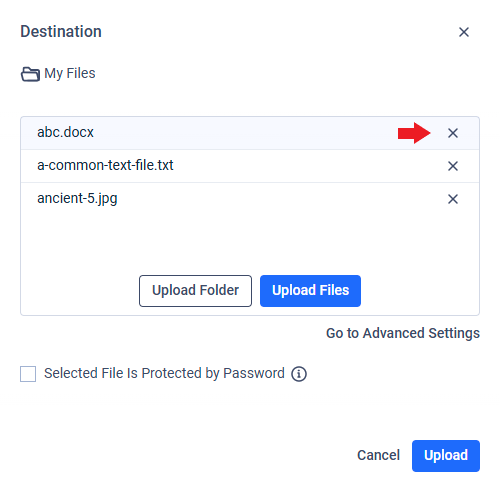
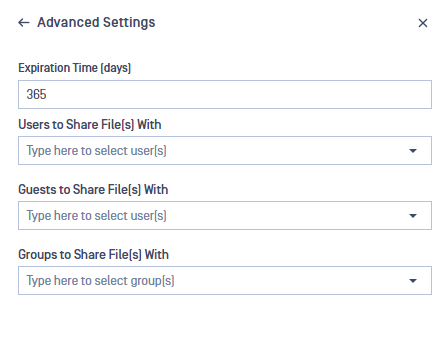
If you want to share files during upload, click "Go to advanced settings" to open the "Advanced settings" window.
Choose users, guests or groups to share the files with, or you can choose to share them later.
Set an expiration date for the files. Administrators may disable this feature.
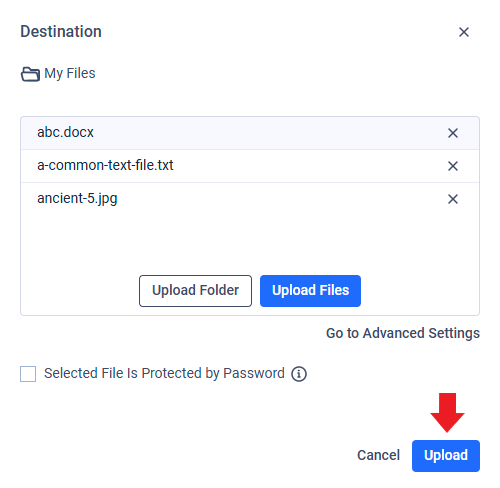
Click "Upload" to start the process.
Folder structure
Uploaded folders will retain their original structure.
Empty folders
Empty folders or subfolders will not be created in MetaDefender MFT.
File size limit
If you encounter issues uploading large files, check with your administrator about the size limit.
Upload size and time limits
If large uploads fail, try dividing them into smaller parts and uploading separately.
Password-Protected Files
To upload password-protected files, provide the password(s) to allow MetaDefender® MFT to scan them.
To provide one or more passwords, select the "File is protected by password" option in the upload window and enter the password. To add additional passwords, click the "+" sign next to the text box.
If an uploaded file is password-protected or contains additional password-protected files inside, you must provide all required passwords to unlock them.
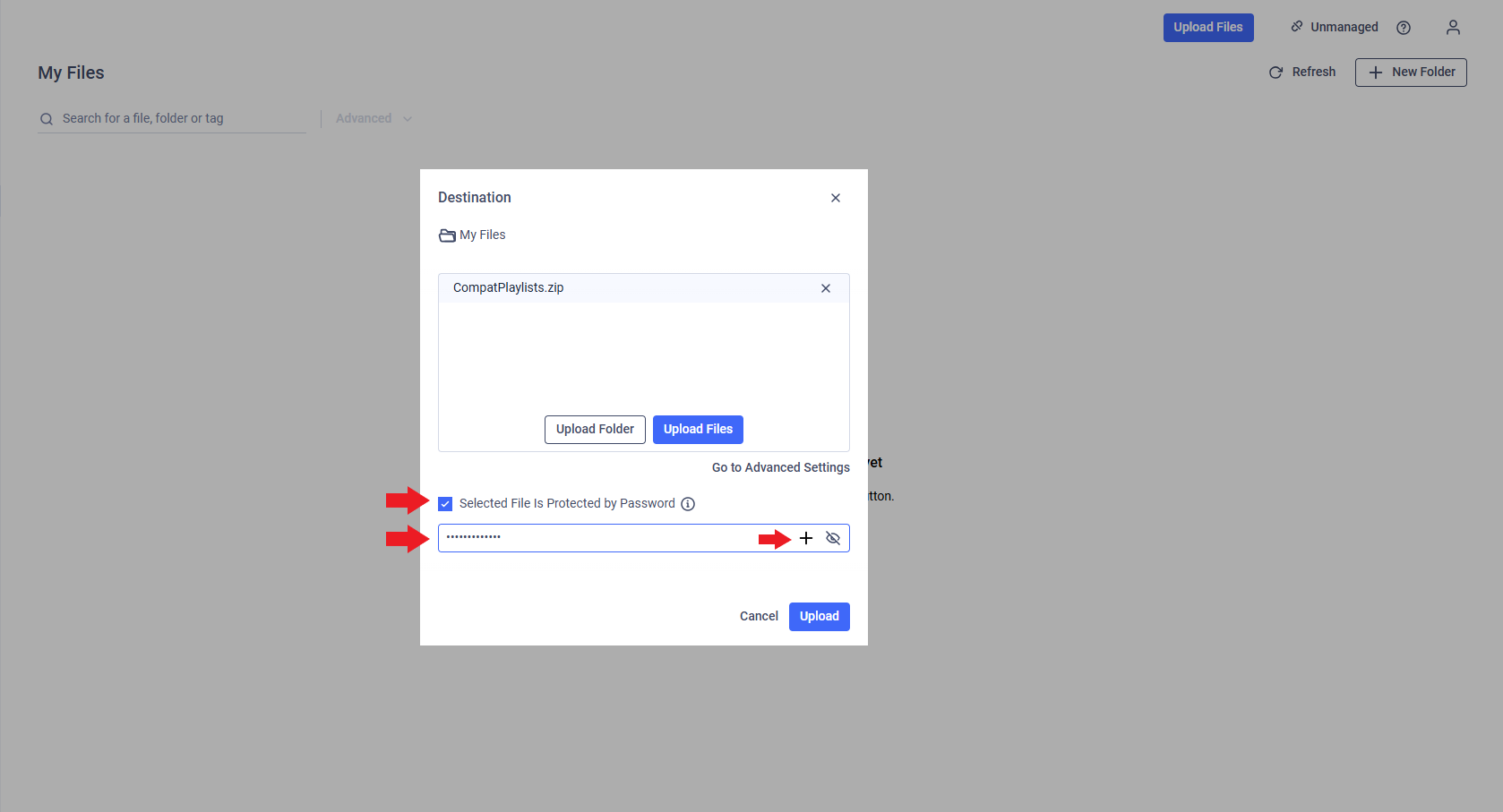
If you upload password-protected files without providing the necessary passwords, the files will be blocked.
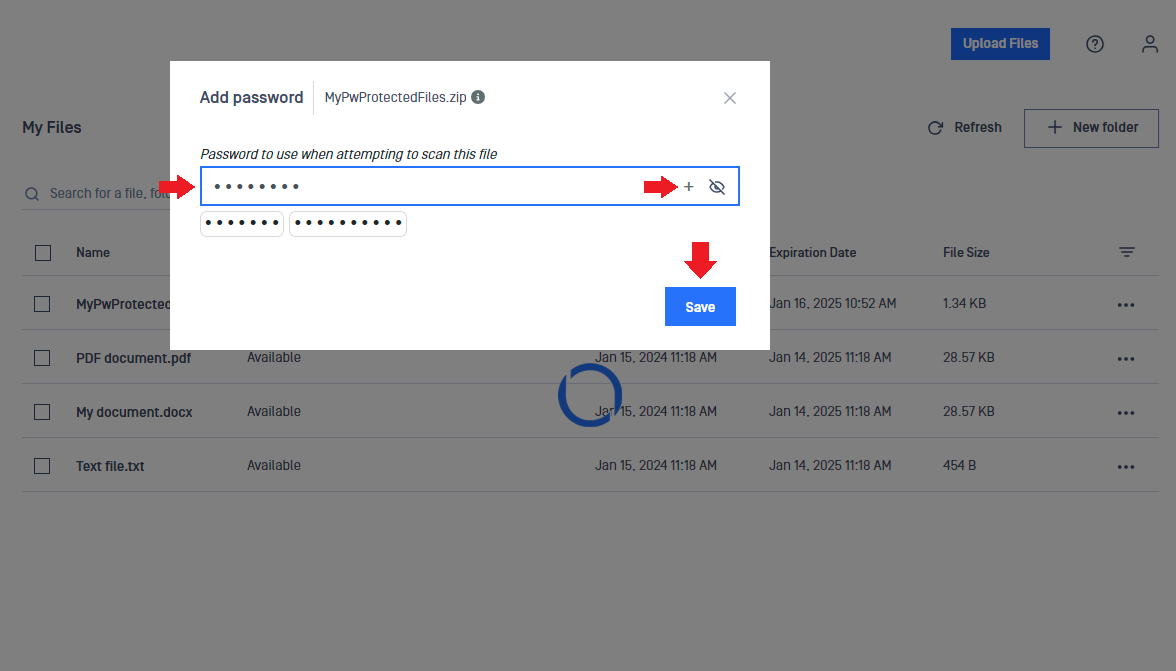
To unlock blocked password-protected files, click the "key" icon next to the file name, enter the password in the "Add Password" window, and click "Save." You can add multiple passwords by clicking the "+" sign if needed. The files will be scanned and made available if no threats are detected.
Drag and Drop Upload
To upload files or folders using drag-and-drop, simply select the items from your file explorer and drag them over to the My Files dropzone area. Once dropped, MetaDefender Managed File Transfer™ will automatically begin the upload process. You can monitor the progress through the upload modal located in the bottom-right corner of the interface.
If you forget to apply certain settings, such as adding an upload reason, setting a password for encrypted files, or sharing the file with someone, you can still configure these options after the upload is complete.