
License Activation Failed Due to Unsupported Calendar Type
If you encounter a license activation issue, ensure your system is set to the Gregorian calendar. Follow these steps to configure this setting in Windows.
Skip this step if system accounts are using a different regional format that the current user.
Go to "Start" → "Control Panel"
Under the "Clock and Region" section select “Change date, time, or number formats”
Select a region that uses the Gregorian calendar by default
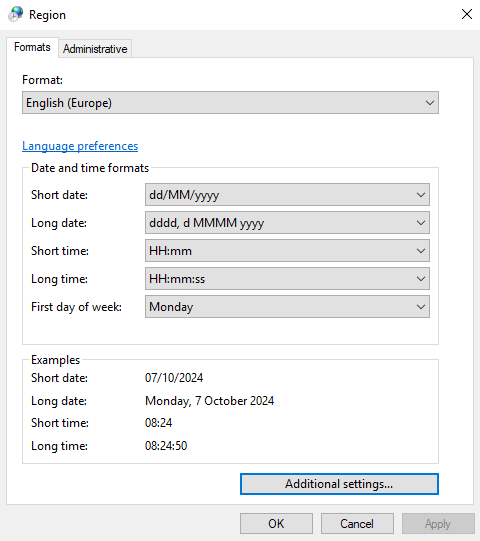
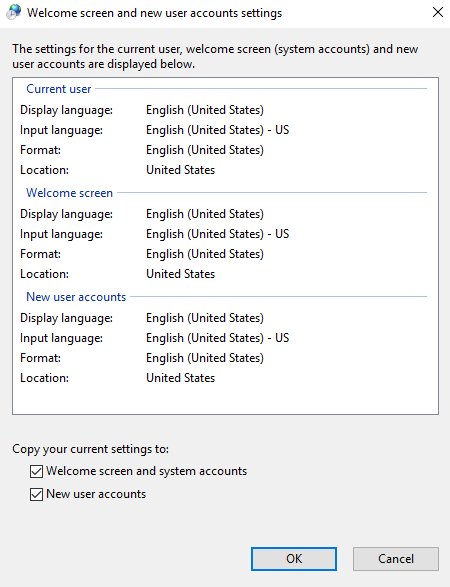
Copy Settings
Skip this step if system accounts are using a different regional format that the current user.
In the "Administrative" tab select "Copy settings..."
Check “Welcome screen and system accounts”
Click "OK"
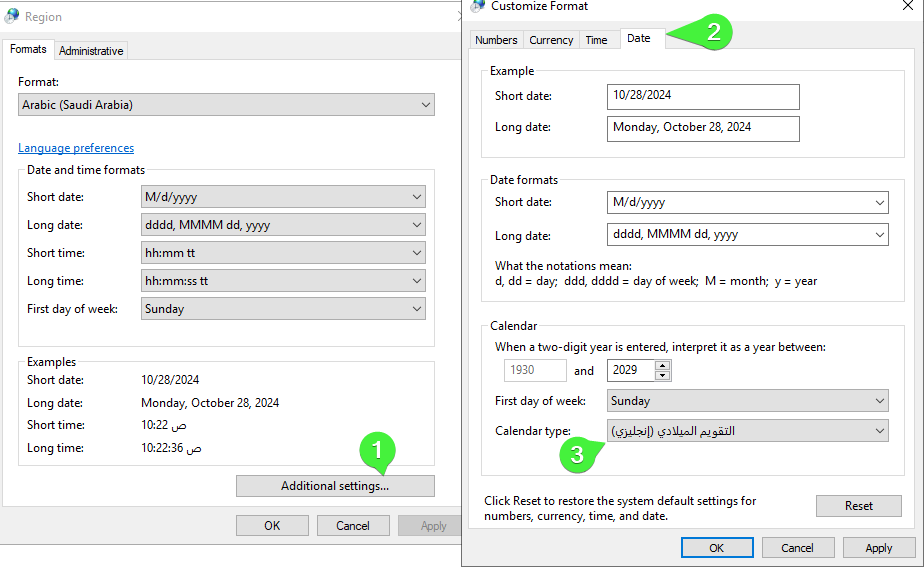
Change Regional Format to Desired Region with Gregorian and Non-Gregorian Calendar Options
Go to "Start" → "Control Panel"
Under the "Clock and Region" section select “Change date, time, or number formats”
Choose a region with both Gregorian and non-Gregorian calendar options
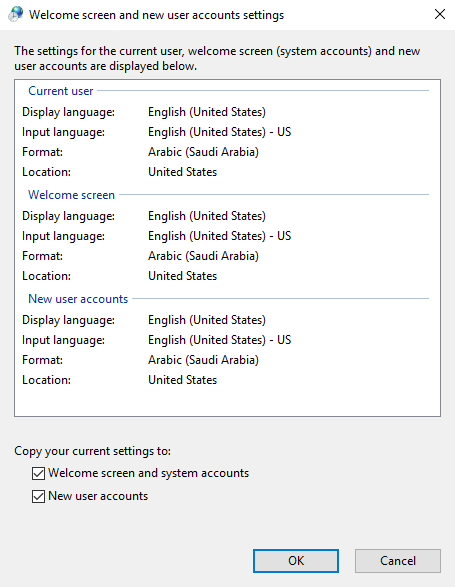
Copy Settings
Go to "Administrative" tab
Select "Copy settings..." and “Welcome screen and system accounts”
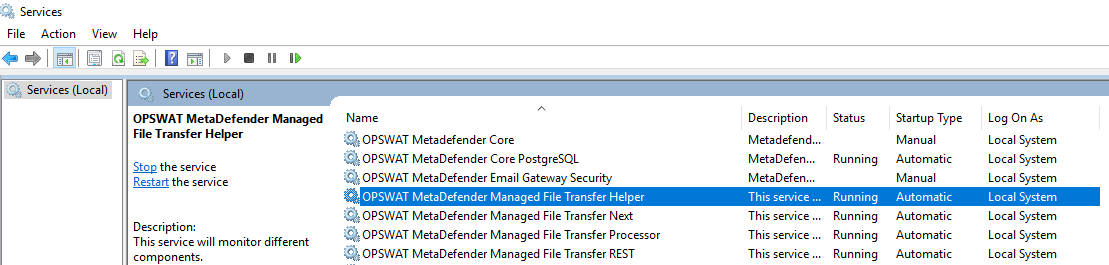
Restart MetaDefender Managed File Transfer Services
Go to "Start" → "Control Panel" → "Services"
Restart the "OPSWAT MetaDefender Managed File Transfer Helper" service
Activate License
After restarting the MFT services, go to the "License Activation" page and attempt to activate your license again.