
For MetaDefender Media Firewall (MMF) to operate, it will need the public key of the signing certificate in order validate media processed by Kiosk. The following sections outline the setup process and configuration of the Media Firewall.
Setup Steps
Setup Media Manifest usage
Windows Kiosk (
Core+Kiosksections only)
Unpack the MMF
connect the power cable
connect the MMF to a host system via the
COMPport
Power on the MMF - it will immediately start in Setup Mode
Power indicator shows solid GREEN and the USB-A indicator shows flashing RED
FirewallCfgdrive appears on the Host
Drag and drop the public certificate into the drive root
If the certificate is valid and correctly formatted, the USB-A indicator will switch to a solid GREEN display
Restart the MMF by powering off & on
Only the certificate is mandatory for setup.
The MMF can be optionally configured to connect to the internet and associated to a My OPSWAT account.
Windows Kiosk: 4.6.3
Linux Kiosk: 5.5.2
It is highly recommended to use these Kiosk versions, at a minimum, in order for the reports from Media Firewall to contain accurate information.
Setup Mode
Setup Mode provides the ability to configure the MMF and provision the public certificate for validation.
When the MMF is started for the first time, it will automatically start in Setup Mode.
The USB-A indicator will be flashing red and a drive named FirewallCfg with a config.ini file will be displayed when connected to a Host system.
Once the certificate has been approved the MMF will be operational after a power cycle.
Apart from the certificate, all other configuration is optional and the MMF will operate normally if any config is invalid.
Accessing & modifying the configuration can only be done in Setup Mode.
Setup Mode is only accessible on first startup or after a Factory Reset.
Configuration
In Setup Mode, MMF will mount a drive named FirewallCfg when connected to a Host.
This drive is used to contain the public certificate for the MMF to validate manifests and a config.ini for configuring the firewall.
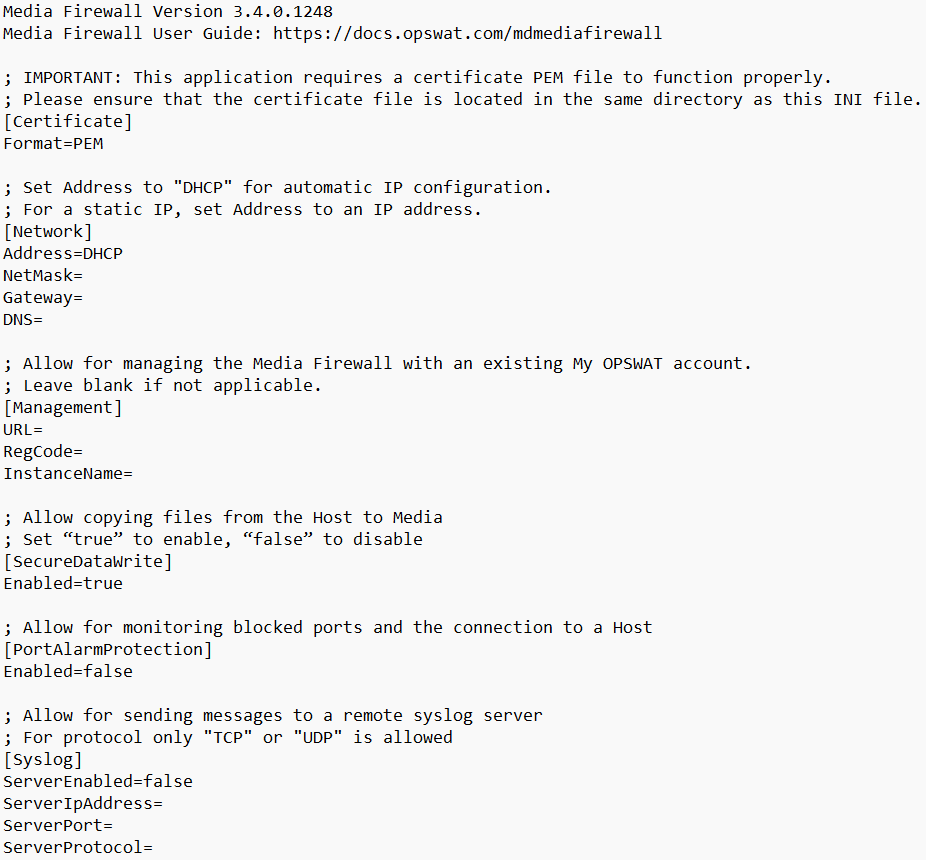
Renaming or deleting the config.ini will result in it reverting back to default configuration
[Certificate]
This section specifies attributes of the public certificate used to validate a media manifest.
Setting | Description | Default Value | Note |
|---|---|---|---|
Format | Format of the public certificate |
|
|
[Network]
This section allows to connect the MMF to a network.
By connecting the MMF to a network, updates will automatically be retrieved when released and allow the ability for the unit to be centrally managed.
Setting | Description | Default Value | Note |
|---|---|---|---|
Address | IP address of the unit |
| Allowed values:
|
NetMask | 32-bit subnet mask | (empty) | |
Gateway | IP of the network gateway | (empty) | |
DNS | IP of the domain name server | (empty) |
[Management]
This section sets the connection to the Central Management server to view statistics, reports and health details of the MMF.
Setting | Description | Default Value | Note |
|---|---|---|---|
URL | URL of the management server | (empty) | My OPSWAT is only supported |
RegCode | Registration code of the account | (empty) | Log into your My OPSWAT account to obtain your registration code |
InstanceName | Name of the device displayed in the management server | (empty) |
[SecureDataWrite]
This section sets the ability to allow copying files from the Host to the media inserted.
Setting | Description | Default Value | Note |
|---|---|---|---|
Enabled | To enable the feature |
| Allowed values:
|
[PortAlarmProtection]
This section sets the ability to monitor blocked ports and the connection to the Host. If any disconnect is detected, the Media Firewall will alert.
Setting | Description | Default Value | Note |
|---|---|---|---|
Enabled | To enable the feature |
| Allowed values:
|
[syslog]
Setting | Description | Default Value | Note |
|---|---|---|---|
ServerEnabled | Enable sending messages | (empty) | Allowed values:
|
ServerIpAddress | IP address of the syslog server | (empty) | |
ServerPort | Port of the syslog server | (empty) | |
ServerProtocol | Protocol to utilize for message transmission | (empty) | __ Allowed values:
|
Upon applying any changes to the syslog configuration, Media Firewall will attempt to log: Logging to remote syslog configured.
If this message is seen, the syslog configuration can be confirmed valid and working.
If no message is seen, the Media Firewall's connection may not have to ability to reach the server.