
After media has been processed, the session results appear.
If any file was not processed by MetaDefender, a warning will pop up indicating that not all files were processed.
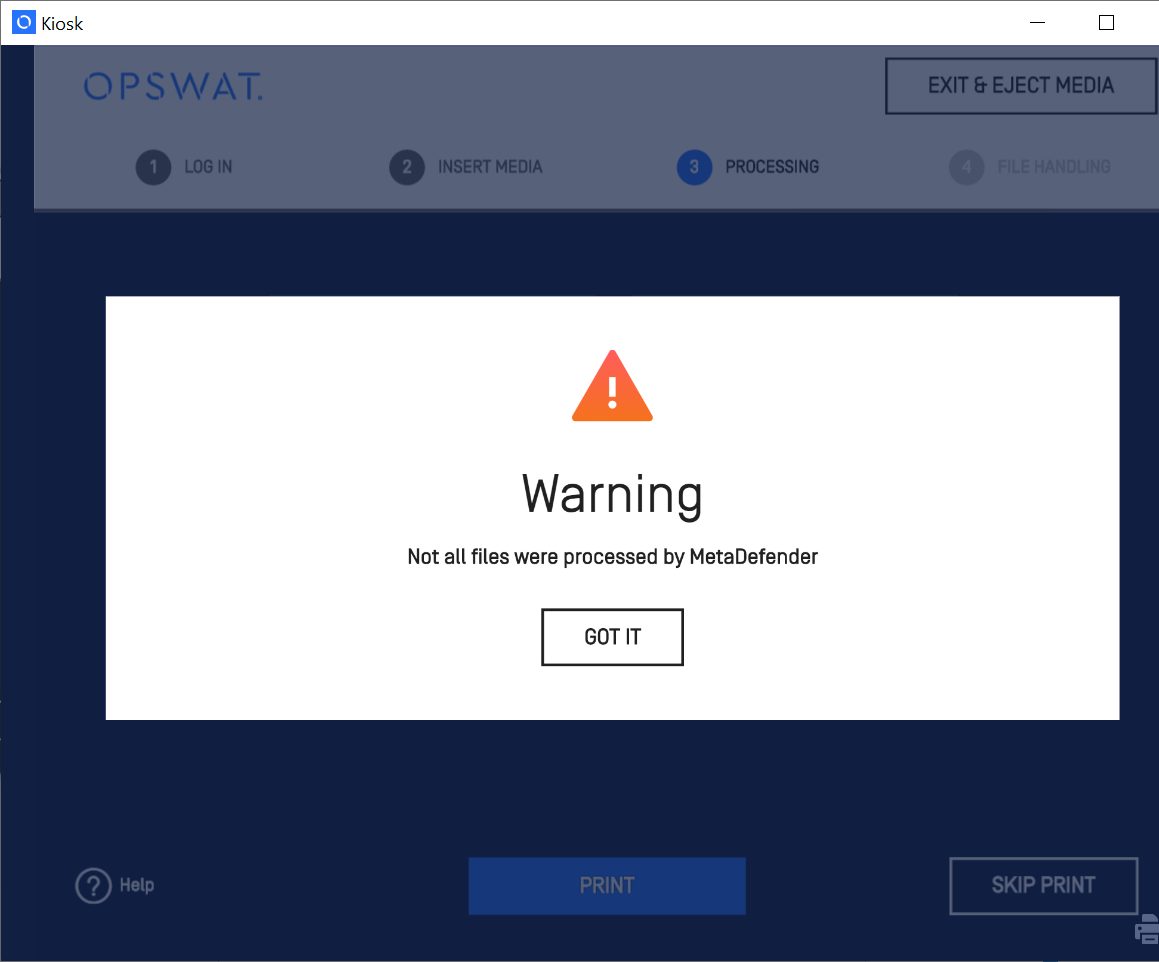
The session results include whether processing was completed or aborted, the number of files allowed and blocked and the total number of files processed.
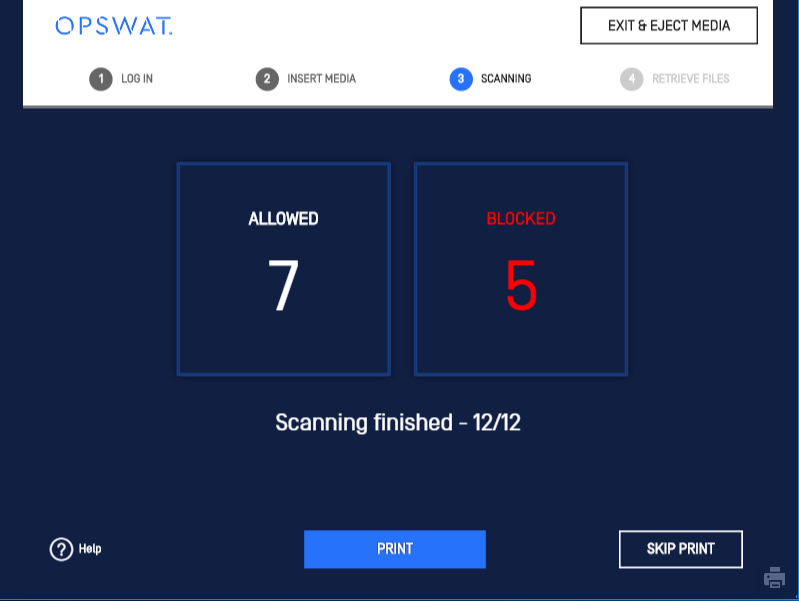
The session result page includes the following buttons:
Allowed: If allowed files are found, then the Allowed count will appear. Click this button to go to the Allowed file summary screen.
Blocked: If blocked files are found, then the Blocked count will appear. Click this button to go to the Blocked file summary screen.
Copy & Print: Clicking this button will begin the file transfer process to any destination configured. If printing is enabled, the session results will be printed to the default printer. If your workflow is configured to offer it, a Wipe Source Media button also appears once copying finishes — see Wiping the Source Media After Copying below.
Viewing details about blocked files
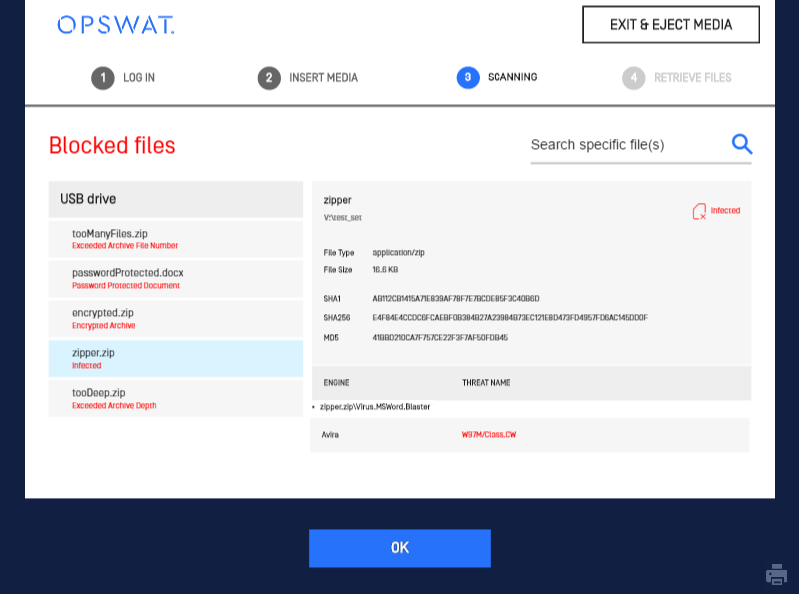
The Blocked File Details screen displays the blocked files detected by MetaDefender Kiosk during processing. You can click a blocked file to view more details.
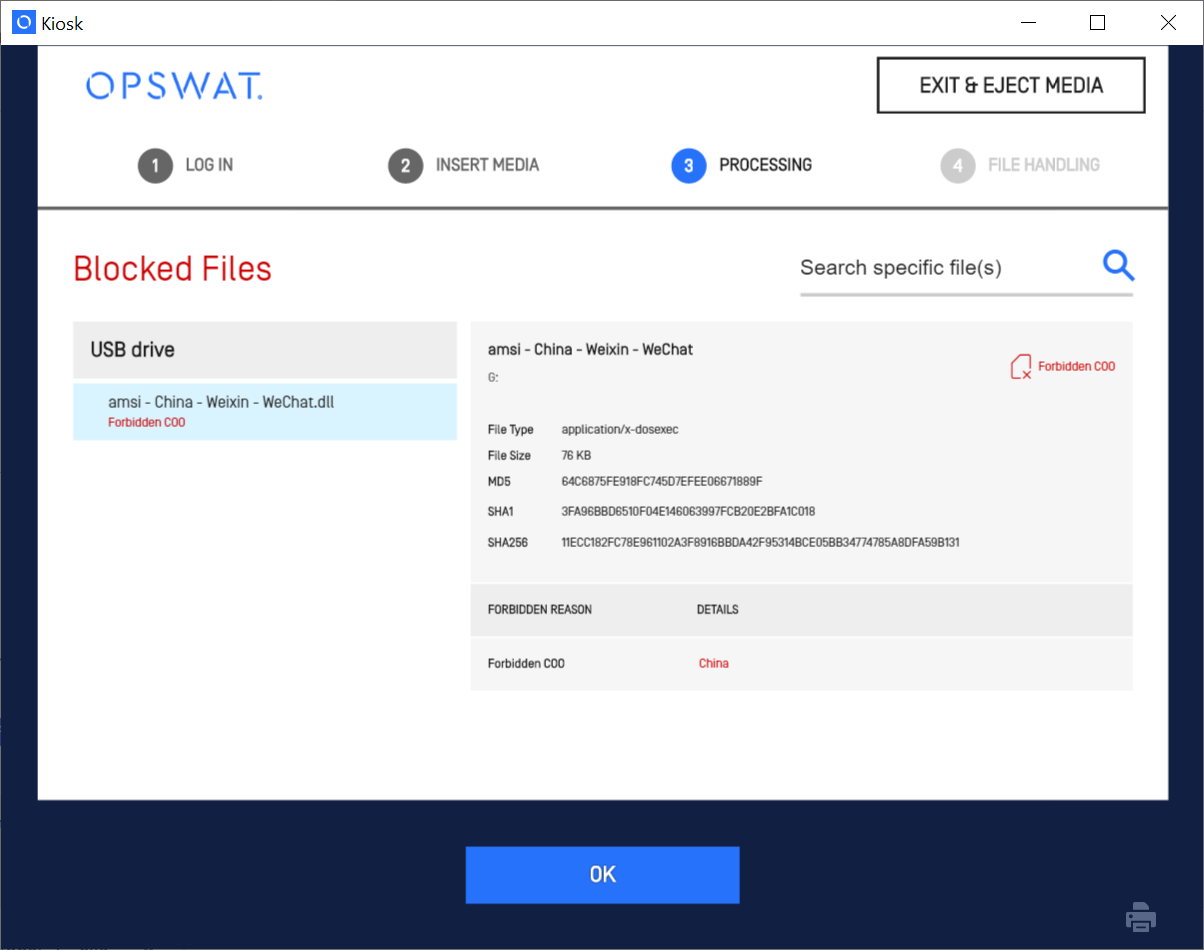
Some files published from countries in the COO forbidden list are reported as blocked as well.
Wiping the Source Media After Copying
A workflow can be configured to offer a Wipe Source Media button on the results screen once your files have finished copying to their destination (another USB drive, a network directory, MetaDefender Managed File Transfer, OneDrive, or SharePoint). This lets you erase the original media you scanned right away, without removing it and starting a separate wipe session.
The button appears after any completed copy step, whatever the mix of allowed and blocked files was. It only affects the media you originally inserted and scanned — any destination media stays untouched.
Turning it on
An administrator enables this per workflow:
In the Kiosk Web Management Console, open Workflows and select the workflow to update.
Open the Processing tab.
Under Use MetaDefender Core, check Show option to wipe original media after copying to secondary location is completed.
Choose the erase method to use: Format, 1 pass wipe, 3 pass wipe, or 7 pass wipe. This is set once by the administrator for the workflow — you won't be asked to choose a method yourself when you tap the button.
Click Save Updates.
This option is off by default.
Don't confuse this with Wipe destination media before copying, a separate workflow setting that erases the media you're copying to, before your files are written to it. This feature works the other way around — it erases the media you copied from, after the copy is done.
What you'll see
Complete a scan and let your files copy to the configured destination.
Once copying finishes, a Wipe Source Media button appears on the results screen alongside any other available actions.
Tap it to erase your original media using the method your administrator configured. Keep the media connected until the wipe finishes.
If copying was skipped for your session, no wipe button is offered.
If your workflow also has Copy & Go enabled, the Kiosk normally moves on to the next screen automatically a few seconds after copying finishes. When both features are on, Wipe Source Media is only available during that same short window — tap it promptly if you need to wipe the media, or the Kiosk will move on without wiping it. If your media was already removed by the time you tap the button, the Kiosk shows an error instead of erasing anything.
USB Protocol Version
When you insert a USB drive, the scanning screen shows the drive's name followed by its USB protocol version — for example, SanDisk 3.2Gen1 (USB 3.0). The same value is recorded in the session report's Device Information section.
The protocol version shown is the one reported by the drive itself (USB 2.0, 3.0, 3.1, or 3.2), not the negotiated transfer speed. A drive that supports a higher protocol version than the port it's plugged into still shows its own higher version — the displayed value describes the drive, not the actual speed of that connection.
This value isn't shown for media that isn't connected over USB — for example, a card inserted into the Kiosk's built-in card reader, a CD or DVD, or a mounted disk image file without USB passthrough.
In a Copy & Go workflow, the scanning screen shows the source drive's protocol version while your files are being processed. Once the session ends, the report lists both the source and destination drives with their own protocol versions.
Data Included in the Kiosk Session Log File
After scanning is complete, button [Copy&Print] or [Print] might appear, depending on settings in the workflow.
The picture below shows the KIOSK Session Summary:
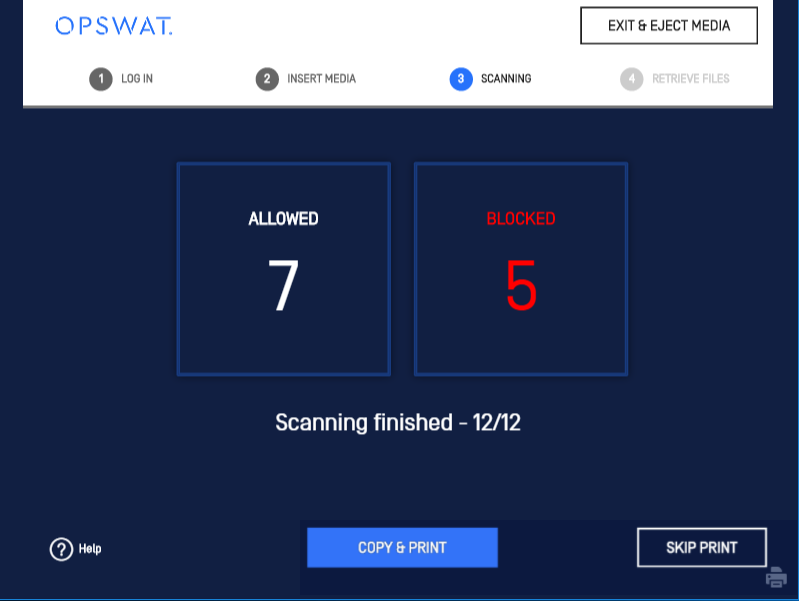
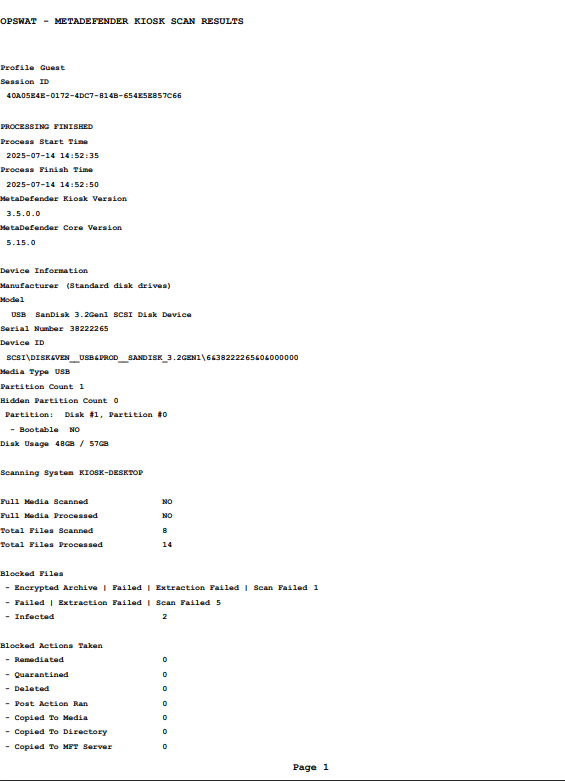
When the user performs the "Print" or "Copy & Print" action on the KIOSK UI, the KIOSK scan results are printed as a PDF on the active printer, allowing the user to review them and proceed with the next actions.
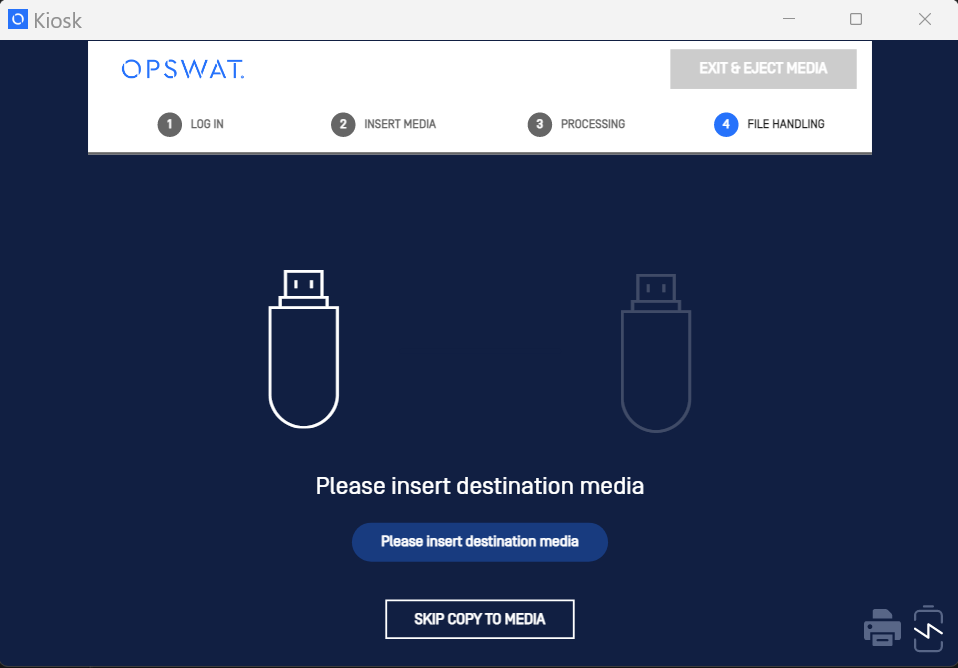
If the current workflow is configured to copy allowed/blocked files to user media, then user is required to insert another media. User should not pull out the source media or the session will be terminated.
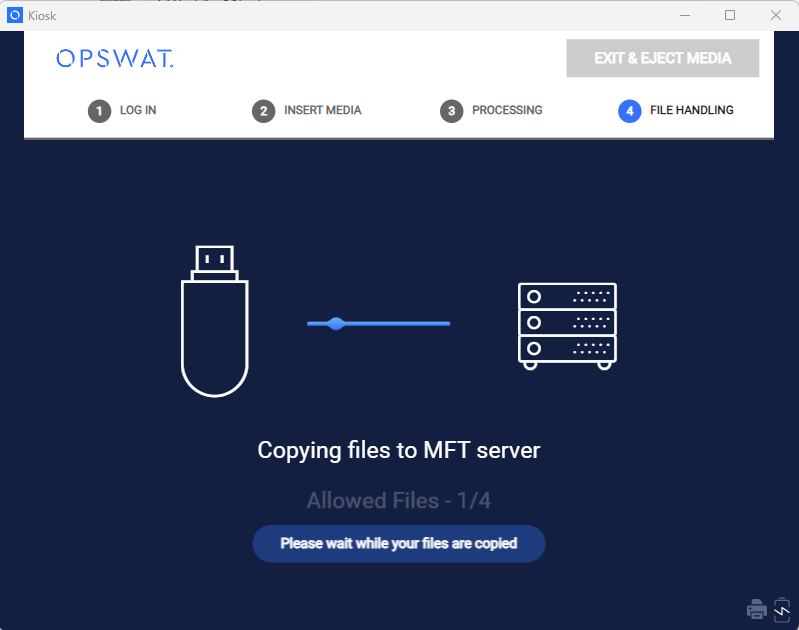
If the current workflow is configured to copy allowed/blocked files to MFT server, user will see the copy progress. It might take time depending on network bandwidth and file sizes.
In case of uploading to MFT server, the uploaded files can be accessed later from MFT with the same user credential that has been loggend into the Kiosk session. In case of guest login, the file owner MFT ID is generated and concealed on the screen result for security reasons, click on the eye icon to reveal it.
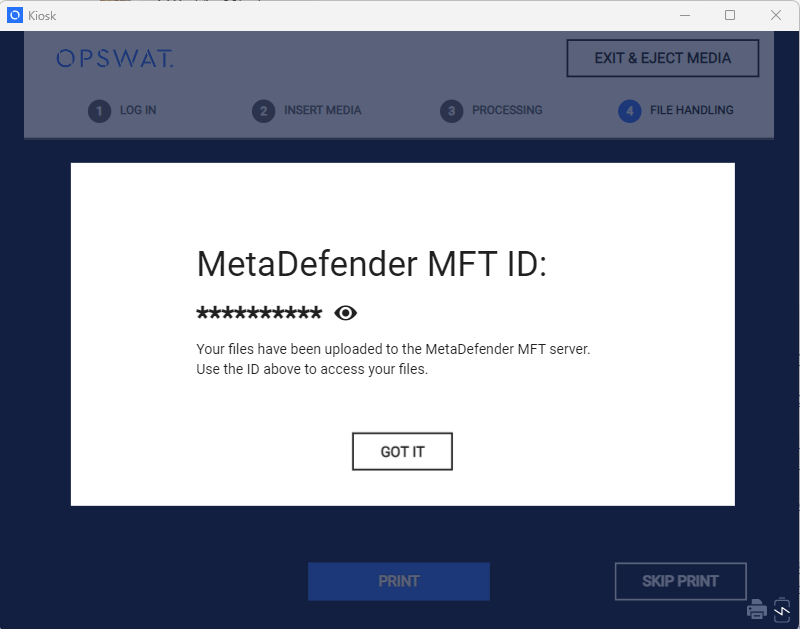
See 9.6. Viewing the Session Results for more information.
The following information is included in the printout.
Data Item | Description |
|---|---|
User ID | If you are using Windows authentication, this is your Windows user ID. If you are not using Windows authentication, this is blank. |
Profile | The MetaDefender Kiosk profile that was used for this session |
Session ID | The unique session ID generated for this MetaDefender Kiosk processing session |
Scan Completion Status | PROCESSING FINISHED SUCCESSFULLY or PROCESSING ABORTED! |
Process Start Time | Processing start time |
Process Finish Time | Processing finished time |
MetaDefender Kiosk Version | The product version of the MetaDefender Kiosk application |
MetaDefender Core Version | The product version of the MetaDefender Core server |
MetaDefender Managed File Transfer Version | The product version of the MetaDefender Managed File Transfer server if used to process files |
Download URL | The URL where files were attempted to be retrieved from |
Processed Data Size | The total size of all files processed during the session, shown as a single value with its unit (for example, KB, MB, or GB) |
Device Information | Section that includes identifying information for the physical media device that was scanned, if available, from the device |
Manufacturer | Manufacturer of the media that was processed |
Model | The model of the physical media that was processed |
Serial Number | The serial number of the physical media that was processed |
Device ID | A unique ID of the device whose value can be used for USB allowlisting |
Media Type | The type of physical media that was processed |
USB Protocol Version | The USB protocol version reported by the connected drive (USB 2.0, 3.0, 3.1, or 3.2). Not shown for media that isn't connected over USB. |
Partition Count | The number of partitions on the device |
Hidden partition Count | The number of hidden/unsupported partitions on the device |
Partition Name
| Name of the partition on the device and whether it is a bootable partition |
Disk Usage | The amount of space used / the total size of the drive |
Scanning System | The machine name of the MetaDefender Kiosk system where the processing was done |
Wipe Result | The result of any wipe action performed during the session — including a manual wipe and, starting in MetaDefender Kiosk 4.8.2, the source-media wipe available after copying finishes. |
Full Media Scanned | Indicates whether all of the files on the media were scanned by MetaDefender (excludes "Not Scanned" & "Failed" results) |
Full Media Processed | Indicates whether all of the files on the media were processed through the entire Kiosk workflow (e.g. MetaDefender processing + file handling) |
Total Files Scanned | The total number of files scanned by MetaDefender |
Total Files Processed | The total number of files processed by MetaDefender Kiosk |
Total Files Not Processed | The total number of files not processed by MetaDefender Kiosk, usually in the case that the session was canceled during processing |
Downloaded Files | The total number of files successfully retrieved |
Failed to Download | The total number of files unsuccessfully retrieved |
Blocked Files | Section that lists the files blocked by MetaDefender. If a blocked file is an archive, each blocked file inside that archive is also listed individually — see Viewing Blocked Files Inside an Archive below. |
<blocked result> | List of blocked results returned by MetaDefender. For an archive, this is the archive's overall result; the specific file(s) inside it that caused the block are listed separately, with their own reasons. |
Blocked Actions Taken | Section that includes a summary of the actions taken on blocked files |
Remediated | The number of files remediated by MetaDefender |
Quarantined | The number of files quarantined by MetaDefender Kiosk or MetaDefender |
Deleted | The number of files deleted by MetaDefender Kiosk |
Post Action Ran | The number of files processed by the post action script defined in MetaDefender Kiosk |
Copied To Media | The number of files copied to another device |
Copied To Directory | The number of files copied to another location |
Copied To MFT Server | The number of files copied to a MetaDefender Managed File Transfer server |
Moved To Media | The number of files moved to another device |
Moved To Directory | The number of files that were moved to another location |
Moved To MFT Server | The number of files moved to a MetaDefender Managed File Transfer server |
Copied to [media, directory, MFT Server] | The location where files were copied |
Moved to [media, directory, MFT Server] | The location where files were moved |
Allowed Actions Taken | Section that includes a summary of the actions taken on allowed files. The descriptions are the same as those described above for blocked files. |
Skipped Files | The number of files skipped by configuration set in MetaDefender Kiosk |
File Type Totals | The number of files of each file type that were included in the processing session |
Deleted Files | The list of files removed during processing. Each file will have the PATH, ATTRIBUTES and SHA-256 listed. |
Quarantined Files | The list of files quarantined during processing. Each file will have the PATH, ATTRIBUTES and SHA-256 listed. |
Quarantine Failures | The list of files failed to be quarantined during processing. Each file will have the PATH, ATTRIBUTES and SHA-256 listed. |
Skipped Files | The list of files that were skipped and not sent for scanning. Each file lists its PATH, ATTRIBUTES, SHA-256, and REASON. The REASON identifies why the file was skipped — see Understanding Skipped File Reasons below for what each reason means. |
Files Failed SHA-256 Verification | The list of files that failed SHA-256 verification during copy/move (if SHA-256 Verification was enabled). Each file will have the PATH, ATTRIBUTES, SHA-256 and REASON listed. |
Files Failed to be Remediated | The list of files that failed to be remediated. Each file will have the PATH, ATTRIBUTES and SHA-256 listed. |
Files Failed to be Deleted | The list of files that failed to be deleted. Each file will have the PATH, ATTRIBUTES and SHA-256 listed. |
Files Sent to MFT for Processing | The list of files sent to MFT for processing. Each file will have the PATH listed. |
Detected Symlink Files (not scanned) | The list of symbolic links found that were not processed. Each link will have the PATH listed. |
Files Downloaded | The list of files successfully retrieved. Each file waill have the PATH listed. |
Files Failed to Download | The list of files that failed to be retrieved. Each file will have the PATH listed. |
Allowed Files | The list of allowed files in the session. Each file will have the PATH, ATTRIBUTES and SHA-256 listed. |
Path | The relative path to the given file. For a file inside a disk image (VHD, VHDX, VMDK, Acronis TIB/TIBX, Clonezilla, or LVM) that has more than one partition, the path also shows which partition the file came from — for example, |
Attributes | Displays if a file has "Hidden" and/or "System" attributes enabled |
SHA-256 | The hash value of the given file |
Threat Name | The name of the infection for the given file |
Scan Result | The scan result of the detected file threat |
Detected File Type | The detected content type of the file |
File Type Description | The description of the detected file type |
Reason | The reason the file has been included in the current list |
Process Server | The server url the file was processed on |
Disk Image Partition Details
When a scanned disk image (VHD, VHDX, VMDK, Acronis TIB/TIBX, Clonezilla, or LVM) contains more than one partition, the session report includes a short summary for that image:
The number of partitions found.
How many of those partitions were scanned, and how many could not be scanned — for example, because a partition failed to mount.
Basic information about each partition, such as its filesystem type, size, and volume label, where the disk image format provides it.
Every file's path elsewhere in the report (see Path in the File Detail Columns table above) also identifies which partition it came from, so you can tell exactly where inside a multi-partition image a given file was found — for example, E:\test.vhd\Partition2\evil.exe.
This applies to the on-disk session log, the printed report, and the emailed session report.
A single-partition disk image continues to report the same way it always has — this detail only appears for images with more than one partition.
For most disk image formats, a partition that can't be mounted is still counted as "not scanned" rather than being silently left out of the partition count. For a few formats, this count may only reflect partitions Kiosk can examine directly, so treat the not-scanned count as a lower bound rather than an exact figure for those formats.
For Linux LVM-based volumes, the partition list may occasionally show the LVM container itself rather than the individual partition(s) it holds. OPSWAT is aware of this and is working on an improvement.
Viewing Blocked Files Inside an Archive
When MetaDefender Kiosk blocks an archive (such as a .zip, .7z, or .rar file), the session report lists every blocked file inside that archive individually — not only the ones found to be infected. Each blocked file inside the archive shows:
Its full path within the archive (including any nested folders or archives inside the archive).
The specific reason it was blocked — for example, infected, password-protected, or restricted by policy.
This means an archive that contains a mix of allowed, password-protected, and infected files will show each blocked file separately, with its own path and reason, rather than a single combined result for the whole archive. If the same file name appears more than once in different folders inside the archive, each occurrence is listed as its own entry with its own full path.
This detail appears in the saved session log, the printed report, and the emailed session report, wherever your Kiosk administrator has enabled report detail for blocked files.
If an archive itself cannot be opened at all (for example, because the entire archive is encrypted), Kiosk cannot look inside it to list individual files — in that case, only the archive's own result is shown.
Understanding Skipped File Reasons
When MetaDefender Kiosk cannot send a file for scanning, the file appears in your scan results as Skipped, along with a specific reason. Common reasons include:
Reason shown | What it means |
|---|---|
System Volume Information file was skipped | The file is part of Windows' hidden System Volume Information folder, which every NTFS drive uses for system data such as System Restore points. |
BitLocker metadata file was skipped | The file is part of the encryption metadata BitLocker stores on an encrypted drive, rather than user data. |
OS-protected file was skipped | The file is located in a protected operating system folder that Windows does not allow standard applications to read. |
Reparse point or symbolic link was skipped | The item is a shortcut-like link (a symbolic link or junction point) rather than an actual file, so there's no file content to scan. |
Hidden file was skipped | The file has its Windows "hidden" attribute set. |
These are expected, system-level skips rather than scan failures — none of them indicate that MetaDefender Kiosk failed to process your media. You can see the specific reason for each skipped file:
On the Kiosk touch screen, in the scan result details for that session.
In the session log (available as a text file or PDF, depending on your configuration).
In the file history you export from the Logs page in the Kiosk Web Management Console.
Whether a given category of file is skipped in the first place (rather than something Kiosk attempts to scan) is controlled by your administrator's scanning configuration. If you believe a file was skipped that shouldn't have been, check with your administrator before assuming something went wrong with the scan.
Note: The printing process is executed on windows system profile and might need an accessible Desktop folder for that profile. If the Desktop folder is not available, Kiosk will temporarily create it and remove it after the printing is complete. Kiosk might also change the access permission of the parent folder of the Desktop to full control to create the subfolder Desktop and restore its original permissions when the printing is complete. However, if IT administrators have changed the permission to Denied, Kiosk keep everything unchanged. Please ask the IT to change its permission or just proceed the printing by clicking OK when the warning popup "Location is not available" occurs.