
Overview
This document is based on MetaDefender Kiosk 4.8.5 and My OPSWAT Central Management 10 (CM10). It also covers the differences for Kiosk devices managed by My OPSWAT Central Management 8 (CM8).
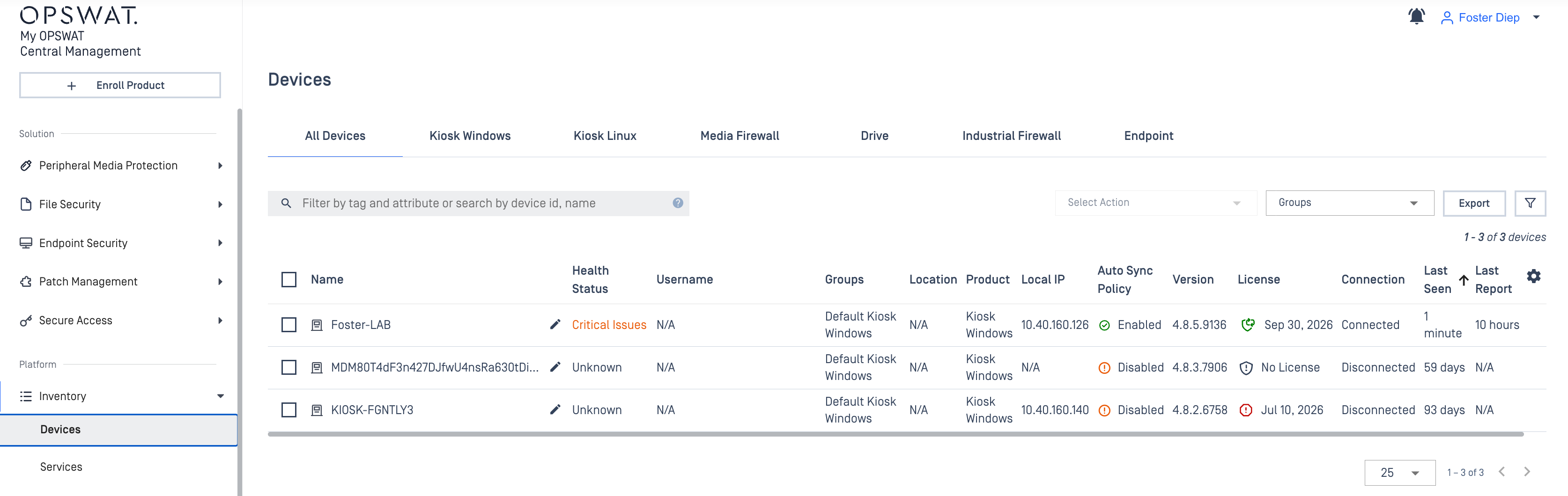
When a Kiosk device is enrolled in Central Management, most of its configuration moves to Central Management. You make configuration changes in Central Management, and they are pushed to the device and shown in its Kiosk Console.
You can still sign in to the Kiosk Console on an enrolled device, but most settings there become read-only. You can view the current values, but you can't change them locally.
Some settings stay on the device and must be configured directly in the Kiosk Console, because Central Management doesn't manage them. For example:
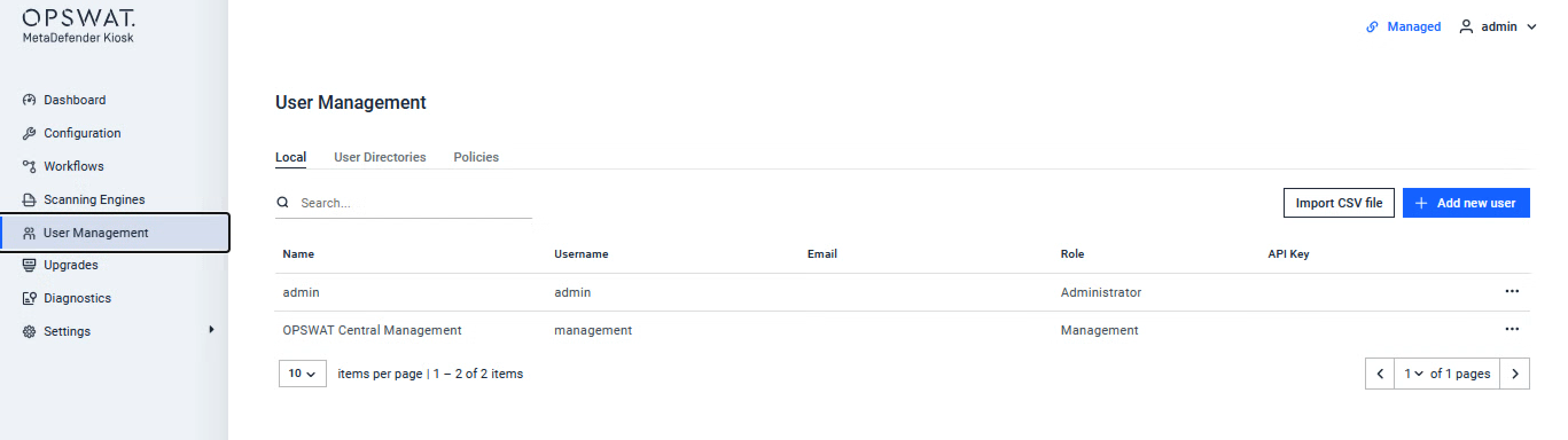
User Management: adding or editing the administrators who sign in to the Kiosk Console.
License activation and deactivation: activating or releasing the license on a specific device.
Backup/Restore: backing up or restoring the device's configuration file.
Local logs: viewing Session History, Application Log, Windows Event Log and Visitor Log while troubleshooting.
A few settings follow their own rules even though they are managed centrally. Network settings, for example, must be set on each device individually and are never applied from a policy. Some settings can also be excluded from a policy for a single device (CM10 only). Exceptions and special behavior explains these cases in detail.
Feature availability table
This table applies to a Kiosk device that is enrolled in My OPSWAT Central Management (CM8 or CM10). The Kiosk Console column shows what you can still do on the enrolled device itself.
Each row is a page and section of the Kiosk Console. A section row covers all the settings in that section. A row starting with ↳ is a specific setting that behaves differently from the rest of its section.
Legend
Symbol / label | Meaning |
|---|---|
✅ | Configurable here |
👁️ | Shown read-only when managed by Central Management |
⚠️ | Available with a limitation (see the note next to the symbol) |
❌ | Not available here |
Excludable | CM10 only: can be excluded from a policy for a single device (see Settings you can exclude from a policy) |
Instance only | Set per device; never applied from a policy (see Settings that are never applied from a policy) |
Page | Section / ↳ setting | Kiosk Console | CM8 | CM10 |
|---|---|---|---|---|
Dashboard | — | ✅ | ❌ | ❌ |
Configuration | Integrations | 👁️ | ✅ | ✅ |
↳ Primary MetaDefender Core Server | 👁️ | ✅ | ✅ — Excludable | |
↳ MetaDefender Managed File Transfer Server | 👁️ | ✅ | ✅ — Excludable · 4.8.4+ | |
Report | 👁️ | ✅ | ✅ | |
↳ Sync report to My OPSWAT / Only sync when has blocked files | ❌ | ❌ | ✅ — CM10 10.3.2511+ | |
Kiosk UI | 👁️ | ✅ | ✅ | |
↳ Screen saver: Browse file | 👁️ | ❌ | ✅ | |
Country of Origin | 👁️ | ✅ | ✅ | |
Advanced | 👁️ | ✅ | ✅ | |
↳ Keep GPG decrypted files | ✅ | ❌ | ❌ | |
👁️ | ✅ | ✅ | ||
↳ Email Recipients | 👁️ | ✅ | ✅ — Excludable · 4.8.4+ | |
↳ Send test email | ✅ | ❌ | ❌ | |
Languages | 👁️ | ✅ | ✅ | |
↳ Default Language | 👁️ | ✅ | ✅ — Excludable | |
Backup/Restore | ✅ | ❌ | ❌ | |
Workflows | All workflow tabs | 👁️ | ✅ | ✅ |
↳ Media Manifest certificate (Processing, Retrieve Files) | 👁️ | ⚠️ — Local certificates only | ✅ — Local and My OPSWAT certificates · Excludable · 4.8.5+ | |
↳ MetaDefender Core workflow rule selection, Logging certificate, Visitor custom logo and Badge Printer, Custom Authentication | ✅ | ❌ | ❌ | |
Scanning Engines | Engines, Scanning Configurations | 👁️ | ✅ | ✅ |
↳ Expert mode | ✅ | ❌ | ❌ | |
Security | Secure Connection | 👁️ | ❌ | ✅ — Excludable · 4.8.5+ |
Administrator Privileges | 👁️ | ❌ | ✅ | |
Certificate | ✅ | ❌ | ⚠️ — Add under Settings > Certificates, then assign to an instance or policy | |
GPG Keys | ✅ | ❌ | ❌ | |
BitLocker Recovery Keys | ✅ | ❌ | ❌ | |
System Hardening | All sections | 👁️ | ✅ | ✅ |
↳ Change autologon password | 👁️ | ❌ | ✅ — Hardened Image only · 4.8.5+ · CM10 10.7.26080+ | |
↳ Blocked USB devices list | 👁️ | ⚠️ — Instance only | ⚠️ — Instance only | |
↳ Enable Encrypted Drive Verification | ✅ | ❌ | ❌ | |
Upgrades | Kiosk Hardened Image Upgrade | 👁️ | ✅ — Under Configuration > System Upgrade | ✅ |
Upgrade History | 👁️ | ✅ | ✅ | |
Kiosk Application Upgrade | ✅ | ✅ — Scheduled from the policy | ⚠️ — Use an upgrade job under Updates > Software · CM10 10.4.2602+ | |
Network | Ethernet, Advanced | 👁️ | ⚠️ — Instance only | ⚠️ — Instance only |
↳ Proxy | 👁️ | ⚠️ — Instance only | ⚠️ — Instance only · Excludable · 4.8.5+ | |
Logs | Syslog | 👁️ | ✅ | ✅ |
Session History | ✅ | ❌ | ⚠️ — Use session report files (Download ZIP) · CM10 10.3.2511+ | |
Application Log, Windows Event Log, Visitor Log | ✅ | ❌ | ❌ | |
Diagnostics | — | ✅ | ❌ | ❌ |
License | License status | 👁️ | ❌ | ✅ |
↳ Activation / deactivation | ✅ | ✅ | ✅ | |
↳ Usage Report | 👁️ | ❌ | ✅ — Editable in a group policy | |
User Management | — | ✅ | ❌ | ❌ |
About | Device Information | 👁️ | ✅ | ✅ |
Resource, Documentation | ✅ | ❌ | ❌ |
Exceptions and special behavior
Settings you need to configure on the Kiosk Console
Central Management doesn't manage the settings below, so you need to configure them directly in the Kiosk Console on each device. They stay editable there after enrollment.
Area | Why you configure it on the Kiosk Console |
|---|---|
User Management | Central Management doesn't manage Kiosk Console administrators yet, so each device keeps its own list of accounts that can sign in to its Kiosk Console. |
License activation / deactivation | Licenses are activated on, and released from, a specific device. Keeping this on the Kiosk Console lets you move or replace a license on one Kiosk without changing anything else. Central Management still shows license status and usage across the fleet. |
Backup/Restore | A backup captures that one device's configuration, and a restore writes it back to that device. |
Diagnostics, Expert mode | These are troubleshooting and tuning tools that act on the device you are working on, usually while you are at it. |
Session History, Application Log, Windows Event Log, Visitor Log | These logs are stored on the device and are read locally, for example when investigating an issue on site. |
GPG Keys, BitLocker Recovery Keys | These keys belong to a specific device and are kept on it rather than distributed to other devices. |
Keep GPG decrypted files, Send test email, Enable Encrypted Drive Verification | These are local-only settings or actions. Send test email, for example, checks that email works from that particular device. |
A new operator needs to sign in to the Kiosk Console at one site. Add the account on that Kiosk under User Management. There is no equivalent setting in Central Management.
Settings that are never applied from a policy
A policy is designed to give many devices the same configuration. Some settings are unique to each device, and pushing one value to every device in a policy would break them. Central Management therefore never applies these from a policy, even to devices assigned to that policy. You configure them for each device individually, from that device's instance in Central Management.
Setting / action | Behavior | Why it isn't applied from a policy |
|---|---|---|
Network settings | Network settings coming from a policy are ignored. They are applied only when set for that specific device. | Each device needs its own network identity, such as its IP address. The same value on every device would cause address conflicts or cut devices off from the network. |
Power control (Restart / Shutdown) | A power action coming from a policy is rejected, and the device records the event. | A restart or shutdown sent through a policy would reach every device in it at once, which could take a whole group of Kiosks offline in the middle of user sessions. Power actions are only accepted when aimed at one device. |
Blocked USB devices list | Applying the policy doesn't change it. The device keeps its own list. | The list records the USB devices that were detected and blocked on that particular Kiosk, so it reflects that device's own history. |
Your Kiosks use static IP addresses. If you set an IP address in a policy, every device would receive the same address. Central Management prevents this by applying network settings only per device.
If a policy change needs a reboot (for example, a System Hardening change), the device reboots only once. Re-applying an unchanged policy doesn't trigger another reboot.
Settings you can exclude from a policy (CM10 only)
Policy exclusion is available only in CM10. With CM8, a device always takes every setting from its policy.
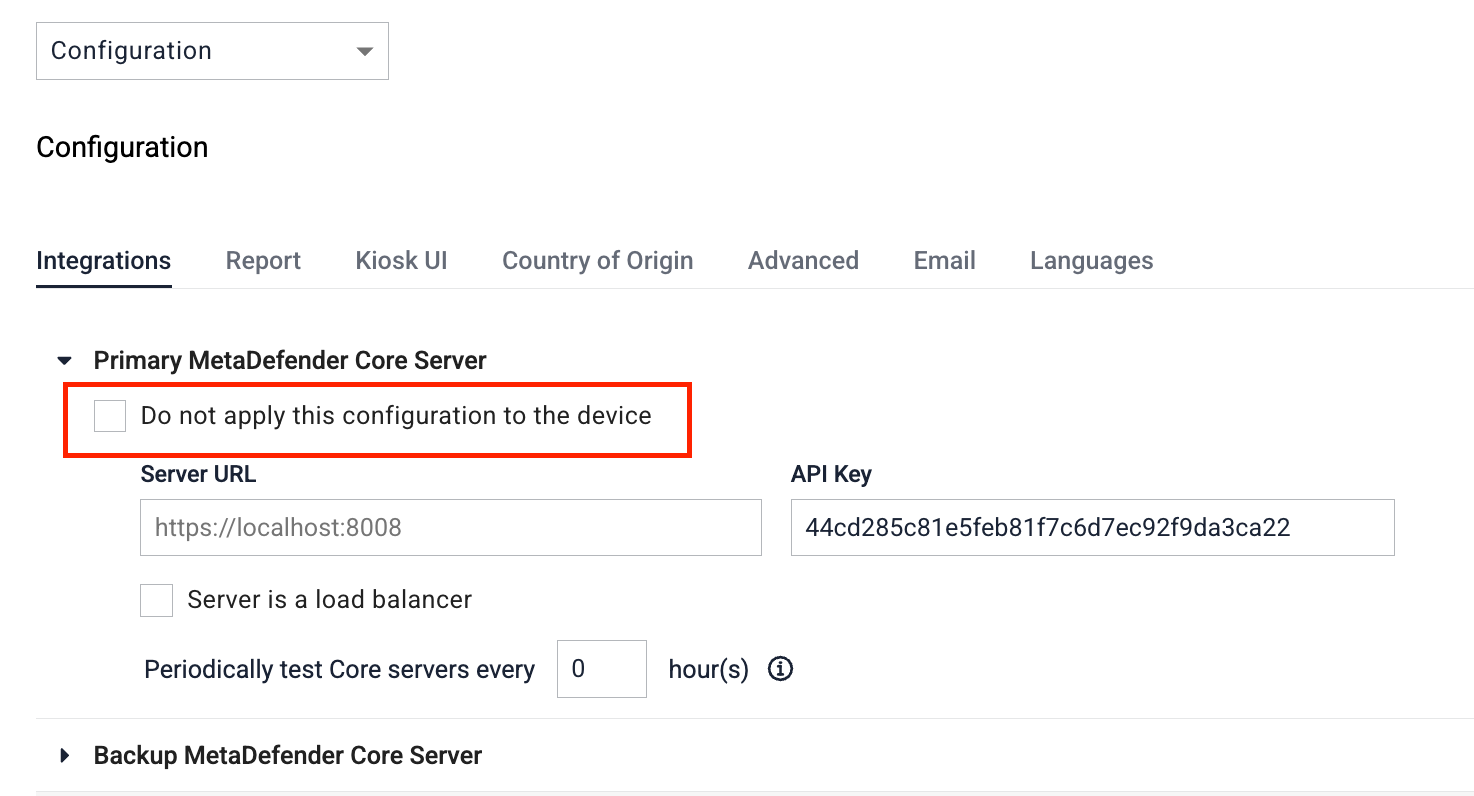
By default, a device takes every setting from its policy. For the settings below, you can select Do not apply this configuration to the device in the CM10 policy. The device then keeps its own local value for that setting and still takes everything else from the policy.
Why exclusion is useful. Devices that should share almost the same configuration often still differ in a few details, such as which local server they connect to or which language their users speak. Without exclusion, you would have to create and maintain a separate policy for every combination of those details. Excluding a setting lets you keep one policy for the whole group, which keeps the configuration consistent and easier to manage, while each device keeps the few values that are specific to its site.
Setting | Available from |
|---|---|
Primary MetaDefender Core Server | Kiosk 4.8.2 |
Default Language | Kiosk 4.8.2 |
MetaDefender Managed File Transfer Server, Email Recipients | Kiosk 4.8.4 |
HTTPS / certificate, Proxy, Processing manifest, Retrieve Files manifest | Kiosk 4.8.5 |
Two sites share one policy, but each site scans with its own local MetaDefender Core server. Exclude Primary MetaDefender Core Server from the policy so that each Kiosk keeps its local server. The Backup MetaDefender Core servers in the policy are still applied.
When Default Language is excluded, the language list and translated texts from the policy are still applied. Only the default selection stays local.
Policy and device on different Kiosk versions
Every policy is saved together with the Kiosk version it was created on. In a real fleet, devices are rarely all on the same version. Some Kiosks are upgraded before others, and a policy is often created once and reused for years. What happens when the policy's version and the device's version don't match depends on your Central Management version.
CM10: one policy for Kiosks on different versions
CM10 supports applying a policy to Kiosks on older and newer versions than the one the policy was saved with. You don't need a separate policy for each Kiosk version, and you don't need to recreate your policy every time you upgrade your Kiosks.
When a device receives a policy saved with a different version, it matches the policy's settings to its own version before applying them:
Settings that exist in both versions are applied from the policy.
Settings that exist only on the device's version are left untouched. The device keeps its current values for them, because the policy doesn't contain them.
Settings that exist only in the policy's version are skipped when the device runs an older version that doesn't have them.
Your policy was saved with Kiosk 4.8.2, and you upgrade some Kiosks in the group to 4.8.5.
The 4.8.5 Kiosks still receive the policy. Workflows, Kiosk interface, System Hardening and every other setting that already existed in 4.8.2 are applied exactly as defined in the policy.
Settings introduced after 4.8.2 (for example, the autologon password added in 4.8.5) aren't in the policy, so each 4.8.5 Kiosk keeps its own values for them.
The Kiosks that stay on 4.8.2 receive the same policy as before.
To manage the newer settings centrally as well, save the policy again with Kiosk 4.8.5.
Some items in a policy are actions or version-specific data rather than regular settings. These are only applied when the policy and the device are on the same Kiosk version:
MetaDefender Core engine actions (enable, disable, pin or update engines), MetaDefender Core workflow settings and MetaDefender Core general settings
The blocked USB devices list
Hardened Image and Kiosk application upgrade and rollback actions
Two more rules apply:
Proxy settings aren't applied from a policy saved with a Kiosk version earlier than 4.8.1. The device keeps its current proxy settings.
All sections of a policy must be saved with the same Kiosk version. If one part of the policy was saved with a different version than the rest, the device doesn't apply the policy.
This requires CM10 10.2.2510 or later.
CM8: the policy and the device must be on the same version
CM8 only applies a policy to devices on the same Kiosk version the policy was saved with. A device on any other version ignores the policy. With CM8, upgrade all devices in a group together, then save the policy again with the new version.
If a policy can't be applied
When a device can't apply its policy, it doesn't change its configuration. It keeps its current settings and shows a status message explaining why. The table below lists these messages, when they appear and how to fix them.
Message shown on the Kiosk | When it appears | What to do |
|---|---|---|
Policy configurations created for different Kiosk versions are not supported in this My OPSWAT version | CM8 only. The policy was saved with a different Kiosk version than the one on the device. | Upgrade the device, or save the policy again, so that both are on the same Kiosk version. Or move to CM10, which supports mixed versions. |
Failed to apply configuration from policy. Retrying... | Different sections of the policy were saved with different Kiosk versions. | Open the policy and save all its sections with the same Kiosk version. |
Automatic sync unavailable due to incompatible version. Upgrade Kiosk version to enable syncing. | The policy was saved with a Kiosk version too new for this device to convert. | Upgrade the device to a Kiosk version that supports the policy. |
Behavior that changes after enrollment
Session reports. After each session, the Kiosk always sends the session report data (scan results) to My OPSWAT. Sync report to My OPSWAT only controls whether the report files (Download ZIP) are uploaded, either for every session or only for sessions with blocked files. For example, with Only sync when has blocked files enabled, you still see results for every session in My OPSWAT, but ZIP reports are available only for sessions that blocked a file.
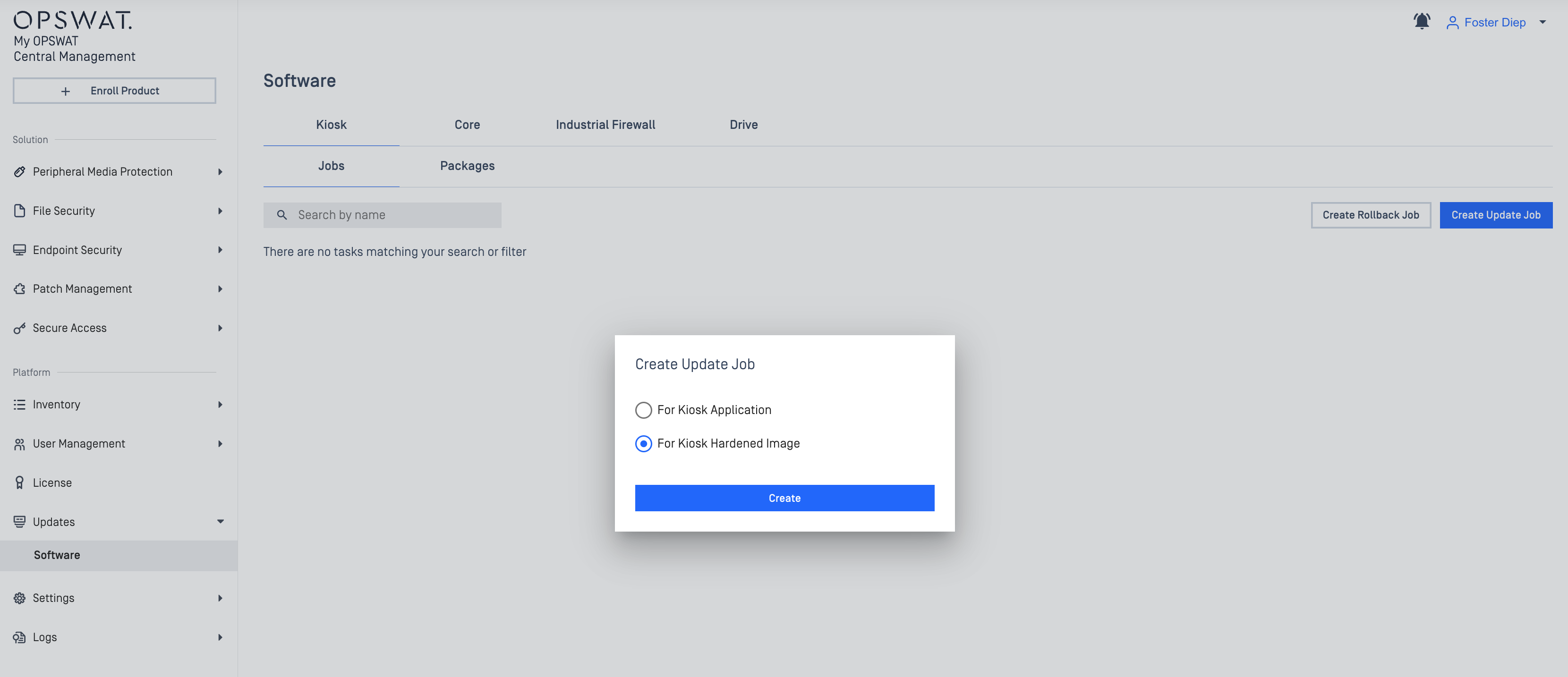
Kiosk application upgrade (CM10). Upgrades are started from Central Management as upgrade jobs under Updates > Software, with progress and results reported for each job.
Upgrade banner (CM10). The "Upgrading…" warning banner isn't shown in the CM10 configuration pages.
Certificates (CM10). Certificates managed in My OPSWAT are downloaded to the device and refreshed automatically. When you unenroll, any that are still in use are converted to local certificates, so HTTPS and Media Manifest keep working.
"MyOPSWAT does not support this feature"
In the Central Management configuration pages, a setting that can only be configured on the device shows the tooltip "MyOPSWAT does not support this feature." Configure these settings in the Kiosk Console on each device. These are the rows marked ✅ Kiosk Console and ❌ CM8 / ❌ CM10 in the Feature availability table.
CM8 vs CM10 at a glance
These capabilities are available only with CM10:
Security page (HTTPS)
Screen saver file upload
My OPSWAT certificates for Media Manifest
Session report files
Applying a policy created for a different Kiosk version
Remote commands (application upgrade, support package, script execution)
The Upgrades and License pages
Policy exclusions (keeping a device's local value for selected settings)
We recommend CM10 for managing Kiosk devices.
Minimum version reference
Capability | Kiosk | CM10 |
|---|---|---|
Apply a policy created for a different Kiosk version | 4.8.2 | 10.2.2510 |
Session report files (Sync report to My OPSWAT) | 4.8.2 | 10.3.2511 |
Remote Kiosk application upgrade, support package | 4.8.2 | 10.4.2602 |
Remote script execution, remote Hardened Image upgrade | 4.8.2.3 or 4.8.3 | 10.4.2602 |
Change autologon password | 4.8.5 | 10.7.26080 |