
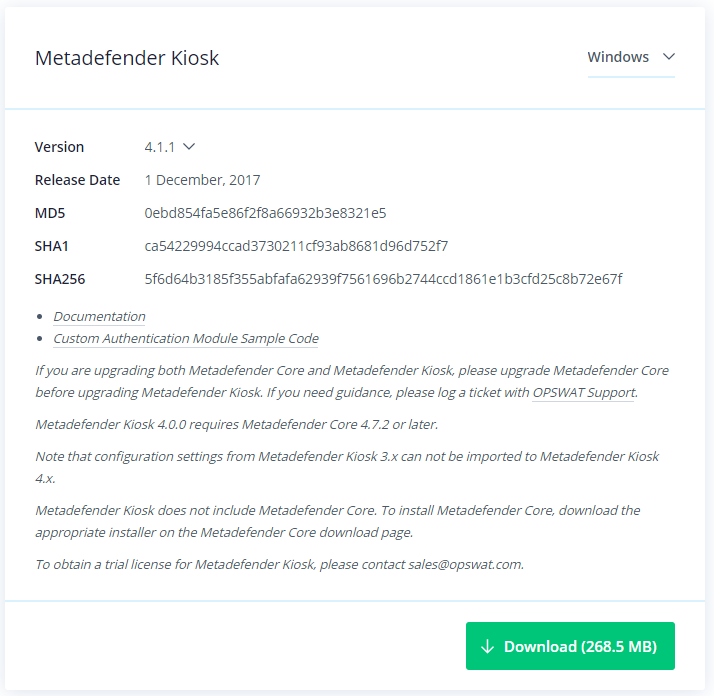
Go to https://portal.opswat.com/products/metadefender-kiosk and click Download.
If you are not already logged in to the portal, you will be prompted to login
Double click the downloaded executable. The Welcome window appears.
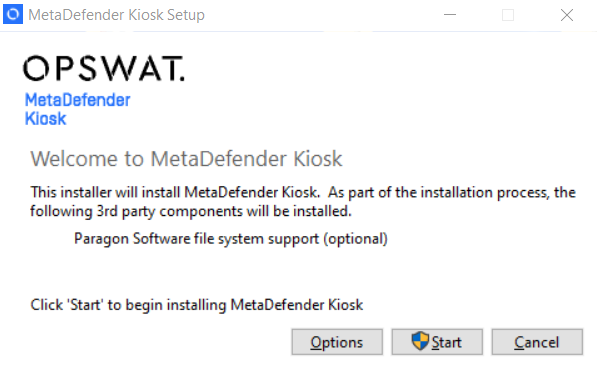
Click Start . The Setup Progress window appears, followed by the Setup Wizard Welcome window.
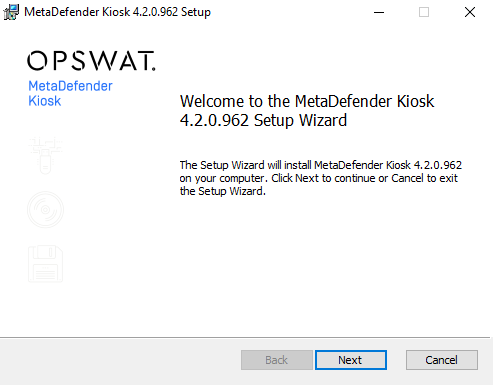
Click Next . The End User License Agreement window appears.
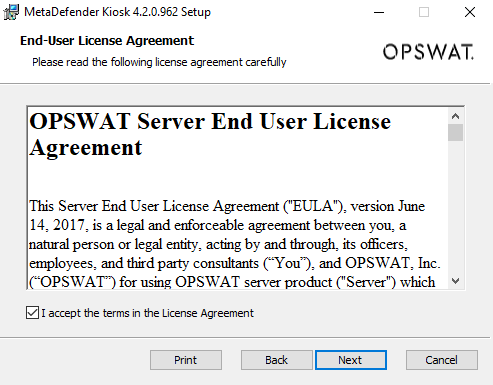
Read the EULA, select the I accept the terms in the License Agreement checkbox, and then click Next . The Custom Setup window appears.
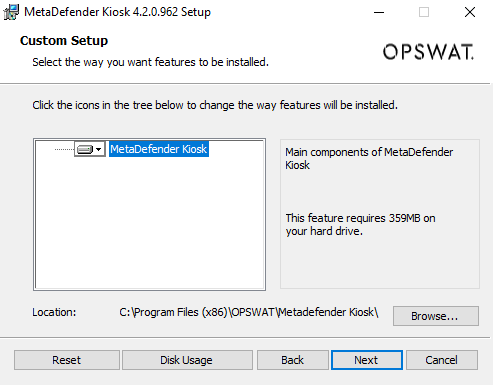
Change the default location of the MetaDefender Kiosk components, if required, using the Browse button. Click Disk Usage to view a window that displays the disk space requirements for MetaDefender Kiosk and the amount of available disk space for the selected location. Click Reset to reset the location back to default.
It is recommend to install MetaDefender Kiosk in the default location
Click Next . The Ready to Install window appears.
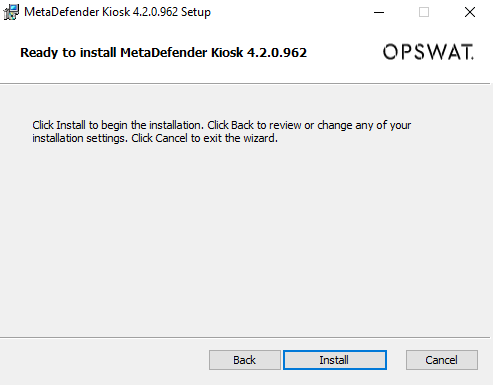
Click Install . A window appears which displays the status of the installation process, followed by the Completed window.
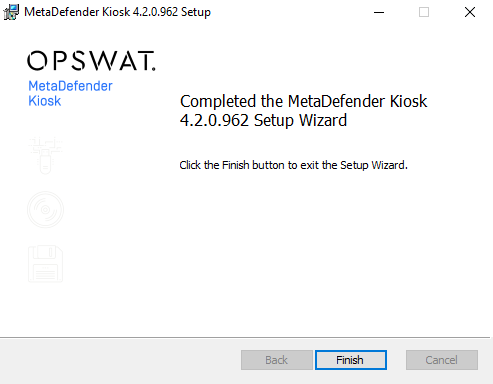
Click Finish . The Setup Complete window appears.
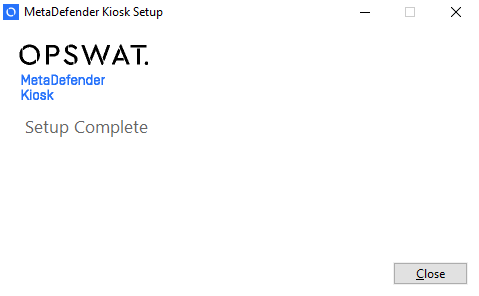
Click Close . MetaDefender Kiosk is now installed.