
Version | 5.16.0 |
|---|---|
Release date | 21 Oct 2026 |
Scope | File-type scan control, processing stages, new File Security dashboard, ICAP/HTTP traffic capture, and FIPS 140-3 enforcement This release enables users to scan only the file types they need, resolve request issues faster with built-in traffic capture, and see why files are allowed or blocked. Users can also upgrade instances remotely, keep instance-specific Server Profiles under group policies, and meet compliance requirements with FIPS 140-3.
|
Before upgrading MetaDefender ICAP Server to v5.10.0 or newer from v5.6.0 or earlier, make sure you review the Release Notes and the following Documentation:
New Features, Improvements and Enhancements
Details | |
|---|---|
Scan Scope by File Type | Choose which files are sent to MetaDefender Core, so scan capacity isn't spent on files that don't need scanning. What changed: File type control used to work only as an allowlist. Selected types skipped scanning, and everything else was scanned. To scan just a few types, you had to select almost every other type. The allowlist is now called Scan Scope by File Type, and its Scan mode has three options:
More details:
How to access: Go to Workflows > select a Workflow > File Scanning > Scan Scope by File Type 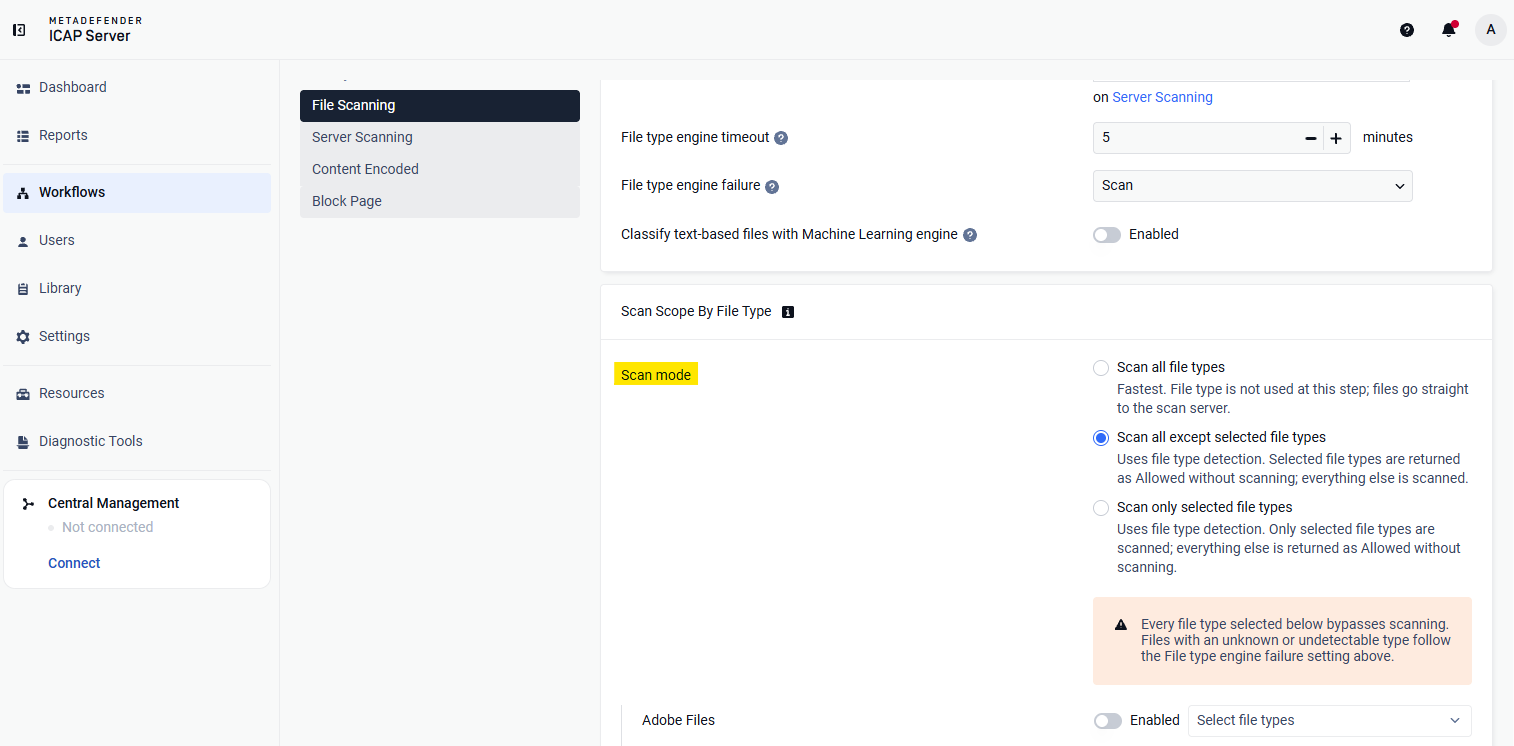 |
Live Scan Status in Processing History | Long-running scans are no longer invisible. What changed: Previously, a request used to appear in Processing History only after its scan finished. A file still being analyzed looked the same as one that never arrived, and you had to open the MetaDefender Core™ console to check. Now a record is created as soon as the ICAP request is received. It shows the current stage:
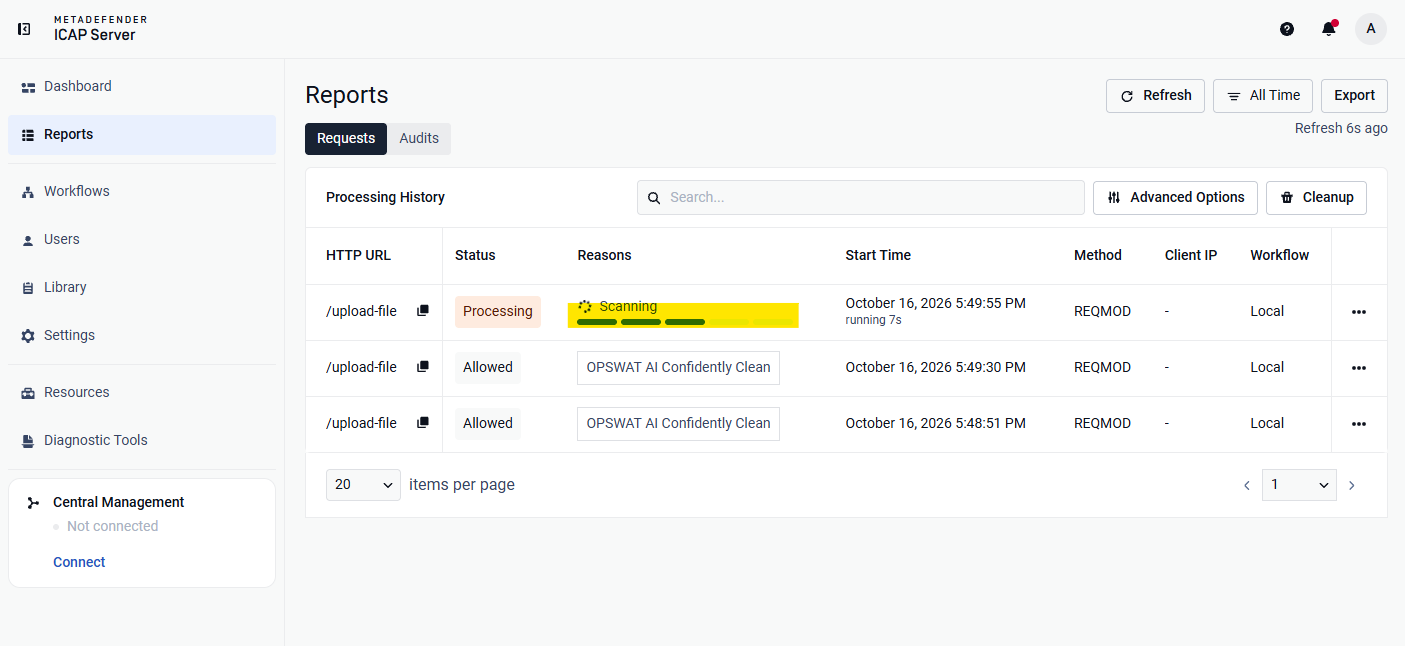 |
Built-in Traffic Capture for Troubleshooting | Troubleshoot ICAP integrations without installing Wireshark, tcpdump or Npcap, and without shell access to the server. How it works: If a proxy, MFT server, or other ICAP client can't connect, gets unexpected responses, or times out, start a capture from the Web UI. Reproduce the problem, then download the evidence. Each capture records the same traffic in two ways, so you can see both what was exchanged and how the connection behaved:
Capture only what matters: Filter by traffic source (ICAP, HTTP or both), network interface and client IP. Give each capture a meaningful name, such as “Proxy timeout – client 10.0.0.12.” The name is also used as a prefix for the downloaded files, so they are easy to find later. Safe for production
Note: Captures can contain file contents and other sensitive data, so handle downloaded files accordingly. For security reasons, this feature is disabled by default. To enable it, set the corresponding flag in the diagnostic section of the configuration file (see Linux or Windows) and restart MetaDefender ICAP Server. How to access: Go to Diagnostics > Traffic Capture 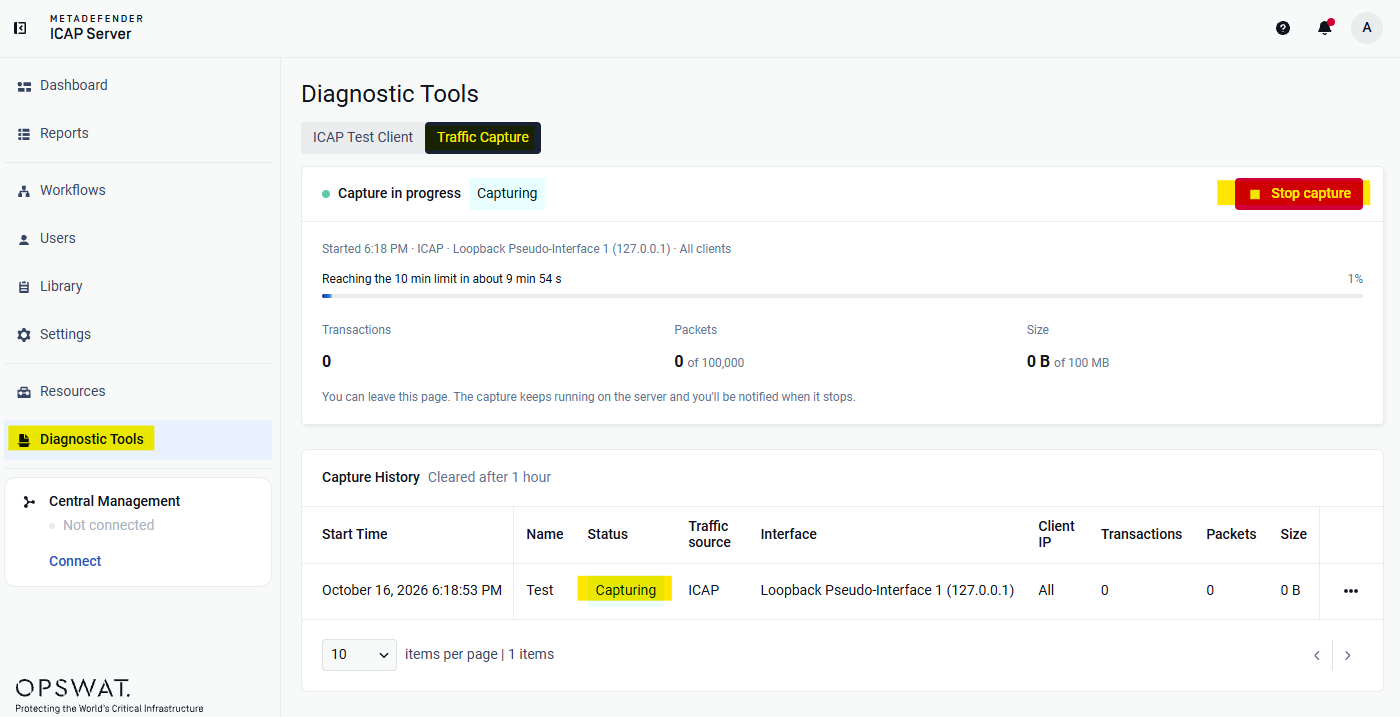 |
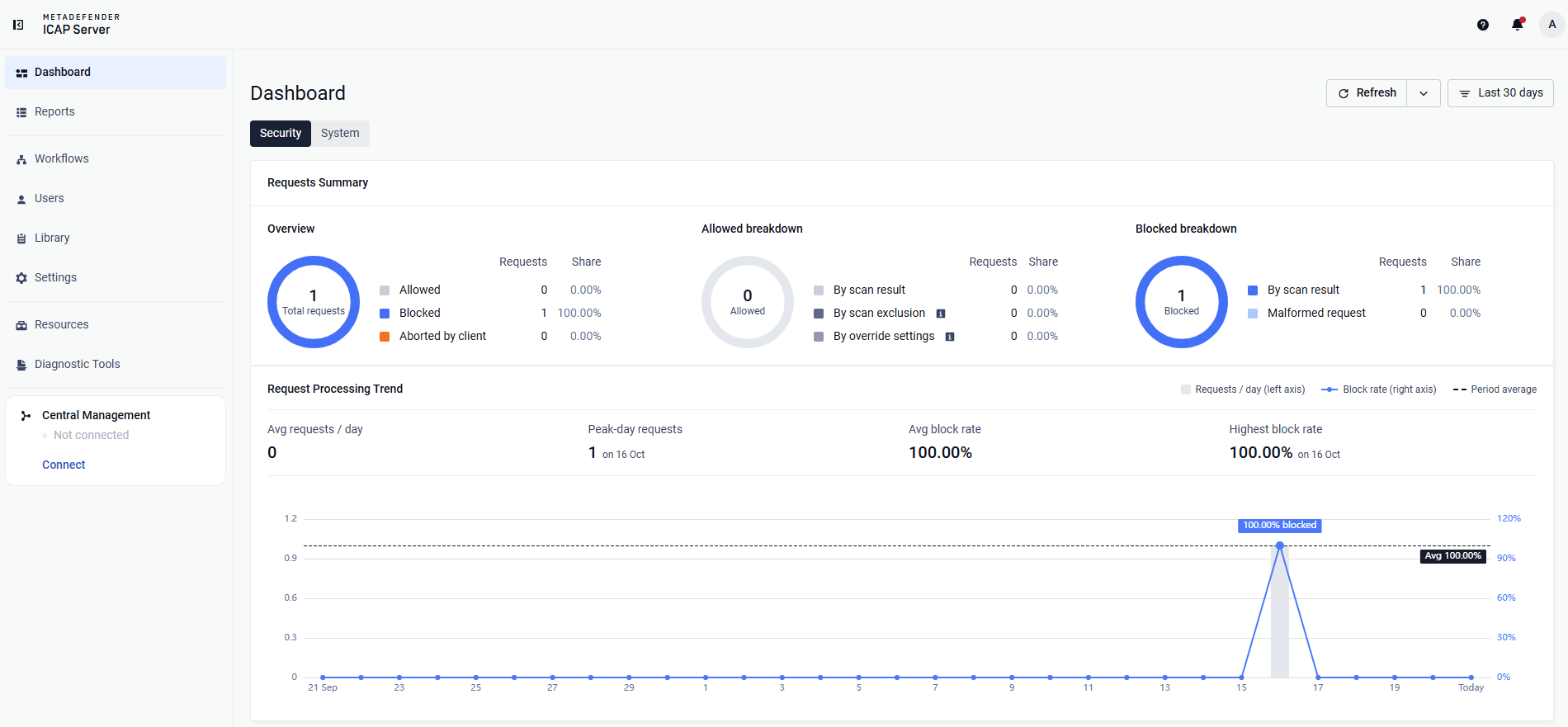
New File Security Dashboard | The Dashboard now answers three questions: how much traffic was processed, what happened to it, and why. Security Tab
 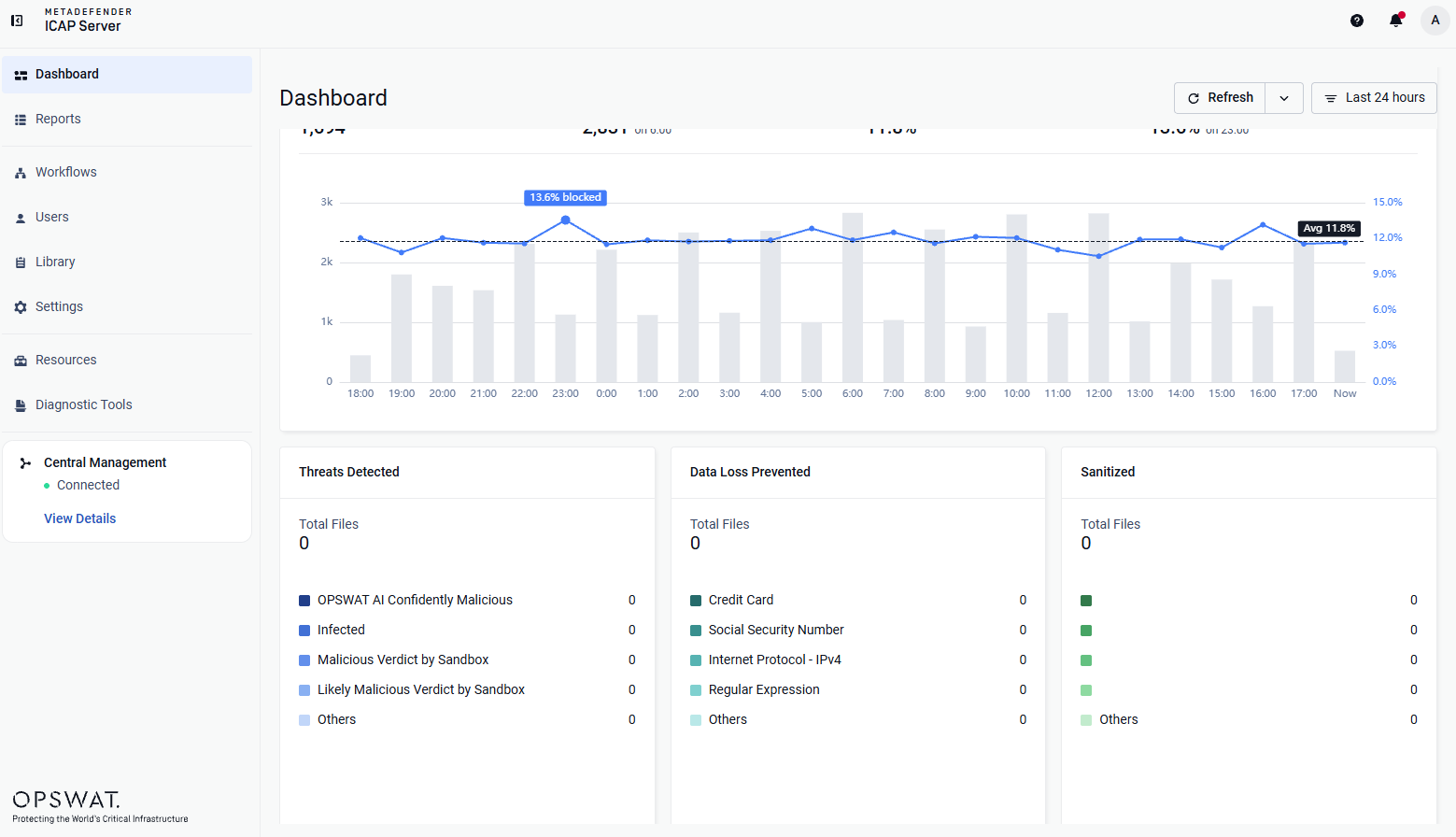 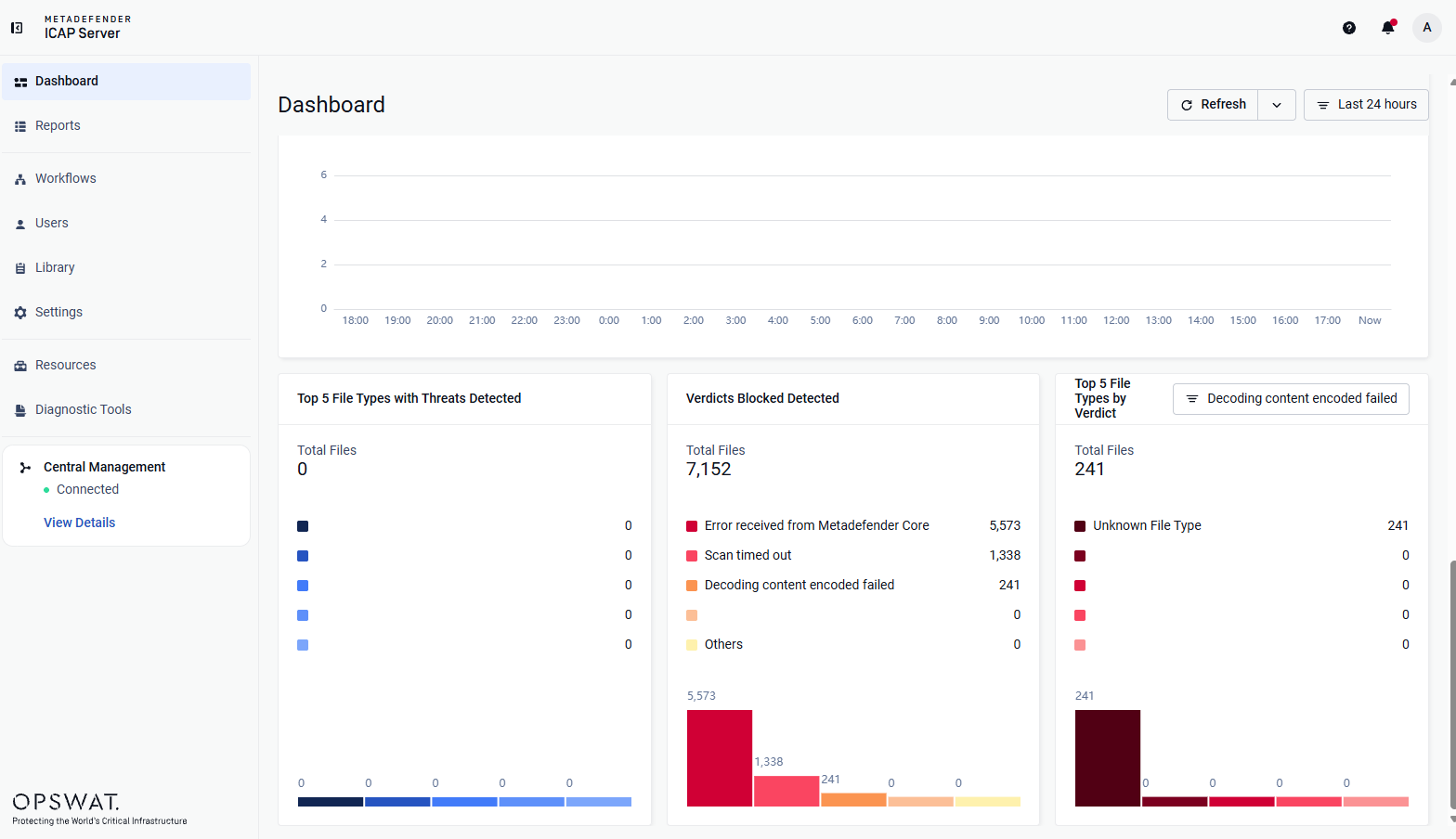 System Tab
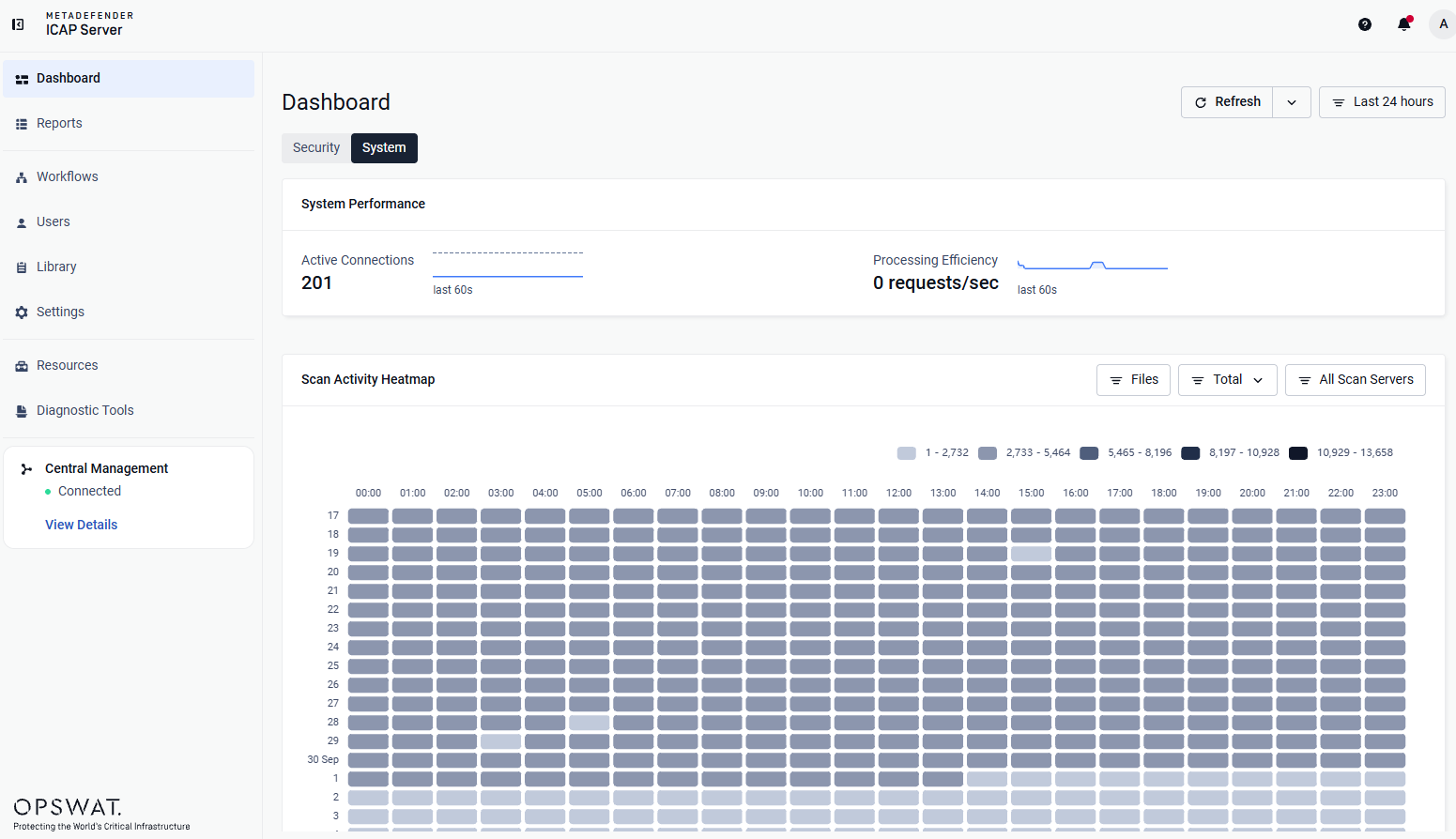 |
Automatic Upgrades through My OPSWAT Central Management | Instances managed by My OPSWAT Central Management can now download and install new versions on command, and report their new version back once the upgrade completes. No setting is required on MetaDefender ICAP Server: once the instance is enrolled in My OPSWAT Central Management, upgrades are scheduled and managed from the Central Management console. Upgrades are designed to run safely unattended:
Supported on Windows and Linux (Red Hat-based and Debian-based distributions). Note: Automatic upgrades are available for instances running v5.16.0 or newer. Instances on v5.15.0 or earlier must be upgraded to v5.16.0 manually once; every later release can then be installed from My OPSWAT Central Management. |
Granular Group Policies in My OPSWAT Central Management | Previously, applying a configuration group (policy) replaced the entire configuration of every instance in the group, including its Server Profiles — so administrators had to restore each instance's MetaDefender Core™ connections by hand after every policy update. Server Profiles are now treated as instance-specific: when a policy is applied, all shared settings follow the policy while each instance keeps its own Server Profiles. |
FIPS 140-3 Mode | Run MetaDefender ICAP Server in environments that require FIPS 140-3 validated cryptography. MetaDefender ICAP Server now ships with the OPSWAT FIPS Provider, a cryptographic module validated under the NIST Cryptographic Module Validation Program.
How to access: Go to Settings > Security > FIPS 140-3 Mode 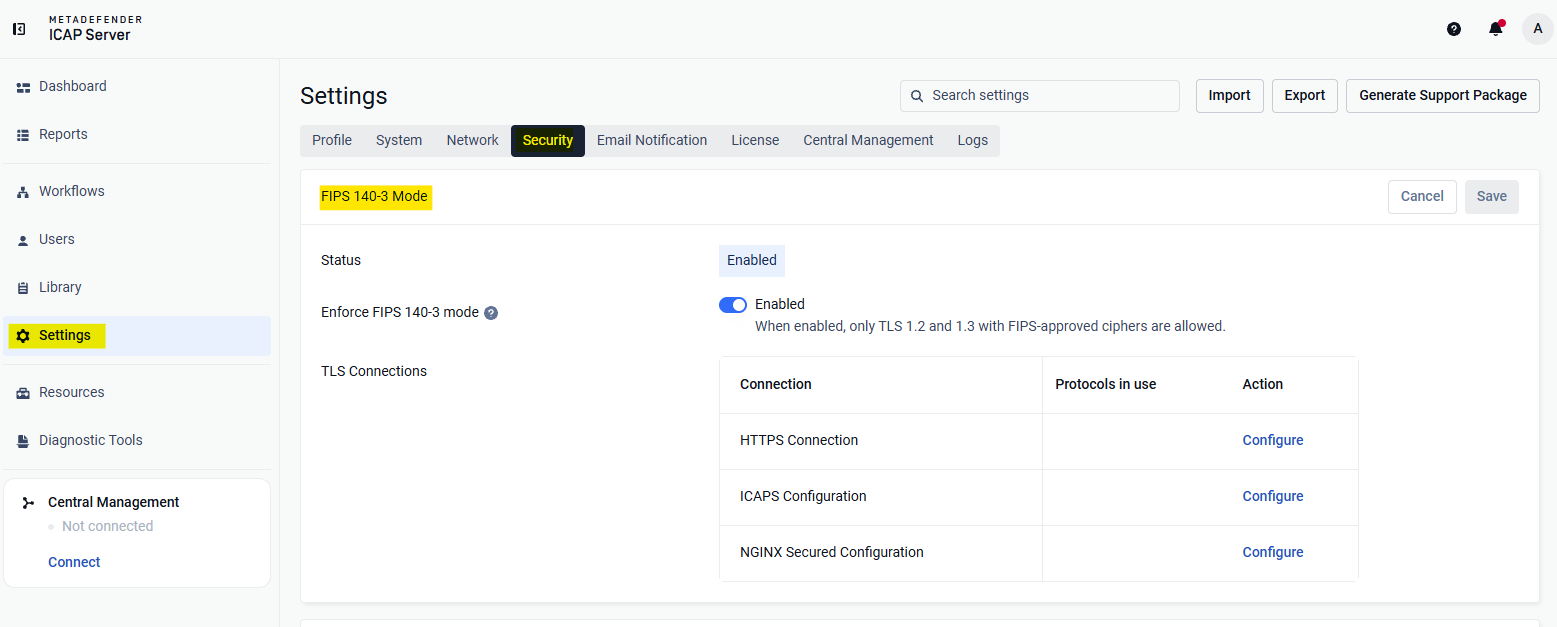 |
Usability Improvements |
|
Security Enhancements | Upgraded third-party libraries to address known vulnerabilities:
Applied additional security hardening measures across the product. |
Bug Fixes
Details | |
|---|---|
Health Check Reporting Not Ready with Dynamic Load Balancing | Fixed an issue where |
Special Characters Accepted in Request Filtering | The Request Filtering lists (Host IP/Domain, Request URL, Client IP, ICAP Client IP) and header fields now reject |
Minor Fixes | Resolved various cosmetic UI issues and other minor issues. |
Known Limitations
Details | |
|---|---|
Log Rotation Not Functioning on Windows | Log rotation failed to function correctly on Windows systems. |
Proxy Configuration | Currently, HTTPS proxy configuration is not supported. |
SAML Directory (SSO Integration) Limitations | In v5.5.0, users cannot create a new SAML directory via the web UI.
|
Stability Issues on Red Hat/CentOS (Kernel Version 372) | MetaDefender ICAP Server v5.1.0 or newer may encounter stability issues on Red Hat/CentOS systems running kernel version 372. Solution: Upgrade to kernel version 425, where Red Hat has resolved this issue. |
MetaDefender ICAP Server's NGINX Web Server Fails to Start with Weak Cipher Suites for HTTPS | Starting in v5.1.0, OpenSSL 3.x replaced OpenSSL 1.x across the product and its dependencies, to improve security and address vulnerabilities. As part of this upgrade, the NGINX web server in MetaDefender ICAP Server now enforces stricter cipher policies and rejects all weak cipher suites. The web server now only accepts "HIGH" encryption cipher suites https://www.openssl.org/docs/man1.1.1/man1/ciphers.html (cipher suites based on MD5 or SHA-1 hashing are also rejected). As a result, if you have already configured MetaDefender ICAP Server for HTTPS using a weak SSL cipher with your certificate, the server will not start due to the enforced security policies in NGINX's OpenSSL 3.x. |
no_proxy Configuration | Starting with MetaDefender ICAP Server v5.1.0, the |
TLS Connectivity to MetaDefender Core on Debian | On Debian OS, MetaDefender ICAP Server v5.1.0 requires the two following commands to enable TLS communication with MetaDefender Core: sudo mkdir -p /etc/pki/tls/certs/ sudo ln -s /etc/ssl/certs/ca-certificates.crt /etc/pki/tls/certs/ca-bundle.crt Resolution: Upgrade to MetaDefender ICAP Server v5.1.1, where the issue is resolved. |
TLS 1.3 Not Supported on Windows Server 2012 | TLS 1.3 is not supported on Windows Server 2012 due to limitations with Schannel SSP. Reference |