
This document is used for upgrade existing MetaDefender ICAP Server older than 5.2.0 to MD ICAP Server version from 5.2.0 to 5.6.0
1.Database Migration
Database migration will happen when you install MetaDefender ICAP Server v5.2.0 or newer on a host that has already installed older MD ICAP Server version
Two options for migration:
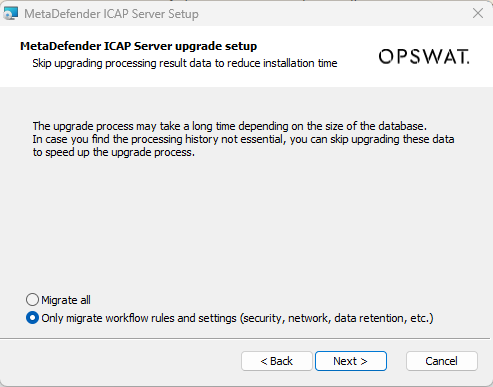
1.Do not migrate ICAP history (only migrate workflow rules, setting, user management,..)
2.Migrate all database(include ICAP history)
The upgrade process may take a long time depending on the size of the ICAP history database.
1.1.Wizard Installation
After setting up the database server for local database mode or create an unique instance name for MetaDefender ICAP Server for shared database mode, if the host has already installed older version of MD ICAP Server (older than v5.2.0) then the migration wizard will be displayed
1.2.Command Line Installation (migration)
1.2.1. Without ignition file
The installation will ask to input the option migrate all database or skip ICAP history via console if detect the older ICAP server version has already installed
hit enter to select default option [false]: migrate all database
input false: migrate all database
input true: Only migrate workflow, rules and setting (do not migrate ICAP history)
1.2.2. With Ignition file
If skip_migrate_processing_history does not input in the ignition file, all database will be migrated
+ Only migrate workflow, rules and setting (do not migrate ICAP history)
+ Migrate all database
set skip_migrate_processing_history to false or remove internal field out of ignition file
2.Database Migration
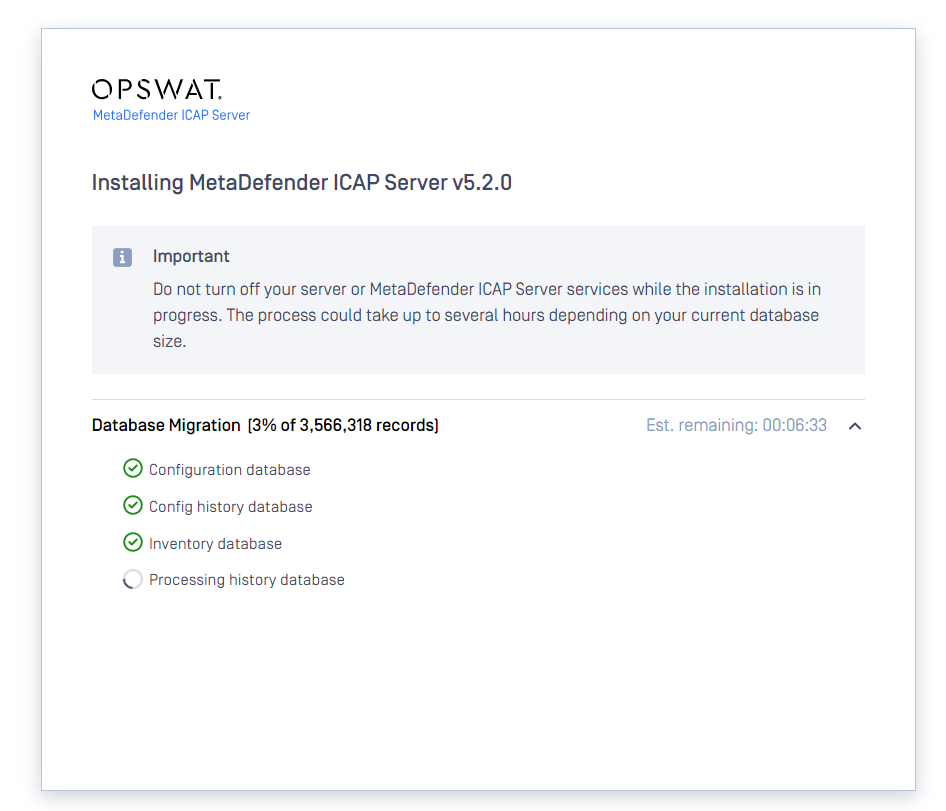
During migration process, the UI will display the migration status
3.Recommendation for migration
We suggest select Only migrate workflow, rules and setting (do not migrate ICAP history) then the migration process will take short time
After migration, MD ICAP Server 5.2.0 will back to work then the ICAP history can be migrated in background via mdicapsrv-migrate-db tool
Option -a mean the ICAP processing history will be appended to existing PostgreSQL database (if run multiple time with option -a then the database will be duplicated the record)
To learn more option of migration tool, please execute:
Windows: mdicapsrv-migrate-db.exe -h
Linux: /usr/sbin/mdicapsrv-migrate-db -h
Windows:
Linux:
4. Backup and rollback steps if upgrade failure
Backup steps: Before upgrade, below data and configurations should be backup for recovery purpose
Even during upgrade, the upgrade process will backup the old data automatically, but We need backup manually to avoid an expected behavior:
Step 1: backup the configuration:
Windows:
the registry at path [HKEY_ LOCAL_MACHINE\SOFTWARE\OPSWAT\ICAP Server]
(in case enable the TLS): all file *.conf in C:\Program Files\OPSWAT\Metadefender ICAP Server\nginx
Linux:
the config file at path /etc/mdicapsrv/mdicapsrv.conf
(in case TLS enable): all file *.conf at path /etc/mdicapsrv/nginx.d/
Step 2: backup the data
Windows: all install folder (default: C:\Program Files\OPSWAT\Metadefender ICAP Server\data)
Linux: all data in /var/lib/mdicapsrv/
Restore old version steps:
The steps will be applied incase upgrade failure and want to restore to previous version
Step 1: Uninstall MD ICAP Server and delete all data in installation path
Step 2: delete all configuration:
Windows: registry setting at path [HKEY_LOCAL_MACHINE\SOFTWARE\OPSWAT\ICAP Server]
Linux: delete /etc/mdicapsrv/mdicapsrv.conf
Step 3: Install previous ICAP version and stop the service
Step 4: restore config:
Windows:
the registry which was backup at previous steps
In case TLS enable: restore NGINX config (*.conf)
Linux:
replace the config file /etc/mdicapsrv/mdicapsrv.conf by the file which was backup
In case TLS enable: restore NGINX config (*.conf)
Step 5: restore data:
Windows: restore the backup data to install folder (default: C:\Program Files\OPSWAT\Metadefender ICAP Server\data)
Linux: In case TLS enable: restore NGINX config (*.conf)
Step 6: start the mdicap server service