
What is Large File Support and why is the integration required
Large File Support is a feature designed to surpass Salesforce's limitations for processing files larger than 10 MB, caused by Total heap size, 12 MB. This functionality enables the uploading and processing of files larger than 10 MB. The integration of this feature is crucial because it allows these larger files to be securely scanned through the MetaDefender for Salesforce (MDFS), ensuring compliance and security for significant date uploads.
The file processing workflow
After configuring MDFS from the OPSWAT Settings page (e.g., Account Settings and Policy Settings), successfully uploading a file on the Files page will generate a MetaDefender Log within the OPSWAT - MetaDefender Logs page. This log contains details about the file scan through MetaDefender Cloud (MD Cloud). Based on the configuration, the file will be processed, and any infected, malicious, or non-sanitized files will be blocked.
The Large File Support workflow offers a key advantage: MetaDefender Cloud will now pull the file upon scan request and push the sanitized file to MDFS. This is in contrast to the small files workflow, where MDFS is responsible for pushing the file and pulling the sanitized version.
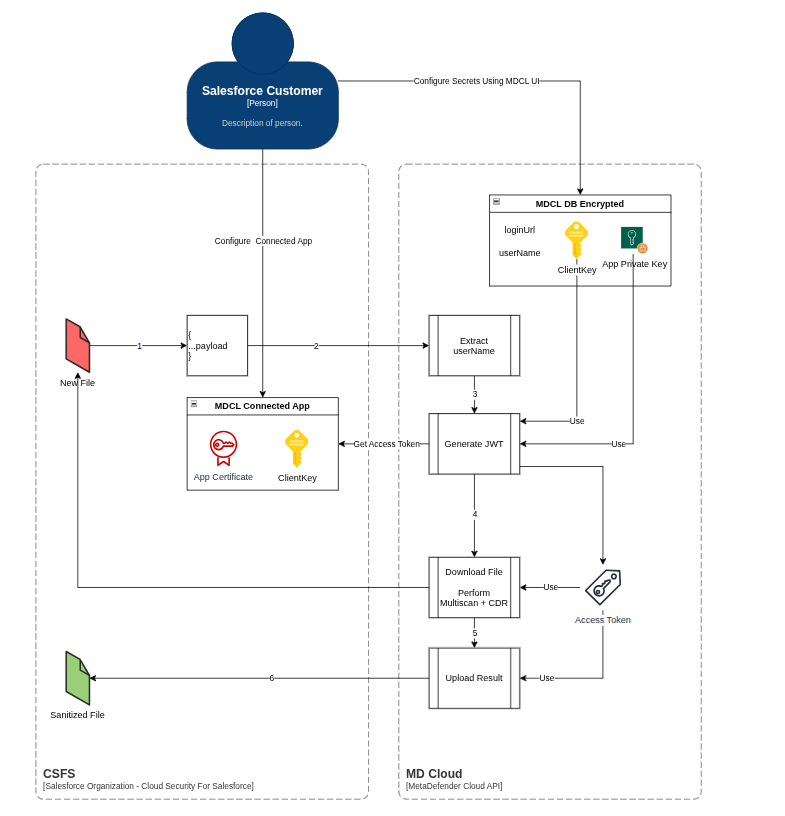
How to configure MDFS and Salesforce Organization
Starting with the Spring ’26 release, Salesforce has changed how connected apps are created as part of the ECA rollout.
In new organizations, connected app creation via UI is disabled by default. Previously, admins could enable this using the “Allow creation of connected apps” setting. However, this option is no longer available to customers.
To enable connected app creation, a request must now be submitted to Salesforce Support. This restriction applies to both UI and API-based creation.
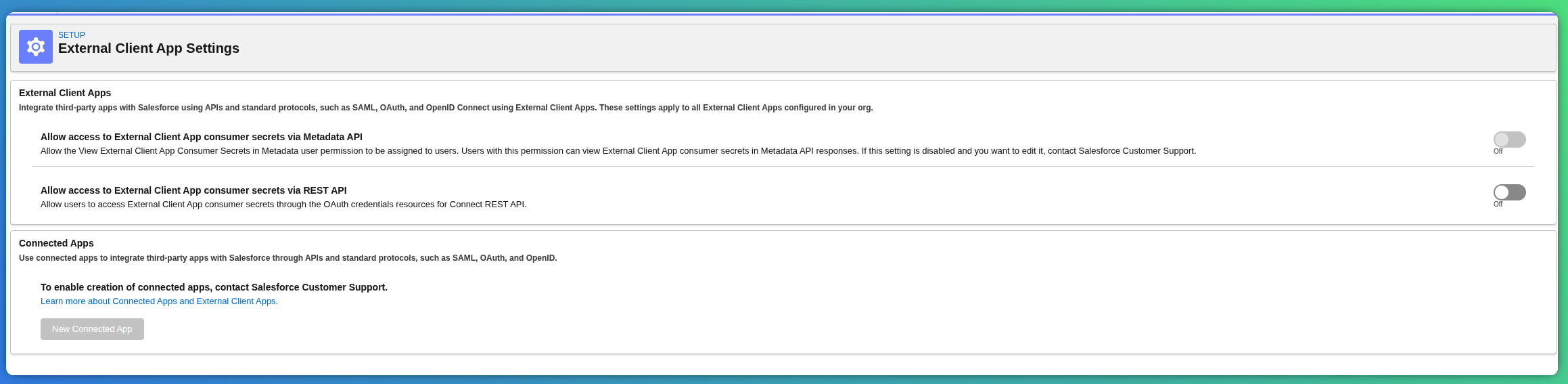
Salesforce customers can proceed with migrating their existing connected apps to the new External Client App model to ensure compatibility with the updated security and management framework.
Connected App to External Client App Migration
Navigate to Setup → Home → App Manager
Search for your connected app (e.g., MetaDefender Connect) → click the dropdown arrow on the right → click View
Click Migrate to External Client App

Enable the two checkboxes and click Migrate
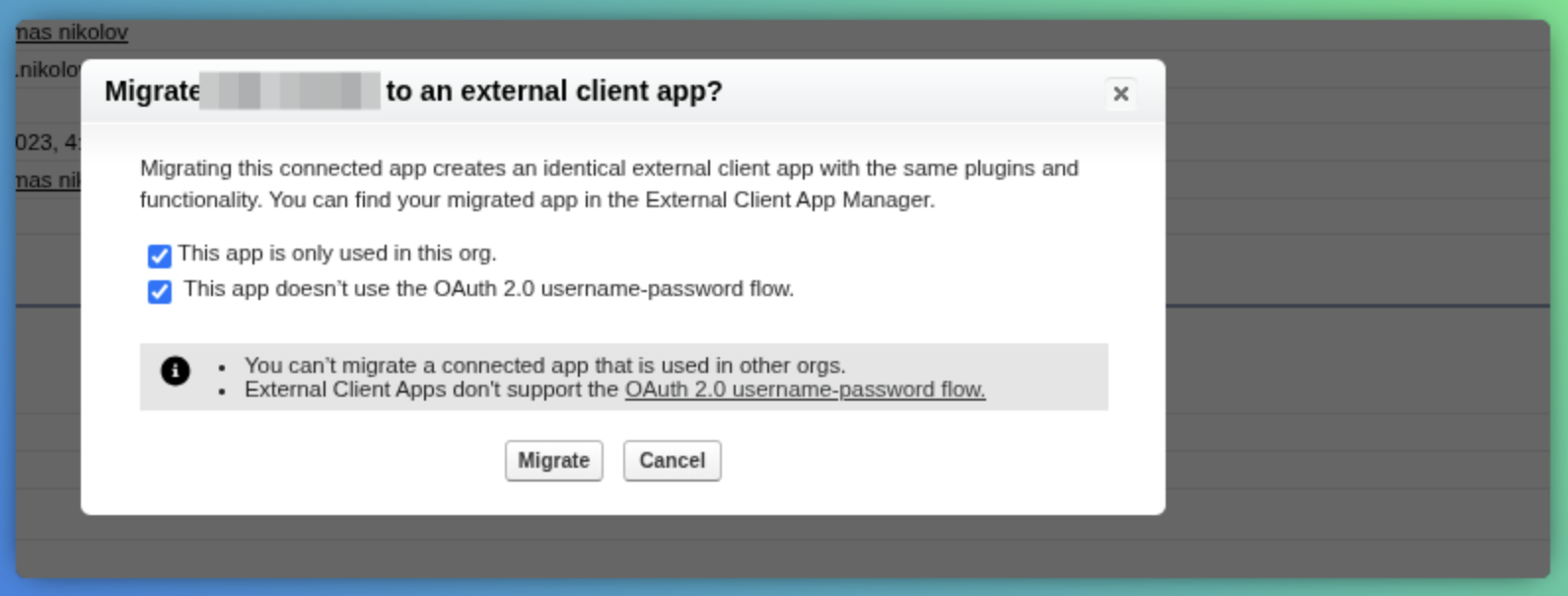
At this point, the migration has been successfully completed and no further changes are required.
How to Create a New External Client App (for fresh Salesforce orgs)
Generate a certificate: A certificate is needed to secure the connection between MD Cloud and MDFS. You will need the private key in the next section "How to configure MD Cloud."
Open a terminal (for Linux or macOS) or a command prompt (for Windows). Please note to execute the following commands with sudo (Linux&macOS) or run cmd as administrator (Windows).
Generate a private key and save it to a file named, for example,
private.key.openssl genpkey -out private.key -algorithm RSA -pkeyopt rsa_keygen_bits:2048
Generate a certificate signing request using the
private.keyfile and save it to a file namedprivate.csr.openssl req -new -key private.key -out private.csr
Generate a self-signed digital certificate using the
private.keyandprivate.csrfiles, and save it to a file namedprivate.crt.openssl x509 -req -sha256 -days 365 -in private.csr -signkey private.key -out private.crt
Create External Client App in your Salesforce org The app will be used by MD Cloud to connect to your Salesforce organization.
a. Navigate to Setup → Home → External Client App Manager
b. On top right click on “New External Client App” button
c. Fill in the mandatory fields in the Basic Information card
-> *External Client App Name / use “MetaDefender Connect” or customize
-> *Contact Email / Ensure access to the contact email inbox is available, as it will be required in later steps
d. Click on API (Enable OAuth Settings)
-> Click “Enable OAuth” / at this step more options will be displayed in the UI
-> Set Callback URL:
For production orgs → https://login.salesforce.com/services/oauth2/callback
For sandbox orgs → https://test.salesforce.com/services/oauth2/callback
-> Select OAuth Scopes: “Manage user data via APIs(api)” and “Perform requests at any time (refresh_token, offline_ access)
-> Click on Enable JWT Bearer Flow and upload the private key generated at 1b
-> Uncheck: “Require secret for Web Server Flow”,
“Require secret for Refresh Token Flow”,
“Require Proof Key for Code Exchange (PKCE) extension for Supported Authorization Flows”
-> click Create
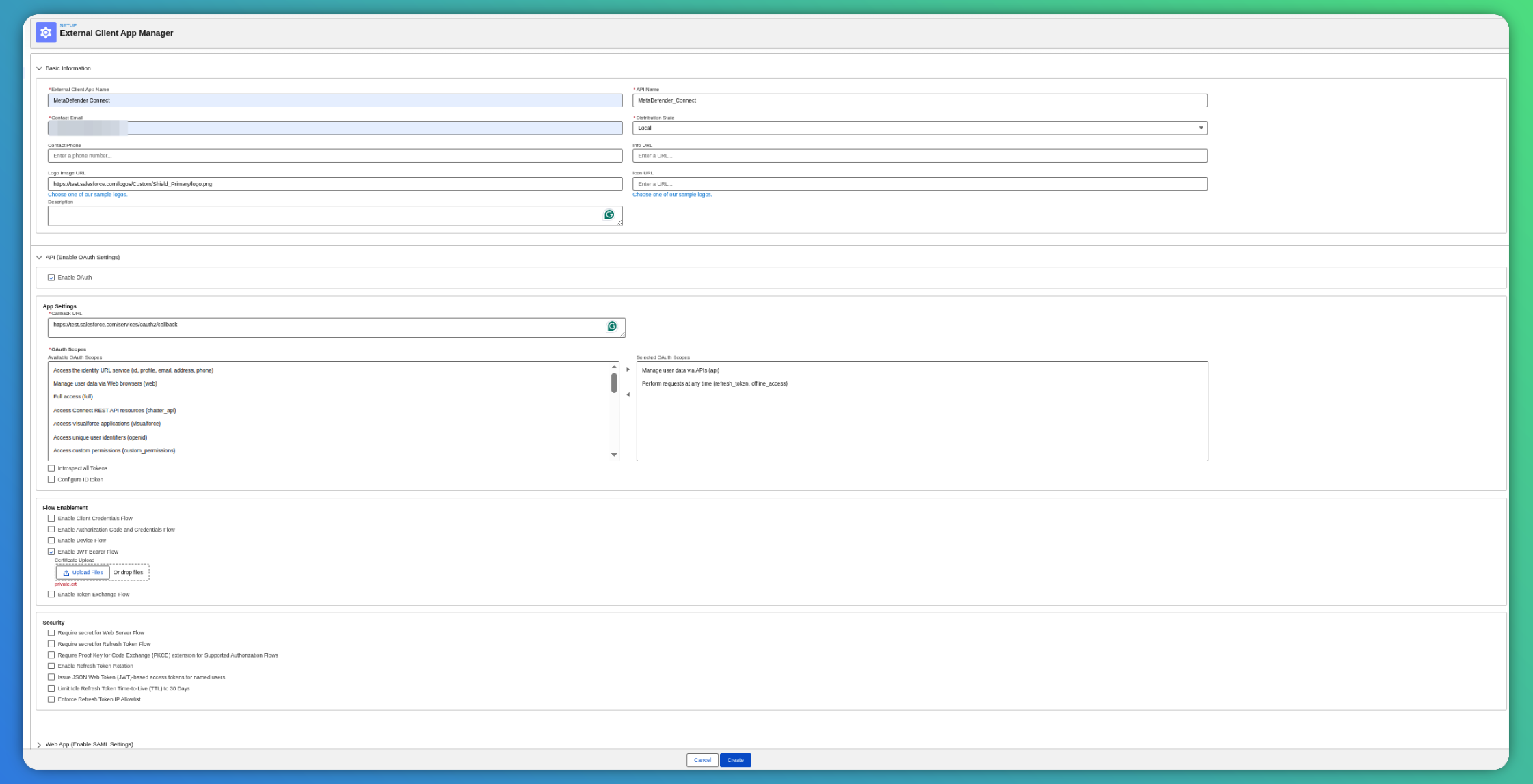
e. At this step an authorized user and Permission Set for the External Client App must be created
Create or use a Salesforce User to identify the connections between MD Cloud and your Salesforce organization. You will need the user name in the next section “How to configure MD Cloud”. -> Go to Setup -> Quick Find Box → Permission Sets → click New -> Fill in the mandatory fields and choose the license type of the authorized user -> Once the permission set is created click on “Add Assignment” and assign the user that will be used for the connection with MD Cloud -> Navigate to the created Permission Set and click on “System Permissions” then click on “Edit“ and enable “View All Data“ and “Modify All Data“ and save the changes
f. In the Quick Find Box search for External Client App Manager and click on the external app name.
g. Click Edit on the Policies tab
-> On the App Policies Select the Permission Set created at step 2e
-> On OAuth Policies choose Permitted Users as “Admin approved users are pre-authorized"
-> On App Authorization select “Refresh token is valid until revoked”
-> Click Save
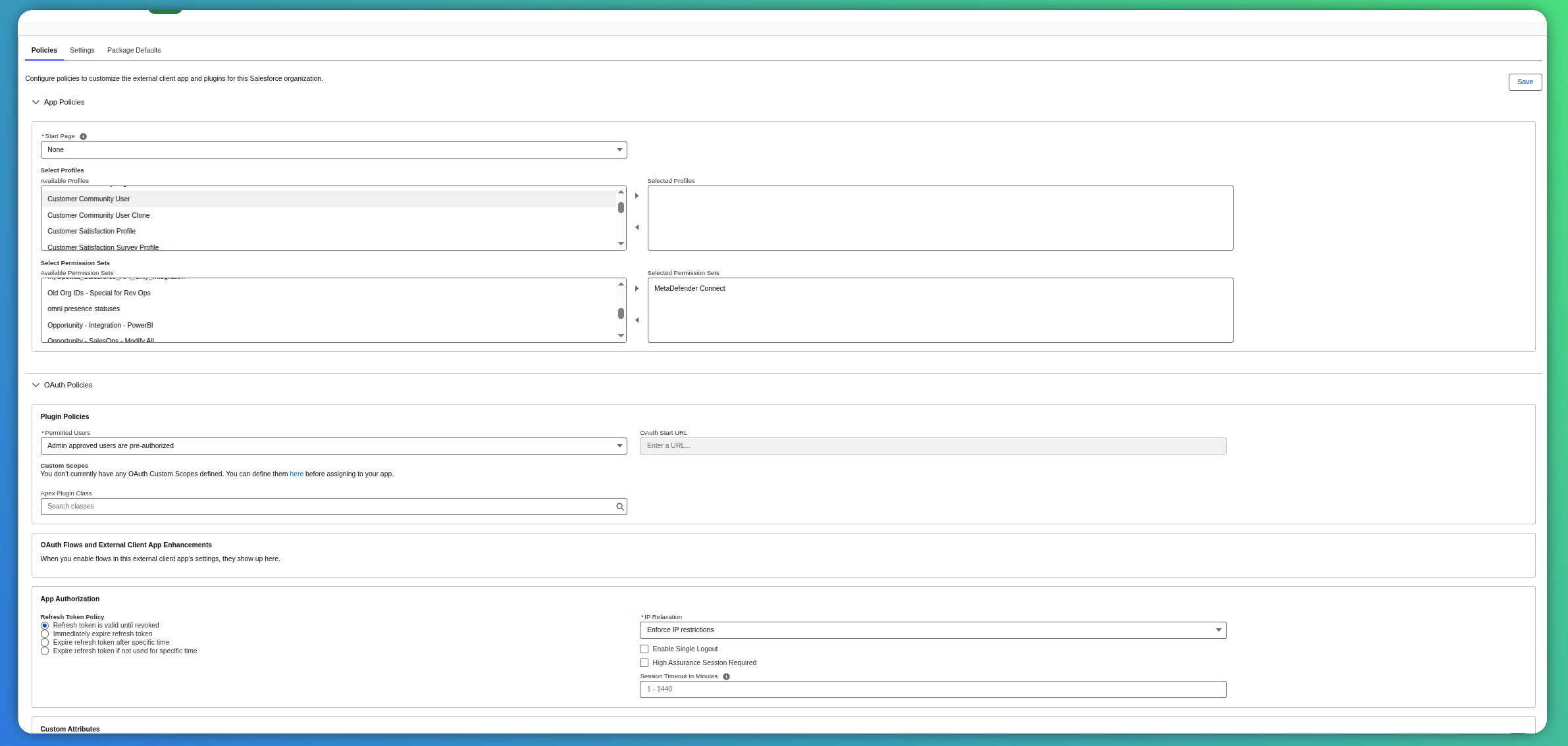
h. In the same window go to the Settings tab to obtain the “Consumer Key and Secret”
-> In the OAuth Settings click on “Consumer Key and Secret” -> A verification code will be sent to the email used at step 2c -> Copy / note the Consumer Key. It will be needed in the next section

How to enable scan for Large File Support
Go to “App Launcher”
Search “OPSWAT”
Select “OPSWAT Settings”
To enable Large File Support, select scan option “Scan. It will consume Salesforce API requests.“ from “Process files bigger than 10MB” in the Policy Settings section.

Please note that large file scans will consume Salesforce API requests from your organization when files are retrieved or sanitized files are uploaded by MD Cloud.
Salesforce API requests are reset daily. If needed, the total number of API requests can be increased.
How to configure MD Cloud
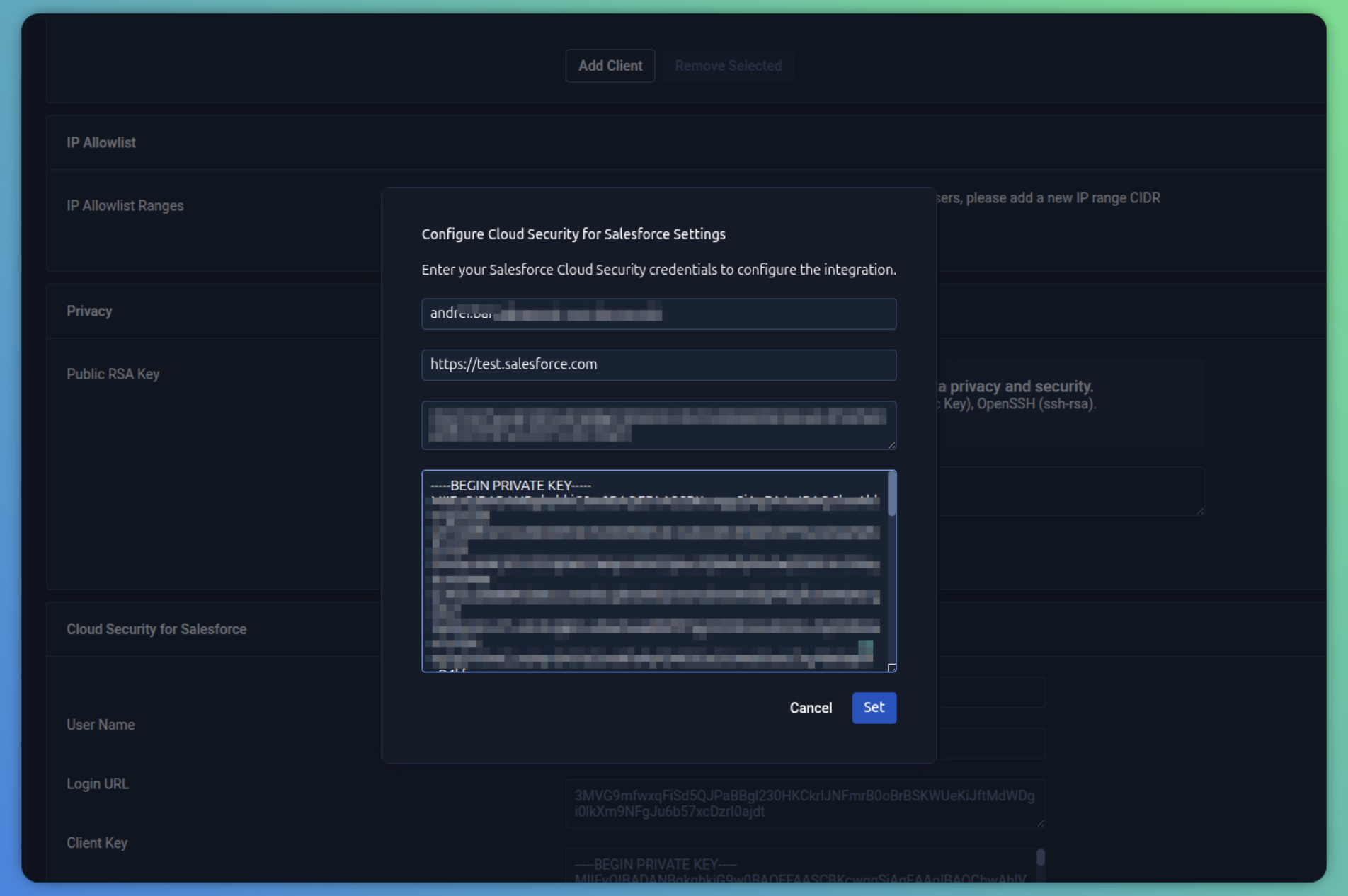
How to configure the connection to your Salesforce organization using the UI
Login to MD Cloud: Use the account associated with the API Key configured in MDFS https://metadefender.opswat.com
Visit the security page:https://metadefender.opswat.com/account/security Find "MetaDefender for Salesforce” section.
Configure connection user: Utilize the UserName of the user assigned/configured in the MDFS configuration section.
Configure the authentication URL: Utilize the Login URL of the organization (https://login.salesforce.com for production organizations, or https://test.salesforce.com if the integration is made with a sandbox organization).
Configure client key: Utilize the ClientKey generated at step 2h in Create External Client App in your Salesforce org section.
Configure private key: Utilize the PrivateKey generated during the MDFS configuration section. Once saved, the private key will appear in the format of five asterisks ( *). This is a security measure to ensure that the private key is not visible in the UI.
Please do not overwrite or modify this masked format, overwriting the format will trigger an update on the private key with the new value or remove the private key if the filed is empty.
How to test the integration
Once scan is enabled and confirmed for Large File Support, you can upload files larger than 10 MB. MetaDefender Cloud will then retrieve the file for scanning upon request, and return it along with its expected results according to MDFS configuration.
