
This article applies to MetaDefender Endpoint releases subsequent to version 7.6.2411.603. deployed on Windows systems when connected to MyOPSWAT Central Management v10.
MetaDefender Endpoint Embedded Engines are local anti-malware engines that run directly on the Windows endpoint. They enable MetaDefender Endpoint to perform threat scanning locally, reducing reliance on remote scan sources such as MetaDefender Core or MetaDefender Cloud for supported local scanning workflows. For any privacy concerns, this ensures files do not leave the local device for scanning.
This capability is particularly valuable in environments where endpoints may be offline, remote, restricted, or air-gapped, but still require malware scanning.
In removable media scenarios, the embedded antivirus engines can be used to take over when connectivity is unavailable, allowing files to continue being scanned without interruption.
What can you scan with the Embedded Engines?
On Windows, MetaDefender Endpoint’s malware scanning capabilities include the following scan types:
Memory Scan: scans memory, including processes and libraries currently loaded in memory
Full System Scan: scans memory and local drives
Custom Scan: can scan local files/folders, boot sectors, attached drives, removable drives, and network drives
Removable media: removable media files remain scannable even when internet connectivity is interrupted or unavailable
Download Protection: can scan files that have been downloaded from the internet
Licensing
Embedded Engines is not a free/base feature. Embedded engine threat detection is only available to customers who have a MetaDefender Endpoint Plus license. For that reason, Embedded Engines should be treated as a licensed Threat Detection capability.
How to activate Embedded Engines in My OPSWAT Central Management v10
Embedded Engines in My OPSWAT Central Management v10, can be enabled for all features that require scanning files.
Peripheral Media Protection
In the left hand menu, in the Solution section, expand Peripheral Media Protection
Open Policies
Select the target policy
Set Peripheral Media Protection to Active
Expand Scan Workflow
Click Add Scan Server
In Select a scan source, choose Embedded Engines
Click Add
Save the policy
Malware Scan
In the left hand menu, in the Solution section, expand Endpoint Security
Open Policies
Select the target policy under the Endpoint Security tab
Select the Malware Scan tab
Set Malware Scan to Active and expand the feature
Expand Scan Workflow
Click Add Scan Server
In Select a scan source, choose Embedded Engines
Click Add
Save the policy
Download Protection
In the left hand menu, in the Solution section, expand Endpoint Security
Open Policies
Select the target policy under the Download Protection tab
Set Download Protection to Active
Expand Scan Workflow
Click Add Scan Server
In Select a scan source, choose Embedded Engines
Click Add
Save the policy
What are the embedded engines available to use?
When Embedded Engines is selected as the scan source in OCM v10, the following local engines are available for use, based on the configuration screen shown:
Bitdefender
ClamAV
ESET
OPSWAT Predictive AI
These engines are configured directly under the Add Scan Server window when Embedded Engines is chosen as the scan source. This allows administrators to define which local detection engines MetaDefender Endpoint will use for endpoint-side threat scanning.
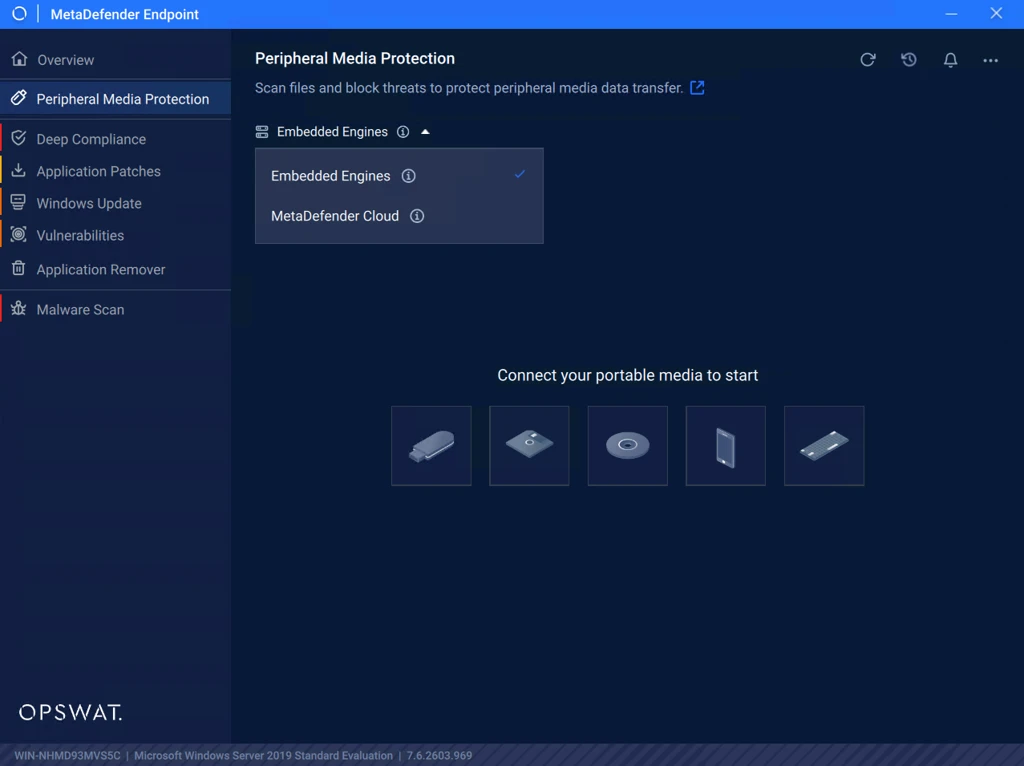
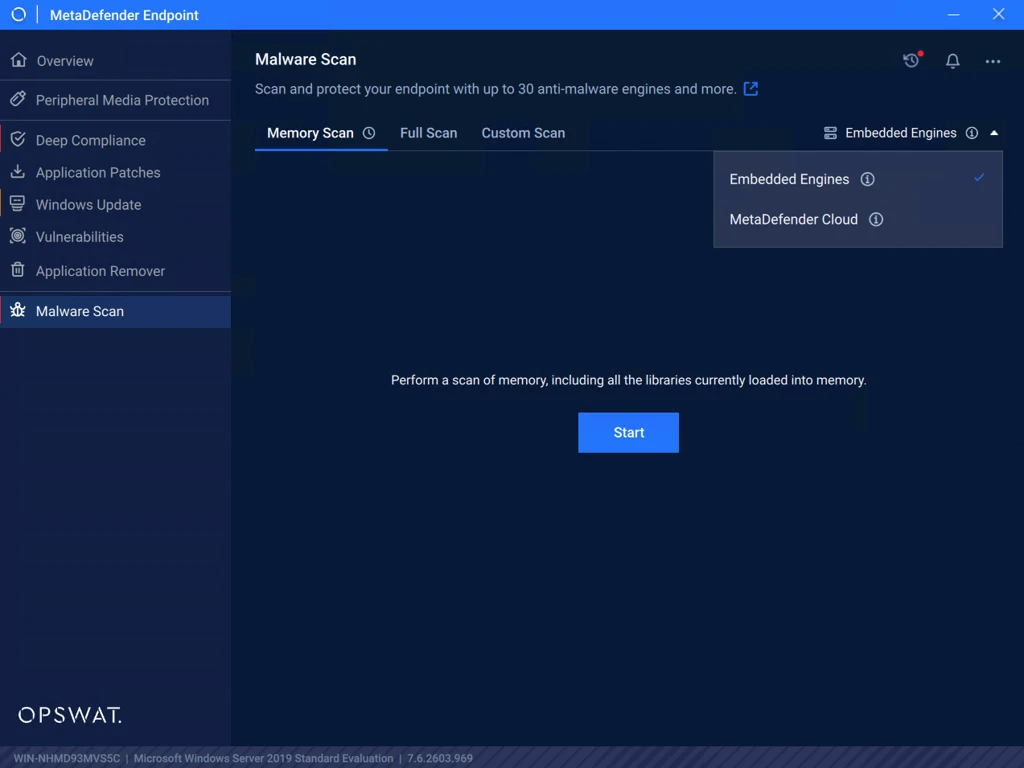
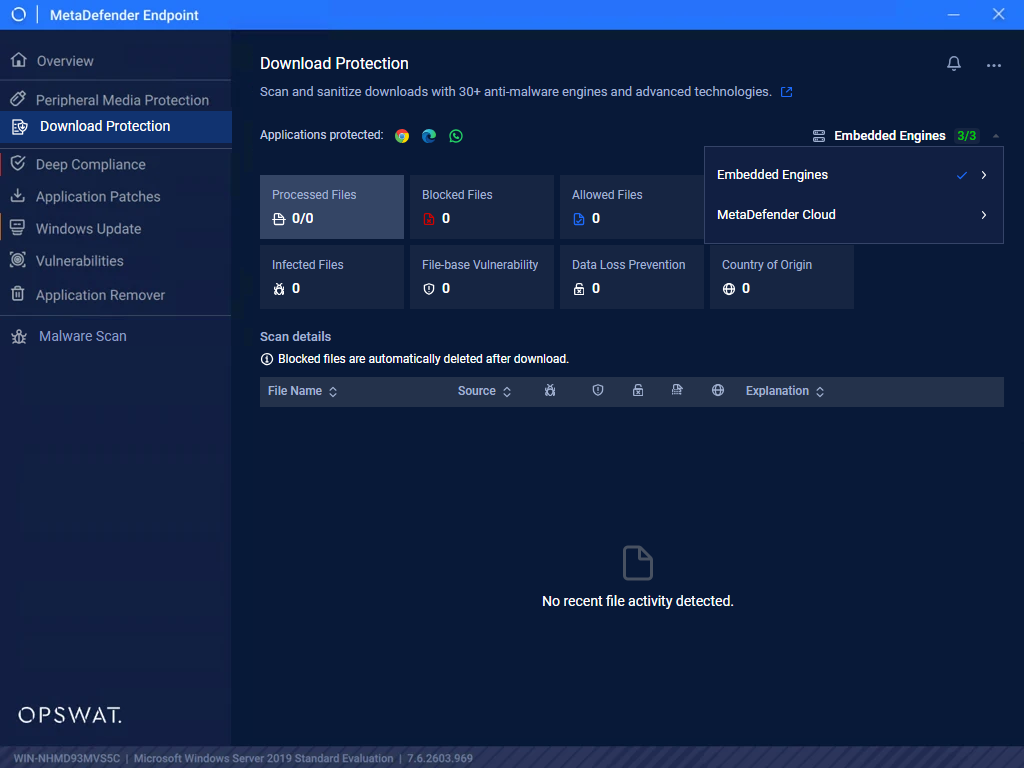
How to select which scanning method to use in MetaDefender Endpoint
Peripheral Media Protection
Malware Scan
Download Protection
If Further Assistance is required, please proceed to log a support case or chat with one of our support engineers.