
This document aims to help users troubleshoot Cybereason ActiveProbe issues on macOS.
Issues
Real-time protection is not enabled
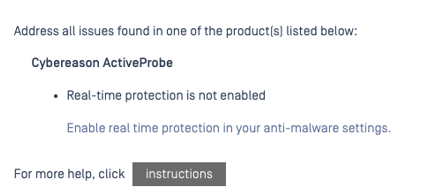
No successful scan recently

This guide provides quick checks that users can perform directly on the endpoint. The results help:
You confirm the current Cybereason status on the device.
Our team determine whether the MetaDefender Endpoint support package logs may have rotated when the issue happened.
Troubleshooting Guide
Real-time protection is not enabled
To troubleshoot this issue from the endpoint, please verify the following to ensure MetaDefender Endpoint can retrieve the correct status from Cybereason:
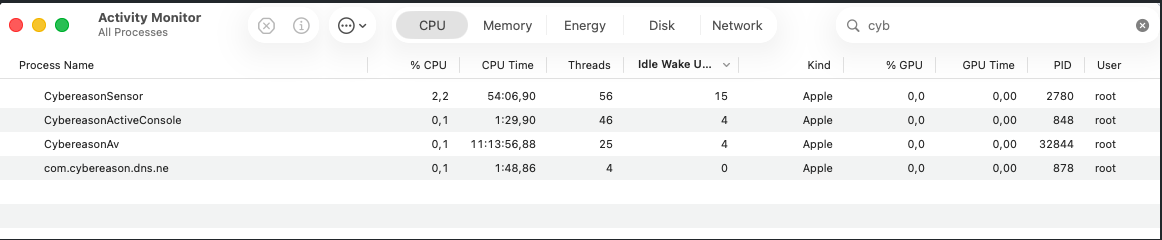
Confirm Cybereason real-time protection processes are running
Open Activity Monitor on the Mac
In the search box, type
cybereasonVerify that the main Cybereason processes are present and running. If they are not running, please restart the Cybereason service or reboot the device, then check again.
Verify the device has network connectivity
Open Terminal.
Run the following command:
ping google.comConfirm that you see replies (not “host unreachable” or timeouts). If there is no network connectivity, please resolve the network issue and then recheck the real-time protection status in MetaDefender Endpoint.
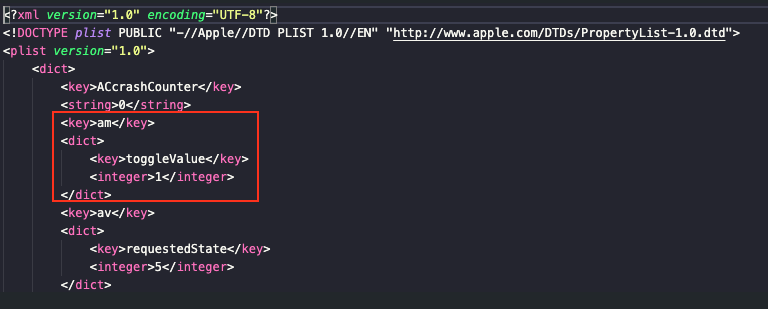
Verify the Cybereason configuration flag
On the endpoint, open the file:
/usr/local/cybereason/config.plistLocate the setting:
am.toggerValueConfirm that:
am.toggerValue = 1
No successful scan recently
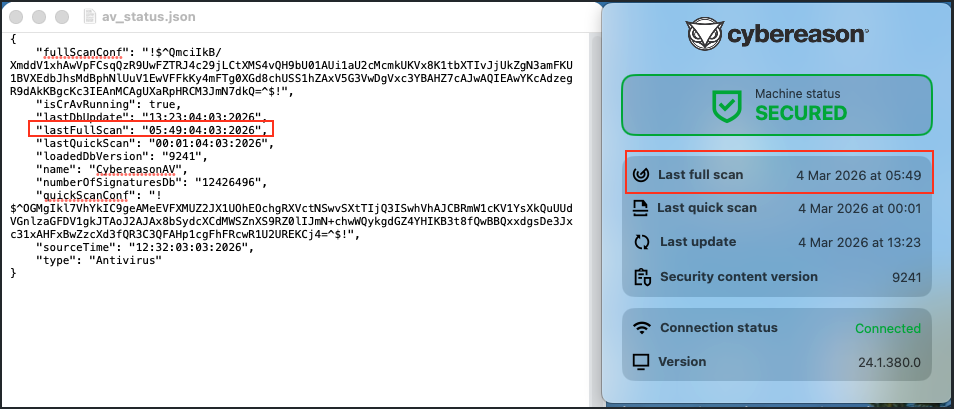
MetaDefender Endpoint reads the last full scan information from the following file on the endpoint:/usr/local/cybereason/av_status.json
Follow the steps below:
Check the
lastFullScanfieldOpen the file:
/usr/local/cybereason/av_status.jsonInterpret the value:
If
lastFullScancontains a valid date/time, that is the last full scan Cybereason reports to MDE.If
lastFullScanis empty or missing, Cybereason has no record of a completed full scan on this device.
Trigger a new full scan if lastFullScan is empty or missing:
Start a full scan from the Cybereason Dashboard on the endpoint (Contact Cybereason Admin).
Wait for the full scan to complete.
After completion, verify that
lastFullScaninav_status.jsonis now populated.Click “Recheck” on the MetaDefender Endpoint tray icon and confirm the “Last successful scan” updates.
According to the vendor, the lastFullScan field is reset every time Cybereason ActiveProbe is upgraded to a newer version. This means:
After an upgrade,
lastFullScanmay appear empty or show an older value.A new full scan must be run after each upgrade to repopulate this field and allow MDE to show an up-to-date “Last successful scan” status.