
MetaDefender Drive with Smart Touch features a mobile form factor to add more flexibility and connectivity to transient device scanning. Similar to other form factors, it ships as an out-of-the-box solution with the latest software and scanning engine versions installed.
If your system's hardware is below the recommended specifications, please expect slow processing and performance reduction
This device currently supports WPA2 security and does not offer compatibility with the WPA3 standard.
To connect the device with Enterprise Wi-Fi, please follow the document at Network Configuration for Smart Touch.
If you insert MetaDefender Drive into the target device while this device is already booted, please DON'T format the Drive's partition if prompted by the operating system. Such formatting will erase MetaDefender Drive's software and prevent it from functioning.
The user should only use the provided cable or similar, and avoid using any converter to have the best compatibility and performance
Product Package & Dimensions
MetaDefender Drive with Smart Touch is shipped ready for deployment, with all essential components included.
What’s in the Box
1× MetaDefender Drive with Smart Touch
1× USB-C to USB-C cable
Package Physical Specifications
Dimensions: 9 × 9 × 9 inches
Weight: Approximately 1 lb
Getting Started
For first-time use, please follow these steps:
Power on MetaDefender Drive with Smart Touch
Unlock it using the default password: 123456 (or 386135 for Smart Touch v1.6.0 and before]
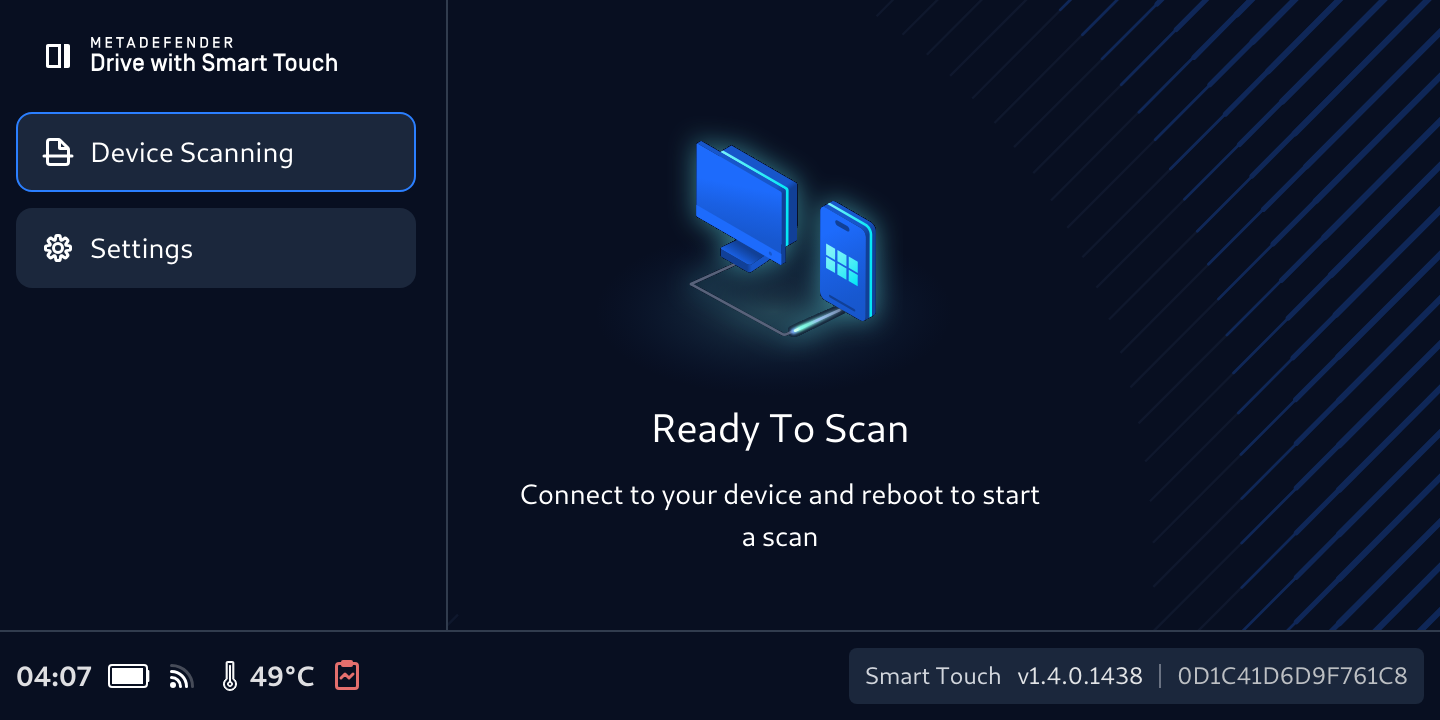
The device will be ready when it shows the Ready to Scan message
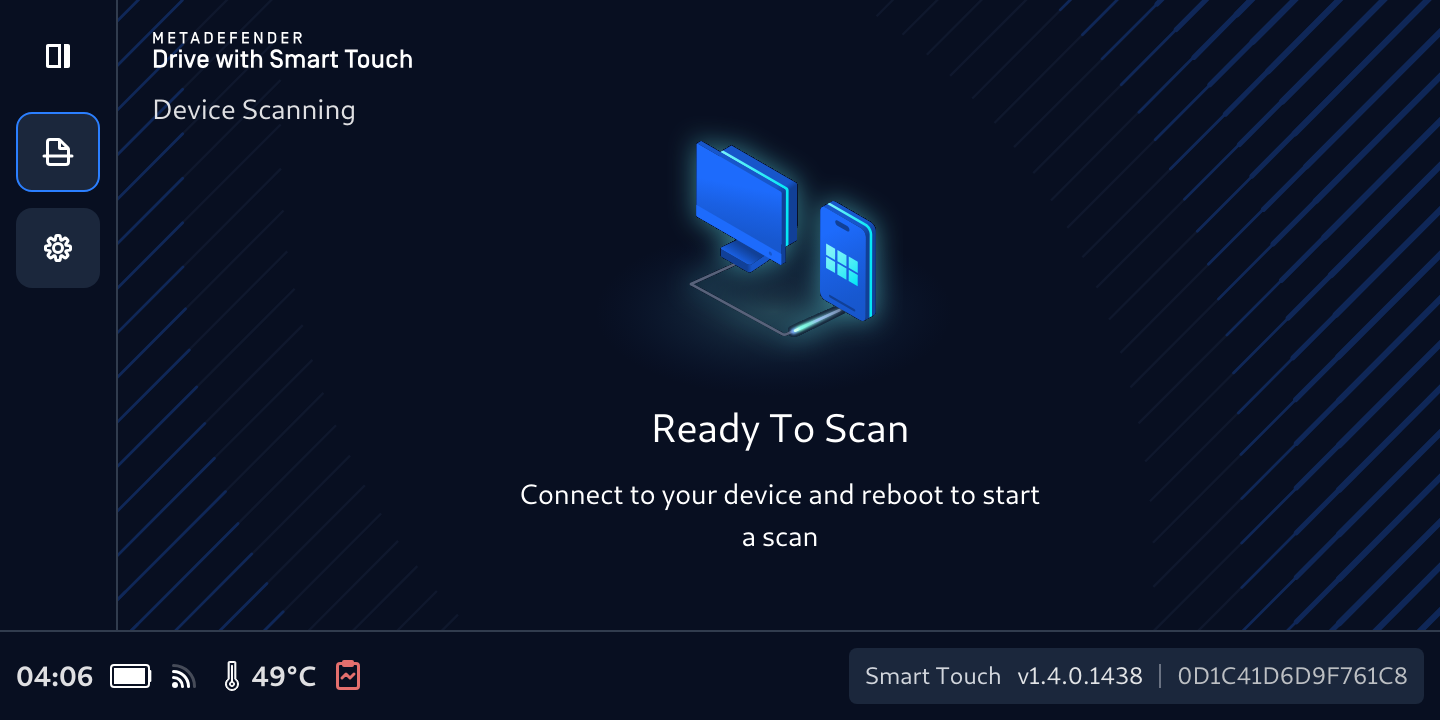
You can expand the navigation bar by tapping the top left icon to show full icon names
Connect, Boot, and Run your First Scan with Smart Touch
It is recommended to connect the target device to a power source throughout the setup and scanning processes to avoid disruptions
To run your first scan, you will go through the same experience as the USB form factor of MetaDefender Drive. For more details, please follow the instructions on these pages:
Activate and Update Drive with Smart Touch using Drive Toolkit
To Activate, Update or Enroll Drive with Smart Touch to Central Management or Central Scanning Profile, follow the instructions:
Change Smart Touch to "Device Scanning"
Plug Smart Touch to a PC with Drive Toolkit is running
Make sure on Smart Touch, the screen with message "Drive Toolkit Detected" is showing
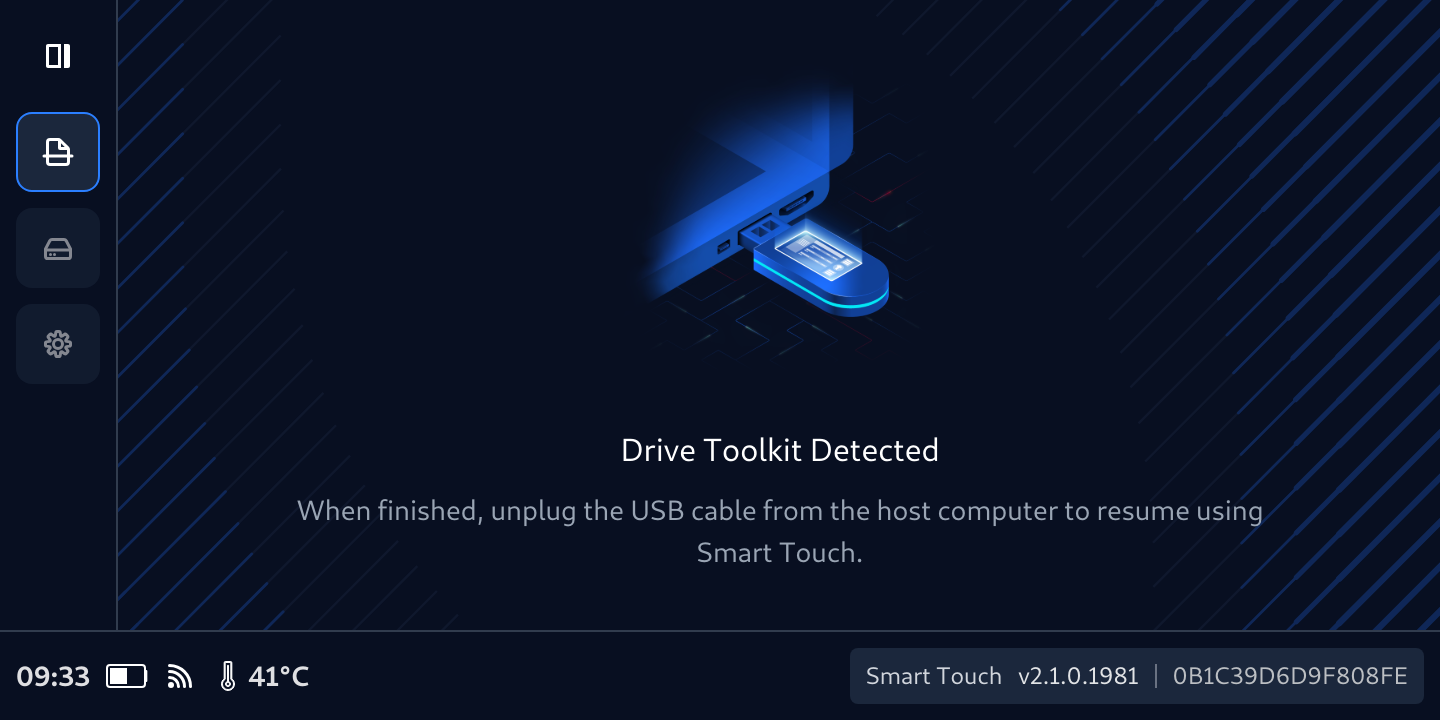
Follow next steps in Activate License and Download Engine Updates to provision your Drive with Smart Touch
Generate Support Packages
To generate a support package for MetaDefender Drive with Smart Touch, ensure your drive is not connected to a target device or performing any operations.
Tab Setting icon on the Navigation bar, then tap Support Package.
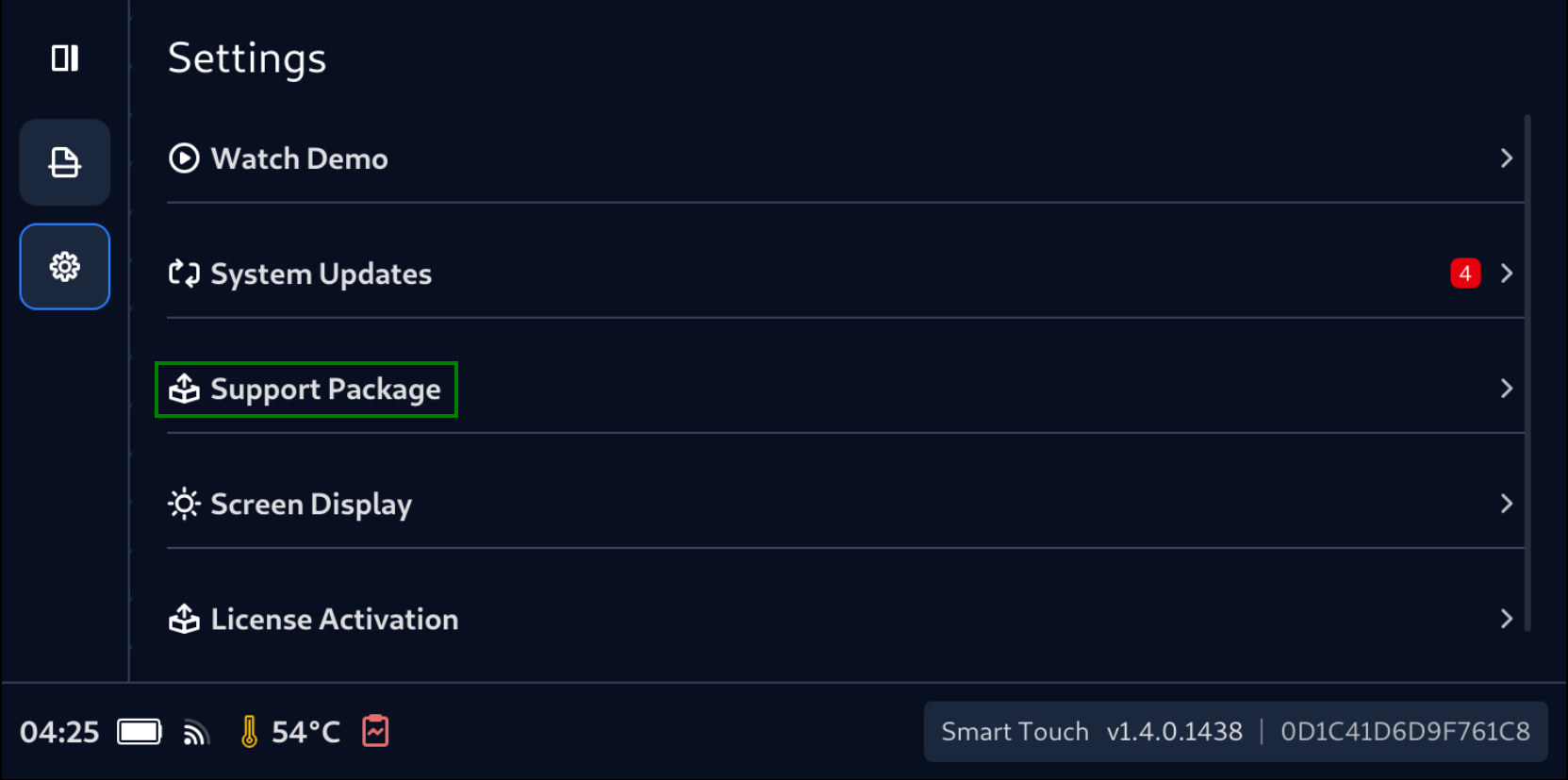
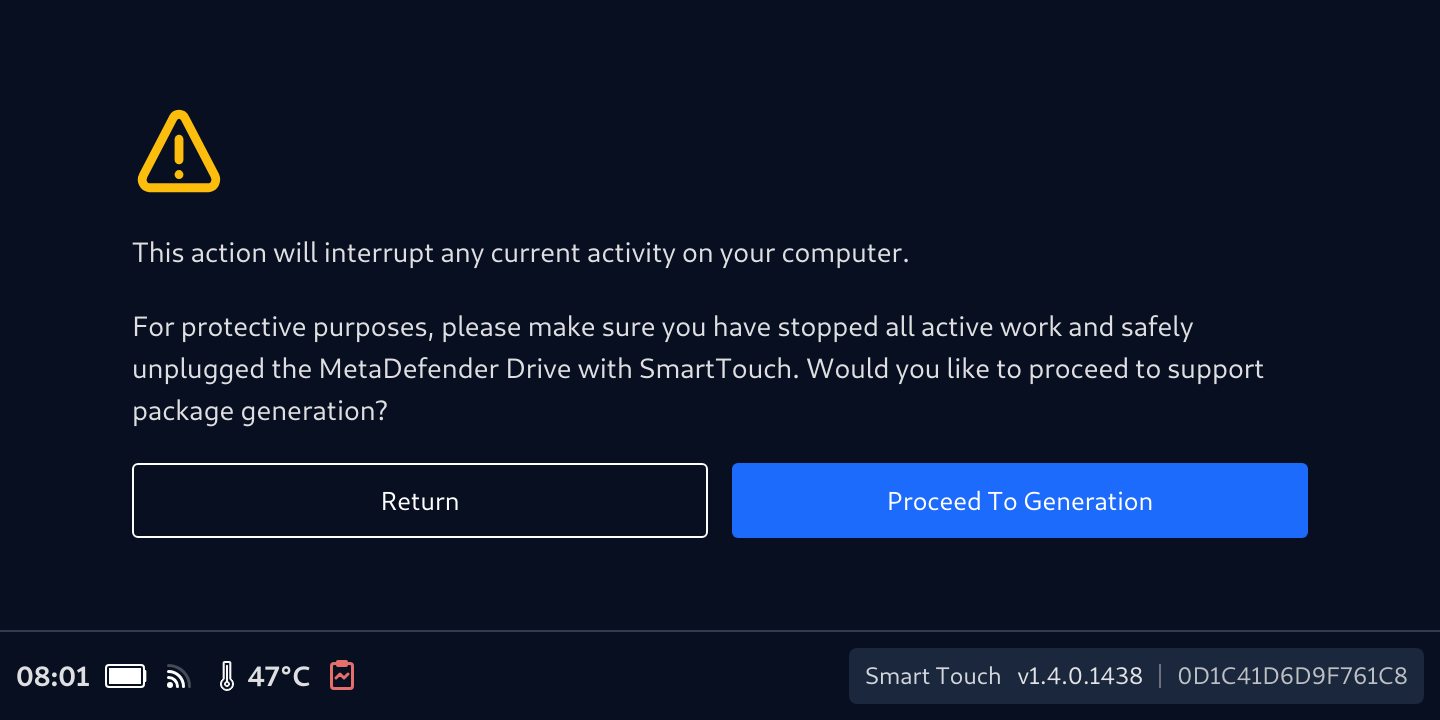
Read the notification careful, the tab Proceed To Generation
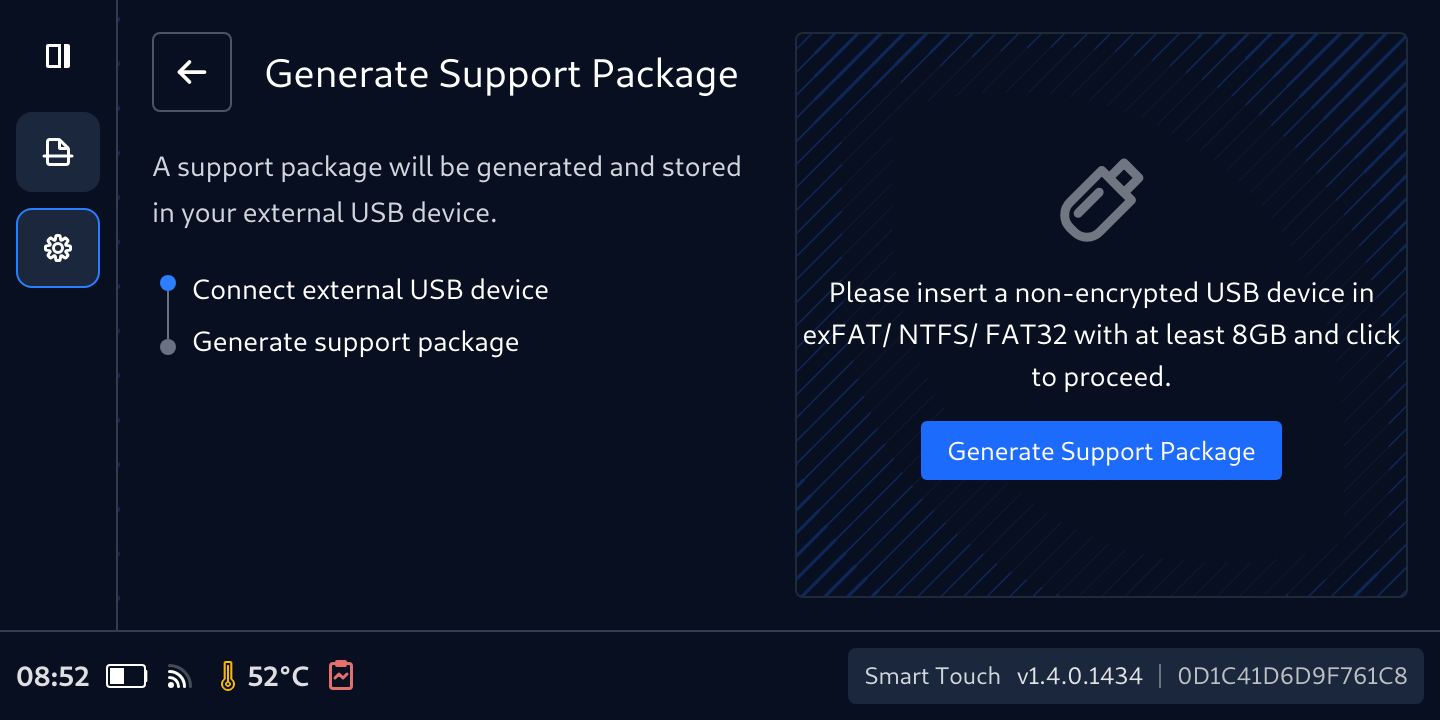
Prepare an external USB (formatted in NTFS/FAT/exFAT) with USB-A-to-C adaptor. Insert it into the type C port of MetaDefender Drive with Smart Touch then tab Generate Support Package
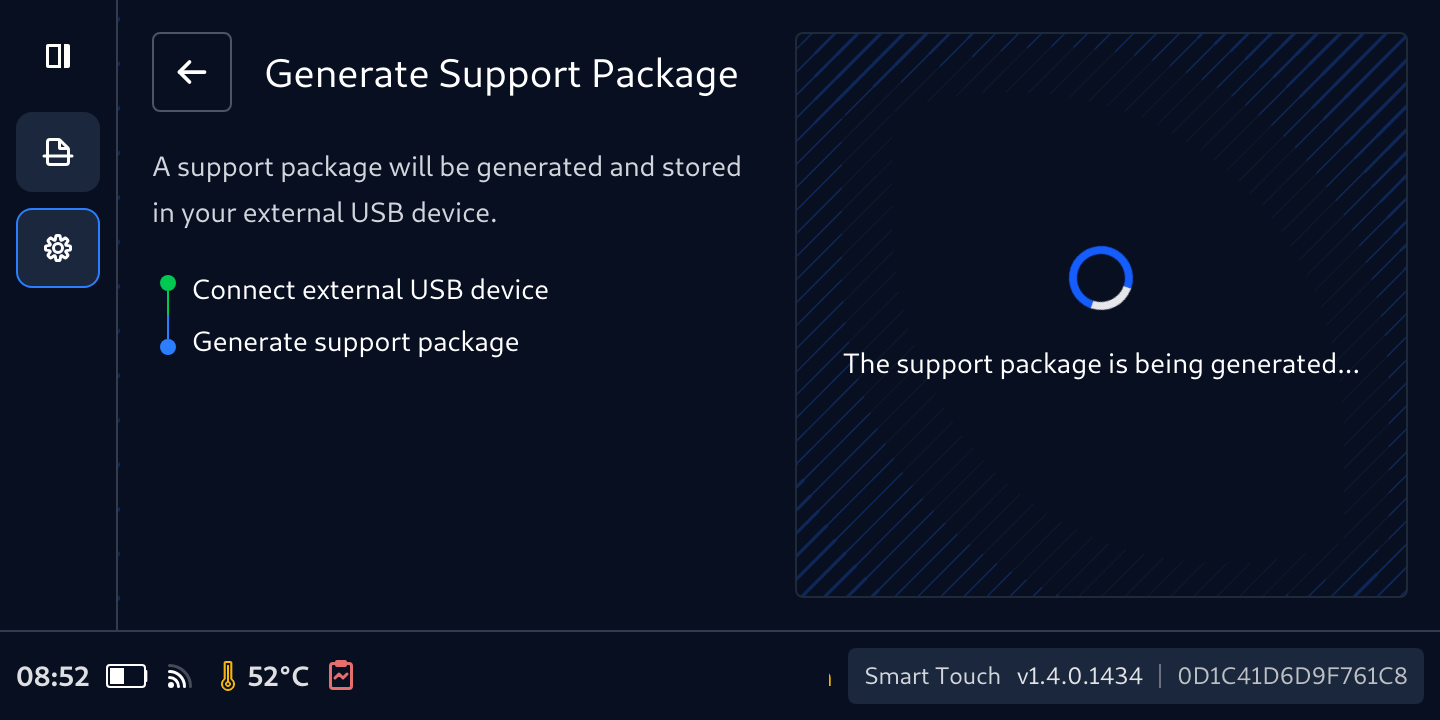
Wait for the package creation process to complete
Once completed, press Done and remove the USB storage from Smart Touch.
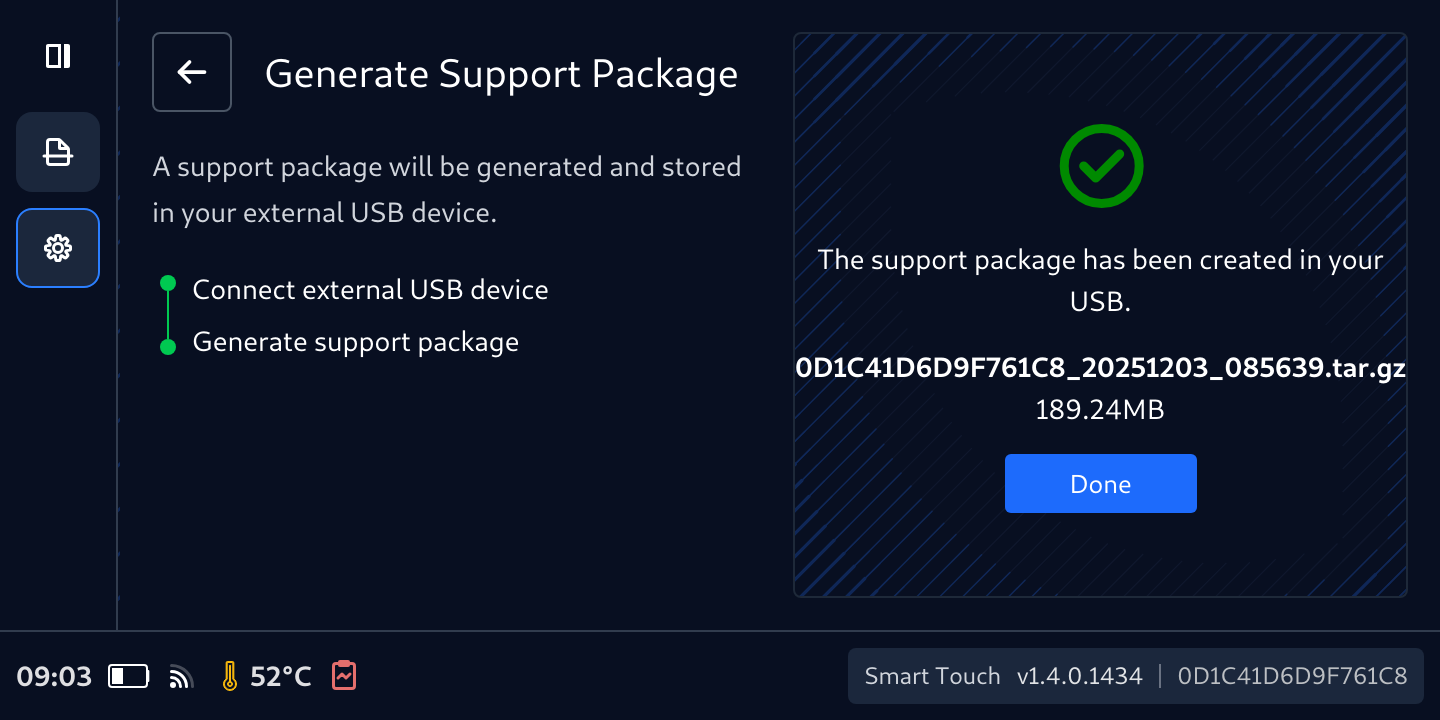
The Support Package will be created and located in the root of your MetaDefender Drive with Smart Touch storage under the smclog folder.

This process is to generate support packages for MetaDefender Drive with Smart Touch. To generate a support package for MetaDefender Drive, please follow the instruction on this page.