
Released on Mar 14, 2025 | A major release introducing new features. | |
New Features | Starting from v3.7.0, MetaDefender Drive Toolkit now supports the setup, enrollment & unenrollment of MetaDefender Drive for Centralized Scanning Profile. | |
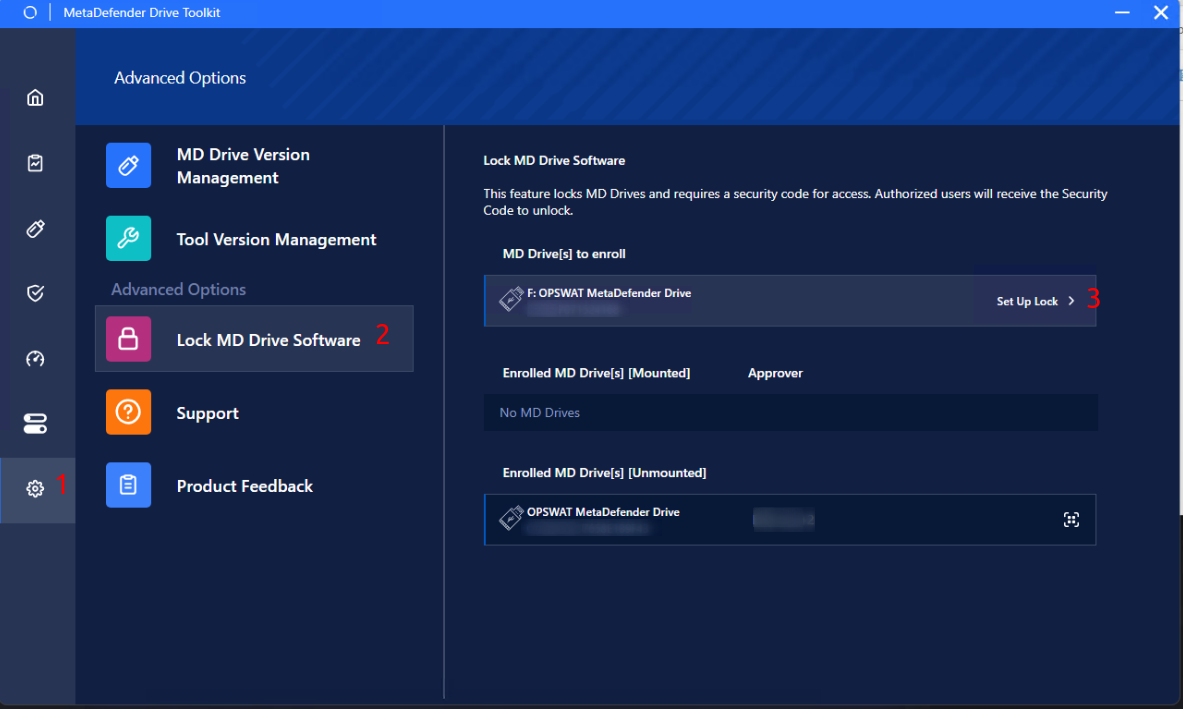
Enrollment for MetaDefender Drive | After booting MetaDefender Drive to be enrolled, the administrators open MetaDefender Drive Toolkit:
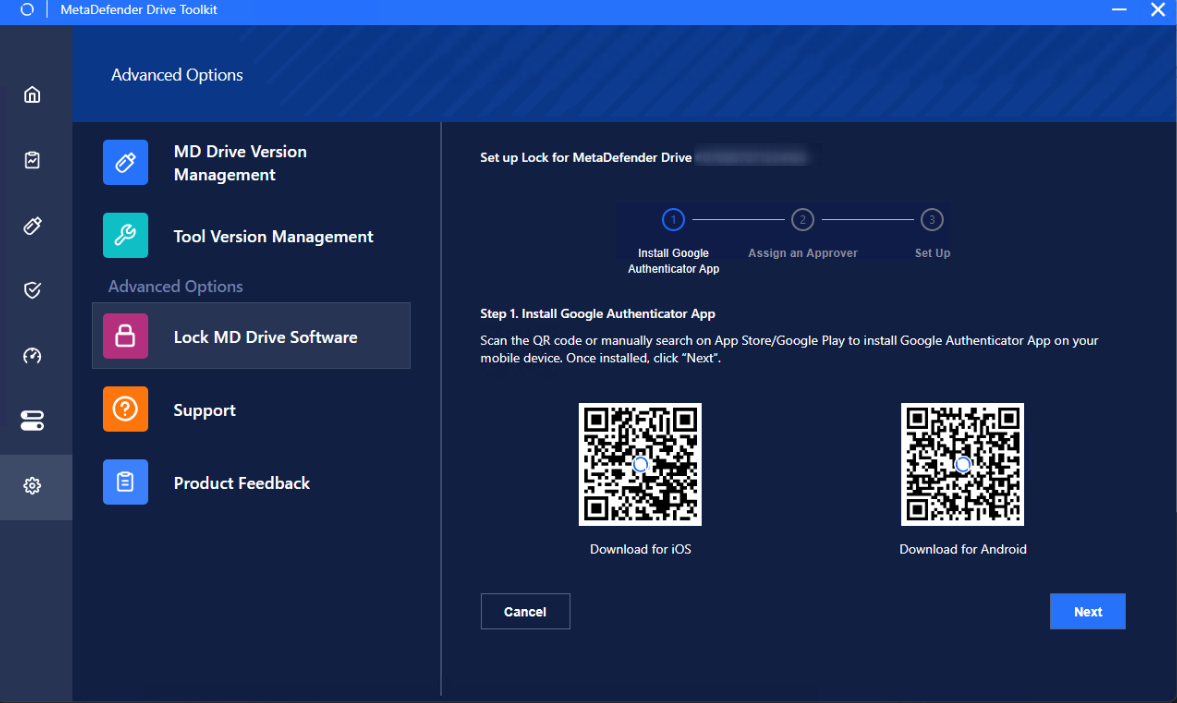
Administrator Setup:
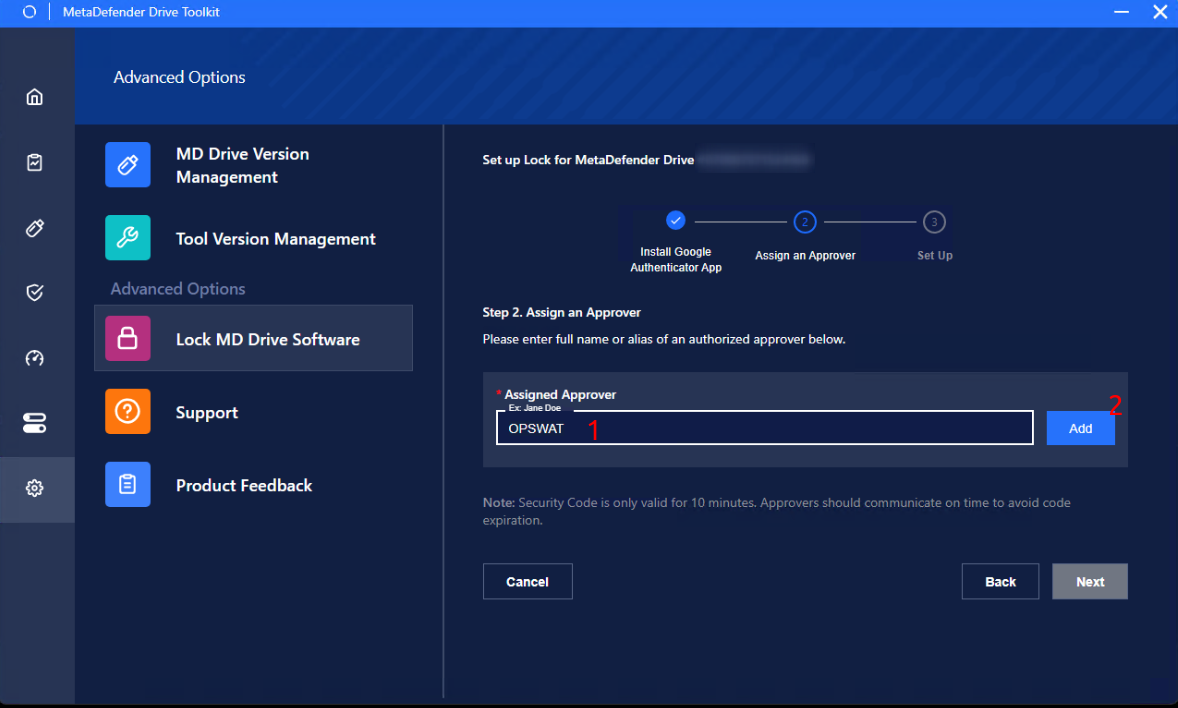
Assign an Approver:
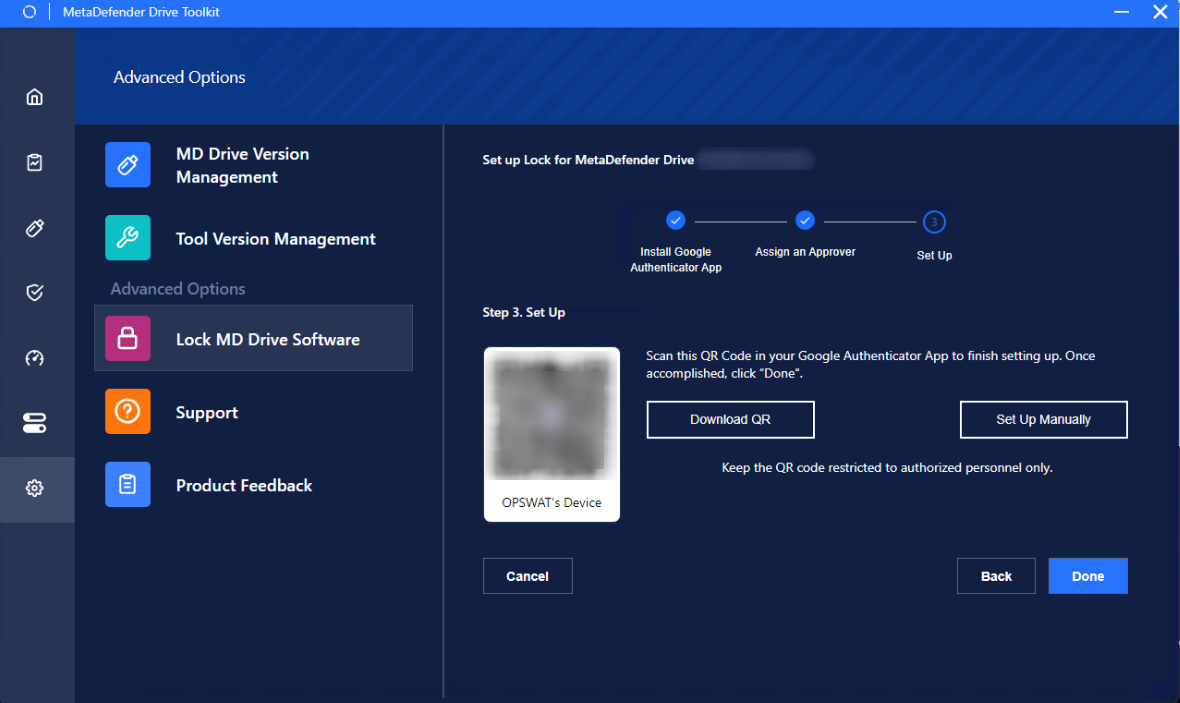
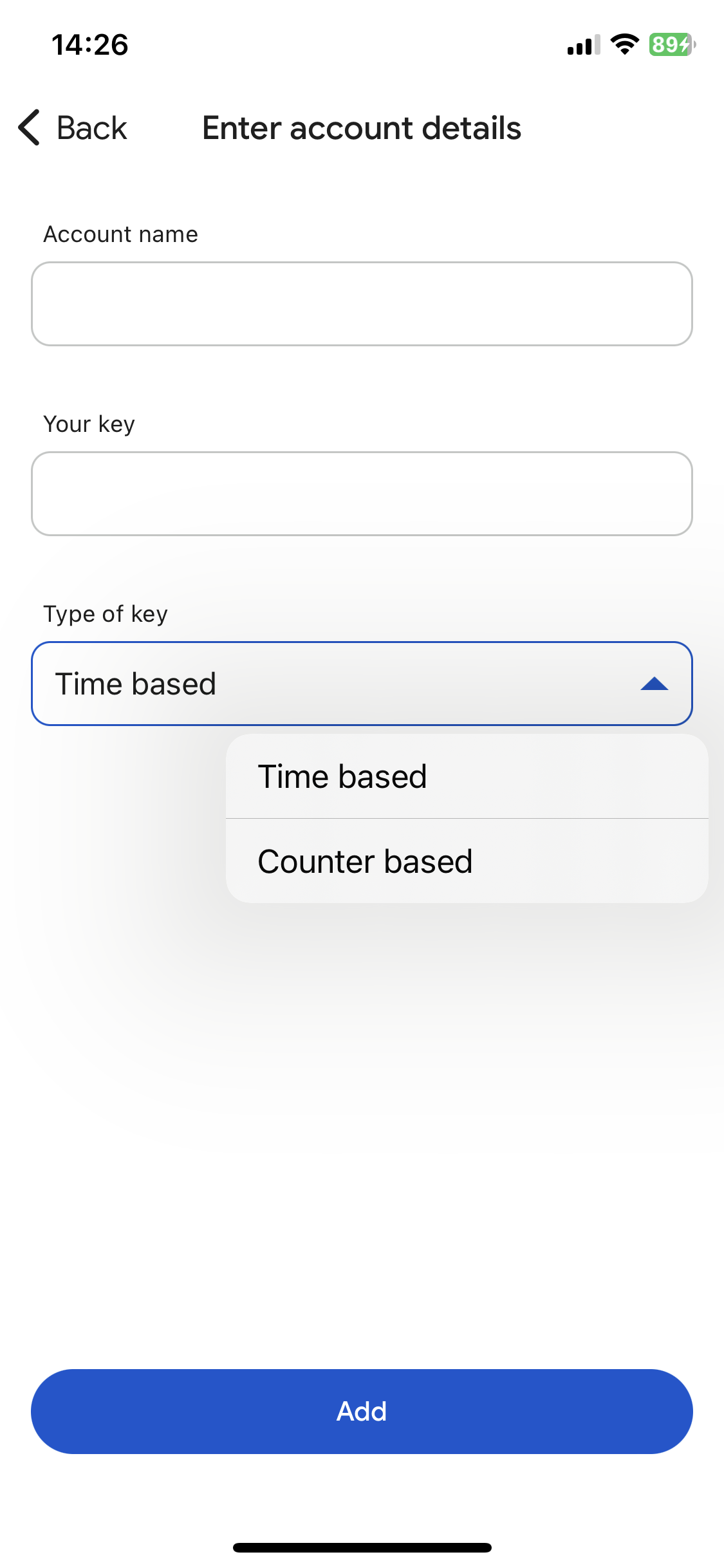
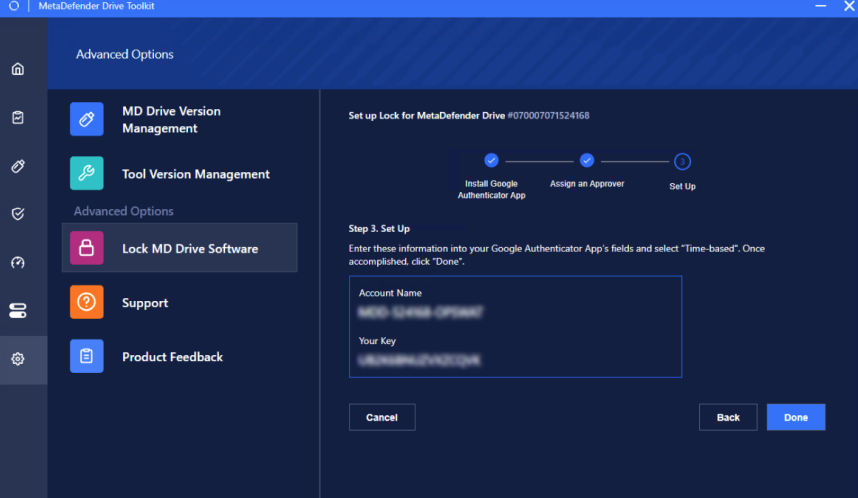
Complete MetaDefender Drive Enrollment, you have two options:
Once accomplished, click Done.
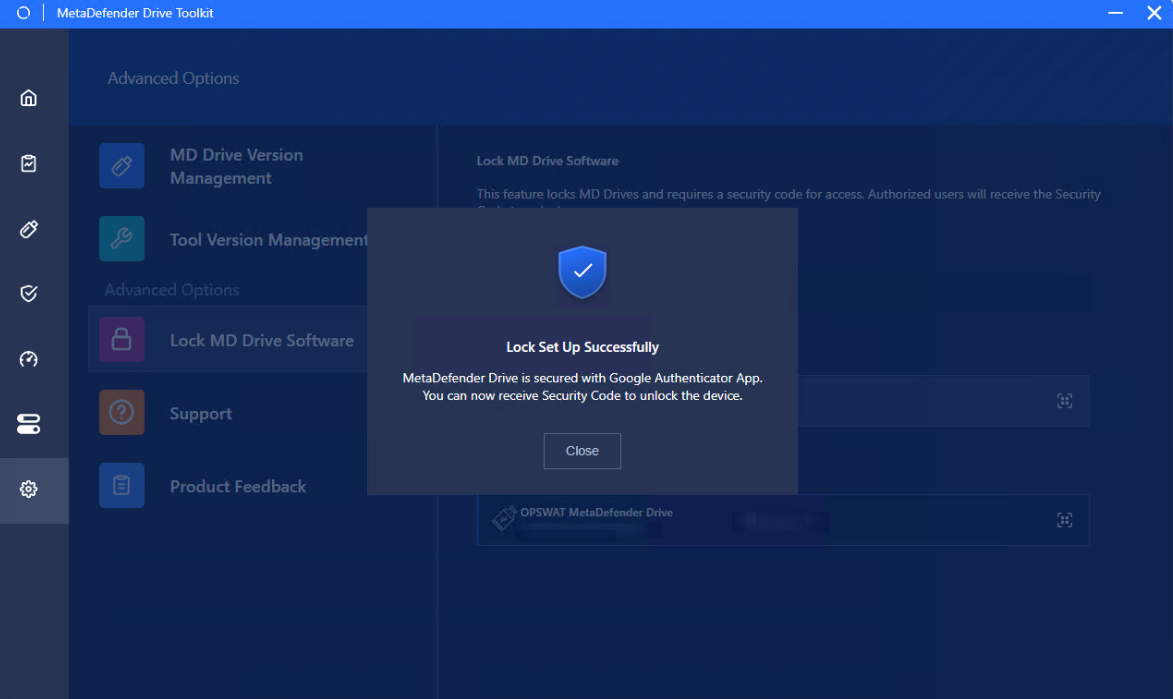
Successfully lock MetaDefender Drive Confirmation: A prompt will appear upon completion.
| |
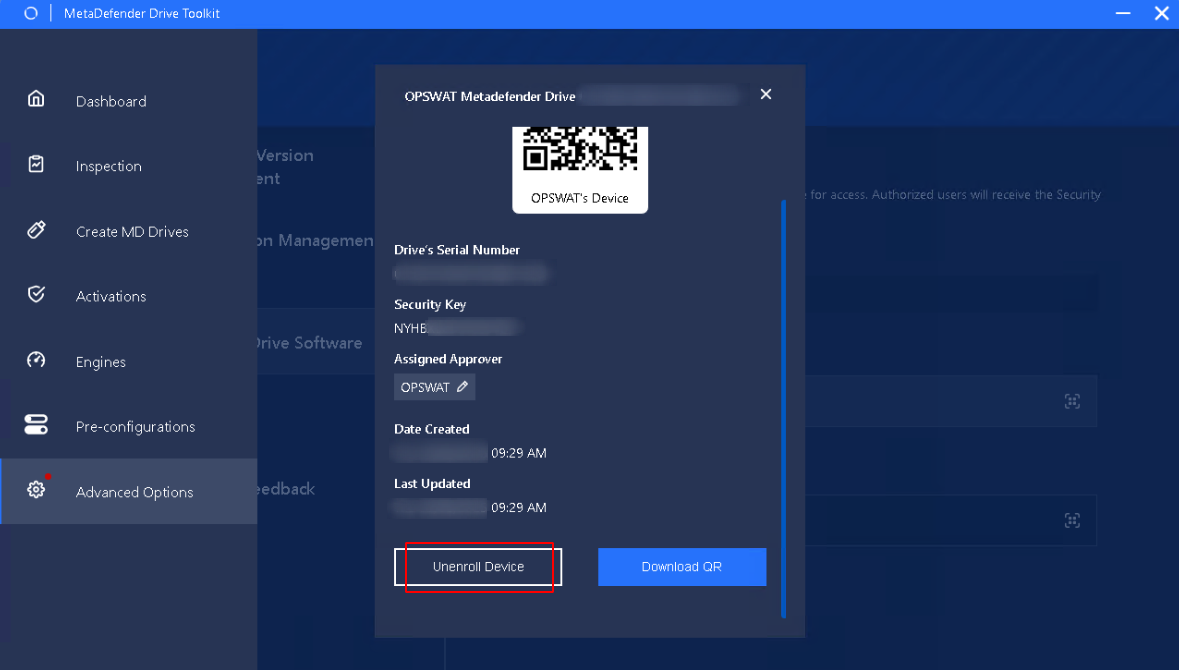
Unenrollment for MetaDefender Drive | After booting the MetaDefender Drive the administrators wish to unenroll:
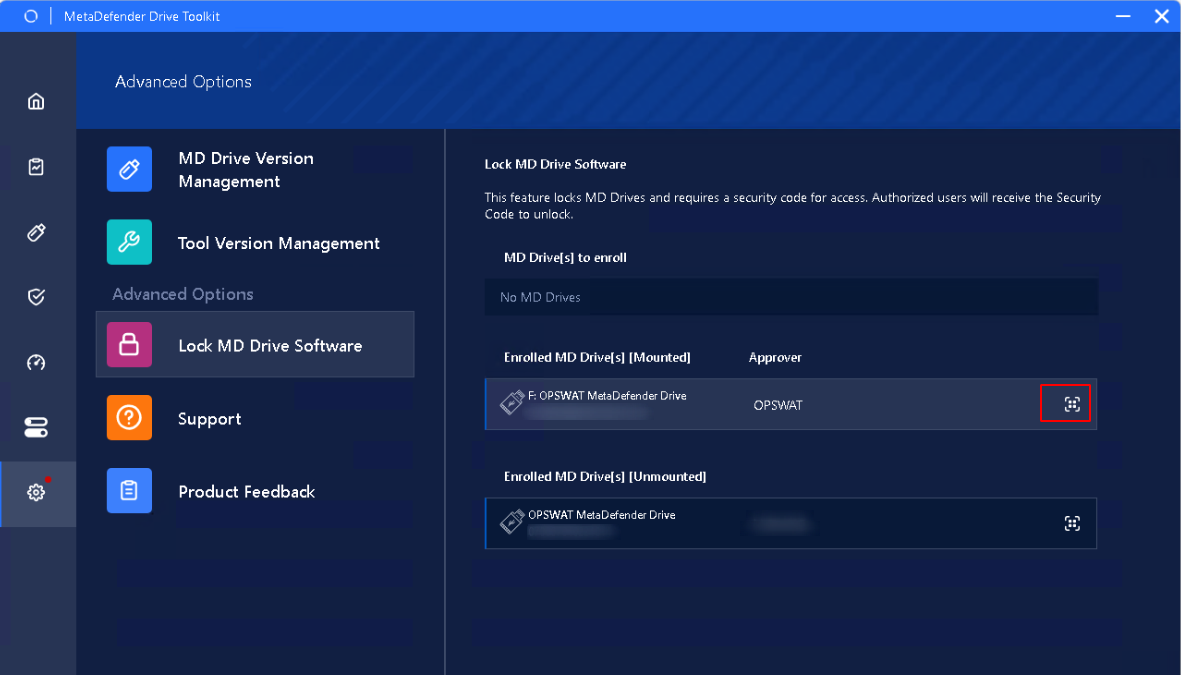
Administrators can directly unenroll on Drive Toolkit by clicking Unenroll Device.
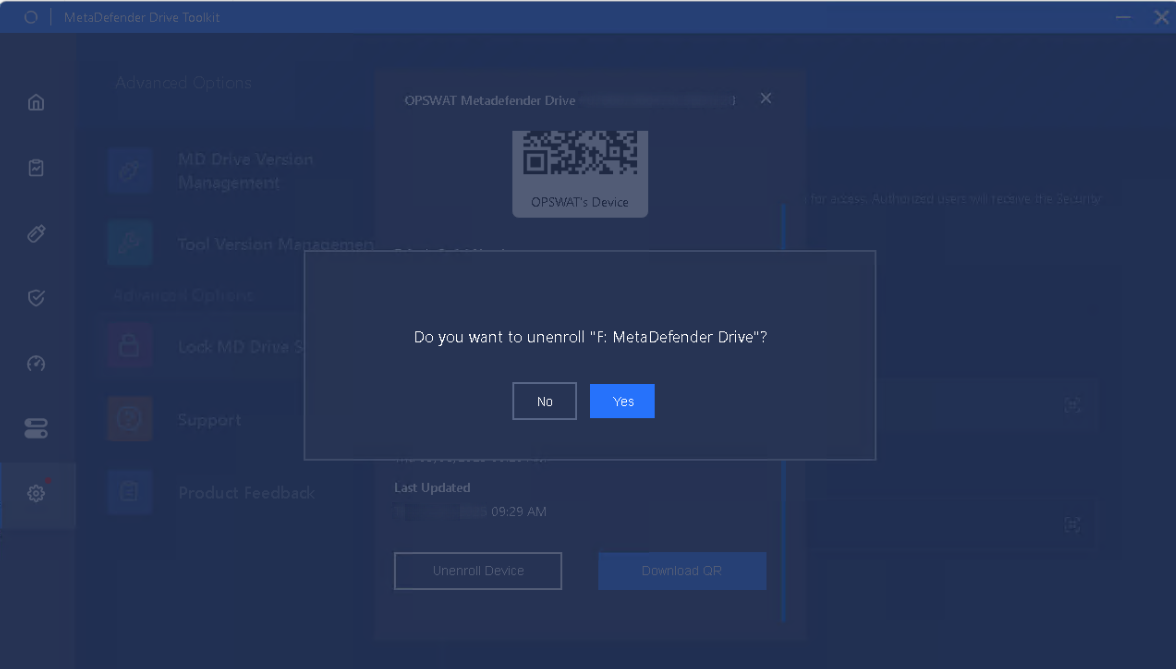
Click Yes.
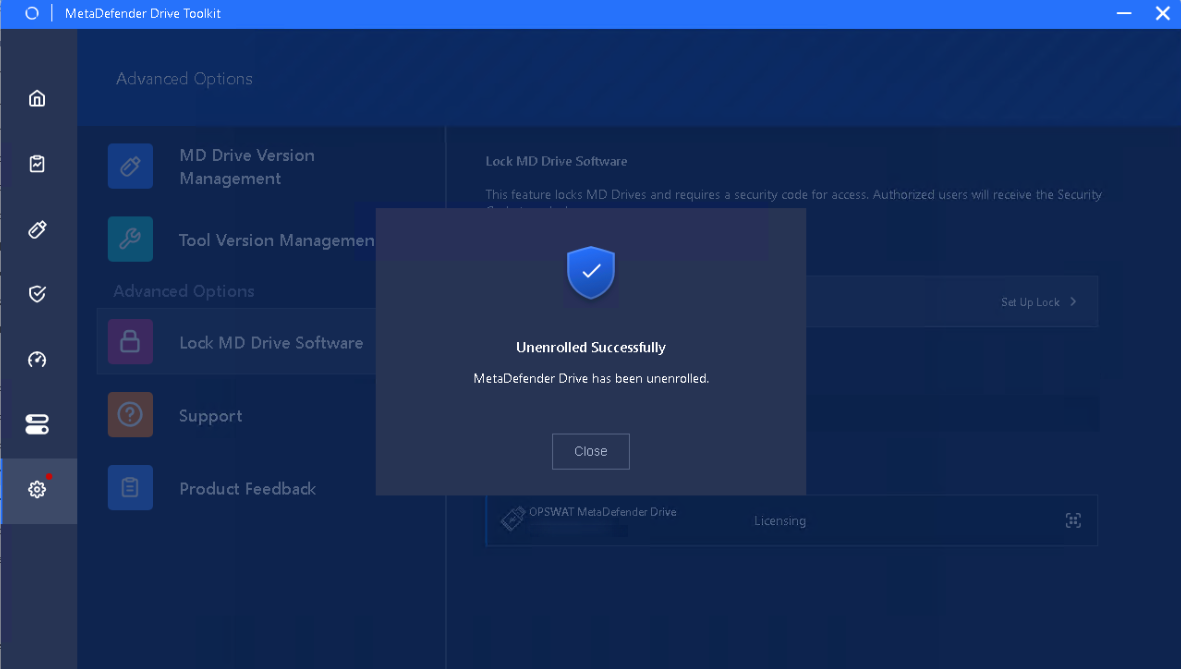
A prompt will appear upon completion.
|
Was this page helpful?
Release Notes