Administrator Provisioning
Enrollment and Lock MetaDefender Drive
To enroll MetaDefender Drive with Smart Touch to Centralized Scanning Profile, perform the following procedure under administrator
Go to Settings tab
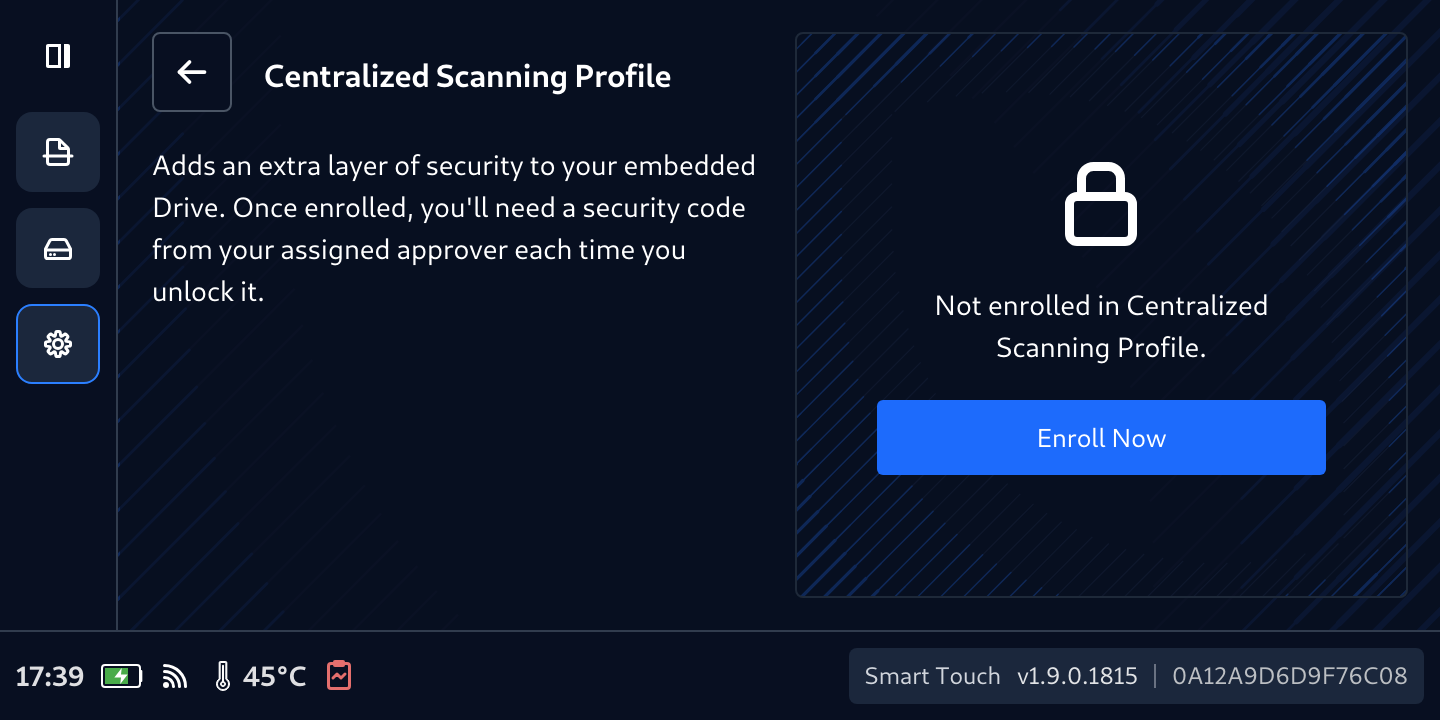
Select Centralized Scanning Profile
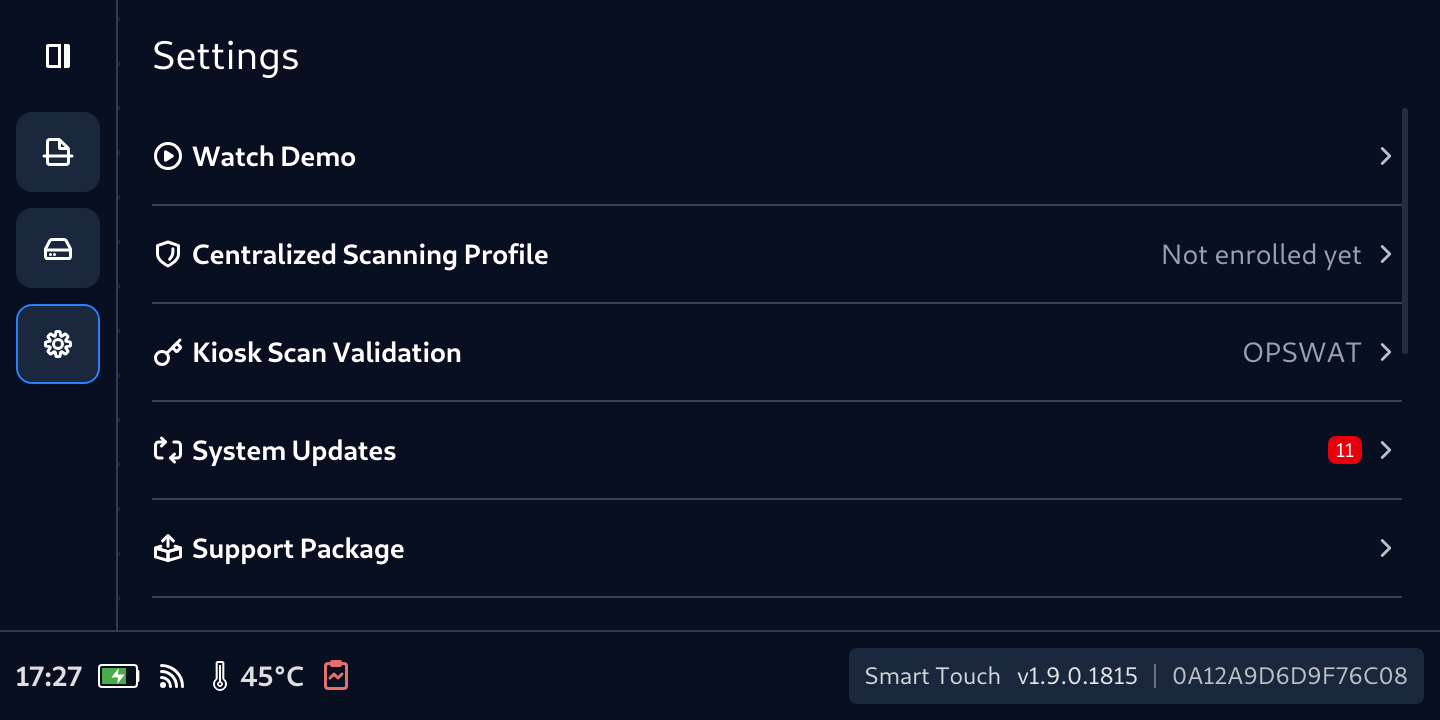
Tap Enroll Now
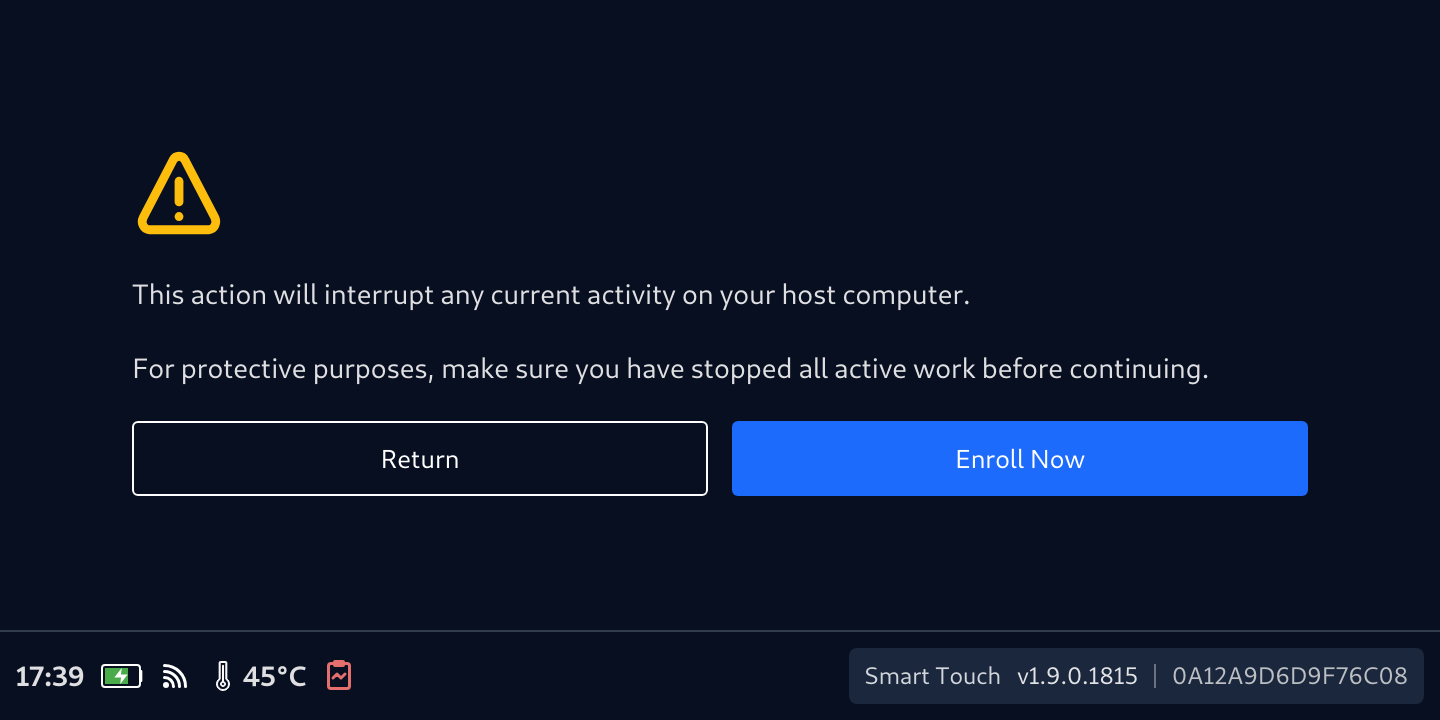
Confirm the acknowledgement of any running work will be interrupted
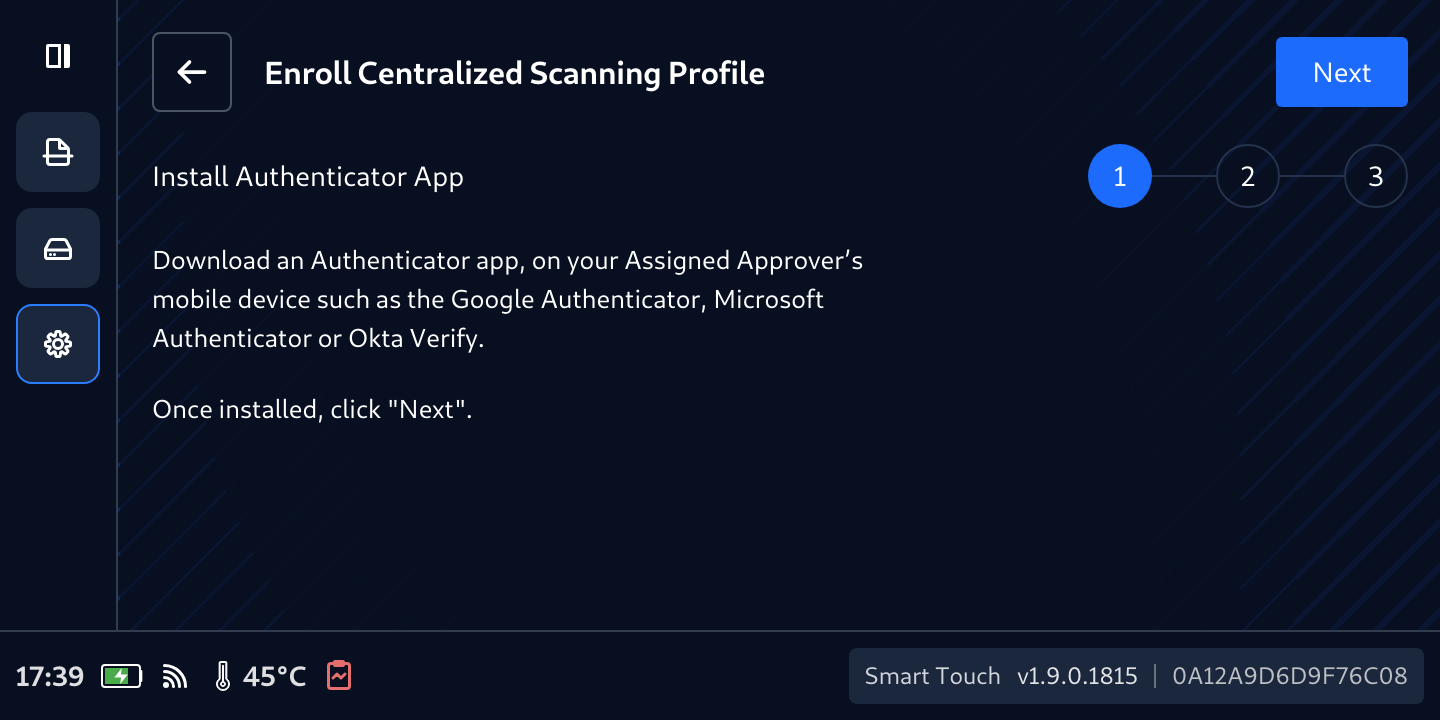
Follow on-screen instructions
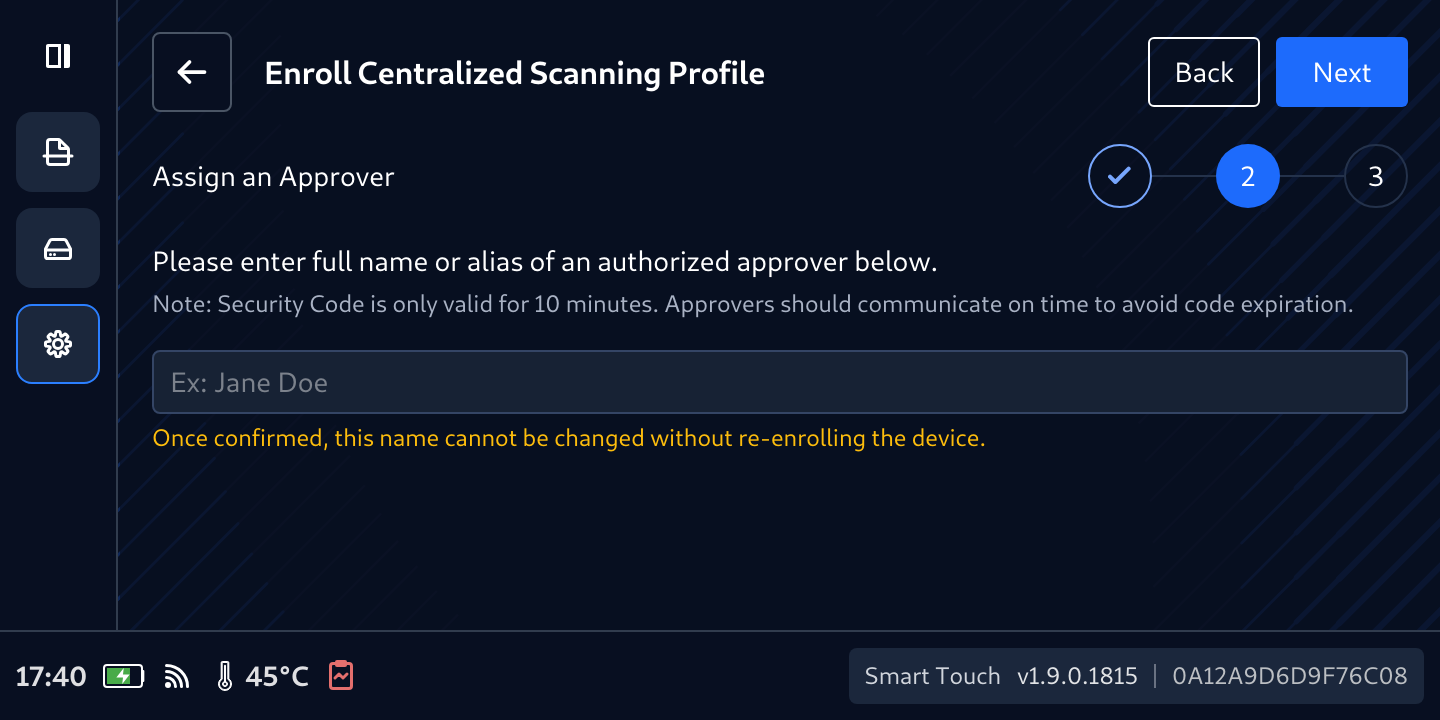
Assign an Approver
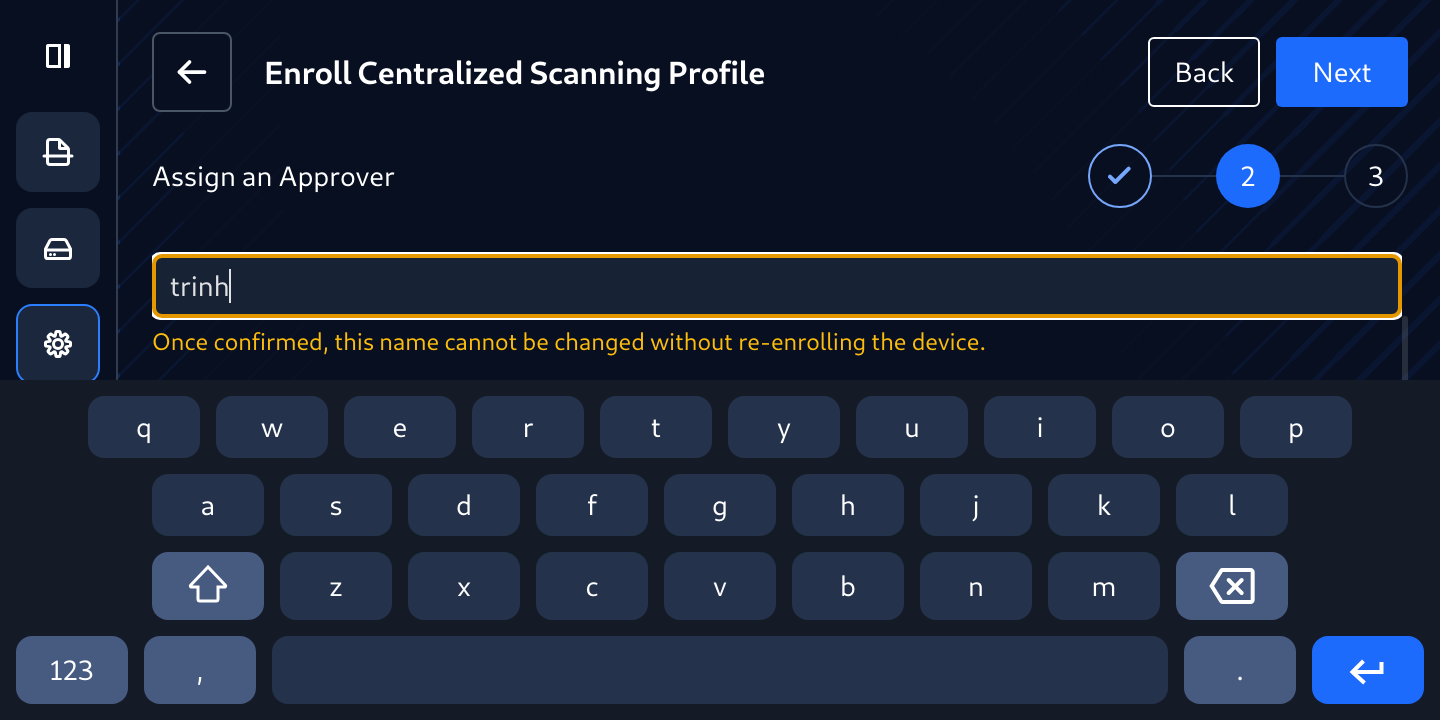
Enter a name to identify the Approver's name with the built-in keyboard, then click Next
Using Google Authenticator, Microsoft Authenticator or Okta Verify 2-factor authentication applications (to generate a 6-digit OTP (one-time password) in the next steps)
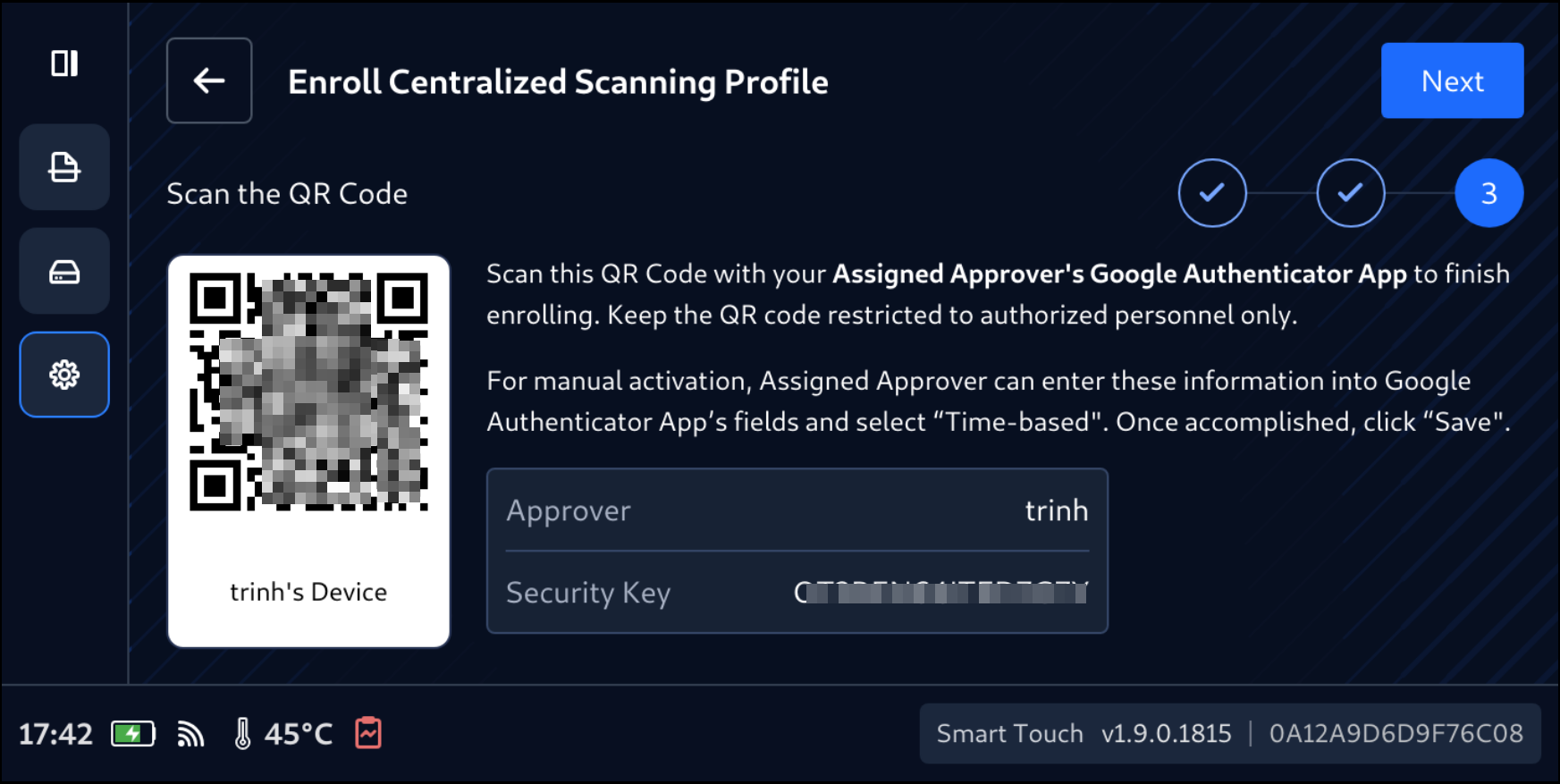
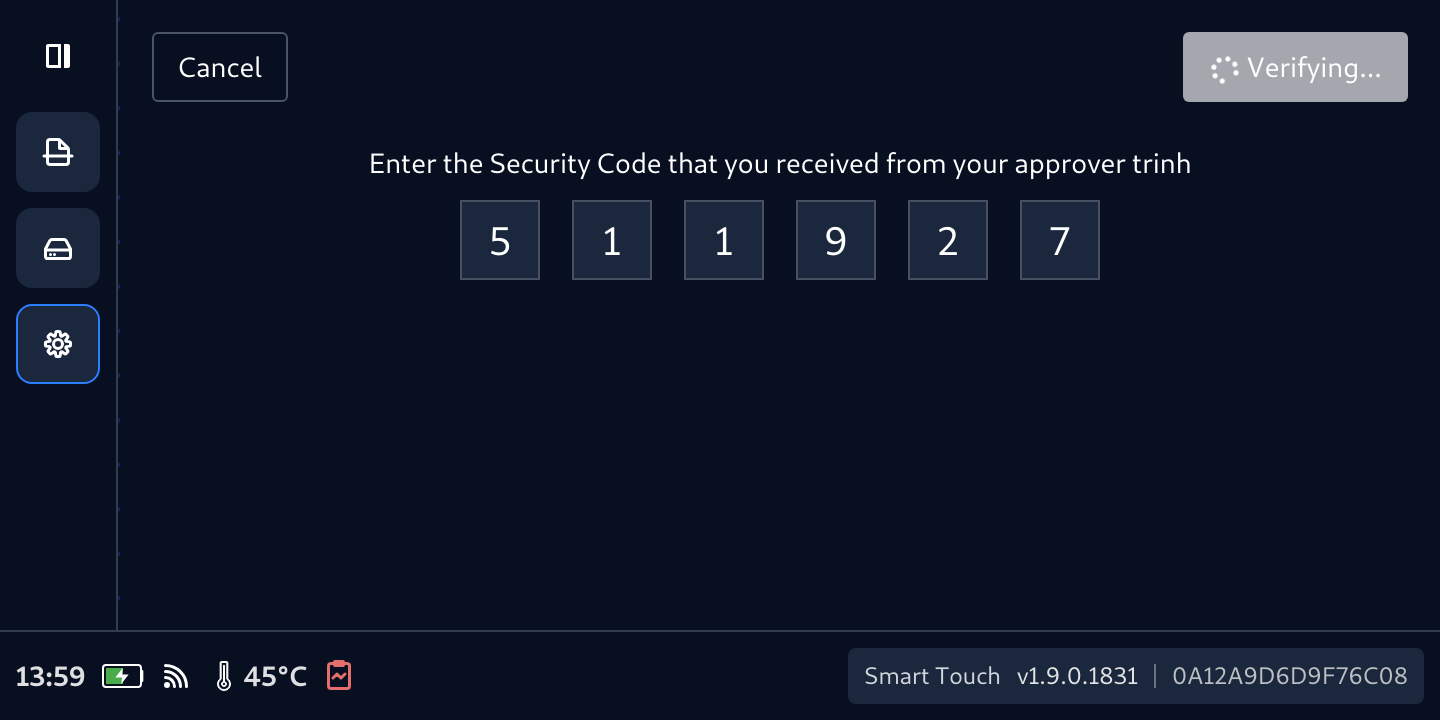
Enter the 6-digit retrieved from 2-factor authenticator of your choice
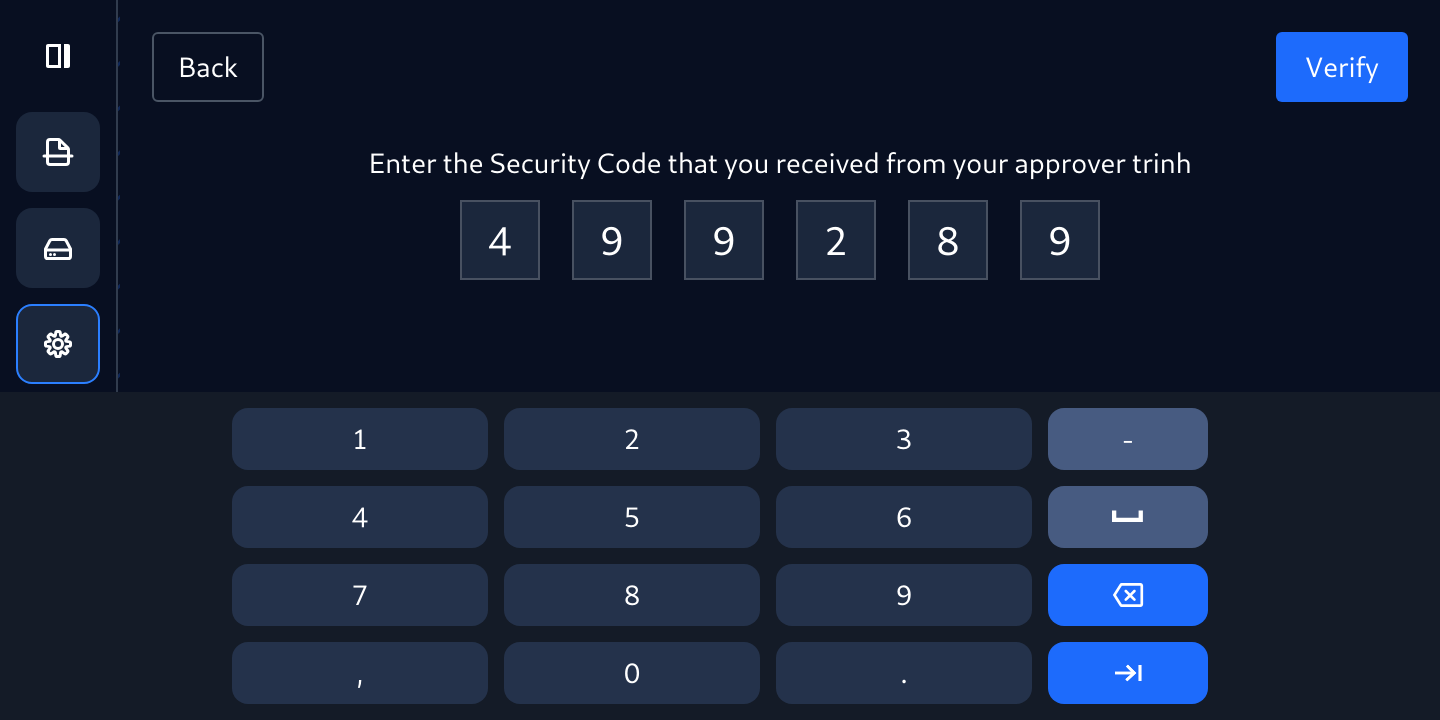
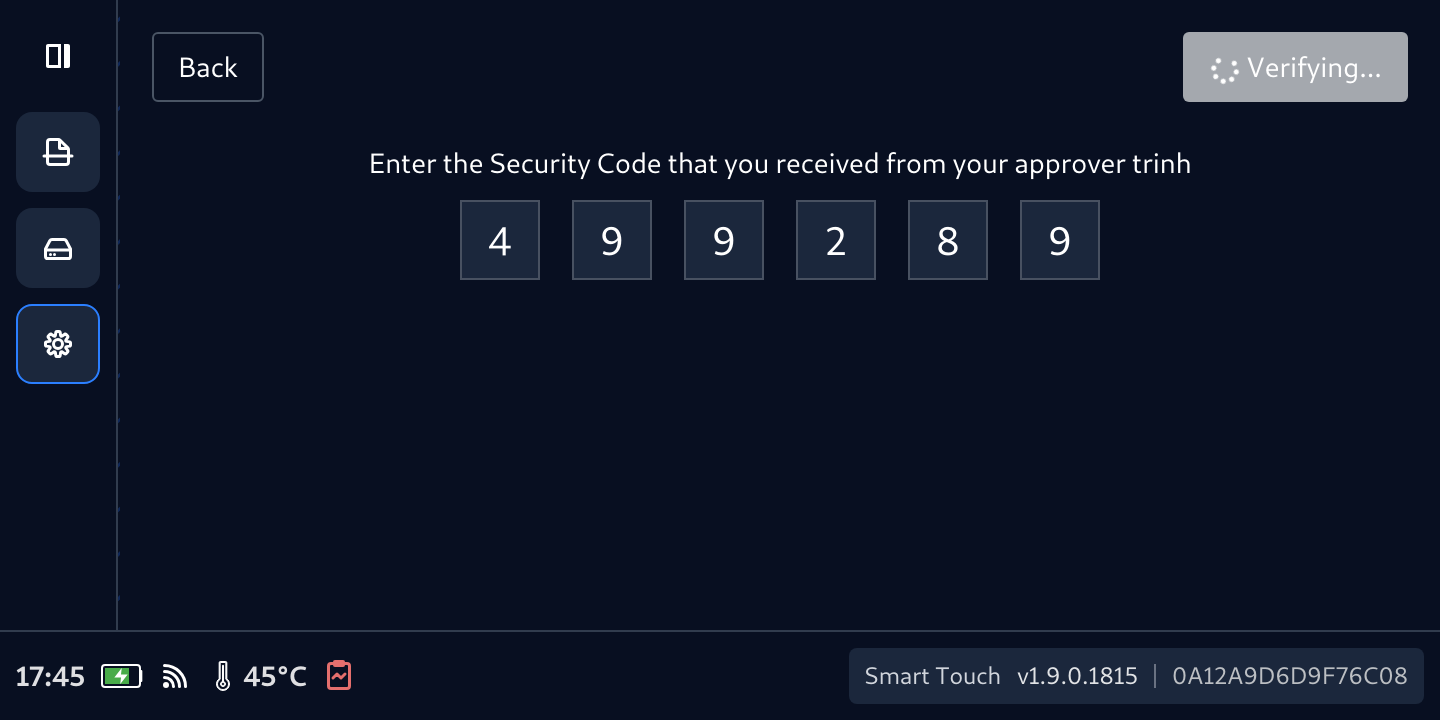
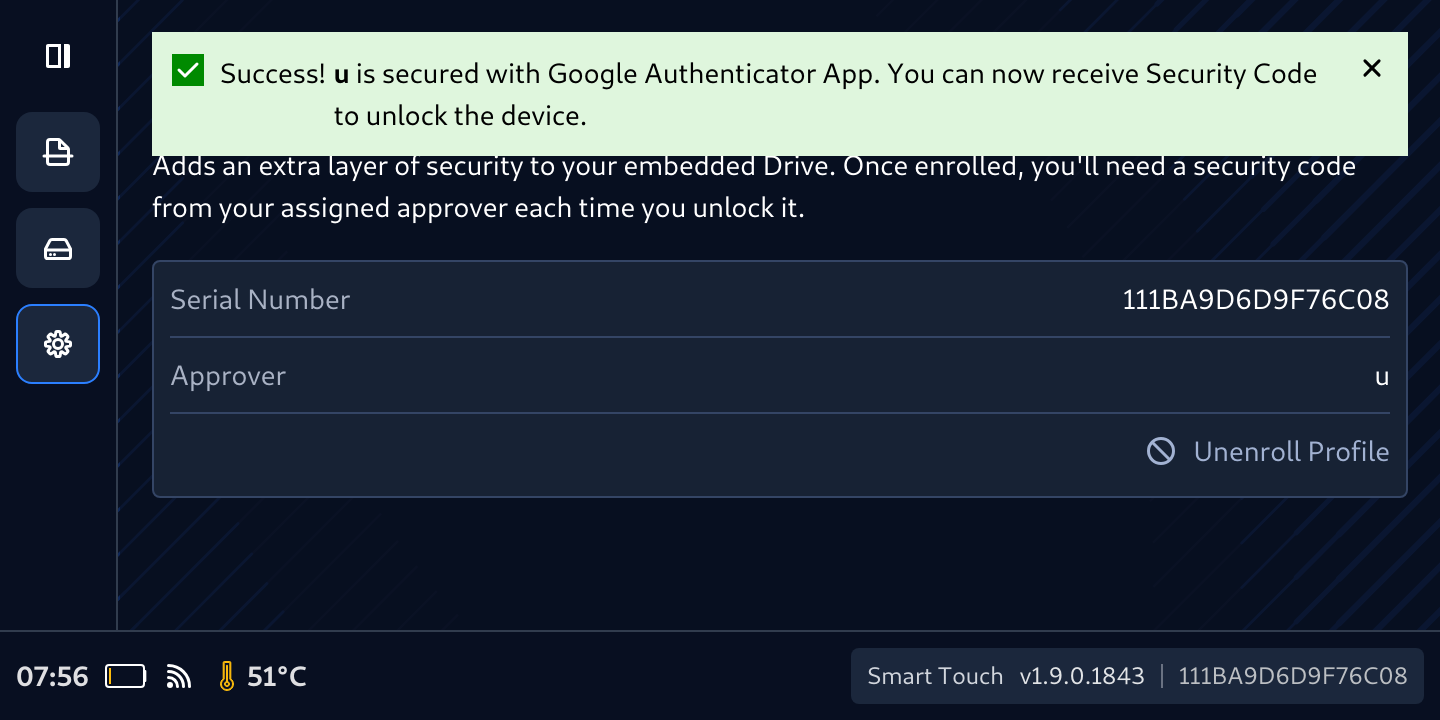
Tap Verify then wait for the Success! message
Codes are only valid for a short time, so if it takes too long to enter, you will see this red message. Just need to wait for new one and enter again.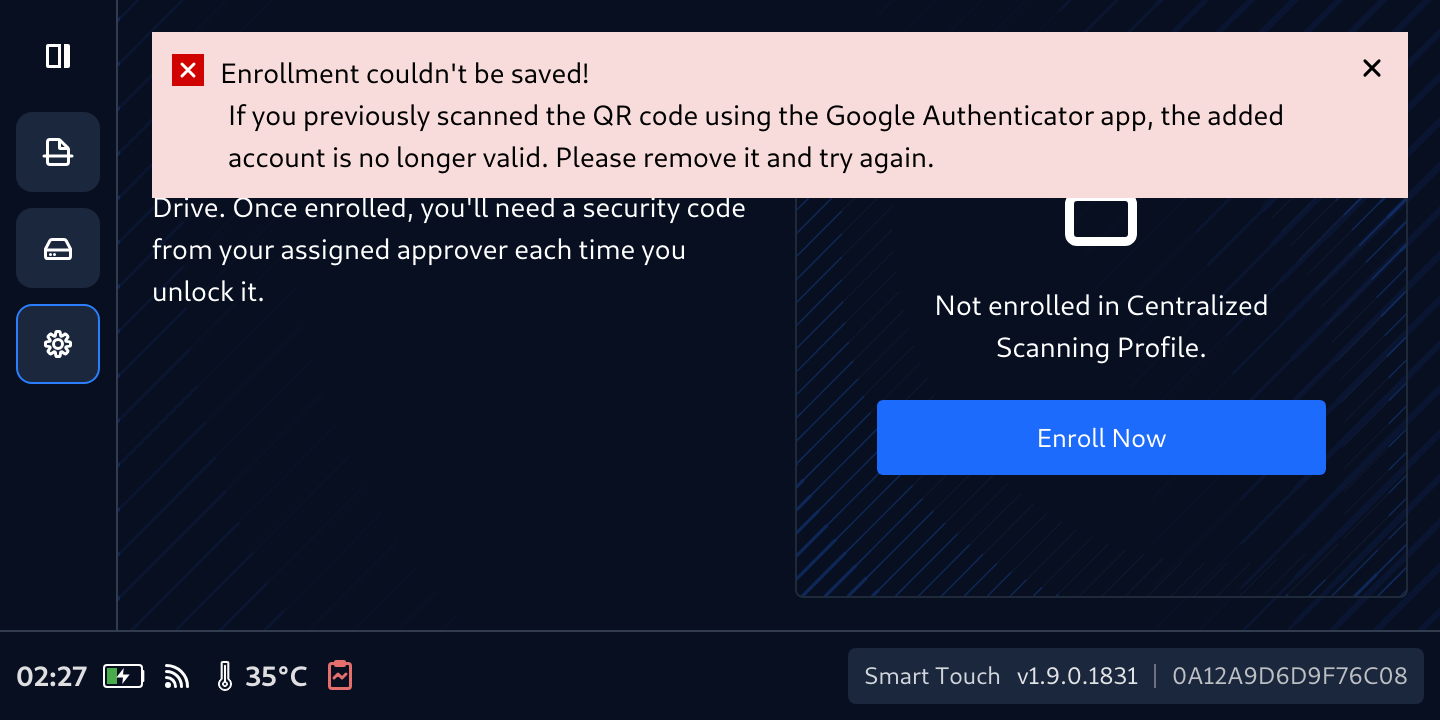
Unenrollment for MetaDefender Drive
After booting the MetaDefender Drive the administrators wish to unenroll from Centralized Scan Profile
Go to Settings tab
Notice that the status of Centralized Scanning Profile now is Enrolled
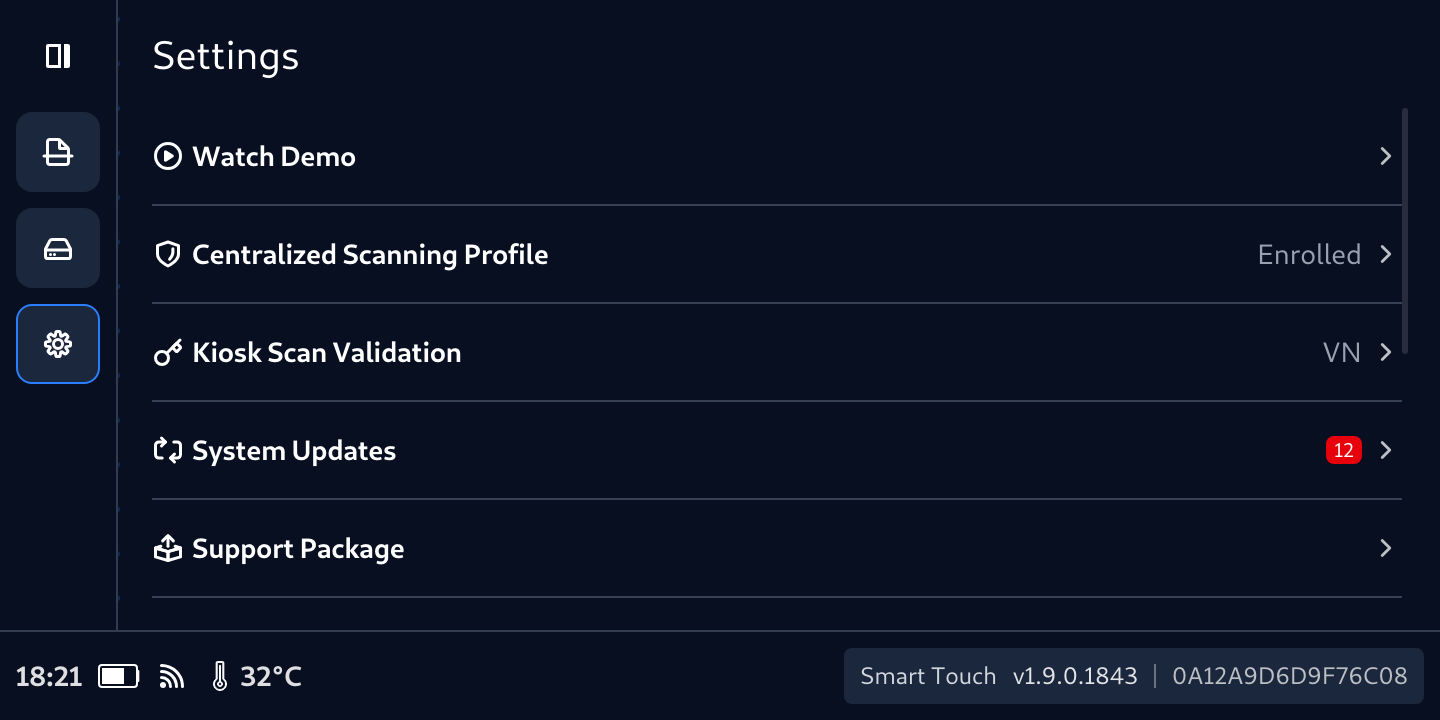
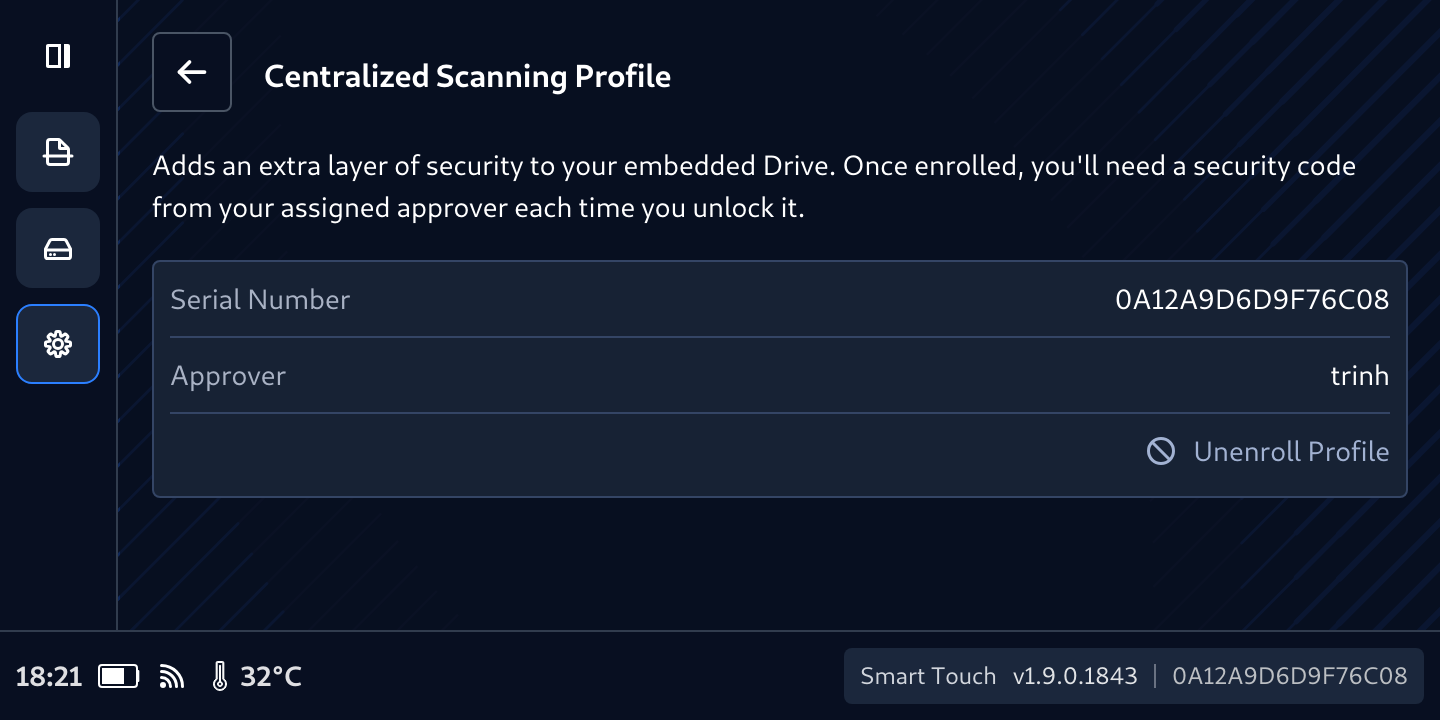
Tab Enrolled label then tap Unenroll Profile
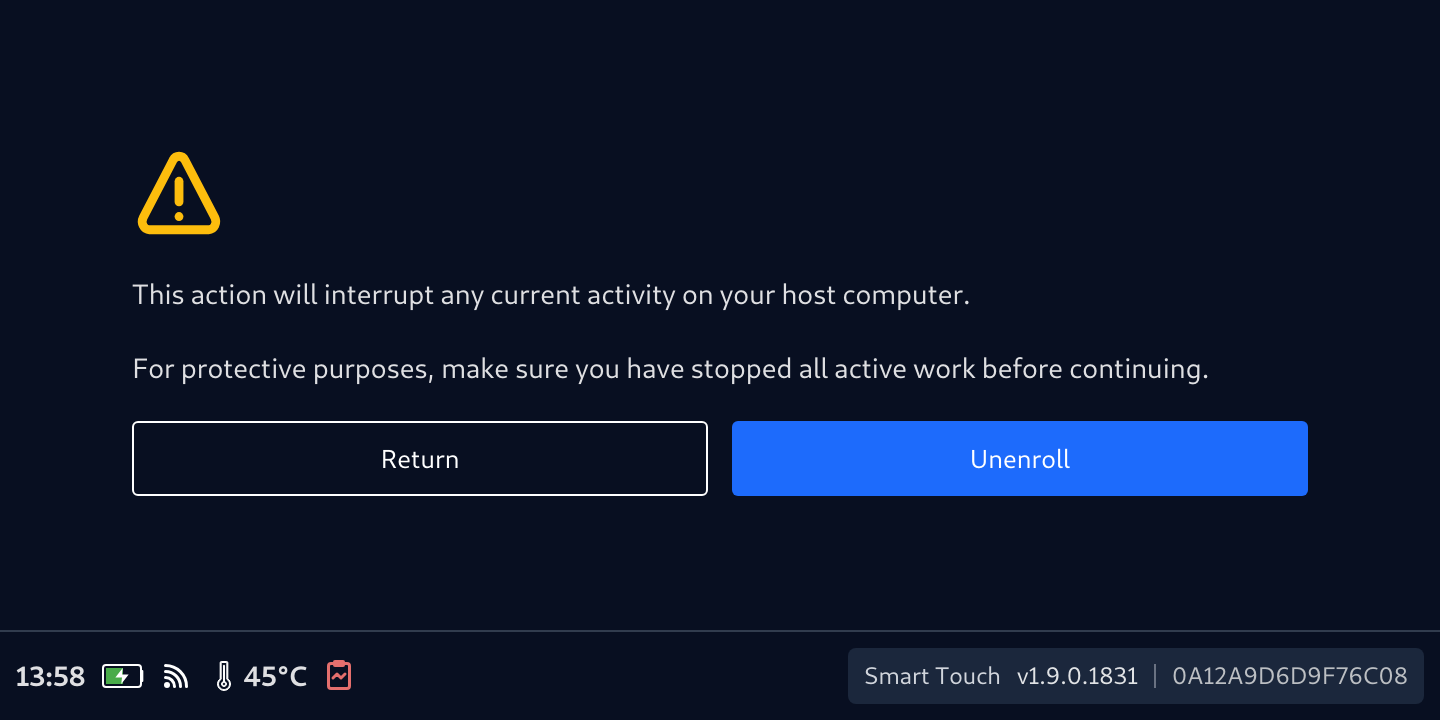
Confirm that you want to Unenroll
Enter the OTP retrieve from the 2-Factor Authenticator then tap Verify
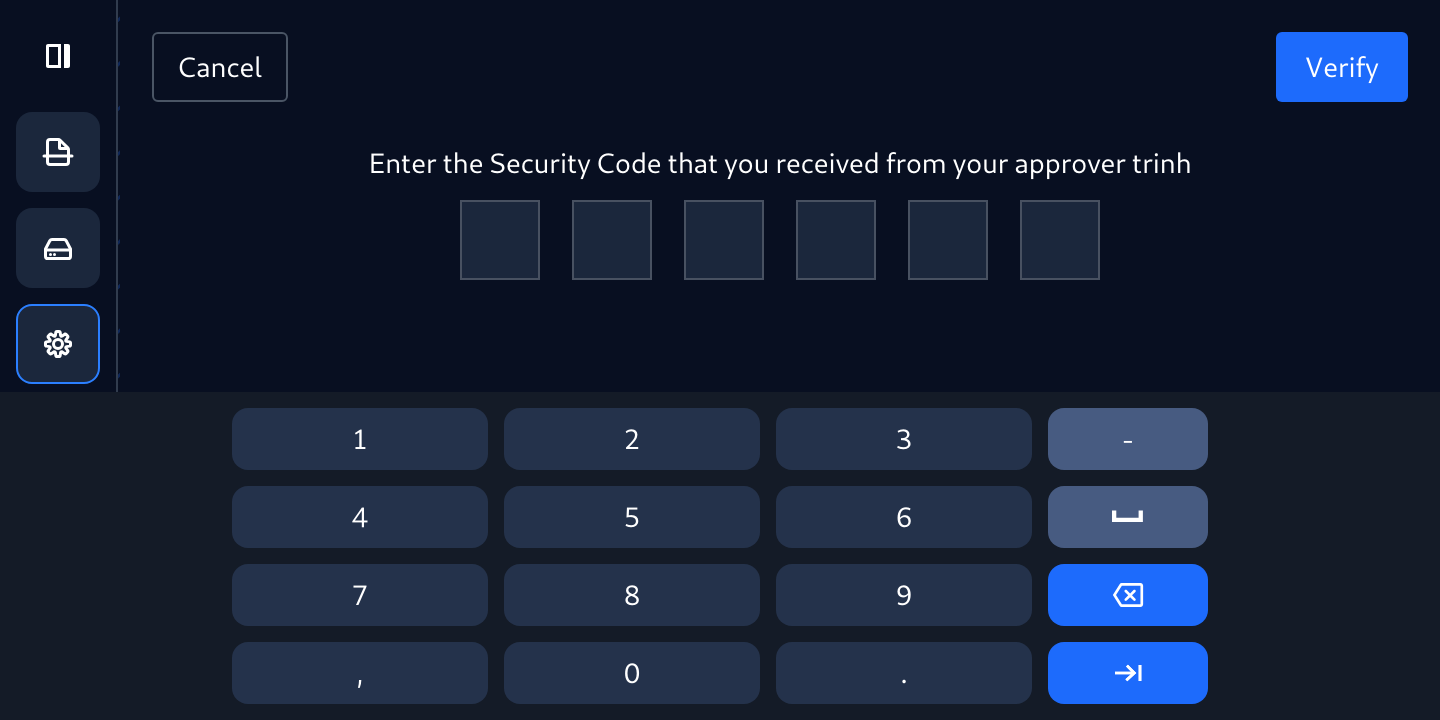
Smart Touch will verify the entered OTP and will unenroll the device if the provided OTP is correct