
MetaDefender Drive provides full functionality in an offline environment. As a result, the license activation process is designed to be possible through an air-gapped environment. Assuming the drive is kept in an isolated area without network access, and a low-security system sits on the low-side with internet access. The following steps will allow you to activate your MetaDefender Drive in an offline environment.
Obtain Deployment ID
Boot MetaDefender Drive for the first time until this screen shows up
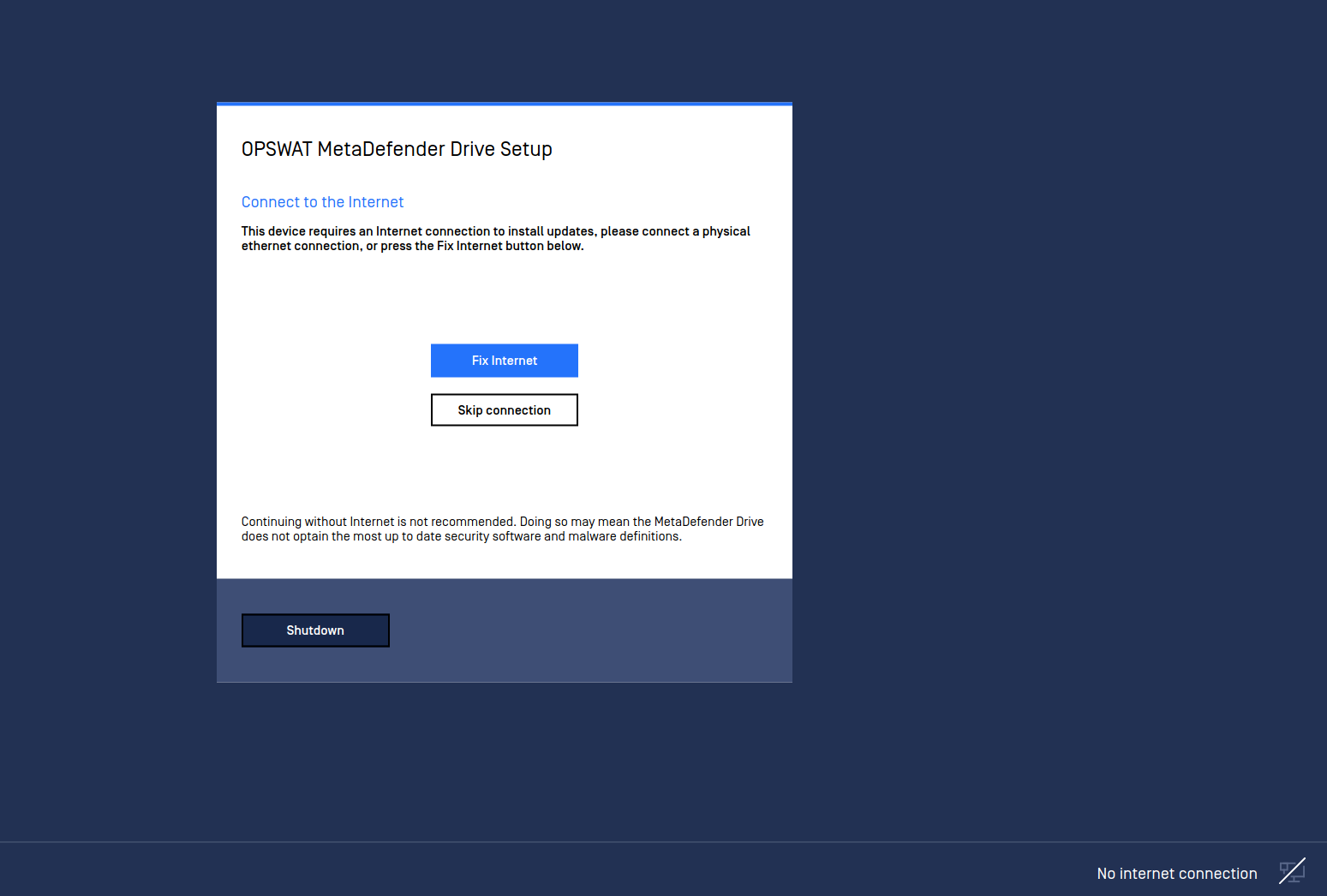
Shutdown then plug MetaDefender Drive into a running computer.
In the file browser, avigate to the NTFS partition "MetaDefender Drive"
Under the root of the partition sits a file called "deployment_id.txt", this is your MetaDefender Drive deployment ID
Look for the OPSWAT invoice provided with the activation key for MetaDefender Drive
Request a License File for Offline Activation
Navigate to "https://my.opswat.com/portal/license-management/organization-licenses", and log in using the credentials you set up during the sales process
Select "License Activation"
Ensure Products reads "MetaDefender Drive"
Enter your Activation Key in the given field
Enter your Deployment ID in the given field
Click Activate
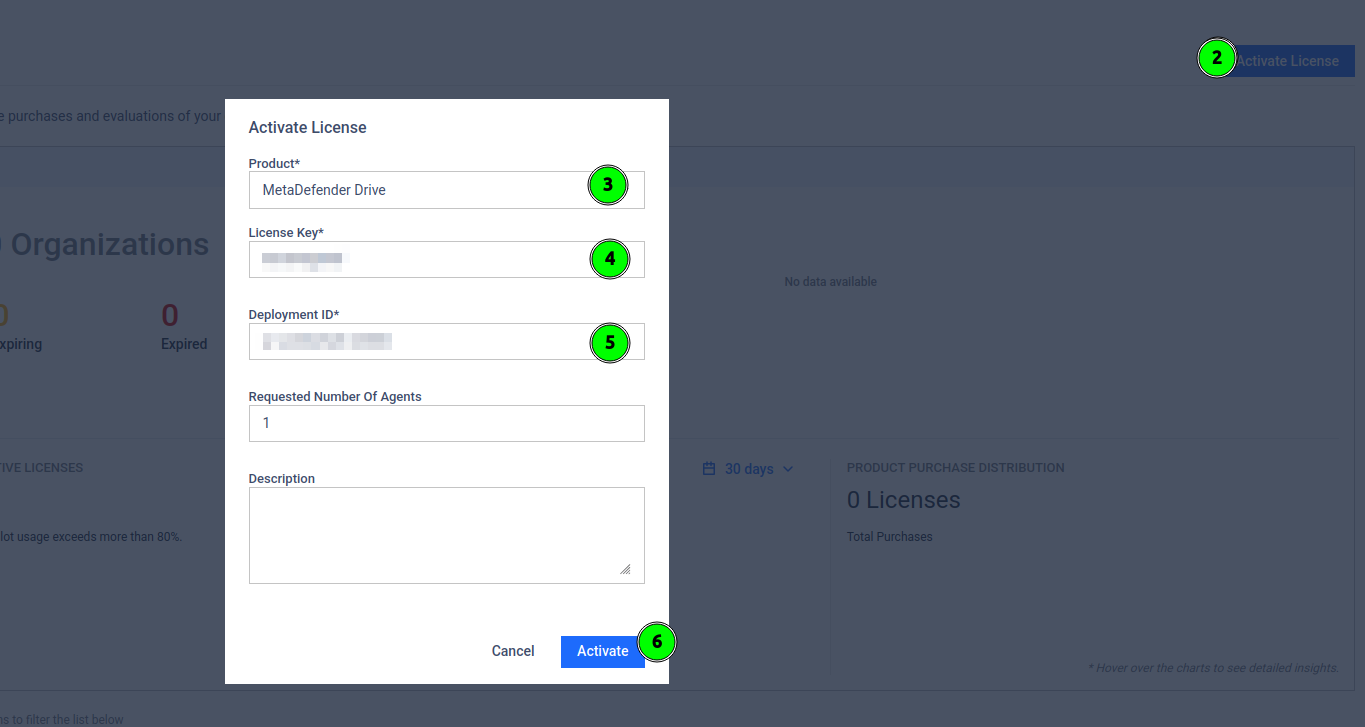
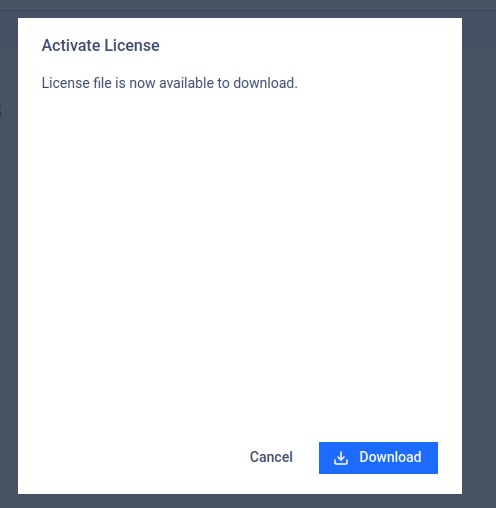
Click Download when activation is successful. You should receive a file called "<Deployment ID>.yml"
Copy License File to MetaDefender Drive
Move the <Deployment ID>.yml file into the air-gapped area where the MetaDefender Drive you want to license is located
Insert MetaDefender Drive into the system
Copy <Deployment ID>.yml into the "license" folder on the NTFS partition "MetaDefender Drive"
Rename the <Deployment ID>.yml to "license.yml" within the "license" folder on the NTFS partition "MetaDefender Drive"
Eject the MetaDefender Drive
Boot MetaDefender Drive
If MetaDefender Drive reaches the "Update" phase of usage then the license has been accepted!