The following are 3 different approaches to generate support packages from a malfunctioning MetaDefender Drive, starting by the easiest to the hardest:
Logs accumulate on the Drive from one issue to the next. A support package generated after several issues also contains the logs of the earlier ones, unless the Drive was cleaned up or reimaged in between. See Logs Across Multiple Issues.
1. Logs Across Multiple Issues
MetaDefender Drive keeps its logs on the Drive's own storage, and they stay there across sessions and reboots. A support package collects the logs that are on the Drive when you generate it. Generating one does not delete any logs.
Logs accumulate from one issue to the next. If several issues happen one after another (for example A, then B, then C), the logs of the earlier issues are still on the Drive, so every support package you generate later also contains them. A single support package generated after the last issue covers all of them, as long as nothing removed the logs in between (see below).
MetaDefender Drive logs: each session writes a new log file, and the earlier files are kept.
System and engine logs: these are kept across reboots and rotated.
Crash dumps: dumps from earlier crashes are included.
Logs and crash dump are removed only when you do one of these:
Run Preferences → Storage → Clean-up. This deletes all earlier log files and crash data.
Reimage or reflash the Drive with MetaDefender Drive Toolkit.
The Drive keeps only one support package at a time. A new package replaces the previous SupportPackage and SupportPackage.sha256 files.
Recommendations
Generate the support package before you run Clean-up or reimage the Drive.
To keep a separate package for each issue, copy SupportPackage and SupportPackage.sha256 off the Drive before you generate the next one.
Write down the approximate date and time of each issue and send them with the package. Log times are in UTC.
If the issue is intermittent, keep Preferences → Log Level at Default. Optimized saves fewer logs."
2. Generate a Support Package using MetaDefender Drive Toolkit
If you haven't installed MetaDefender Drive Toolkit yet, you can download it from this link.
Launch MetaDefender Drive Toolkit by right-clicking the MetaDefenderDriveToolkit.exe file and selecting Run as Administrator.
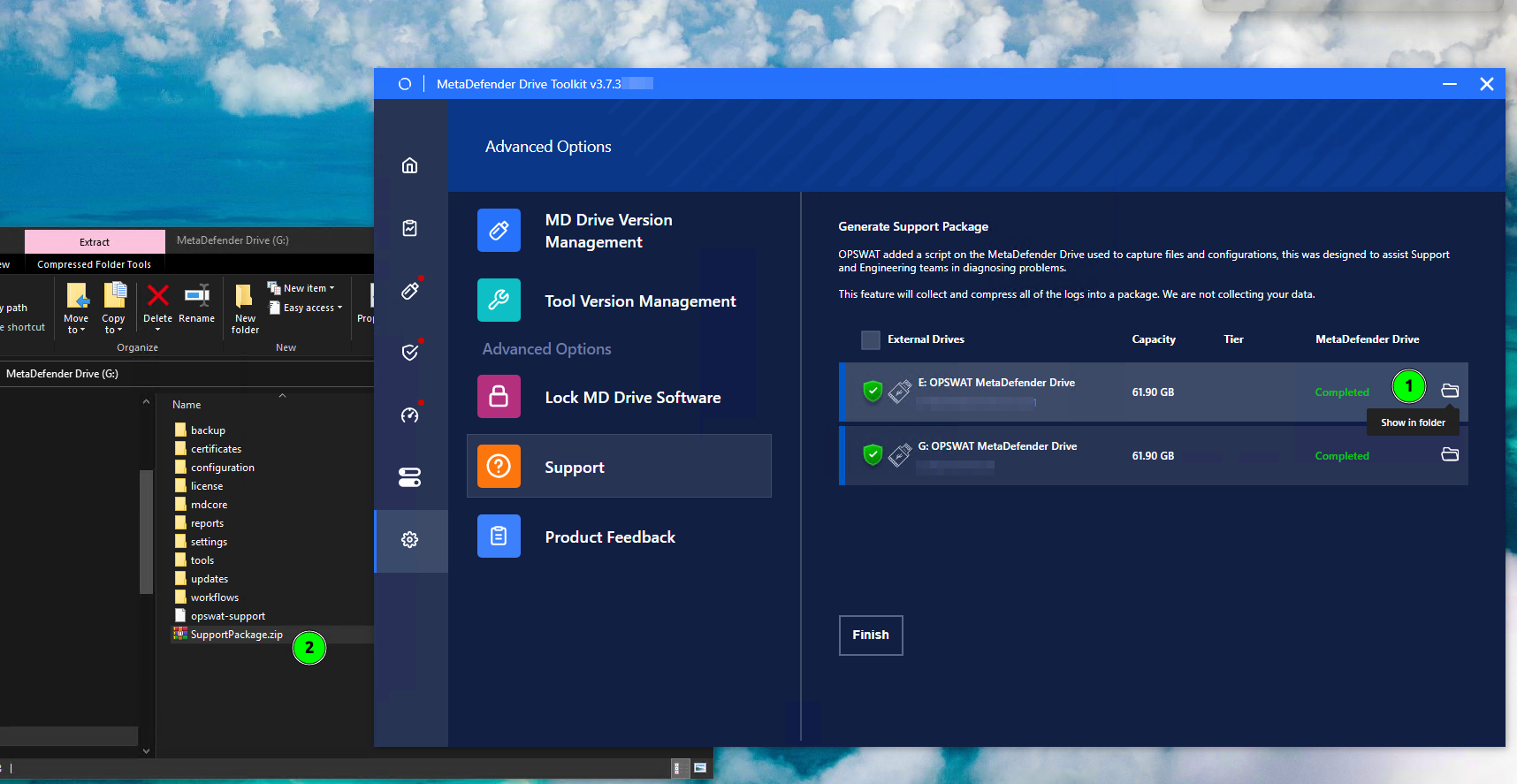
Navigate to Advanced Options → Support.
Select the drive you want to gathers its logs into a support package, identified by its serial number, and click Generate Support Package.
Track the progress until it shows the Completed status. The needed time will depend on how much reports and logs being located on the Drive's storages.
Simply click Show in folder button will open the relevant folder for you to find the generated Support Package.
You can also generate support packages for multiple MetaDefender Drives using this method.
3. Generate a Support Package during when MetaDefender Drive Malfunctions
If you face an issue while MetaDefender Drive is running, follow these steps:
Press and hold the keyboard keys ⌥ + ⇧ + F3 for 5 seconds.
Wait for the support package generation to complete and reset your system.
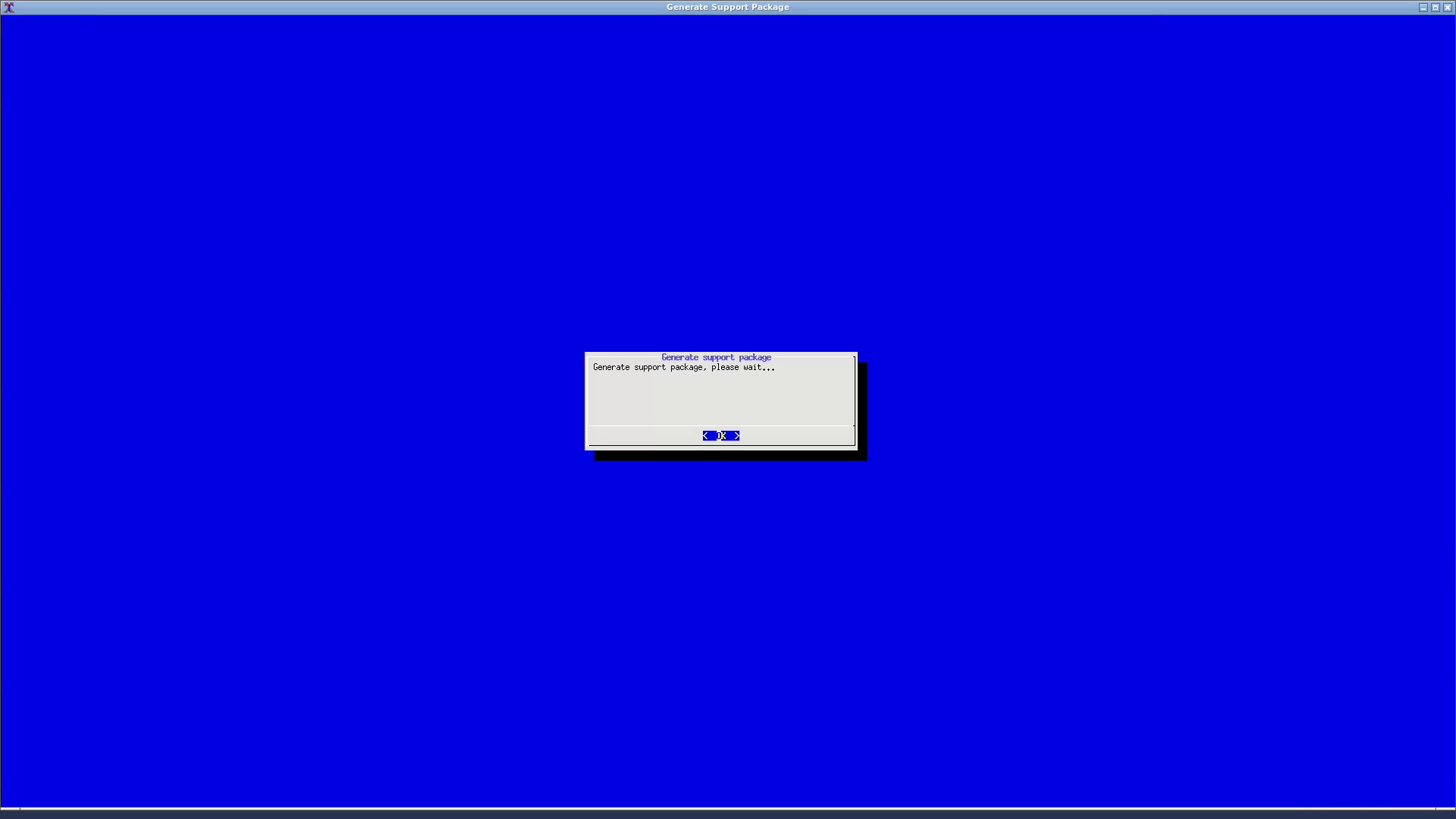
Generate a Support Package from a malfunctioning MetaDefender Drive
4. Generate a Support Package while MetaDefender Drive is running
Click the arrow icon at the bottom right corner, and click the Generate button from the Quick Actions menu.
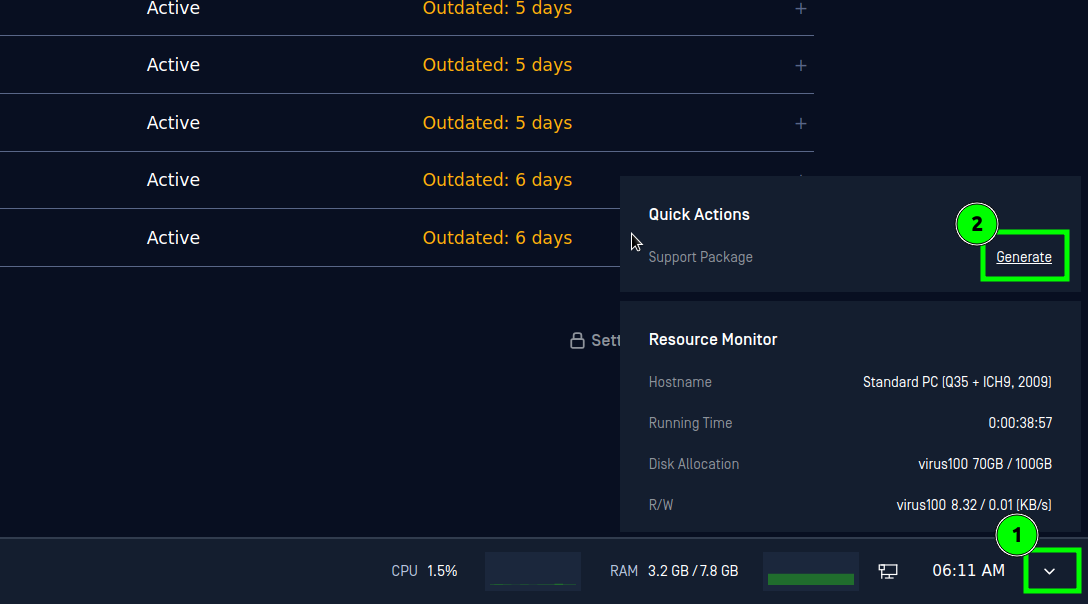
Generate a Support Package while MetaDefender Drive is running
Click Generate when prompted to confirm generating a support package.
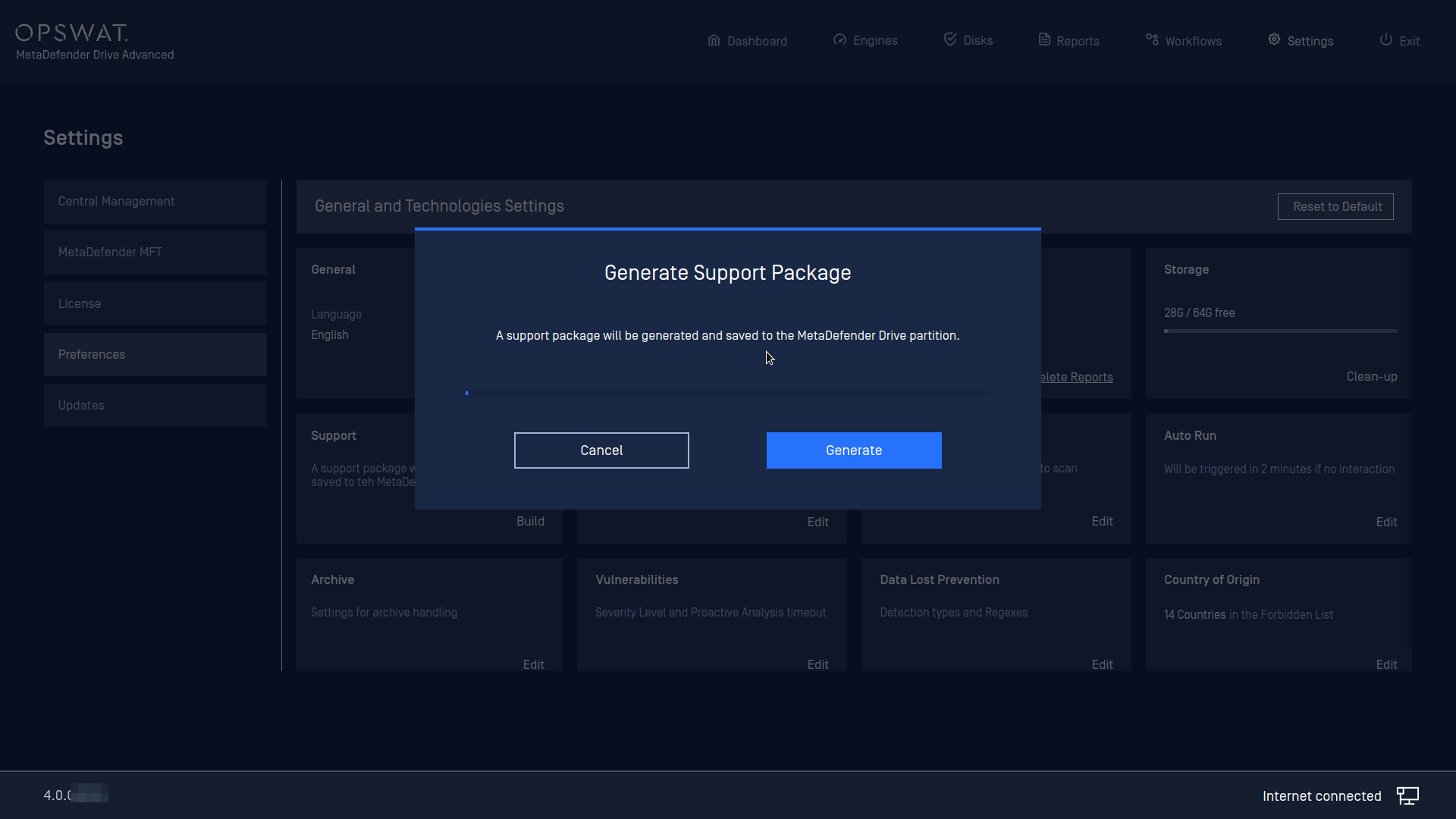
Confirmation prompt of generating a Support Package while MetaDefender Drive is running
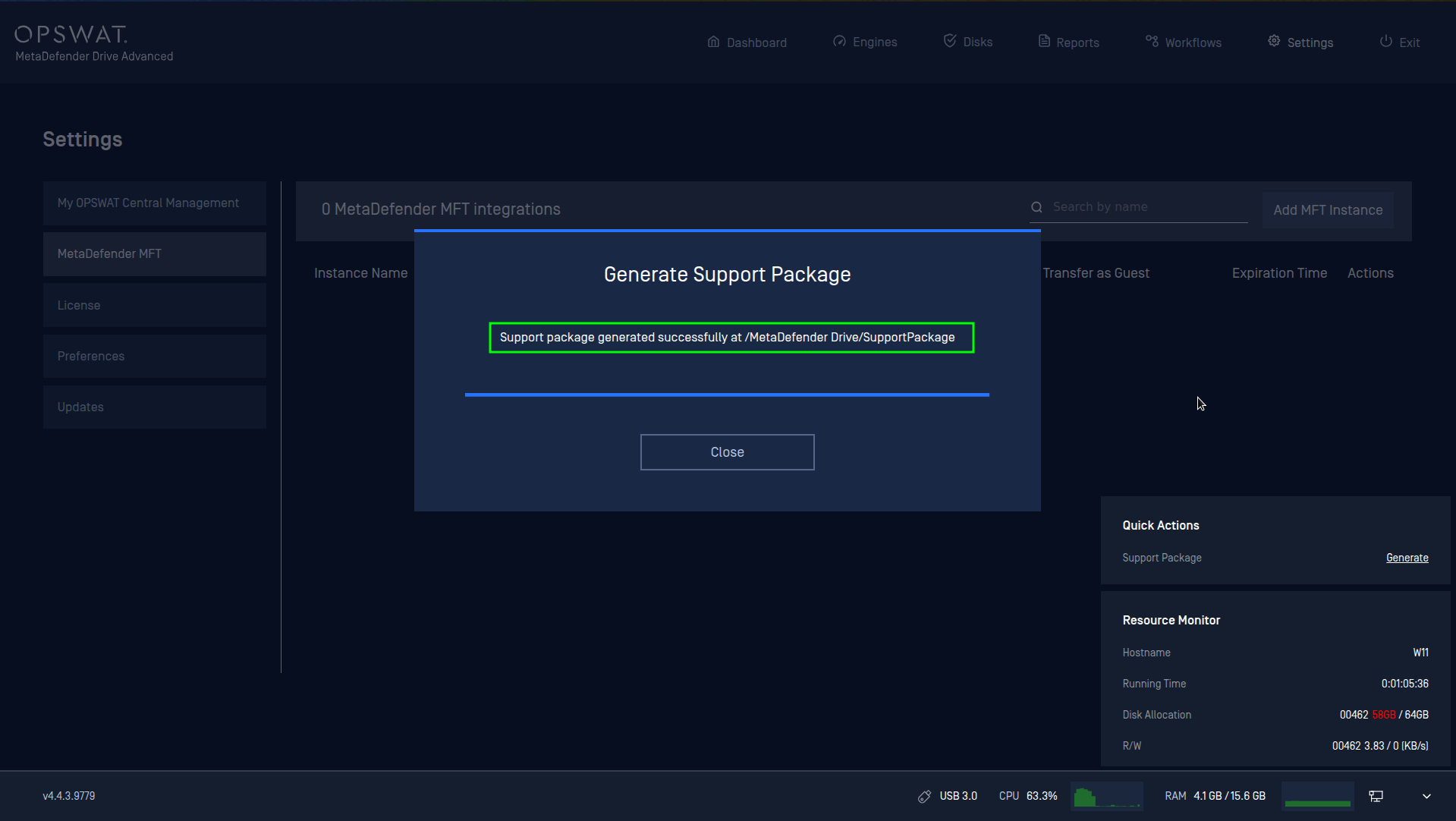
Wait until the support package is generated completely at the main storage of Drive
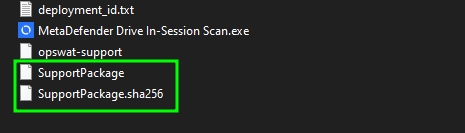
When plugging Drive into a Windows, browse to Drive's storage, the generated SupportPackage file will be seen there (with no file extension), along with another SupportPackage.sha256.
Note:
The Support Package is a compressed diagnostic archive generated from MetaDefender Drive that consolidates the information OPSWAT Technical Support requires to investigate device issues — including system logs, configuration files, process core dumps, and partition directory listings. The package is intended exclusively for transmission to OPSWAT and must not be modified or extracted independently. It does not contain the contents of any scanned media (USB drives or other external devices scanned by MetaDefender Drive) — only diagnostic data about the Drive appliance itself.
The package includes all logs still on the Drive, including those from earlier issues and sessions. A new package replaces the previous one on the Drive, so copy it off first if you need to keep it.
The accompanying SupportPackage.sha256 file contains the SHA-256 cryptographic hash of the archive, used to verify that the package has not been corrupted or tampered with during transfer.
5. Export Logs for MetaDefender Drive In-Session
From within MetaDefender Drive In-Session main window, select the menu (...) and click Export Logs
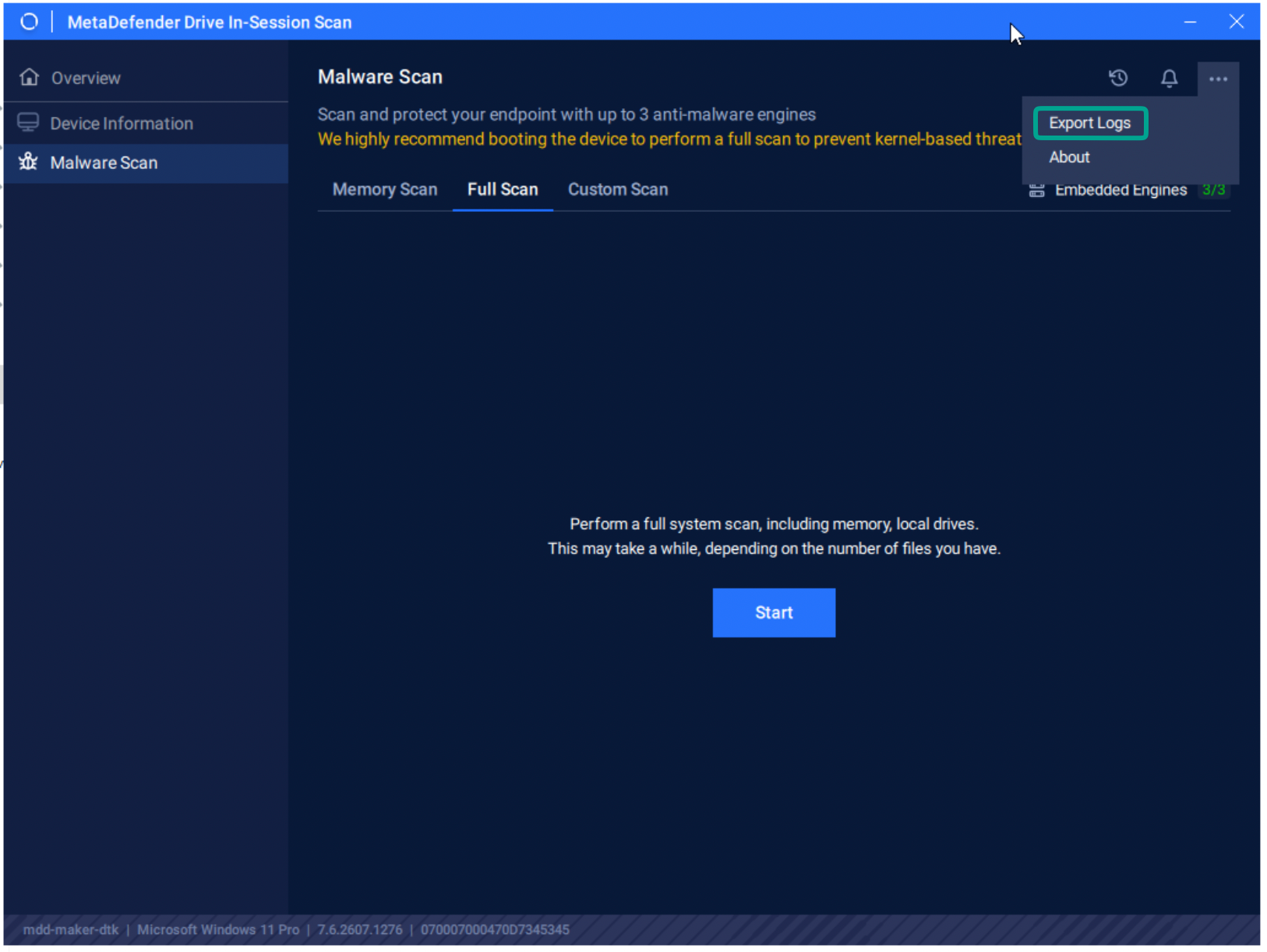
Follow the instruction on the message:
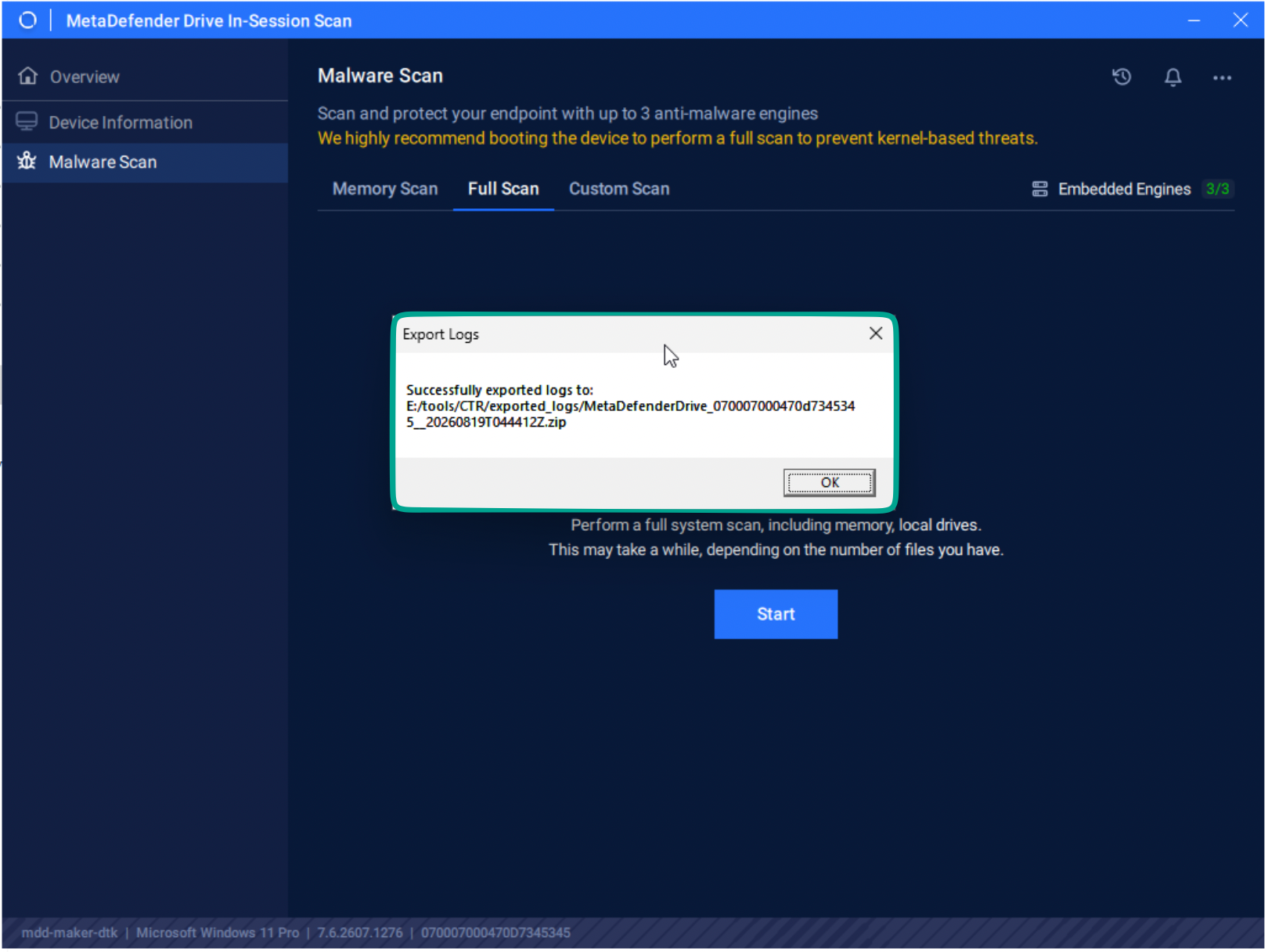
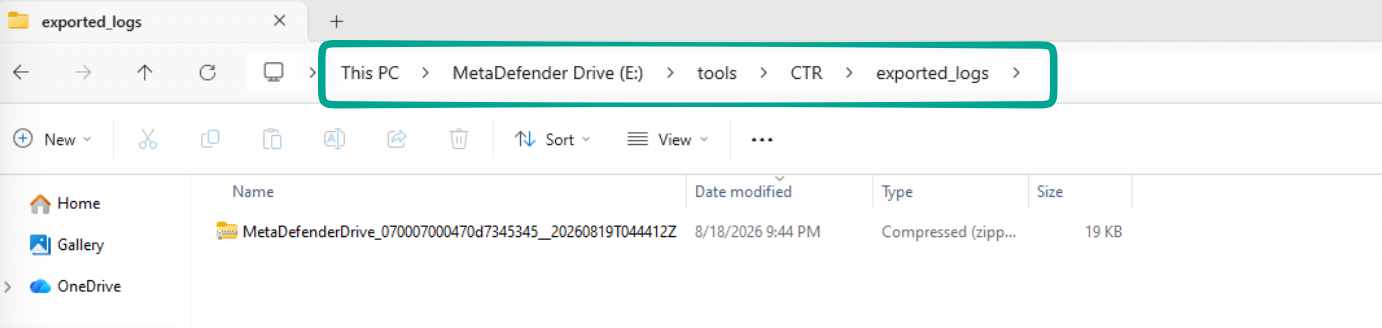
Navigate to the mounted partition (from where you run the MetaDefender Drive In-Session).
Go to tools/CTR/exported_logs and find the latest zip file.