
To manage the users of the Metadefender Update Downloader go to the Settings > User Management menu in the Web Management Console.
Users and groups
The Users and groups tab lists the existing users and Active Directory groups in the system.
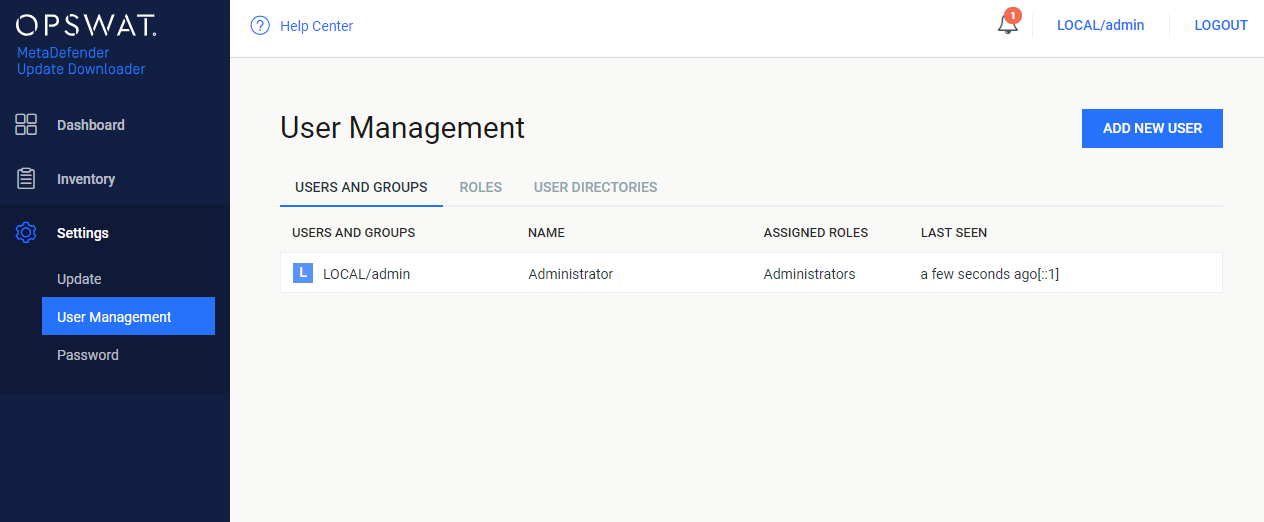
Default user
After installation a default user is created with the following credentials and parameters:
Username | Password | Name | Roles | User directory | |
|---|---|---|---|---|---|
admin | admin | Administrator | admin@localhost | Administrators | LOCAL |
Functions
Besides listing existing users and AD groups the Users tab provides the following functions:
Add new user or AD group
Modify (and view) existing user's or AD group's properties
Delete existing user or AD group
Add new user from a Local type user directory
To add a new user from a Local type user directory click the ADD NEW USER button and select a Local type user directory in the USER DIRECTORY drop down list.
The field ASSIGN TO ROLES lists all the roles that are assigned to this user. See section Assign roles to a user or an Active Directory group for details about role assignment.
As long as TLS is not configured for the Web Management Console, passwords are sent clear-text over the network. To set up TLS see Configuring TLS.
The APIKEY value provides access to the Metadefender Update Downloader REST API for this user with no authentication. If no such functionality is needed for the user then this field can be left blank.
Add new users from an Active Directory type user directory
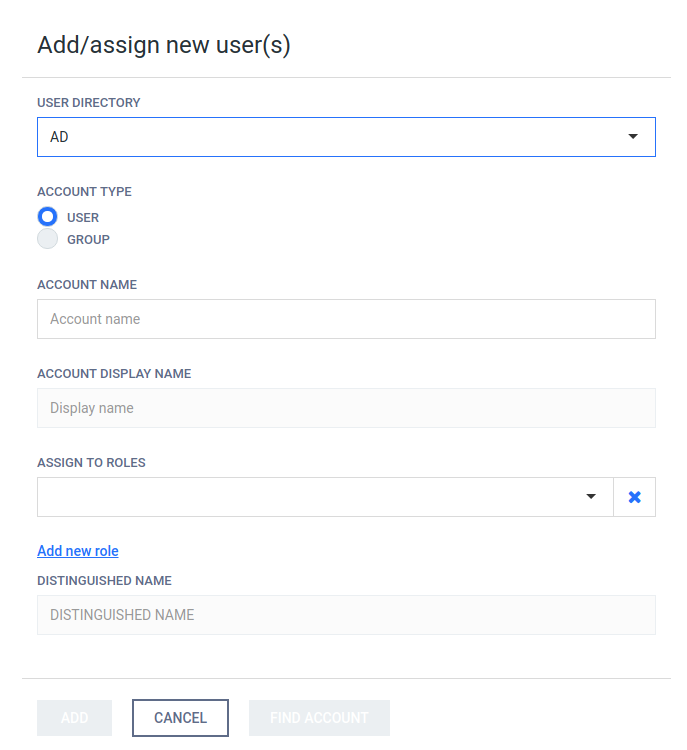
To add a new user from an Active Directory type user directory click the ADD NEW USER button and select an Active Directory type user directory in the USER DIRECTORY drop down list. Select USER as the ACCOUNT TYPE.
Provide the name of the account and click the FIND ACCOUNT button to look up the account in the Active Directory. If the lookup succeeds then the ACCOUNT DISPLAY NAME and the DISTINGUISHED NAME fields are filled automatically.
Do provide the account name precisely. There is no functionality to look up similar names or partial matches.
The field ASSIGN TO ROLES lists all the roles that are assigned to this user. See section Assign roles to a user or an Active Directory group for details about role assignment.
Add new group from an Active Directory type user directory
The purpose of adding an Active Directory group to the Metadefender Update Downloader is to assign Update Downloader role(s) to all the users in that Active Directory group.
The users of the Active Directory group can authenticate with their Active Directory credentials in Metadefender Update Downloader Web Management Console and will be assigned with the roles of the group.
To add a new group from an Active Directory type user directory click the ADD NEW USER button and select an Active Directory type user directory in the USER DIRECTORY drop down list.
Select GROUP as the ACCOUNT TYPE.
Provide the name of the group and click the FIND ACCOUNT button to look up the group in the Active Directory. If the lookup succeeds then the ACCOUNT DISPLAY NAME and the DISTINGUISHED NAME fields are filled automatically.
Do provide the account name precisely. There is no functionality to look up similar names or partial matches.
The field ASSIGN TO ROLES lists all the roles that are assigned to all users of this group. See section Assign roles to a user or an Active Directory group for details about role assignment.
Assign roles to a user or an Active Directory group
Role(s) must be assigned to users and Active Directory groups in order they can use the Web Management Console.
The field ASSIGN TO ROLES in the Add/assign new user(s) and Modify user dialogs lists all the roles that are assigned to the user.
The following is the role assignment policy:
At least one role must be assigned to a user or Active Directory group
Optionally multiple different roles can be assigned
In this case the highest available permission applies to each function. Example:
Roles assigned | Effective permissions | |
|---|---|---|
Full permission | Read only permission | |
security_admin | Update history, Engines, Update settings | |
security_auditor | All permission | |
security_admin AND security_auditor | Update history, Engines, Update settings | Config history, License, User management |
Delete user
Active sessions of the deleted user will be aborted at the time of the next interaction with the server.