
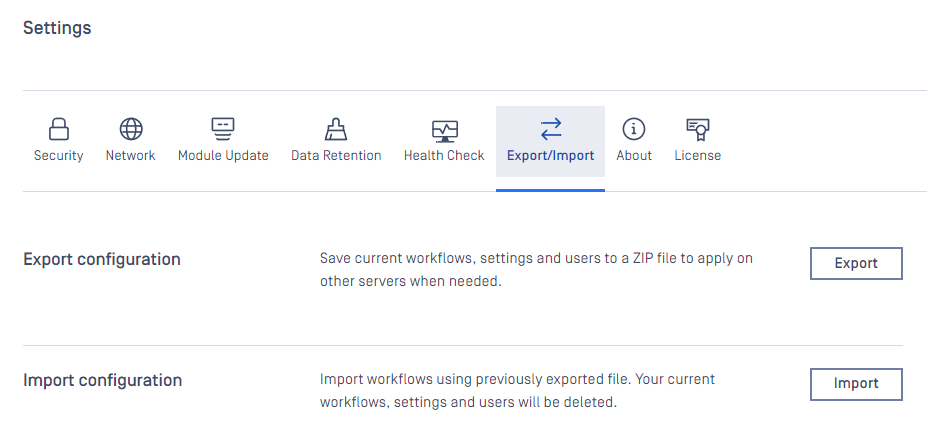
MetaDefender Core current configuration can be exported or a new one can be imported under the Settings > Export/Import page.
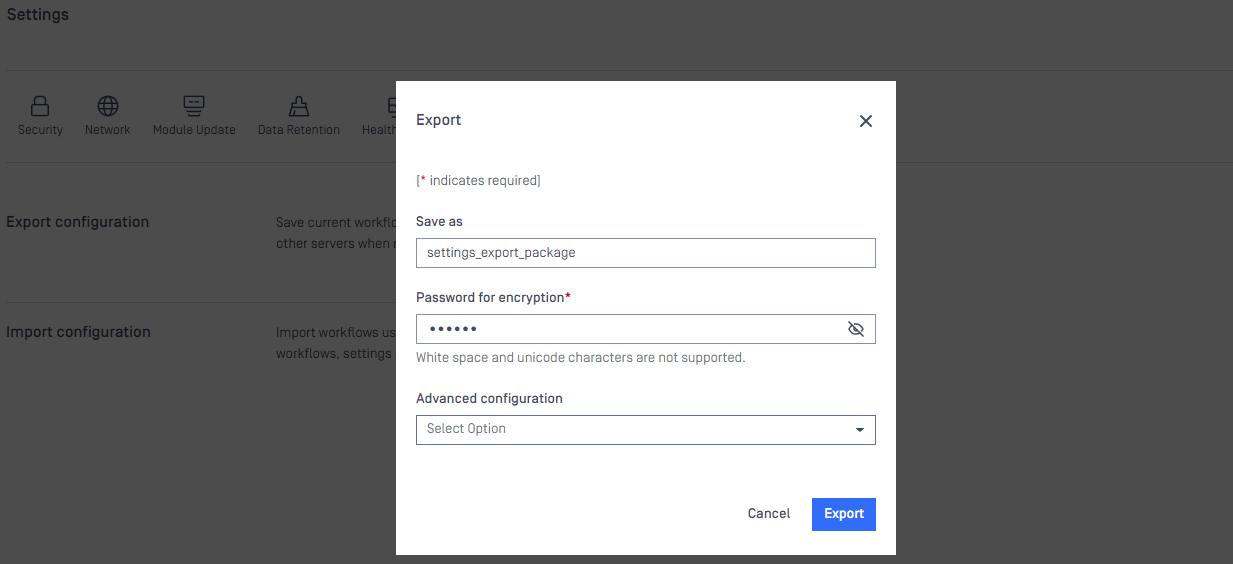
Export
Click the export button to set the password to encrypt the archive package for exported configurations. This package will contain the following configurations:
Workflow rules and workflow templates and security zones
Configuration in the Inventory menu
Skip by Hash
External Scanners
Certificates
Post Actions
Password storage
Almost settings on Settings:
General: queue size and Login banner
Email notification: all
Security: Password policies, Session policies, Scan from link settings
Network: Email server, Proxy
Module update: Update source, Engine dependency
Data Retention: Automatic deletion
Health Check: all
Central Management: all
Users management settings: users, role, directories
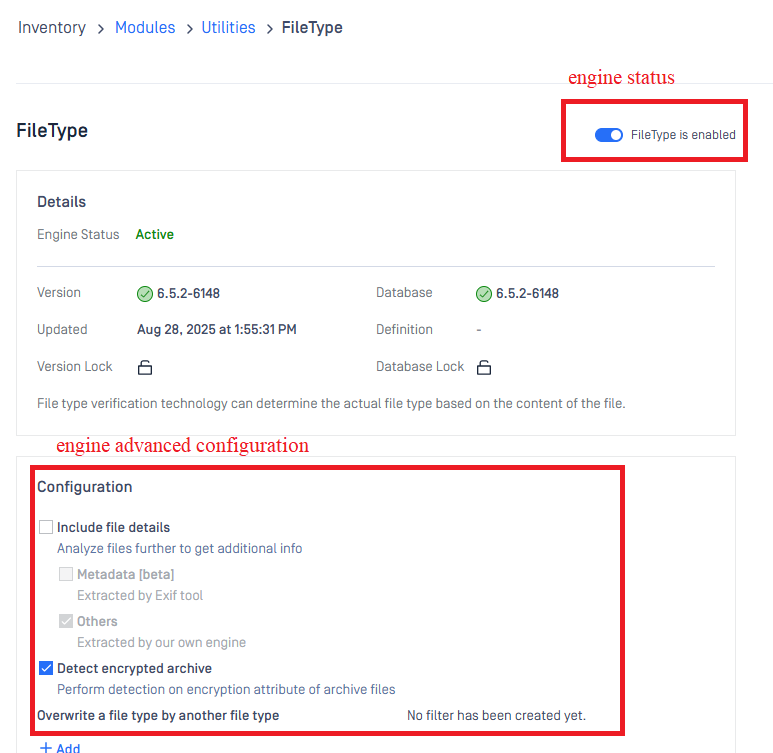
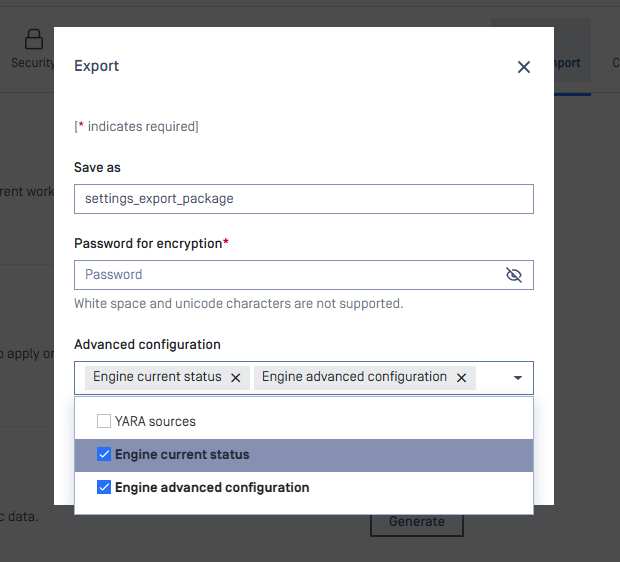
Engine status and engine advanced configuration: these options are OFF by default, user need to select these options if want to export:
Engine current status: the current status of the engines: Enable or Disable
Engine advanced configuration: The advanced configuration of the engines - user can find it in the Inventory > Modules > Select engine, for example FileType
Yara sources setting: OFF by default, user need to select YARA sources in Advanced configuration when export
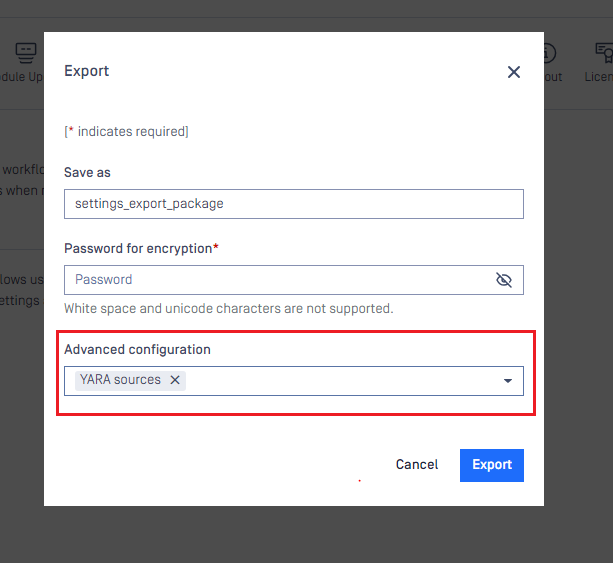
The exported archive package must be set with a password to encrypt because it might contain sensitive data including user information.
Import
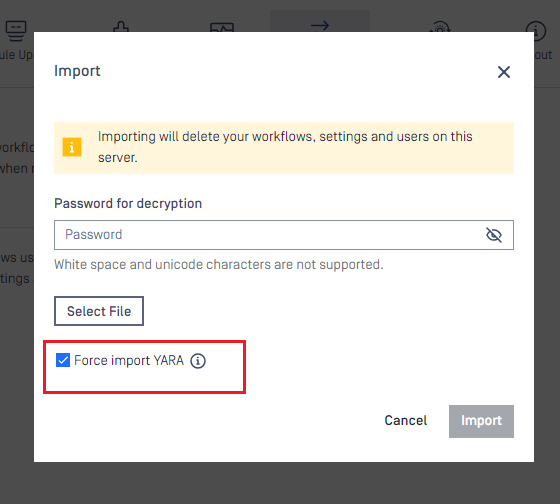
Choose the exported package and also input proper password to import.
Besides package import support, you can also import JSON config file like in MetaDefender Core v4.
JSON config file is only for MetaDefender Core workflow settings.
After the successful import, the new configurations will replace the current one.
YARA sources will be not imported by default. User need to select Force import YARA to import it
Troubleshooting
Occasionally, errors may occur during the configuration import process. This section aims to provide a clear understanding of the issue.
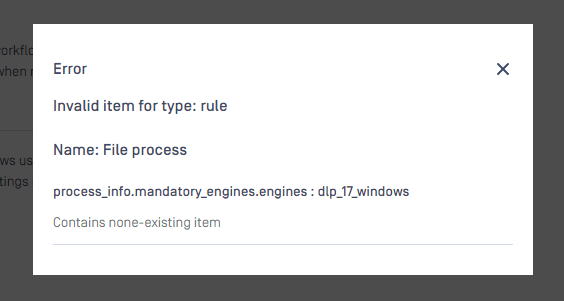
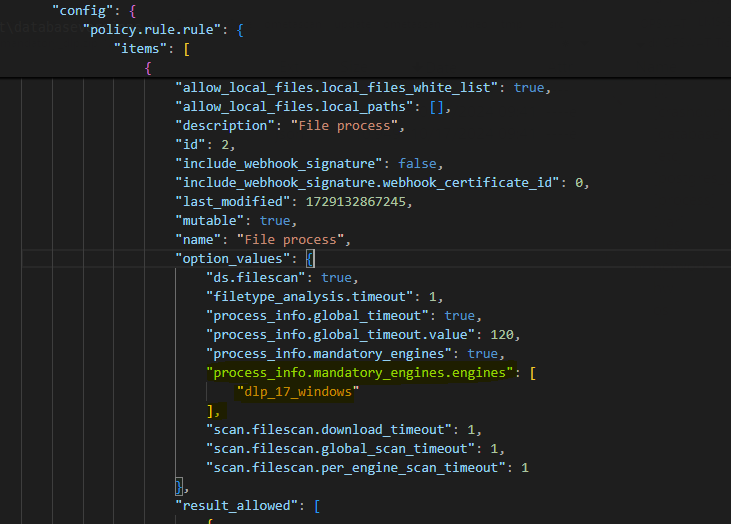
Mandatory engines are missing
Name | Description |
|---|---|
Error details |
|
Root-cause | The imported zip contains the workflow rule named |
Remediation | There are 2 options:
|
Excluded engines are missing
Name | Description |
|---|---|
Error details |
|
Root-cause | The imported zip contains the workflow rule named |
Remediation | There are 2 options:
|
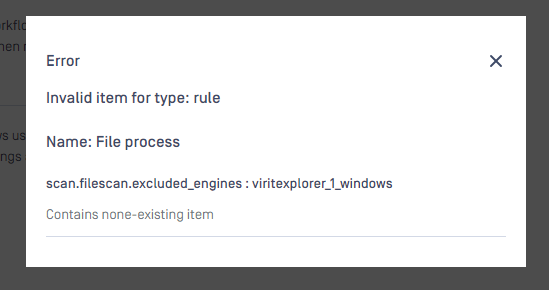
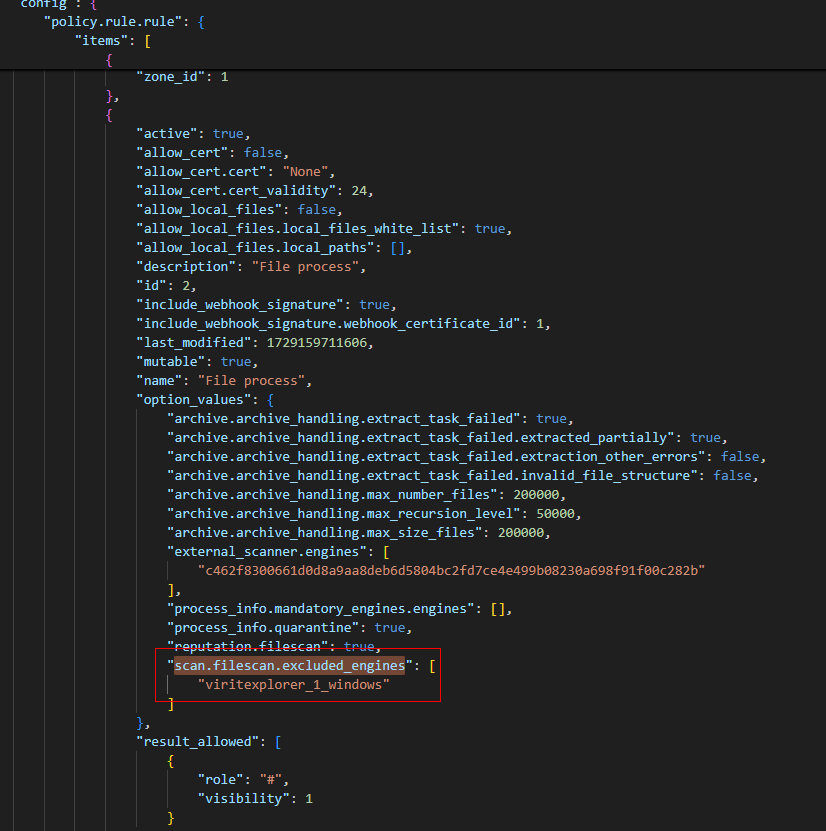
The required engines in Health Check are missing
Name | Description |
|---|---|
Error details |
|
Root-cause | The imported zip has Health Check setting, in this section, it contains a setting for "Required engines" For example, in the zip file, it has configured Ahnlab as required engine for Health Check, but in the current MD Core, the license does not contains this engine, or simply this MD Core does not add license yet. |
Remediation | There are 2 options:
|
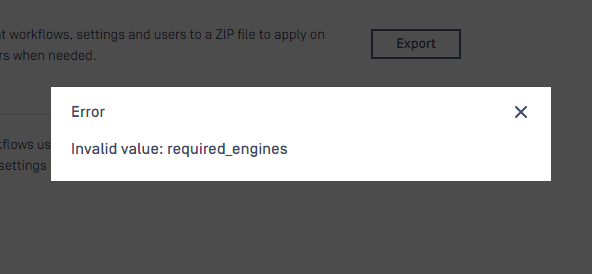
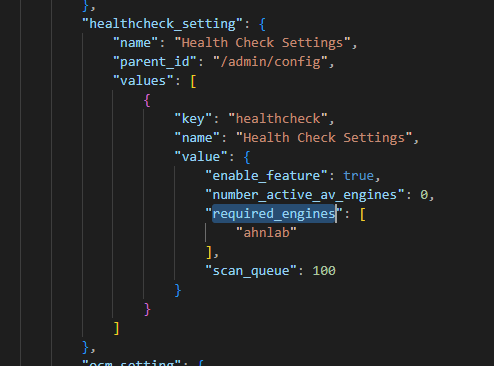
The batch cert that using in the workflow is missing
Name | Description |
|---|---|
Error details |
|
Root-cause | The imported zip contains the workflow rule named |
Remediation | There are 2 options:
|
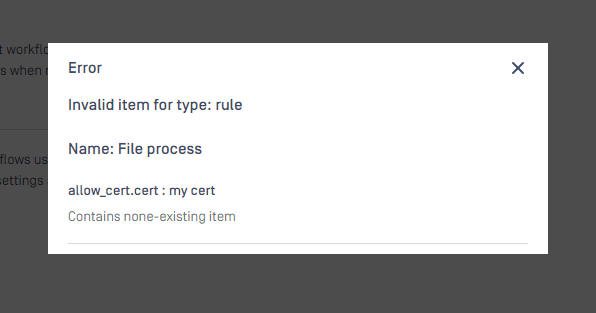
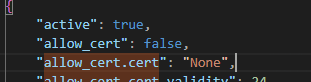
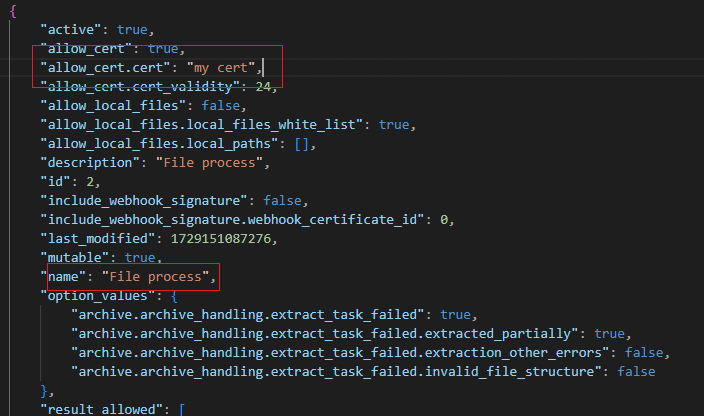
The webhook signature using in the workflow is missing
Name | Description |
|---|---|
Error details |
|
Root-cause | The imported zip contains the workflow rule named |
Remediation | There are 2 options:
|
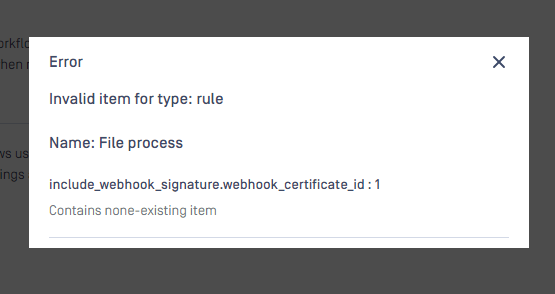
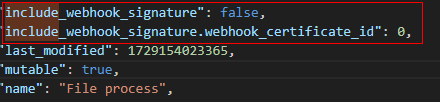
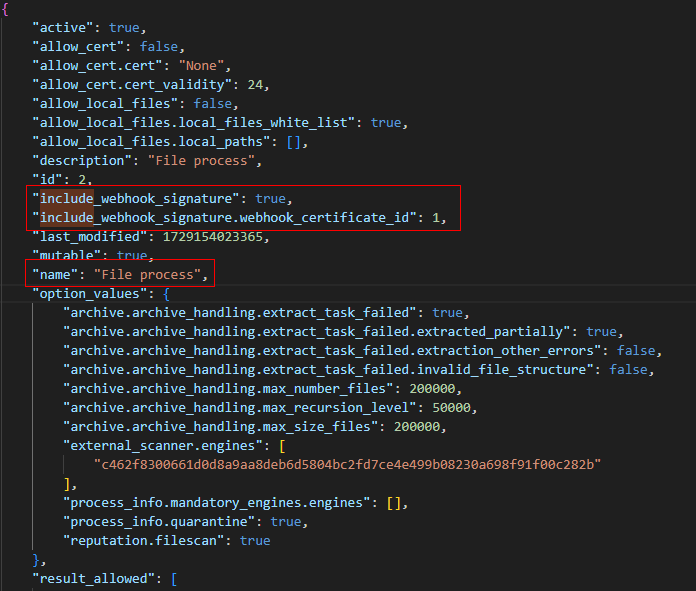
Manually modify the zip file
Please get in touch with OPSWAT for support if you have any difficulty in modifying the zip file
Before do anything, please back up the current file.
Extract the zip file, it will contain 3 files inside:
wf_config_export.json → workflow rules/template related settings.
settings_export.json → general configuration.
skip_list.data → data from the 'skip by hash' list.
Open the JSON file that you want to modify
After the modification, save the file. Re-zip the file again with password. We highly recommend using 7-Zip to compress the file