
Create OneLogin application
Access OneLogin and sign in.
On the navigation bar, click
Administrationto access administrator mode, then click onApplicationsto add a new application for integration.

Click
Add Appto add a new application.

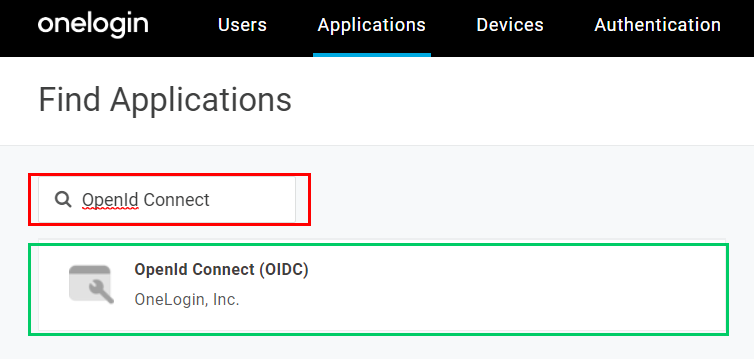
Enter "OpenId Connect" in the search box and select
OpenId Connect (OIDC)in the results panel.
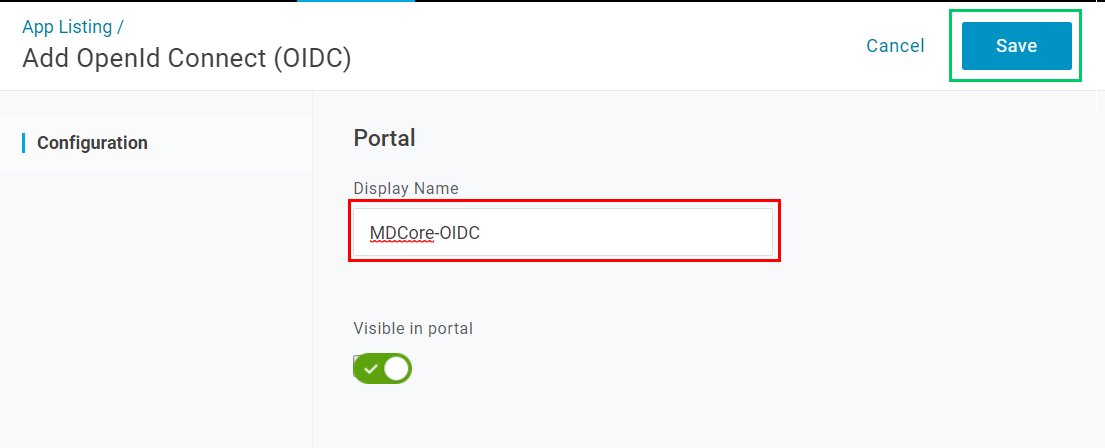
In the new page, fill in
Display Namewith MDCore-OIDC, for example, and clickSave.
Create OIDC directory in MetaDefender Core
Sign in to MetaDefender Core.
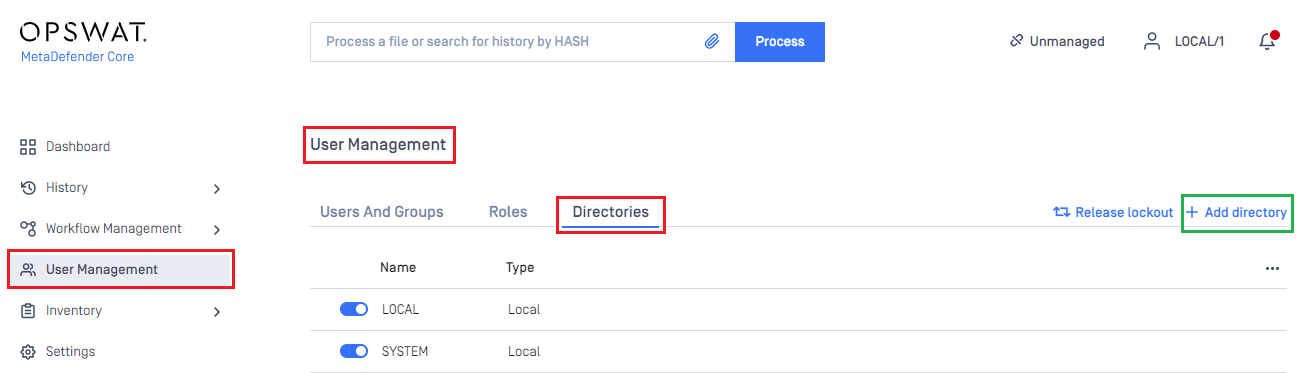
In the dashboard, click on
User Managementin the left sidebar.On
User Managementpage, selectDirectoriestab and clickAdd Directoryin the top right corner.
In
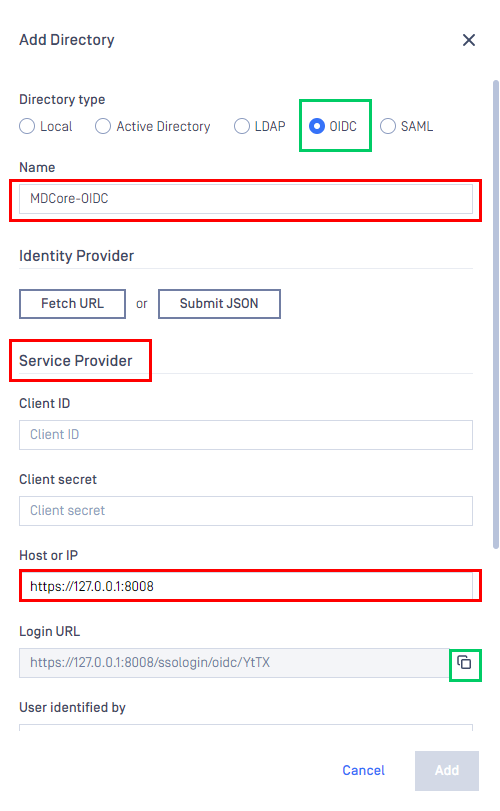
Add Directorypage, select OIDC asDirectory type, and enter a name for the new directory, such as MDCore-OIDC.Enter
Host or IPwhere MetaDefender Core is hosted, for this example use https://127.0.0.1:8008.Copy the string generated under
Login URL.
Complete configuration in OneLogin
Back to
Applicationsscreen in OneLogin.Choose
Configurationin the left side bar and paste value ofLogin URLfrom MetaDefender Core intoRedirect URI'sfield.
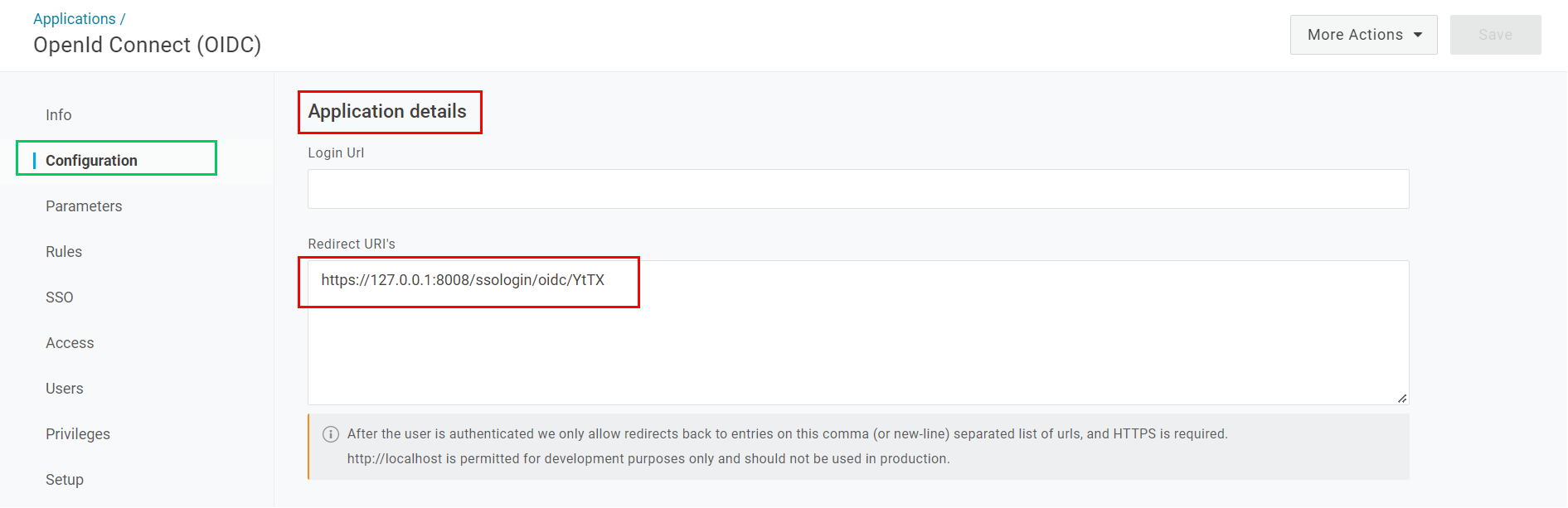
In
SSOof the left side bar, underEnable OpenID Connectsection, copyClient ID,Client Secret, andIssuer URL.
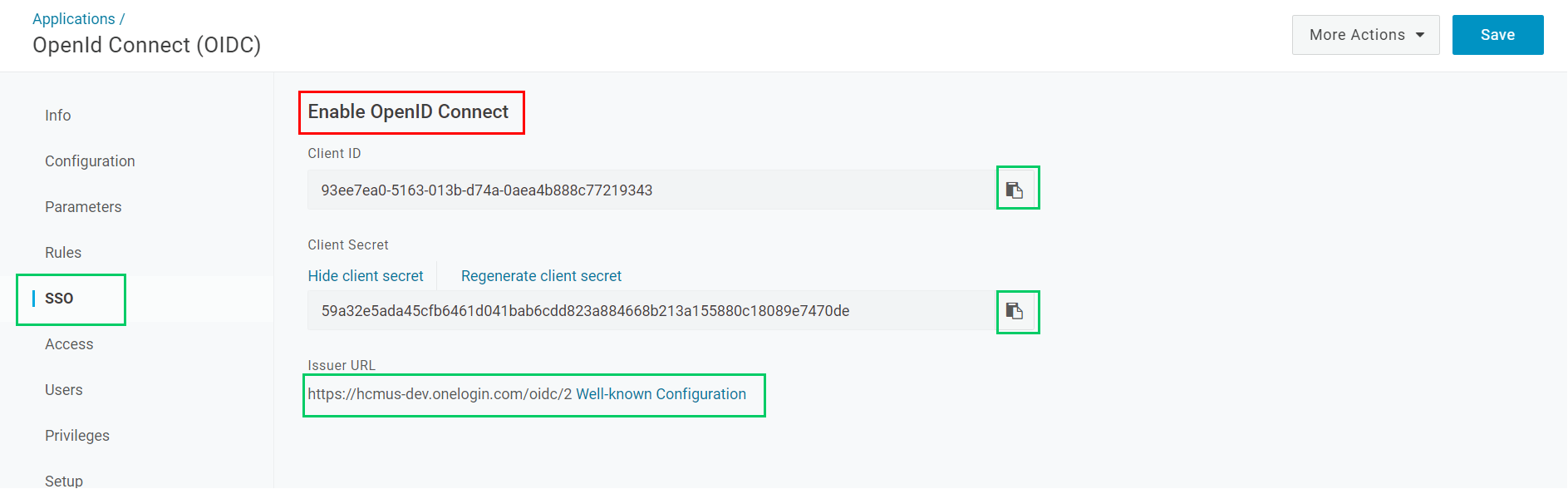
Click
Saveto complete.
Complete configuration in MetaDefender Core
Switch back to MetaDefender Core. Under
Identity Provider, clickFetch URL, paste value ofIssuer URLfrom OneLogin into the box below, clickOK, and wait a moment for MetaDefender Core to check and set OneLogin as its IdP.
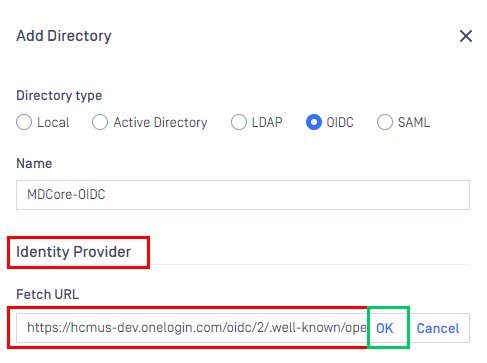
Under
Service Provider, paste the values ofClient IDandClient Secretfrom OneLogin into the boxes labeledClient IDandClient secret, respectively.
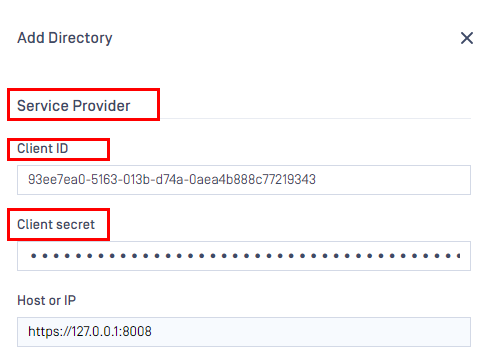
Fill in
User Identified Bywith ${given_name}.Select
Default roleoption, choose the appropriate role underUser Role, and clickAddto complete.
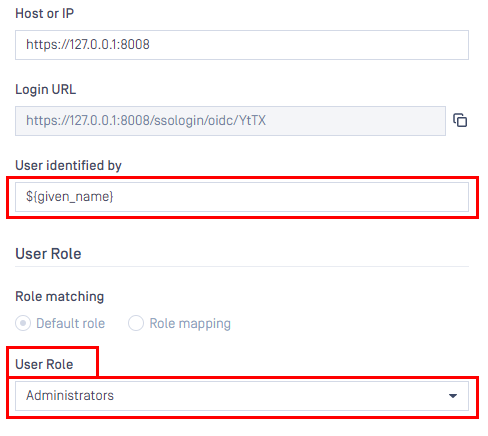
In
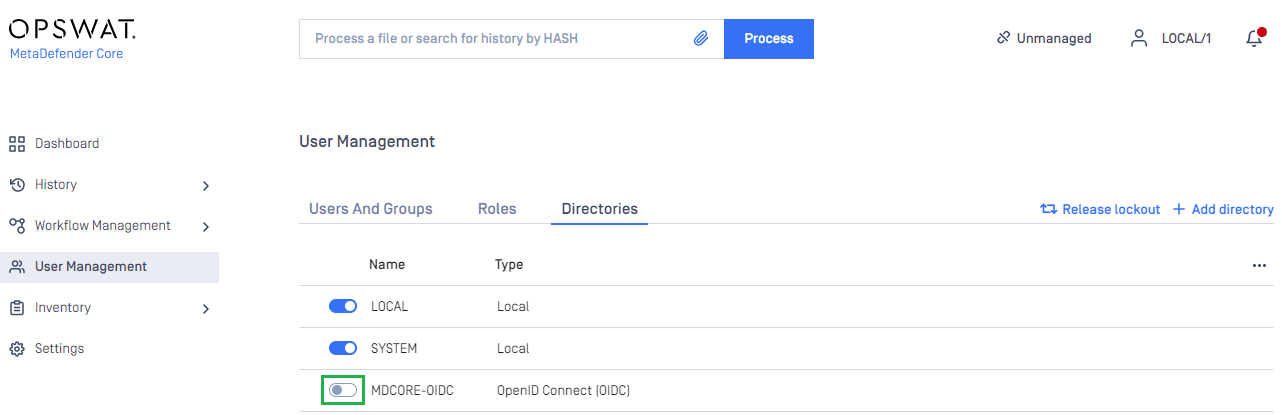
User Managementpage, toggle the new directory, MDCORE-OIDC in this example. A dialog box will appear to confirm the action. OnceEnableis clicked, all sessions will expire immediately.
Test the integration
On the home screen of MetaDefender Core, click
Login; the user is redirected to OneLogin page.
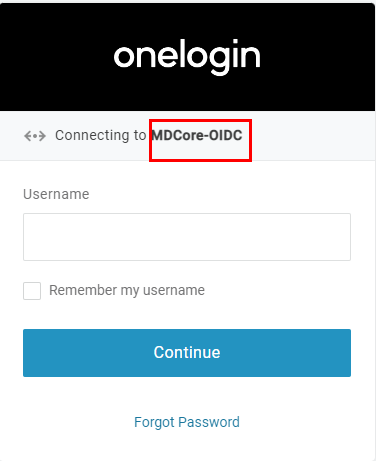
Sign in using the account registered with OneLogin.
If everything goes well, MetaDefender Core dashboard is displayed with the user identity in the top right corner.

Otherwise, access backup login page at
<mdcore-host>#/public/backuploginfor trouble shooting.