Setup HTTPS
Transport Layer Security (TLS) is a cryptographic protocol that provides communications security over a computer network. Websites, like the Web Management Console, are able to use TLS to secure all communications between their servers and web browsers.
The TLS protocol aims primarily to provide confidentiality (privacy) and data integrity between two communicating computer applications.
HTTPS is not enabled by default. As a consequence sessions between the wizard's backend and the browser may be insecure.
Steps to setup this feature:
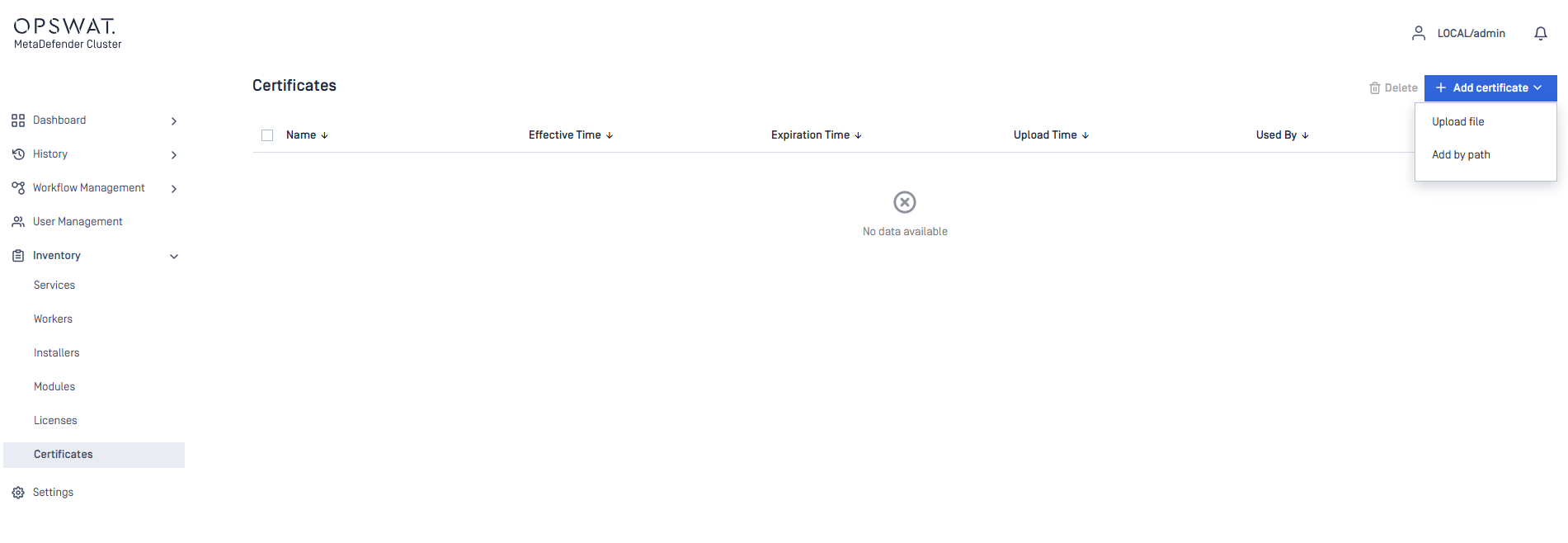
Go to
Inventory>CertificatesClick
Add certificateTo add a certificate using a file path, choose
Add by pathand enter the location of both the certificate and its corresponding private key file.To upload certificate file, select
Upload file.
Certificate YML sample file:
Go to
Settings>SecurityOn the
Secure Connectionsection, clickDetailsSelect
Enable Certificate, then select your certificate added in step 2.
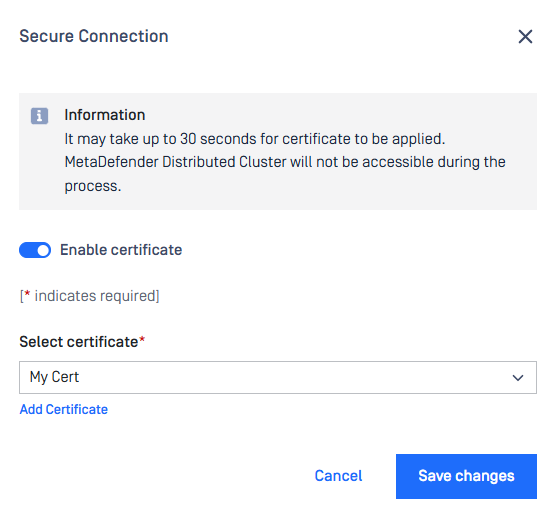
Applying HTTPS settings may take some time. During this process, the MetaDefender Cluster Control Center web console will be temporarily unavailable.
Password policies
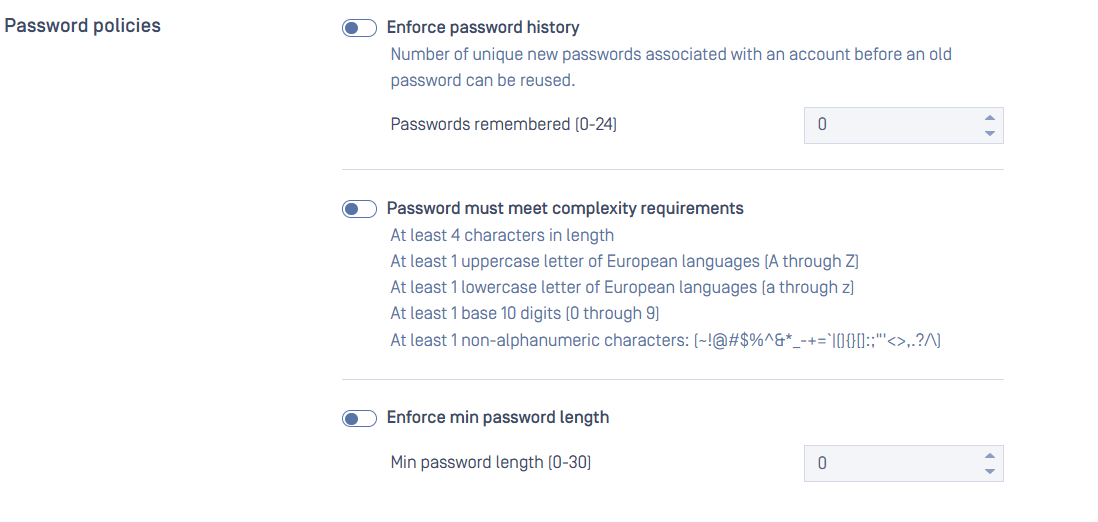
Password Policy settings are accessible under Settings > Securitytab.
These password policies changes only apply to new user creations and future password changes. Existing users' passwords are unaffected.
Local users' password can be enforced to meet requirements set by administrators, which includes following constraints:
Enforce password policy:
Determines the number of unique new passwords that must be associated with a user account before an old password can be reused
Range: [0-24]
Default: 0 (to disable enforcement)
Minimum password length:
The least number of characters that can make up a password for a user account
Range: [0-30]
Default: 0 (to disable enforcement)
Password must meet complexity requirements:
Determines whether passwords must meet a series of guidelines that are considered important for a strong password.
Default: unchecked
Session policies
Administrators can enforce session policies for local users to ensure compliance with organizational requirements, using the following settings:
Enable idle session timeout:
Idle timeout automatically terminates a user's session based on how long since their last recorded activity.
Default: 300 seconds.
Enable session timeout
Absolute timeout terminates an individual user's session after a fixed duration, regardless of any user activity.
Default: 0 (to disable enforcement)
Allow Duplicate Sessions
Permit the same user to log in and operate multiple sessions at once.
Default: Enabled.
Allow Cross IP Sessions
Permit requests from sources other than the authenticated origin.
Default: Disabled.